
Shopify Knowledge Base: Add Facts for AI Agents (2026)
The Shopify knowledge base is now in your admin: Sales channels, Agentic, Knowledge base. Add a fact, pick a type, save, and publish it for AI agents.
By AjayCodeWiz · November 29, 2026 · 7 min read
Shopify knowledge base: where it is now and how to add a fact
The Shopify knowledge base is a page in your admin where you write the facts AI agents get about your store: shipping, returns, gift options, anything a shopper might ask a chatbot. It lives under Sales channels, then Agentic, then Knowledge base. It replaces the standalone Knowledge Base app, which Shopify says will no longer be available after January 15, 2027.
Filmed on a development store (Basic plan, new admin) on 27 November 2026. The steps follow the video, with a screenshot for each one.
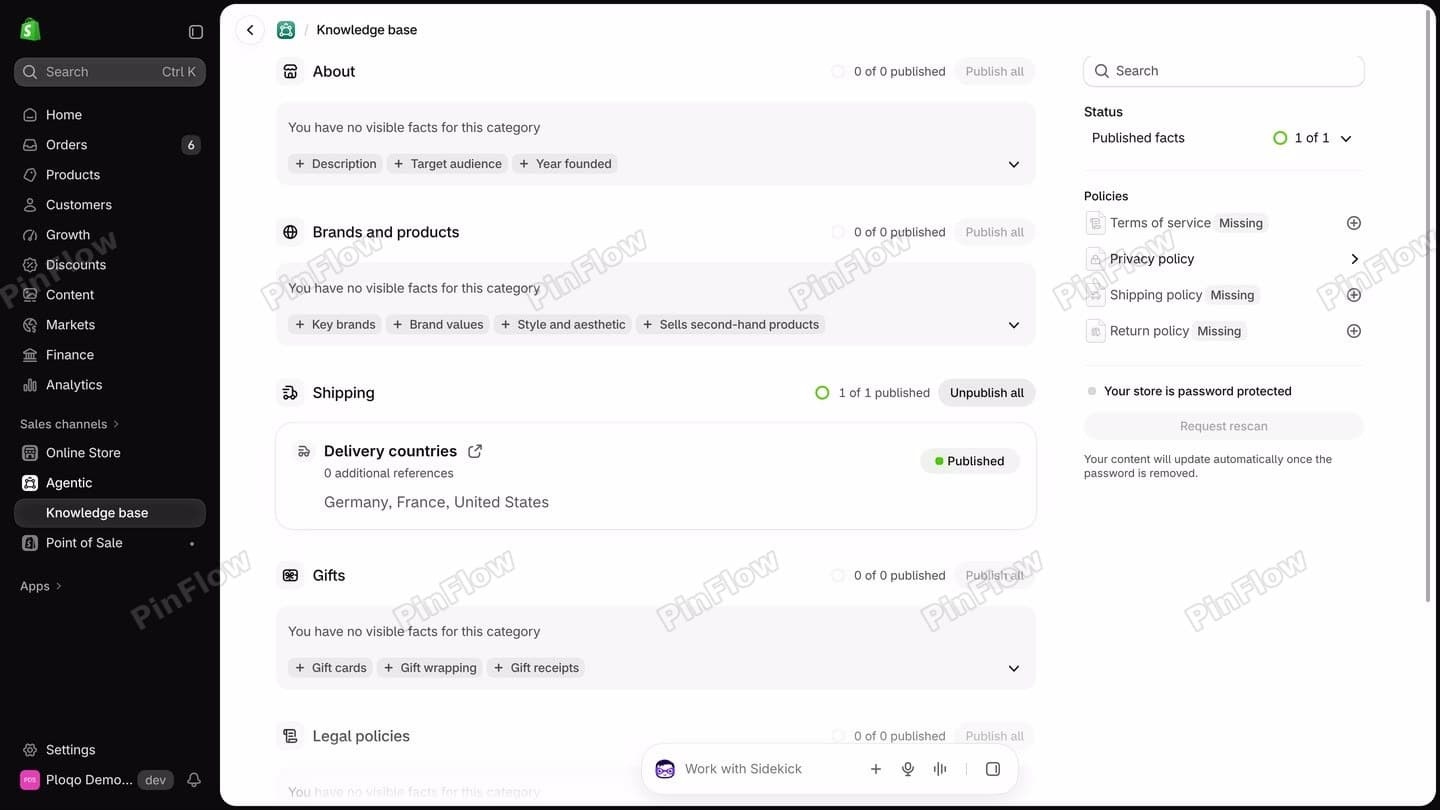 The Shopify Knowledge base page in the admin with sections About, Brands and products and Shipping, and a Status and Policies column on the right
Is the Shopify Knowledge Base app going away?
Yes. Shopify's changelog from October 26, 2026 says the Knowledge base is now built into the admin and replaces the app. The video opens on that post with the key sentence highlighted: it replaces the standalone Knowledge Base app, which will no longer be available after January 15, 2027.
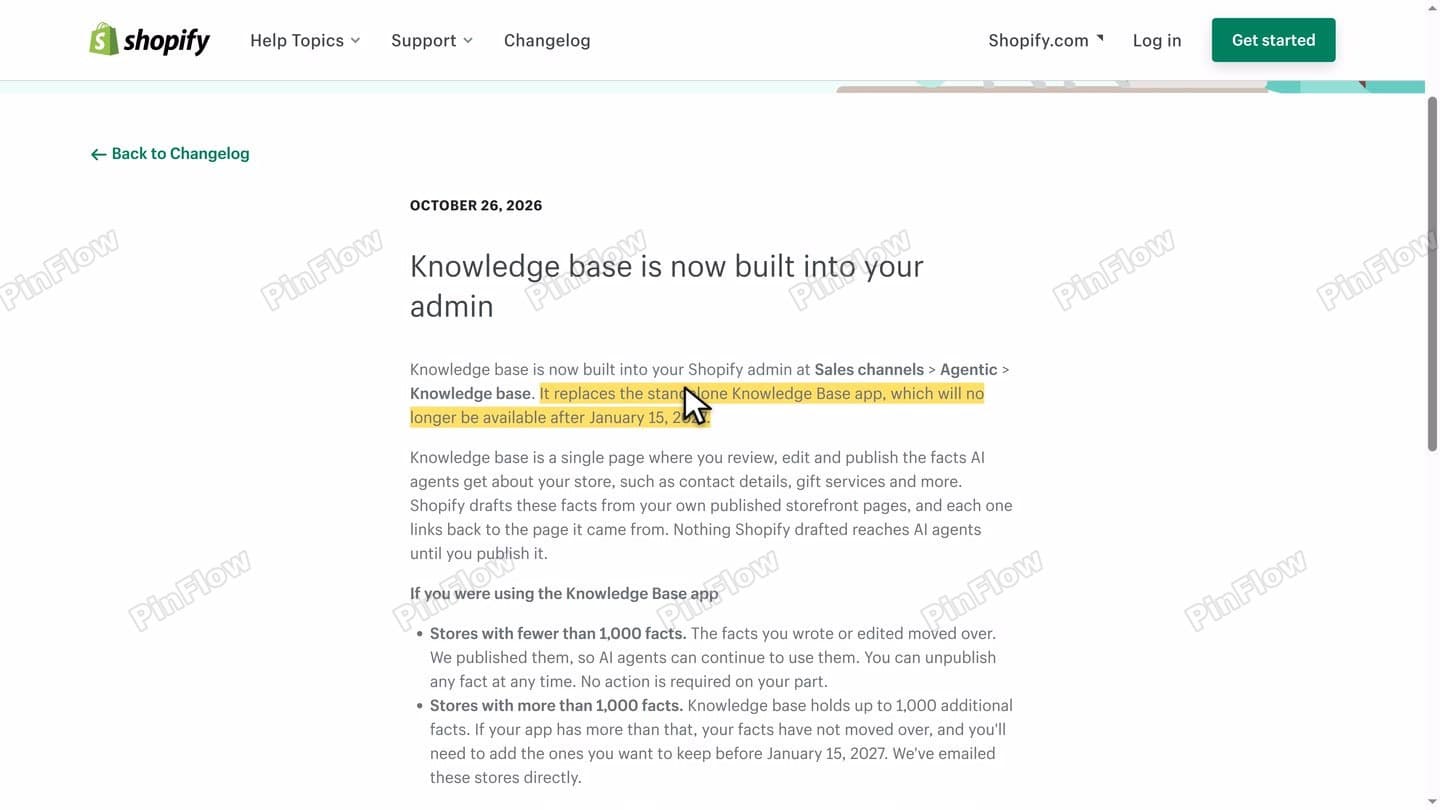 The Shopify changelog post Knowledge base is now built into your admin, dated October 26, 2026, with the sentence about the app no longer being available after January 15, 2027 highlighted
If you used the app and had 1,000 facts or fewer, the facts you wrote or edited were moved over and published. With more than 1,000, you add the ones you want to keep yourself before January 15, 2027. Shopify's help page says to compare a few facts in the old app with the new page, and to contact Shopify Support if something is missing.
Where is the Shopify knowledge base in the admin?
From the admin home, look at the left sidebar under Sales channels. Click Agentic, then Knowledge base, the page listed under it.
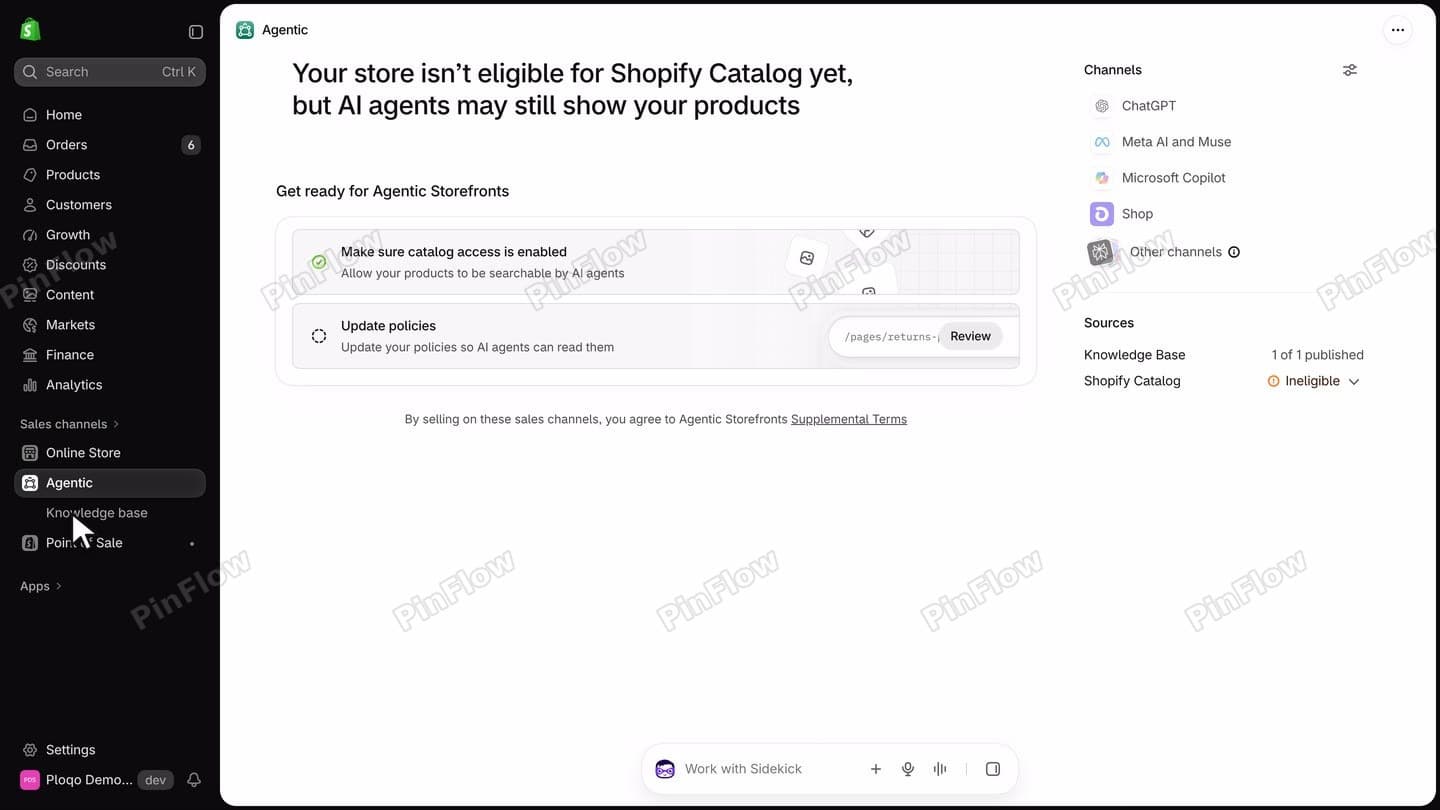 The Shopify admin sidebar under Sales channels with Agentic selected and Knowledge base listed below it
The page opens with your facts in sections. Our tour of the Agentic page shows the rest of what sits next to it.
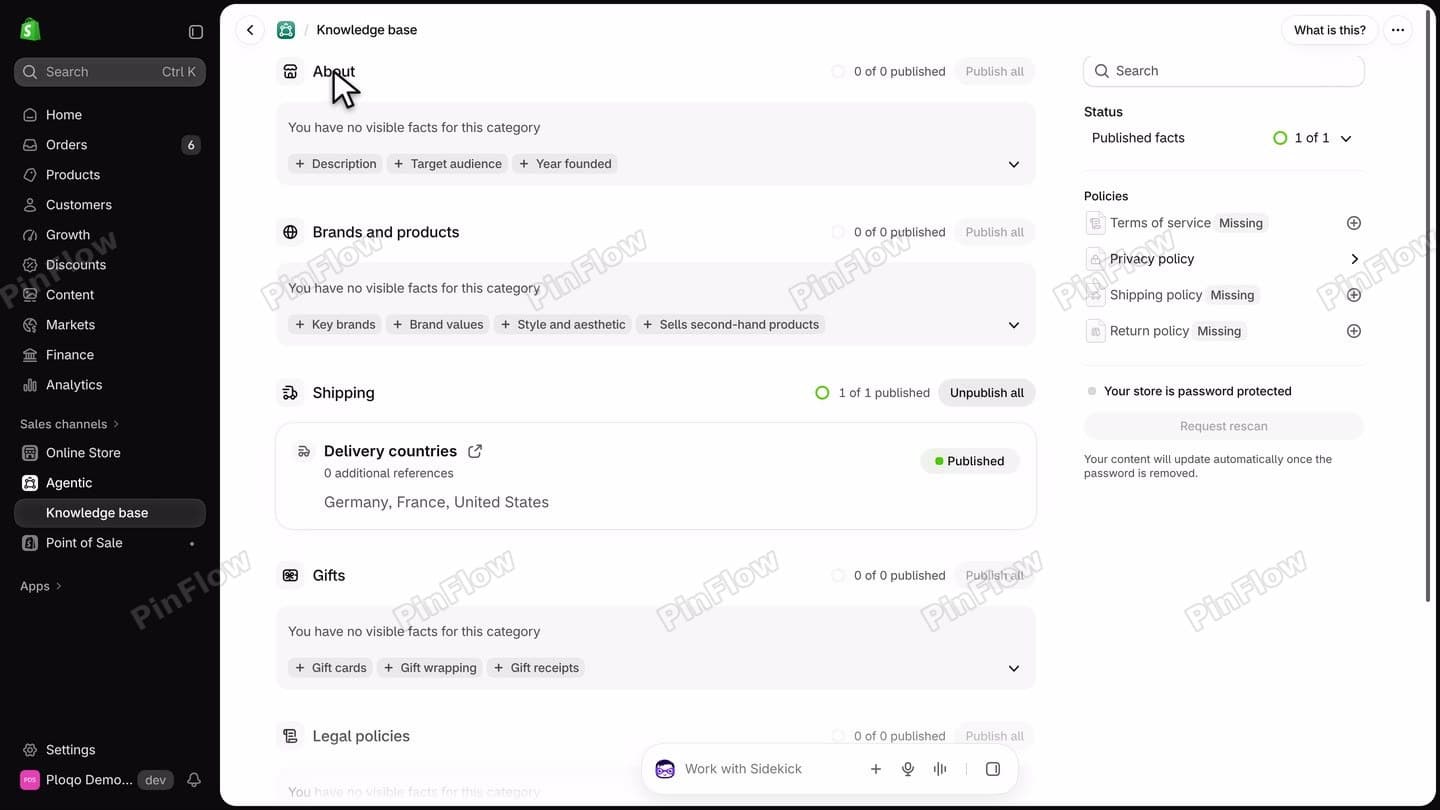 The Knowledge base page just after opening, with the About section at the top and the Knowledge base item highlighted in the sidebar
What is on the Shopify knowledge base page?
Facts are grouped by topic: About, Brands and products, Shipping, Gifts, Legal policies and Additional facts. Each section has its own published count.
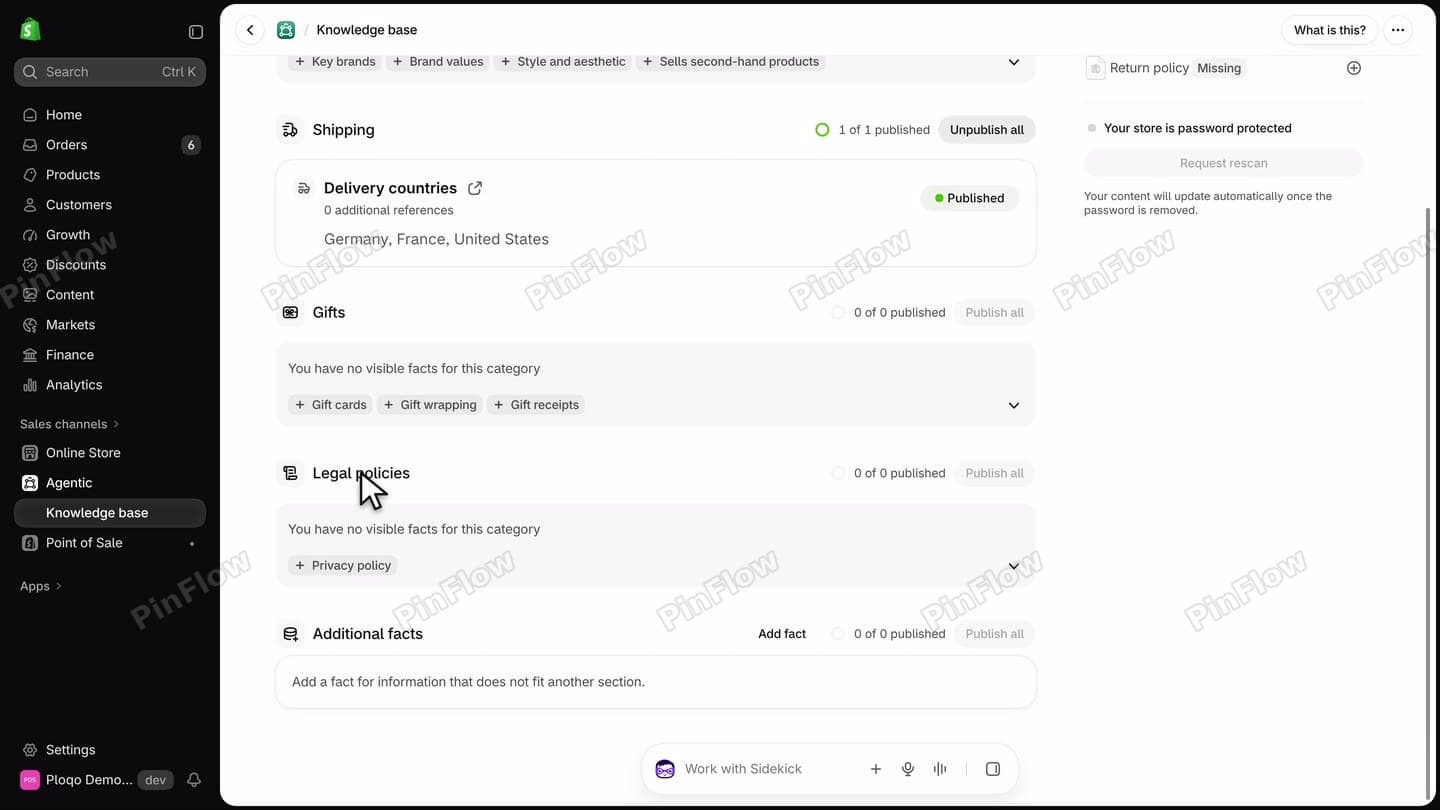 The Knowledge base page scrolled down to Legal policies and the Additional facts section with an Add fact button
Under About, the chips such as Description, Target audience and Year founded are facts Shopify suggests. Nothing is published from them until you write the fact and publish it.
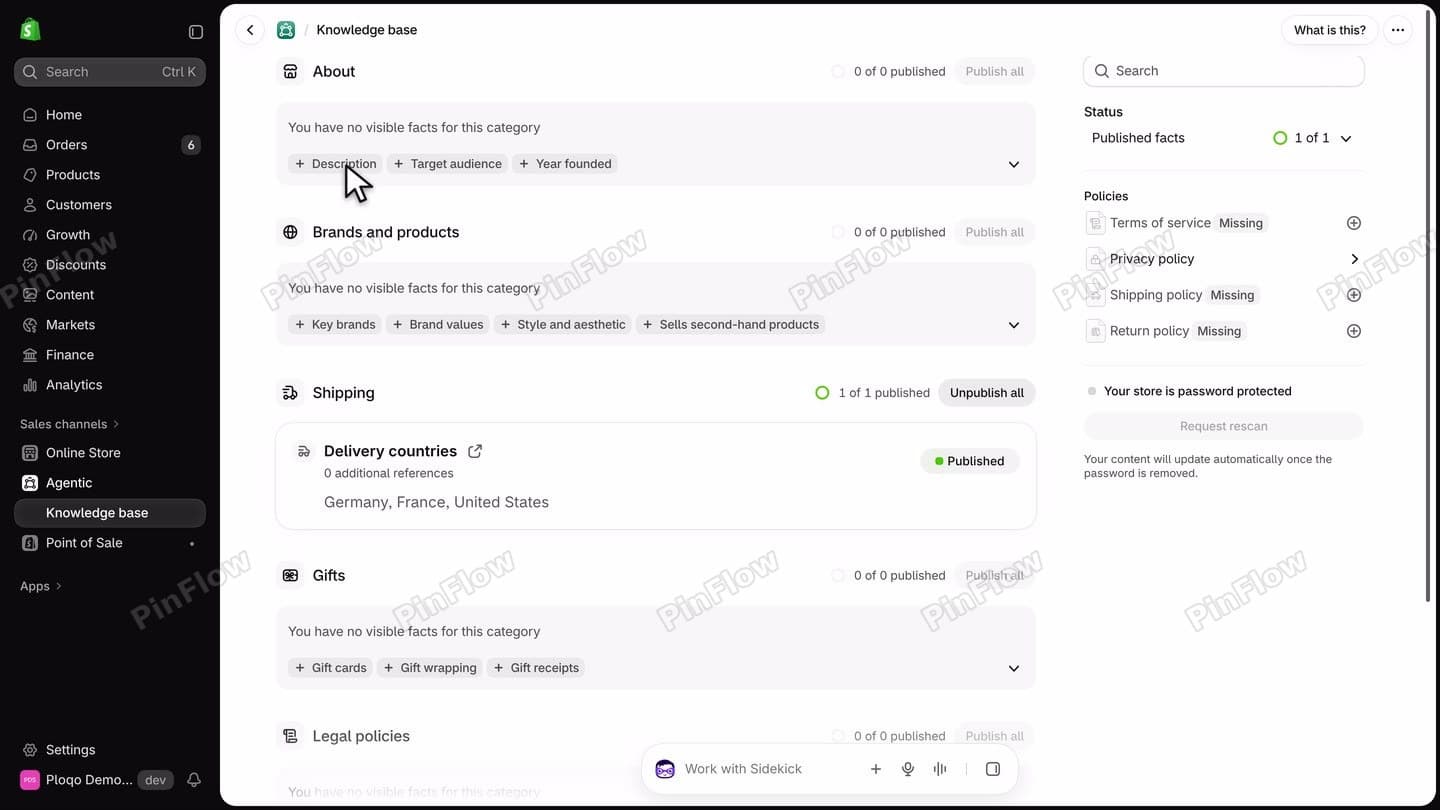 The About section with the suggested chips Description, Target audience and Year founded and the message that there are no visible facts for this category
Shipping already has one fact on this store, Delivery countries. It lists Germany, France and the United States, and it is marked Published. Shopify links facts like this one to your admin settings, which is why it is live without you writing anything.
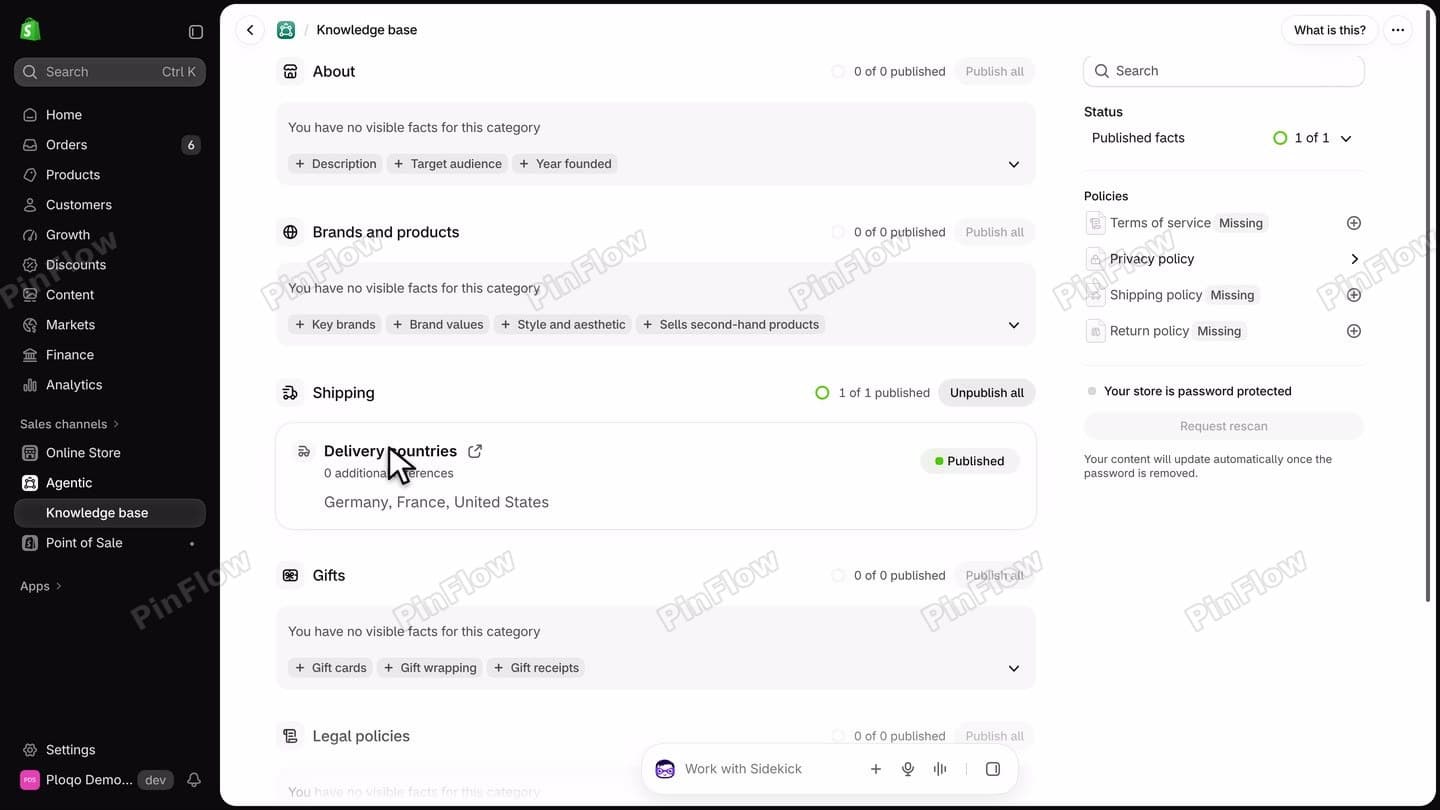 The Shipping section with the Delivery countries fact listing Germany, France and United States and a green Published pill
Policies and the password banner
The Policies card on the right marks three policies as Missing on this store: Terms of service, Shipping policy and Return policy. Privacy policy is not flagged.
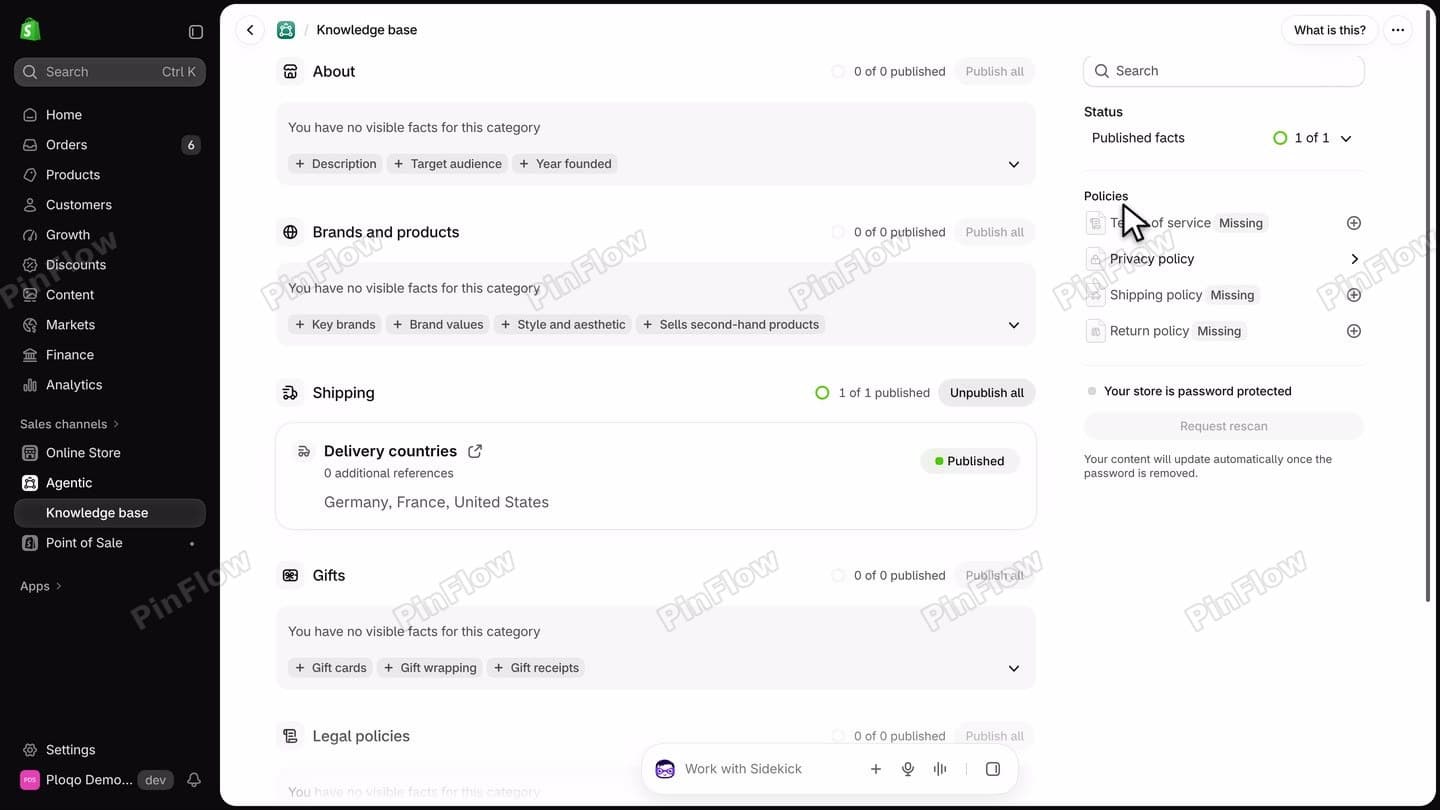 The Policies card on the Knowledge base page with Terms of service, Shipping policy and Return policy marked Missing
Below it, a banner reads Your store is password protected, and the Request rescan button is turned off. Shopify says the content updates once the password is removed.
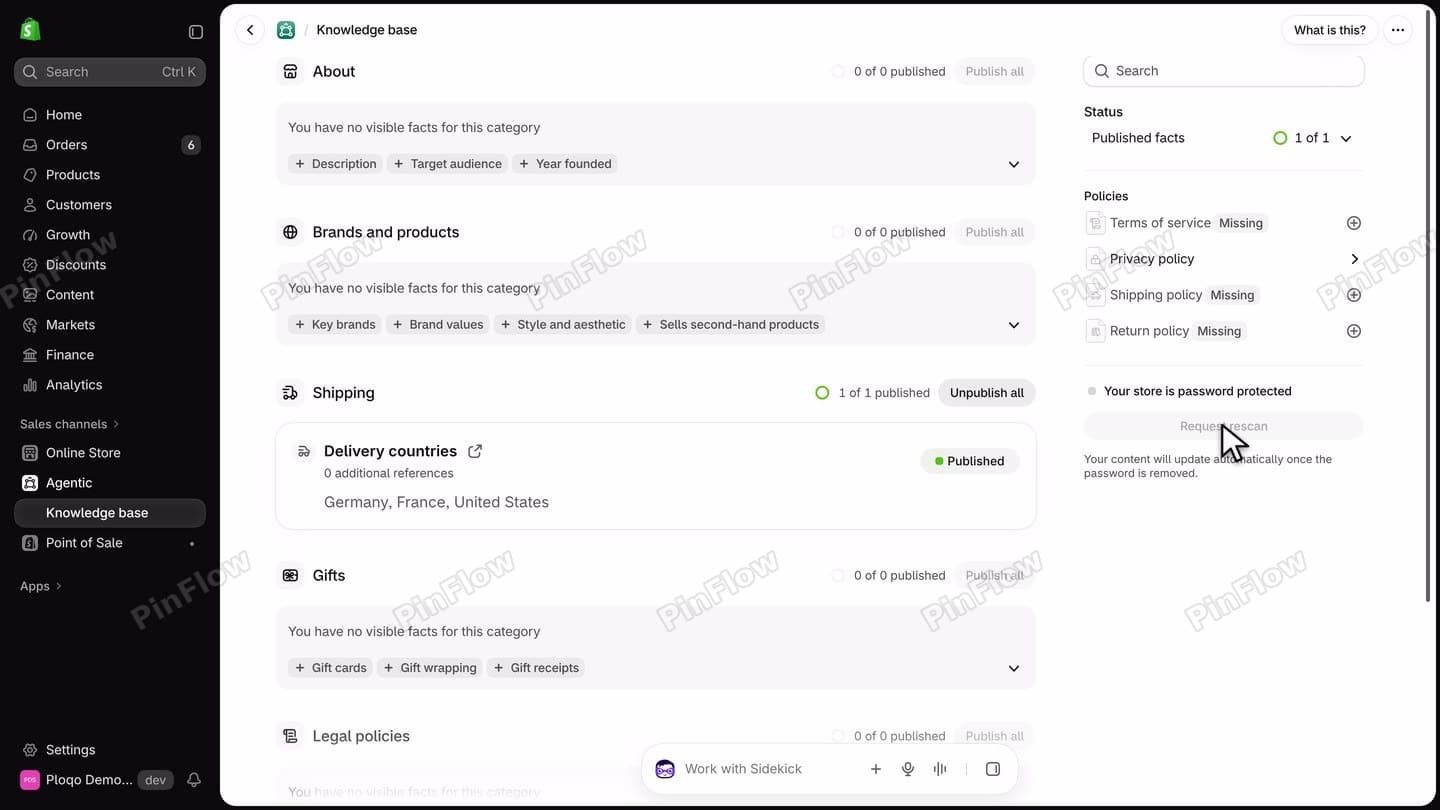 The banner Your store is password protected with the Request rescan button greyed out
Shopify's help page explains why. If your store is password protected, the knowledge base cannot access your online store, so it shows data only from your Shopify admin. On a live store, Shopify drafts facts from your published pages, and they stay unpublished until you publish them.
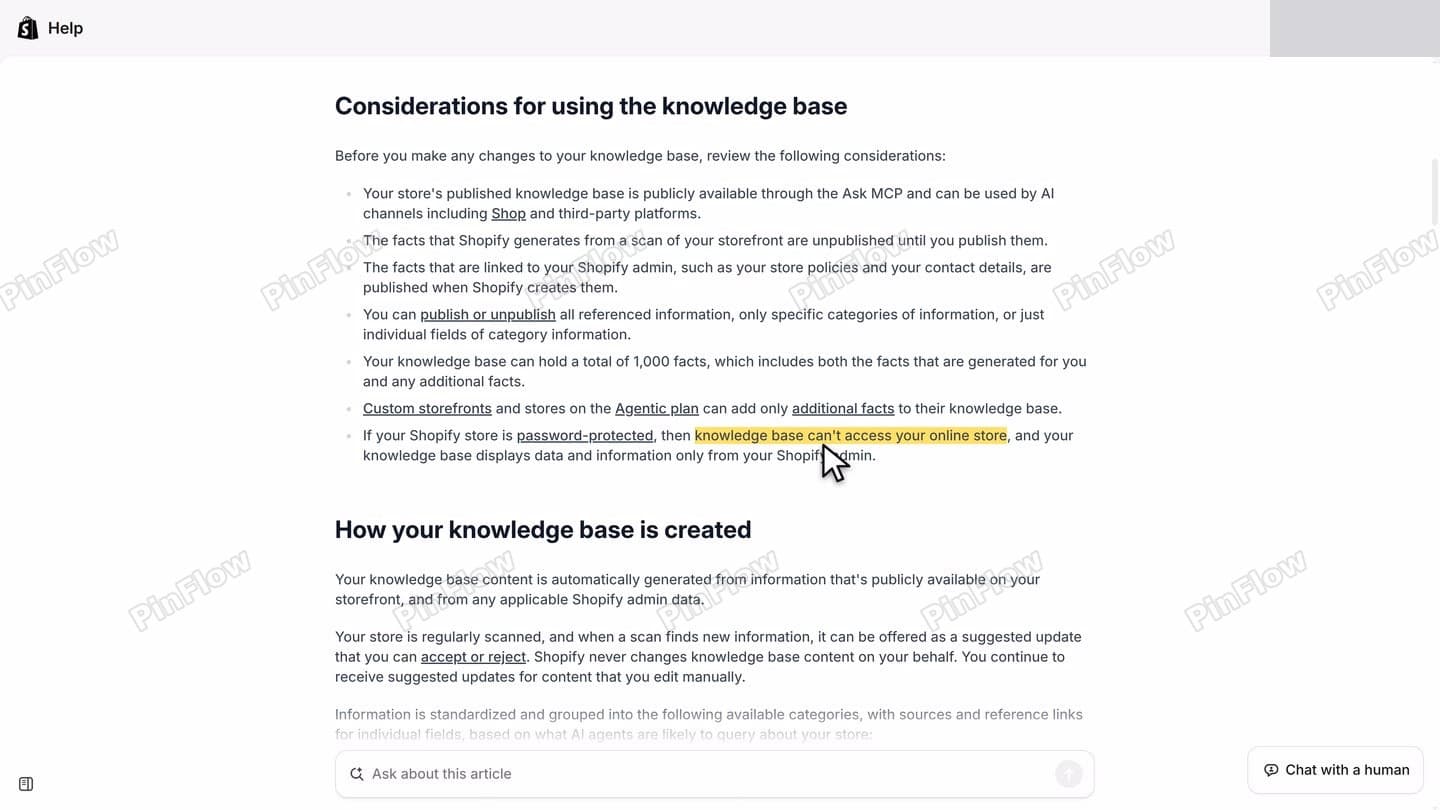 Shopify Help page Considerations for using the knowledge base with the sentence about password-protected stores highlighted
How to add a fact to the Shopify knowledge base
Now for your own fact. Additional facts is for anything that does not fit another section. Click Add fact. A new row appears called Untitled fact, and an Unsaved changes bar shows at the top with Discard and Save.
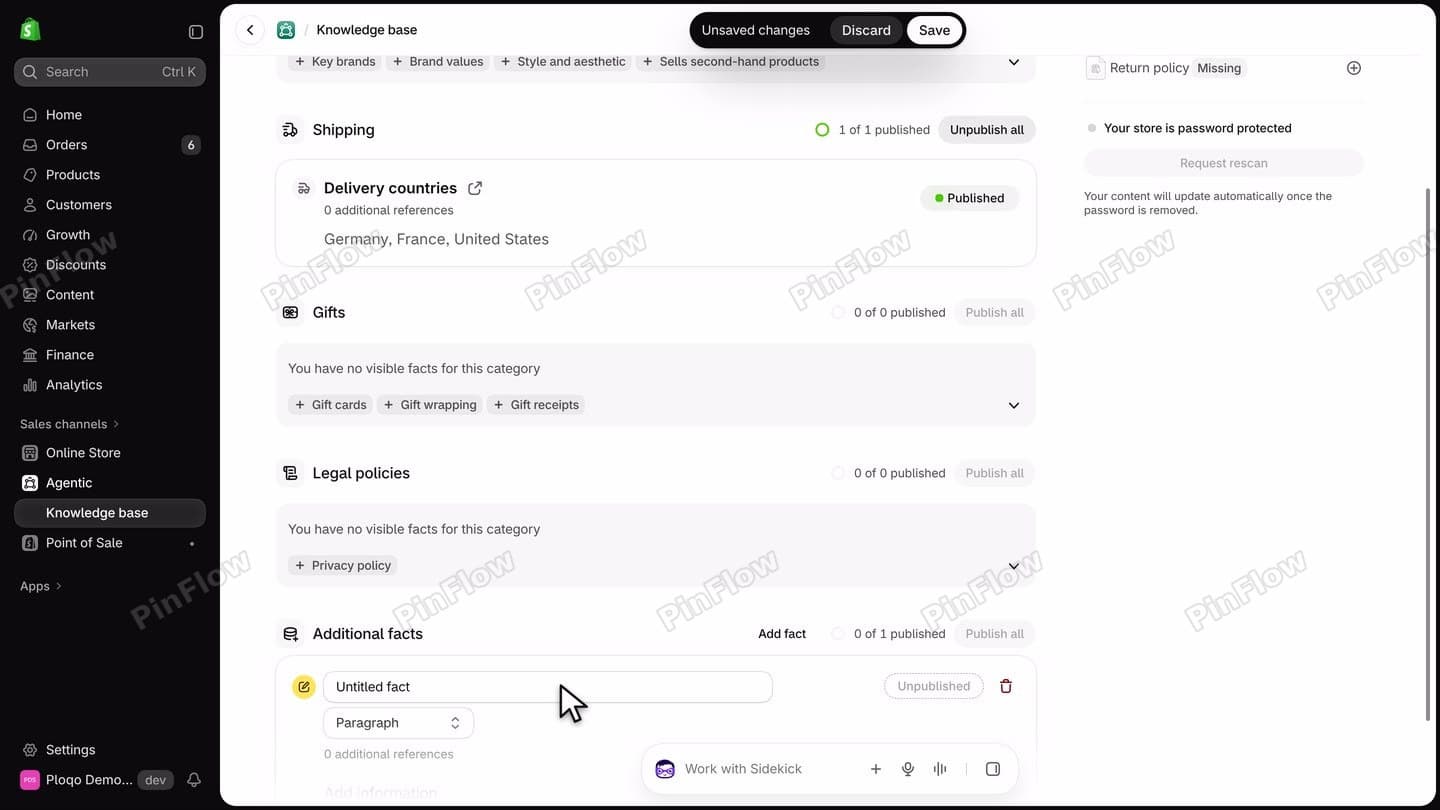 A new Untitled fact row in the Additional facts section with the Unsaved changes bar showing Discard and Save
Give the fact a title
Click the Untitled fact field and type a title that agents can refer to. The video uses Shoe care.
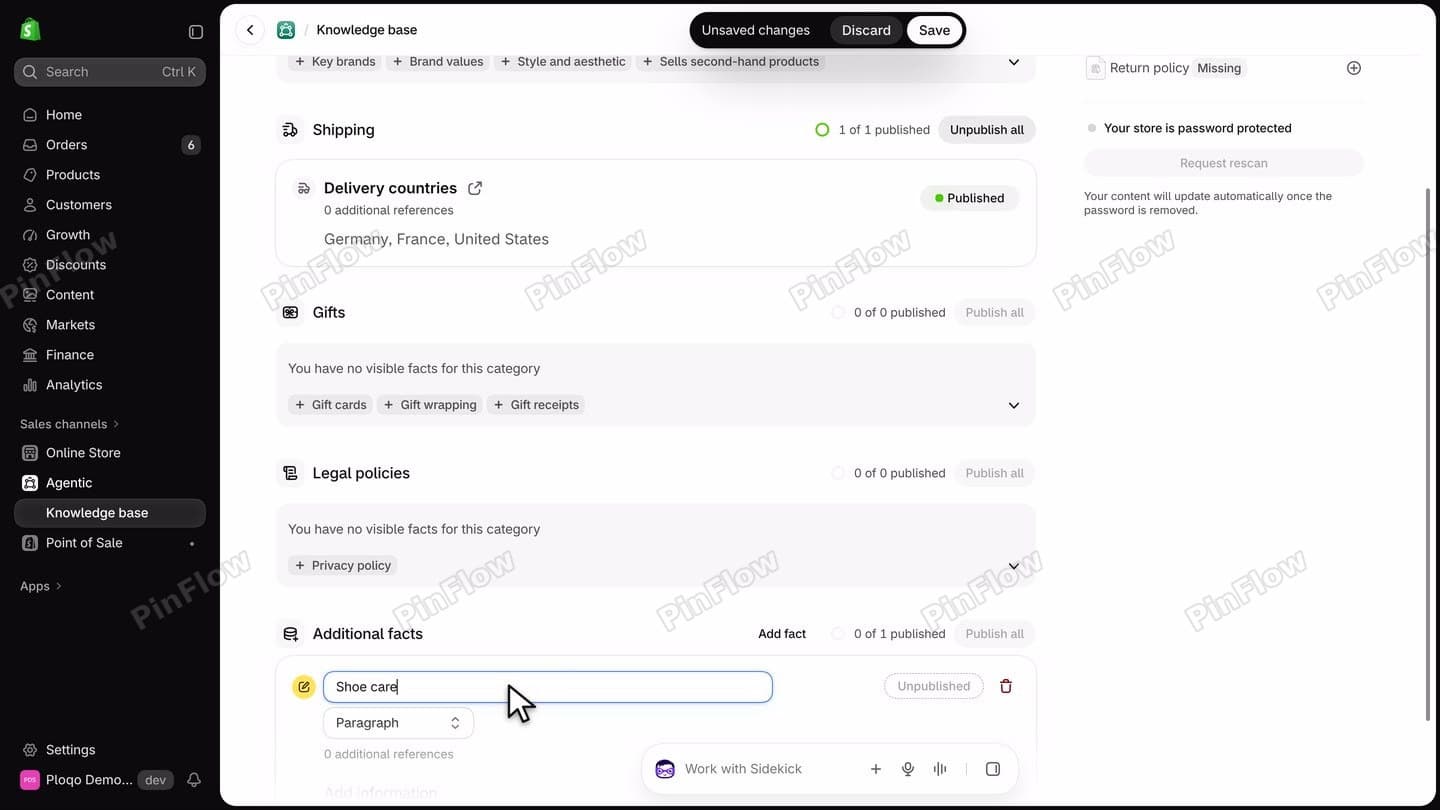 The fact row with the title field now reading Shoe care
Pick a type
The type sets the format of the answer. There are four: Paragraph, Number, Yes / No and Tags, and a fact has only one. Shopify's help page says Paragraph is for information that needs explaining, Yes / No is for a question with two answers, and Tags is for a short set of related values such as materials. If you need both an explanation and a list, add two facts.
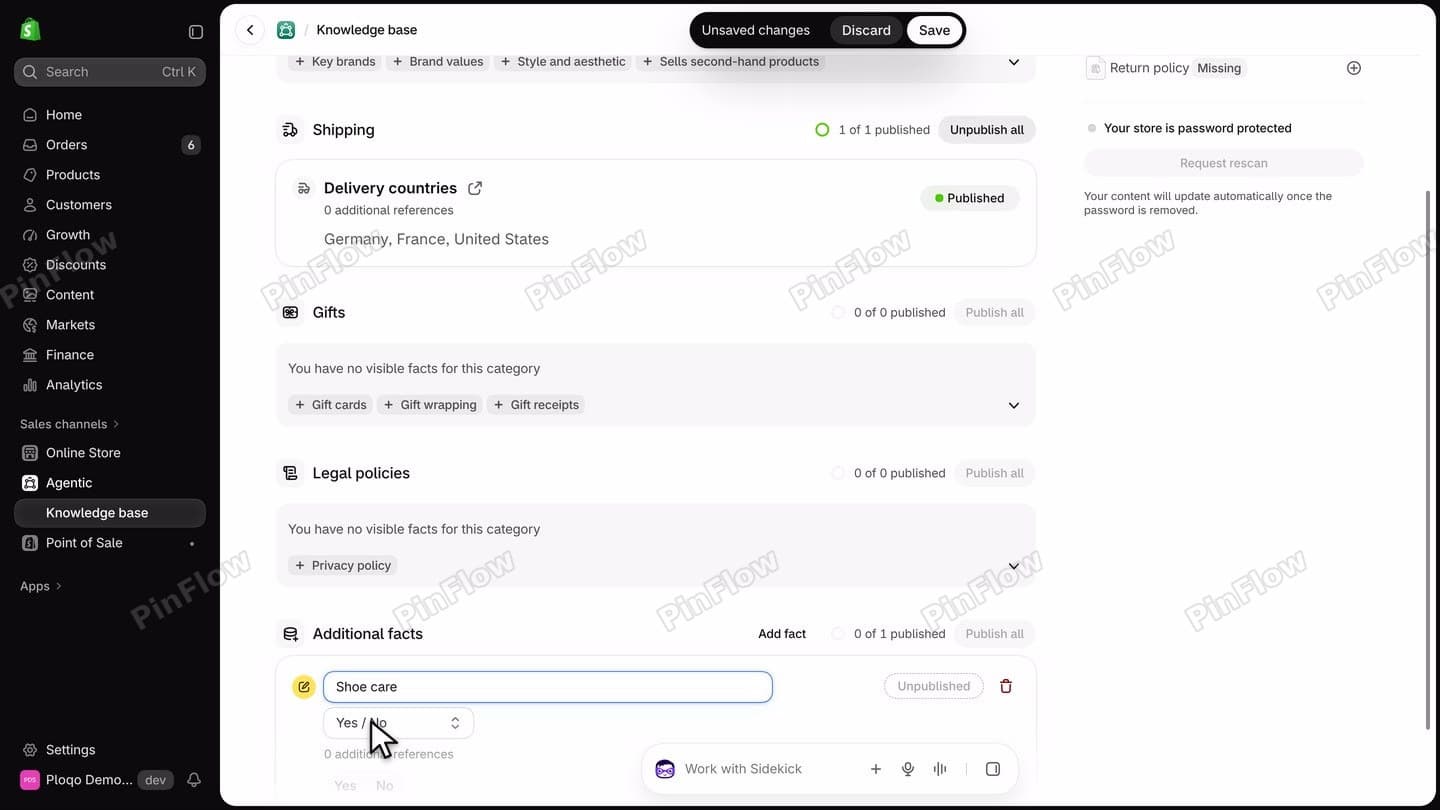 The type menu under the fact title being stepped through its options, one of them Yes / No
Type the value
The video picks Paragraph and writes: "Hand-wash our running shoes in cold water. They aren't machine washable." An agent uses your text as the source for its answer, but in its own words. So say what is true and what is not.
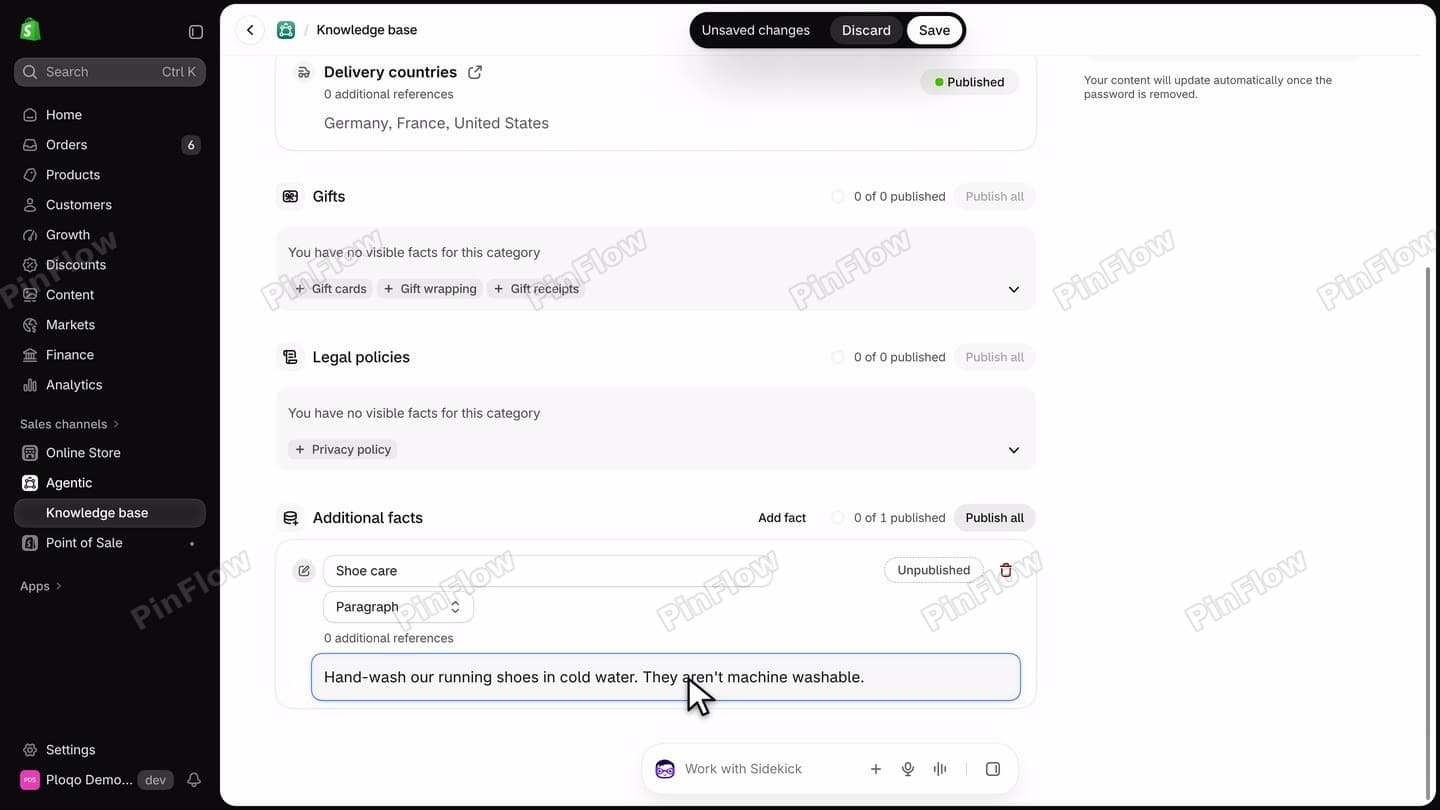 The Shoe care fact with type Paragraph and the text Hand-wash our running shoes in cold water. They aren't machine washable.
Save the fact, then publish it
Click Save in the Unsaved changes bar. The fact is stored now, but the pill on its row still says Unpublished, so it does not reach AI agents yet.
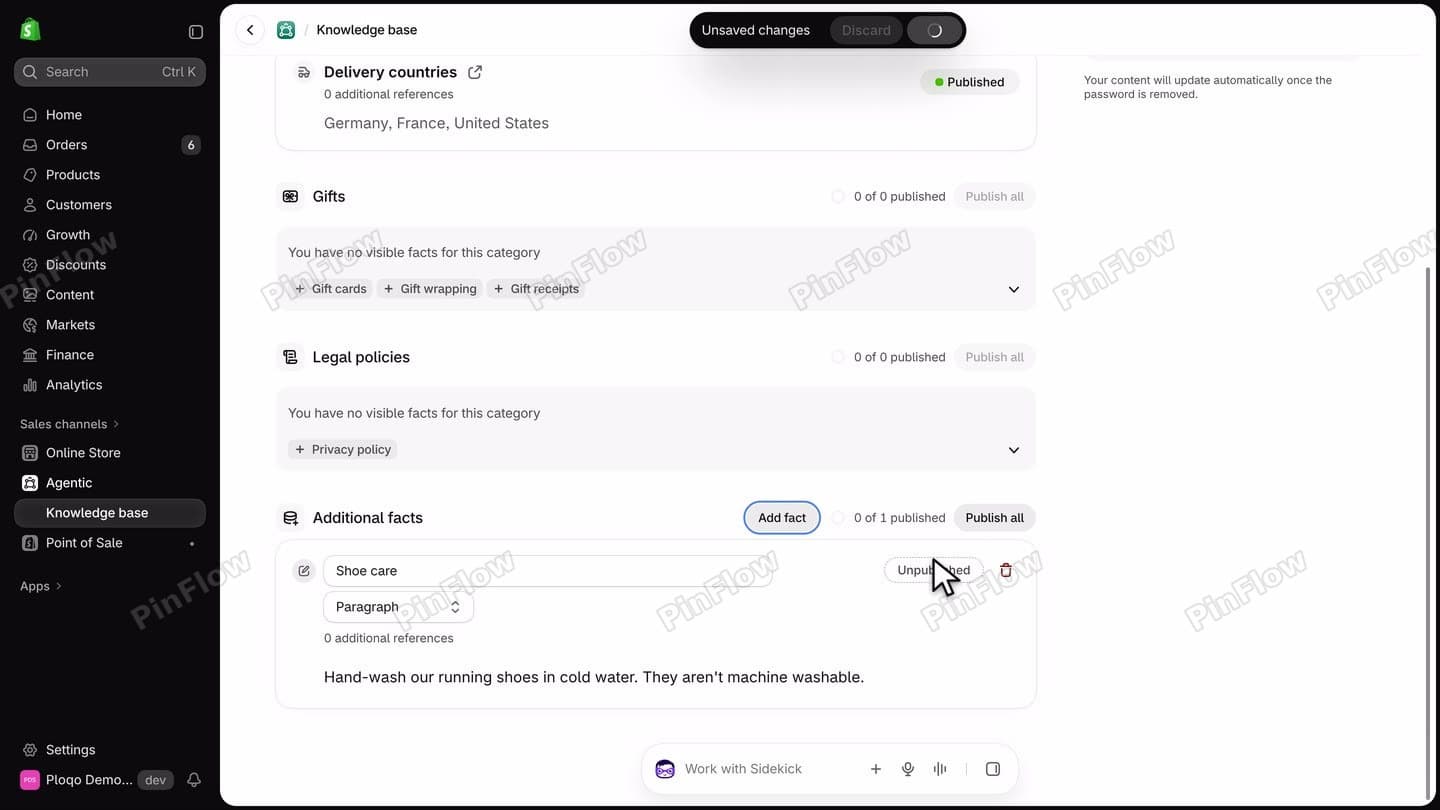 The Unsaved changes bar showing a spinner while the Shoe care fact saves, with the Unpublished pill still on its row
Publishing is what makes a fact available to AI agents. Hover over Unpublished and the pill offers Publish. Click it, then Save. That is the step in Shopify's help page, and the video stops short of it on purpose: it leaves this test fact unpublished.
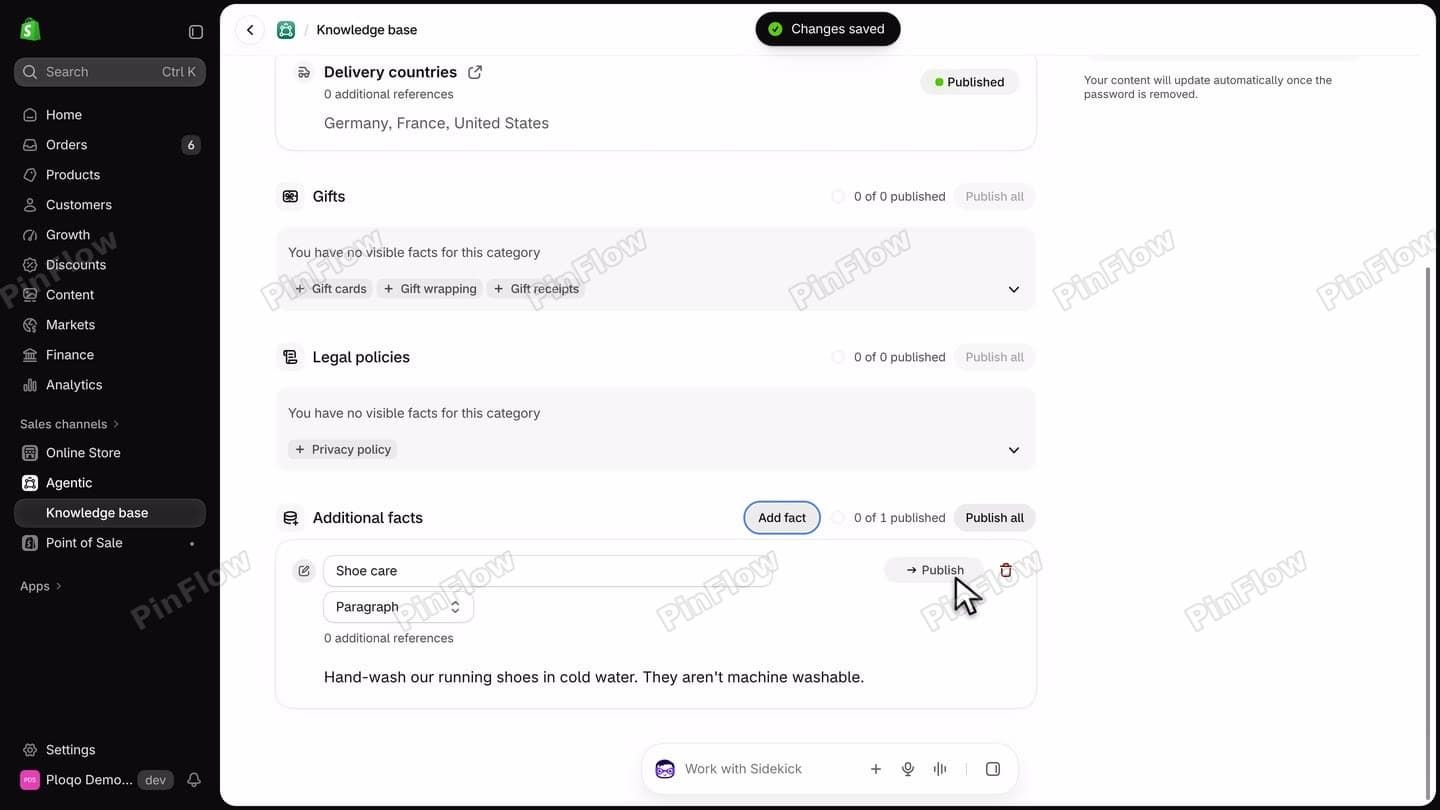 The Changes saved message at the top and the pill on the Shoe care row showing a Publish option on hover
How to delete a fact from the Shopify knowledge base
To remove the fact for good, click the trash icon on its row, Delete fact, and then Save. The Unsaved changes bar comes back until you do.
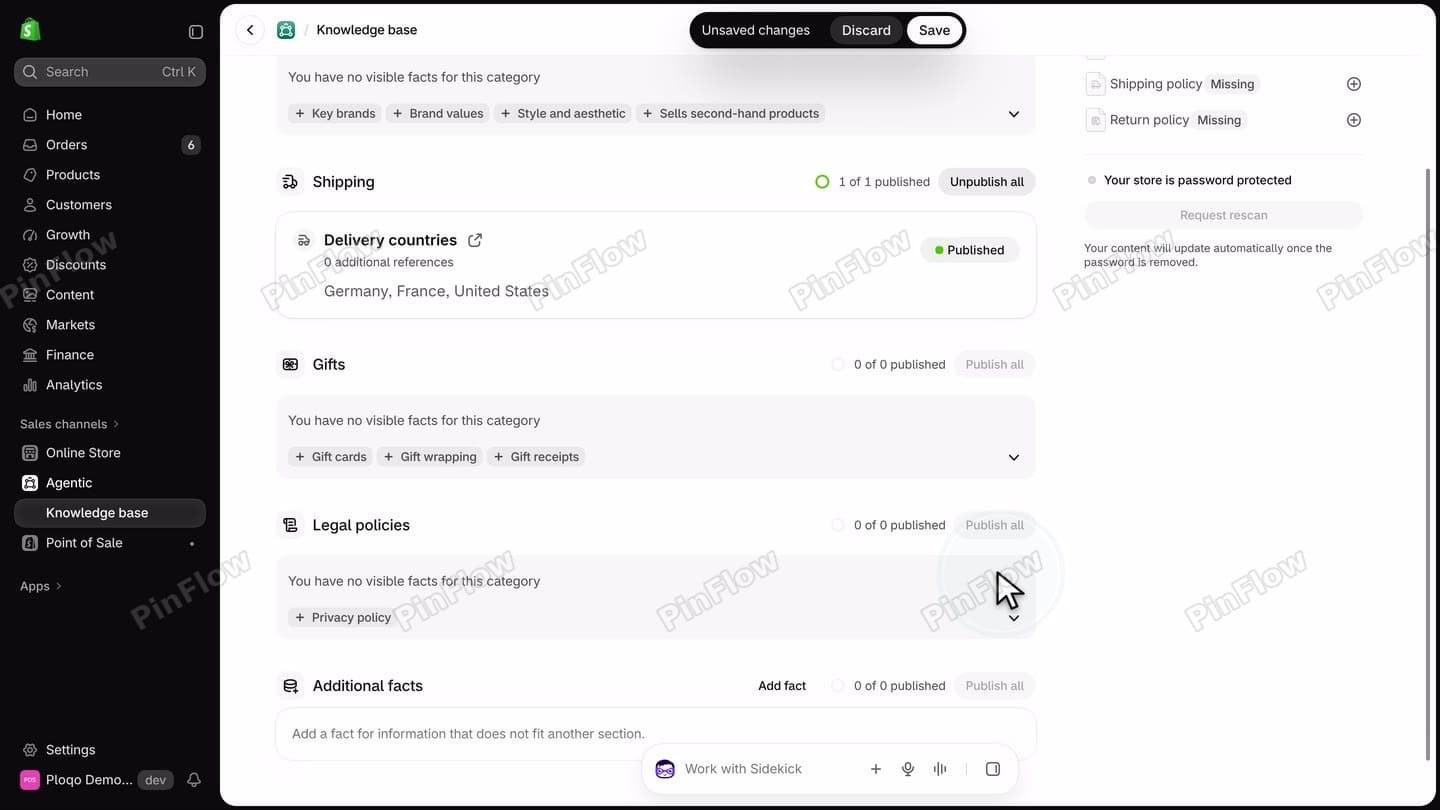 The Additional facts section after the fact was deleted, with the Unsaved changes bar and its Save button still showing
After Save, the bar says Changes saved and Additional facts is empty again. Delivery countries is still there, because it was never ours to touch.
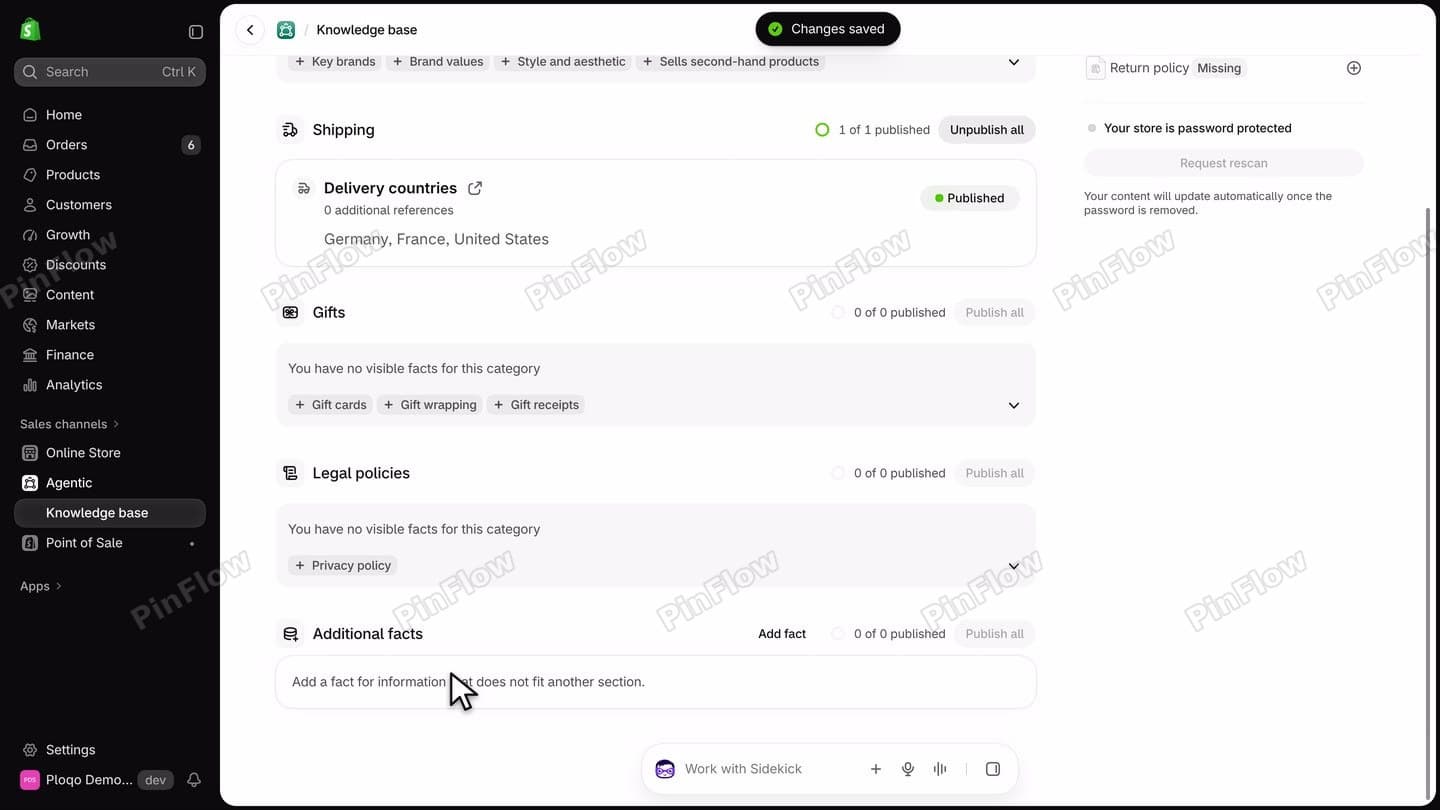 The Changes saved message with Additional facts empty again and Delivery countries still Published
At the top of the page, Status reads 1 of 1 published again, the same as when the video started.
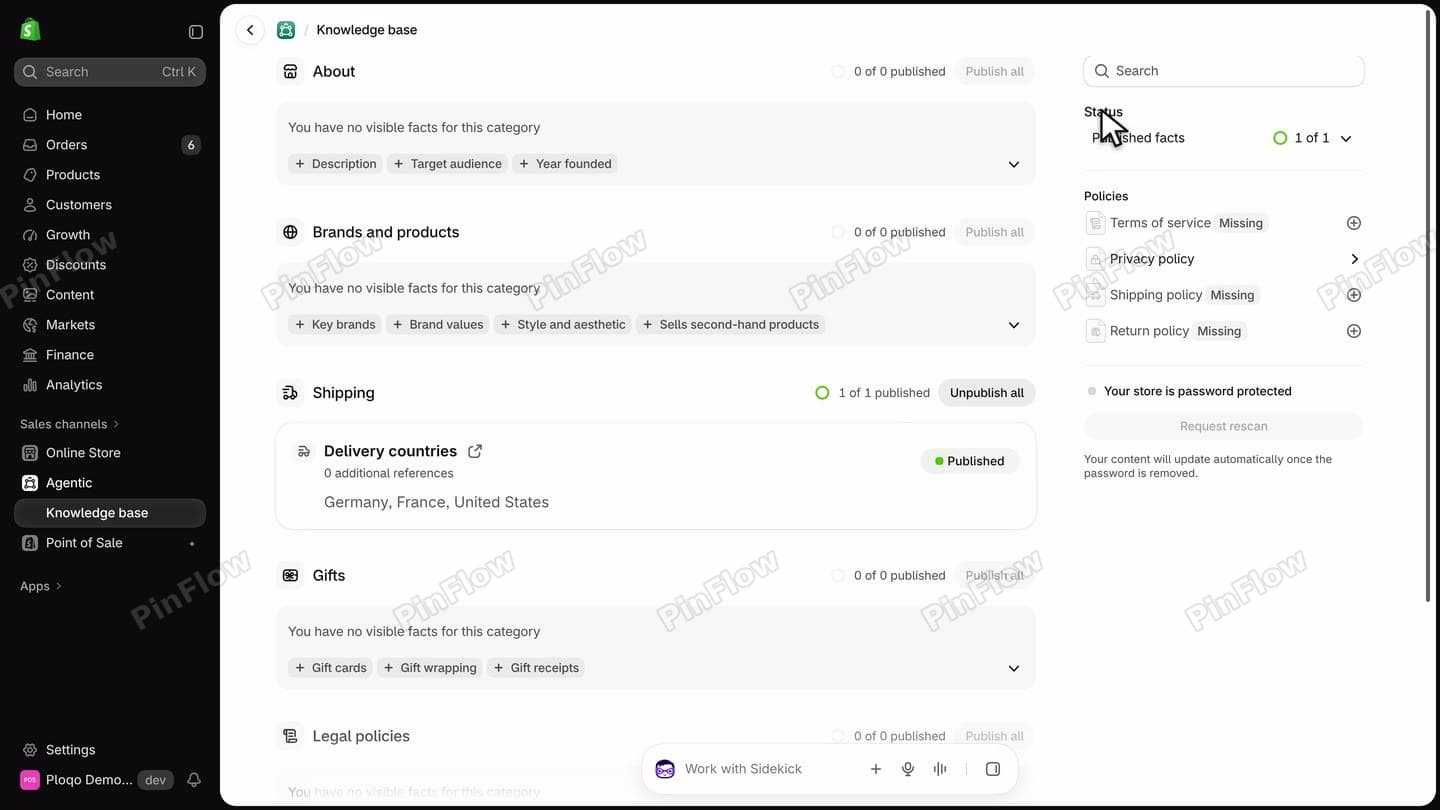 The Status card at the top of the Knowledge base page reading Published facts 1 of 1
Questions about the Shopify knowledge base
What is the Shopify knowledge base? It is a page in the admin, under Sales channels, Agentic, Knowledge base, where you review, edit and publish the facts AI agents get about your store. Shopify's help page says these facts are the source of truth for all non-product information, such as your return process or shipping times.
The Shopify Knowledge base page with its sections and Policies card
Is there a Shopify knowledge base app I still need to install? No. The page is built into the admin and the old Knowledge Base app is no longer available to install from the Shopify App Store. The app stops working after January 15, 2027.
The sidebar with Agentic and Knowledge base selected
How do I add an FAQ to Shopify for AI? Use Additional facts. Click Add fact, type the question or topic as the title, pick Paragraph, and write the answer. It is separate from an FAQ page on your online store, and agents may rephrase it.
The Shoe care fact with its Paragraph answer typed in the Additional facts section
Why does Request rescan say my store is password protected? A password-protected store cannot be read by the knowledge base, so Request rescan is turned off. Remove the password and Shopify can scan your storefront again.
The password protected banner with Request rescan turned off
How many facts can the knowledge base hold? Shopify's help page says a total of 1,000 facts, counting the ones generated for you and your additional facts.
The Additional facts section with an Add fact button
Sources
- Shopify Help: answering customer questions with the agentic storefronts knowledge base
- Shopify Help: agentic storefronts
- Shopify changelog, 26 October 2026: Knowledge base is now available in your admin
- Related: Shopify agentic storefronts: where to find it and what your store tells AI agents
Questions or a screen that looks different on your store: [email protected]
More Shopify fixes
More community-sourced Shopify guides, tested on a live store.
Shopify Admin
Shopify Catalog: Check What ChatGPT Gets (Channel Mapping)
Shopify Catalog is the product data ChatGPT and other AI channels read. Open Channel mapping, read the preview, and check the title, price and description.
Shopify Admin
Shopify ChatGPT: Is It Selling Your Products? Check (2026)
Shopify ChatGPT selling is on by default for eligible stores since 23 November 2026. See where to check yours in Sales channels, Agentic, with video and steps.
Shopify Admin
Shopify Agentic Storefronts: Where to Find It (2026)
Shopify agentic storefronts put your products inside AI chats like ChatGPT and Copilot. Find it under Sales channels, Agentic, and see each part of the page.