
Shopify ChatGPT: Is It Selling Your Products? Check (2026)
Shopify ChatGPT selling is on by default for eligible stores since 23 November 2026. See where to check yours in Sales channels, Agentic, with video and steps.
By AjayCodeWiz · November 28, 2026 · 7 min read
Shopify ChatGPT selling: how to check if it is on for your store
Since 23 November 2026, Shopify turns on ChatGPT selling and agentic checkout by default for eligible stores. Agentic checkout means an AI agent buys your products for a shopper through your Shopify checkout. To check your store, open Sales channels, then Agentic, and click ChatGPT. The card shows a status word and four numbers: Sessions, Sales, Orders and Conversion. This is part of Shopify's push into agentic commerce, and you do not need an app for the check. For a tour of the whole Agentic page, see Shopify agentic storefronts: where to find them.
Filmed on a development store (Basic plan, new admin) on 27 November 2026. That store is not eligible, so the video shows what an "Inactive" answer looks like and why. The steps follow the video, with a screenshot for each one.
Where to check ChatGPT selling in the Shopify admin
I start on the ChatGPT card in the admin. For this store it says Inactive, and the next sections show where that card lives and what each line means.
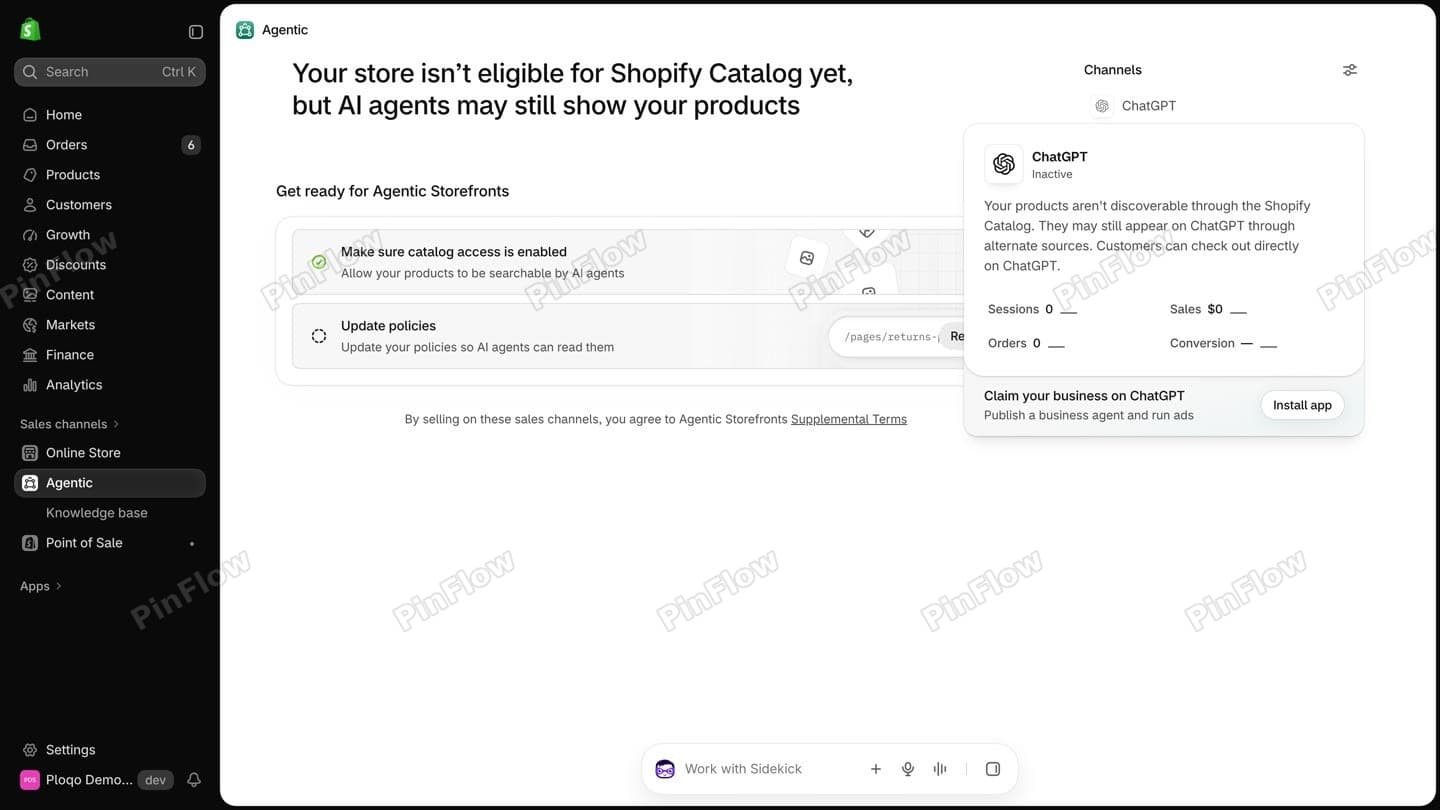 The ChatGPT card on the Shopify Agentic page showing the status Inactive, with Sessions 0, Sales $0 and Orders 0
There is no separate ChatGPT channel to install
Open Settings, then Sales channels. The list shows Online Store, Point of Sale and Shop. There is no ChatGPT in it, and Agentic is not listed either, so there is nothing to install to sell on ChatGPT.
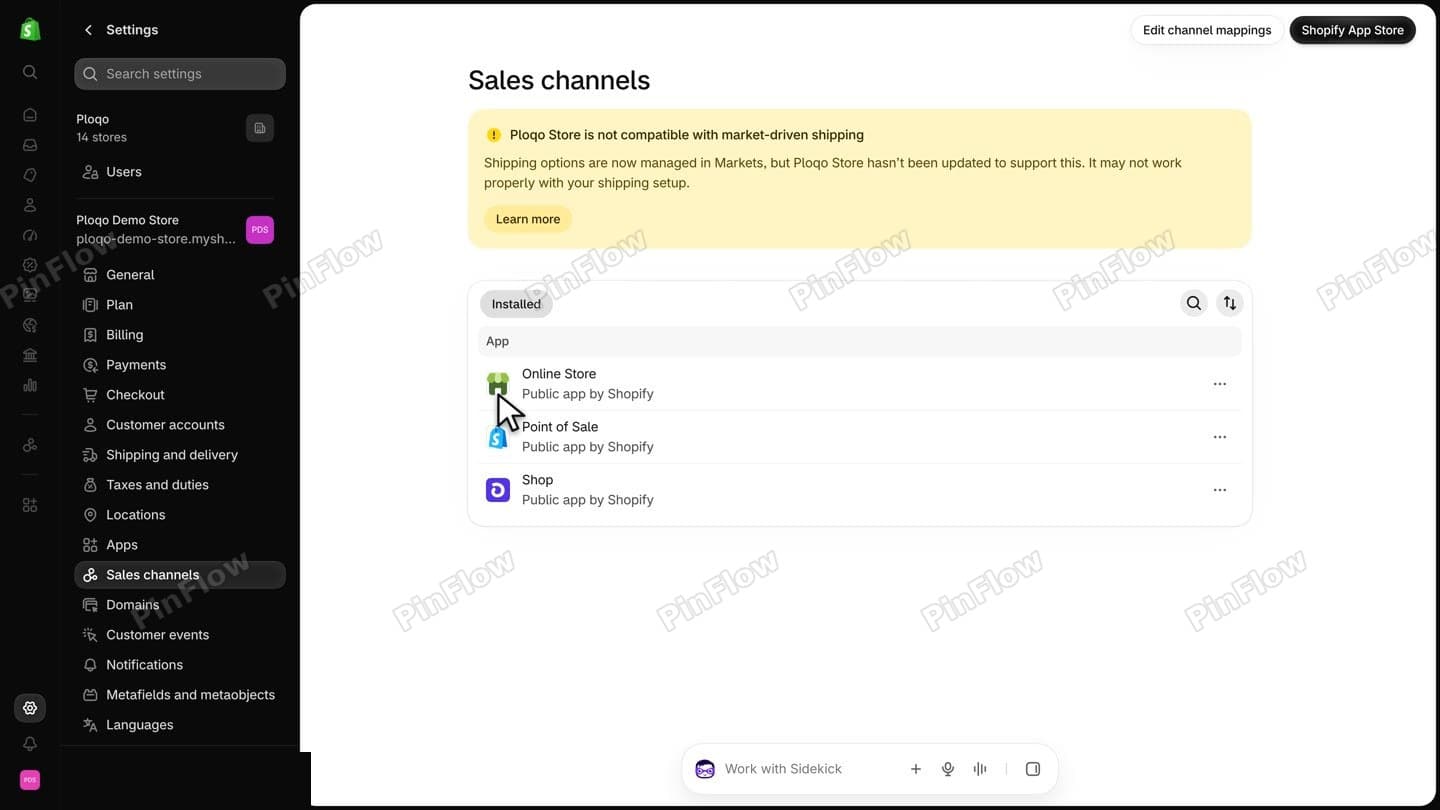 Settings, Sales channels list in the Shopify admin with Online Store, Point of Sale and Shop and no ChatGPT channel
Open Agentic under Sales channels
ChatGPT selling is managed inside the admin, in the left menu under Sales channels. Click Agentic.
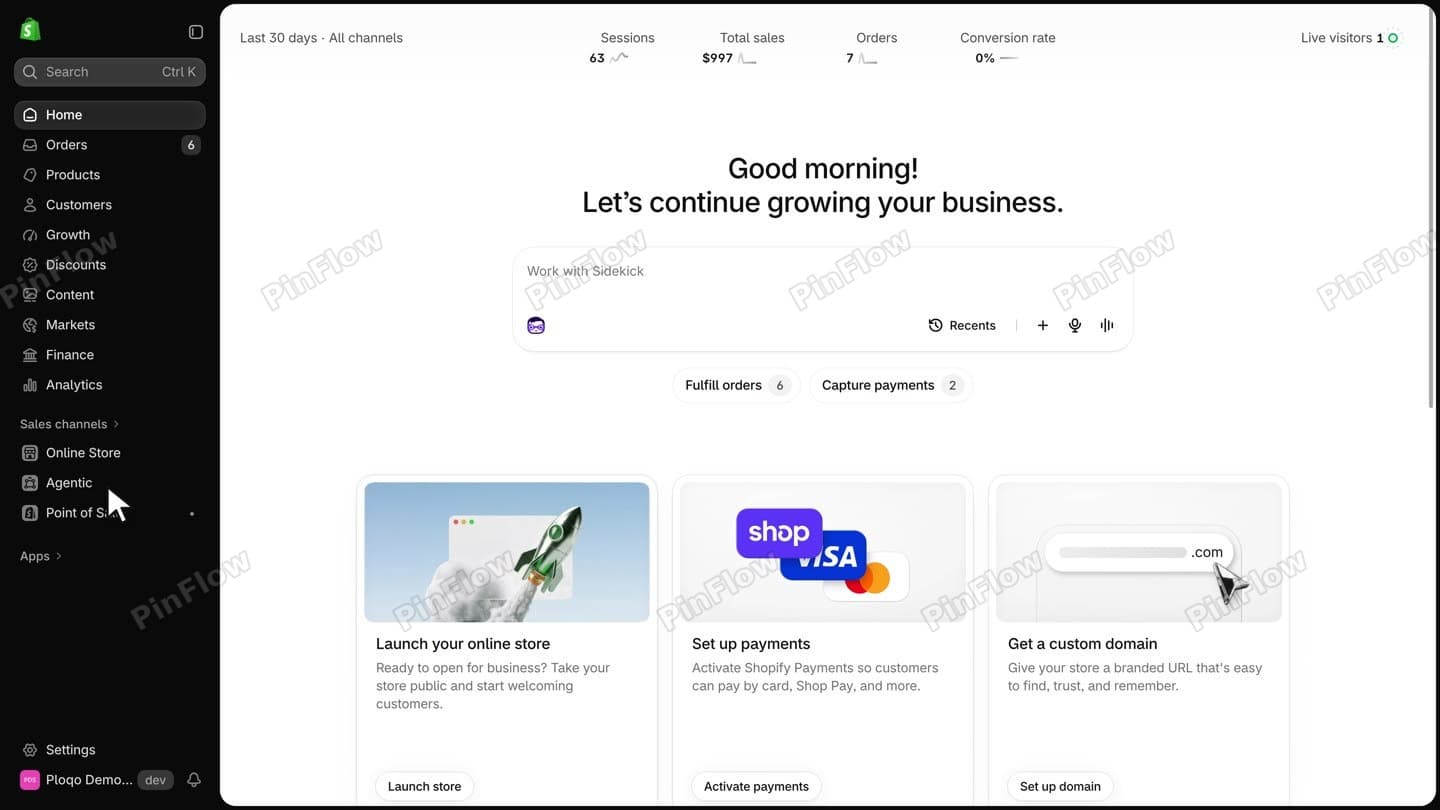 The Shopify admin home page with the Sales channels menu open and the Agentic item under Online Store
Read the page headline first
The Agentic page sums up the state of your store before anything else. On this store it says the store is not eligible for Shopify Catalog yet, but AI agents may still show its products. Shopify Catalog is the product feed AI channels such as ChatGPT read from.
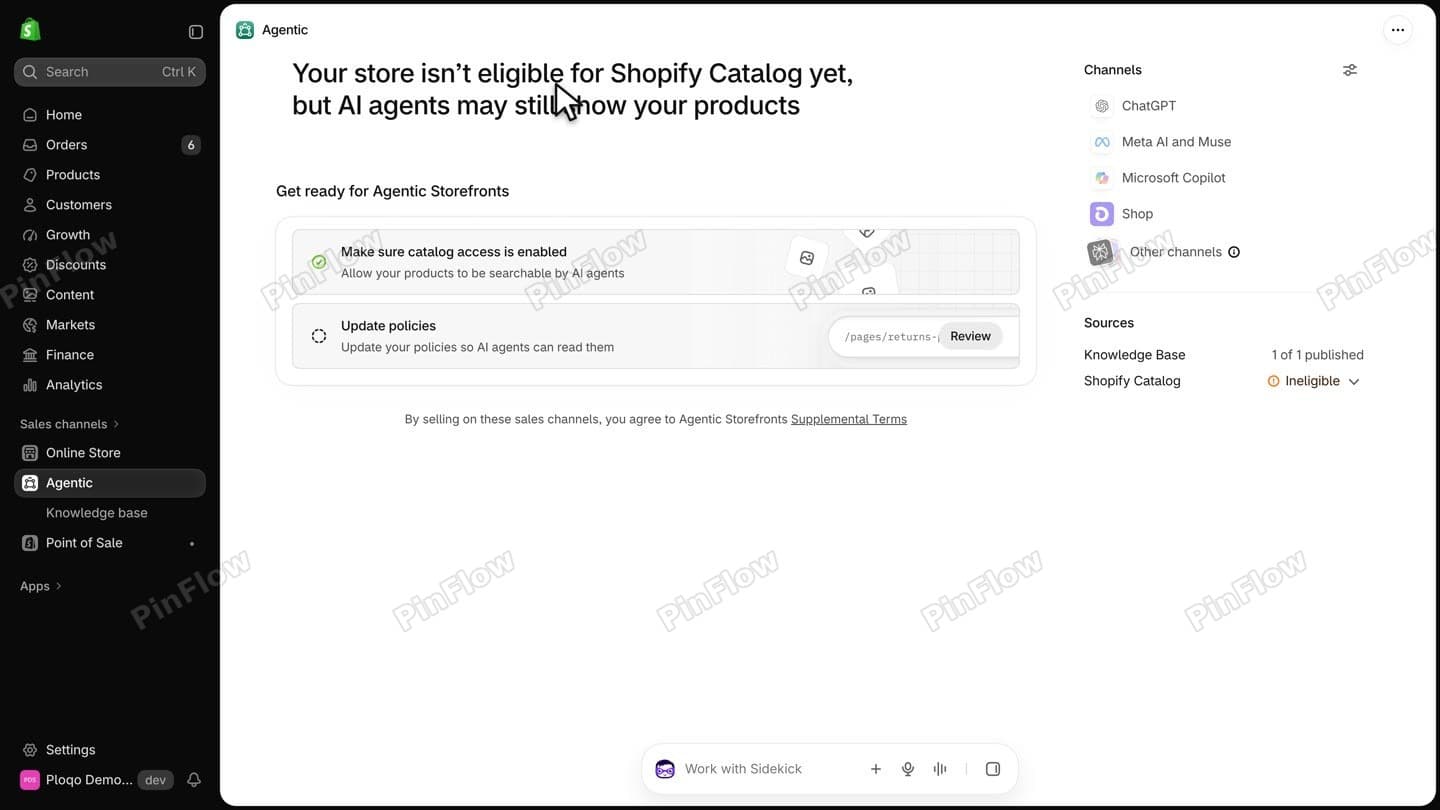 The Agentic page headline: Your store isn't eligible for Shopify Catalog yet, but AI agents may still show your products
What the ChatGPT card says: status, instant checkout and sales
Under Channels, click ChatGPT. The card opens with the status word under the name. Here it reads Inactive, with the line that the products are not discoverable through the Shopify Catalog.
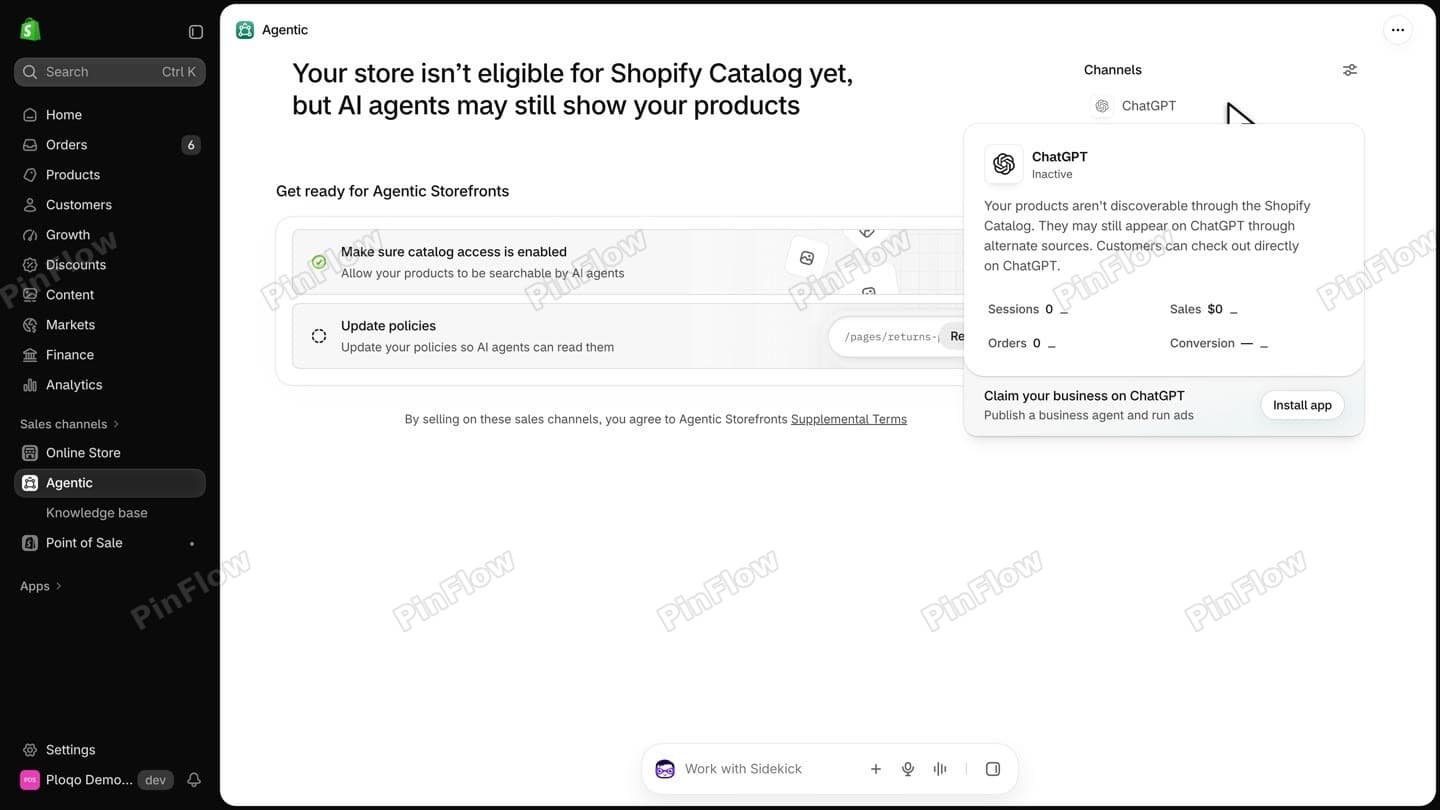 The ChatGPT channel card opened from the Channels list, with the status Inactive
The next line says the products may still appear on ChatGPT through alternate sources, and that customers can check out directly on ChatGPT. Both lines sit on the same card as "Inactive". Read them as Shopify wrote them: the status tells you about Catalog, and the check-out line describes how ChatGPT checkout works.
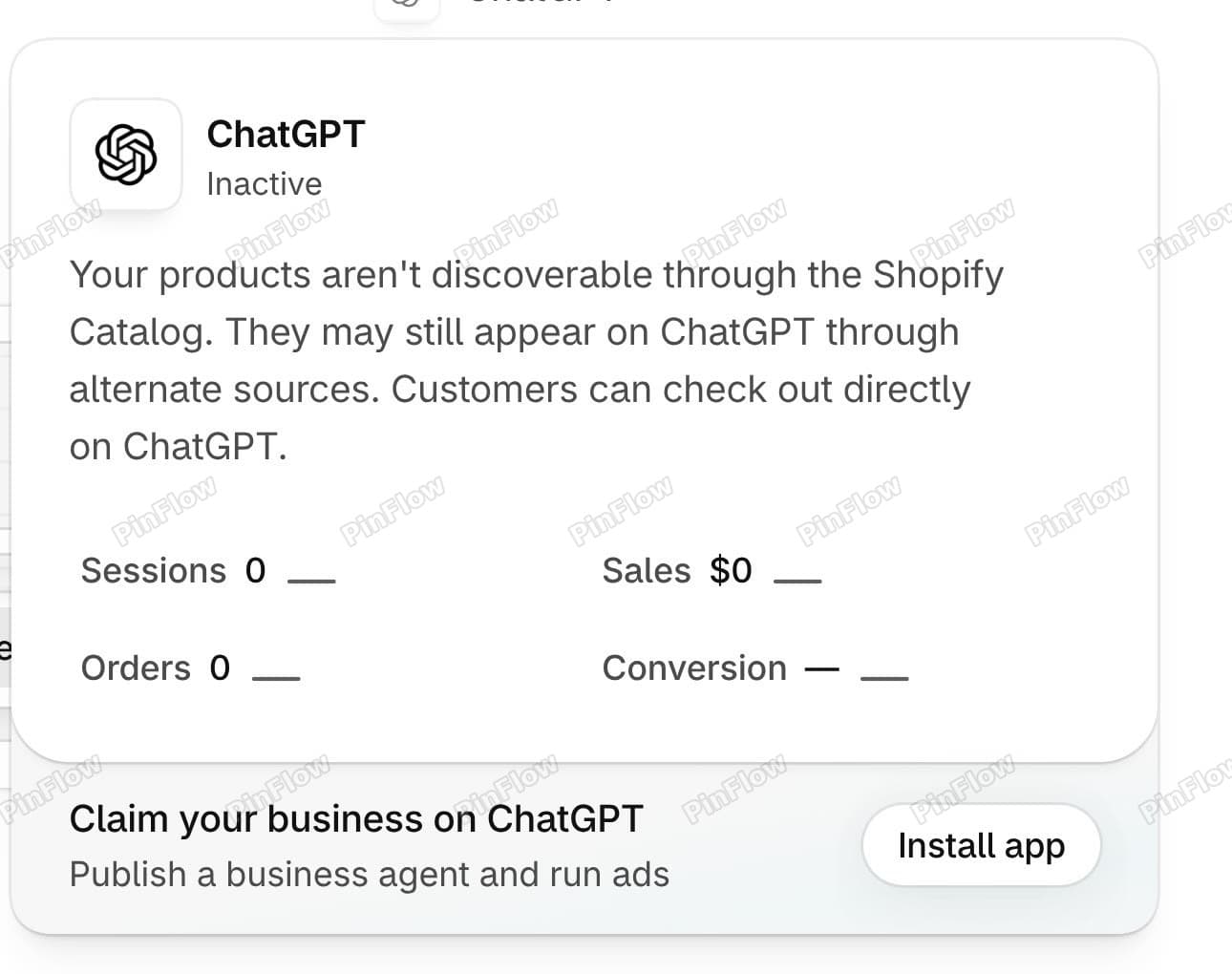 ChatGPT card text: products may appear through alternate sources and customers can check out directly on ChatGPT
Sessions, Sales, Orders and Conversion
These four numbers show whether ChatGPT sold anything. Here it is 0 sessions, $0 in sales and 0 orders. At the bottom, Claim your business on ChatGPT is a separate app with an Install app button. You do not need it to sell on ChatGPT, and Shopify's help page lists no fees for selling there beyond your usual payment processing.
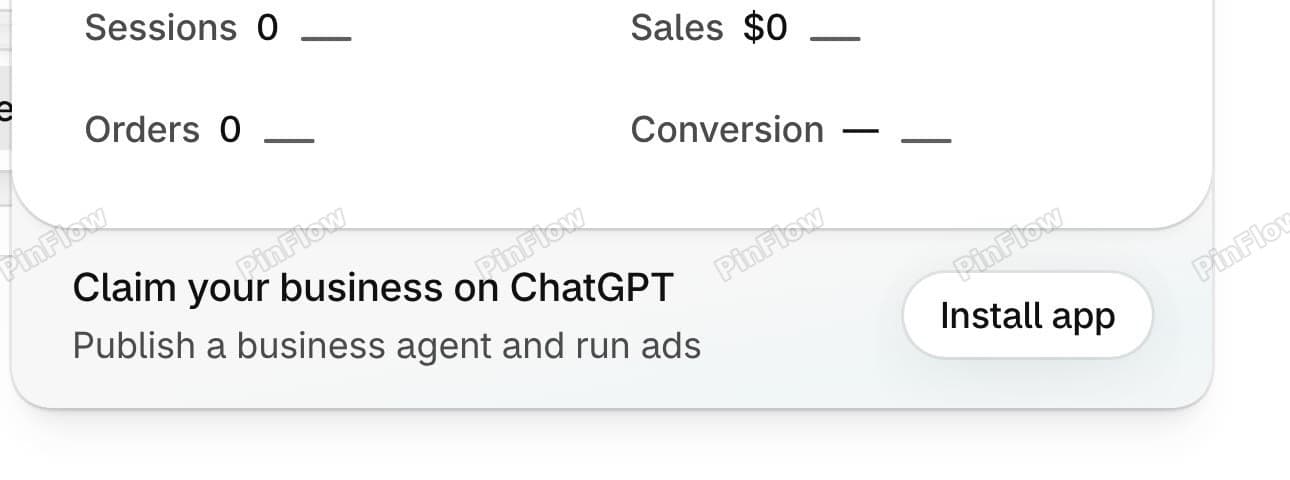 ChatGPT card with Sessions 0, Sales $0, Orders 0 and the Claim your business on ChatGPT row with Install app
Manage for me: the default setting
Click the small sliders icon next to Channels. A panel shows Manage for me selected: Shopify Catalog and Agentic checkout are on for supported channels, and new channels are added automatically. I only open it and close it again.
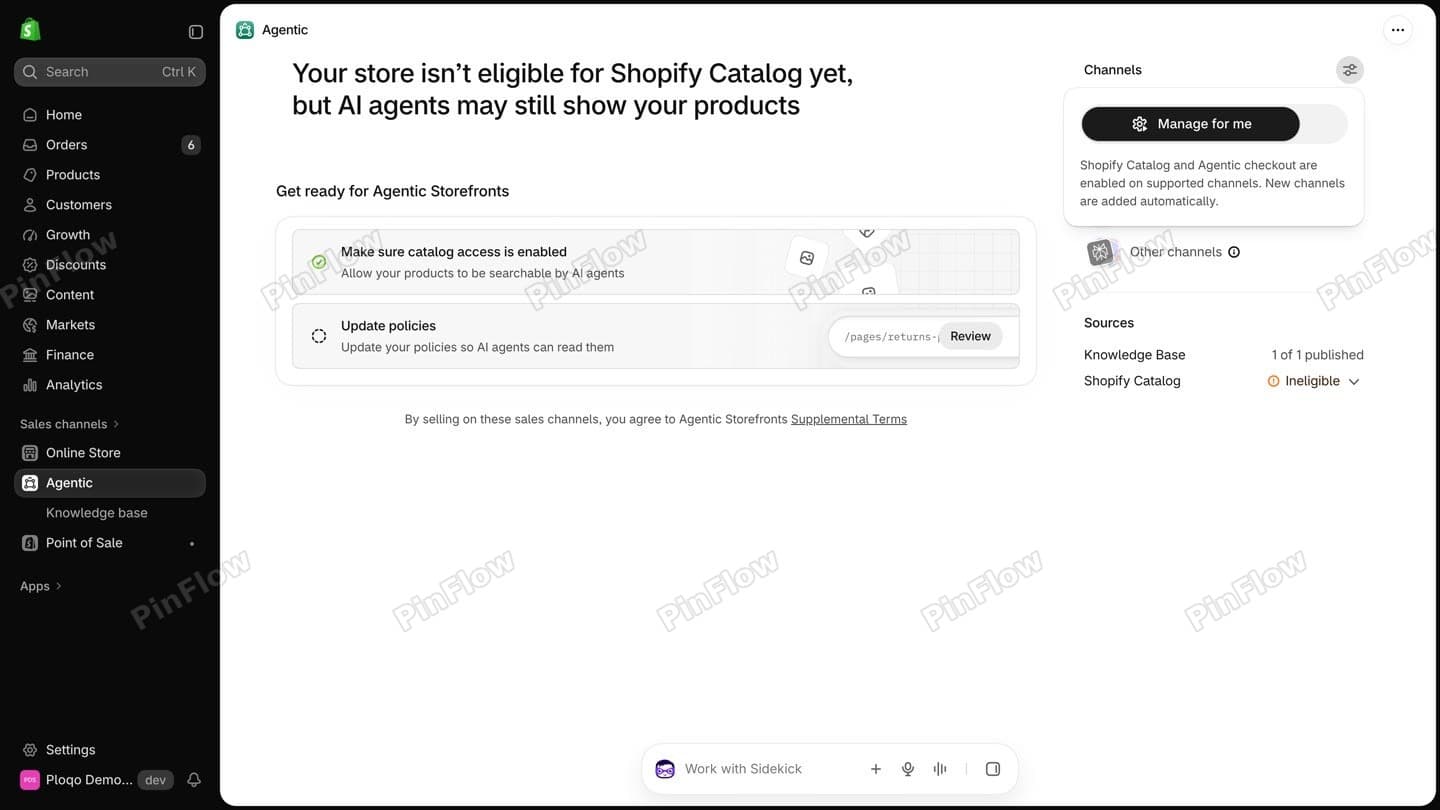 Channel settings panel on the Agentic page with Manage for me selected and its Catalog and checkout text
Why a Shopify store is not eligible for ChatGPT selling
Under Sources, Shopify Catalog says Ineligible. Click it and a banner gives the reason: the store does not currently meet the requirements for Shopify Catalog access.
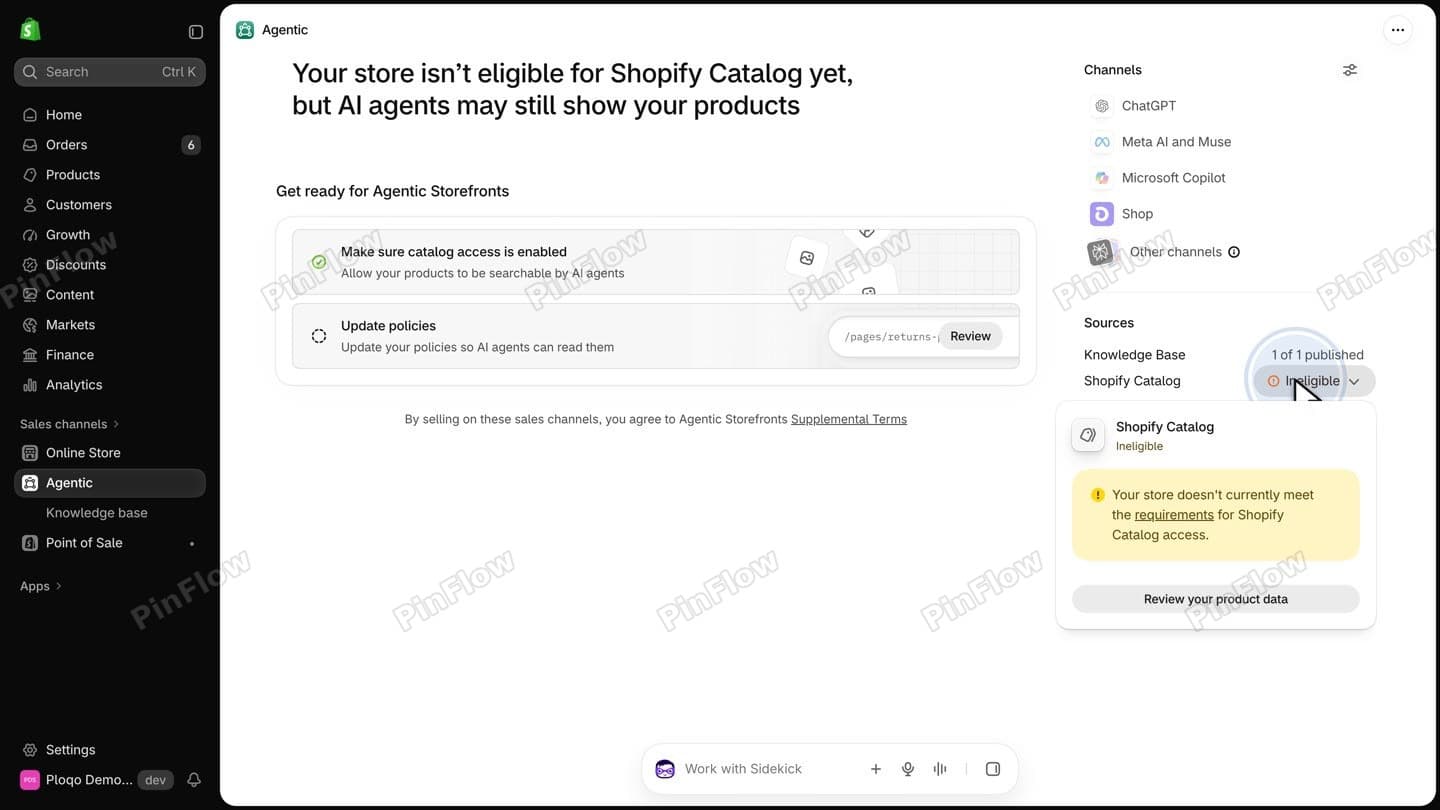 Shopify Catalog Ineligible popover: the store doesn't currently meet the requirements for Catalog access
Shopify's help page for selling on ChatGPT lists what a store needs. Your store has to sell to customers in the United States, and it can be based anywhere. Your products have to be eligible for Shopify Catalog. And your Terms of service, Privacy policy and Return and refund policy have to be filled in under Settings, then Policies.
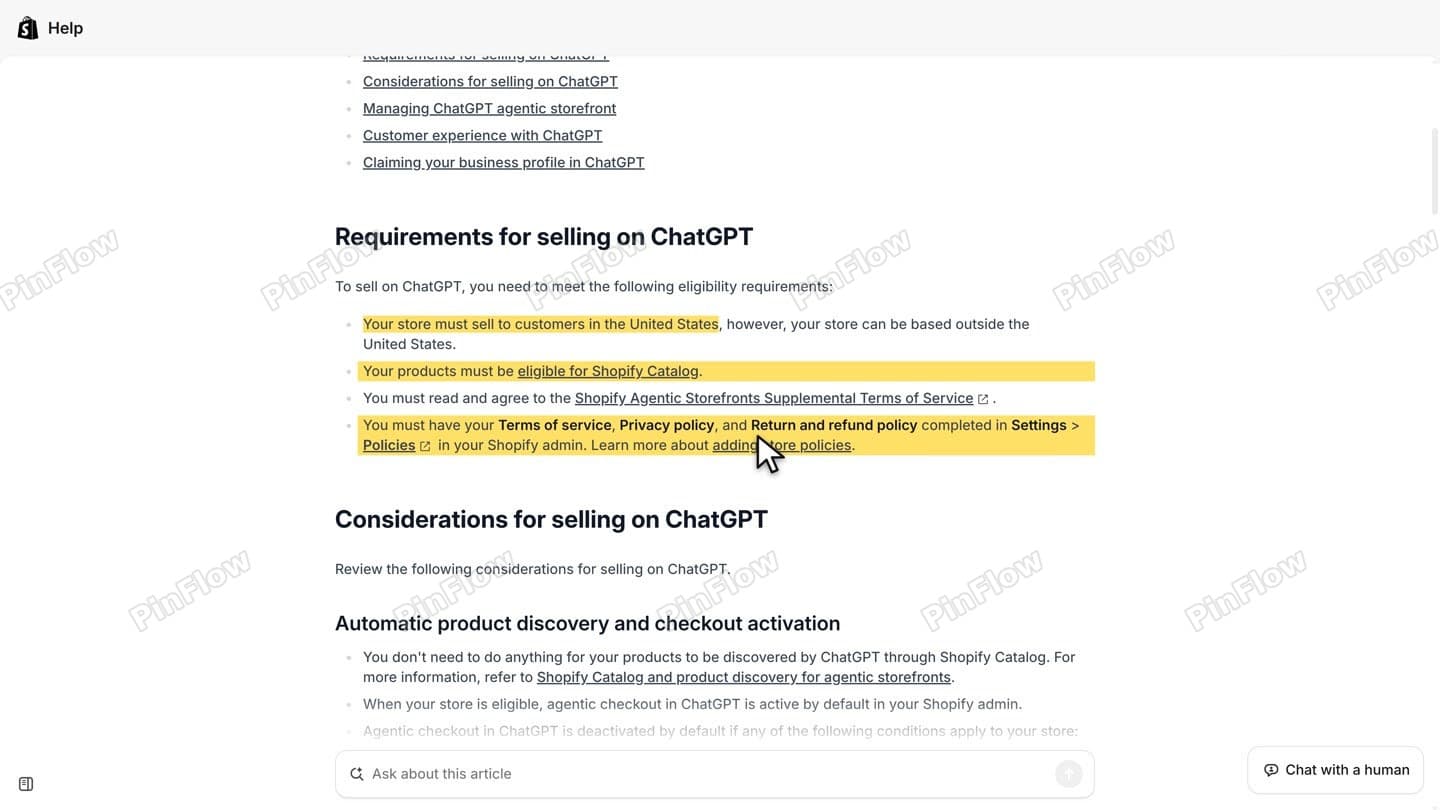 The Shopify Help page Requirements for selling on ChatGPT with the four eligibility requirements highlighted
Update your policies
Back on Agentic, the Get ready card shows Update policies as Not started. Click Review.
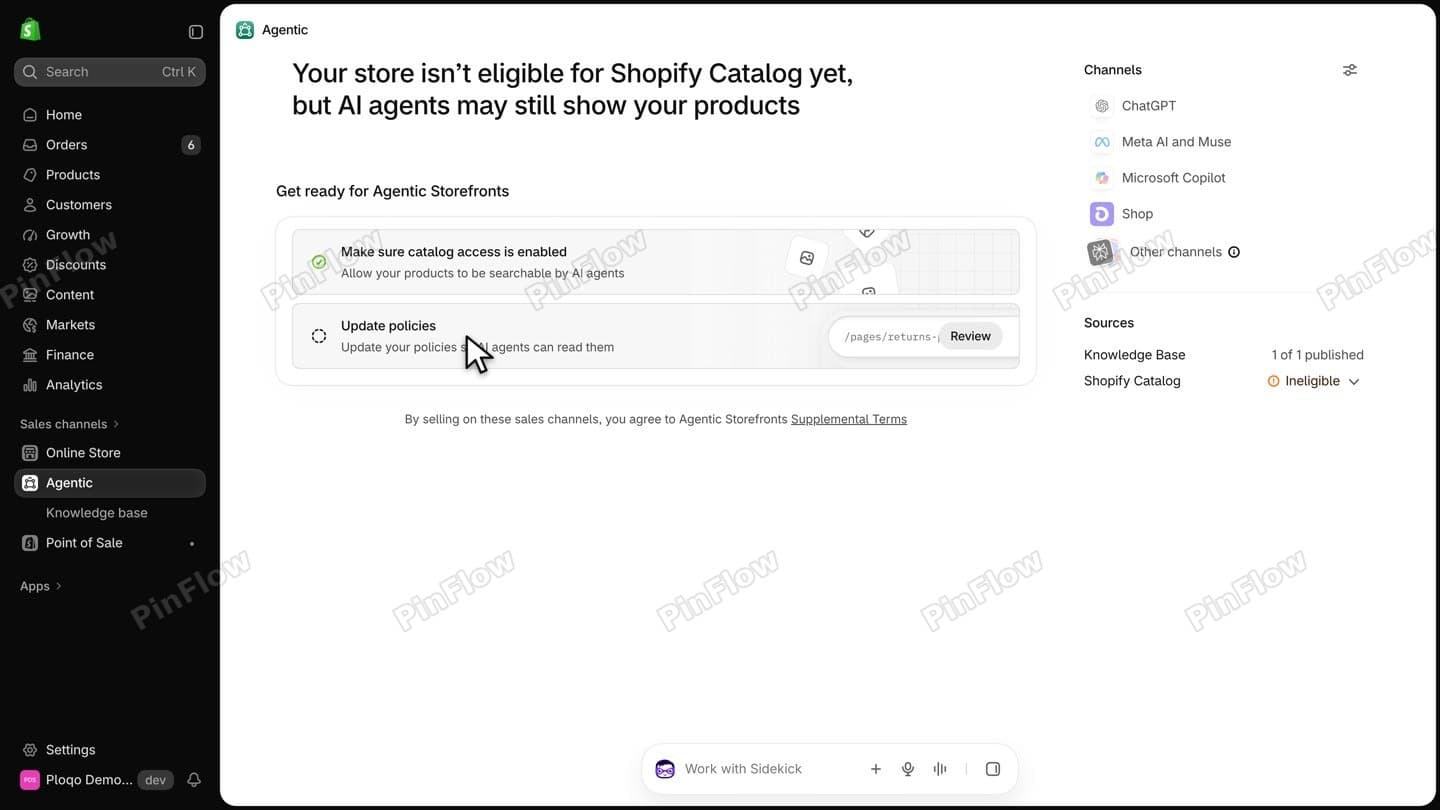 The Get ready for Agentic Storefronts card with Update policies marked Not started and a Review button
That opens Policies in Settings. On this store the Return and refund policy and the Terms of service both say No policy set. The Privacy policy is published.
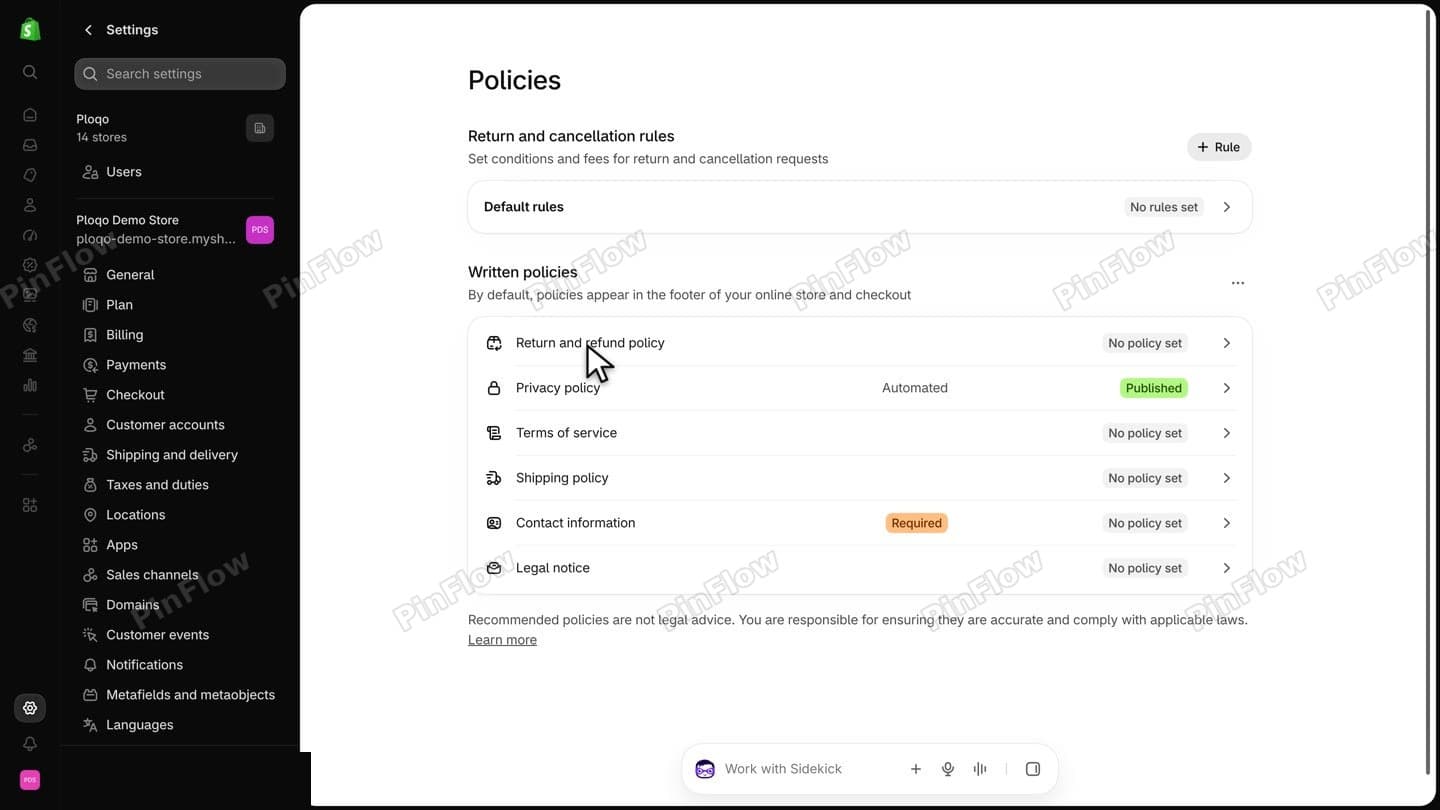 Settings Policies page: Return and refund policy and Terms of service show No policy set, Privacy policy Published
Shopify Catalog has its own requirements
The store must be on the Starter plan or higher, and it cannot be in private mode, which means the storefront password page. Shopify's Catalog requirements page also lists product rules, such as a title, an image and a price above zero, which you can check after the store-level ones.
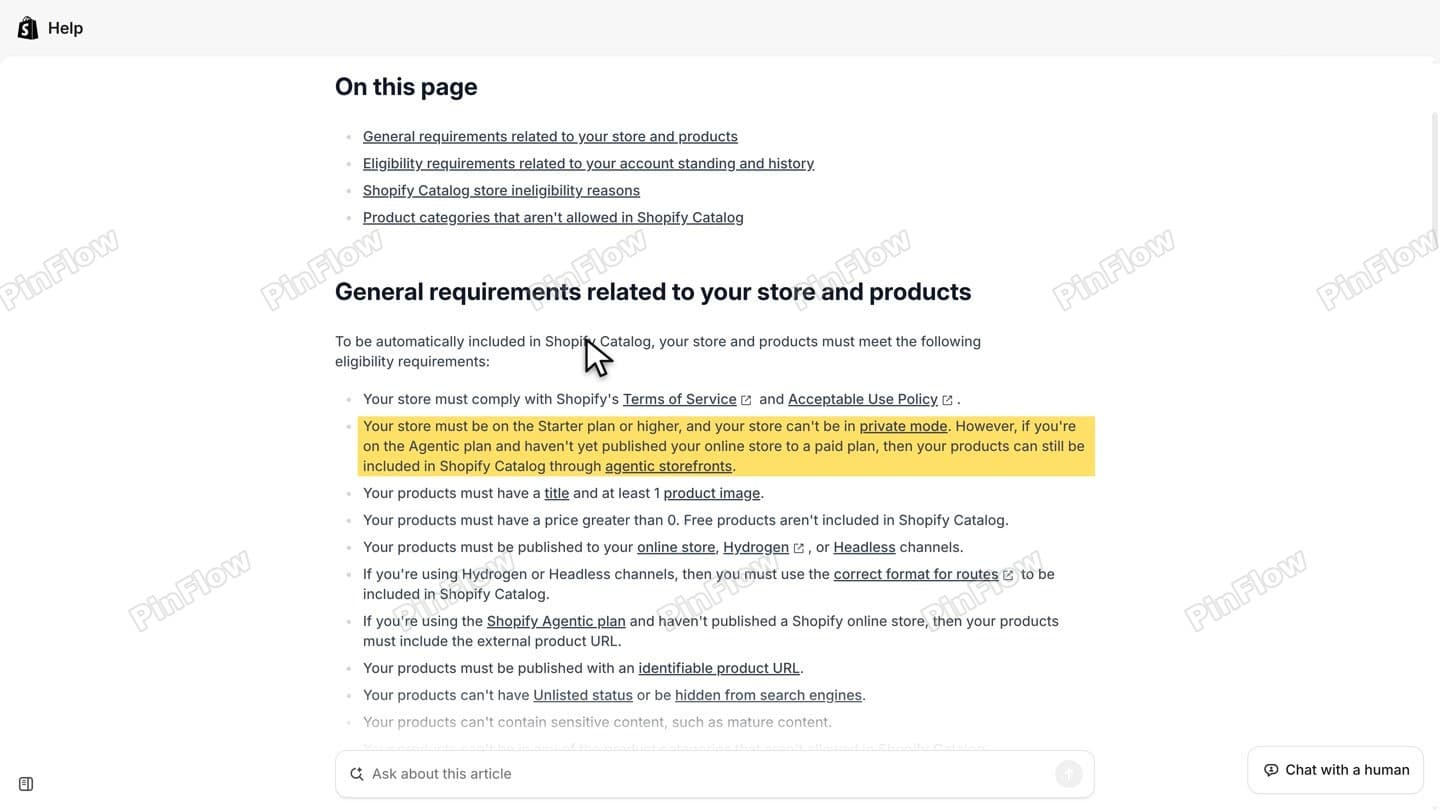 The Shopify Catalog requirements help page with the Starter plan or higher and not in private mode sentence highlighted
What "on" means: the default since 23 November, and how to turn off agentic checkout
Shopify's changelog entry of 23 November 2026 says that for eligible stores, agentic checkout is on by default when Manage for me or Automatically enable new channels is on. Existing opt-outs still apply, and orders appear in your Shopify admin as usual. No action is needed to keep it on.
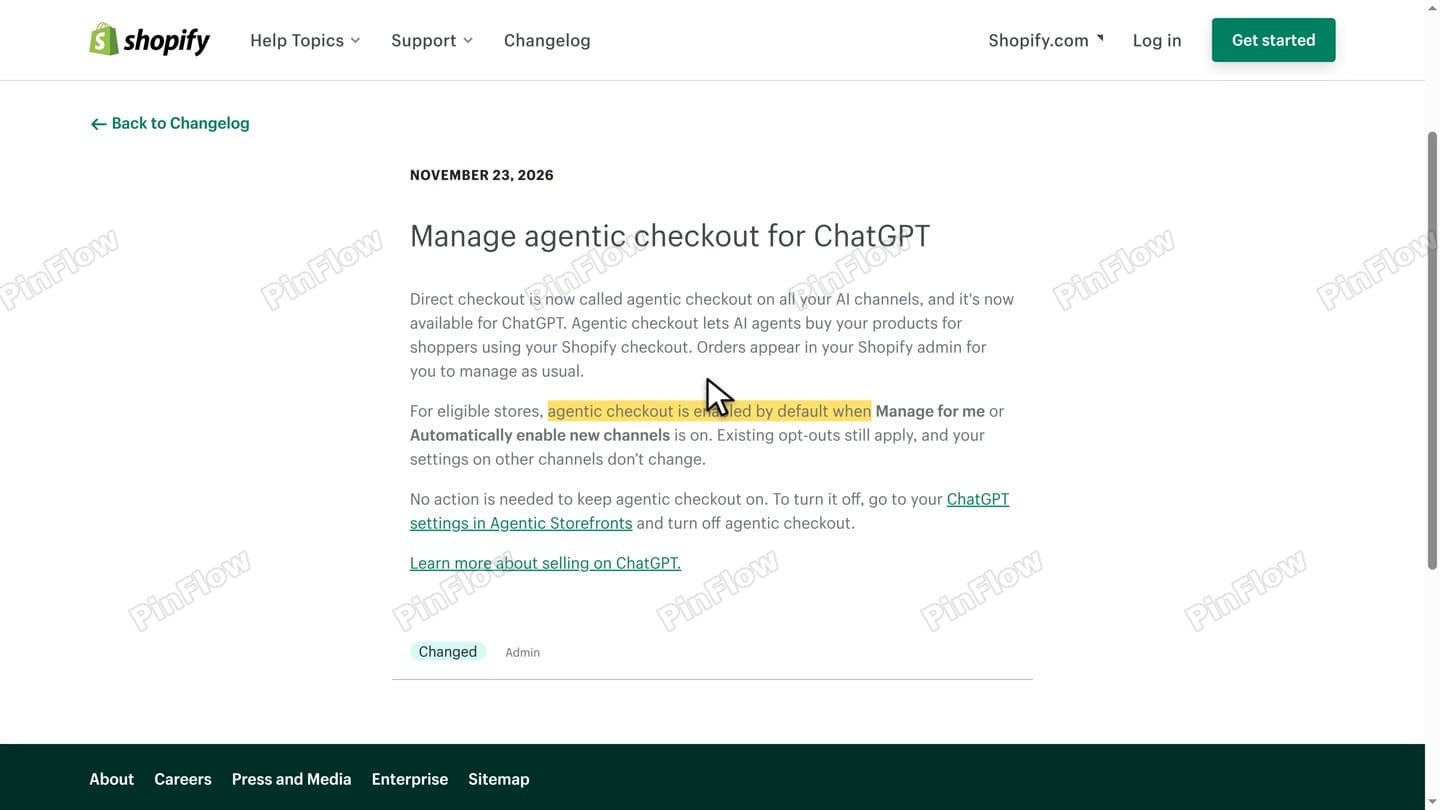 Shopify changelog entry of November 23, 2026 on agentic checkout for ChatGPT, on by default sentence highlighted
How to turn off agentic checkout for ChatGPT in Shopify
I did not click these on screen, because this store is not eligible and the switch does not exist on it. On an eligible store, the help page gives six steps: go to Sales channels, then Agentic. In the Channels section, click the sliders icon. If the setting shows Manage for me, click it to switch to Manual. Click ChatGPT. Turn off Agentic checkout. Click Save.
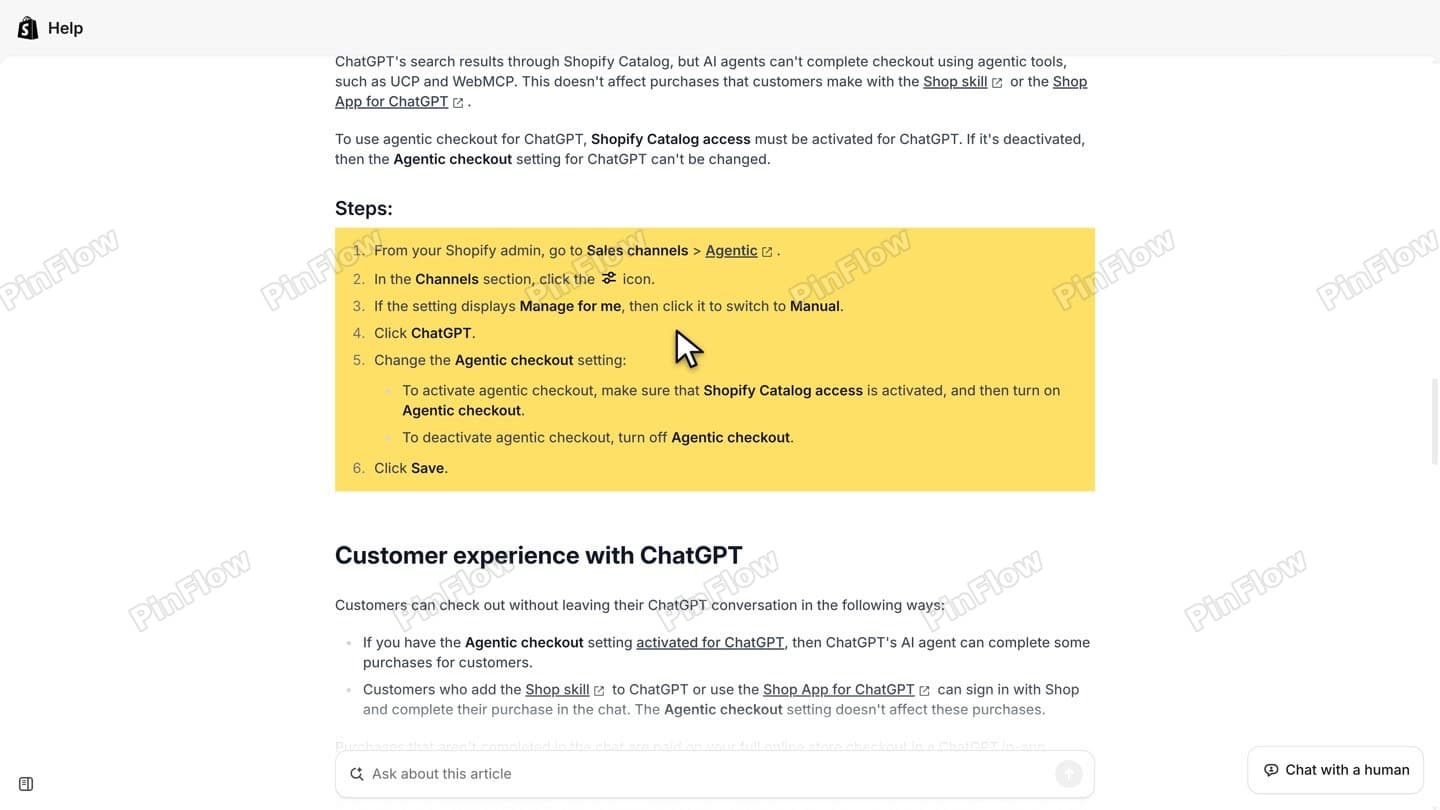 Shopify Help steps to turn off agentic checkout on ChatGPT: Channels icon, Manual, ChatGPT, Agentic checkout, Save
With checkout off, your products can still show up in ChatGPT's search results. It also does not affect purchases made with the Shop skill or the Shop App for ChatGPT.
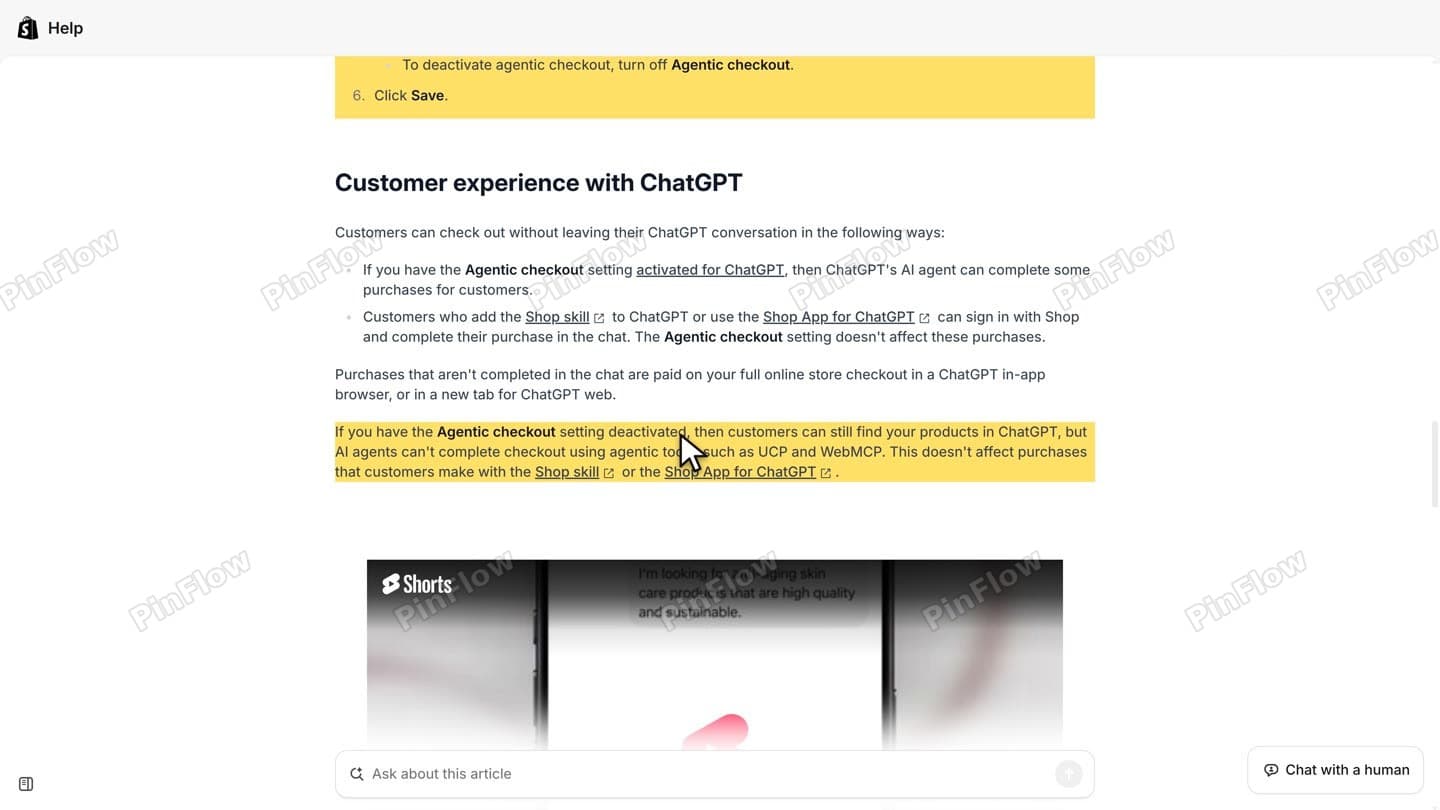 Shopify Help note: with agentic checkout off, customers can still find your products in ChatGPT
Stopping Shopify Catalog sharing with ChatGPT
Turning checkout off does not stop the sharing. To stop sharing your products with ChatGPT through Shopify Catalog, follow the same steps but turn off Shopify Catalog access instead. The help page says it can take up to 7 days before your product data is no longer shared. Switching back to Manage for me turns everything on again, agentic checkout included.
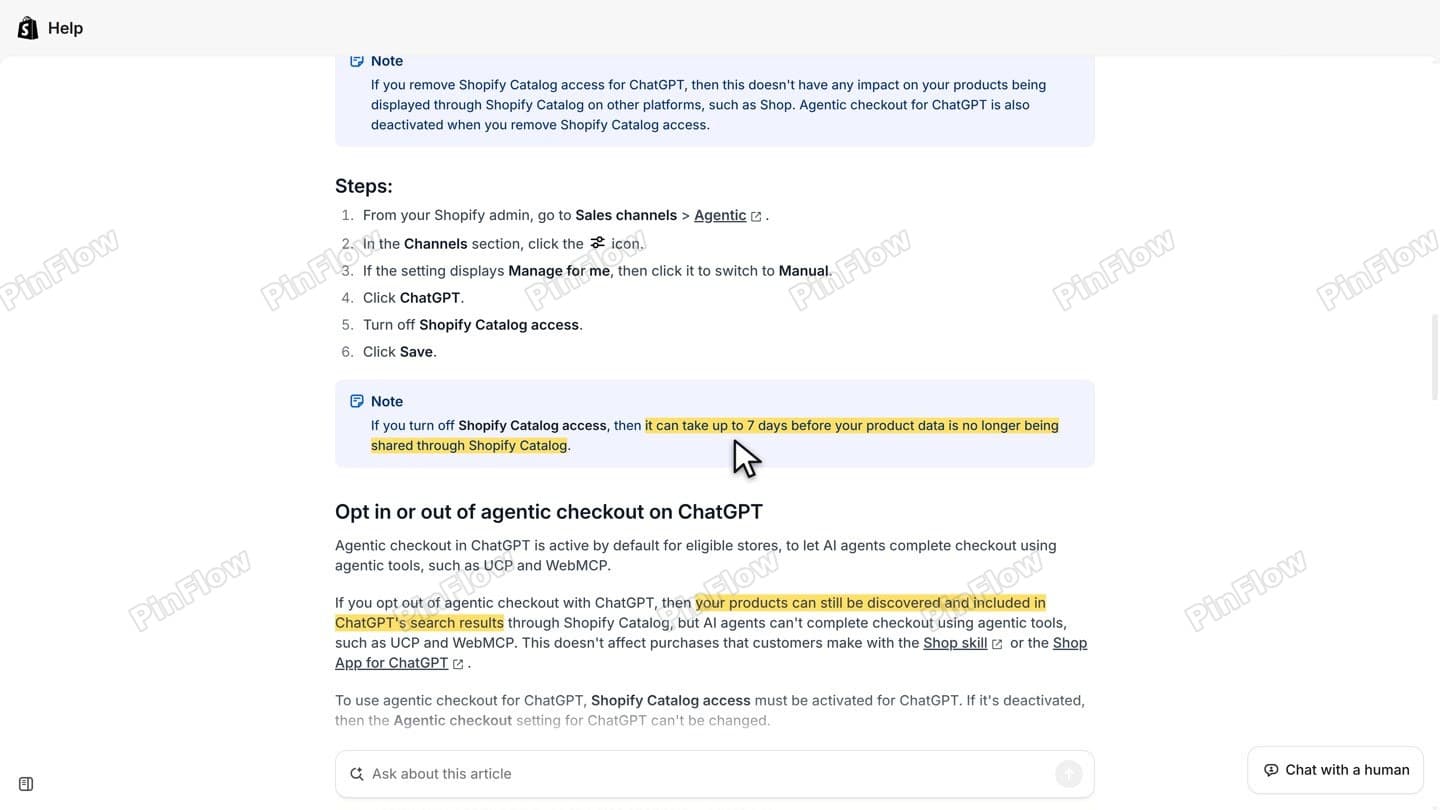 Shopify Help note: turning off Shopify Catalog access can take up to 7 days to stop sharing product data
Questions about Shopify and ChatGPT
Is ChatGPT selling my Shopify products? Open Sales channels, then Agentic, and click ChatGPT. The status word and the Sessions, Sales and Orders numbers answer it for your store. Sources, then Shopify Catalog, shows whether the store is eligible.
Do I need to install a ChatGPT sales channel? No. There is no separate ChatGPT channel to install. The Claim your business on ChatGPT app is optional.
Settings, Sales channels list with Online Store, Point of Sale and Shop and no separate ChatGPT channel
Does selling on ChatGPT cost anything extra? Shopify's help page lists no fees for selling in ChatGPT. You pay your standard payment processing fees.
How do I turn off agentic storefronts for ChatGPT in Shopify? On an eligible store, switch Manage for me to Manual in the Channels icon, click ChatGPT and turn off Agentic checkout. To stop sharing products with ChatGPT altogether, turn off Shopify Catalog access.
The Channels section of the Agentic page where the sliders icon opens the Manage for me setting
Agentic is missing from my admin menu. Am I opted out? Not necessarily. A missing menu item can be a staff permission or an unpinned menu item, so check the page directly. The rest of the page is covered in Shopify agentic storefronts: where to find them.
Sources
- Shopify Help: selling on ChatGPT
- Shopify Help: Shopify Catalog requirements
- Shopify Help: Agentic Storefronts
- Shopify changelog, 23 November 2026: Manage agentic checkout for ChatGPT
Questions or a screen that looks different on your store: [email protected]
More Shopify fixes
More community-sourced Shopify guides, tested on a live store.
Shopify Admin
Shopify Catalog: Check What ChatGPT Gets (Channel Mapping)
Shopify Catalog is the product data ChatGPT and other AI channels read. Open Channel mapping, read the preview, and check the title, price and description.
Shopify Admin
Shopify Knowledge Base: Add Facts for AI Agents (2026)
The Shopify knowledge base is now in your admin: Sales channels, Agentic, Knowledge base. Add a fact, pick a type, save, and publish it for AI agents.
Shopify Admin
Shopify Agentic Storefronts: Where to Find It (2026)
Shopify agentic storefronts put your products inside AI chats like ChatGPT and Copilot. Find it under Sales channels, Agentic, and see each part of the page.