
Shopify Category Metafields: Add Your Own Values
Shopify's category metafields only offer values from its own taxonomy, and sometimes none of them fit. You can add your own entry to the list, mapped back to the standard. Tested on a live store.
By AjayCodeWiz · September 8, 2026 · 8 min read
The problem, in the words a merchant would use
Pick a product category in Shopify and a block called Category metafields appears on the product page. Colour, Age group, Target gender, Material, and a set of fields specific to what you sell.
They are dropdowns. You do not type into them. You pick from a list Shopify wrote.
Most of the time that is fine. Then you hit a product where none of the options are right, and there is no obvious way to say what your product actually is.
A jewellery merchant asked about this on the Shopify Community. They sell 925 sterling silver, all of it hallmarked. Every time they edited a product, the Jewelry type field offered them "Imitation jewelry". For a brand whose whole pitch is that the silver is real, seeing that word on their own product page was uncomfortable, and picking it by accident would put wrong data on the listing.
Their question was reasonable: can I stop Shopify suggesting that value?
First, why the list is so short
I went and looked at what that field actually contains, using Shopify's own taxonomy data rather than guessing.
Jewelry type has exactly three values. That is the whole list:
- Fine jewelry
- Imitation jewelry
- Other
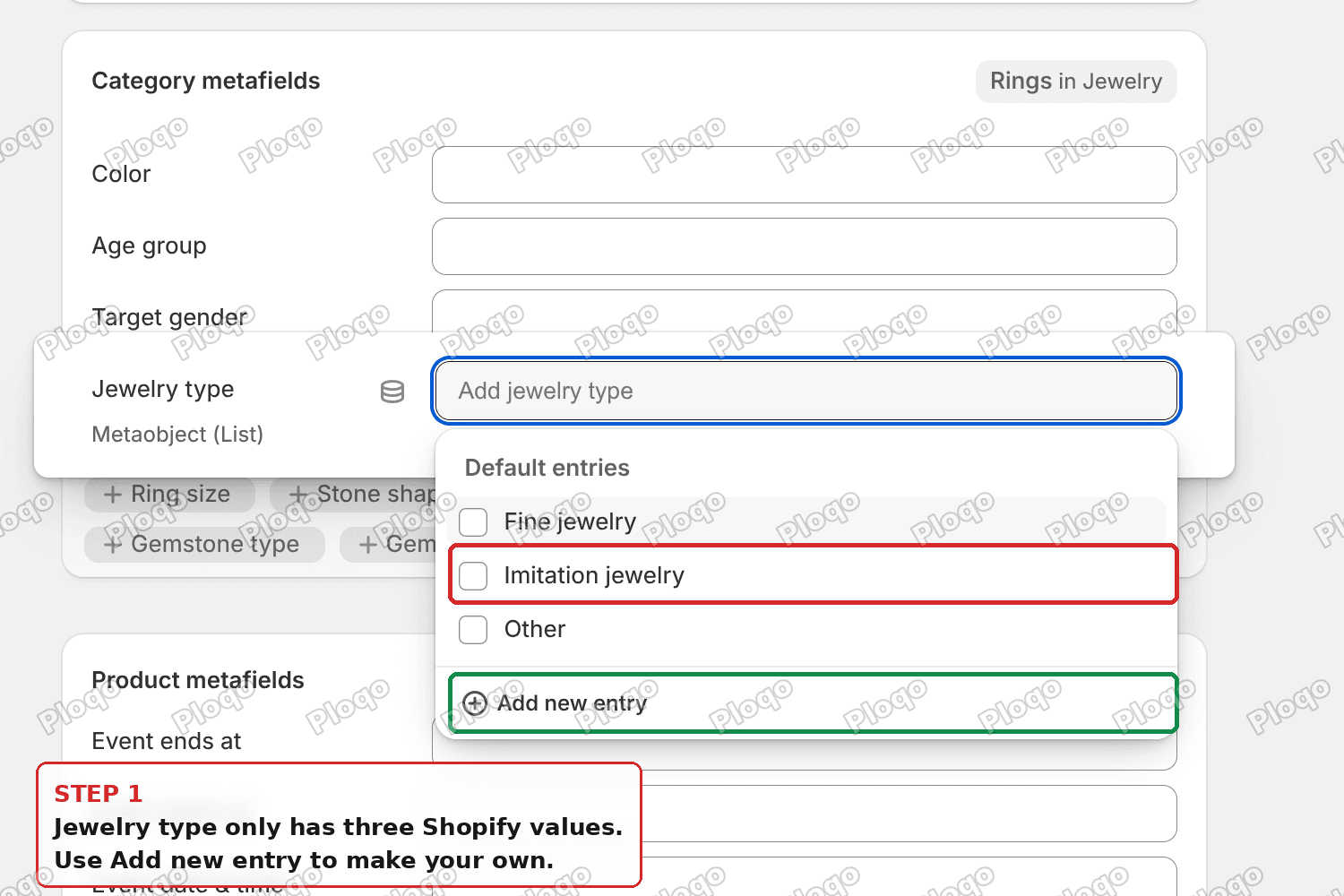 The Jewelry type field only offers three Shopify values
There is no "sterling silver" option, no "925", no "solid silver". A merchant looking at three options where one says "imitation" and one says "other" is being asked to choose between a word they dislike and a word that says nothing.
This is not a bug. Shopify's taxonomy is a shared vocabulary. It has to mean the same thing for every store in every country, so it stays deliberately coarse. The tradeoff is that it will sometimes be too coarse for your catalogue.
You cannot delete a value, and here is why
The first instinct is to remove "Imitation jewelry" from the list. It cannot be done, and the reason is worth understanding because it saves you hunting for a setting that does not exist.
Those three values are not stored in your shop. They live in Shopify's taxonomy. When I checked the store's own data for that field, it held exactly one entry: the one I had just created myself. The three defaults were nowhere in it.
So there is nothing on your side to delete. There is no "never suggest this" switch either. The field is shared infrastructure, and you do not get to edit other people's copy of it.
What you can do is add to it.
The fix: add your own entry
Category metafields are backed by something called a metaobject, which is Shopify's word for a reusable piece of structured data. The important part for this job is that the list of choices is extendable. Your own entries sit above Shopify's.
Here is the whole process.
1. Open the field
Go to Products, open a product, and scroll to Category metafields. Click the field you want to extend. At the bottom of the list of choices there is Add new entry.
If you do not see the Category metafields block at all, you have not set a product category yet. Set it first, in the Category field just under the description.
2. Give it a label and a base value
Two fields, and the second one is the one that matters.
- Label is the display name. This is what you and your staff see in the dropdown from now on. I used "925 Sterling Silver".
- Base jewelry type is required. Shopify's own help text under it reads "Base values map to standards for better search and organization". Pick the closest real taxonomy value. For genuine precious metal jewellery that is Fine jewelry.
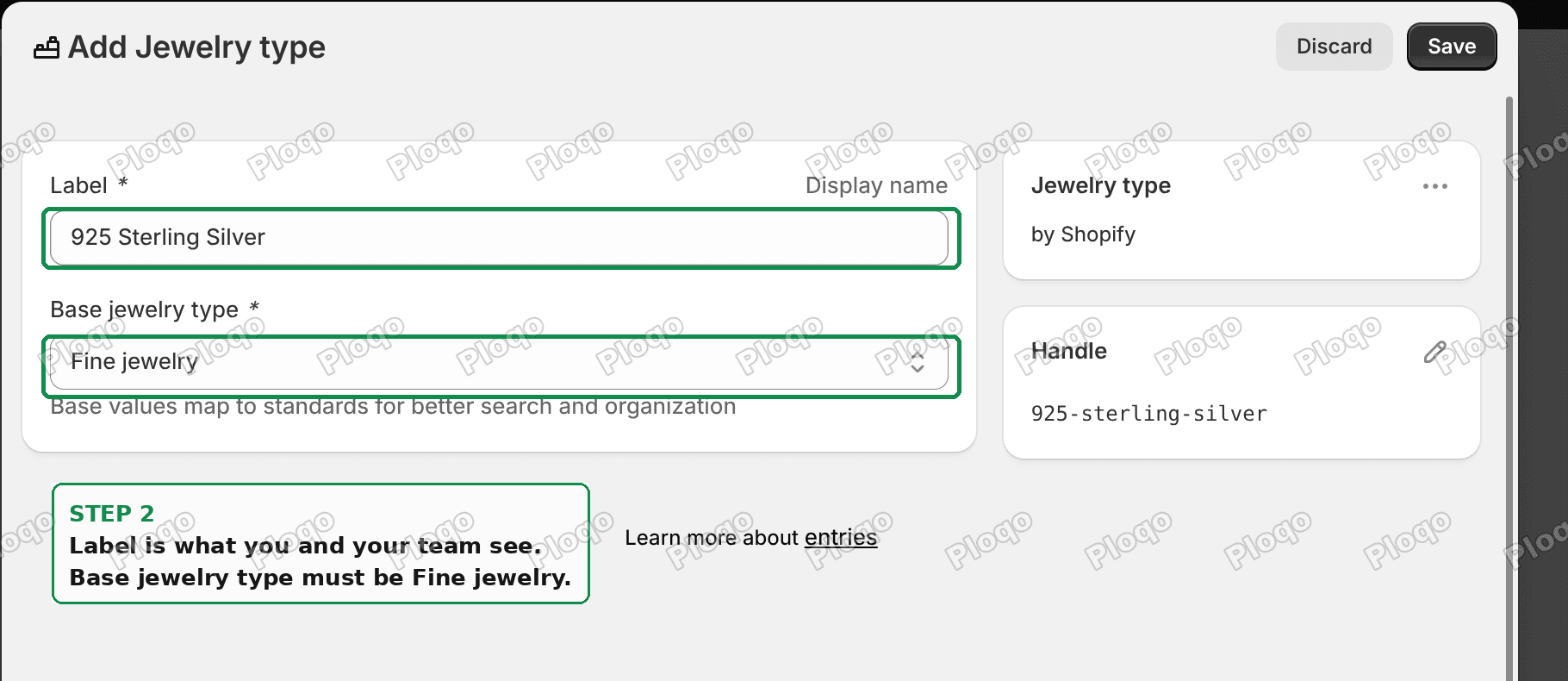 Adding a new entry and mapping it to Fine jewelry
Save.
That base value is the trick. Your label is what humans see. Underneath, the entry stores a reference to Shopify's real value, so the standardised data stays correct. When I inspected the saved entry, it held two fields: the label "925 Sterling Silver", and a reference pointing at Shopify's Fine jewelry value.
You get your wording without breaking the standard.
3. Tick it
Reopen the field. Your entry is now at the top, above a heading that says Default entries. Tick it, then save the product.
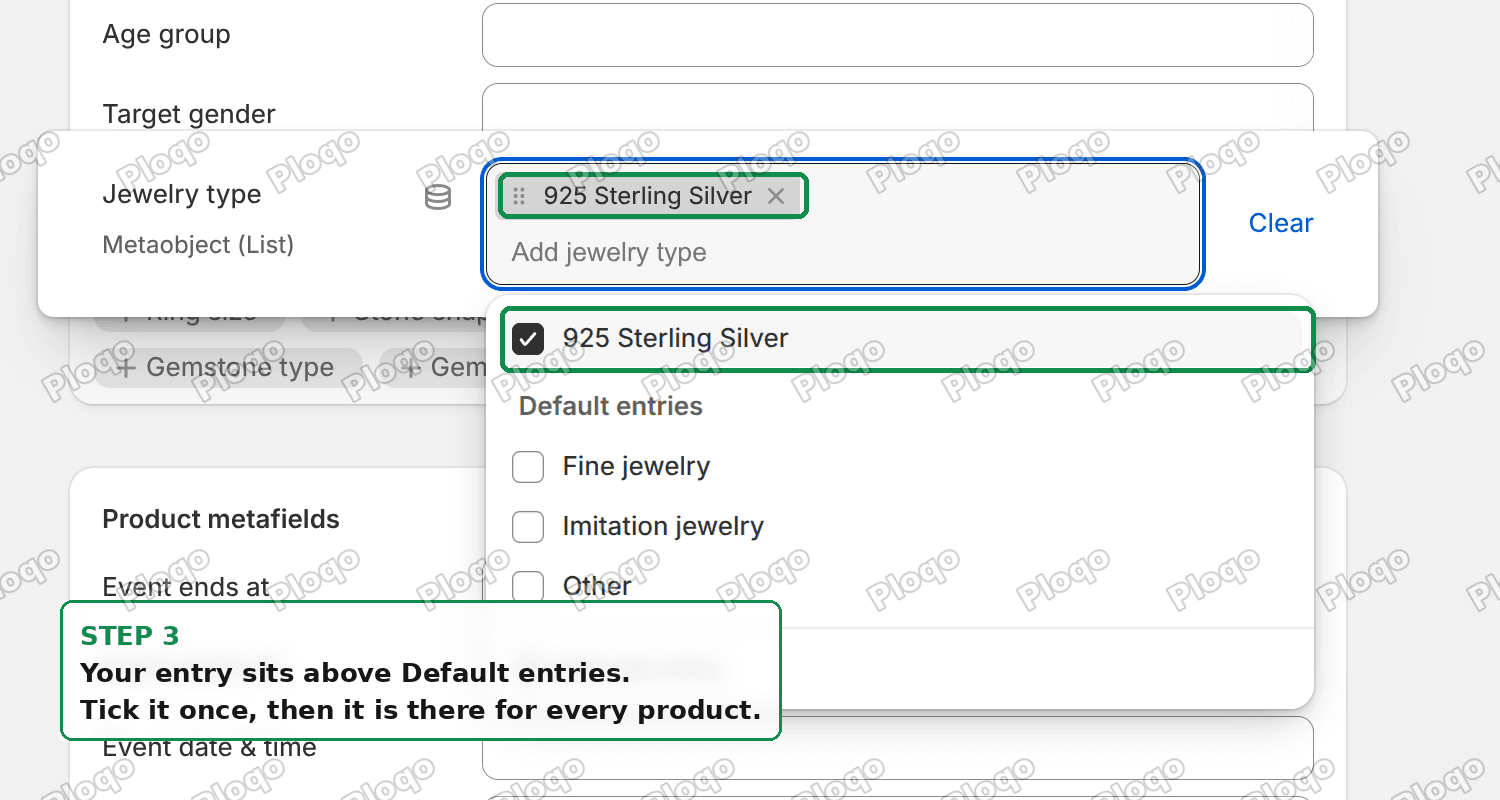 The custom entry sits above the default entries
You do this once. From then on the entry exists for every product in the shop, so the next product is a single click.
The part most people get wrong
While answering this, the more useful correction was not the custom entry at all. It was that 925 was being put in the wrong field.
925 is a material, not a type. Shopify already has a field for it. Jewelry material contains Sterling silver, right there in the default list, along with Silver, Silver-plated, Platinum, Rose gold and about seventy others.
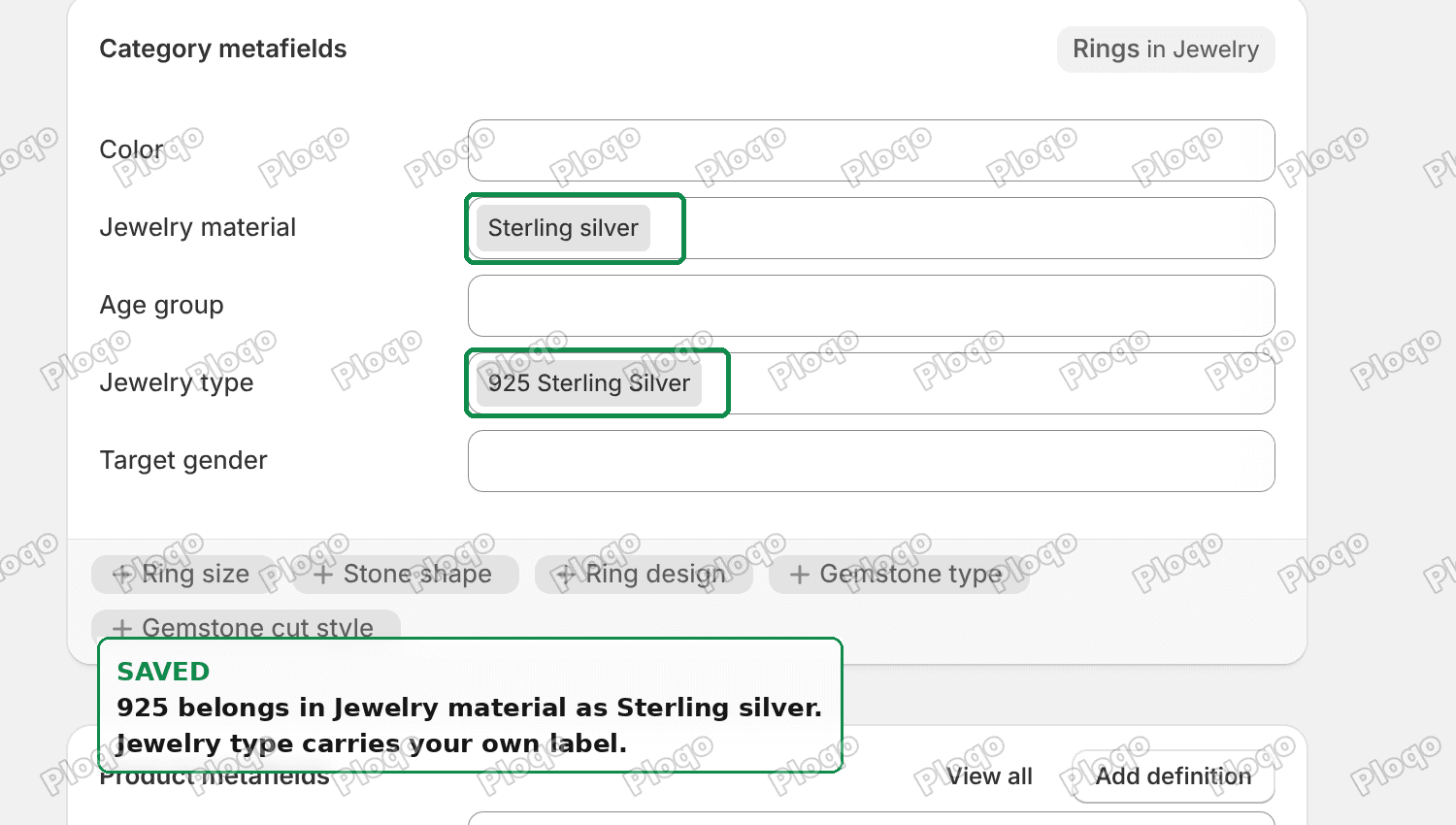 Jewelry material set to Sterling silver, Jewelry type set to the custom label
So the complete answer for a silver brand is two fields, not one:
- Jewelry material: Sterling silver. Already exists. Just pick it.
- Jewelry type: your own entry, mapped to Fine jewelry.
This generalises. Before you invent a new value, read the other fields on the category. Shopify often already has a field that says exactly what you were trying to force into the wrong dropdown.
Where your custom entries live
Your entries are ordinary shop data, and you can manage them outside the product page.
Go to Content > Metaobjects. You will see a definition for each category field you have extended, labelled by Shopify, with your entries inside it. You can rename an entry there, and every product using it updates.
That also explains the behaviour people find confusing. The definition is owned by Shopify, so you cannot change its shape or delete Shopify's values. The entries inside it are yours.
Removing a field instead of filling it
There is a second option people miss, and for some merchants it is the better one.
You do not have to fill in every category metafield. If a field is irrelevant to your product, the small x on a suggested field removes it from that product. The block shrinks and stops asking.
Use this when the field genuinely does not apply. Do not use it to avoid a field that a sales channel needs, which brings us to the next question.
Does any of this reach Google Shopping or Meta?
Worth being precise, because it is the reason to bother getting it right.
Category metafields exist to feed structured data to places that need it: Shopify search and filters, and the sales channels that read your catalogue. That is what the "better search and organization" help text is pointing at.
What I verified is the mechanism, not what each channel does with it. The entry stores a reference to a real taxonomy value, so a channel reading the standardised value gets Fine jewelry, not your custom label. That is the point of the base value being required.
If a specific channel's output matters to you, check that channel's own feed after you save. Do not assume a custom label travels.
A note on the product category itself
One more thing that trips people up, because it changes which metafields you get at all.
Product type and Category are different fields. Product type is your own free text, used for your own organisation and for automated collections. Category is the taxonomy value, and it is the one that decides which category metafields appear.
Pick the most specific category that is true. On the test product I used Apparel & Accessories > Jewelry > Rings, and that produced Ring size, Ring design, Stone shape, Gemstone type and Gemstone cut style on top of the generic fields. Choosing plain "Jewelry" instead would have lost all of those.
More specific category, more fields, better data. It costs nothing.
What to check if it did not work
A few things that come up:
- No Category metafields block. No category set. Set the Category field first.
- Add new entry is missing. That field is not the extendable kind. Some category attributes are plain choice lists and some are measurements. Only metaobject-backed fields, which are labelled Metaobject (List) under the field name, can take new entries.
- The entry saved but the product did not. They are two saves. The dialog saves the entry, then the product still needs its own save afterwards.
- You cannot see your entry in the list. It sits above the Default entries heading, not inside that group. Scroll up in the dropdown.
Definitions people mix up
Since these words all get used interchangeably and they are not the same thing:
- Metafield is a custom field on a product, customer, order and so on. You define it, you fill it, you can render it in your theme.
- Category metafield is a metafield Shopify defines for you when you pick a product category. You do not create it and you cannot change its shape.
- Metaobject is a reusable record. Category metafields that offer a list of choices store those choices as metaobject entries, which is exactly why you are able to add your own.
- Taxonomy value is Shopify's shared vocabulary entry, the same across every store. Your custom entry points at one of these rather than replacing it.
If you want the value itself changed
Adding your own entry solves your storefront. It does not change what the taxonomy offers other stores.
Shopify's product taxonomy is open source and accepts issues, so that is the right place to argue that a category needs a value it does not have. It is a slow road, but it is a real one, and the discussion happens in public:
github.com/Shopify/product-taxonomy
In the meantime, the custom entry is not a workaround you have to apologise for. It is a supported feature of the field, with a required mapping back to the standard so nothing downstream breaks.
What I tested
On a development store, on a product in Apparel & Accessories > Jewelry > Rings:
- Confirmed from Shopify's taxonomy data that Jewelry type carries exactly three values, and that Jewelry material already includes Sterling silver.
- Created a "925 Sterling Silver" entry mapped to Fine jewelry, and confirmed after saving that the entry stores both the label and a reference to Shopify's Fine jewelry value.
- Confirmed the entry then renders above the Default entries group, and that the product saves with it applied.
- Confirmed the shop's own data for that field contained only my entry, which is why the three defaults cannot be deleted.
- Set Jewelry material to Sterling silver on the same product and saved.
Nothing was ever set to Imitation jewelry.
Spending too long on manual Shopify busywork?
PinFlow turns your Shopify catalog into Pinterest pins and posts them on a schedule, automatically. Set your storefront up once, then let the system handle the repetitive part.
Get PinFlow on the Shopify App StoreMore Shopify fixes
More community-sourced Shopify guides, tested on a live store.
Shopify Admin
Shopify New Admin (2026): Where Search, Sidekick and Settings Went
Shopify's new admin moved search, alerts, the store switcher and Settings into the black sidebar, and Sidekick to a bar at the bottom. Where each one is now.
Shopify Admin
How to Use the New Shopify Admin (2026): Every Main Screen
A tour of the new Shopify admin: the black sidebar, search and Ctrl K, Home, Orders, Products, Settings and Sidekick, with where to click on each screen.
Shopify Admin
Schedule a Black Friday Sale in Shopify (Auto Start and End)
Give the discount its own start and end date and put the sale banner in an Event rollout with the same dates. Both start at midnight and end after Cyber Monday.