
How to Change Add to Cart Button Text in Shopify Safely
The safe, no-code way to translate or rename your Add to Cart button - and how to find and fix the broken file if editing theme code has already crashed your store.
By AjayCodeWiz · July 31, 2026 · 8 min read
The problem
You want to change the text on your Add to Cart button. Maybe to translate it into your language, maybe to say something friendlier like "Buy now" or "Add to bag".
There is a safe way to do this and a dangerous way.
The safe way takes two minutes and touches no code. The dangerous way is to open your theme files and start editing them, and it is how a real merchant on the Shopify Community ended up with a broken store.
They edited theme code to translate their call-to-action buttons. After that, their Add to Cart button in the theme editor showed "Please try Alain in a few minutes", then "Your cart is empty". Their bundle app stopped showing on the product page. Shopify support confirmed the code edits were the cause.
I want to show you the safe method first, because it is the one you should use. Then I will show you how to find and undo the damage if you have already edited code, because that merchant is not alone.
The safe way to change or translate button text
Shopify keeps every piece of visible text in your theme in a separate place from the code. It is called the theme's language content. You can edit that text directly, and because you are editing text and not code, you cannot break anything.
Here is where it lives.
- Go to Online Store > Themes.
- Find your theme and click the ... button next to it.
- Choose Edit default theme content.
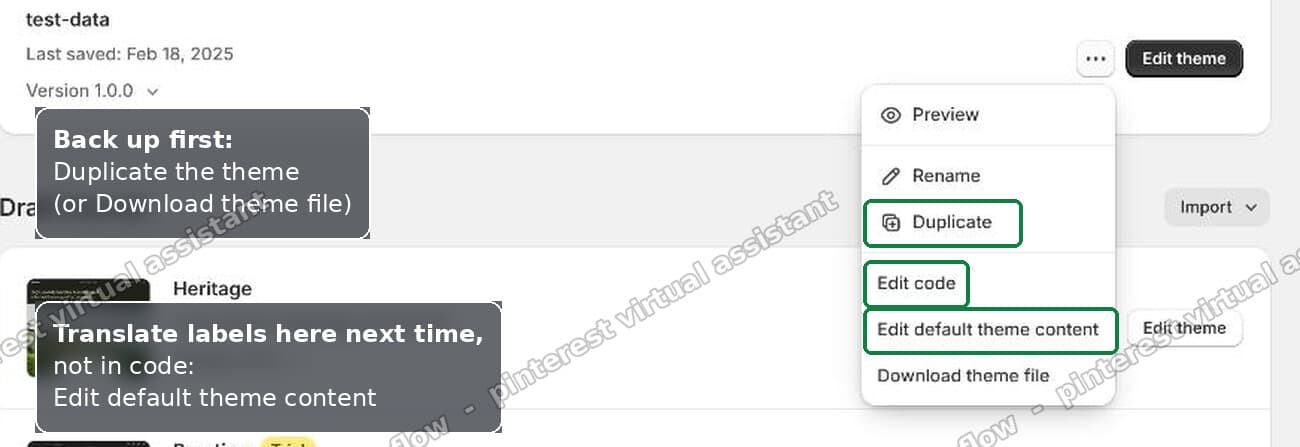 The theme actions menu in Shopify, showing Edit default theme content and Duplicate
That opens the language editor. There is a search box at the top. Type "Add to cart". Shopify shows you every place that phrase is used, with an editable field next to each one. Type your new wording, then Save.
The change goes live on your storefront right away. The button now says whatever you typed, and not one line of code changed.
This is the answer for renaming the button too. "Add to cart", "Buy it now", "Sold out", the cart title, the empty-cart message, they are all in here. Search for the current wording, replace it, Save.
If you sell in more than one language, use Translate & Adapt
The language editor above changes the default text for every shopper.
If you actually run your store in several languages and want the button to change based on the shopper's language, use Shopify's own free app, Translate & Adapt. Install it from the Shopify App Store, add your languages under Settings > Languages, and translate the button text per language inside the app.
Translate & Adapt writes into the same theme language content, so it is just as safe. It never touches the code either.
The rule is simple. To change what a button says, edit the theme content, not the theme code. Do that and none of the rest of this article can happen to you.
Why editing theme code breaks the storefront
It helps to understand why the code route is so risky, because the failure is not obvious.
When you open the code editor and start replacing words, you are not just editing the labels you can see. The same words appear inside the code that makes the page work, and inside Shopify's own built-in messages.
Look again at that broken error: "Please try Alain in a few minutes". The real Shopify message is "Please try again in a few minutes". The merchant had run a find-and-replace that swapped the word "again" for a translation, and it changed "again" everywhere, including inside a system message it was never meant to touch.
It gets worse. The word "again" also hides inside other words. The word "against" contains it. Shopify themes use "against" in real code, for example when a snippet checks stock levels with something named check_against_inventory. A blind replace of "again" turns that into broken code. Broken code stops the Add to Cart button from working, and it stops app blocks like a bundle app from rendering, because the whole product section fails to load.
So one careless replace can take down the button, the cart, and any app that lives on the product page, all at once. That is exactly what happened here.
Already edited the code? How to find the broken file
If you are reading this after the damage is done, here is how to find the exact file, even on the Basic plan with no version history.
You do not have to guess. The code editor can search every file in your theme at once.
- Go to Online Store > Themes > ... > Edit code.
- Press Ctrl+Shift+F (or Cmd+Shift+F on a Mac). This is "search all files".
- Search for the wrong word you introduced. In the example, that word is
Alain.
Every result is a file and a line where the bad word landed. Open each one and change it back to the correct word.
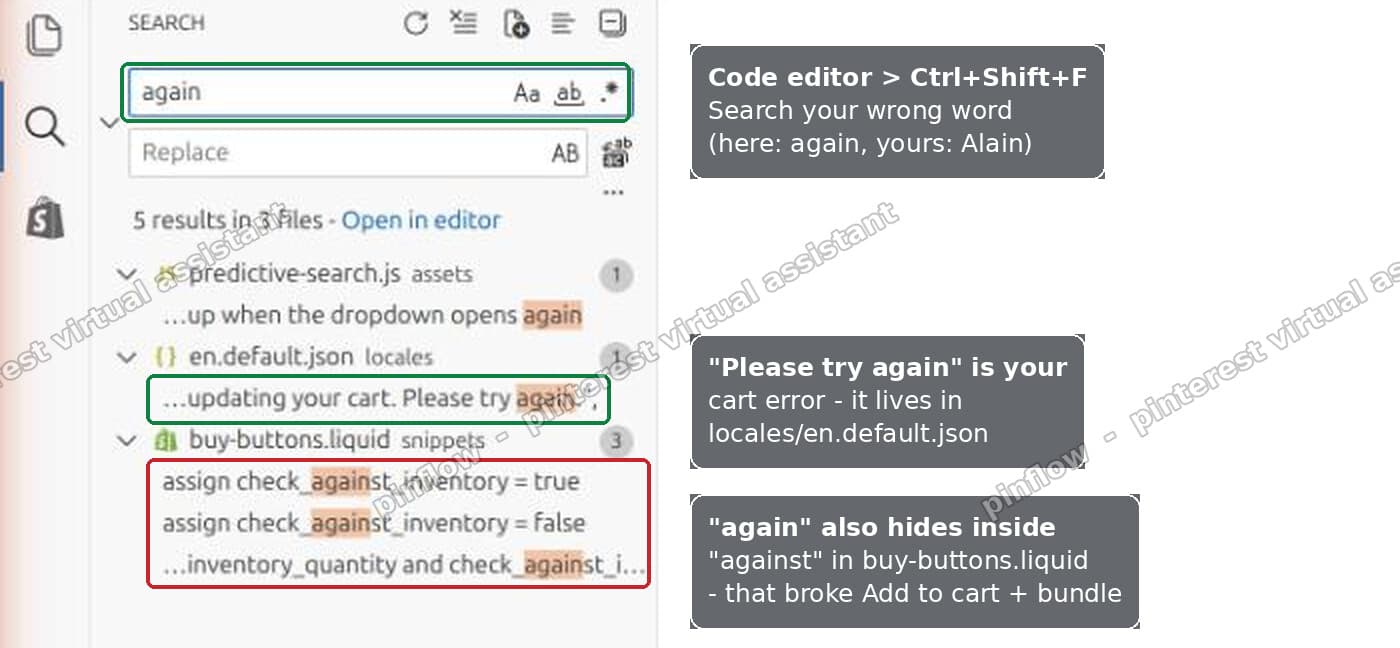 Searching all Shopify theme files for the wrong word in the code editor
I reproduced this on a test store to be sure it works. Searching for "again" returned five hits across three files. One was the cart error message in locales/en.default.json. Three more were inside the word "against" in snippets/buy-buttons.liquid, which is the snippet behind the Add to Cart button. That single search shows you the label you meant to change and the code you accidentally broke, side by side.
Fix each hit and the button, the cart, and the app block come back.
Check your language files are still valid
There is one more thing to check while you are in there.
Your translation text lives in files ending in .json, inside the locales folder. JSON is strict. One extra comma or one unclosed quotation mark makes the whole file invalid, and when a language file is invalid the theme can fall back to strange text and the cart can fail to load in the editor.
Open each locales file you edited. Copy its contents into a free JSON checker like jsonlint.com. If there is a syntax error it will point you to the exact line. The usual culprits are a comma after the last item in a list, or a quotation mark inside your translated text that was not escaped.
Fix the missing app block
If an app block, like a bundle app, disappeared from the product page, it is almost always a symptom of the same broken code, not a separate problem.
App blocks are rendered inside the product section. If that section has an error, everything inside it vanishes, including the app. Once you fix the broken word or the invalid JSON, the section loads again and the app block usually reappears on its own.
If it still does not show, re-add it by hand. Open the theme editor, go to your product template, and add the app's block back to the product section. Then open Theme settings > App embeds and make sure the app is toggled on there too.
Back up before you edit, and how to restore on Basic
The Basic plan does not give you a saved history of theme edits, so there is no one-click undo. That makes a backup the thing to do before you touch anything.
From the same ... menu next to your theme you have two safe backups:
- Duplicate makes a full copy of the theme. Do this before any edit. If something breaks, your copy still has the working version, and you can copy the correct file across from it.
- Download theme file saves the whole theme to your computer as a backup you keep.
If your live theme is already tangled and you cannot untangle it, there is a clean recovery. Add a fresh copy of the same theme from the Theme Store as a new unpublished theme. Open both code editors, find the file you broke, and copy the original version across from the fresh copy. Then redo your wording change the safe way, in the theme content.
Change versus translate: what the button text really is
People use "change" and "translate" for this, and it is worth being clear, because they are the same job in Shopify.
The Add to Cart label is a piece of text stored in your theme's language content. When you "change" it to "Buy now", or "translate" it to another language, you are editing that same stored text. There is no separate translation system to learn for a single button. It is one field, and you can put any wording you like in it.
That is also why the code route is never necessary for this. The text is already pulled out of the code for you, sitting in the language editor, waiting to be edited safely.
What to check if the button still will not change
You edited the code and the text still shows the old word. The theme content overrides most theme text. Change it in Edit default theme content, and if you had also hard-coded a word in the template, search the code for it and set it back so the two do not fight.
The button text changes back when a shopper picks a variant. That label is coming from a different string. Search the language editor for the wording that appears after the switch, and change that one too.
Your change shows in the editor but not on the live store. Make sure you are editing the language content of your published theme, not a draft copy.
A translated store shows English on the button. That language is missing a translation for it. Open Translate & Adapt, pick the language, and fill in the button field.
Should you ever edit the theme code for this
For changing or translating button text, no. The theme content editor and Translate & Adapt cover it completely, and they cannot break your store.
Editing theme code is for real customisation that has no setting, like changing layout or adding a feature. Even then, duplicate the theme first, change one thing at a time, and never run a find-and-replace across the whole theme. A replace that looks harmless on a label will rewrite the code and the system messages that happen to contain the same letters.
Keep text edits in the theme content, keep the code for code, and the "Please try Alain in a few minutes" story stays someone else's story, not yours.
Spending too long on manual Shopify busywork?
PinFlow turns your Shopify catalog into Pinterest pins and posts them on a schedule, automatically. Same idea as the safe route above, let the system handle the repetitive part.
Get PinFlow on the Shopify App StoreMore Shopify fixes
More community-sourced Shopify guides, tested on a live store.
Themes & Storefront
Shopify Anchor Link: Button That Scrolls to a Section
Link a Shopify button to a section lower on the same page with an anchor link. Steps for the theme editor, no code files, plus the fix for a title hidden under the header.
Themes & Storefront
Shopify Social Media Icons: Add a Custom Icon and Link
Set your social links in Shopify theme settings, see why icons do not show, and swap in your own icon for a network the theme does not list.
Themes & Storefront
Sticky Add to Cart Button in Shopify Dawn, No App
Pin the Add to cart button and its delivery line to the bottom of the screen in Shopify Dawn. One free Custom Liquid block, no app, phone and desktop.