
Collapse Collection Filters by Default in Shopify
Collapse Shopify collection filters so each group starts closed and opens on click, on Nordic and other Dawn-based themes. Code fix plus a no-code option.
By AjayCodeWiz · August 10, 2026 · 13 min read
The problem
A merchant asked about this on the Shopify Community. Their collection page filters were all open at once, and they wanted them closed by default.
On their theme, every filter group starts expanded. Availability is open. Price is open. Any tag or option group you added is open too. The more filters you set up, the taller the sidebar gets.
That tall sidebar is not just ugly. It pushes real content down. On a collection page, the products are what sell. When the filter column runs longer than the first row of products, shoppers scroll past a wall of checkboxes before they see anything to buy.
The merchant runs the Nordic theme. Nordic is a paid theme built on Dawn, Shopify's free reference theme. So this is really a Dawn-family behavior, and the fix works the same way on any Dawn-based theme.
I reproduced it on a test store on the Nordic theme. Here is the default: both filter groups sit wide open the moment the page loads.
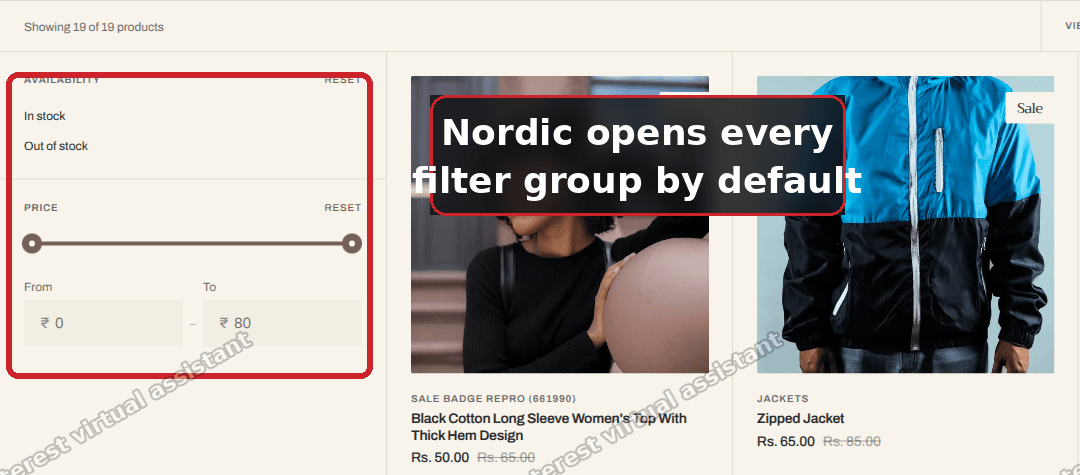 Nordic collection page with the Availability and Price filter groups both open by default
The merchant's goal was simple. Keep the filters in the sidebar, but have each one start closed. Click a filter to open it, click again to close it. An accordion, in other words.
That is exactly what this guide does. I will also cover a no-code option for people who do not want to touch theme files.
Why it happens
This is the part most forum answers skip, so it is worth a minute.
A "filter" on a collection page is a group of options you can tick to narrow the products. Availability, price, color, size, and so on. Shopify calls these filters "facets". You set them up under Settings > Search & Discovery > Filters, and the theme decides how to draw them.
Each filter group is drawn with an HTML <details> element. Think of <details> as a native open-and-close box. If the tag has the word open in it, the box starts expanded. Remove that word, and the box starts collapsed. No JavaScript needed. The browser handles the toggle for you.
Here is the key difference. Stock Dawn only opens the first filter group and leaves the rest closed. It does that with a small rule in its code: open the box only when it is the first one in the loop.
Nordic drops that rule. Every filter group gets the open word, so every group starts expanded. That is the whole cause. Nordic is not broken. It just made a styling choice that opens everything.
I confirmed this by loading the page with JavaScript turned off. The groups still rendered open, which means the open is baked into the page by the theme, not added later by a script. So the fix has to be in the theme code, or in a theme setting. You cannot fix it with CSS alone in a reliable way.
Good news: it is a tiny edit. You are deleting one word, in one file, up to two times.
Which fix is right for you
There are two clean ways to do this. Pick based on whether you are comfortable editing theme code.
- Option 1 (small code edit). Keeps your sidebar exactly as it is. Filters stay on the left, they just start closed. This is the closest match to what the merchant asked for.
- Option 2 (no code). Switches the filters to a slide-out Drawer. Nothing shows expanded on the page, but the sidebar is replaced by a "Filter" button. Choose this only if you like that look.
Most people want Option 1. It changes the behavior without changing the layout. I will walk through both.
The fix (Option 1: collapse each group with a one-word edit)
This edits your theme code. It is safe and small, but always work on a copy if you are nervous. To make a copy, go to Online Store > Themes, find your theme, click the ... (three dots), then Duplicate. Edit the duplicate, then publish it when you are happy.
Step 1. Open the code editor.
Go to Online Store > Themes. On your Nordic row, click the ... (three dots), then Edit code.
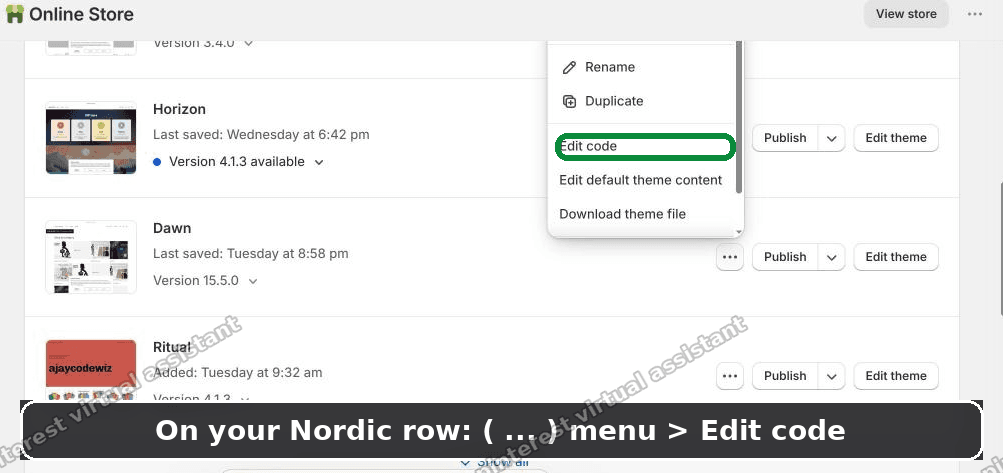 The Online Store Themes list with the three-dot menu open and Edit code highlighted on the Nordic row
"Edit code" opens the theme's files in a browser editor. It looks the same on every Shopify theme, so these steps match what you will see even if your theme is not Nordic.
Step 2. Open the filters file.
In the file list on the left, open snippets/facets.liquid. A snippet is a small reusable chunk of theme code. This one draws the filter groups.
If you cannot find it in the list, use search. Press Ctrl + Shift + F (or Cmd + Shift + F on a Mac) to search across every file, and type facets__disclosure. That is the class name Nordic uses for the desktop filter box, so the search lands you on the right lines.
Step 3. Find the word open and delete it.
Inside the filter's <details> tag you will see the word open. Delete just that word. Leave everything else in the tag alone.
There are usually two of these tags. One draws the normal filters, like Availability and any tag or option groups. The other draws the Price range. Remove open from both. Miss one, and that group will still start expanded.
Step 4. Save.
Click Save in the top right of the editor. That is it.
Refresh your collection page. Every filter now starts collapsed and opens when clicked.
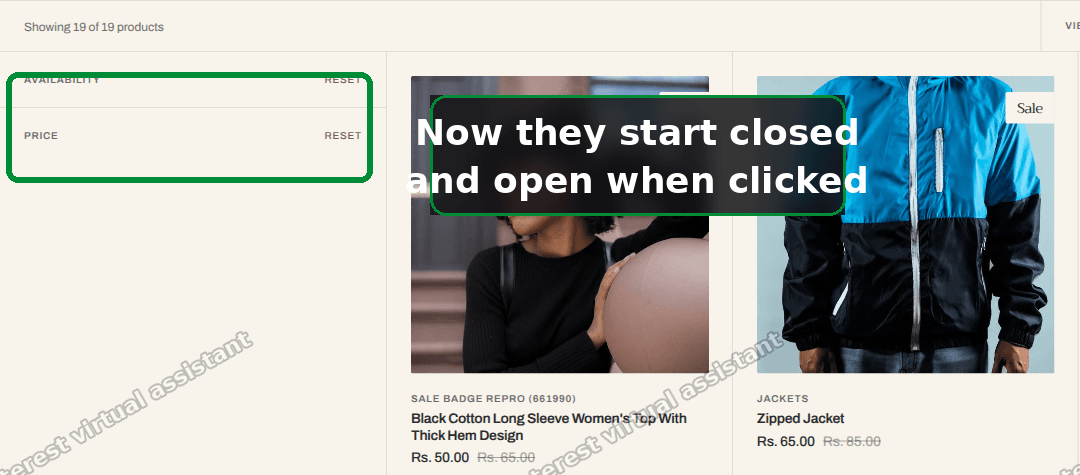 The same Nordic collection page after the fix, with the Availability and Price groups collapsed to just their labels
Tested on a Nordic store: after removing open, the Availability and Price groups start collapsed and expand only when you click their label. The products now sit higher on the page because the sidebar is short.
One nice detail. When a shopper applies a filter, Dawn-based themes reload only the changed part of the page, not the whole page. That reload keeps your collapsed state. So the filters stay closed even after someone picks an option. You do not get a group popping back open mid-shop.
An alternative (Option 2: switch to the Drawer layout, no code)
If you would rather not open the code editor at all, there is a built-in setting that hides the filters until they are needed.
This one does not collapse the sidebar. It removes the sidebar and puts your filters behind a single Filter button. Click the button, and the filters slide out in a panel.
Here is how to switch it on.
- Go to Online Store > Themes, then click Customize on your theme.
- Open a collection page inside the editor.
- Click the Product grid section.
- Find Filtering and sorting.
- Set Desktop filter layout to Drawer.
- Click Save.
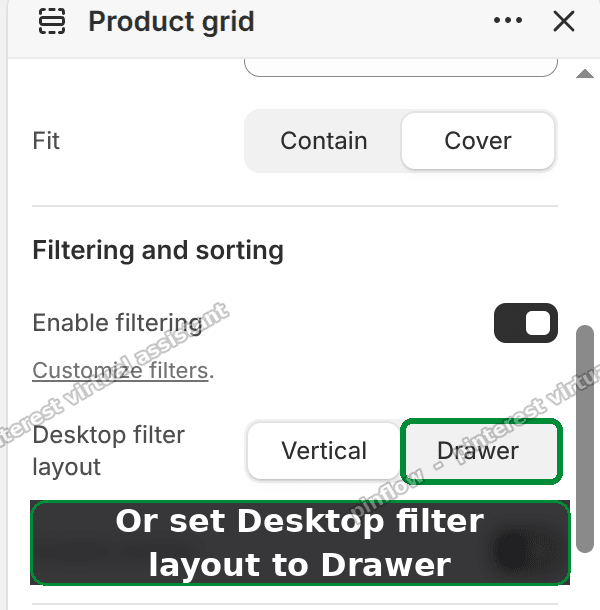 The Nordic Product grid settings in the theme editor, with Desktop filter layout set to Drawer
Your filters now open from a slide-out panel. Nothing shows expanded on the page, because nothing shows at all until the shopper opens the panel.
The trade-off is layout. Drawer replaces the left sidebar with a button. Some stores prefer that clean look. Others rely on the sidebar so shoppers can see the filter options at a glance. Try it and decide. You can switch back to Vertical in the same setting at any time.
If you want the sidebar to stay and just start closed, use Option 1. If you want the filters out of the way entirely, use the Drawer.
Does this change anything on mobile?
No. This is a desktop change.
On phones, Dawn-based themes already hide filters behind a "Filter" button by default. They do not show an open sidebar on a small screen, because there is no room for one. So on mobile your filters were never the problem.
That is why the code fix targets the desktop filter class. When you delete open from facets.liquid, you are changing how the desktop sidebar behaves. The mobile drawer keeps working the way it always did.
Check both after you make the change, just to be sure. Open a collection on your computer and on your phone. Desktop should now start collapsed. Mobile should look exactly as before.
How do I collapse filters on Dawn or another Dawn-based theme?
The same edit works, but the detail is slightly different, so read this if you are not on Nordic.
Stock Dawn already collapses everything except the first group. If that is enough for you, you are done. You only need this fix if you want the first group closed too.
To close the first group as well, open snippets/facets.liquid and look for the rule that adds open to the first item in the loop. It reads roughly like "if this is the first filter, add open". Remove the part that outputs open, and now no group starts expanded.
Many paid themes are Dawn-based. Nordic, and others in the same family, reuse Dawn's filter code with small changes. If your theme has a snippets/facets.liquid file, this approach applies. The exact wording of the tag may differ, so search for open inside the <details> tags and remove it there.
If your theme is not Dawn-based, the file name and class names will be different. The idea is still the same: find the <details> that wraps each filter group, and remove open so it starts closed. Search your theme files for <details and check which ones sit inside the filter markup.
How do I make Shopify filters open on click instead of all at once?
That is exactly what Option 1 does, and it is worth explaining why it works so smoothly.
The <details> element is a native browser feature. It comes with open-and-close behavior built in. Click the summary line, and the box toggles. You do not need any JavaScript for that toggle to work.
So when you remove open, you are not disabling anything. You are just changing the starting state from open to closed. The click-to-toggle stays fully intact. This is why the fix is one word and not a script.
This also means it is fast and reliable. There is no extra code to load, nothing to break on a slow phone, and nothing that can conflict with an app. It is the theme's own markup doing the work.
If you ever want a group to start open again, add the word open back into that one <details> tag. You are in full control of which groups start expanded and which start closed, group by group.
Will collapsing filters affect my Search and Discovery filter setup?
No. The two are separate, and this trips people up, so let me be clear.
Your filters are configured under Settings > Search & Discovery > Filters. That is where you choose which filters exist. Availability, price, a tag, a variant option, and so on. Shopify calls the source of these your "facets".
Collapsing the groups is a display change only. It changes how the theme draws the filters you already set up. It does not remove a filter, rename one, or change the order. Every filter you configured is still there. Each one just starts closed instead of open.
So you can safely collapse the groups without touching your Search & Discovery settings. And you can add or remove filters later, and they will inherit the collapsed behavior automatically, because the behavior lives in the theme, not in each filter.
If it did not work
A few things can trip up the code edit. Here is what to check.
- Only one group collapsed. You removed
openfrom one<details>but not the other. Go back tosnippets/facets.liquidand search foropenagain. Remove it from every filter<details>tag, including the Price range one. - Nothing changed at all. Make sure you saved, then hard-refresh the page. Press Ctrl + Shift + R (or Cmd + Shift + R) to bypass the cache. Themes and browsers cache heavily.
- You edited the wrong theme. If you have several themes, confirm you edited the one that is live, or the one you are previewing. The theme name shows at the top of the code editor.
- You removed too much. You only delete the word
open. If you accidentally deleted a bracket or the class, the group may render oddly. Undo with Ctrl + Z, or use the code editor's older-versions view to restore the file, then remove onlyopen. - Your theme is not Dawn-based. If there is no
snippets/facets.liquid, your theme draws filters differently. Search your theme files for<detailsinside the filter markup, and removeopenthere instead.
If you are still stuck, switch to Option 2 (Drawer) as a no-code fallback. It gets the filters off the page without any editing.
Definitions and distinctions people confuse
A few terms come up around this, and mixing them up leads to the wrong fix.
Filter vs facet. Same thing, different word. On the storefront you call it a filter. In Shopify's admin and docs it is often called a facet. When someone says "shopify facets collapsed", they mean the same thing as "collapse collection filters".
Collapse vs remove. Collapsing hides the options behind a label until clicked. Removing deletes the filter so it no longer exists. This guide collapses. Your filter set stays complete.
Vertical vs Drawer. These are the two Nordic desktop filter layouts. Vertical is the left sidebar. Drawer is the slide-out panel behind a button. Option 1 keeps Vertical and collapses it. Option 2 switches to Drawer.
Accordion. A UI pattern where several boxes sit stacked, each closed until clicked, and you can open them one at a time. A collapsed filter sidebar is a Shopify filter accordion. That is the end result of Option 1.
Sidebar vs the products. The sidebar is the filter column. The products are the grid of items for sale. The whole point of collapsing is to shrink the sidebar so the products rise up the page. On a busy phone or a small laptop, that first screen of products is what earns the sale.
That is the full picture. Delete one word for a collapsed sidebar, or flip one setting for a slide-out drawer. Either way, your collection page leads with products instead of a wall of open filters.
Spending too long on manual Shopify busywork?
PinFlow turns your Shopify catalog into Pinterest pins and posts them on a schedule, automatically. Same idea as the rule above, let the system handle the repetitive part.
Get PinFlow on the Shopify App StoreMore Shopify fixes
More community-sourced Shopify guides, tested on a live store.
Collections & Products
Shopify Related Products by Collection, Without an App
Shopify's related products show items that do not match, because the recommendation algorithm needs sales data a small catalog does not have. Drive the block off your collections and a hand-picked list, with one Custom Liquid section on Dawn.
Collections & Products
Shopify Variants: The Complete Guide
Variants are one product sold in several forms. How they work, the 2,048 and 3-option limits, and where each variant fix lives - images, swatches, sorting, hiding and the theme-specific bugs.
Collections & Products
Shopify Collection Image Size: Why Cards Look Wrong
Collection images that look fine on desktop can turn huge on mobile, with the second card cut off the screen. The cause is not pixel dimensions, it is aspect ratio. Here is what to set, measured on a real phone viewport.