
Why Shopify Collection Cards Show Different Images
Some Shopify collection cards show one image, others several. Here is why, and how to control which product photos appear on the card.
By AjayCodeWiz · August 6, 2026 · 13 min read
The problem
You open your Shopify collection page. Every product has plenty of photos. But the cards do not match.
One product shows a single image. The next one shows three. A third shows two, in an order you never picked.
You did not change any settings. The products look the same in the admin. Yet the grid looks messy and random.
A merchant asked about exactly this on the Shopify Community. Their store had launched with 3 or more images per product, often 5 to 8 because of colour variants. On the homepage collection, some products showed one image. Some showed a "random 3". None matched the order set in the product's Media section.
They had already tried the obvious fixes. They toggled the second-image-on-hover setting. They checked that "hide variant media" was unticked. Nothing helped.
This is the same question people phrase many ways: shopify collection different number of images, shopify collection card images not matching, or shopify collection showing one image. It is one behaviour with one cause.
I reproduced it on a test store on the Savor theme (Savor is part of Shopify's Horizon family of themes). Once you see the mechanism, it stops looking random. It becomes a rule you can control.
Here is what the two cards looked like on my test store.
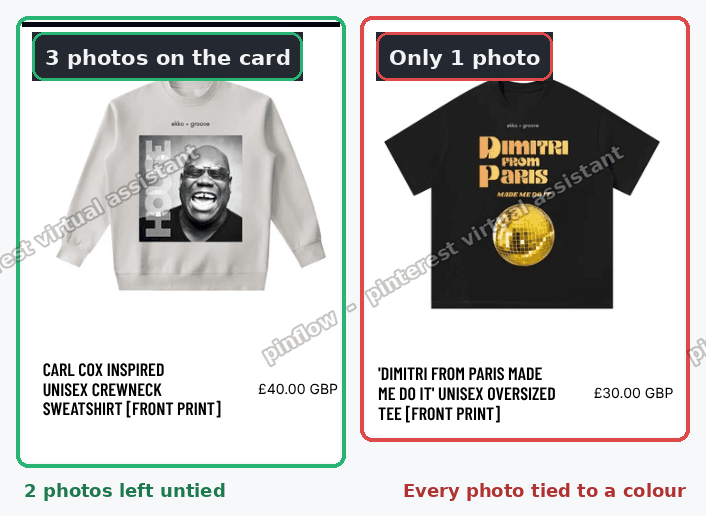 Two Savor collection cards side by side. The Carl Cox product shows three photos on the card. The Dimitri from Paris product shows only one.
Why it happens
Here is the part most forum answers skip. The card count is decided by one thing: whether each photo is attached to a colour.
A "collection card" is the small product tile in a grid, like on a collection page or the homepage. It has its own little gallery. That gallery does not show every photo the product has.
On Savor, and on Horizon-family themes generally, the rule is simple:
- A photo that is not attached to any colour always shows on the card.
- A photo that is attached to a colour is hidden on the card, with one exception.
- The exception is the first colour's photo (the featured image). That one still shows.
So the card shows: the featured photo, plus every "loose" photo that is tied to no colour. Every other colour-tied photo is dropped.
That is the whole rule. Let me show why it produces such different counts.
I read the theme code to confirm it. Savor builds each card in a snippet called card-gallery.liquid. Inside, it first collects every image that is attached to a variant:
assign variant_images = product.images | where: 'attached_to_variant?', true | map: 'src'Then, as it loops through the photos, it hides the variant-attached ones that are not the first:
if variant_images contains media.src
  assign attributes = 'variant-image'
  if forloop.first == false
    assign hidden = true
  endif
endif
The featured image is forced to the front of the loop. So if the featured image happens to be a colour photo, it survives because it is first. Every other colour photo gets hidden. Loose photos, the ones tied to no colour, are never marked as variant images, so they always show.
That single rule explains every case you see:
- Every photo tied to a colour. Only the featured one survives. The card shows exactly 1 image.
- No photo tied to any colour. Every photo is loose. The card shows all of them (up to the theme's limit).
- A mix. The card shows the featured photo plus the loose photos. The colour-tied ones vanish. This is where "random 3" comes from.
My two test products showed it exactly:
- Dimitri from Paris: every photo was attached to a colour. The card showed only 1.
- Carl Cox: 2 photos were attached to no colour. The card showed those 2 plus the first colour photo, so 3 in total.
The order looks random for the same reason. The card puts the featured photo first, then the loose photos in Media order. It is not honouring your full Media order. It is honouring featured-first, then loose-only.
Here is the same product in the admin. Photo 1 is tied to the Black colour, so it is hidden on the card. Photos 2 and 3 are tied to no colour, so they show.
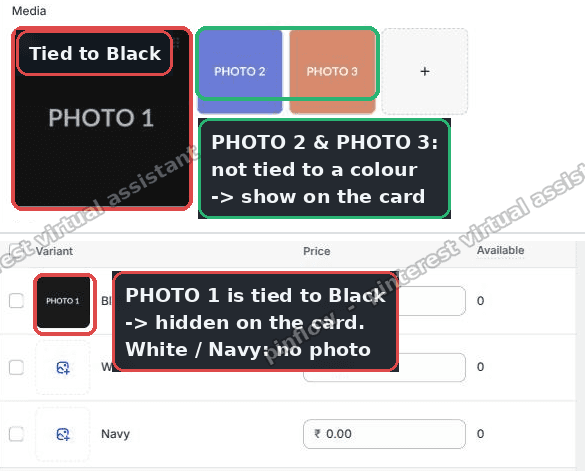 Shopify product admin showing the Media panel and the variants table. Photo 1 is tied to the Black colour and hidden on the card. Photos 2 and 3 are tied to no colour and show on the card.
This is why the two settings the merchant tried did nothing. The second-image-on-hover setting only controls whether a hover swaps to the next visible slide. The "hide variant media" option affects the product page gallery, not this card rule. Neither one touches the colour-attachment logic. The colour attachment is what decides the card.
Check this first
Before you change anything, confirm the cause on one messy product.
- Open the product in your Shopify admin.
- Look at the Media section. Note how many photos it has.
- Look at the Variants section. Click into a colour variant and see if it has a photo attached.
If most photos are tied to a colour, you have found it. The card is dropping the tied ones. If no photos are tied to a colour, your issue is different, and the failure-modes section near the end covers that.
This matters because shopify variant images on collection cards behave differently from loose product photos. Sorting out which is which is the whole job.
The fix
The fix is not code. It is a decision, applied the same way to every product.
Pick one look for your cards. Then make every product match it. Consistency is what clears up the "random" grid.
You have two clean options.
Option A: several photos per card
Choose this if you want your cards to show a small gallery, like a front and back shot.
- Open the product in your admin.
- Go to the Media section.
- Decide which photos should appear on the card.
- Make sure those photos are not attached to any colour.
- Drag them into the order you want.
The card will show them featured-photo-first, then the loose photos in your Media order. Because they are loose, none of them get hidden.
To detach a photo from a colour, open the product, open that colour variant, and remove its image. The photo stays in Media. It just is no longer tied to that colour.
Option B: one clean photo per card
Choose this if you want a tidy, uniform grid where every card shows a single image.
- Open the product in your admin.
- Attach exactly one photo to each colour.
- Leave no photos loose.
Every card then shows a single, consistent image. Because every photo is tied to a colour, only the featured one survives, and that is what you want here.
The key rule for both options: do not leave products in a mix. A mix, some photos tied and some loose, is what created the random look. Pick A or B and apply it to your whole catalogue.
I tested both on a Savor 4.1.3 store. Option A gave me the 3-photo Carl Cox card. Detaching photos on the Dimitri product moved it from 1 image toward a consistent look. The behaviour matched the code every time.
The trade-off to know
Detaching photos from colours has one cost. On the product page, selecting a colour will no longer switch the main image to that colour.
That is the deal. Colour attachment powers two things at once: the product-page colour swap, and the collection-card hiding. You cannot keep the swap and remove the card hiding with the same photos.
If the colour swap matters more to you, keep Option B. Attach one photo per colour, accept one card image, and the swap keeps working. If a richer card matters more, use Option A and give up the swap on the detached photos.
An alternative if you have many products
The steps above are per product. If you have a large catalogue, doing this by hand is slow.
There is no single Shopify setting that flips this behaviour off. It is baked into how the theme builds the card. So the "no-code toggle" many people hope for does not exist here.
What you can do instead is decide the rule once, then apply it in bulk.
- Use the product Media view and work through the collection in one sitting, product by product, so the whole grid ends up consistent.
- Standardise your photo naming and your variant setup so new products follow the same rule from day one.
- If you sell many colour variants, lean toward Option B. It scales better because "one photo per colour" is a habit, not a decision you re-make every time.
The goal is not a clever trick. It is a rule you apply the same way forever, so the grid never drifts back to random.
How do I show multiple images on a Shopify collection card?
Keep the photos you want on the card attached to no colour. That is the whole answer for shopify collection card images.
Loose photos always show. So put your front, back, and detail shots in Media, leave them untied to any variant, and drag them into order. The card shows the featured photo first, then those loose photos in your Media order.
If a photo is not appearing, check that it is not secretly attached to a colour. That is the usual reason a shopify collection product images gallery comes up short.
There is also a theme limit. Cards do not render an unlimited number of slides. On Savor the visible slide count is small by design, for speed. So expect a handful of images per card, not a dozen.
Why does my Shopify collection show only one image?
Because every photo on that product is attached to a colour. The card keeps only the featured one and hides the rest.
Shopify collection showing one image is the clearest symptom of a fully-attached product. It is not a bug and it is not a broken upload. It is the card rule doing its job.
To get more than one image on that card, detach some photos from their colours, or accept that a fully-attached product will always show a single card image.
Do variant images show on Shopify collection pages?
Only the first one. This is the core of the whole issue.
Shopify variant images on collection cards are filtered. The theme collects every variant-attached image, then hides all of them except the featured photo. So a product with five colour photos still shows one image on its card.
Loose photos are treated differently. They are not variant images, so they are never hidden. If you want variant-style shots to appear on the card, the workaround is to also add them as loose, untied photos in Media.
Is this a Savor bug or normal Shopify behaviour?
It is normal behaviour for Savor and the wider Horizon theme family. It is written into the card-gallery code on purpose.
The intent is a clean grid. If a product has many colour photos, showing all of them on a tiny card would look cluttered and load slowly. So the theme shows one variant photo plus any loose photos.
Older themes like Dawn handle card images with their own rules, so you may see different counts if you switch themes. But within Savor, this is the designed behaviour, not a fault.
If it did not work
A few things can make the fix look like it failed.
The card still shows one image after detaching. Check every variant, not just one. If even one colour still holds the photo you detached elsewhere, or if the photo is still the featured image, the count will not change. Detach from all colours, then re-check.
The order is still off. Remember the card always puts the featured photo first. If your desired first image is not the featured one, set it as featured in Media. Then the loose photos follow in Media order.
Changes do not show right away. Storefront pages cache. Give it a minute, then hard-refresh the collection page. If you use a preview theme, view the change on that theme's preview URL, not the live one.
A product still shows too few images. It may be hitting the theme's slide limit, or it may still be a mix. Confirm no photos are secretly tied to a colour, and confirm the product has enough loose photos to fill the card.
You changed one product and expected the whole grid to fix. It will not. This is per product. Apply your chosen option to every product in the collection.
Definitions people confuse
A few terms get mixed up in this topic. Getting them straight makes the fix obvious.
Media vs variant image. Media is the full set of photos on a product. A variant image is a photo you have attached to a specific option value, usually a colour. Every variant image lives in Media, but not every Media photo is a variant image. The card only hides the variant images.
Attached to a colour vs loose. "Attached" means the photo is tied to a variant. "Loose" means it sits in Media with no variant. Loose photos always show on the card. This single distinction drives the whole behaviour.
Featured image vs first Media image. The featured image is the one Shopify treats as primary. The card forces it to the front. It is not always the first photo in your Media order, so if your card leads with the wrong image, fix the featured image.
Collection card vs product page gallery. The card is the small tile in a grid. The product page gallery is the big gallery a shopper sees after clicking in. They follow different rules. The colour-hiding behaviour described here is a card rule. The product page shows all your Media.
Second-image-on-hover vs the card count. Hover only swaps between images that are already visible on the card. It does not add hidden variant photos back. So it can never fix a one-image card on its own.
Once these five distinctions click, shopify collection different number of images stops being a mystery. It is one rule: colour-attached photos are hidden on the card, except the featured one. Decide the look you want, apply it to every product, and the grid falls into line.
Spending too long on manual Shopify busywork?
PinFlow turns your Shopify catalog into Pinterest pins and posts them on a schedule, automatically. Same idea as the rule above, let the system handle the repetitive part.
Get PinFlow on the Shopify App StoreMore Shopify fixes
More community-sourced Shopify guides, tested on a live store.
Collections & Products
Shopify Related Products by Collection, Without an App
Shopify's related products show items that do not match, because the recommendation algorithm needs sales data a small catalog does not have. Drive the block off your collections and a hand-picked list, with one Custom Liquid section on Dawn.
Collections & Products
Shopify Variants: The Complete Guide
Variants are one product sold in several forms. How they work, the 2,048 and 3-option limits, and where each variant fix lives - images, swatches, sorting, hiding and the theme-specific bugs.
Collections & Products
Shopify Collection Image Size: Why Cards Look Wrong
Collection images that look fine on desktop can turn huge on mobile, with the second card cut off the screen. The cause is not pixel dimensions, it is aspect ratio. Here is what to set, measured on a real phone viewport.