
Fix Missing Collection Filters in Shopify
Filters gone from your Shopify collection pages? Here is the checklist that brings the filter sidebar back, from Search & Discovery to theme settings.
By AjayCodeWiz · August 6, 2026 · 10 min read
The problem
You open a collection in Shopify and the filter you rely on is gone.
A merchant named Danielle asked about this on the Shopify Community. Her words say it best. The filter option was removed from the collection editor. So there was no built-in way to filter the product list by status right inside a collection. Editing on the back end got slow and painful.
I reproduced it on a test store. She is right. Open a collection today and you get a sort control and a view toggle. The old status filter is not there.
Here is the thing to know first. "Shopify collection filters not showing" means two different problems. People search the same phrase for both. Sort out which one you have before you fix anything.
- Meaning one is the admin problem. You are inside the collection editor in Shopify admin. You want to filter that product list by status, like Active or Draft. That control is gone.
- Meaning two is the storefront problem. A shopper opens your collection page and the filter sidebar is missing. No filter by price, size, or color.
This guide fixes both. The admin fix comes first, because that is the exact thread we answered. The storefront fix, the Search & Discovery side, comes right after.
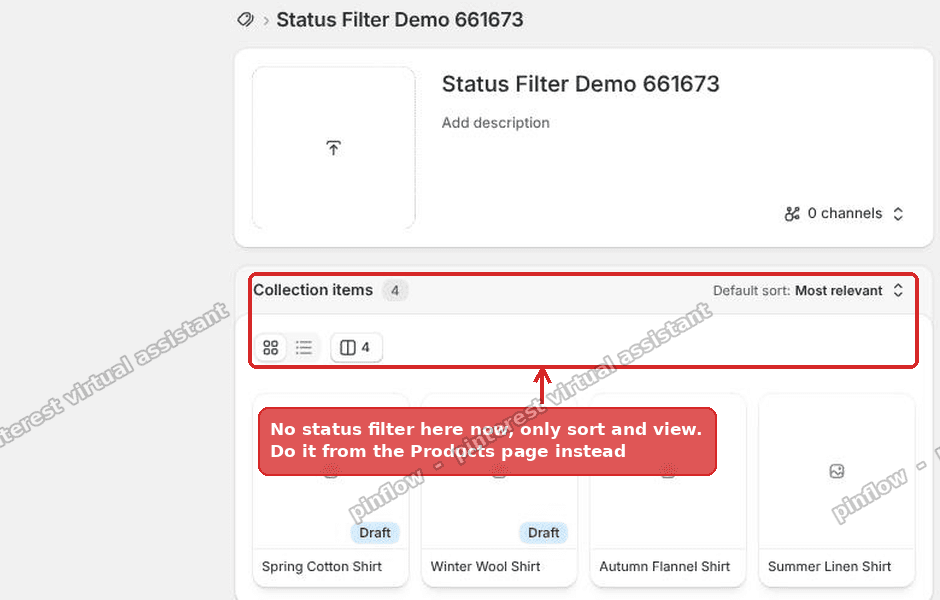 Shopify collection editor with no status filter, only a sort control and a view toggle
Why it happens (the admin side)
The collection editor used to carry an inline filter. You could stand inside one collection and filter its products by status. That inline control was removed.
Nothing broke on your store. No setting got flipped. Shopify simply moved where that filter lives. The status filter now lives on the main Products page, not inside the collection.
That is the whole mechanism. Most forum answers tell you to look harder inside the collection. There is nothing to find there. The filter moved houses. Once you know that, the fix is quick.
The good news. The Products page filter is more powerful than the old one. It stacks filters. It saves views. It bulk edits. So you end up faster than before, not slower.
The fix: rebuild the view from the Products page
This is the fix I tested and posted to the thread. It takes about thirty seconds once you have done it once.
Step 1. Open Products, not the collection.
In the left menu of Shopify admin, click Products. Do not open the collection. The collection editor is the place that lost the filter, so we work from the Products list instead.
Step 2. Add the Collection filter.
Click the search and filter bar at the top of the Products list. Add the filter called Collection. Pick the collection you were trying to edit.
Now the list shows only the products in that collection. That already rebuilds half of the old view.
Step 3. Add the Status filter.
Click the filter bar again. Add the filter called Status. Choose Active, Draft, or Archived.
That is the control that vanished from the collection editor. Here it stacks on top of the Collection filter.
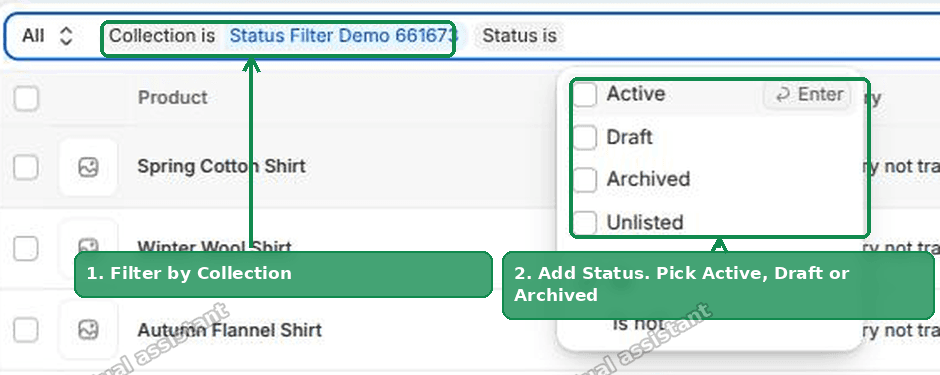 Shopify Products page with the Collection filter set and the Status dropdown open
Step 4. Read the result.
The list now shows only that status inside that collection. In my test, Collection plus Status set to Draft returned only the draft products in that collection. Ready to bulk edit.
 Shopify Products list showing only the draft products inside one collection
Step 5. Save it as a view (optional but worth it).
At the right of the filter bar there is a Save button. Click it and name the view. Next time it is one click. No re-filtering.
Step 6. Bulk edit from here.
Tick the checkbox at the top of the list to select every product. Then use the bulk actions. Change status, prices, tags, and more in one go. This is faster than the old inline filter ever was.
You can stack more filters too. Add Vendor, Product type, or Tag to narrow further. Each one clicks on in the same filter bar.
An alternative: if you meant the storefront filter sidebar
Maybe your problem is meaning two. A shopper opens a collection page on your live store and there is no filter sidebar. This is a different fix. It lives in a free Shopify app and your theme, not in the admin filter bar.
Storefront filters in Shopify come from an app called Search & Discovery. It is free and made by Shopify. Your theme then draws the filters that this app defines.
Here is the checklist to bring the filter sidebar back.
1. Install Search & Discovery.
Go to the Shopify App Store and install Shopify Search & Discovery. It is free. Without it, most themes show no filters at all on collection pages.
2. Turn on filters inside the app.
Open the app. Go to the Filters tab. Add the filters you want, like Availability, Price, Color, or Size. A brand new install often has zero filters set up, which is why the sidebar looks empty.
3. Check the theme setting that shows filters.
Filters can be defined in the app but still hidden by the theme. In the theme editor, open a collection page template. Find the product grid or collection section. Look for a setting like "Enable filtering" or "Filtering and sorting" and turn it on.
4. Make sure the collection template has a facets section.
A "facet" is just Shopify's word for a filter, like a size or a color option. The collection template needs the section that renders these facets. In most free themes this is built in. In a heavily customized theme, someone may have deleted it. If the setting in step 3 does not exist, the section itself is missing and needs to be added back.
5. Confirm your products carry the data to filter on.
Filters need something to sort by. A price filter needs prices. A color filter needs a color option or a color tag. If your products have no options and no relevant tags, the filters will render empty and hide themselves.
Do these four checks in order and the sidebar comes back. In my experience the number one cause is the simplest one. Search & Discovery was never installed, or it was installed with no filters added.
Why did the filter disappear from my Shopify collection editor?
It disappeared because Shopify removed the inline status filter from the collection editor. This was a platform change, not a bug on your store.
You did not delete anything. A theme update did not cause it. The filter moved to the main Products page, where it now stacks with a Collection filter to do the same job.
So there is no toggle inside the collection that brings it back. The path forward is the Products page workflow above. Save the filtered view once and it stays one click away.
How do I enable collection filters in Shopify?
It depends on which filters you mean.
For admin filtering by status, you enable them on the Products page. Add a Collection filter, then a Status filter, then Save the view. There is no separate on and off switch. The filters are always available on the Products list.
For storefront filters that shoppers use, you enable them in two places. First install Shopify Search & Discovery and add filters in its Filters tab. Second turn on filtering in your theme editor on the collection template. Both must be on for the sidebar to appear.
The short version. Admin filters live on the Products page. Storefront filters live in Search & Discovery plus your theme.
Why is my Shopify collection page showing no filters for shoppers?
The most common reason is that Shopify Search & Discovery is not installed, or it has no filters added inside it.
Walk it down in this order.
- No filters at all on any collection usually means the app is missing or empty. Install it and add filters.
- Filters on some collections but not others usually means those collections use a different template with filtering turned off. Check each template in the theme editor.
- Filters that appear then vanish usually means the products in that collection lack the data the filter needs, like a price range or a color option.
Fix the cause that matches your pattern. You rarely need to touch theme code for this.
Can I filter products by status inside a Shopify collection?
Not inside the collection editor anymore. That inline control was removed.
You get the same result from the Products page. Filter by Collection, then filter by Status. The list you see is identical to the old inline view, and you can bulk edit right there.
Save it as a view so you never rebuild it. Name it something like "Drafts in Summer Sale" and it is one click forever.
If it did not work
A few things trip people up. Here is what to check.
- You are still inside the collection editor. The status filter is not there and will not come back. Go to Products in the left menu instead.
- The Status filter is missing from the Products filter bar. Scroll the list of filters in the "Add filter" menu. Status sits among Collection, Vendor, Tagged with, and more.
- The saved view did not save. Give it a clear name before you confirm. An unnamed view can be dropped.
- Storefront filters still empty after installing Search & Discovery. You installed the app but never added filters in its Filters tab. An empty app shows an empty sidebar.
- Storefront filters show on the home template but not the collection. Your collection template has filtering turned off, or it uses a template without the facets section. Check that exact template in the theme editor.
- Only some products respond to a filter. Those products lack the option or tag the filter reads. A color filter cannot show a product that has no color set.
Definitions people confuse
Collection editor filter versus Products page filter. The collection editor is the page for one collection. It lost its inline status filter. The Products page is the master list of every product. It has the full filter bar. Same data, different screen.
Filter versus sort. A filter hides rows that do not match, like showing only drafts. A sort reorders the rows you already see, like newest first. The collection editor kept sort but lost the status filter, which is why the page can look almost the same yet feel broken.
Admin filters versus storefront filters. Admin filters help you, the merchant, manage products. Storefront filters help shoppers narrow a collection while they browse. They live in completely different places. Fixing one does nothing for the other.
Search & Discovery versus theme settings. Search & Discovery is the app that defines which storefront filters exist. Your theme decides whether to draw them. You need both switched on. A filter defined in the app but disabled in the theme never shows.
Facet. This is Shopify's technical word for a storefront filter, like a price band or a size. When a theme setting mentions facets, it means the filter sidebar. Same thing, more formal name.
That is the full picture. Sort out which filter you lost, admin or storefront, then follow the matching branch. The admin fix takes thirty seconds from the Products page. The storefront fix is a short checklist through Search & Discovery and your theme.
Spending too long on manual Shopify busywork?
PinFlow turns your Shopify catalog into Pinterest pins and posts them on a schedule, automatically. Same idea as the rule above, let the system handle the repetitive part.
Get PinFlow on the Shopify App StoreMore Shopify fixes
More community-sourced Shopify guides, tested on a live store.
Collections & Products
Shopify Related Products by Collection, Without an App
Shopify's related products show items that do not match, because the recommendation algorithm needs sales data a small catalog does not have. Drive the block off your collections and a hand-picked list, with one Custom Liquid section on Dawn.
Collections & Products
Shopify Variants: The Complete Guide
Variants are one product sold in several forms. How they work, the 2,048 and 3-option limits, and where each variant fix lives - images, swatches, sorting, hiding and the theme-specific bugs.
Collections & Products
Shopify Collection Image Size: Why Cards Look Wrong
Collection images that look fine on desktop can turn huge on mobile, with the second card cut off the screen. The cause is not pixel dimensions, it is aspect ratio. Here is what to set, measured on a real phone viewport.