
Shopify Color Schemes: Make Every Section the Same Color
Shopify sections showing a different background color? How color schemes work, how to change one without code, and 4 lines of CSS for one color.
By AjayCodeWiz · October 3, 2026 · 10 min read
The problem
A merchant running Dawn asked on the Shopify Community why the sections on her pages would not match. She wanted every section on the soft pink #fbecee. Some sections came out in a darker, dustier pink, and switching their color scheme in the theme editor did not make them line up.
I rebuilt her setup on a test store running the same Dawn version, 15.4.1. Two of the five color schemes were pink, but not the same pink. Scheme 1 had a background of #fbecee and Scheme 2 had #efd5d2. The home page used both, so the page alternated between the two shades.
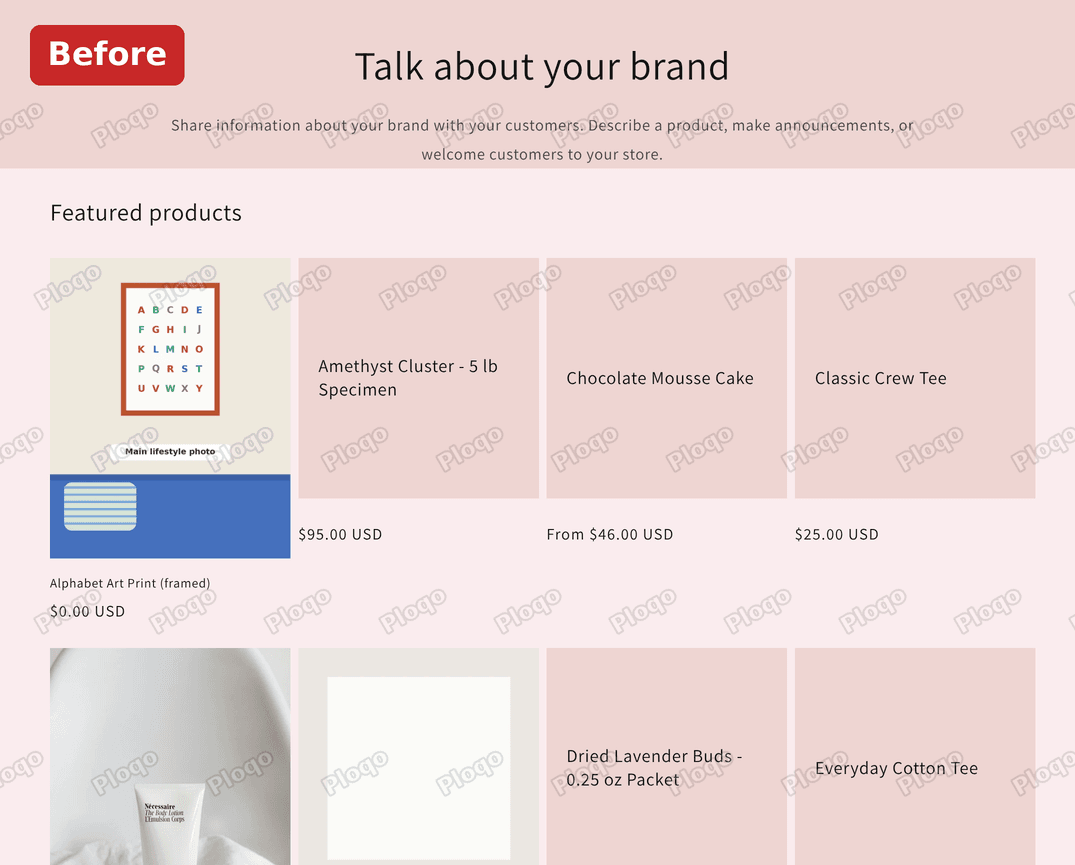 Before: a Rich text section in a darker pink above a Featured products section in a lighter pink
The difference is small on a laptop and easy to miss in the editor. On a phone, where sections stack one after another, it reads as a stripe pattern.
There are two ways to fix it. One is a setting and needs no code. The other is four lines of CSS that force one background on every section, whatever scheme each one uses. Both are below, with screenshots of every screen.
What a Shopify color scheme is
A color scheme is a named set of colors that you define once and then apply to sections. Each scheme holds a background color, a text color, button colors, a shadow color and an optional background gradient. A section is one block of a page, such as a banner, a row of products or a text box.
Dawn ships with five schemes, called Scheme 1 to Scheme 5. Each section on each page has its own Color scheme picker, and you choose one of the five there. The section then takes every color from that scheme.
So color lives in two places:
- The scheme decides what the colors are.
- The section decides which scheme it uses.
When a section looks wrong, the cause is in one of those two places. Either the section points at a different scheme from its neighbours, or the scheme it points at holds a different color from the one you expect.
Why some sections show a different background color
In my test store the Rich text section used Scheme 2, while the Featured products section below it used Scheme 1. You can see it in the theme editor: click the section in the left sidebar and look at Color scheme. The tile with the blue outline is the scheme in use.
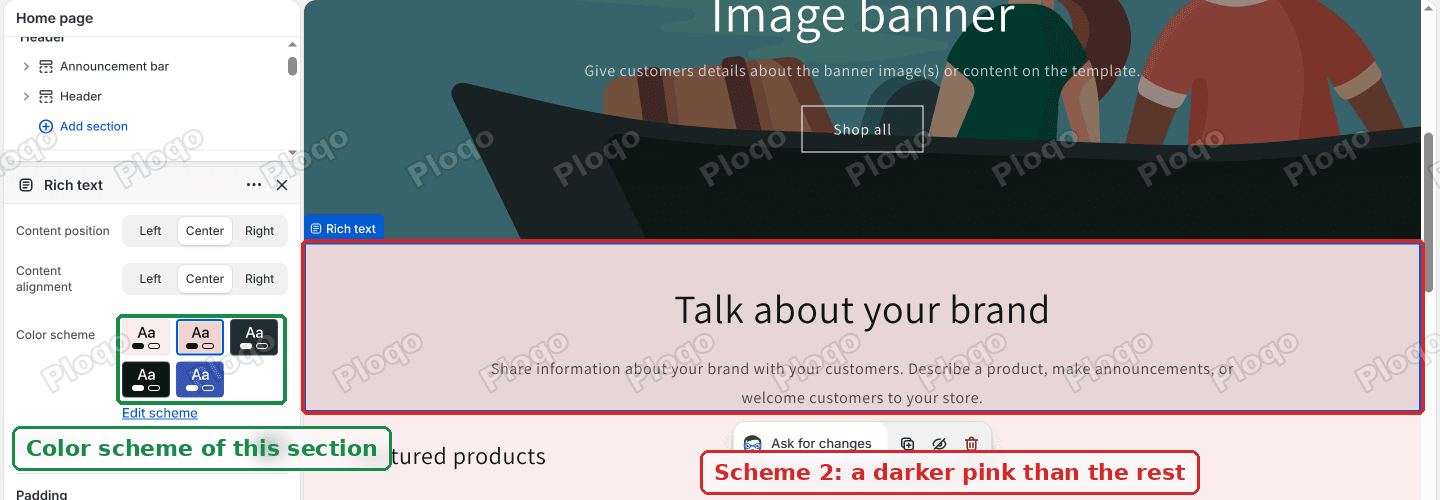 The theme editor with the Rich text section open, its Color scheme picker set to the second tile, and the section shown in a darker pink
Dawn also uses schemes in places that are not sections. In the default Dawn settings, product cards, collection cards and blog cards all use Scheme 2, so a product with no photo shows a tinted box in that scheme's background color. The header and footer each have their own Color scheme picker too.
That explains the merchant's experience. Switching one section to another scheme only moves that section. If the other schemes hold different pinks, some part of the page still does not match. Editing the scheme itself moves every section and card that uses it at once.
Fix 1: change the scheme's background color (no code)
This is the cleanest fix when the sections should simply share one color. You edit the scheme the odd sections use, and every section on that scheme follows.
- In your Shopify admin, go to Online Store > Themes and click Edit theme next to your current theme.
- In the narrow bar on the far left, click the gear icon. That opens Theme settings, the options that apply to the whole store.
- Click Colors. The Schemes list shows a tile for each scheme. Click the scheme your odd sections use. In my case that was the second tile, Scheme 2.
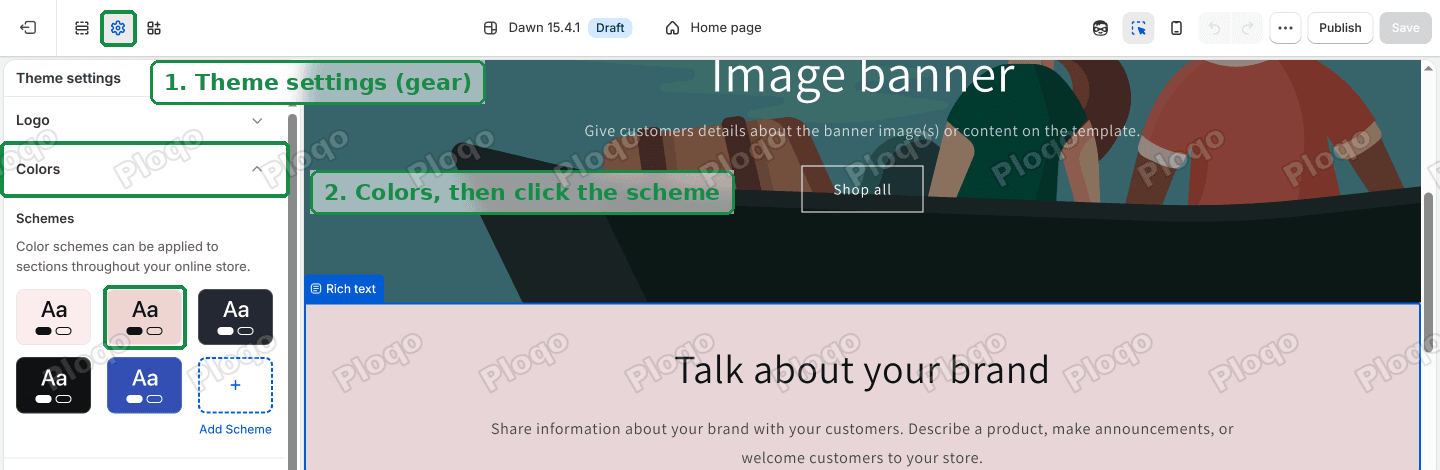 Theme settings open on Colors, with the gear icon, the Colors heading and the Scheme 2 tile marked
- The Editing Scheme 2 panel opens. Shopify warns that editing this scheme's colors affects every section that uses it, which is what you want here.
- Click the Background box and enter your color, for example
#fbecee. - Check Background gradient. It should read No color chosen. If a gradient is set, it replaces the background color, so the section keeps showing the gradient whatever you type in Background.
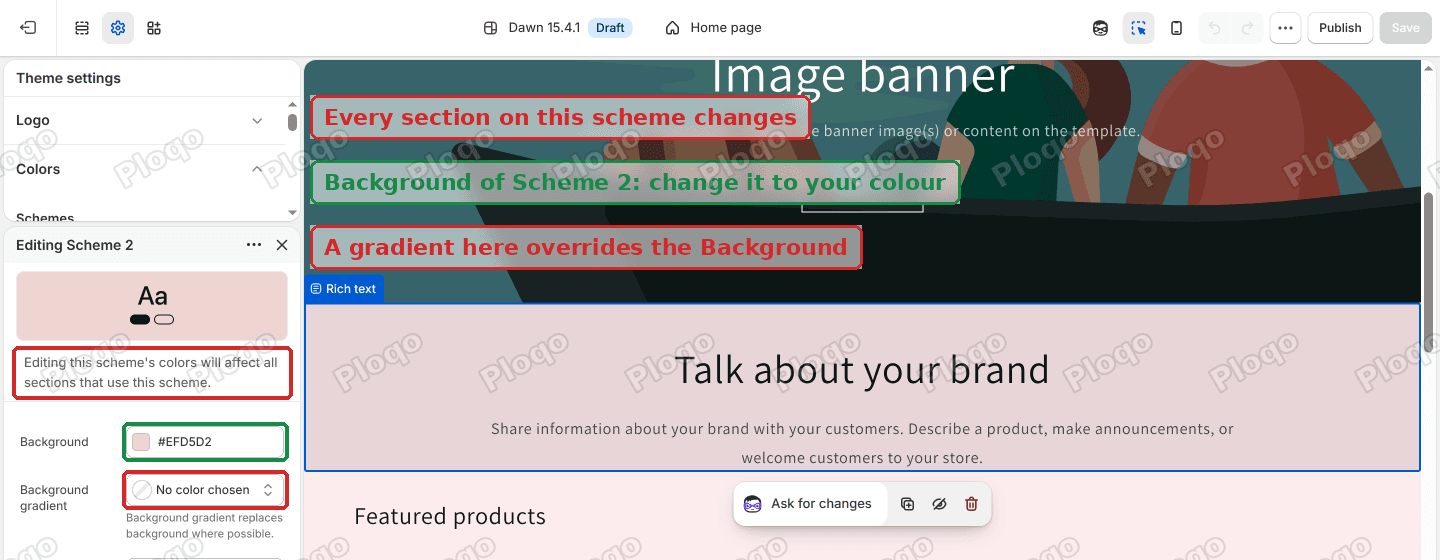 Editing Scheme 2 with the Background box, the Background gradient box and the warning text marked
- Click Save in the top right corner.
Repeat steps 3 to 7 for any other scheme your pages use that should have the same background. Leave the dark schemes alone if you use them for a banner or a footer that is meant to stand out.
A side effect to expect: because product, collection and blog cards use Scheme 2 by default in Dawn, their tinted boxes change color too. If you want the cards to keep their own color, give them their own scheme. Under Theme settings, open Product cards, Collection cards or Blog cards and pick a different scheme there.
Fix 2: one background color for every section with CSS
This is the fix I posted on the thread. It is useful when you do not know which scheme each section uses, when there are many pages to go through, or when you want one color fixed in place no matter what anybody picks in the editor later.
CSS is the style code that controls how your store looks. Dawn keeps most of its CSS in a file called base.css. The four lines below go at the very end of that file.
- Go to Online Store.
- Click the ... button next to your current theme.
- Click Edit code.
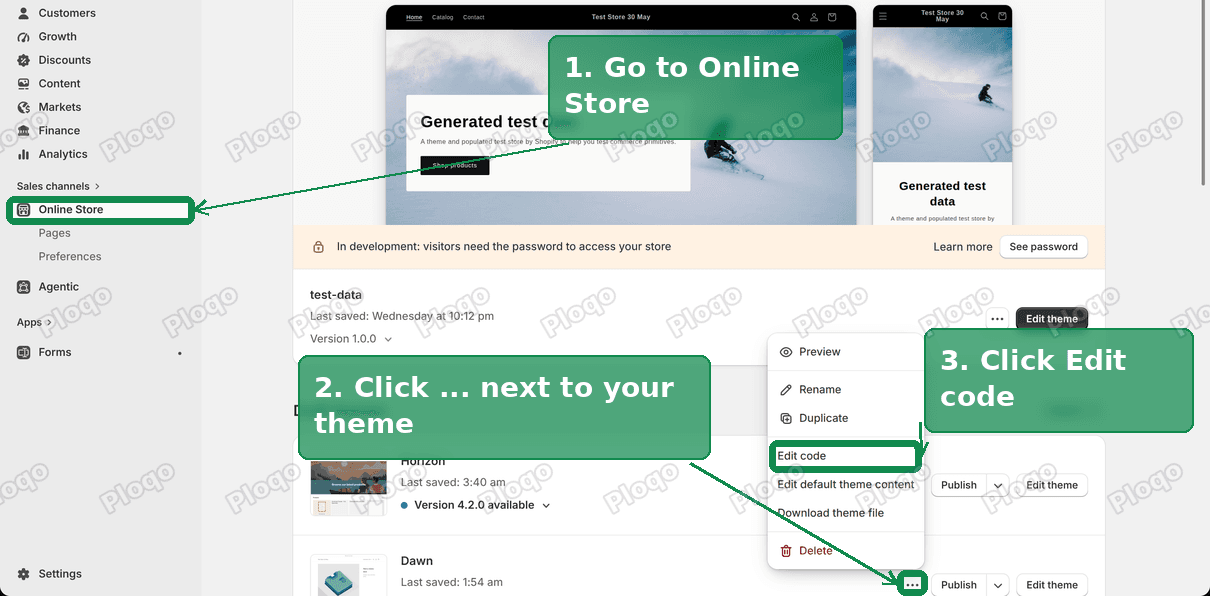 Online Store page with the theme's ... menu open and Edit code marked
- In the file list on the left, open the Assets folder and click base.css.
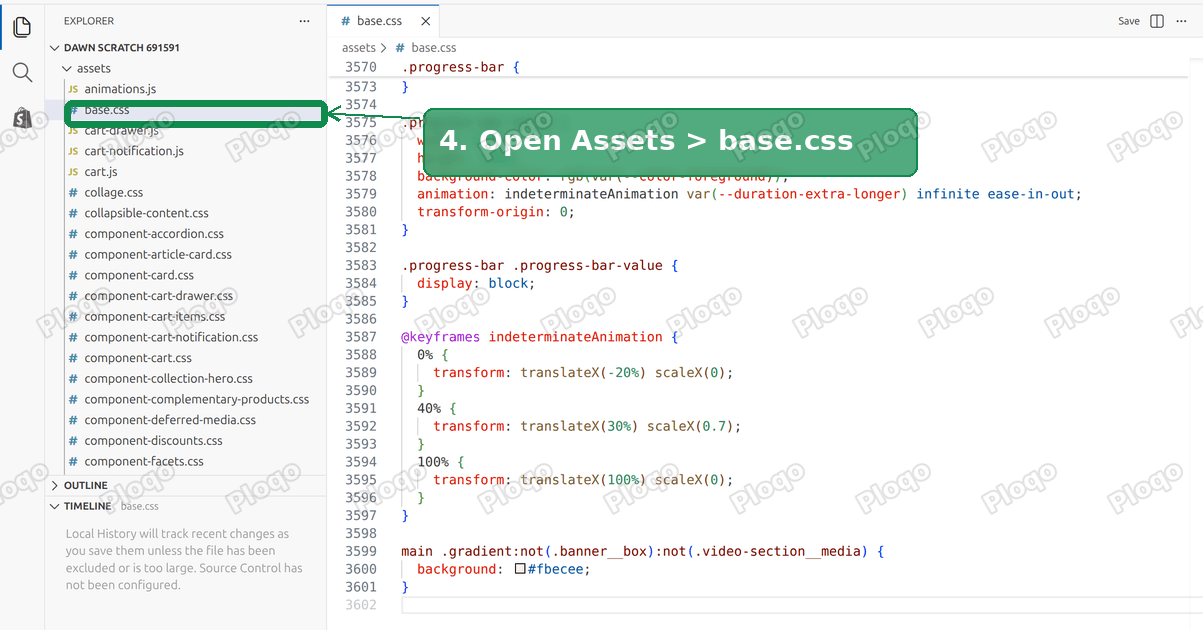 The code editor with the Assets folder open and base.css marked
- Scroll to the very bottom of the file and paste this code on a new line:
main .gradient:not(.banner__box):not(.video-section__media) {
background: #fbecee;
}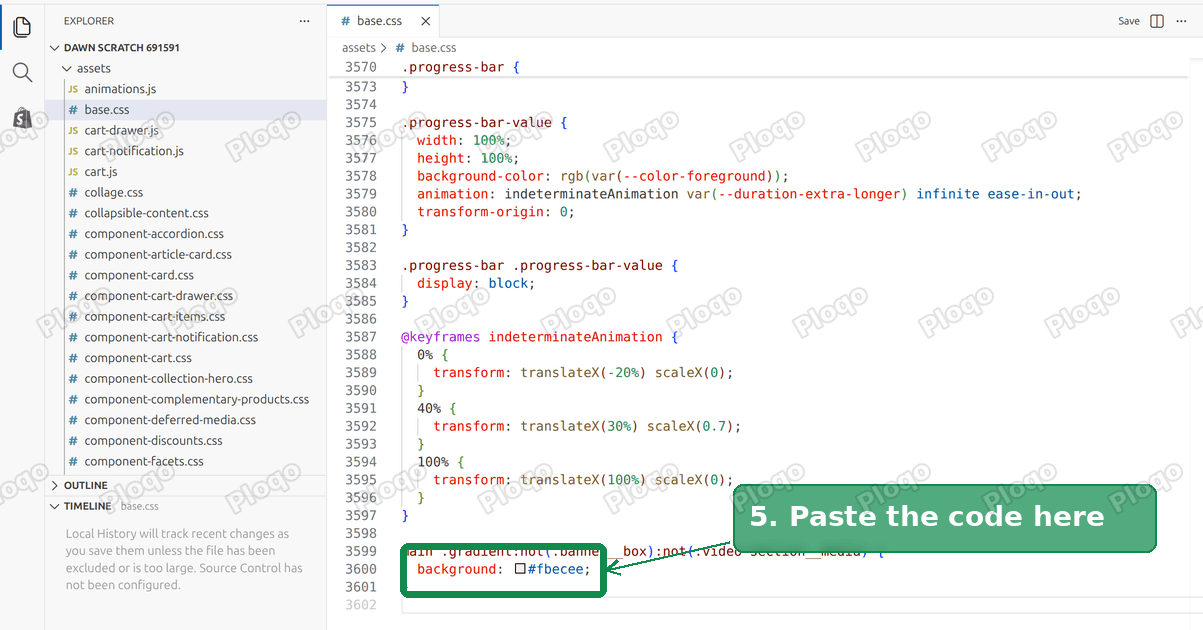 The bottom of base.css with the new code pasted after the last line
- Click Save.
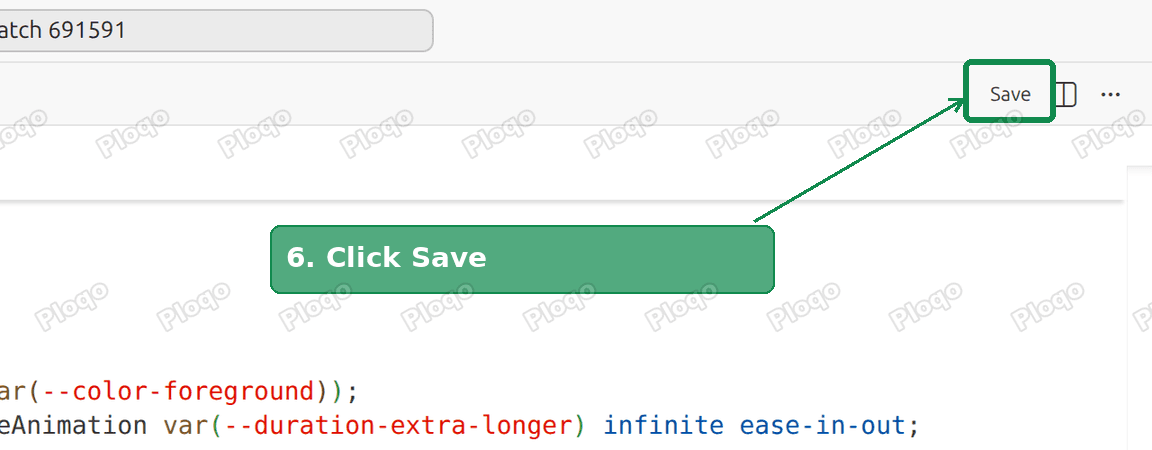 The Save button at the top right of the code editor
Change #fbecee to your own color. Keep the # and the six characters after it.
On my test store every section between the header and the footer came out in the same pink after saving. The Rich text section and the Featured products section now run into each other with no line between them.
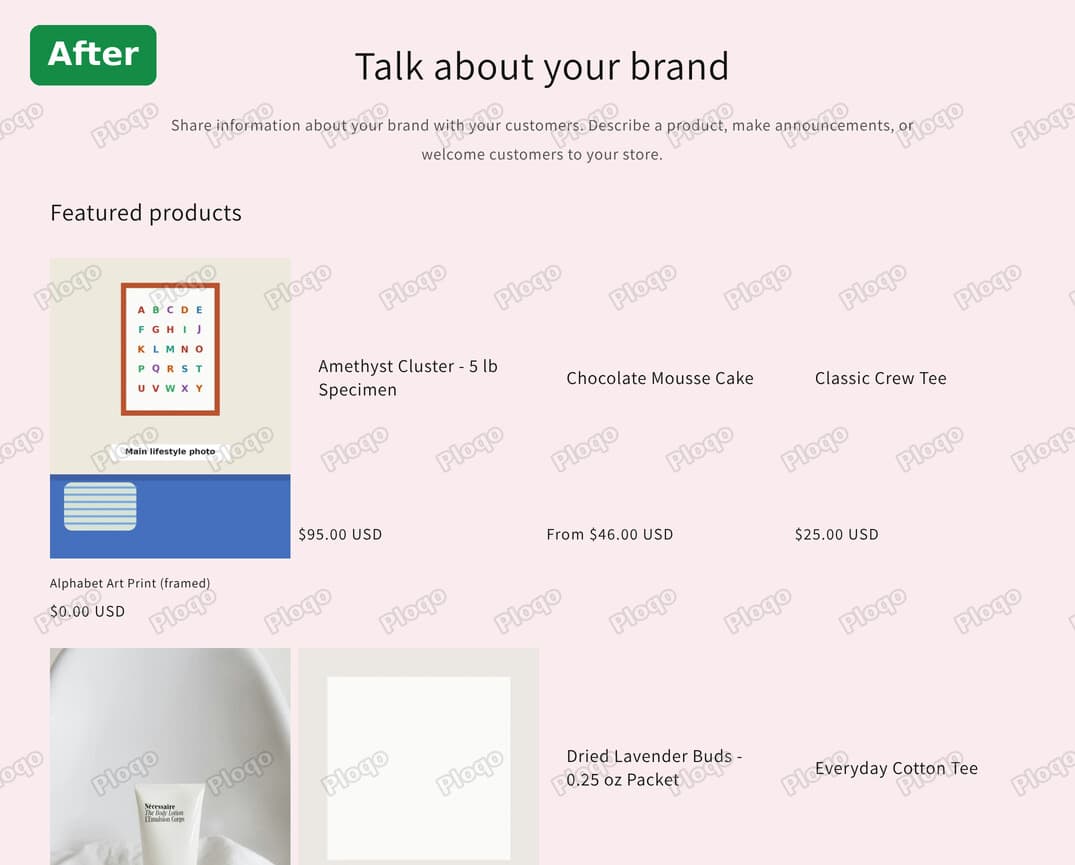 After: the Rich text and Featured products sections in the same light pink
What the code does, in plain words
The first line is a selector, the part of the code that picks which elements the rule changes. Dawn paints a section's background on an element it marks with the word gradient. The selector picks every one of those inside the main page area, and the rule paints them all #fbecee.
The two :not(...) parts are exceptions. They leave the text box on an Image banner and the inside of a Video section alone, so a banner still shows its photo and a video still shows its cover image.
The word main limits the rule to the page content. The header and the footer sit outside it, so they keep their own scheme.
Which fix to use
Use Fix 1 when:
- your sections use only one or two schemes that should look the same;
- you want to keep using the theme editor to change colors later;
- you do not want to touch code.
Use Fix 2 when:
- you have many pages and do not know which scheme each section uses;
- you want one background color that does not change when somebody picks another scheme;
- you have tried Fix 1 and something on the page still does not match.
You can also combine them. Set your schemes the way you want for headers, footers and cards, then use the CSS only if a stubborn section still shows the wrong color.
How to add a new color scheme in Shopify
If none of the five schemes fits and you do not want to change one that other sections rely on, add a new one.
- Open Theme settings > Colors.
- Under the scheme tiles, click Add Scheme. You can see the dashed + tile in the Colors screenshot above.
- Set its Background, Text and button colors.
- Open each section that should use it and pick the new tile under Color scheme.
- Click Save.
A new scheme is a good home for a seasonal look or a single highlighted section. Your existing sections are not touched until you switch them to it.
Color schemes in other Shopify themes
Dawn's approach is shared by most current free Shopify themes, including Horizon and its family. The schemes sit under Theme settings > Colors, and each section has its own color scheme picker. The steps in Fix 1 carry over almost unchanged.
The CSS in Fix 2 is written for Dawn and themes built on it, such as Crave, Sense, Ride and Craft. Other themes use different names for the elements that hold the background, so the code above will not match them. In those themes, start with Fix 1.
Still not matching? What to check
The section shows a color gradient instead of a flat color. Clear the scheme's Background gradient, as in step 6 of Fix 1. A gradient always wins over the Background color.
The header or footer is a different color. Both fixes leave them alone on purpose. Click Header or Footer in the editor sidebar and pick the scheme you want under Color scheme.
Product boxes with no photo lost their tint. The CSS in Fix 2 also paints those boxes, so they blend into the page. That is visible in the after screenshot above. Add product photos, or use Fix 1 and give the cards their own scheme.
A dark section now has dark text on a light background. Fix 2 changes the background but not the text color. If you use a dark scheme anywhere between the header and the footer, switch that section to a light scheme, or use Fix 1 instead.
Some pages match and others do not. Every page type has its own layout in the theme editor, and each one sets schemes for its own sections. Use the page selector at the top of the editor to check the product page, collection page and your other pages, not only the home page. Fix 2 covers all of them in one go.
Nothing changed after saving. Reload the store page with the browser cache cleared, or open it in a private window. If you edited a theme that is not live, use its Preview link rather than your store address.
You updated Dawn and the color came back. A theme update installs a fresh copy of the theme files. Open base.css in the new version and check that your code is still at the bottom. Settings such as your color schemes carry over, which is one more reason to prefer Fix 1 where it is enough.
Color scheme, background color and custom CSS: the difference
These three get mixed up because they all change how a section looks.
- Color scheme is the named set of colors in Theme settings > Colors. Changing it changes every section that uses it.
- Background color is one entry inside a scheme. It is the field you edit in Fix 1.
- Custom CSS is code that overrides the theme's styles. It wins over the scheme, which is why Fix 2 works regardless of which scheme a section uses, and why it should be kept short and saved somewhere you can find again.
If you only need a single color across the store, the color scheme is the right tool. Reach for CSS when the scheme setup has grown too tangled to fix by hand.
Spending too long on manual Shopify busywork?
PinFlow turns your Shopify catalog into Pinterest pins and posts them on a schedule, automatically. Same idea as the rule above, let the system handle the repetitive part.
Get PinFlow on the Shopify App StoreMore Shopify fixes
More community-sourced Shopify guides, tested on a live store.
Themes & Storefront
Shopify Anchor Link: Button That Scrolls to a Section
Link a Shopify button to a section lower on the same page with an anchor link. Steps for the theme editor, no code files, plus the fix for a title hidden under the header.
Themes & Storefront
Shopify Social Media Icons: Add a Custom Icon and Link
Set your social links in Shopify theme settings, see why icons do not show, and swap in your own icon for a network the theme does not list.
Themes & Storefront
Sticky Add to Cart Button in Shopify Dawn, No App
Pin the Add to cart button and its delivery line to the bottom of the screen in Shopify Dawn. One free Custom Liquid block, no app, phone and desktop.