
How to Add Color Swatches in Shopify Without an App
Shopify's built-in swatches only work on the Color option. Here is how to build an image-swatch library with metaobjects that works on any option, tested on Horizon.
By AjayCodeWiz · July 5, 2026 · 9 min read
The problem: swatches only work on "Color"
Shopify has native colour swatches now. You turn them on in the theme editor and your Color option renders as little circles instead of text pills.
Then you try it on a different option and nothing happens.
Pupil Style, Finish, Material, Pattern, Grip, Fabric. Any option that is not colour still renders as plain text buttons. There is no toggle for it, and no obvious reason why.
A merchant on the Horizon theme hit exactly this. They wanted uploaded images as swatches for a non-colour option, they did not want an app, and they were willing to edit code but had no idea which file.
I installed Horizon on a development store, reproduced it, and built a fix. This is that fix, plus the part the forum answer left out: why it only works on Color, and the one-line edit that everything else depends on.
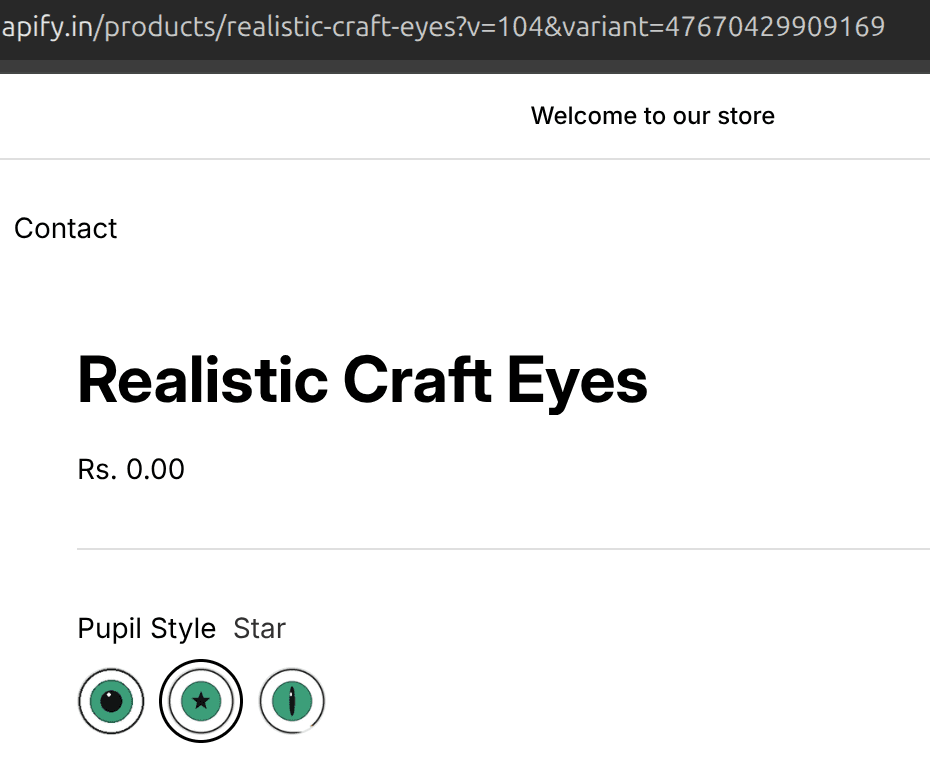 Image swatches rendering for a non-colour option on the product page
Why it stops at Color
This is worth understanding before you touch any code, because it tells you exactly what you have to supply yourself.
Shopify's swatches are not a theme feature. They are a catalog feature.
When you create an option and name it Color, Shopify maps it to a taxonomy attribute and attaches a swatch object to each option value. That object holds either a colour (a hex value) or an image you uploaded in the option editor.
Your theme then does roughly this:
{%- assign swatch_count = product_option.values | map: 'swatch' | compact | size -%}
{%- if swatch_count > 0 and block_settings.show_swatches -%}
  {%- assign variant_style = 'swatch' -%}
{%- endif -%}
It counts how many option values have a swatch object. If the count is zero, it falls back to text pills.
For an option called Pupil Style, Shopify attaches no swatch object at all. The count is zero. You get pills, and no theme setting can change that, because the data simply is not there.
So the job is not "find the setting." The job is supply the missing swatch data yourself, then teach the theme to look for it.
The approach: a metaobject as a swatch library
The cleanest way to supply that data is a metaobject.
A metaobject is a reusable, structured record. One entry per option value, each holding an image. The theme then looks up the option value's name and finds the matching entry.
The trick that makes this work with no per-product setup is handleize. Liquid's handleize filter turns Star into star, Rain Denim into rain-denim. If the metaobject entry handle matches the handleized option value, the lookup is a single line, and it works for every product automatically.
Two things to know before you start:
- This is a library, not a per-product setting. Add "Star" once and every product with a Star option value gets that swatch.
- It is additive. Native colour swatches keep working exactly as before, because the custom lookup only runs when Shopify supplied no swatch.
Duplicate your theme before editing. Online Store > Themes > ... > Duplicate. That copy is your rollback, and you will want it.
Step 1: create the metaobject definition
Go to Settings > Custom data > Metaobjects > Add definition.
Name it Variant Swatch. Confirm the type reads variant_swatch, because that string is what the Liquid code references.
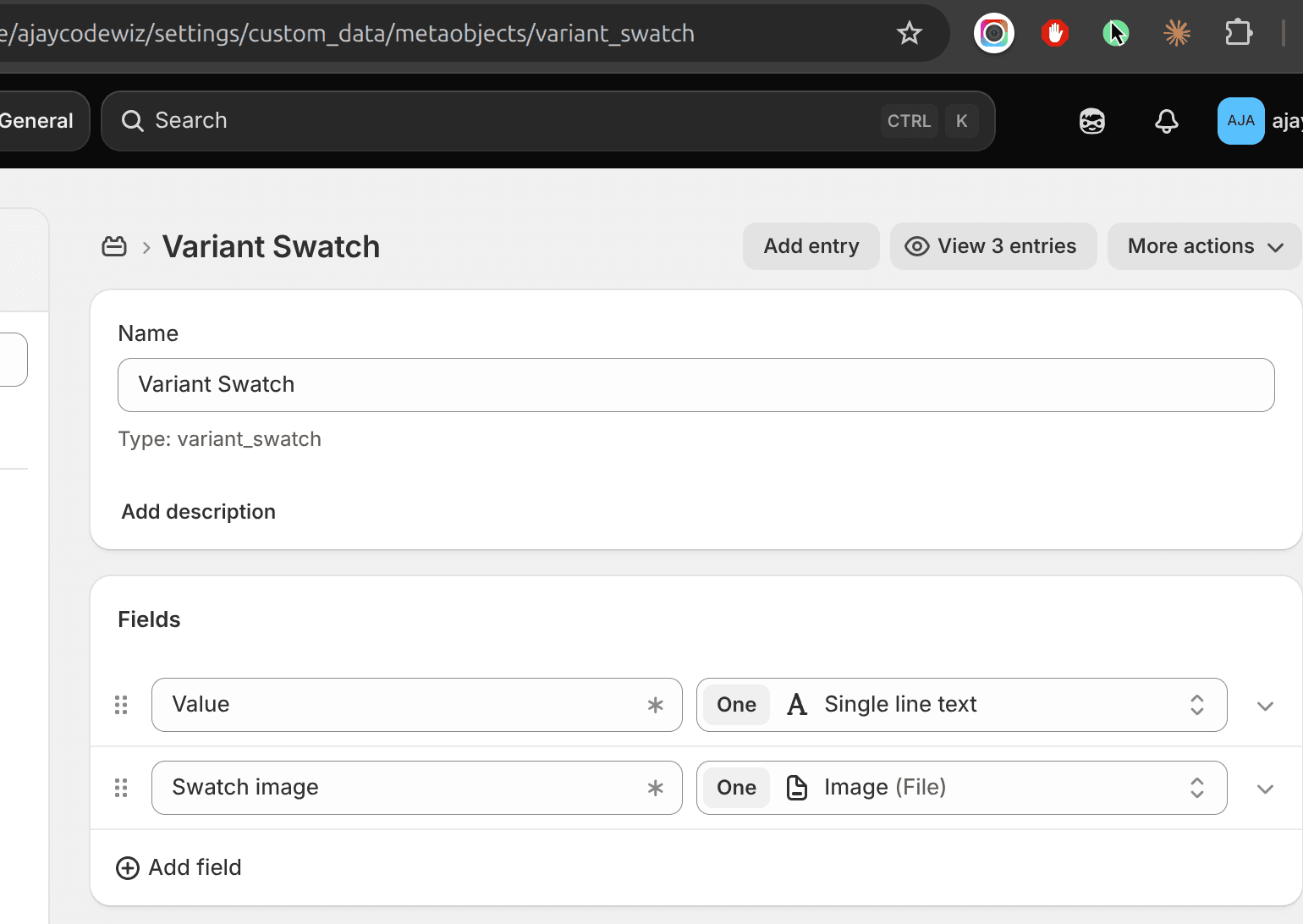 The Variant Swatch metaobject definition with Value and Swatch image fields
Add two fields:
| Field name | Type |
|---|---|
| Value | Single line text |
| Swatch image | Image (File) |
Save it.
The Value field is there for your own readability. The lookup uses the entry's handle, not this field, which is a detail that matters in step 2.
Step 2: add one entry per option value
Open the definition and click Add entry. Create one entry for each option value you want a swatch for.
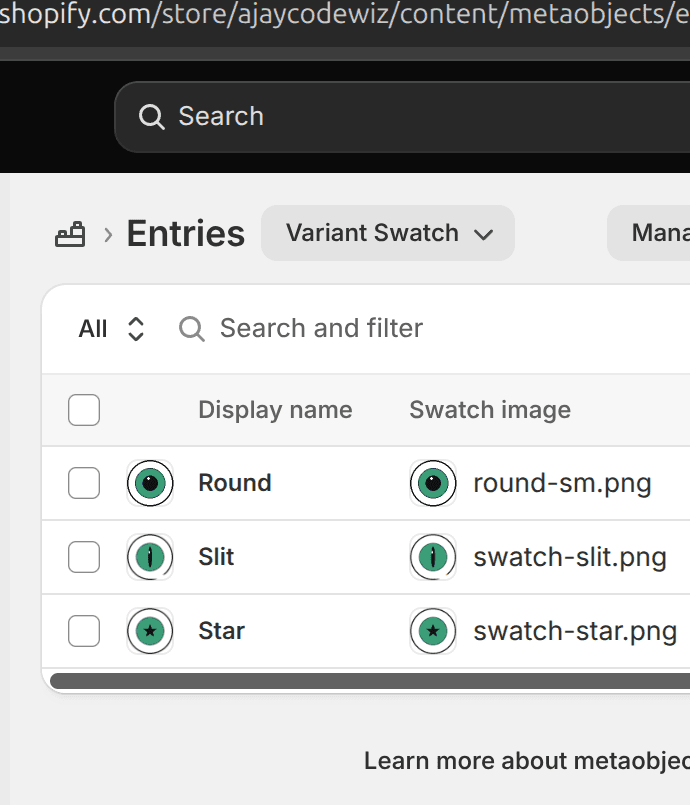 Three metaobject entries, one per option value, each with a swatch image
For each entry:
- Set the display name to the exact option value, spelled the same way as in the product.
Star,Slit,Round. - Upload the image into Swatch image.
The names must match. Star and Stars are different handles and the lookup will fall through to a text pill.
Keep the images small and square. 64x64 or 80x80 is plenty. The Liquid requests them at width: 80, so anything larger is bytes you pay for and shoppers never see.
Step 3: edit snippets/swatch.liquid
This snippet renders one swatch. Right now it only knows about Shopify's own swatch data. We add the metaobject lookup ahead of it.
Open snippets/swatch.liquid. Find the {% liquid %} block near the top, which starts:
{% liquid
  assign swatch_value = null
  assign extra_classes = ''
Add the lookup directly after assign extra_classes = '':
  assign _mo_swatch_image = null
  if label != blank and swatch.image == blank and swatch.color == blank
    assign _swatch_handle = label | handleize
    assign _mo_swatch = metaobjects.variant_swatch[_swatch_handle]
    if _mo_swatch != blank
      assign _mo_swatch_image = _mo_swatch.swatch_image.value
    endif
  endif
Then change the chain that follows so the metaobject image is checked first. The original starts if settings.show_variant_image and variant_image. It becomes:
  if _mo_swatch_image != blank
    assign _mo_url = _mo_swatch_image | image_url: width: 80
    assign swatch_value = 'url(' | append: _mo_url | append: ')'
  elsif settings.show_variant_image and variant_image
Leave the rest of the chain untouched.
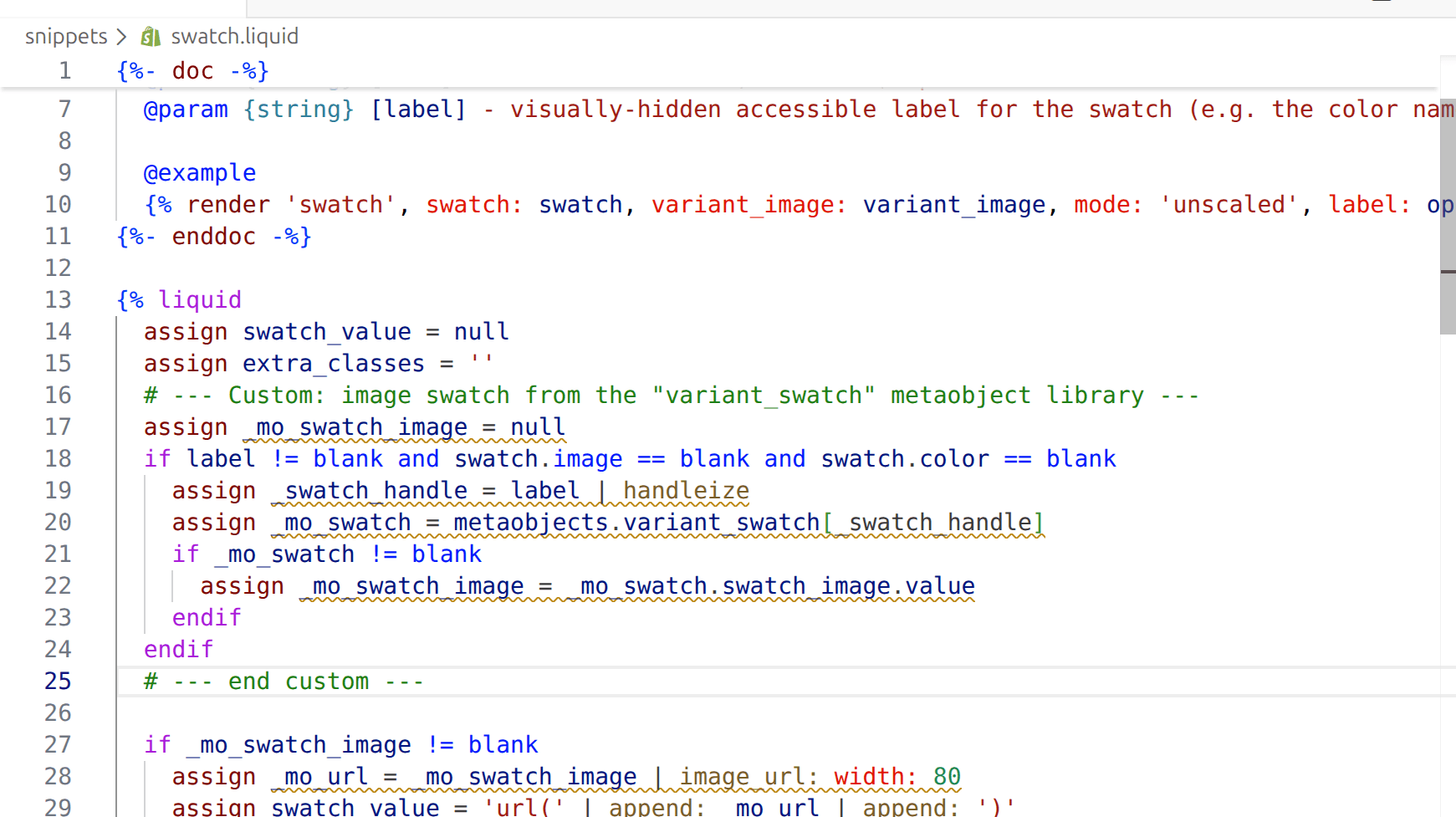 The metaobject lookup added to swatch.liquid
Read the condition on line two again, because it is doing real work:
if label != blank and swatch.image == blank and swatch.color == blankThat is what keeps this additive. The custom lookup only runs when Shopify gave us nothing. Your real Color swatches never touch this code path.
Step 4: edit snippets/variant-main-picker.liquid
Two edits here. The first one is what actually switches the option from pills to swatches. The second is the one that is easy to miss and breaks everything if you skip it.
4a: count the metaobject swatches
Find the swatch_count line inside the option loop:
{%- for product_option in product_resource.options_with_values -%}
  {%- liquid
    assign swatch_count = product_option.values | map: 'swatch' | compact | size
Add straight after it:
if swatch_count == 0
for _v in product_option.values
assign _vh = _v.name | handleize
if metaobjects.variant_swatch[_vh] != blank
assign swatch_count = swatch_count | plus: 1
endif
endfor
endif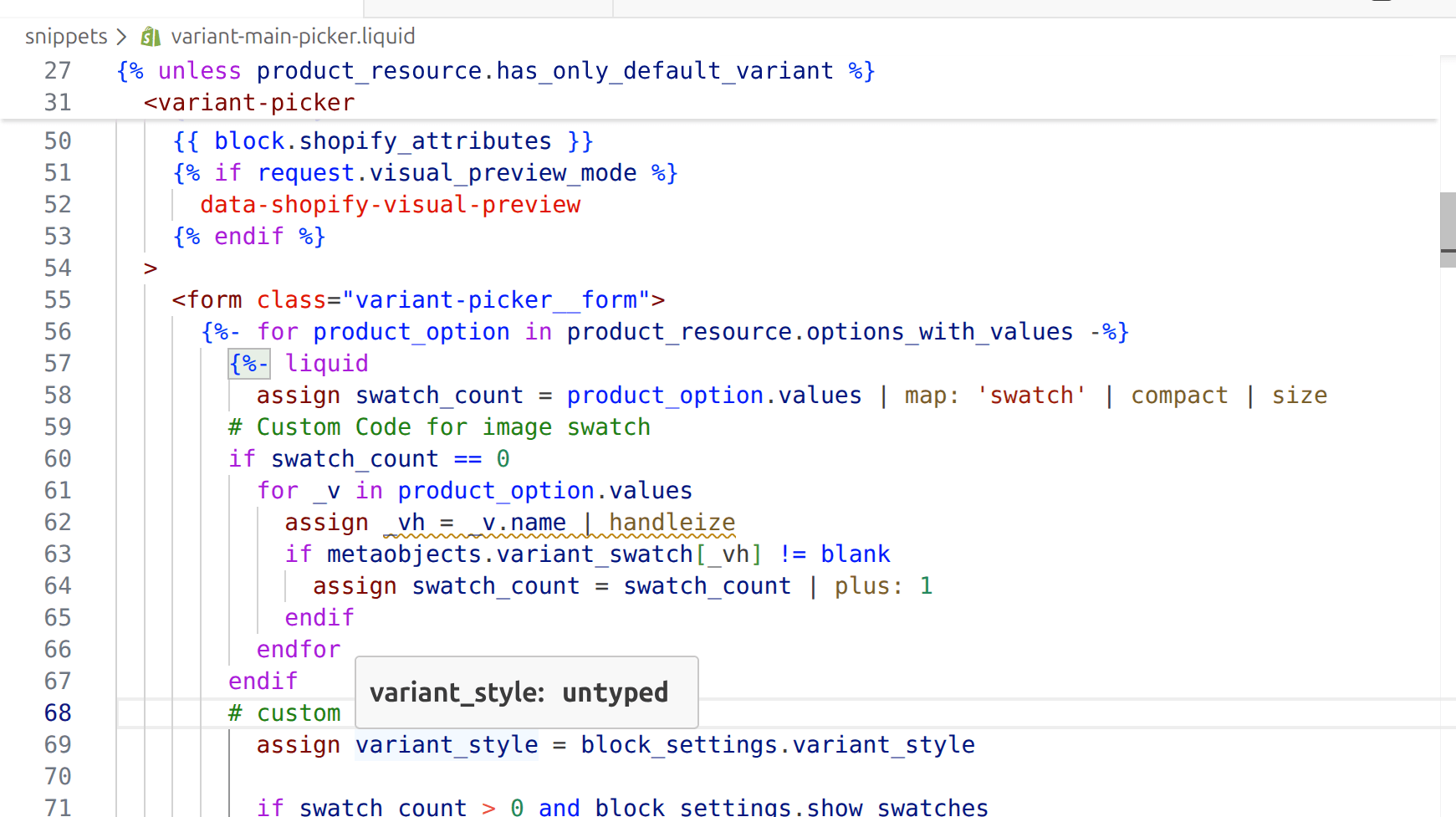 The swatch count extended to include metaobject matches
Now the count is non-zero for Pupil Style, so a few lines further down the theme's own logic flips variant_style to 'swatch' and the option renders as swatches.
Note the if swatch_count == 0 guard. The loop only runs for options Shopify did not already handle, so this costs nothing on your colour options.
4b: pass the label into the swatch
This is the edit everything else depends on, and it is one line.
swatch.liquid looks up the metaobject using label. But Horizon's render call does not pass a label. So label is blank, the condition in step 3 fails, and nothing happens. You will have done all the work and still be looking at text pills.
Find the render call, around line 154:
{% render 'swatch',
  swatch: product_option_value.swatch,
  variant_image: featured_media,
  mode: 'unscaled'
%}
Add the label line:
{% render 'swatch',
swatch: product_option_value.swatch,
variant_image: featured_media,
label: product_option_value.name,
mode: 'unscaled'
%}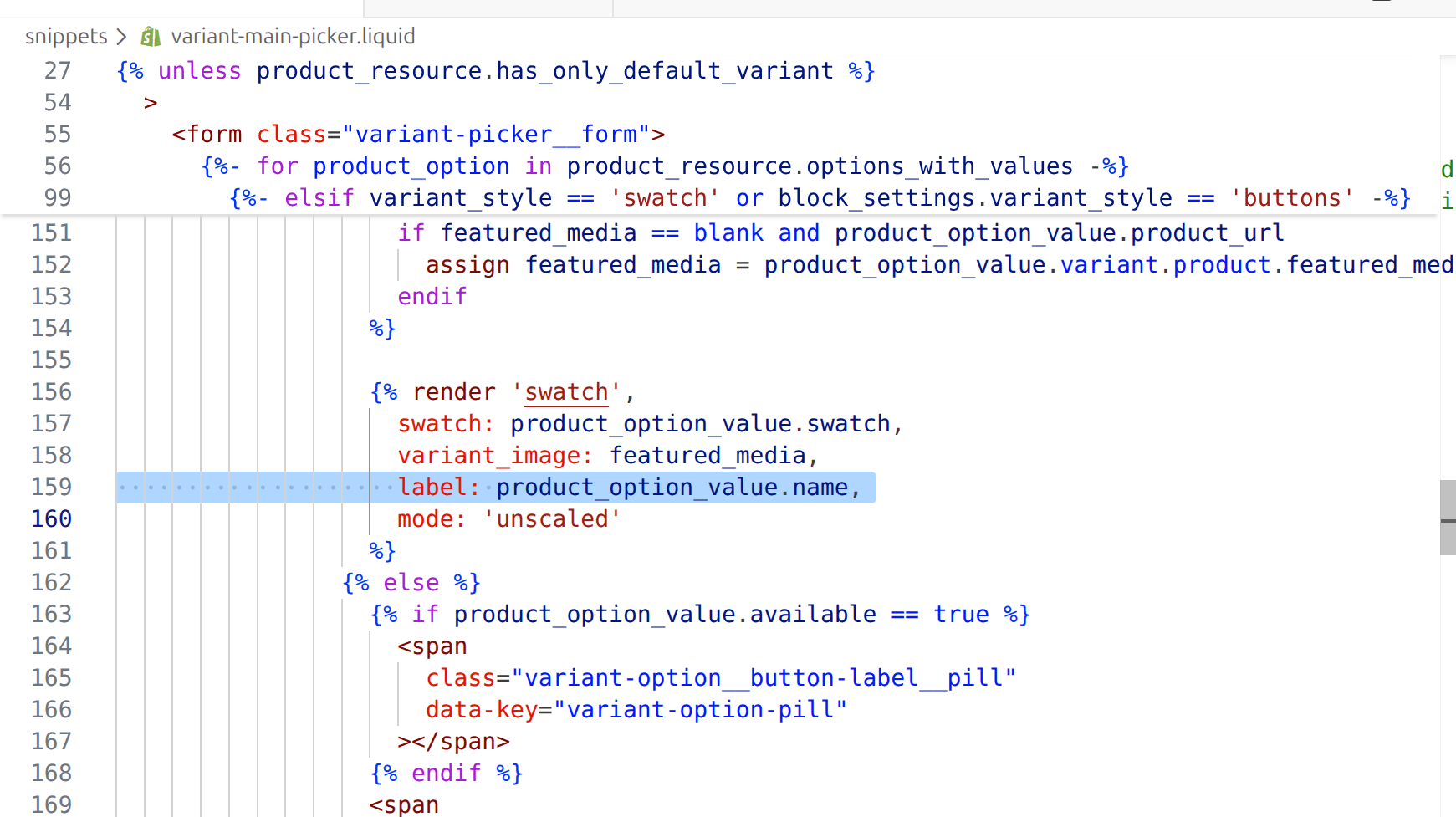 The label argument added to the swatch render call
It is also an accessibility win independent of swatches. swatch.liquid renders label into a visually-hidden span, so screen readers announce "Star" instead of an unlabelled circle. Horizon leaves that empty by default on this path.
Step 5: turn the toggle on
The code is inert until the theme setting is on.
- Customize the theme.
- Open a Product page.
- Click the Variant picker block.
- Turn Swatches ON, and Save.
Your non-colour option now renders as image swatches.
If it is still showing text pills
In order of how often each one is the actual cause:
The label edit in 4b is missing. By far the most common. Without it label is blank and the lookup never runs. Check it first.
The names do not match. The entry handle must equal the handleized option value. Open the metaobject entry and check its URL: the last path segment is the handle. Compare it to Star handleized, which is star. Spaces become hyphens, capitals disappear, and a trailing space in the option value will break with nothing to flag it the match.
The Swatches toggle is off. The theme editor setting in step 5.
You edited a different theme. The deep links in the original thread carry a theme ID, and theme IDs are unique per store. If you pasted someone else's link you edited nothing on your own store. Get yours from Online Store > Themes > ... > Edit code and read the number out of the URL.
Shopify already supplies a swatch for that option. If the option is Color with values Shopify recognises, the guard in step 3 deliberately skips the metaobject. That is correct behaviour, not a bug.
Doing this on Dawn instead of Horizon
The mechanism is identical. The file names are not.
Dawn keeps the same job in snippets/product-variant-options.liquid, with the swatch markup in snippets/swatch.liquid. Dawn's swatch snippet also takes the option value, so the equivalent of the 4b edit may already be there.
Two things carry over unchanged to any Online Store 2.0 theme:
- The metaobject definition and entries. Those are catalog data, not theme code, so they survive theme switches and theme updates.
- The
metaobjects.variant_swatch[handle]lookup. That is standard Liquid.
What changes is which file holds the option loop, and whether the render call already passes a label. Search your theme for swatch_count and you will land in the right place.
When you should just use an app
This is free, it survives theme updates as long as the two snippets do not get rewritten, and it adds no scripts to your storefront. For a fixed set of option values it is genuinely the better answer.
Use an app instead when:
- You want swatches per product rather than a shared library. The metaobject approach is deliberately global.
- You want swatches on collection cards and filters, not just the product page. That is more files, and filter swatches come from a different data path.
- Your option values are not stable. If merchandisers invent new values regularly, someone has to remember to add a metaobject entry each time, and they will not.
- Your team is not comfortable editing Liquid. Two files is not a lot, but it is not nothing, and a theme update that rewrites them is your problem.
Swatch King and similar apps handle all of that. The trade is a monthly cost and another script on the product page.
What this actually changed
On the test store, one option went from three text buttons to three image swatches, with no app installed and no per-product configuration.
The pieces:
- One metaobject definition holding a reusable swatch library.
- One entry per option value, matched by handle.
- Two snippet edits, both additive, both guarded so native colour swatches are untouched.
The part worth remembering, if you remember one thing: swatches are missing because the data is missing, not because a setting is off. Once you supply the data and pass the label through, the theme's own logic does the rest.
Swatches help the people already on your product page
PinFlow turns your Shopify catalog into Pinterest pins and posts them on a schedule, so the products you just styled keep reaching people who have not found your store yet.
Get PinFlow on the Shopify App StorePart of a complete guide
Shopify Variants: The Complete Guide
Variants are one product sold in several forms. How they work, the 2,048 and 3-option limits, and where each variant fix lives - images, swatches, sorting, hiding and the theme-specific bugs.
More Shopify fixes
More community-sourced Shopify guides, tested on a live store.
Collections & Products
Shopify Unit Pricing: Show a Price per Unit on Each Variant
Set a unit price on every variant and Dawn shows the price per 100 ml or per kg, and updates it when a shopper picks another size. No code needed.
Themes & Storefront
Square Size Buttons on Shopify Dawn (Custom CSS)
Dawn draws size options as round pills. Here is the Custom CSS that turns them into square boxes matching the Add to cart button, tested on Dawn 16.0.0.
Themes & Storefront
Remove the Variant ID From Your Shopify Product URL
Your product link keeps turning into /products/name?variant=43176780890281, before the customer has touched anything. One theme setting stops it, a second switch covers Dawn, and a short snippet cleans the links that already carry the ID.