
Shopify Dependent (Conditional) Product Options
Show or hide Shopify product options based on an earlier choice - what works natively, and when you need an app or custom code.
By AjayCodeWiz · July 27, 2026 · 10 min read
The problem
A merchant asked about this on the Shopify Community. They run an industrial and automotive paint shop, online and in a physical store.
They wanted one product per colour. Then the options on the page should adapt as the buyer chooses.
Pick a colour like RAL7016. Then pick Touch Up, Aerosol, or Liquid Paint. From there the next questions should change:
- Touch Up should ask only for a finish (Gloss, Satin, Matt).
- Aerosol should ask for the aerosol type, then a finish only where it applies.
- Liquid Paint should ask for the paint type, then a finish for 1K or 2K, then a volume.
- Basecoat has no finish. Touch Up and Aerosol have no volume.
In plain words, they wanted shopify conditional product options. The second question should depend on the first. This is also called shopify dependent options or shopify linked options.
The worry was the alternative: building hundreds of separate products or thousands of dead variant combinations.
I reproduced the whole thing on a test store on a Dawn product page. The good news: you do not need an app or a monthly fee. You can do this natively.
Why it happens
Here is the mechanism most forum answers skip.
A variant is one buyable version of a product. It has its own price, SKU, stock, and weight. An option is a question on the page, like Size or Finish. Each option has values.
Shopify variants are static. Every combination has to exist in advance. Shopify does not build option paths on the fly.
There are two hard limits. Shopify allows a maximum of 3 options per product. It allows up to 2048 variants, and up to 100 values per option.
The paint setup has four levels: format, paint type, finish, and volume. Four levels do not fit in three options. That is the first wall.
The second wall is display. Shopify's variant picker already knows which combinations do not exist. But it does not hide the whole question. It just crosses out or greys the values that lead nowhere.
So a buyer who picks Basecoat still sees a Finish question full of struck-through choices. It looks broken, and there is often no clean way to reach Add to cart. This is what the merchant meant by wanting incompatible options hidden, not crossed out.
Native variants cannot branch on their own. That part is true. But the fix is small, and it keeps every real Shopify feature.
The fix
The trick is two moves. First, fold four levels into three real options and create only the combinations that exist. Second, add one small block that turns "crossed out" into "gone".
I tested this on Dawn with 31 variants on a single colour. Every choice stayed a real Shopify variant, so price, SKU, stock, and reports all behaved normally.
Step 1. Fold four levels into three options
Merge the two levels that always travel together. Format and paint type become one option called Product.
- Product: Touch Up Pen, 1K Aerosol, 2K Aerosol, Basecoat Aerosol, 1K Paint, 2K Paint, Basecoat Paint
- Finish: Gloss, Satin, Matt, Basecoat
- Size: 12 ml, 400 ml, 100 ml, 1 L, 5 L
Then create only the combinations that truly exist. This is the key idea.
Give Basecoat a single Finish value, also called Basecoat. Now Basecoat can never offer Gloss or Satin. Touch Up gets no volume rows, so it never asks for a size.
Done this way, one colour comes out at about 31 variants, not 140. You skip every combination that makes no sense.
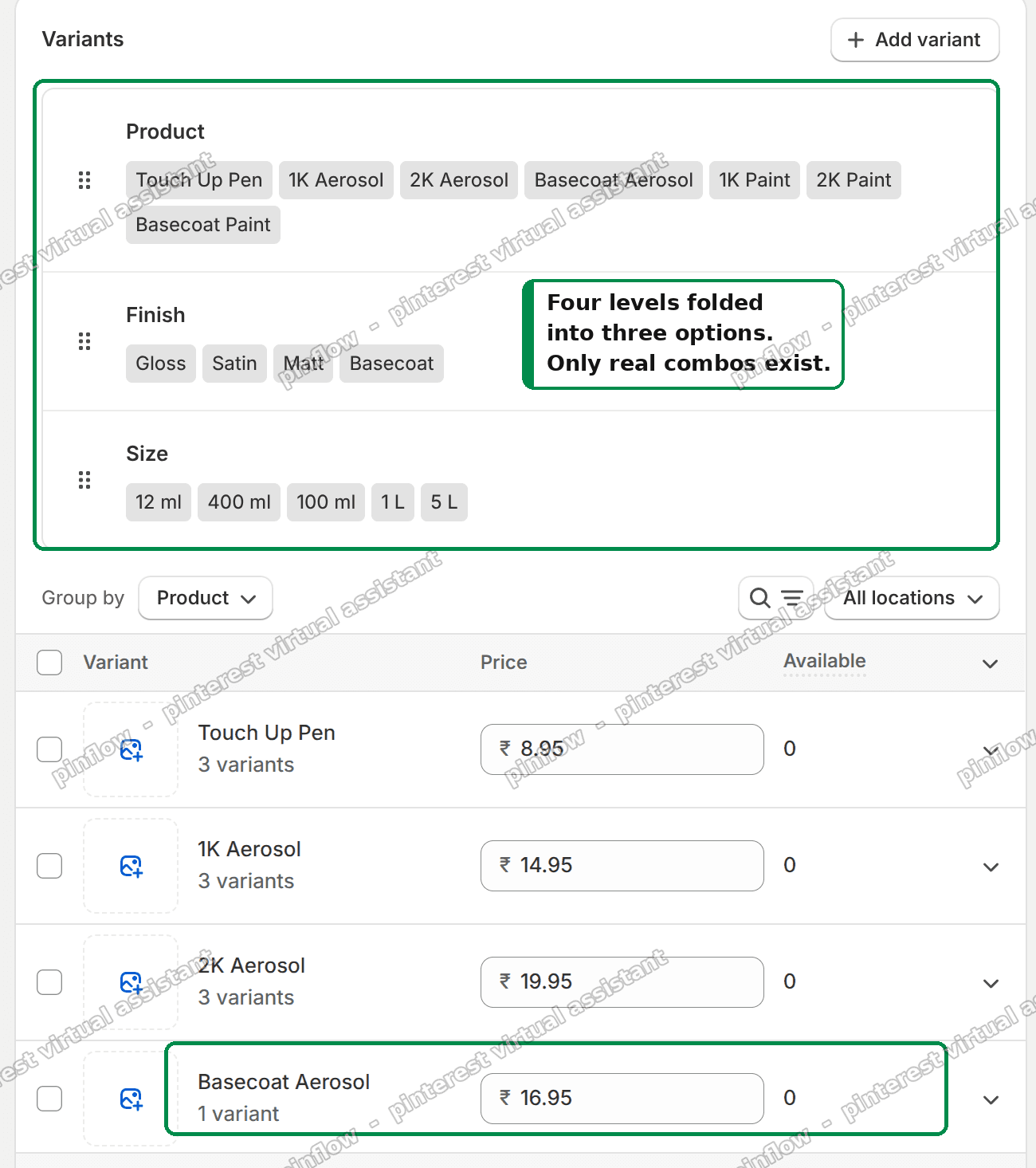 Admin variants card showing three Shopify options - Product, Finish, Size - with only the real combinations created
The fastest way to build it is a CSV import, not clicking one variant at a time. Go to Products, then Import. Use Option1, Option2, and Option3 columns. Put one row per real variant.
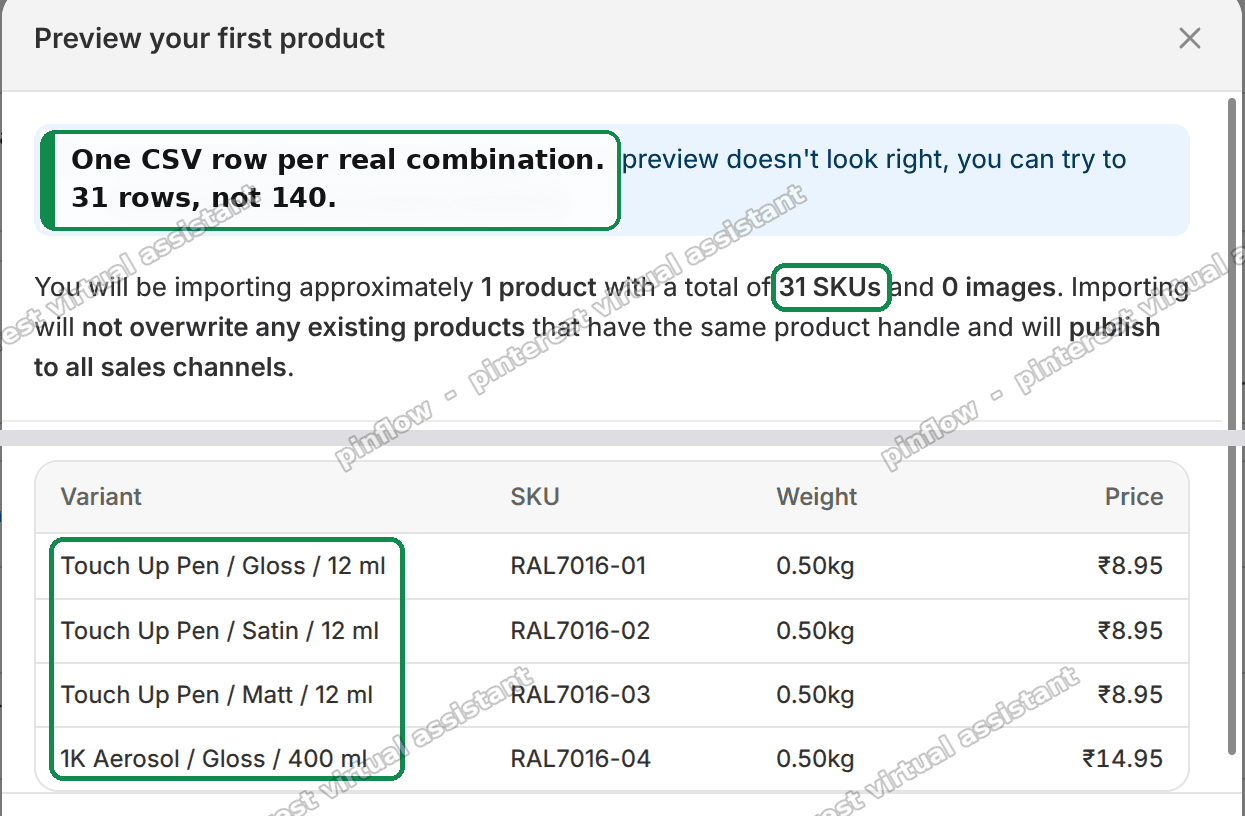 Shopify product CSV import preview - one row per real paint combination, 31 rows not 140
Then duplicate that finished product for each RAL code. The structure is the same every time, so only the colour and prices change.
Step 2. Add one Custom Liquid block
Now hide the values that lead nowhere, instead of crossing them out.
A Custom Liquid block is a spot in the theme editor where you can paste your own code onto a page, with no full theme edit.
- Go to Online Store, then Themes, then Customize.
- Open a product page.
- Under Product information, click Add block, then Custom Liquid.
- Paste the code below, then Save.
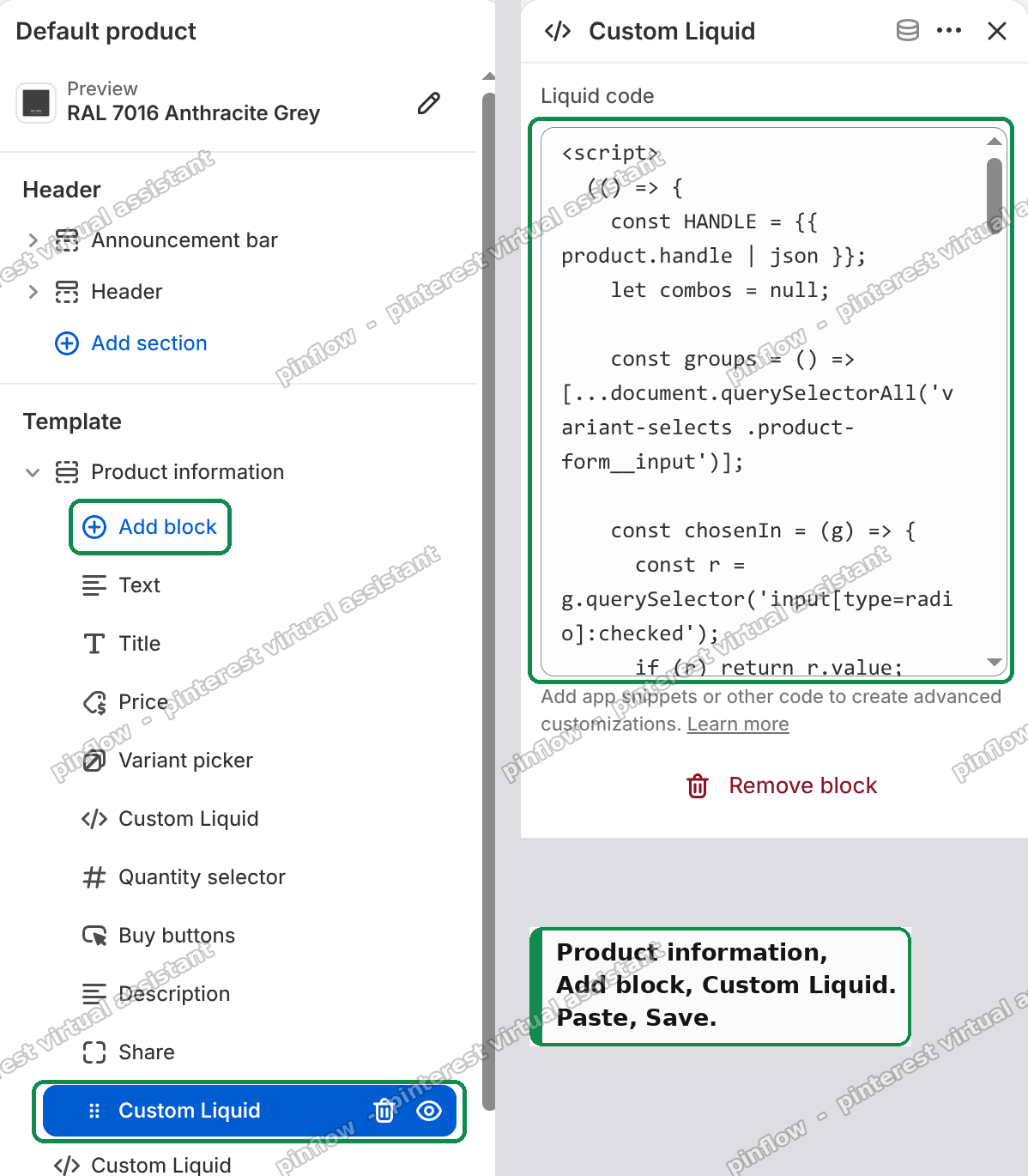 Shopify theme editor - adding a Custom Liquid block under Product information on the product page
<script>
  (() => {
    const HANDLE = {{ product.handle | json }};
    let combos = null;

    const groups = () => [...document.querySelectorAll('variant-selects .product-form__input')];

    const chosenIn = (g) => {
      const r = g.querySelector('input[type=radio]:checked');
      if (r) return r.value;
      const s = g.querySelector('select');
      return s ? s.value : null;
    };

    const show = (el, on) => {
      if (el) el.style.display = on ? '' : 'none';
    };

    function apply() {
      if (!combos) return;
      const gs = groups();
      if (!gs.length) return;
      const chosen = gs.map(chosenIn);

      gs.forEach((g, i) => {
        const ok = new Set(
          combos.filter((o) => chosen.slice(0, i).every((c, j) => o[j] === c)).map((o) => o[i])
        );

        g.querySelectorAll('input[type=radio]').forEach((inp) => {
          const on = ok.has(inp.value);
          show(inp, on);
          show(g.querySelector('label[for="' + CSS.escape(inp.id) + '"]'), on);
        });
        g.querySelectorAll('select option').forEach((o) => {
          o.hidden = !ok.has(o.value);
        });

        show(g, ok.size > 1);

        if (chosen[i] !== null && !ok.has(chosen[i]) && ok.size) {
          const next = [...ok][0];
          const inp = [...g.querySelectorAll('input[type=radio]')].find((x) => x.value === next);
          if (inp) return inp.click();
          const s = g.querySelector('select');
          if (s) {
            s.value = next;
            s.dispatchEvent(new Event('change', { bubbles: true }));
          }
        }
      });
    }

    fetch('/products/' + HANDLE + '.js')
      .then((r) => r.json())
      .then((p) => {
        combos = p.variants.map((v) => v.options);
        apply();
      });

    new MutationObserver(apply).observe(document.body, { childList: true, subtree: true });
    document.addEventListener('change', () => setTimeout(apply, 0));
  })();
</script>
Here is what the block does, in plain words. It reads the product's real variant list. For each question, it works out which values still fit the earlier choices. It hides the values that do not fit. If only one value is left, it hides the whole question. If your current pick becomes invalid, it moves you to a valid one. It re-runs every time the theme redraws the picker, so it survives clicks.
The result
Same product, same theme, same click. The options now cascade.
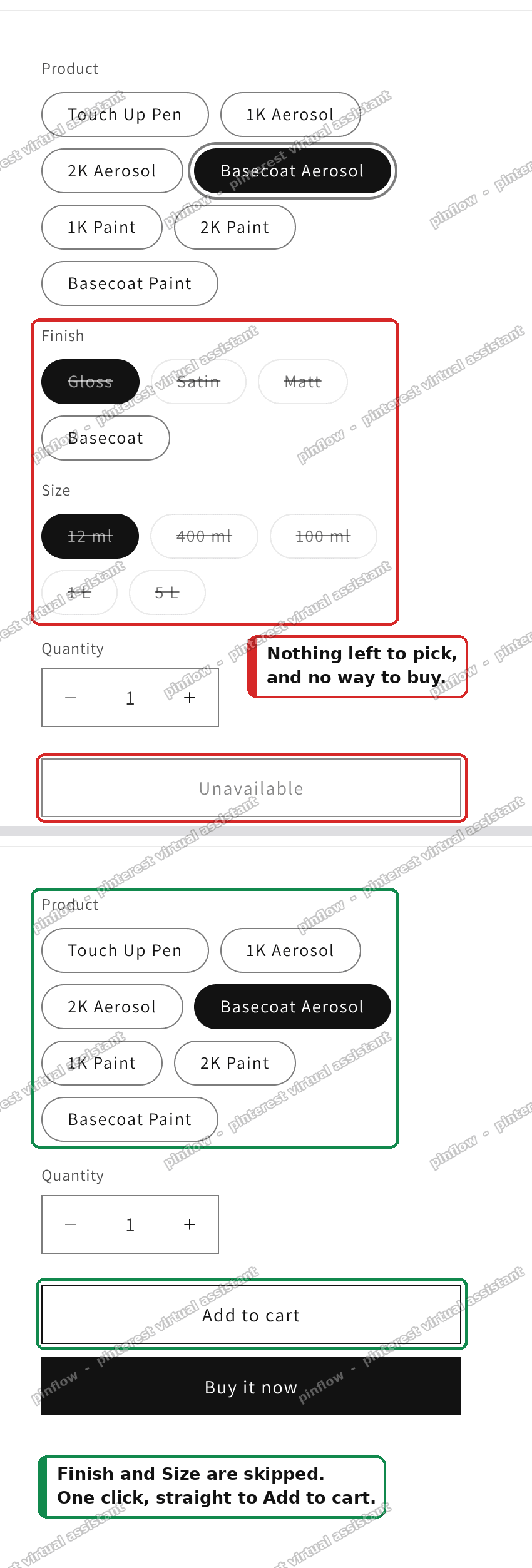 Before and after on the same click - crossed-out options become a clean single path to Add to cart
- Touch Up Pen: Finish is asked, Size never appears.
- Basecoat Aerosol: Finish and Size both disappear. One click and it is buyable.
- 1K Paint or 2K Paint: Finish and Size both appear.
Values that cannot go together are hidden, not crossed out. That is the whole ask, done natively.
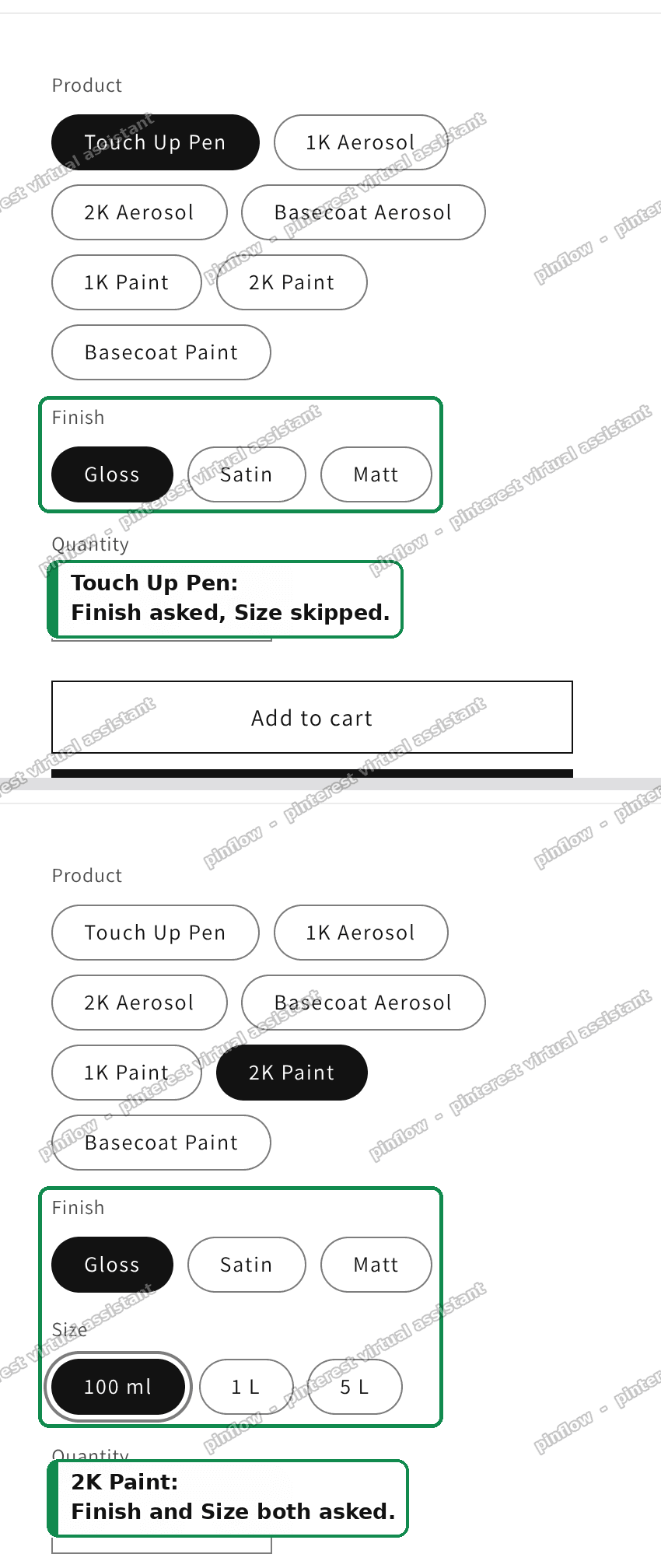 Touch Up Pen shows only Finish, while 2K Paint shows both Finish and Size - the same picker cascading differently
The big win over an app: every choice is still a real Shopify variant. So the correct price, SKU, stock, and weight ride along automatically. A touch-up pen and a 5 litre tin carry their own real weight, which matters for shipping.
An alternative: a product options app
If you do not want to touch code, a product options app is the no-code route. Apps like this add option fields on top of a product and can show or hide them based on an earlier selection.
You attach an option set to the products you choose. Everything else keeps the normal picker. So it is opt-in per product, which is what the merchant asked about next.
There are two trade-offs to know before you commit.
First, app options usually do not become real variants. They often do not carry their own SKU, stock, or weight. The merchant hit exactly this. The app could change price by option, but not shipping weight. A pen and a 5 litre tin then ship at the same weight, which is wrong.
Second, an app is a recurring monthly fee, and it takes over the add-to-cart form on that product. Convert one product and test the full checkout before you roll it out to the whole catalogue.
If you do not track stock per combination and you do not need per-option weight, the app route is smooth and quick. If you need real price, SKU, stock, or weight per choice, the native variant method above is the stronger fit.
Can you make Shopify options depend on each other without an app?
Yes, with the two-part method above. This is the core of shopify product options based on selection.
Native variants cannot branch by themselves. But you can create only the real combinations, then hide the dead-end values with one small block. The result behaves like true shopify conditional logic product page work, while staying inside Shopify's own variant system.
The limit is the count. You still get three options and 2048 variants. If your real combinations fit inside that, this method is the cleanest path.
How many options and variants does Shopify allow?
Shopify allows a maximum of 3 options per product. Each option can hold up to 100 values. A product can have up to 2048 variants in total.
If your setup needs four or more separate questions, you have three moves:
- Fold two questions that always pair up into one option, like the Product option above.
- Use a product options app for the extra questions.
- On Shopify Plus, look at Combined Listings to present several products as one.
Most catalogues fit once you merge the levels that travel together.
Do product options apps change weight and shipping?
Usually not on their own. This tripped the merchant up.
Most options apps treat the extra choices as add-ons, not as real variants. They can adjust price. They often cannot set a real shipping weight per choice.
If weight varies a lot across choices, like a pen versus five litres of paint, that matters at checkout. Two paths fix it:
- Use the native variant method, where each combination is a real variant with its own weight.
- Or pair the app with a shipping app that can rate by the selected options.
For paint, the native route is simpler, because the weight is already attached to each variant.
Will an options app break my other products?
No. Options apps are opt-in per product. You attach an option set only to the products you pick. Every product without one keeps the normal variant picker. You do not need to re-code your existing products.
Still, convert one product first and test it end to end. The app takes over the add-to-cart form on that product, so you want to see a real checkout work before you scale it.
If it did not work
A few things to check if the cascade does not behave.
- Nothing hides. Your theme may not use
variant-selects. Open the product page, inspect the picker, and match the selector in the block to your theme's markup. - A value stays crossed out instead of disappearing. That combination probably still exists as a variant. Delete the variants that should not exist, or give the parent a single dead-end value like the Basecoat trick.
- The wrong variant gets selected. Make sure the auto-advance step is intact. It moves the buyer to a valid value when their current pick becomes impossible.
- It works, then breaks after a click. The theme re-renders the picker. The block already watches for that with a MutationObserver, so confirm the block saved and loads on the page.
- You truly need more than three options. Fold levels first. If you still cannot, use a product options app or, on Plus, Combined Listings.
Definitions people confuse
Variant. One buyable version of the product. It carries its own price, SKU, stock, and weight. Native and reliable.
Option. A question on the page, like Finish or Size. Max three per product. Its values feed the variants.
Line item property. A custom note attached to a cart line, like an engraving text. It records a choice but does not manage price, stock, or weight on its own.
Metafield. Extra structured data on a product, like a spec sheet value. Good for display and filtering, not for making options branch.
Combined Listings. A Shopify Plus feature that shows several separate products as one listing. Useful when you have more real questions than three options can hold.
For dependent choices that still need real price, stock, and weight, variants win. Fold your levels into three options, create only the real combinations, and hide the dead ends with one small block. That is the whole native answer.
Spending too long on manual Shopify busywork?
PinFlow turns your Shopify catalog into Pinterest pins and posts them on a schedule, automatically. Same idea as the rule above, let the system handle the repetitive part.
Get PinFlow on the Shopify App StorePart of a complete guide
Shopify Variants: The Complete Guide
Variants are one product sold in several forms. How they work, the 2,048 and 3-option limits, and where each variant fix lives - images, swatches, sorting, hiding and the theme-specific bugs.
More Shopify fixes
More community-sourced Shopify guides, tested on a live store.
Themes & Storefront
Remove the Variant ID From Your Shopify Product URL
Your product link keeps turning into /products/name?variant=43176780890281, before the customer has touched anything. One theme setting stops it, a second switch covers Dawn, and a short snippet cleans the links that already carry the ID.
Themes & Storefront
Hide Unavailable Variants in a Shopify Dropdown
Green has no 3XL, so Shopify prints "3XL - Unavailable" in the size dropdown anyway. How to remove combinations that do not exist, without the bug that kills the variant picker. Tested on Studio.
Shopify Admin
How to Hide a Variant in Shopify Without Deleting It
A colour is temporarily unavailable and you want it off every product page without deleting it and rebuilding it later. Shopify can now unpublish a single variant. The fast way to do it, tested on a live store.