
Shopify Contact Form Not Working? Here Is the Real Fix
Your Shopify contact form Send button works in the theme editor but does nothing on the live site. Here is why that happens and how to find the app that breaks it, step by step.
By AjayCodeWiz · August 15, 2026 · 8 min read
The problem
A merchant asked about this on the Shopify Community, and it is one of the most confusing bugs you can hit.
Their contact form worked perfectly inside the theme editor. They filled it in, clicked Send, and it submitted. But on the real live website, the Send button did nothing. No message, no error, no confirmation. Just a dead button.
That "works here but not there" gap is what makes this so hard to debug. Most people assume the form code is broken and start rewriting it. Usually it is not the form at all.
I reproduced this on the merchant's live store. It runs the Salt Yard theme, which is a version of the Symmetry theme. The contact page had a normal form with a proper Send button.
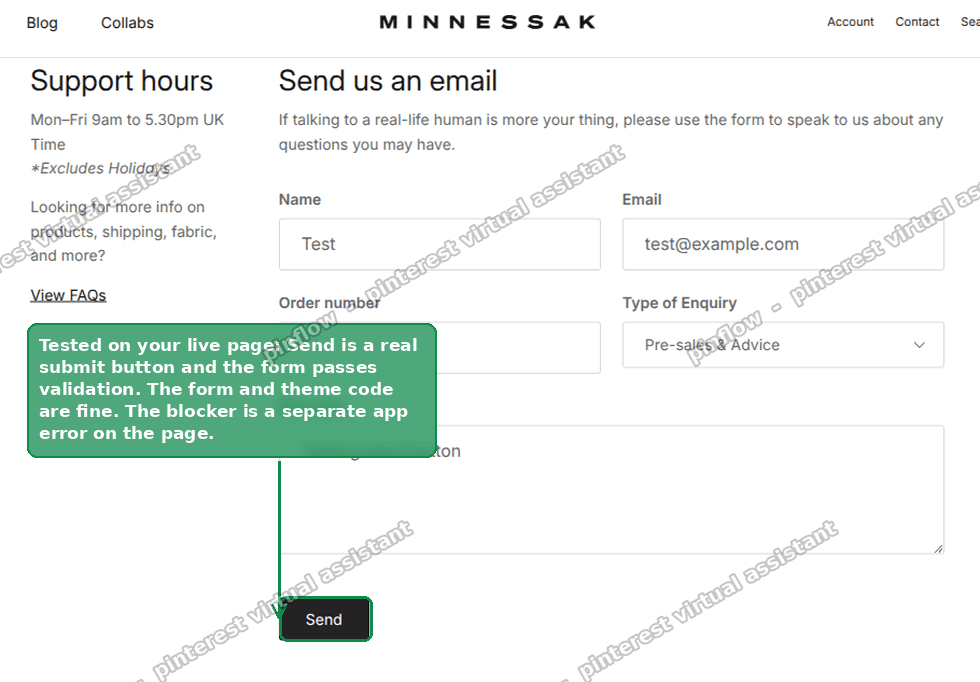 The Shopify contact form with a working Send button
I tested the actual button on the live page. It is a real submit button. The form passes validation. Nothing in the theme cancels the submit. In other words, the form itself is fine.
So if the form is fine, why does the button feel dead? Because something else on the page is crashing, and that crash stops the form script from finishing.
Why it works in the theme editor but not live
This is the single most important thing to understand, so here it is on its own.
Apps do not run inside the theme editor.
When you open Online Store, then Themes, then Customize, you are in a preview. Shopify loads your theme, but it does not load most of your third-party apps. Cookie banners, review widgets, speed boosters, SEO tools, chat widgets. Most of them are switched off in that preview.
On your live storefront, all of those apps load. And if one of them has a JavaScript error, that error can knock out other scripts on the page, including the small script that makes your contact form submit.
So the pattern is simple once you see it:
- In the editor: no apps, no crash, the button works.
- On the live site: an app crashes, the button looks dead.
Same form. Same code. Different environment.
What the error actually looks like
When I opened the live contact page and checked the browser console, there was a clear JavaScript error firing several times as the page loaded. The message was "Maximum call stack size exceeded".
You do not need to understand that message in detail. In plain words, it means a script got stuck in a loop and gave up. When a script dies like that, anything it was supposed to set up afterwards can stop working too.
The important clue was where the error came from. It came from a script hosted on another company's servers, not from the theme. That is the fingerprint of an app, not a theme bug. Another person in the thread had already guessed the same thing, and the evidence backed it up.
You can see this yourself. On your live site, not the editor, open the page with the broken form. On a computer, press F12 to open developer tools, then click the Console tab. Reload the page. If you see red errors there, especially ones about "call stack", "undefined", or a script from a domain that is not your store, an app is very likely the cause.
First, confirm the form itself is fine
Before you touch anything, rule out the obvious. It takes a minute and saves you rewriting a form that was never broken.
Open the contact page in the theme editor preview and submit a test message. If it goes through there, the form markup and the Send button are correct. That tells you the problem lives with the live-site apps, not the theme.
If the form also fails inside the editor, that is a different problem. In that case, check that the Send button is a real submit button and that all required fields are filled. But in the "works in editor, not live" case, this is almost always an app.
The fix: find the app that breaks it
You cannot fix an app conflict by editing the form. You have to find the app and stop it. The cleanest way to do that is with app embeds, because you can switch each app off without uninstalling anything.
Here is the process.
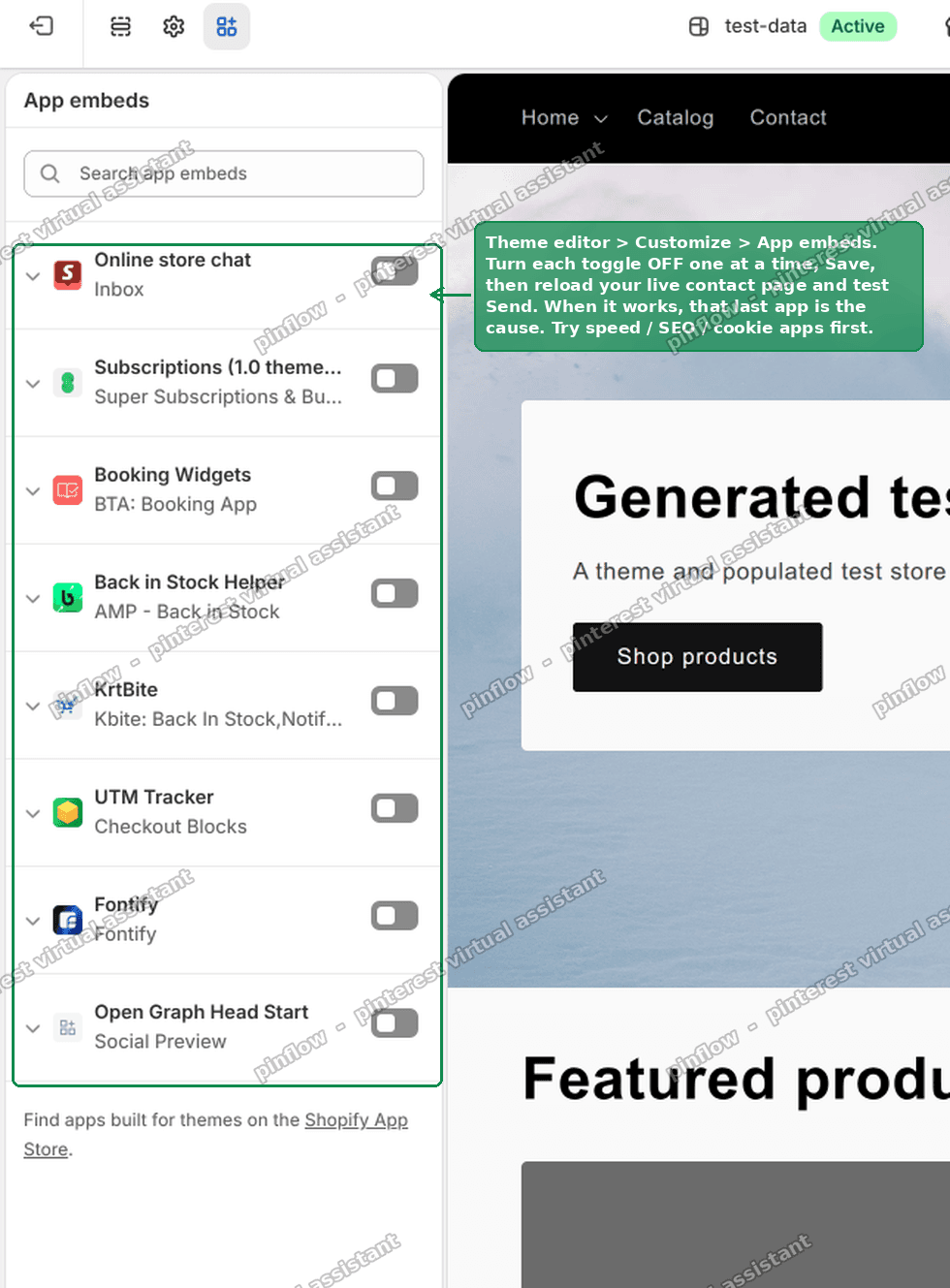 Turn app embeds off one at a time to find the culprit
Step 1. Open app embeds
Go to Online Store, then Themes. Click Customize on your live theme. In the bottom left of the editor there is a small icon that opens the App embeds panel. Open it.
You will see a list of every app that injects code into your storefront, each with an on and off toggle.
Step 2. Turn them off one at a time
Turn one toggle off. Click Save. Now open your live contact page in a normal browser tab, reload it, and click Send.
If the button works, you just found the app that was breaking it. If it still fails, turn that app back on, turn the next one off, and test again.
Work through the list one app at a time. This sounds slow, but it is the only reliable way, and it usually takes only a few rounds.
Step 3. Start with the apps most likely to be the cause
Not all apps are equally risky. Some apps rewrite or delay other scripts on the page, and those are the usual culprits. Test these first:
- Page speed or "optimizer" apps
- Cookie consent banners
- SEO apps that claim to speed up your site
- Anything you installed right before the form broke
On the store in this thread, I could see a page-speed SEO app and a cookie banner app running. Those are exactly the kind of apps that cause this.
If the culprit is a speed app, do not delete it
There is a smarter fix than removing a whole app.
Many speed or "optimize" apps have a setting that defers or lazy-loads JavaScript. That setting tells the browser to hold back scripts and run them later. It is meant to improve your speed score. It is also the number one cause of theme scripts breaking, because it changes the order things load in.
If your culprit is one of these apps, open its settings and turn off the "defer JavaScript" or "lazy-load JavaScript" option. Leave the rest of the app on. In most cases the form comes straight back and you keep the app.
Also check apps with no embed toggle
Not every app shows up in the app embeds list. Some inject code a different way and only appear under Settings, then Apps.
If the app embeds test does not find the culprit, go to Settings, then Apps and sales channels. Look for a speed booster or optimizer. Temporarily pause or uninstall it, then test the form again. Pausing an app is reversible, so this is safe to try.
What to check if the button still does nothing
If you have been through the apps and the button is still dead, run down this list.
- Test on a phone and a computer. If it fails on one but works on the other, a device-specific script is involved.
- Try a different browser, and try an incognito window. A browser extension can also block scripts.
- Make sure the required fields are actually filled. Some forms refuse to submit with a blank required field and give no visible warning.
- Check that the button sits inside the form, not outside it. If custom code moved it, a click may no longer submit anything.
- Look at the console again after disabling apps. If the "call stack" error is gone but a new error appears, you have a second conflict to chase.
What actually happens when a contact form is sent
It helps to know the normal behaviour, because a working form can look like a broken one.
A standard Shopify contact form does not open a popup. When you click Send, the page reloads. Shopify then shows a short confirmation message near the form, usually something like "Thanks for contacting us". The message lands in the email address set under Settings, then General, in the "Sender email" or store contact field.
So if you fixed the app conflict and the page now reloads and shows a small thank-you line, it is working, even though nothing dramatic happened on screen. Send yourself a test message and check the inbox to be sure.
App conflict versus theme bug: how to tell them apart
These two problems look identical from the outside, but the fix is completely different.
An app conflict shows the "works in editor, fails live" pattern. The theme editor has no apps, so the form works there. The console shows an error from an outside script. The fix is to find and disable the app.
A theme bug fails everywhere, including the editor. The console error, if any, points at one of your own theme files. The fix is to correct the theme code, or restore the section.
The quick test is the theme editor. If the form works in the editor, stop looking at your theme. The problem is an app.
Move the form off the theme if you want it bulletproof
If you would rather not depend on your theme or fight app conflicts, you can run the form through a dedicated form app instead. These render their own form and their own submit logic, so a theme change or a script conflict is far less likely to break them.
Popular options are POWR Form Builder, Globo Form Builder, and Hulk Form Builder. All three have free tiers. This is optional. For most stores, finding the conflicting app is enough and costs nothing.
The short version
A Shopify contact form that works in the theme editor but not on the live site is almost never a broken form. Apps do not run in the editor, so a crashing app only shows up live. Find it by turning app embeds off one at a time and retesting the Send button. Start with speed, SEO, and cookie apps, and if a speed app is the cause, turn off its "defer JavaScript" setting rather than removing it.
Spending too long on manual Shopify busywork?
PinFlow turns your Shopify catalog into Pinterest pins and posts them on a schedule, automatically. Let the system handle the repetitive part while you build the store.
Get PinFlow on the Shopify App StoreMore Shopify fixes
More community-sourced Shopify guides, tested on a live store.
Themes & Storefront
Shopify AI Section: Fix a Price Badge Hidden Behind the Image
You built a section with Shopify's AI section generator, but the price badge on each card sits behind the photo. Here is the Custom Liquid fix that brings it to the front without regenerating anything. Tested on a Dawn store.
Themes & Storefront
Hide Shipping Calculated at Checkout on One Shopify Product
The line under Add to cart that says shipping is calculated at checkout shows on every product, gift cards included. Here is how to hide it on one product only, with the code, screenshots and the Eclipse theme steps.
Themes & Storefront
Shopify Dropdown Menu Behind Page Content (Z-Index Fix)
Your Shopify dropdown or mega menu opens, but the page title and products sit on top of its links and the menu closes before you can click. The fix is one Custom CSS rule in Theme settings. Tested on a Rebel store.