
Shopify Craft Theme: Sync Thumbnails to the Variant Picker
In the Craft theme, clicking a product thumbnail changes the photo but leaves the variant selector behind. Here is why the sync only runs one way, and the Custom Liquid block that fixes it.
By AjayCodeWiz · September 2, 2026 · 9 min read
The problem
A merchant asked about this on the Shopify Community, and it is one of those things you only notice once a shopper complains.
They run a yarn shop on the Craft theme. One of their products has 41 colourways, and every single colour has its own photo. The photos are mapped correctly, so picking a colour in the dropdown does pull up the right skein.
The trouble is the other direction. A shopper browsing the thumbnail strip clicks a colour they like. The big photo changes. The Color dropdown does not. It still shows whatever was selected when the page loaded.
So the shopper is looking at a coral skein, the selector says Kiwi, and if they hit Add to cart they get Kiwi.
Here is the exact moment on a Craft test store. I clicked the Rosewood thumbnail. The gallery moved. The Color selector did not.
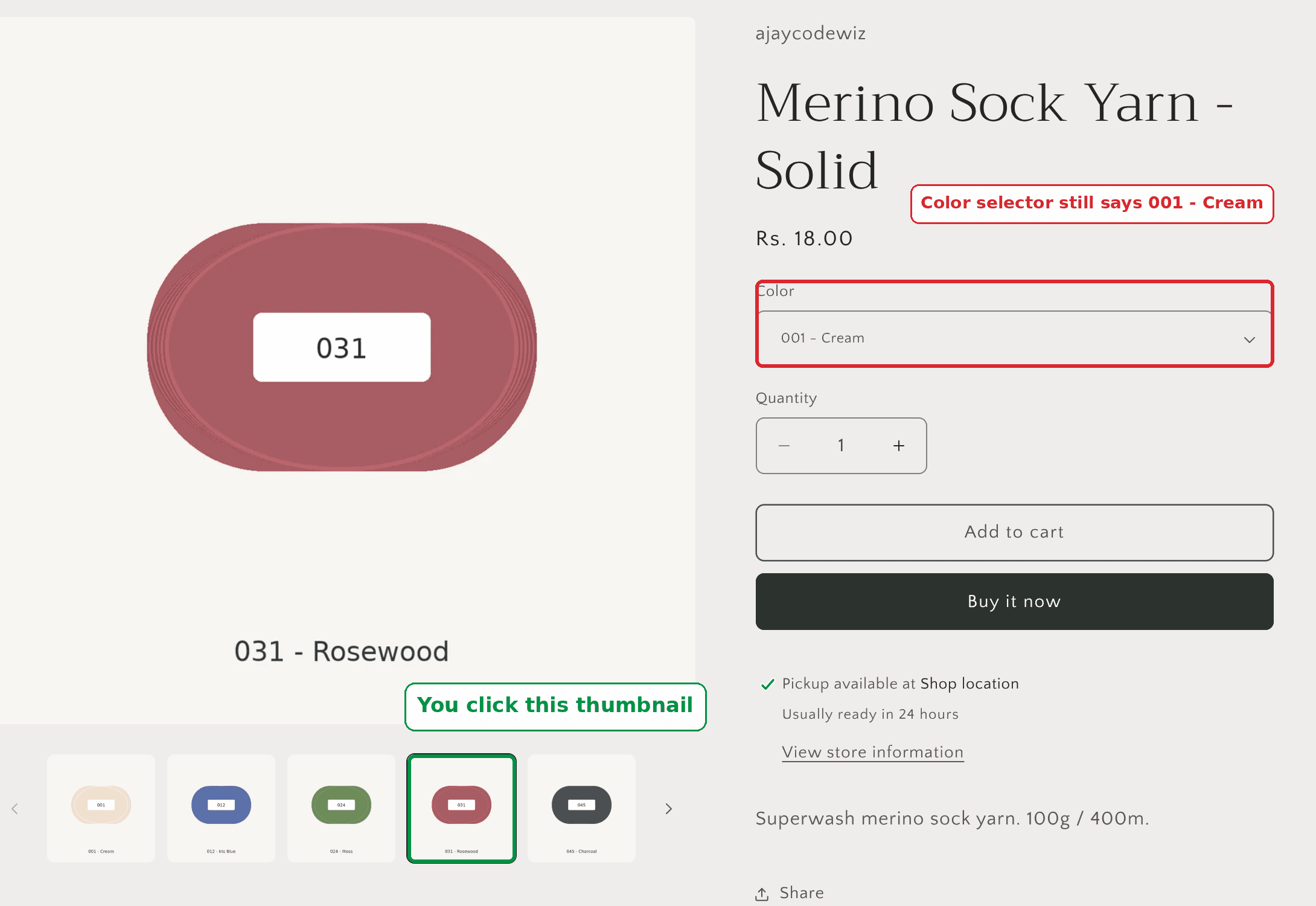 A Craft product page where the Rosewood thumbnail is selected but the Color dropdown still reads 001 - Cream
The merchant said they have zero coding experience. The good news is the fix does not need any. It is one block you paste into the theme editor.
Why Craft only syncs one way
This is the part that forum answers usually skip, and it explains why no setting will fix it.
There are two separate things happening on a product page, and Shopify only wires one of them.
Direction one: variant to image. When a shopper changes the variant, the theme looks up that variant's assigned image and jumps the gallery to it. This is built in. It works as long as each variant has an image mapped to it in your admin.
Direction two: image to variant. When a shopper clicks a thumbnail, the theme swaps the big photo. That is all it does. Nothing tells the variant selector that a choice was made.
That is not a bug in Craft. It is simply a feature that was never built. Craft's gallery treats a thumbnail click as "show me this photo", not "I want this colour". The two ideas happen to overlap on a product where every photo is a colour, but the theme has no way to know that.
So there is no checkbox to turn on. You have to add the missing connection yourself.
Before you start: check your variant images are mapped
The fix reads the link between each image and its variant. If that link is missing, there is nothing for it to read, and clicking a thumbnail will keep doing nothing.
So check this first, because it is also the single most common reason variant photos misbehave in Shopify generally.
- Open the product in your Shopify admin.
- Scroll to the Variants section and click a variant.
- Look for the image at the top of the variant page.
If the variant has an image there, it is mapped. If it shows a placeholder, it is not.
To map one, click the image area on the variant and pick the photo from the product's media. Do that for every colour.
A quick way to test the whole product without opening every variant: change the colour in the dropdown on your live product page. If the main photo changes to match, your images are mapped. If it stays put, they are not.
This matters for a second reason too. Any photo you never assign to a variant is treated by Shopify as a shared product image. Shared images belong to the product, not to one colour. The fix below deliberately ignores them, so lifestyle shots, size charts and packaging photos will not hijack the selector.
The fix: one Custom Liquid block
Craft lets you drop custom code into the product page from the theme editor. No code editor, no collaborator access, and nothing that touches your theme files directly.
Four steps.
1. Go to Online Store, then Themes, and click Customize on your Craft theme.
 The Shopify Themes page with the Customize button on the Craft theme highlighted
2. Use the page dropdown at the top to open a product page. In the left sidebar, find the Product information section and click Add block.
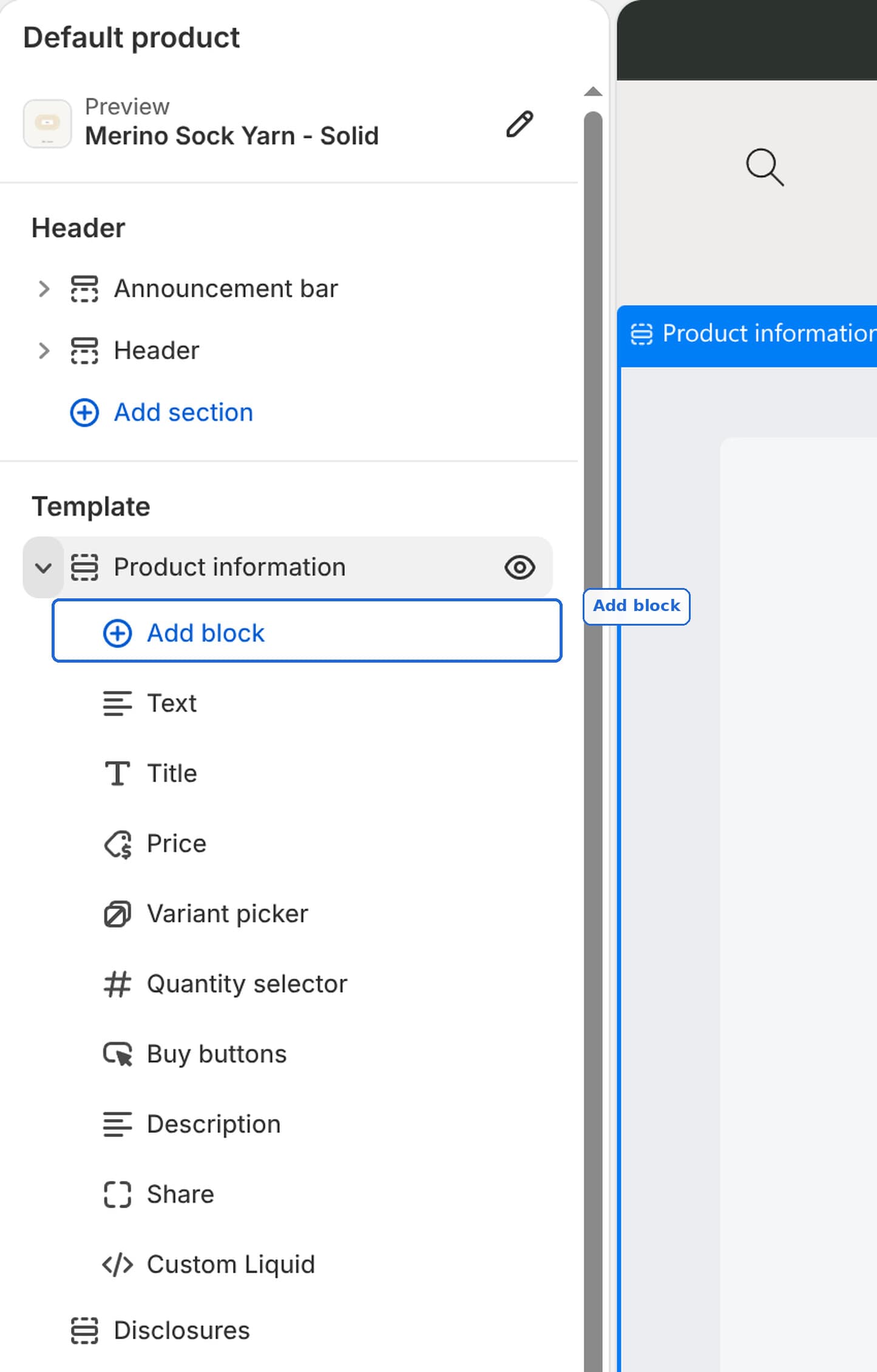 The Craft theme editor sidebar with Product information expanded and Add block highlighted
3. Pick Custom Liquid from the block list.
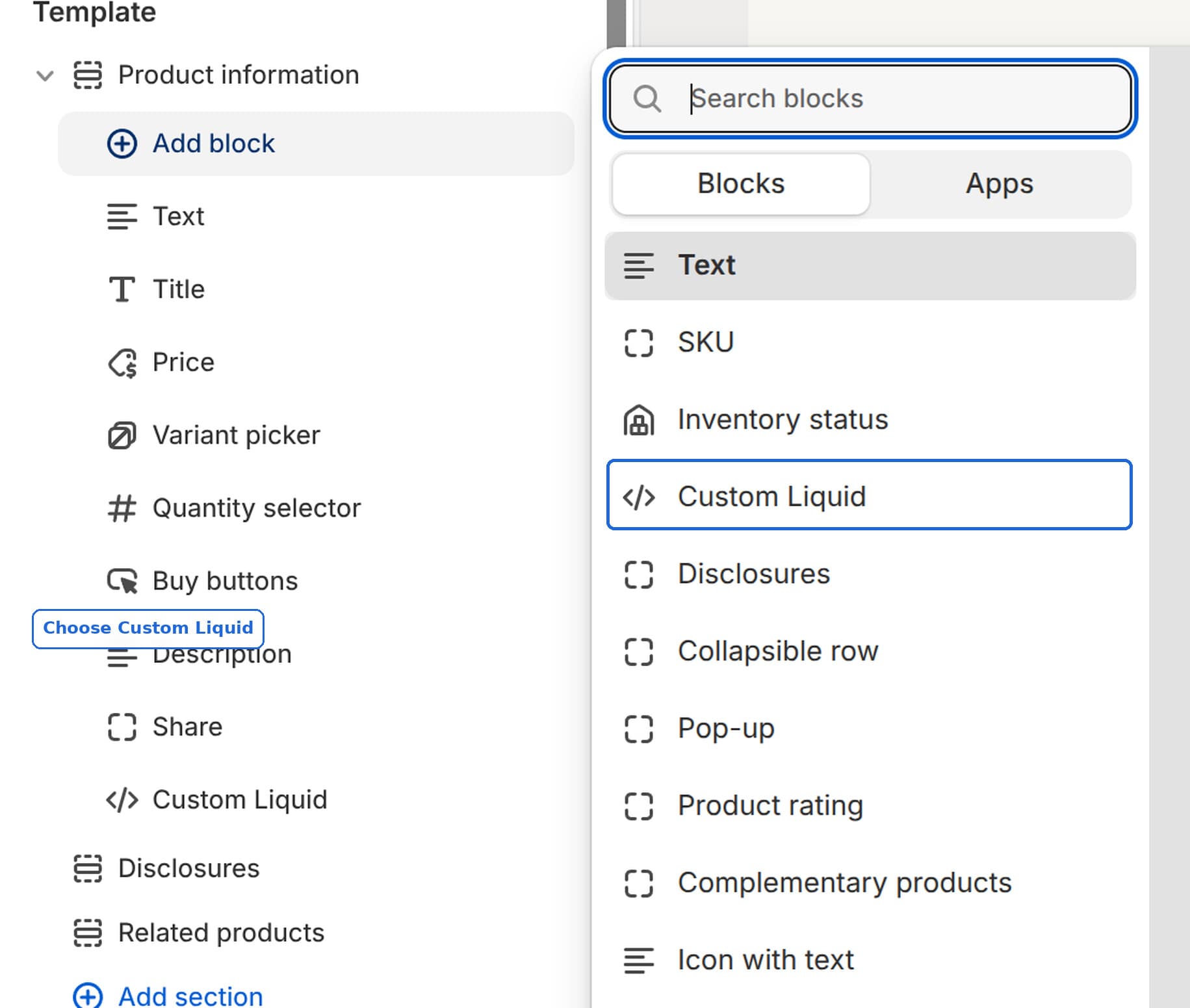 The Add block picker in the Craft theme editor with Custom Liquid highlighted
4. Paste the code below into the Liquid code box, then click Save at the top right.
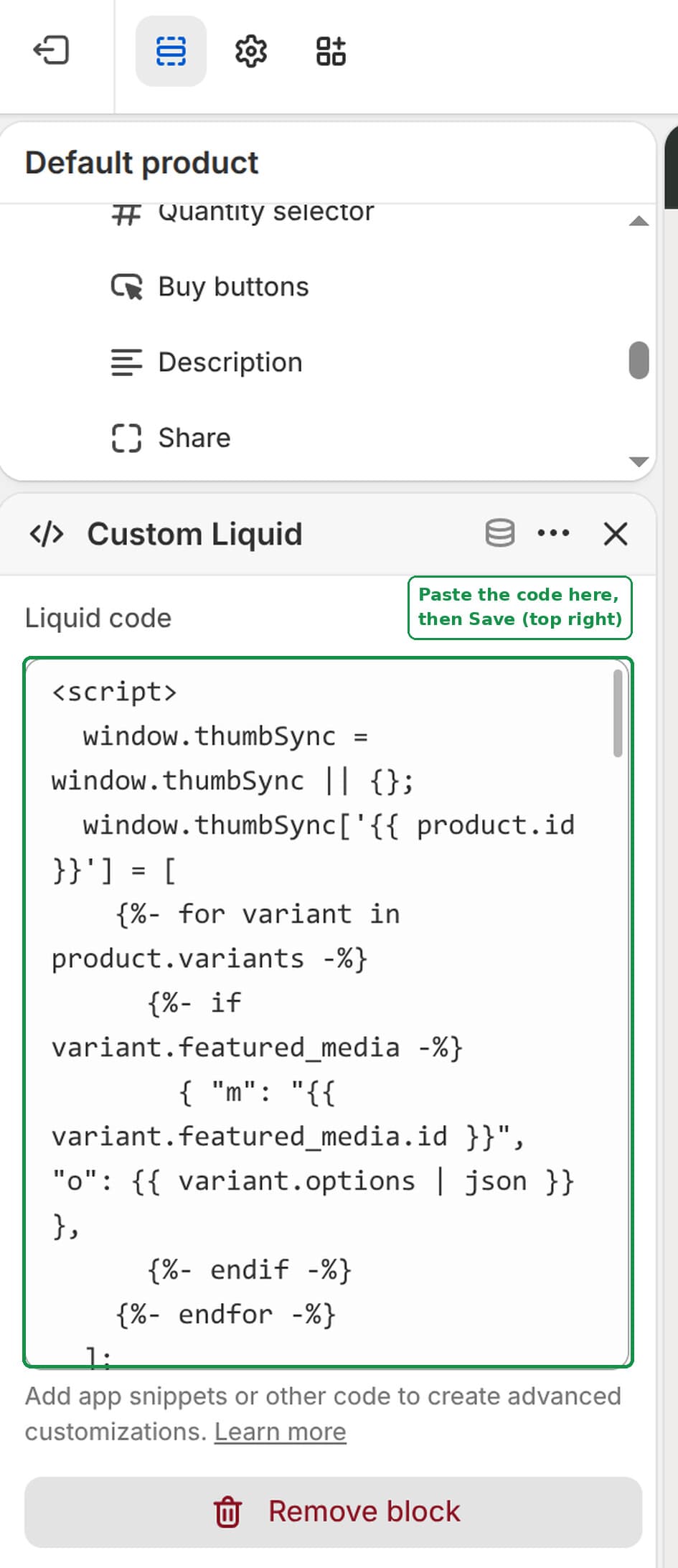 The Custom Liquid block settings panel with the code pasted into the Liquid code box
<script>
  window.thumbSync = window.thumbSync || {};
  window.thumbSync['{{ product.id }}'] = [
    {%- for variant in product.variants -%}
      {%- if variant.featured_media -%}
        { "m": "{{ variant.featured_media.id }}", "o": {{ variant.options | json }} },
      {%- endif -%}
    {%- endfor -%}
  ];

  if (!window.thumbSyncReady) {
    window.thumbSyncReady = true;

    document.addEventListener('click', (event) => {
      const thumb = event.target.closest('.thumbnail-list__item[data-target]');
      const picker = thumb?.closest('product-info')?.querySelector('variant-selects');
      if (!picker) return;

      const mediaId = thumb.dataset.target.split('-').pop();
      const matches = (window.thumbSync[picker.dataset.productId] || [])
        .filter((row) => row.m === mediaId);
      if (!matches.length) return;

      const groups = [...picker.querySelectorAll('fieldset, .product-form__input--dropdown')];
      const current = groups.map((group) =>
        group.querySelector('select')?.value ??
        group.querySelector('input[type="radio"]:checked')?.value
      );

      // Keep the options the shopper already chose where the image allows it.
      const best = matches.reduce((a, b) =>
        b.o.filter((v, i) => v === current[i]).length >
        a.o.filter((v, i) => v === current[i]).length ? b : a
      );

      let changed = null;
      groups.forEach((group, i) => {
        const value = best.o[i];
        const select = group.querySelector('select');

        if (select) {
          const option = [...select.options].find((o) => o.value === value);
          if (!option || option.selected) return;
          [...select.options].forEach((o) => o.removeAttribute('selected'));
          option.setAttribute('selected', 'selected');
          select.value = value;
          changed = select;
        } else {
          const radio = [...group.querySelectorAll('input[type="radio"]')]
            .find((r) => r.value === value);
          if (!radio || radio.checked) return;
          radio.checked = true;
          changed = radio;
        }
      });

      changed?.dispatchEvent(new Event('change', { bubbles: true }));
    });
  }
</script>
Same product, same click, after the block is saved. The Color selector now reads Rosewood.
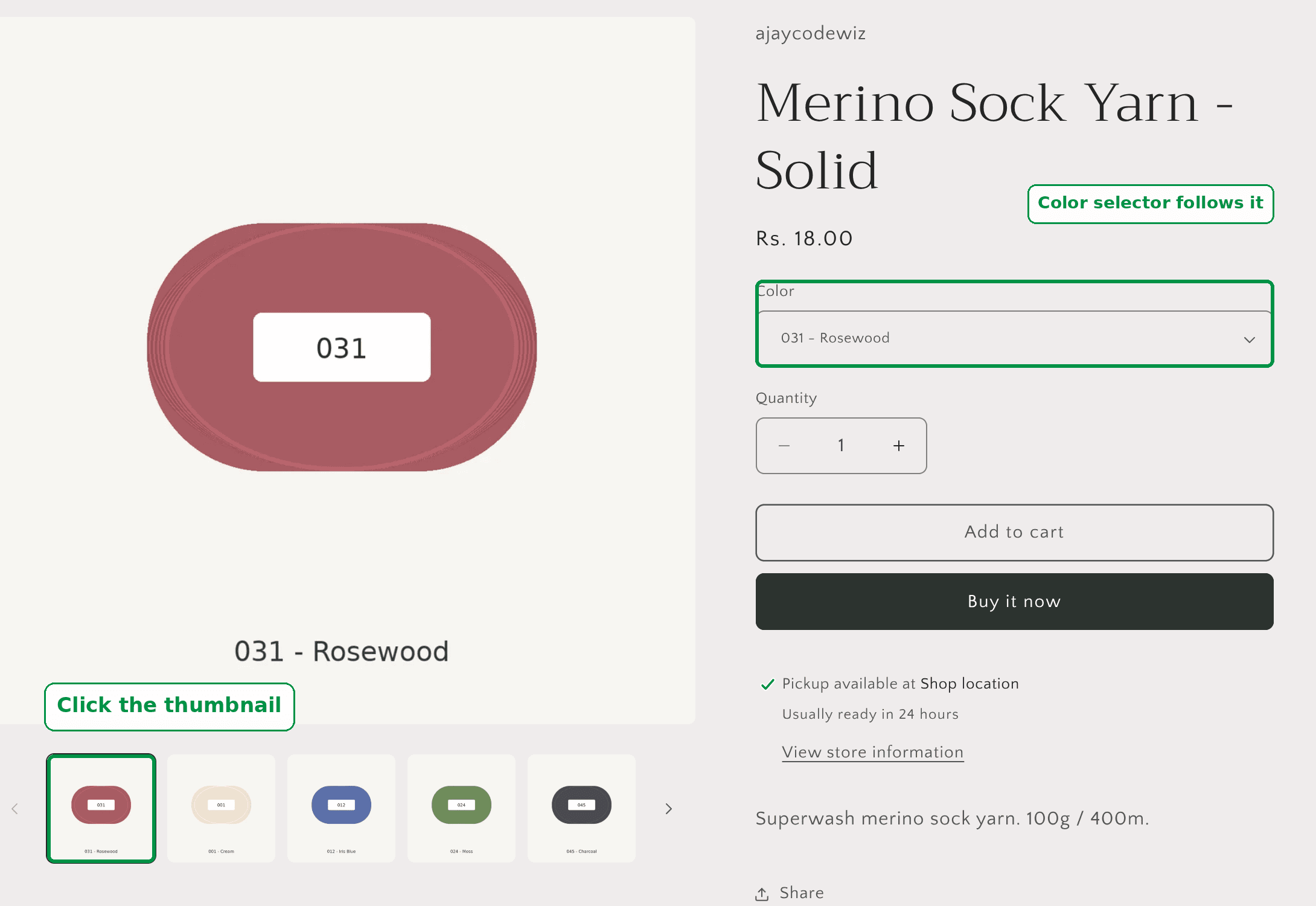 The same Craft product page after the fix, with the Rosewood thumbnail selected and the Color dropdown reading 031 - Rosewood
What actually changes for the shopper
It is worth being precise about this, because "the dropdown updates" undersells it.
- Clicking any thumbnail selects that colour in the selector.
- The price updates, so a colour that costs more shows the right number.
- The stock status updates, so a sold-out colour shows as sold out.
- The hidden variant on the Add to cart form updates. This is the important one. It means the colour the shopper is looking at is the colour that lands in the cart.
- The page URL updates too, so if they copy the link, it opens on the right colour.
That last group is why a label-only fix is not good enough. Plenty of snippets change the visible text and leave the actual cart value pointing at the old variant. Then the shopper orders the wrong colour and you find out through a return.
Where to put the block, and how many you need
Add it once. You do not repeat it per product.
The Custom Liquid block lives on the product template, and every product using that template picks it up. On a standard Craft setup that is your whole catalogue.
Some stores use more than one product template. If yours does, add the block to each template you want it on.
The block renders nothing visible. It has no height, no spacing, and it does not matter where in the block order you drop it. Bottom of the list is fine.
Does it work on other Shopify themes?
I tested this on Craft.
Craft is one of Shopify's free themes. It shares its product page code with Dawn and the rest of that family, including Refresh, Sense, Taste, Studio and Publisher. They use the same gallery markup and the same variant picker, so the same block should work on those too.
Horizon is a different generation of theme and is built differently, so treat it as untested here.
If you are on a paid theme from the Theme Store, it depends on how closely the developer followed Dawn. Many did. Paste it in and click a thumbnail. If nothing happens, the theme uses its own markup and the code will need adjusting.
Does it work with swatches and buttons, not just a dropdown?
Yes. I tested both.
Craft's variant picker can render as a dropdown, or as buttons and swatches. You set that per option in the theme editor's Variant picker block. The code handles both, so you can switch styles later without touching it.
That is worth knowing if you sell colours. On a product with 41 colourways, a dropdown makes a shopper read 41 lines of text. Visible swatches let them scan. If you decide to switch, the thumbnail sync keeps working either way.
Will a theme update wipe it out?
No, and this is the main reason to use a Custom Liquid block rather than editing theme files.
Block content is stored with your theme settings, not in the theme's code files. Editing a file like main-product.liquid directly is what gets overwritten when you update the theme, or lost when you switch.
The one thing to know is that theme settings do not travel between themes. If you install a brand new theme, you paste the block again. That takes a minute.
What to check if it did not work
Work through these in order. In my experience it is almost always the first one.
The images are not mapped to variants. Covered above, and it is by far the most common cause. Change the colour in the dropdown. If the photo does not change, mapping is missing, and the fix has nothing to work with.
Your gallery has no thumbnails. In the theme editor, open the Product information section and check the desktop layout setting. Craft can show media stacked in a column instead of a big image with a thumbnail strip. There is no thumbnail to click in a stacked layout. Switch it to a thumbnail layout.
You added the block to the wrong template. If it works on one product and not another, the two products are on different templates. Check the template assigned to the product in the admin, then add the block to that template as well.
You pasted into a section, not the product block. The block has to sit inside Product information. If you added a standalone Custom Liquid section further down the page, it will not find the picker. Remove it and add it as a block instead.
Nothing at all happens, on any product. Something in the paste got mangled. Clear the box, copy the code again from the top, and make sure you got the opening <script> and closing </script> lines.
One thing worth checking while you are in there
When I looked at the merchant's live product page, I noticed something unrelated but worth a minute of anyone's time.
Their Color dropdown had been moved below the product description, underneath the Add to cart button. A shopper has to scroll past the whole description to find the colour picker.
That is easy to do by accident when dragging blocks around, and easy to undo. In the theme editor, in the Product information section, drag the Variant picker block so it sits between Price and Quantity. That is where shoppers expect it, and it is where the theme puts it by default.
Worth a look at your own product page while the editor is already open.
Spending too long on manual Shopify busywork?
PinFlow turns your Shopify catalog into Pinterest pins and posts them on a schedule, automatically. Same idea as the rule above, let the system handle the repetitive part.
Get PinFlow on the Shopify App StorePart of a complete guide
Shopify Variants: The Complete Guide
Variants are one product sold in several forms. How they work, the 2,048 and 3-option limits, and where each variant fix lives - images, swatches, sorting, hiding and the theme-specific bugs.
More Shopify fixes
More community-sourced Shopify guides, tested on a live store.
Collections & Products
Shopify Unit Pricing: Show a Price per Unit on Each Variant
Set a unit price on every variant and Dawn shows the price per 100 ml or per kg, and updates it when a shopper picks another size. No code needed.
Themes & Storefront
Square Size Buttons on Shopify Dawn (Custom CSS)
Dawn draws size options as round pills. Here is the Custom CSS that turns them into square boxes matching the Add to cart button, tested on Dawn 16.0.0.
Themes & Storefront
Remove the Variant ID From Your Shopify Product URL
Your product link keeps turning into /products/name?variant=43176780890281, before the customer has touched anything. One theme setting stops it, a second switch covers Dawn, and a short snippet cleans the links that already carry the ID.