
Shopify Custom Payment Method in POS: Hold Orders Unpaid
A Shopify custom payment method closes the POS sale as paid the moment the cashier taps it. Here is how Mark unpaid holds the order instead, and how to flip it to paid once your processor confirms.
By AjayCodeWiz · September 17, 2026 · 8 min read
The problem
You take payment at the till through something Shopify does not process. A standalone card terminal, a bank transfer app, a local wallet, a finance provider.
Shopify's answer for that is a custom payment method, which POS calls a custom payment type. You add one, it shows up on the POS payment screen, the cashier taps it, the sale closes.
The sale closes as paid. Immediately. Before your processor has confirmed anything.
Most of the time that matches reality and the order is correct. Then a settlement fails, or the customer walks away mid-transaction, or the terminal times out, and you are holding an order that says it was paid for money that never arrived.
Cleaning that up means a full refund against a payment that was never taken, plus an inventory correction. At a few transactions a week that is an hour of reconciliation a week for your back office.
There is no setting that makes a custom payment type wait. There is a different payment option that already does.
Why a Shopify custom payment method closes the sale
A custom payment type in Shopify is a label, not a connection.
Shopify is not talking to your terminal. It has no way to ask whether the money arrived, and no way to be told later that it did not. All it knows is that a cashier tapped a button with a name on it.
So it records the amount against that name and treats the sale as complete. The name is there for your reporting, so you can see how much came through each method at the end of the day. Shopify's own help pages describe custom payment methods as being for tracking purposes.
That design is fine for cash-equivalent tenders, which is what it was built for. Bank transfer on collection, a cheque, a voucher scheme. It does not fit a processor that answers a few seconds or a few minutes later.
Where the POS payment list lives
The payment screen your cashiers see is configured in one place, and it is not under Settings > Payments.
Go to Point of Sale in the sidebar, then Settings, then POS app under Customization.
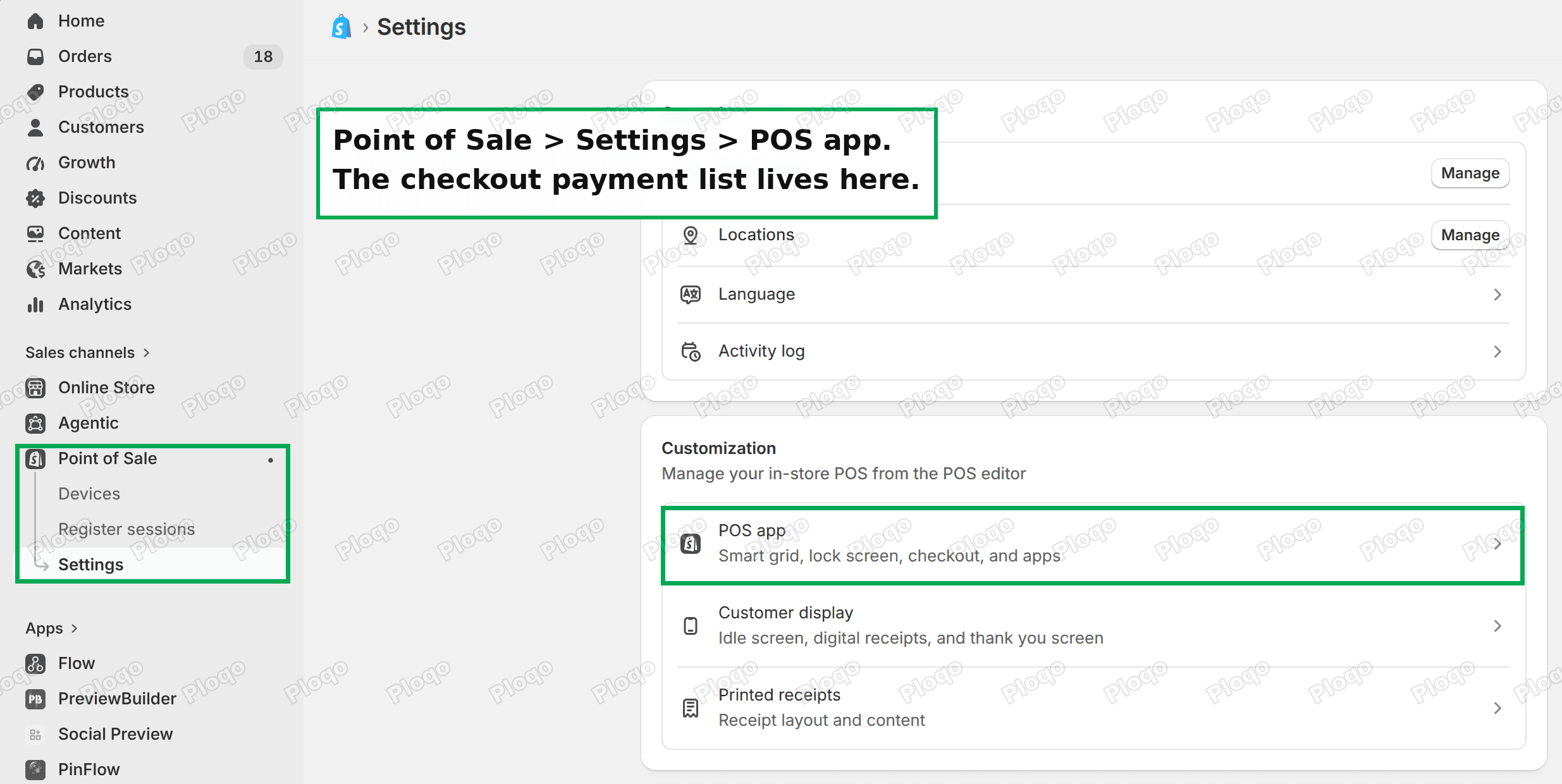 Shopify Point of Sale settings page with the Customization section and the POS app row highlighted
That opens the POS editor, which is the same idea as the theme editor but for the till. A sidebar of things you can configure, a live preview of the POS screen on the right.
The list you want is Checkout.
Mark unpaid is already in the payment list
Open Checkout in the POS editor sidebar and the payment options appear underneath it: Card, Cash, Gift card, Manual card entry, Split payment, Mark unpaid, Store credit, and Add custom payment type at the bottom.
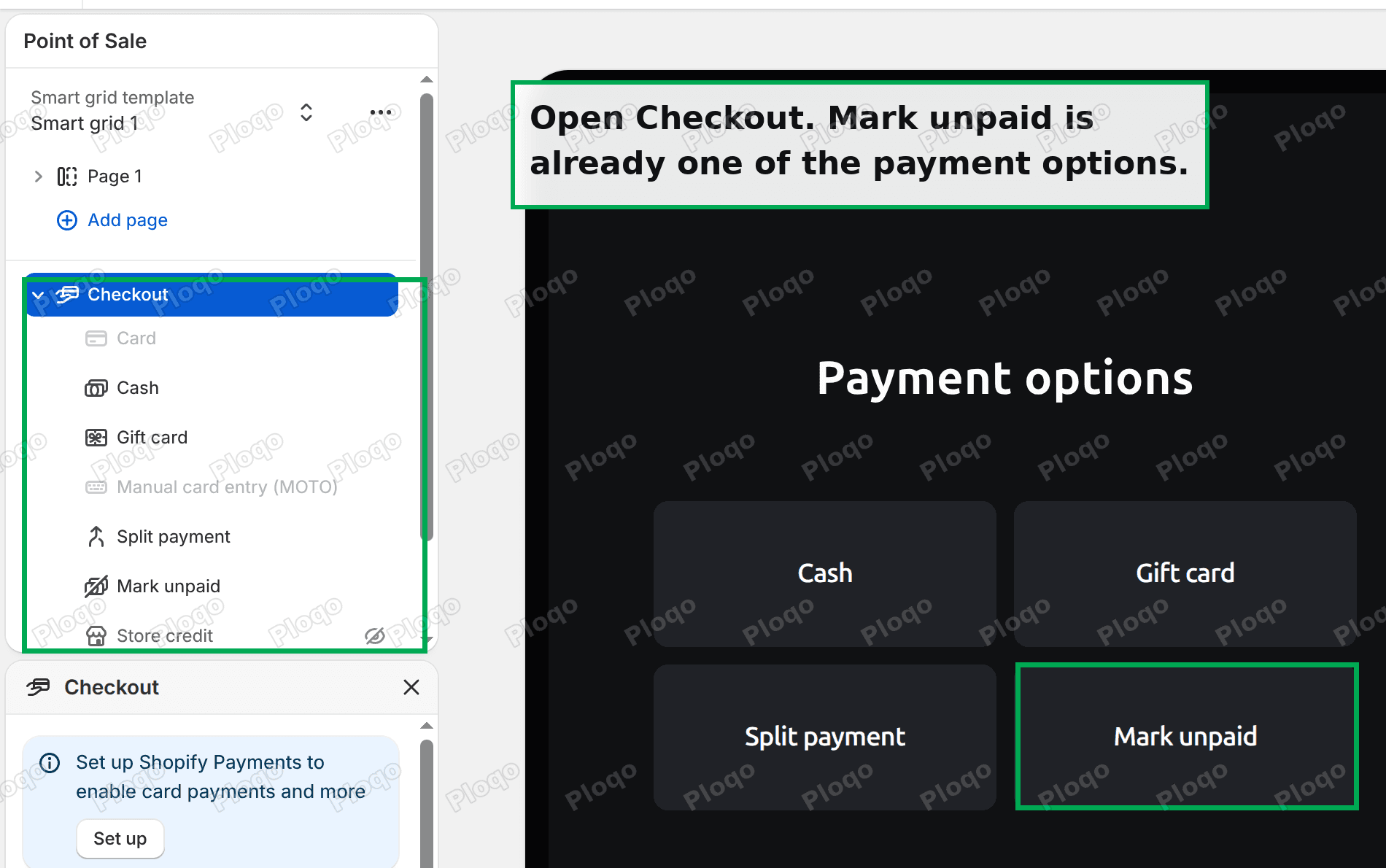 The POS editor with Checkout expanded, showing Mark unpaid in the payment option list and as a tile on the payment options preview
The preview on the right shows what the cashier taps. Cash, Gift card, Split payment, Mark unpaid, sitting together on the payment options screen.
Mark unpaid completes the sale and creates the order without recording any money against it. The order lands in your admin with a payment status of pending, the customer record is attached, the stock is committed, and the receipt prints.
It is the same outcome you would get from an invoice, done at the till in one tap.
If you do not see it on your devices, it has been switched off. The list in this editor is the default for every POS device. A device can turn options off locally, but it cannot turn on anything the default list does not include.
Mark unpaid has no settings, and neither does a custom type
Click Mark unpaid in the sidebar and the panel underneath says so.
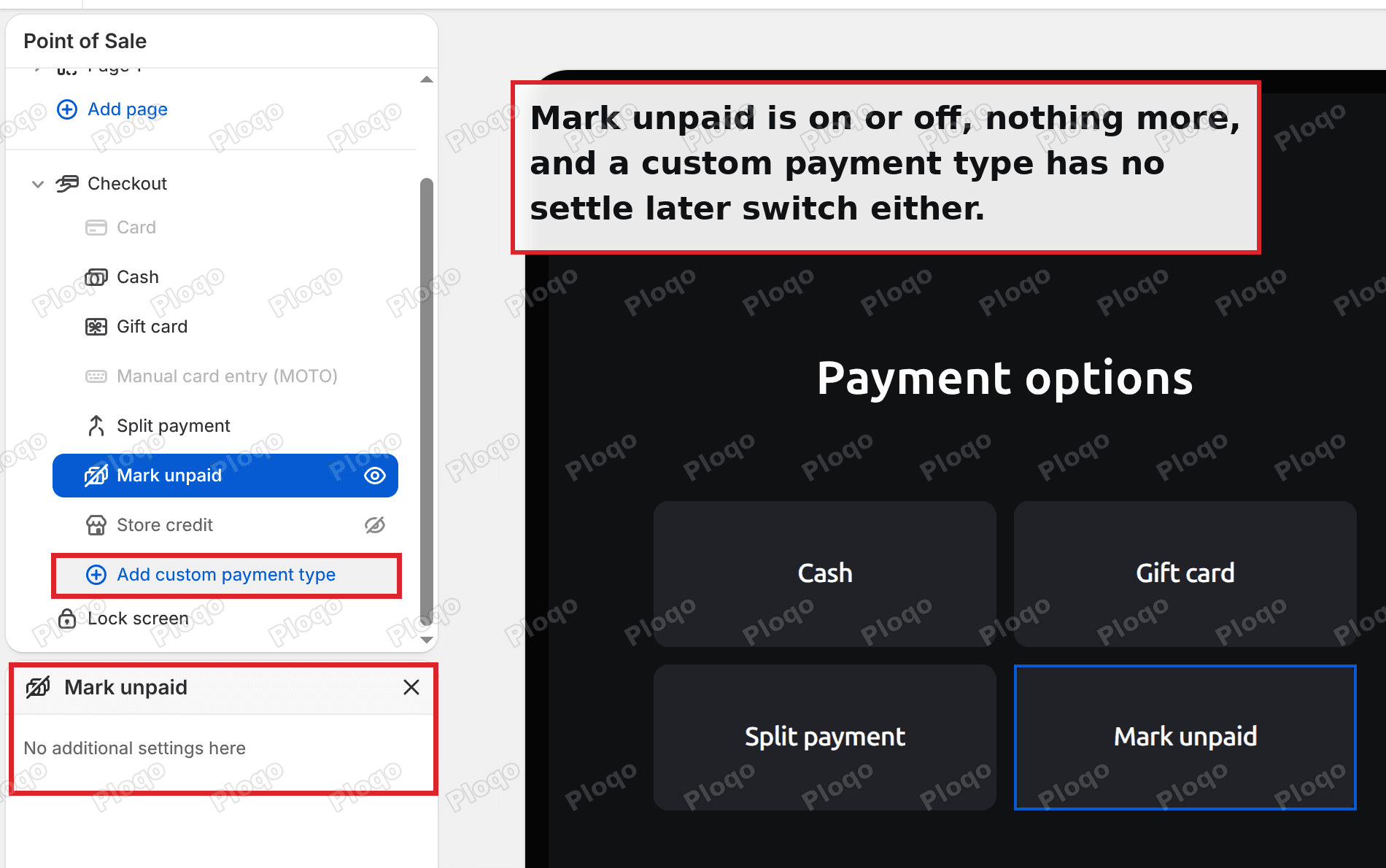 The Mark unpaid settings panel in the POS editor reading No additional settings here, with Add custom payment type highlighted in the sidebar
"No additional settings here." It is on or off.
The same is true going the other way. Add a custom payment type and you get a name and nothing else. There is no switch that says hold this one until it settles, and no field for a confirmation address your processor could call.
That is the state of it today. The two behaviours exist separately and cannot be combined into one tender.
The flow that removes the refund cycle
Use Mark unpaid in place of your custom tender, then flip the order to paid from your own system.
1. The cashier takes the sale with Mark unpaid. They still run the payment on your terminal as usual. They just do not tell Shopify it succeeded. The order is created, unpaid, with the stock already committed.
2. Record which processor it went to. Shopify is not storing the tender name any more, so put it back yourself. A tag on the order is the simplest version, and tags are searchable in the Orders list, so payment-pending-terminal gives you your reconciliation queue for free.
3. When your processor confirms settlement, mark the order paid. Your integration calls the Admin API, which is how apps and scripts talk to a Shopify store:
mutation {
  orderMarkAsPaid(input: { id: "gid://shopify/Order/1234567890" }) {
    order {
      id
      displayFinancialStatus
    }
    userErrors {
      field
      message
    }
  }
}
It records a payment for the full outstanding amount and moves the order to paid. It needs the write_orders permission, and the account it runs as needs the mark orders as paid permission.
4. When it fails or times out, cancel instead of refunding. Cancel the order with restock turned on and reason payment declined. No money was ever captured, so there is no refund to process, no money movement to reconcile, and the stock goes back on its own.
That last step is the whole win. The current cycle is refund, then correct inventory, then explain the refund on a statement. The new one is a cancel.
What you give up
Two things, and they are worth knowing before you switch a shop over.
Your tender breakdown changes. The payment recorded later does not carry your custom tender name. In your POS reports and your daily totals, those sales show as a payment added after the fact rather than as terminal takings. If your end-of-day process reconciles by tender, that process needs rewriting.
There is a window where the order looks unpaid. Between the tap and the confirmation the order sits pending. Staff looking at the admin will see orders that appear unpaid but are not. The tag from step 2 is what stops that becoming a support question.
Neither is as expensive as refunding money that was never taken, but both are real.
Custom payment type, manual payment method, payment provider
Three things with similar names, and the difference decides which one you should be using.
- A custom payment type is a POS-only label. It records an amount against a name at the till. Shopify processes nothing and confirms nothing.
- A manual payment method is the online-store equivalent, set under Settings > Payments. An order placed with one comes in as pending, and you mark it paid when the money arrives. It behaves the way the POS custom type does not.
- A payment provider is a real connection. It authorises, captures, and reports back, so Shopify knows the state of the money without being told.
The online store already has the behaviour being asked for here, through manual payment methods. POS does not carry it across to custom types, which is the difference that generates the reconciliation work.
If you are building the integration
A few practical notes for whoever wires this up.
Listen for the order, do not poll for it. Subscribe to the orders create webhook, which is Shopify calling your server when something happens, and filter for the tag or the location you care about. Polling the Orders list for pending orders works but scales badly.
Decide what a timeout means before you ship. A processor that never answers is the case that causes the mess. Pick a cutoff, and make the cutoff cancel the order rather than leave it pending forever.
Store the processor's transaction reference on the order. A metafield, which is an extra field you add to hold your own information, keeps it attached to the order rather than in a separate system. When a chargeback arrives six weeks later, that reference is what you need.
Test the cancel path first. It is the one that runs least often and matters most.
The feature request
The behaviour being asked for is a custom payment type that stays pending until an external system confirms it, then transitions to paid on its own.
Shopify staff have logged that request on the developer forum. There is no public tracker or reference number to follow, and the workaround given there is the same one above: mark the order unpaid in POS, then mark it as paid after settlement confirmation.
Until it ships, Mark unpaid plus your own confirmation step is the closest thing available, and it removes the refunds.
What to do now
- Open the POS editor at Point of Sale > Settings > POS app, click Checkout, and confirm Mark unpaid is switched on. Both screens are pictured above.
- Pick a tag for pending settlements and tell your staff to apply it, or apply it from your integration.
- Run one real transaction end to end, including a deliberate failure, and watch what the order does.
- Rewrite your end-of-day reconciliation before you roll it out to every till, because the tender breakdown will not match what it used to.
Spending too long on manual Shopify busywork?
PinFlow turns your Shopify catalog into Pinterest pins and posts them on a schedule, automatically. Same idea as the bar above, let the system handle the repetitive part.
Get PinFlow on the Shopify App StoreMore Shopify fixes
More community-sourced Shopify guides, tested on a live store.
Shopify Admin
Shopify Checkout Customization: Change Checkout Text
Change the text on your Shopify checkout, like the Email me with news and offers checkbox, without code or Plus. Why the pop-up in checkout settings will not save, and the route that does.
Shopify Admin
Avalara Shopify Integration vs Shopify Tax: Which to Use
Moving to Shopify with Avalara? Shopify Tax already calculates US sales tax to the street address. What the Avalara Shopify integration adds, what filing costs, and how to decide.
Shopify Admin
Shopify Discount Limit: One Code for More Than 100 Products
Shopify stops you at 100 items when a discount applies to specific products. There is no setting to raise it, but you do not need one. Point the discount at a collection and one code covers thousands of products. Tested on a store, with the B2B route too.