
List Customers Who Bought a Product in Shopify
Stop exporting a CSV. Build a live customer segment of every customer who bought a product, and open the attendee list on your phone in the Shopify app.
By AjayCodeWiz · July 29, 2026 · 8 min read
The problem
A merchant asked this on the Shopify Community. They sell workshop tickets, and they need a list of the people who bought each workshop, so they can see the attendees.
Their real pain was not "can it be done". It was that every method they had tried felt clunky. They were exporting order data to a CSV and filtering it in Excel every time. They wanted the attendee list to be easy to reach, ideally on a phone, without exporting anything.
That is a very reasonable ask, and Shopify can do it natively. The trick is using customer segments the right way, and knowing they open on mobile. I set this up on a test store to show each step.
The tool for this: customer segments
Shopify has a feature called segments under Customers. A segment is a saved, living list of customers that match a rule you set, like "bought this product" or "spent over 100 dollars".
The important word is living. A segment is not a one-time export. It updates itself. When a new person buys the product, they appear in the segment automatically. That is exactly what you want for an attendee list that keeps growing as tickets sell.
Most people either do not know segments exist, or they open the segment editor, see a query box, and back out. So here is the easy way in.
Build the list once, in plain English
You do not need to know any query language. Shopify will write the rule for you from a plain sentence.
- Go to Customers > Segments.
- Click Create segment.
- In the box at the top that says Describe your segment, type what you want in normal words. For a workshop, something like:
customers who bought Autumn Pottery Workshop. - Shopify turns that sentence into a filter and shows you the matching customers.
- Give the segment a name and click Save.
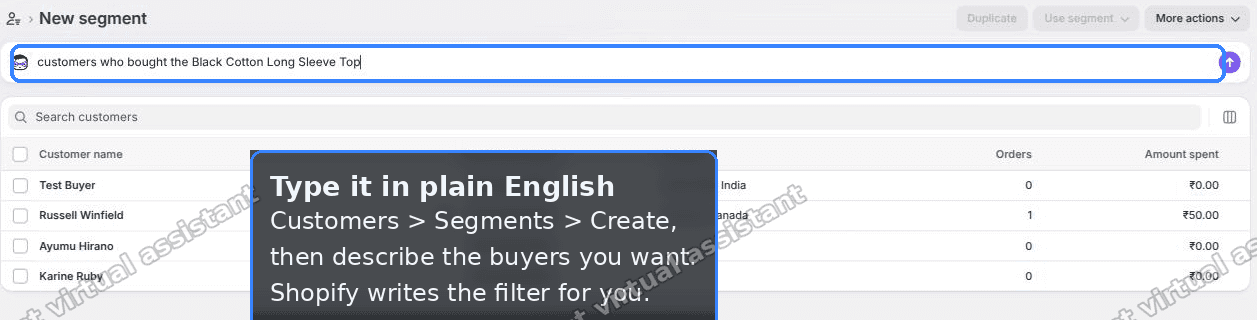 Describe the segment in plain English and Shopify builds the filter
Once you save it, you have a named list you can reopen any time. On my test store, describing it in plain English produced the exact buyer of that product, one customer, with no export and no spreadsheet:
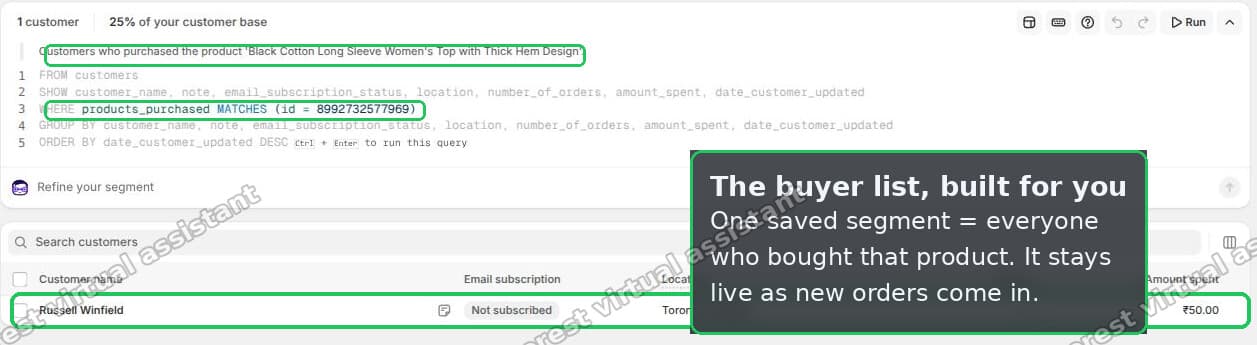 The saved segment lists every customer who bought that product
Open it on your phone, no CSV
This is the part that solves the "without a laptop" problem, and it is the part that usually gets missed.
Customer segments are available in the Shopify mobile app, on both iPhone and Android.
- Open the Shopify app.
- Tap Customers.
- Tap Segments.
- Tap the segment you saved.
Your attendee list is right there on your phone. No exporting, no Excel, no being at a desk. And because the segment is live, it already includes anyone who bought a ticket since you last looked.
For running a workshop, this means you can pull up the attendee list at the door from your phone.
The exact filter, if you want it
When you describe a segment in plain English, Shopify writes a small filter behind the scenes. For "bought a specific product" it looks like this:
products_purchased MATCHES (id = YOUR_PRODUCT_ID)You can paste that straight into the segment box if you prefer to be precise. YOUR_PRODUCT_ID is the long number in the product's admin URL. You can also match more than one product at once by listing several IDs, or add a date range so you only see buyers from a certain period.
Most people never need to touch this. The plain-English box is enough. But it is there if you want repeatable, exact segments.
The one limitation to know: product vs variant
The merchant asked about product or product variant, and this is where it matters.
Segments match at the product level. They do not filter by a specific variant. So if your different workshop dates are set up as variants of one product, every customer who bought any date lands in the same segment. You cannot split them by date with a segment alone.
There are two clean ways around this.
Option 1: make each date its own product. If "Pottery Workshop, 12 March" and "Pottery Workshop, 19 March" are separate products, you can make one segment per date, and each is a clean attendee list. This is usually the better setup for events anyway, because each date has its own inventory, its own sold-out state, and its own page.
Option 2: use the Orders page for a one-off. If you just need a quick look and your dates are variants, go to Orders and filter by product. On the Orders page you can filter by variant too, so you can see just the orders for one date. This is fine for a quick check, but it is a list of orders, not a saved customer list, and it is less phone-friendly than a segment.
For a recurring workshop business, option 1 plus one segment per product is the setup that stays easy over time.
Why not just export to a spreadsheet?
The merchant was already doing that, and it worked, but it was the thing they wanted to stop doing.
A CSV export is a snapshot. The moment someone buys another ticket, your spreadsheet is out of date and you export again. You are also tied to a computer to open and filter it.
A segment removes both problems. It is always current, and it opens on your phone. You set it up once per workshop and then you just look at it. That is the whole win here: replacing a repeated manual export with a saved, live list.
Bonus: what else a segment unlocks
Once you have an attendee segment, a few useful things become easy.
- Email just the attendees. From Shopify Email you can send to a segment, so you can message every customer booked onto a workshop about a time change or a reminder, without copying addresses.
- See it grow. The segment count tells you how many tickets you have sold to that product at a glance.
- Reuse the pattern. The same plain-English approach builds any list you need, like repeat buyers, customers in a city, or people who bought two different products.
Segments vs the Orders page vs an app
There are three native-ish ways to answer "who bought this", and they suit different needs.
A saved segment is best when you want a living list you return to, especially on your phone. It is the right default for a recurring workshop, a membership, or any product where you keep needing the buyer list.
The Orders page filter is best for a one-off look, or when you specifically need order-level detail like fulfillment status, or when you must split by variant. It is quick, but it is orders, not a saved customer list, and it is more awkward on a phone.
A dedicated app only earns its place when you need something Shopify does not do at all, like printing name badges, checking attendees in at the door, or bespoke event reporting. For simply seeing who bought a product, an app is more than you need, and the merchant in the thread had already found that nothing fit well.
Start with a segment. Reach for the Orders filter when you need variant-level detail, and only add an app when you have a genuine event-management need beyond a list.
A note on customer accounts and guest checkout
A worry that stops people using segments is "but my customers check out as guests, they do not have accounts".
That does not matter here. Shopify creates a customer record from the email on every order, account or not. So guest buyers still land in the segment. As long as an order exists for the product, the buyer is on the list. You do not need to force account creation to make this work.
What to check if your segment is empty
If you build the segment and it comes back empty, run through these.
- Spelling of the product name. In the plain-English box, the product name has to match. If unsure, use the exact filter with the product ID instead.
- Test orders do not count. Orders placed while your payment gateway was in test mode may not count toward a customer's purchases, so a test order will not populate the segment. Use a real order to confirm.
- Guest checkouts still count. You do not need customers to have accounts. As long as an order exists for that product, the buyer shows up.
- Give it a moment. A brand new order can take a short while to be reflected in a segment.
The short version
Use a customer segment, not a repeated CSV export. Go to Customers > Segments > Create segment, describe it in plain English like "customers who bought Autumn Pottery Workshop", and save it. It is a live list that updates itself, and it opens in the Shopify mobile app under Customers > Segments, so you can check attendees from your phone.
Segments match at the product level, so if your dates are variants, either make each date its own product and one segment each, or filter the Orders page by variant for a quick look.
Spending too long on manual Shopify busywork?
PinFlow turns your Shopify catalog into Pinterest pins and posts them on a schedule, automatically. Let the system handle the repetitive part.
Get PinFlow on the Shopify App StoreMore Shopify fixes
More community-sourced Shopify guides, tested on a live store.
Shopify Admin
Shopify New Admin (2026): Where Search, Sidekick and Settings Went
Shopify's new admin moved search, alerts, the store switcher and Settings into the black sidebar, and Sidekick to a bar at the bottom. Where each one is now.
Shopify Admin
How to Use the New Shopify Admin (2026): Every Main Screen
A tour of the new Shopify admin: the black sidebar, search and Ctrl K, Home, Orders, Products, Settings and Sidekick, with where to click on each screen.
Shopify Admin
Schedule a Black Friday Sale in Shopify (Auto Start and End)
Give the discount its own start and end date and put the sale banner in an Event rollout with the same dates. Both start at midnight and end after Cyber Monday.