
Show a Different Menu on Different Pages in Shopify
In Shopify's Dawn theme you can show one navigation menu on some pages and a different menu on others, driven by a page metafield. Here is the exact Liquid, tested, plus how to set the metafield up.
By AjayCodeWiz · August 15, 2026 · 8 min read
The problem
A merchant asked about this on the Shopify Community, and it is a common wish once a store grows past a handful of pages.
They wanted one header menu on some pages and a different header menu on others. Their example was a normal retail menu for most of the site, and a separate wholesale menu on a set of commercial pages.
They already had the right instinct. They created a true/false page metafield to mark which pages should get the alternate menu, and they tried to swap the menu in the theme code based on it. But it would not work, and they could not see why.
This is a good problem to walk through, because the idea is completely sound. Only two small details were stopping it. I reproduced the whole thing on a Dawn test store, fixed it, and the fix is short.
Here is a normal page keeping the store's default menu.
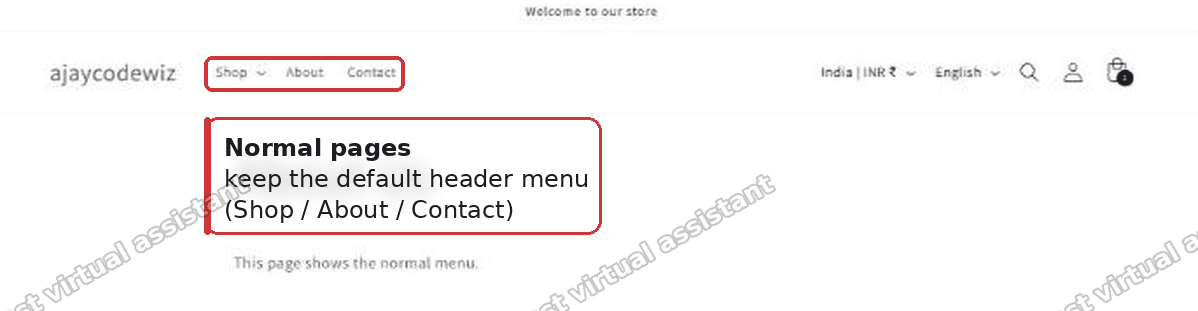 A normal Shopify page in Dawn showing the default header menu
And here is a page that has the metafield turned on, showing a completely different menu in the same header.
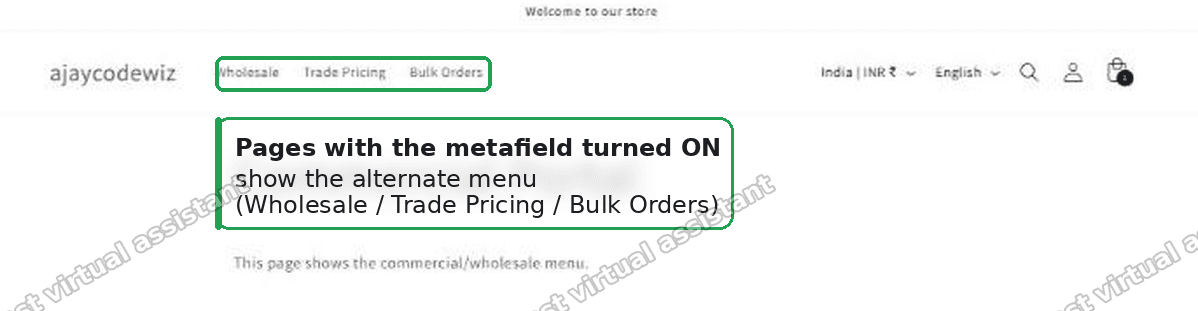 A Shopify page with the metafield turned on showing an alternate wholesale menu
Same theme, same header, two different menus. The only difference between the two pages is a single true/false field.
Why the first attempt did not work
There were two reasons, and both are easy to miss.
Reason one: Dawn does not render the header menu from one file. It uses three separate snippet files, and which one runs depends on your header layout and the visitor's device.
snippets/header-dropdown-menu.liquiddraws the desktop menu when your header uses the dropdown style.snippets/header-mega-menu.liquiddraws the desktop menu when your header uses the mega-menu style.snippets/header-drawer.liquiddraws the mobile menu, and also the desktop menu if you use the drawer layout.
So if you only edit one of them, the menu only swaps in some places. Edit only the dropdown file and the swap never reaches mobile visitors, because mobile reads from the drawer file. This is what makes people think their code is broken when it is actually running fine in a file they are not looking at.
Reason two: a true/false metafield is a real boolean, not text. The first attempt compared the field to the string 'true' with quotes. A true/false metafield does not return the word "true". It returns an actual yes/no value. Comparing a real yes/no value to a piece of text never matches, so the condition was always false and the alternate menu never appeared.
Drop the quotes and compare to true with no quotes, and it starts working.
What you need before you touch the code
The code assumes two things already exist. Set these up first or nothing will render.
A menu to switch to. Build your alternate menu under Content, then Menus, in your Shopify admin. Give it a title like "Wholesale menu". Shopify turns that title into a handle, which is the machine name the code uses. "Wholesale menu" becomes the handle wholesale-menu. You will need that exact handle in a moment.
A page metafield to flag the right pages. This is the on/off switch. I will cover exactly how to create it further down, because it is the part most people have not done before.
Once both exist, the code below reads them and does the swap.
The fix, step by step
You will edit the three header files listed above. In each one you add a small block at the very top, then change one line.
Here is what you are pasting and the one line you are changing.
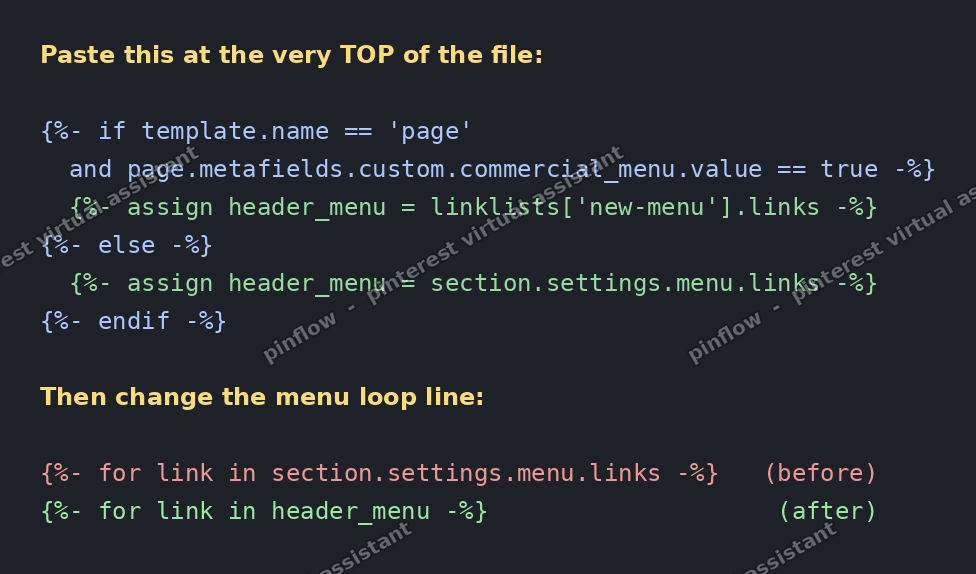 The Liquid code to paste at the top of each header file, and the one line to change
Step one. Open your theme code editor. From your admin go to Online Store, then Themes, then the three-dot menu on your theme, then Edit code.
Step two. Open snippets/header-dropdown-menu.liquid and paste this block at the very top of the file, above everything else:
{%- if template.name == 'page' and page.metafields.custom.commercial_menu.value == true -%}
  {%- assign header_menu = linklists['new-menu'].links -%}
{%- else -%}
  {%- assign header_menu = section.settings.menu.links -%}
{%- endif -%}
Step three. In that same file, find the line that loops over the menu near the top. In Dawn it reads:
{%- for link in section.settings.menu.links -%}Change it to:
{%- for link in header_menu -%}Step four. Do the same two edits in snippets/header-mega-menu.liquid and snippets/header-drawer.liquid. Same block at the top, same one-line change to the loop. All three files, or the swap will be incomplete.
Step five. Save each file.
That is the whole change. On a page where the metafield is on, the header now reads from your alternate menu. On every other page it reads from the menu you picked in the theme editor, exactly as before.
A few things to match to your own store:
- Replace
new-menuin the code with your alternate menu's real handle, the one you noted earlier. - Replace
commercial_menuwith your metafield's key if you named it something else. template.name == 'page'keeps the swap on pages only, so products, collections and your home page always show the normal menu.
How to set up a page metafield in Shopify
This is the piece the original poster had already done, but most people have not, so here it is in full. It comes in two parts: define the field once, then flip it on per page.
Define the field once.
- Go to Settings, then Custom data.
- Click Pages in the list of things you can add fields to.
- Click Add definition.
- Give it a name, such as "Commercial menu".
- Check that the namespace and key land on
customandcommercial_menu, so it matchespage.metafields.custom.commercial_menuin the code. - For the type, choose True or false.
- Save.
Turn it on per page.
- Go to Content, then Pages, and open a page that should get the alternate menu.
- Scroll to the bottom. There is now a Metafields section with your new True or false toggle.
- Turn it on and save.
- Leave it off on every normal page.
That toggle is exactly what the code checks. Pages with it on get the alternate menu. Everything else falls back to the default, with no extra work.
What is a linklist in Shopify
The code uses the word linklists, and it throws people, so it is worth a plain definition.
A linklist is Shopify's internal name for one of your navigation menus. Every menu you build under Content, then Menus, becomes one linklist, and you reach it by its handle.
Your main navigation, usually titled "Main menu", has the handle main-menu, so the code refers to it as linklists['main-menu'] or linklists.main-menu. A menu you called "New Menu" gets the handle new-menu, so it is linklists['new-menu'].
Each linklist has a .links property, which is the actual list of menu items. So linklists['new-menu'].links means "the items inside the New Menu", and that is the list the header loops over to draw the menu.
Two things trip people up here:
- The handle is what the code uses, not the title. You can see the handle under the menu title when you edit the menu.
- Hyphenated handles need square brackets.
linklists.new-menubreaks, because Liquid reads the hyphen as a minus sign.linklists['new-menu']is the safe form, which is why the code uses brackets.
Dawn's header normally reads section.settings.menu.links. That is just whichever menu you picked in the theme editor's Header section. It is the same kind of list, chosen through a setting instead of named directly in code.
What to check if it still does not swap
If you made the edits and the menu is not changing, run through this short list.
- The menu handle is wrong. If
new-menuin the code does not match a real menu handle, the alternate menu comes back empty and you see no items. Open the menu in admin and confirm the handle. - You are testing on the wrong page type. The condition only fires on pages. It will not swap on a product, a collection, or the home page by design. Test on an actual page with the toggle on.
- The metafield is off, or on the wrong page. Open the page and confirm the True or false toggle is on and saved.
- You only edited one file. Check on both desktop and mobile. If it swaps on desktop but not mobile, you skipped the drawer file. If it does not swap on desktop, you edited the file for the wrong header style.
- You kept the quotes. The comparison must be
== truewith no quotes.== 'true'never matches a real true/false field.
Does this work on other themes
The exact file names above are Dawn's. The idea works on any theme, but the file and the setting name change.
Every theme renders its header menu from some file and some menu setting. The pattern is always the same: at the top of that file, choose between your alternate menu and the theme's normal menu based on the page metafield, then loop over your chosen list instead of the theme's default one.
If you are not comfortable editing theme code at all, a navigation or mega-menu app can give you per-page or rule-based menus through a visual editor, without touching Liquid. Popular options include Buddha Mega Menu, Meteor Mega Menu, and qikify Smart Menu. For a single true/false swap like this, though, the theme edit above is lighter and has nothing extra to pay for or load.
The short version
Dawn draws the header menu from three files, so the swap goes in all three. A true/false metafield is a real boolean, so compare it with true and no quotes. Set up an alternate menu and a page metafield first, add the small block plus the one-line loop change to each header file, and pages you flag get their own menu while everything else stays the same. I tested this end to end on a Dawn store, on both desktop and mobile.
Spending too long on manual Shopify busywork?
PinFlow turns your Shopify catalog into Pinterest pins and posts them on a schedule, automatically. Same idea as the swap above, let the system handle the repetitive part.
Get PinFlow on the Shopify App StoreMore Shopify fixes
More community-sourced Shopify guides, tested on a live store.
Themes & Storefront
Shopify AI Section: Fix a Price Badge Hidden Behind the Image
You built a section with Shopify's AI section generator, but the price badge on each card sits behind the photo. Here is the Custom Liquid fix that brings it to the front without regenerating anything. Tested on a Dawn store.
Themes & Storefront
Hide Shipping Calculated at Checkout on One Shopify Product
The line under Add to cart that says shipping is calculated at checkout shows on every product, gift cards included. Here is how to hide it on one product only, with the code, screenshots and the Eclipse theme steps.
Themes & Storefront
Shopify Dropdown Menu Behind Page Content (Z-Index Fix)
Your Shopify dropdown or mega menu opens, but the page title and products sit on top of its links and the menu closes before you can click. The fix is one Custom CSS rule in Theme settings. Tested on a Rebel store.