
Shopify Discount Limit: One Code for More Than 100 Products
Shopify stops you at 100 items when a discount applies to specific products. There is no setting to raise it, but you do not need one. Point the discount at a collection and one code covers thousands of products. Tested on a store, with the B2B route too.
By AjayCodeWiz · September 19, 2026 · 7 min read
The problem
A merchant posted this on the Shopify Community. They run a franchise supply store, selling preschool kits to authorised partners, with customised bundles for each one. They wanted a single discount code to apply to around 2,000 product variants.
Shopify would not let them. As soon as they added more than 100 items to the discount, the admin threw an error and refused to save. Using several codes to cover the catalog was not practical, so they asked Shopify to raise the limit or let them upload eligible variant IDs in bulk.
The limit is real and there is no switch to lift it. But the goal, one code across a large catalog, is completely doable today. You just point the discount at the products a different way. I set the whole thing up on a test store to confirm it, and this post walks through it.
Why Shopify caps the discount at 100 products
When you create a code or automatic discount and set Applies to to Specific products, the picker holds a fixed number of items. Add too many products or variants and the discount stops saving.
That cap sits on the hand-picked list only. It is not a limit on how many products a discount can ever touch. It is a limit on how many individual items you can staple to one discount by hand.
The way around it is to stop stapling items one by one. A collection is a single object that can hold thousands of products. When a discount applies to a collection, Shopify stores one reference, the collection, not 2,000 references. The cap never comes into play, because from the discount's point of view you added one thing.
So the entire fix is: put the eligible products in a collection, then apply the discount to that collection instead of to each product.
The fix: point the discount at a collection
Step 1: tag the products you want to include
You could add products to a collection by hand, but with 2,000 items that is its own chore. Tagging scales better and keeps the collection updating itself.
- Open Products, select the ones this discount should cover, and use the bulk Add tags action. Give them a tag like
franchise-a-kit. - If the list is long, do it with a CSV instead. Export the products, fill the Tags column, and re-import. That is your bulk upload, handled through a file rather than clicking each item.
A tag is just a label. A product can carry several, so the same item can belong to more than one discount group without any conflict.
Step 2: build an automated collection from that tag
Now create a collection whose membership is driven by the tag, so you never maintain the list by hand.
- Go to Products > Collections > Create collection.
- Set the collection type to Automated.
- Add the condition Product tag is equal to and enter your tag,
franchise-a-kit.
Every product with that tag joins the collection on its own. Tag a new product next month and it appears here with no extra step. Remove the tag and it drops out.
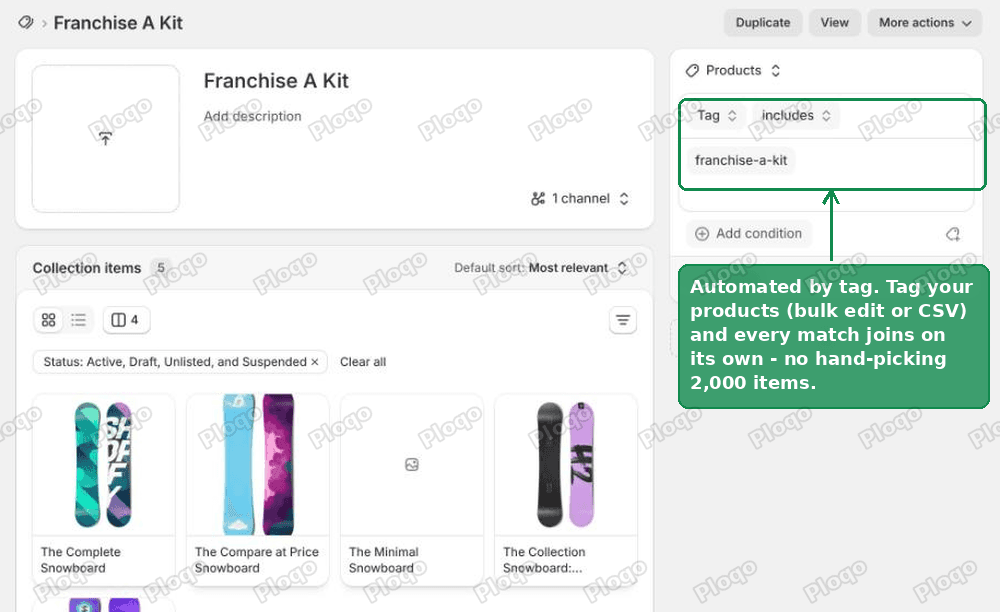 An automated Shopify collection with the condition Product tag is equal to franchise-a-kit, showing five products matched
Step 3: set the discount to apply to that collection
With the collection built, the discount is quick.
- Open your discount under Discounts, or create a new code discount.
- Set the discount value, for example 10% off.
- Under Applies to, choose Specific collections.
- Search for your collection and add it.
There is no 100 item cap on this screen. One collection covers every product inside it, however many that is.
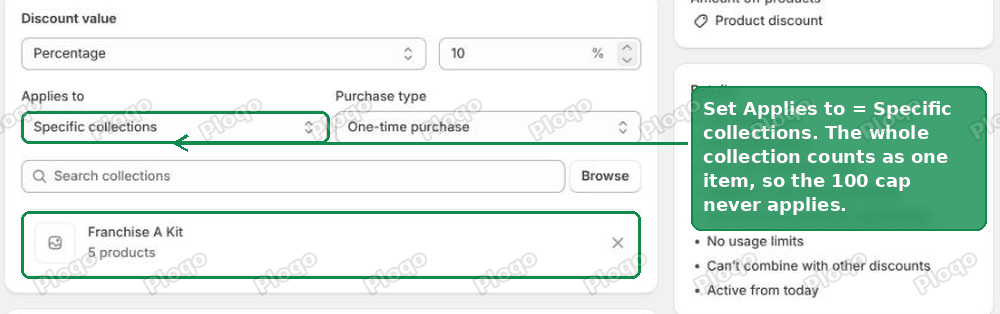 A Shopify code discount with Applies to set to Specific collections and the Franchise A Kit collection selected
Save it, and you have one code that discounts the whole group. If you split your catalog by franchise, make a collection per franchise and add several collections to the same discount, or keep them on separate codes. Either way the item cap is gone.
I tested this end to end on a store. A code scoped to a five product collection took 10% off every product in the collection and nothing outside it. The setup screen never asked me to trim the list.
The one caveat worth knowing
A collection groups products, not variants. So a discount on a collection applies to the whole product, and every variant of an included product becomes eligible.
For most catalogs that is exactly what you want. Where it matters is if only some variants of a product should be discounted and others should stay full price. A collection cannot split a product like that.
If that is your case, you have two options. Keep the discounted variants as their own product so the collection can include them cleanly. Or use the B2B route below, which prices at the variant level.
If you run B2B, use a catalog price list instead
The merchant in the thread was already on Shopify B2B, with each franchise partner limited to their own products. That detail changes the best answer, because B2B has a tool built for exactly this and it sidesteps discount codes entirely.
In B2B, each company buys from a catalog, and a catalog carries a price list. That price list is where franchise pricing belongs.
- Attach a price list to the franchise's catalog and set the reduced prices there. Prices are set per variant, with no 100 item limit.
- Edit the prices in bulk with a CSV import. Two thousand variants is one upload, not a manual selection. This is the bulk upload the merchant asked for, and it already exists.
- Only that franchise sees those prices. There is no code to hand out, nothing for a customer to type, and nothing to leak to another partner.
For franchise-specific pricing this is cleaner than a shared coupon. The right price simply shows when that company logs in. A coupon is better when you want a temporary, promotional discount that anyone eligible can enter at checkout. Match the tool to the job: catalogs for standing partner pricing, a collection-scoped code for a sale.
When an app makes sense
The collection method is free and covers most cases. Reach for an app when you want scheduled bulk sales across many groups, tiered or volume pricing, or wholesale pricing tables that go beyond what native B2B offers. A few well-known options:
- Discounty: Bulk Discount Sales
- Shopacado, Volume Discounts
- BSS B2B Wholesale Pricing
None of these are required to beat the 100 item cap. They earn their place when the pricing logic itself is more than a flat percentage off a group.
About the feature request
The merchant also asked Shopify to raise the limit and wanted a reference number. Worth knowing: a Community post is not a tracked request queue and does not return a ticket number. To actually file a product request, use the feature request form in the Help Center, or raise it with your Plus support contact, who can log it internally. In the meantime the collection method removes the blocker today.
The short answer
- The 100 item cap only applies when a discount targets Specific products.
- Put the products in a collection and apply the discount to the collection. One code, thousands of products, no cap.
- Use an automated collection by tag so the list maintains itself, and tag in bulk with a CSV.
- Collections discount whole products, so every variant of an included product is eligible.
- On B2B, a catalog price list prices per variant, imports by CSV, and stays private to each company. That is the better fit for standing franchise pricing.
The limit looks like a wall in the discount editor. It is really just a nudge to group your products first, which is a better way to run a large catalog anyway.
Spending too long on manual Shopify busywork?
PinFlow turns your Shopify catalog into Pinterest pins and posts them on a schedule, automatically. Same idea as the rule above, let the system handle the repetitive part.
Get PinFlow on the Shopify App StoreMore Shopify fixes
More community-sourced Shopify guides, tested on a live store.
Shopify Admin
Shopify Discount Types: Amount Off Products vs Order
Shopify has four discount types, and two of them work out a percentage in different ways. One rounds every single unit, the other rounds the order once. On low unit prices that difference is real money. Tested on a live store.
Shopify Admin
Shopify POS Discount Code: Where the Controls Are
A discount code is Online Store only, and the POS switch lives on the discount, not in POS settings. Here is what each control actually does, checked in a live admin.
Themes & Storefront
Show a Discount on the Shopify Product Page
An automatic discount is invisible on the product page until the cart. Here is a tag-driven badge that shows the discounted price on the page itself, and matches checkout exactly.