
Shopify POS Discount Code: Where the Controls Are
A discount code is Online Store only, and the POS switch lives on the discount, not in POS settings. Here is what each control actually does, checked in a live admin.
By AjayCodeWiz · September 10, 2026 · 8 min read
The problem
You made a discount. It works online. A customer walks into the shop, the cashier tries to use it, and nothing happens.
So you open Point of Sale → Settings looking for the discount section, and there isn't one.
That is not a bug, and there is no page you have missed. The POS discount controls are somewhere else entirely, and they are not the same for a code as they are for an automatic discount. I went through the admin on a live store to map exactly which control does what.
POS settings has no discount section
Start by ruling out the obvious place. Open the Point of Sale channel and click Settings. You get four groups:
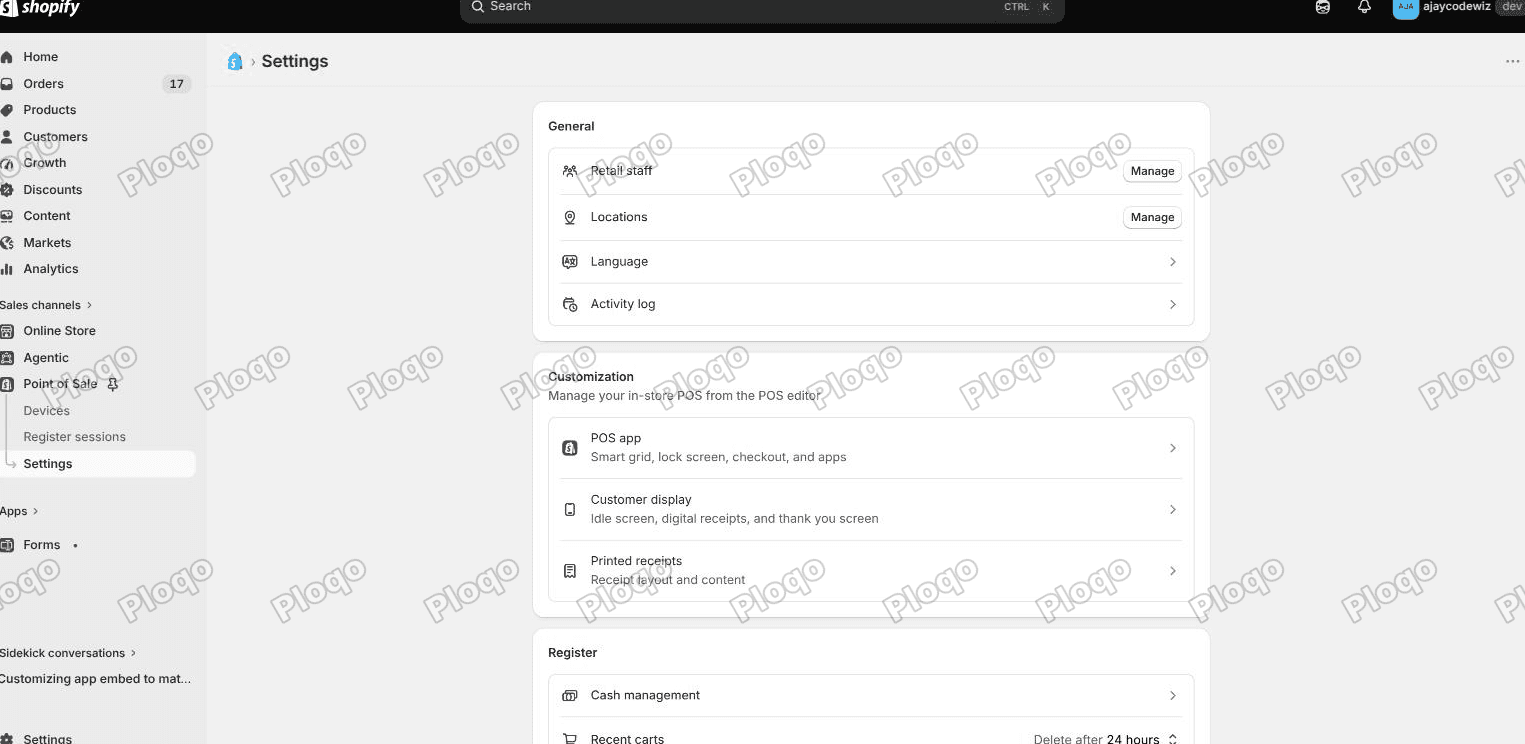 Point of Sale settings in the Shopify admin, showing the General, Customization and Register groups, with no discount section anywhere on the page
- General - retail staff, locations, language, activity log
- Customization - POS app, customer display, printed receipts
- Register - cash management, recent carts
- Returns - policy, store credit, return reasons
No discounts anywhere. Every POS discount control lives on the discount itself, over in the Discounts section of your admin.
A discount code is Online Store only
Here is the first surprise, and it is the answer to most of these questions.
Open any discount code and look at the right hand Details panel.
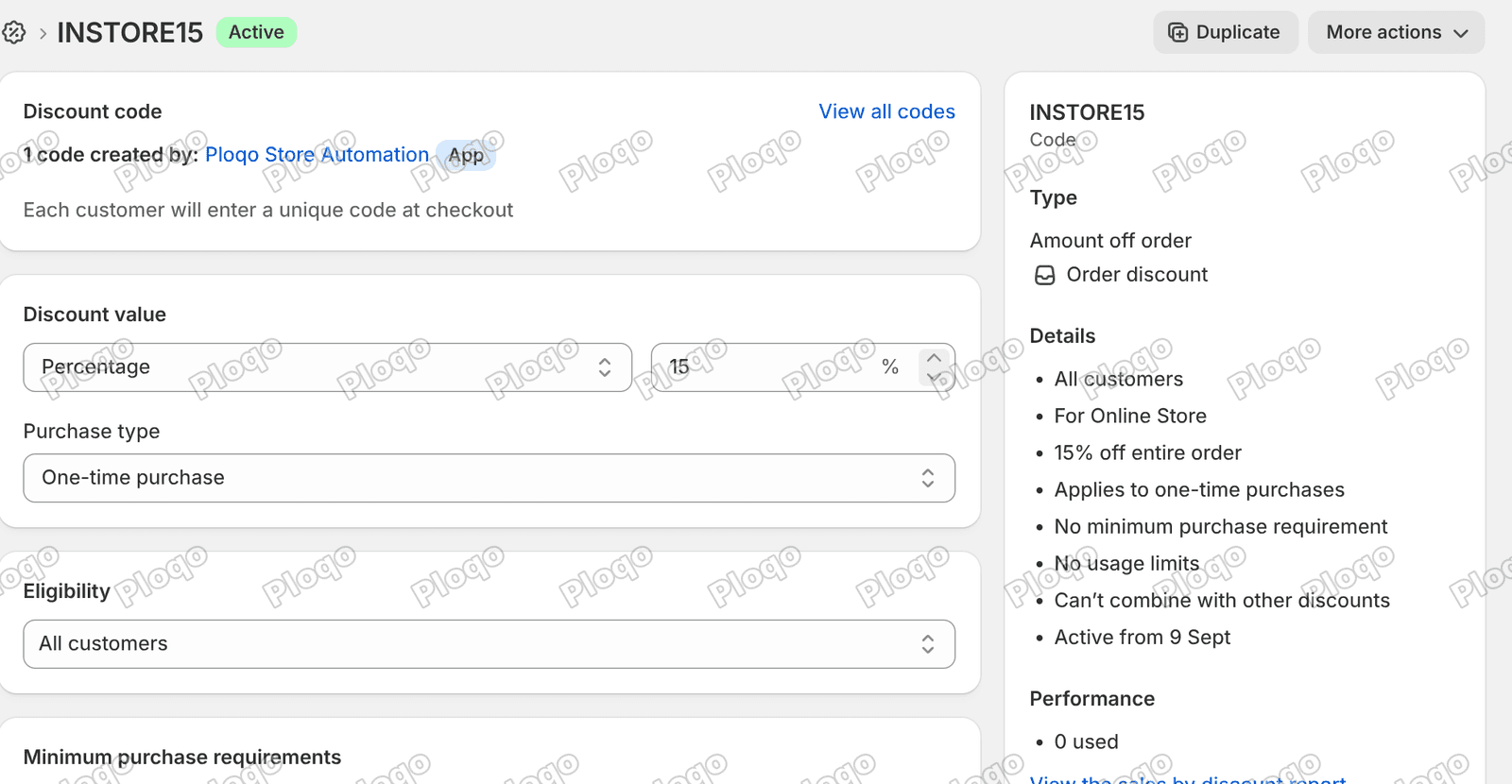 A Shopify discount code page with the Details sidebar reading For Online Store, and no POS control anywhere on the page
It reads "For Online Store".
Now scroll the whole page. Discount value, purchase type, eligibility, minimum purchase, maximum uses, combinations, active dates. There is no POS control at all on a discount code. Not a checkbox, not a dropdown, not a channel picker.
The one channel-ish thing on the page is Sales channel access → "Allow discount to be featured on selected channels", tucked under the sidebar. Read that carefully: it is about featuring the discount, promoting it in a channel's surfaces. It is not a switch that grants a code to your till.
So if your question is "how do I make my discount code work in POS", the first answer is that the code page gives you nothing to turn on.
An automatic discount does have a POS switch
Now open an automatic discount instead. Under Eligibility there is a checkbox that does not exist on codes:
Apply on POS Pro locations
Leave it unticked and the Details sidebar says this:
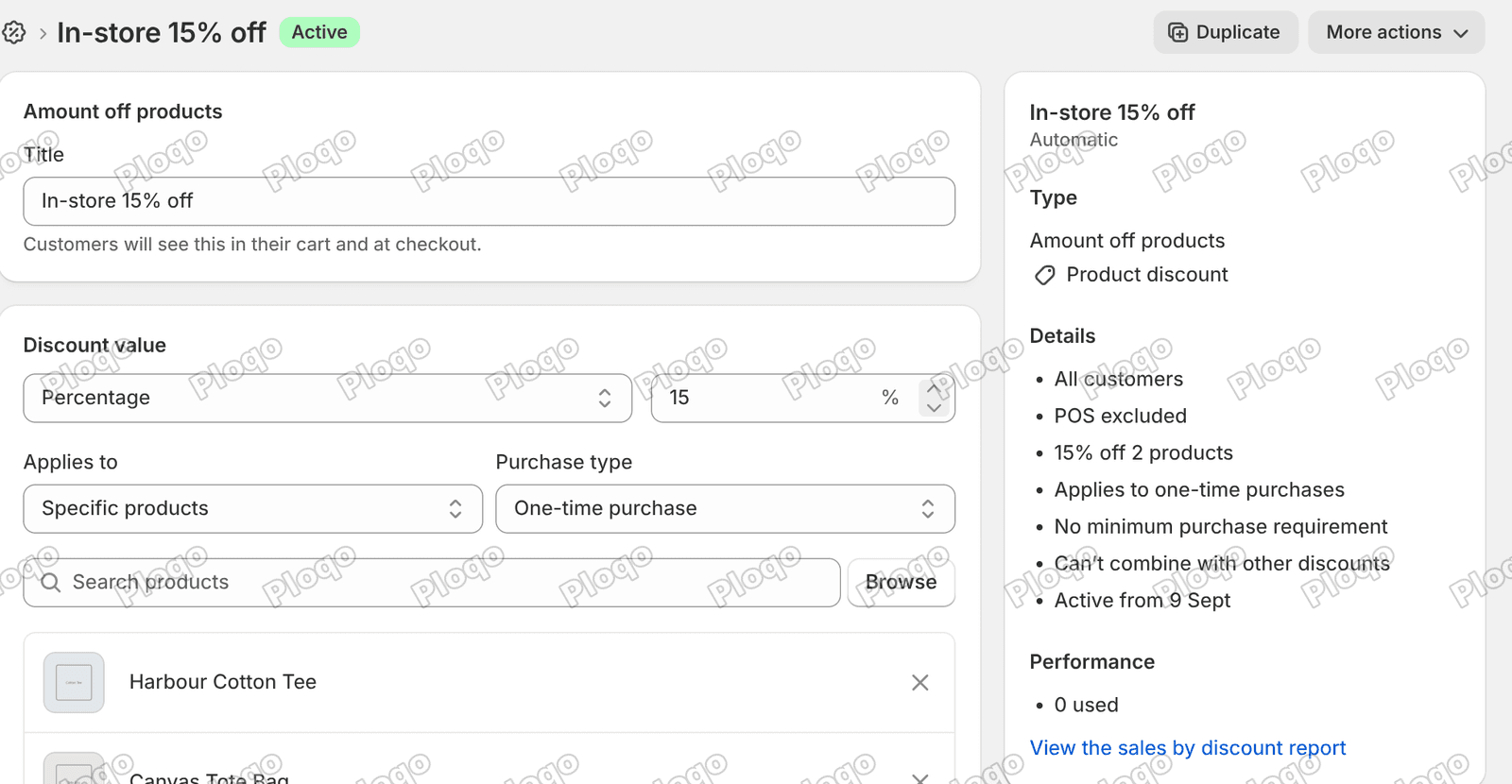 An automatic discount with the Details sidebar reading POS excluded
"POS excluded." In plain words, on the page, without you having to guess.
Tick the box, press Save, and the same line changes:
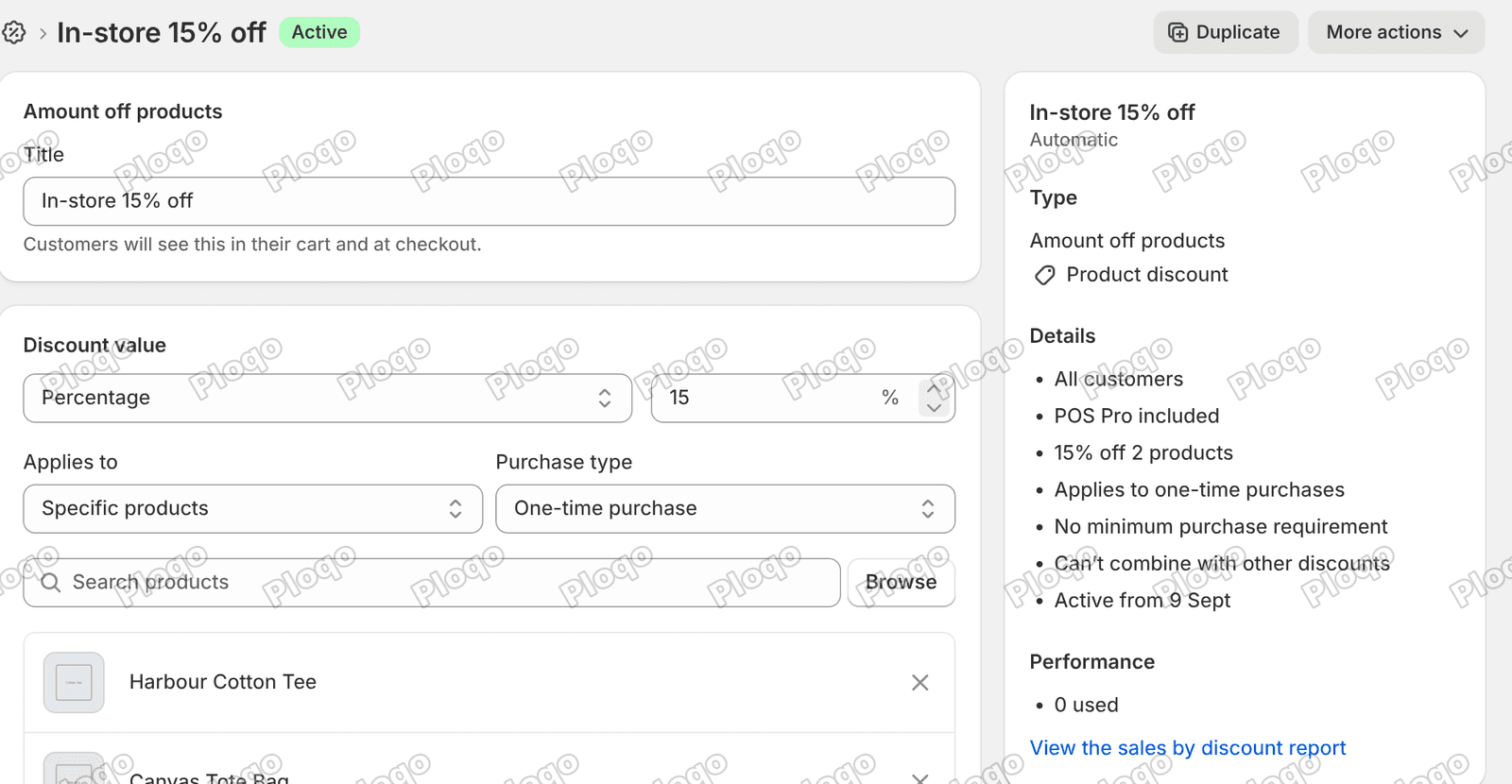 The same discount after ticking the box, with the Details sidebar now reading POS Pro included
"POS Pro included."
That one line is the fastest way to audit a discount. You do not need to scroll to the checkbox; the sidebar tells you the state.
Note the exact wording: POS Pro, not POS. That is a paid tier of Shopify POS, not the free POS Lite that comes with every plan. If you are on Lite, ticking the box does not buy you the behaviour.
What the cashier actually uses
Most in-store discounting never touches the Discounts page at all. It happens on the till, through a tile.
Go to Point of Sale → Settings → Customization → POS app. You get an editor with a live picture of the register screen.
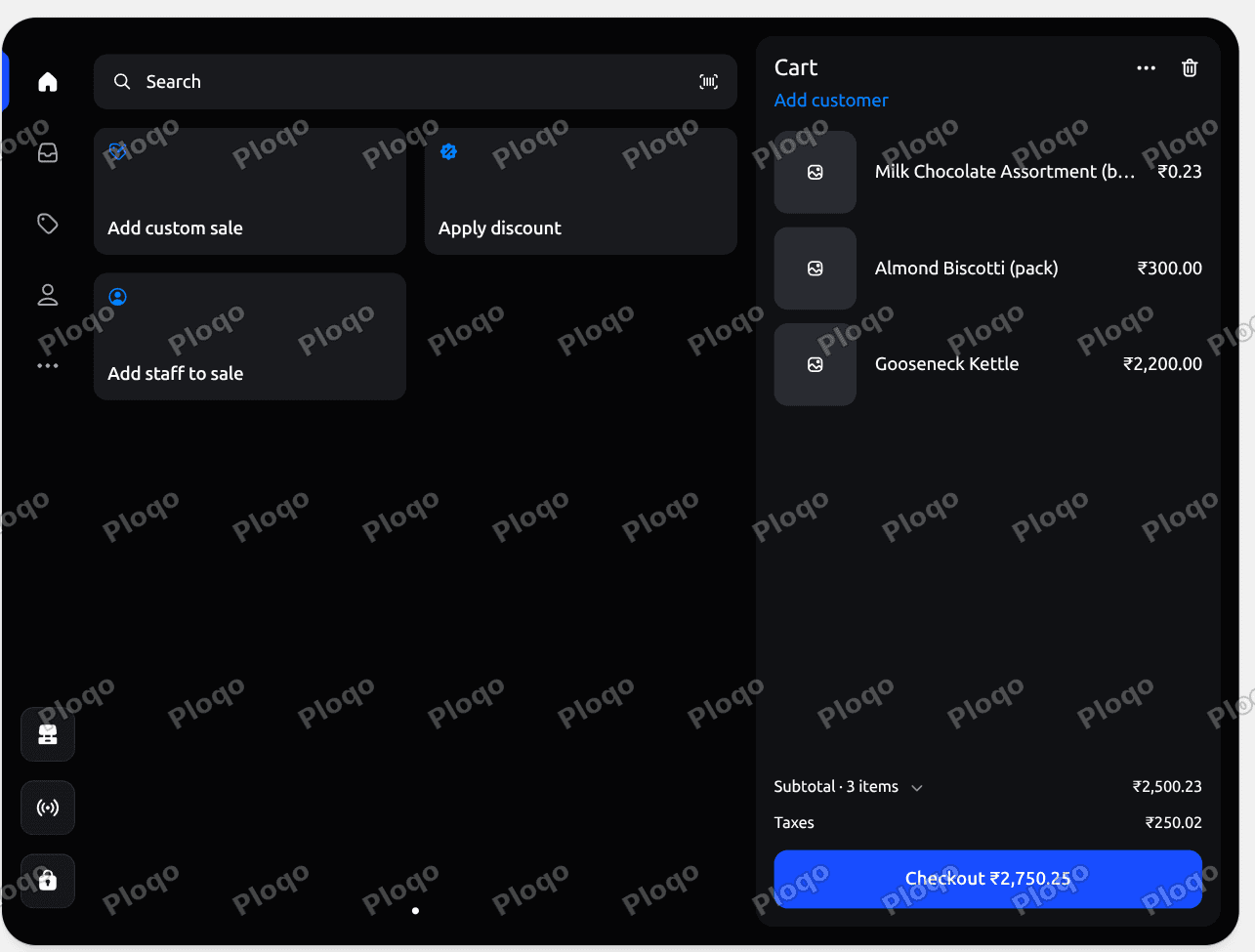 The Shopify POS smart grid editor showing an Apply discount tile next to Add custom sale and Add staff to sale, with a live cart on the right
On the smart grid, beside Add custom sale and Add staff to sale, there is a tile called Apply discount.
That is the everyday in-store discount: the cashier taps it and takes money off the cart there and then. It is a manual discount. It has nothing to do with the Discounts page, it does not need a code, and it is not restricted by any of the settings above.
This is the piece that resolves most of the confusion. There are two completely separate systems:
- Discounts page - promotions you configure in advance, and only automatic ones carry a POS switch
- Apply discount tile - a cashier taking money off a specific sale, on the spot
If what you want is "let my staff give a customer 10% off at the counter", you do not need a discount code at all. You need the tile, and you need staff permissions that allow discounts.
Setting up an in-store only promotion
Putting the pieces together, here is the shape that works for "15% off, in store only, no code needed":
- Discounts → Create discount → Amount off products, and choose Automatic discount rather than a code.
- Set the value and pick the products or collections it applies to.
- Under Eligibility, tick Apply on POS Pro locations.
- Save, and confirm the sidebar says POS Pro included.
The reverse case matters just as much. If you have an online promotion that must not apply in store, leave that box unticked and confirm the sidebar says POS excluded. That is the default, so an automatic discount you built for the website is already excluded from the shop unless you deliberately opted in.
Why "POS Pro" and not just "POS"
Shopify POS comes in two tiers. POS Lite is included with every plan. POS Pro is a paid add-on per location.
The checkbox names the tier on purpose. Location-aware discounting is a Pro feature, along with things like custom staff permissions and smart grid customisation depth.
Before you plan a campaign around it, check which tier your locations are on. It is worth doing this before you write the promotion into a poster, not after.
Making the product available in store at all
One layer below discounts, and easy to miss: a product has to be published to the Point of Sale channel before it can be sold there, let alone discounted.
Open a product and check the sales channel list. If Point of Sale is not included, the product does not exist as far as the till is concerned. You can fix a batch at once from Products, selecting them and using Include in sales channels.
If a discount seems to be ignored on one product in store, check its channels before you touch the discount.
Discount combinations apply in store too
A POS sale runs the same discount engine as the website, so the same combining rules bite.
By default a discount refuses to run alongside any other discount, and when two want to apply Shopify keeps one and drops the other, with nothing on the till to say so. A cashier who applies a manual discount on top of an automatic promotion may find the promotion is dropped rather than stacking.
That mechanism, and the setting that changes it, is covered in discount combinations. The rule to know is that both discounts have to allow each other, not just one.
One caveat
I set all of this up in a real admin and watched the sidebar flip from "POS excluded" to "POS Pro included" when I ticked the box and saved. That part is shown above.
I did not stand at a till and ring up a sale, because that needs the POS app on a device signed in to a Pro location. So the steps here are the setup, which is where every one of these questions actually gets stuck.
Quick answers
Can POS use discount codes at all? The code's own page offers no POS control, and its Details line says "For Online Store". Plan in-store promotions as automatic discounts with the POS Pro box ticked, or as manual discounts through the Apply discount tile.
Why isn't my automatic discount applying in store? Almost certainly the Apply on POS Pro locations box. Open the discount and read the sidebar: "POS excluded" means it will never fire at a till.
Where do I turn on discounts in POS settings? You do not. POS settings has General, Customization, Register and Returns, and no discount section.
How does a cashier give an ad hoc discount? The Apply discount tile on the smart grid. Configure the grid in Point of Sale → Settings → Customization → POS app.
Do I need POS Pro? For the automatic discount switch, yes, the label says POS Pro. The Apply discount tile is the everyday alternative.
The main points
- POS Settings has no discount section. Every control is on the discount itself.
- A discount code has no POS control at all, and its Details line reads "For Online Store".
- An automatic discount has one: Eligibility → Apply on POS Pro locations.
- The Details sidebar states the result in words: "POS excluded" by default, "POS Pro included" once ticked. Verified by ticking the box and saving.
- The label says POS Pro, a paid tier, not the free POS Lite.
- The tool cashiers actually use is the Apply discount tile on the smart grid, which is a manual discount and unrelated to the Discounts page.
- Products must be published to the Point of Sale channel before any of this matters.
Spending too long on manual Shopify busywork?
PinFlow turns your Shopify catalog into Pinterest pins and posts them on a schedule, automatically. Same idea as the checkbox above, let the system handle the repetitive part.
Get PinFlow on the Shopify App StoreMore Shopify fixes
More community-sourced Shopify guides, tested on a live store.
Shopify Admin
Schedule a Black Friday Sale in Shopify (Auto Start and End)
Give the discount its own start and end date and put the sale banner in an Event rollout with the same dates. Both start at midnight and end after Cyber Monday.
Shopify Admin
Shopify Discount Limit: One Code for More Than 100 Products
Shopify stops you at 100 items when a discount applies to specific products. There is no setting to raise it, but you do not need one. Point the discount at a collection and one code covers thousands of products. Tested on a store, with the B2B route too.
Shopify Admin
Shopify Discount Types: Amount Off Products vs Order
Shopify has four discount types, and two of them work out a percentage in different ways. One rounds every single unit, the other rounds the order once. On low unit prices that difference is real money. Tested on a live store.