
Shopify Estimated Delivery Date Countdown, No App
Show an "order within 3 hours to get it by Saturday" estimated delivery date on your Shopify product page, with a 4pm cut-off, dispatch days and no Sunday deliveries. One free Custom Liquid block, tested on Dawn.
By AjayCodeWiz · October 16, 2026 · 11 min read
The problem: shoppers want a delivery date before they add to cart
A merchant selling gift boxes in the UK asked about this on the Shopify Community. She wanted a line under the Add to cart button that reads "Order within 13 hours 07 mins to get your order by 21/10", the kind of estimated delivery date you see on large retail sites. She also wanted the same bar across the top of every page.
Her rules were specific. Orders placed before 4pm count today as day 1 of processing. Orders after 4pm start tomorrow. Parcels are dispatched on day 3, and delivery takes 3 more days, with Saturdays counted and Sundays skipped.
I rebuilt her setup on a Dawn test store and wrote one Custom Liquid block (a box in the theme editor where you paste code) that does all of it. Here is the finished product page, with the countdown under small preview photos of what is in the box.
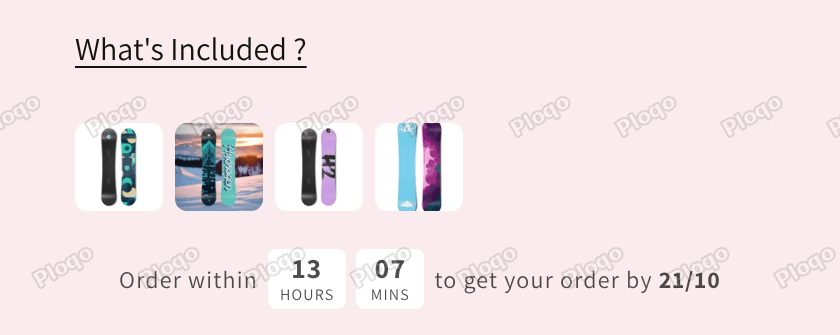 Product page showing small preview photos and the line "Order within 13 hours 07 mins to get your order by 21/10"
The rest of this guide covers where Shopify shows delivery dates on its own, the code for the product page, how to change the cut-off and the number of days, and two fixes from the same thread for a gift box product page.
What Shopify does on its own: delivery estimates at checkout
Shopify has a built-in estimated delivery date setting. Go to Settings, then Shipping and delivery, then Estimated delivery dates, and open Delivery estimates.
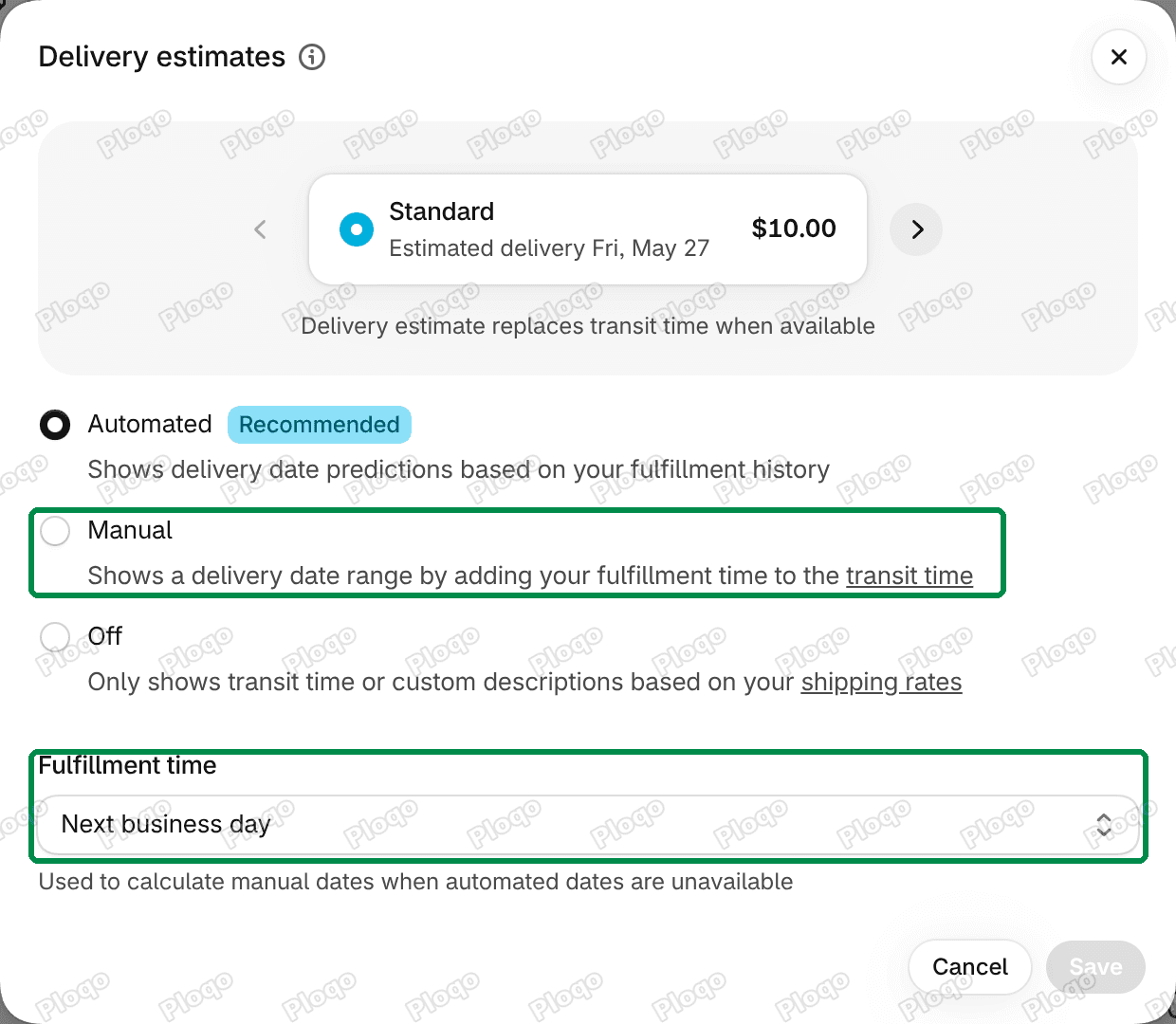 Shopify Delivery estimates settings with the Manual option and the Fulfillment time box marked
On my test store it offered three choices:
- Automated (marked Recommended) shows delivery date predictions based on your fulfillment history.
- Manual shows a date range by adding your fulfillment time to the transit time of each shipping rate.
- Off shows only the transit time or your own description from the shipping rate.
The preview at the top of that window shows where the date appears: next to the shipping rate the shopper picks, as "Estimated delivery Fri, May 27". That is in checkout, after the shopper has already decided to buy.
So the built-in setting is worth turning on, but it does not put a date on the product page. For that you need a small block of code in your theme, which is free and takes about ten minutes.
How the delivery date is worked out
Before pasting code, it helps to know the rule the countdown follows, so you can check the dates it shows.
- The cut-off. Every day has a 4pm cut-off. Before 4pm, today is day 1. After 4pm, tomorrow is day 1.
- Dispatch. The order ships on day 3. Days 1, 2 and 3 are counted as calendar days, weekends included.
- Delivery. The parcel arrives 3 days after dispatch. Saturdays count as a delivery day, Sundays are skipped.
The countdown in the bar counts down to the next 4pm. Because the cut-off is every day, it never shows more than 24 hours.
These are the dates the code gave on my test store for a few order times:
| Order placed | Day 1 | Dispatched | Delivered by |
|---|---|---|---|
| Monday 10am | Monday | Wednesday | Saturday |
| Monday 5pm | Tuesday | Thursday | Monday |
| Friday 10am | Friday | Sunday | Wednesday |
| Saturday 10am | Saturday | Monday | Thursday |
The Monday 10am row is the merchant's own example: dispatched Wednesday, collected Thursday at worst, delivered by Saturday. If your business does not dispatch at weekends, there is a version for that further down.
Add the estimated delivery date to your product page
- From your Shopify admin, go to Online Store, then click Edit theme on your current theme.
 Shopify admin with Online Store and the Edit theme button marked
- In the dropdown at the top of the editor, pick your product page template.
- In the left sidebar, under Product information, click Add block and pick Custom Liquid.
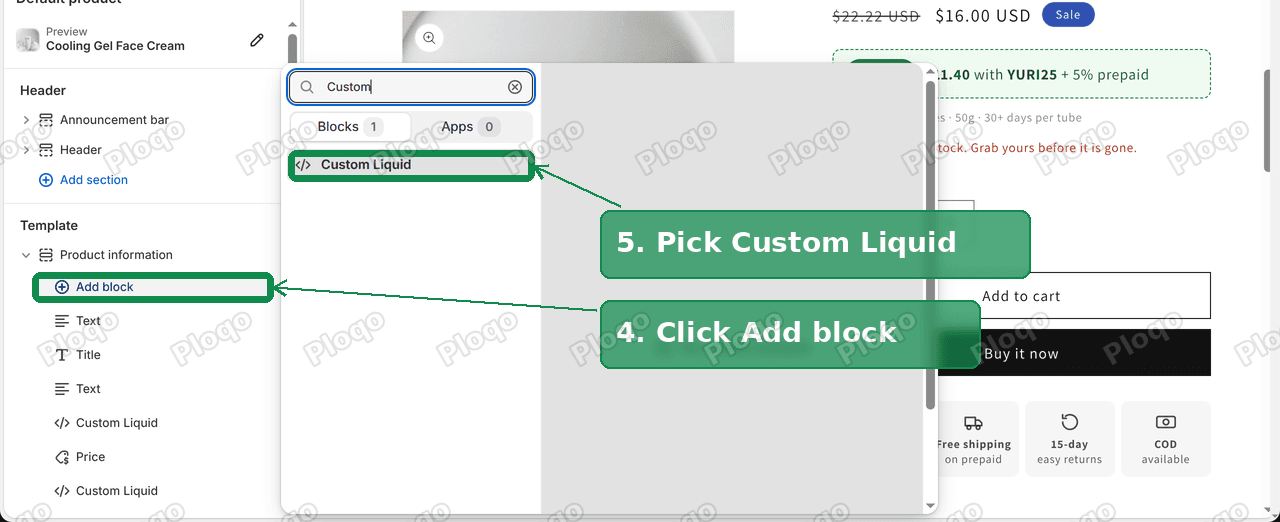 Theme editor Add block menu with Custom Liquid selected under Product information
- Drag the new block to where the bar should sit, for example under Buy buttons.
- Click the block and paste this code into the Liquid code box. Liquid is the code Shopify themes are written in, and this box accepts Liquid, HTML, styles and scripts.
{{ 'component-list-social.css' | asset_url | stylesheet_tag }}
<div class="dlv-bar" data-cutoff="16:00" data-dispatch-days="3" data-delivery-days="3">
<span class="dlv-text">Order within</span>
<span class="dlv-box"><b class="dlv-h">00</b><small>Hours</small></span>
<span class="dlv-box"><b class="dlv-m">00</b><small>Mins</small></span>
<span class="dlv-text">to get your order by <b class="dlv-date"></b></span>
<div class="dlv-social">{% render 'social-icons' %}</div>
</div>
<style>
.dlv-bar{display:flex;flex-wrap:nowrap;align-items:center;justify-content:center;gap:5px;white-space:nowrap;font-size:1.2rem;line-height:1;padding:4px 0}
.dlv-text{line-height:1}
.dlv-box{display:inline-flex;flex-direction:column;align-items:center;justify-content:center;min-width:34px;padding:3px 6px;background:#fff;border-radius:4px;line-height:1}
.dlv-box b{font-size:1.4rem;line-height:1}
.dlv-box small{font-size:.8rem;line-height:1;margin-top:2px;text-transform:uppercase}
.dlv-social{display:none}
.dlv-top{position:relative}
@media (min-width:750px){.dlv-top .dlv-social{display:block;position:absolute;left:3rem;top:50%;transform:translateY(-50%)}}
@media (max-width:480px){.dlv-bar{font-size:1.1rem;gap:4px}.dlv-box{min-width:28px;padding:3px 4px}}
</style>
<script>
(function () {
document.querySelectorAll('.dlv-bar:not([data-ready])').forEach(function (bar) {
bar.setAttribute('data-ready', '1');
var cut = bar.dataset.cutoff.split(':');
var dispatchDays = +bar.dataset.dispatchDays;
var deliveryDays = +bar.dataset.deliveryDays;
function ukNow() {
var p = {};
new Intl.DateTimeFormat('en-GB', { timeZone: 'Europe/London', year: 'numeric', month: 'numeric', day: 'numeric', hour: 'numeric', minute: 'numeric', second: 'numeric', hour12: false })
.formatToParts(new Date()).forEach(function (x) { p[x.type] = +x.value; });
return Date.UTC(p.year, p.month - 1, p.day, p.hour % 24, p.minute, p.second);
}
function pad(n) { return (n < 10 ? '0' : '') + n; }
function run() {
var now = ukNow();
var target = new Date(now); target.setUTCHours(+cut[0], +cut[1], 0, 0);
if (target.getTime() <= now) target.setUTCDate(target.getUTCDate() + 1);
var left = Math.floor((target.getTime() - now) / 60000);
bar.querySelector('.dlv-h').textContent = pad(Math.floor(left / 60));
bar.querySelector('.dlv-m').textContent = pad(left % 60);
var d = new Date(target.getTime()); d.setUTCHours(0, 0, 0, 0);
d.setUTCDate(d.getUTCDate() + dispatchDays - 1);
var n = 0;
while (n < deliveryDays) { d.setUTCDate(d.getUTCDate() + 1); if (d.getUTCDay() !== 0) n++; }
bar.querySelector('.dlv-date').textContent = pad(d.getUTCDate()) + '/' + pad(d.getUTCMonth() + 1);
}
run();
setInterval(run, 30000);
});
})();
</script>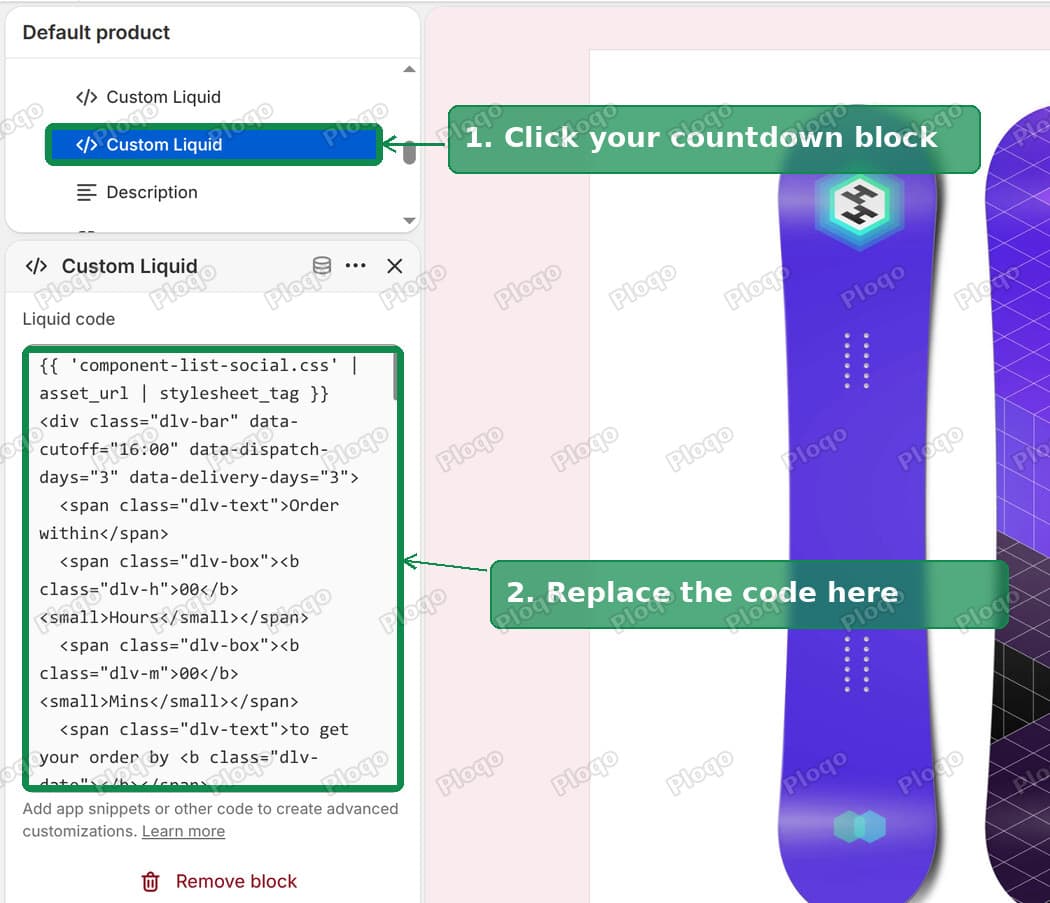 Countdown Custom Liquid block selected in the Dawn theme editor with the code pasted
- Click Save in the top right corner.
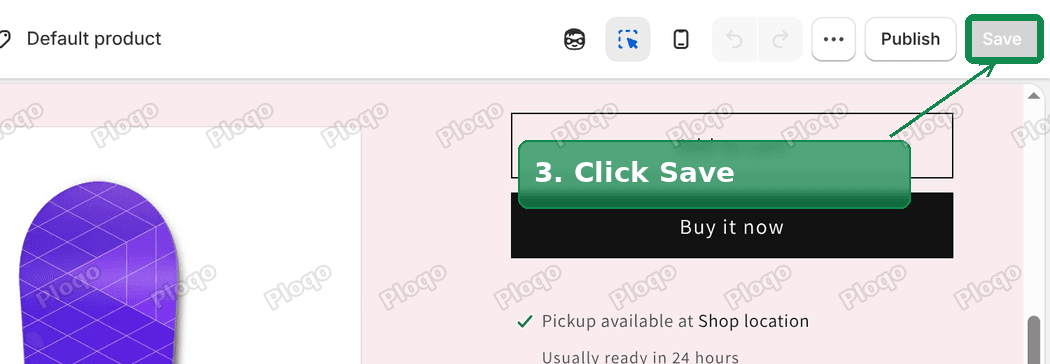 Theme editor Save button in the top right corner
Open a product page and the bar appears under your buttons, counting down to 4pm UK time with the date filled in. The date updates every 30 seconds, so a shopper who leaves the page open past 4pm sees the next day's date without reloading.
If your store uses more than one product template, add the block to each template that should show it.
Add the same countdown bar to the top of every page
The merchant also wanted the bar above her header, next to her social media icons. The same code works there with one change.
- In the theme editor sidebar, under Header, click Add section and pick Custom Liquid.
- Paste the same code into its Liquid code box.
- Change the first
<divline so it reads like this:
<div class="dlv-bar dlv-top" data-cutoff="16:00" data-dispatch-days="3" data-delivery-days="3">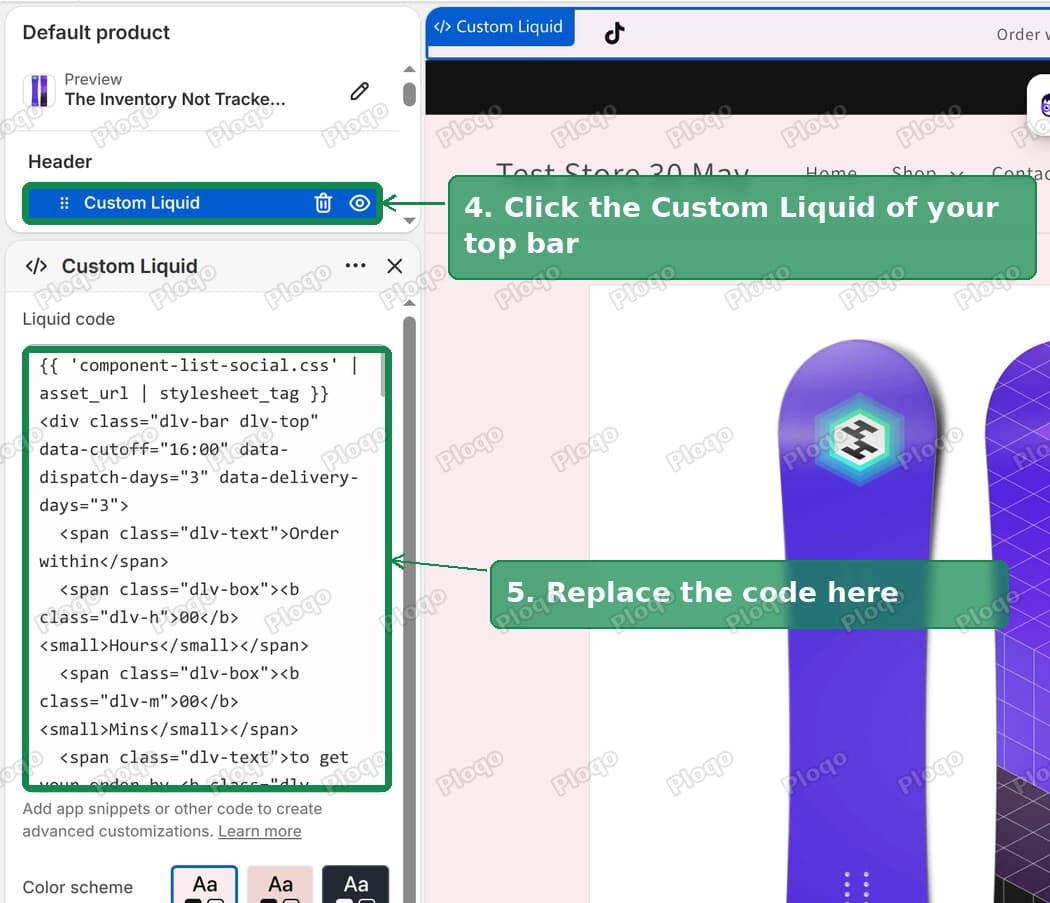 Custom Liquid section under Header with the top bar version of the code
- Click Save.
The extra dlv-top word switches on the social media icons on the left of the bar, on screens 750 pixels wide or more. They come from the links you set under Theme settings, then Social media. On phones the icons are hidden so the countdown fits on one line.
Change the cut-off time, dispatch days or delivery days
The three numbers that drive the dates sit in the first <div line of the code:
data-cutoff="16:00"is the daily cut-off, in 24-hour time. Use"14:30"for 2.30pm.data-dispatch-days="3"is the day the order ships, counting day 1 as the first processing day. Use"1"if you ship the same day the order counts.data-delivery-days="3"is how many delivery days the courier takes after dispatch.
Change the numbers in both places if you added the bar to the product page and the top of the store. Each copy reads its own line, so they can also differ on purpose.
Not in the UK? The code reads the clock in London time, so the cut-off matches a UK warehouse for every shopper, wherever they are. To use your own time zone, change 'Europe/London' to your zone name, for example 'America/New_York' or 'Australia/Sydney'.
Want month first in the date? The last line of the script builds the date as day/month. Swap the two halves so it reads pad(d.getUTCMonth() + 1) + '/' + pad(d.getUTCDate()).
If you do not dispatch at weekends
The merchant's rule counts every day the same. Plenty of shops only pack orders Monday to Friday, so an order placed on Friday afternoon should not count Saturday as day 1. Two lines in the script handle that. First, find the line below in the code you pasted and replace it with the second one.
if (target.getTime() <= now) target.setUTCDate(target.getUTCDate() + 1);while (target.getTime() <= now || target.getUTCDay() === 0 || target.getUTCDay() === 6) target.setUTCDate(target.getUTCDate() + 1);Then find the next line below and replace it with the loop under it, which counts only Monday to Friday towards dispatch.
d.setUTCDate(d.getUTCDate() + dispatchDays - 1);for (var k = 1; k < dispatchDays; ) { d.setUTCDate(d.getUTCDate() + 1); if (d.getUTCDay() !== 0 && d.getUTCDay() !== 6) k++; }With both changes, Saturday and Sunday are skipped for the cut-off and for dispatch, while Saturday still counts as a delivery day. I ran it for every day of one week. A Friday 5pm order counts Monday as day 1, ships Wednesday and arrives by Saturday. A Wednesday 10am order ships Friday and arrives by Tuesday, because Sunday is skipped.
The countdown can now run past 24 hours. On a Saturday morning it shows something like "54 hours", counting down to Monday at 4pm.
Make product card photos smaller
The same merchant had a "What's Included ?" row of product cards under each gift box, built with Shopify's AI block generator in the theme editor. The photos filled the whole width of the page, four large squares in a row.
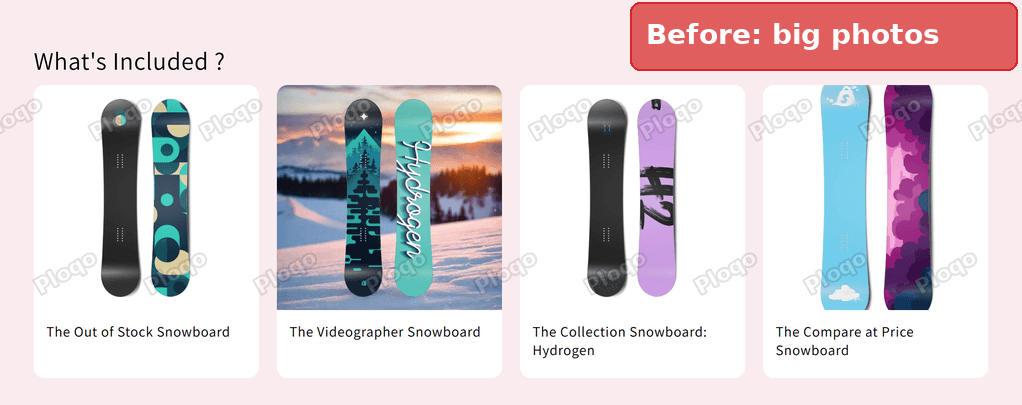 Before: four large product card photos filling the row
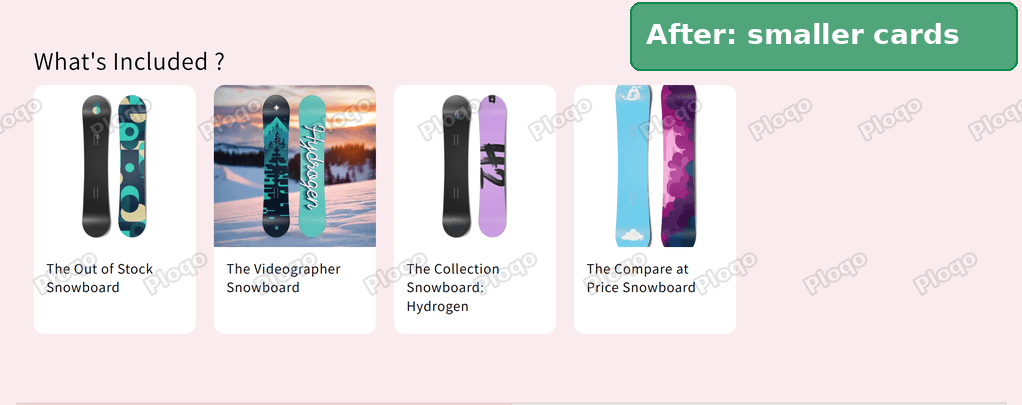 After: the same cards at 180 pixels wide
Her block had settings for the number of cards per row and the photo shape, but no setting for the card size. One CSS rule fixes it for every product page at once. CSS is the code that controls how things look.
- In the theme editor, click the Theme settings gear icon on the left.
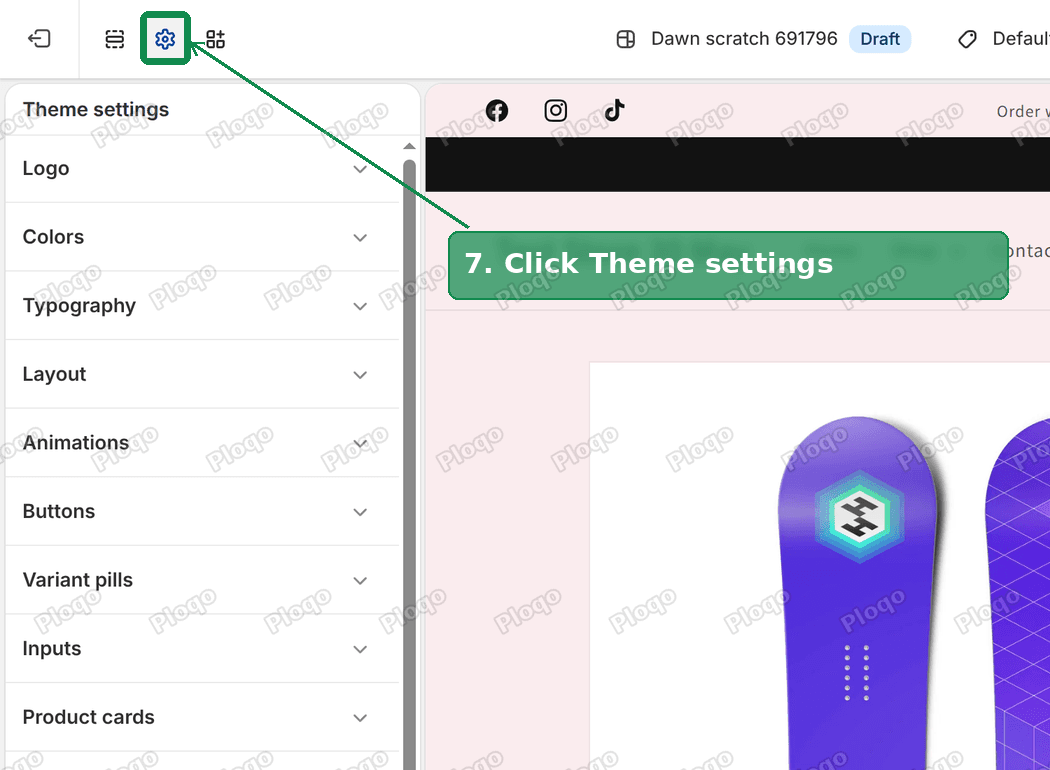 Theme editor with the Theme settings gear icon marked
- Scroll down, open Custom CSS and paste this:
@media screen and (min-width: 750px) {
[class^="ai-product-cards-"][class$="__grid"] {
grid-template-columns: repeat(auto-fill, 180px);
}
}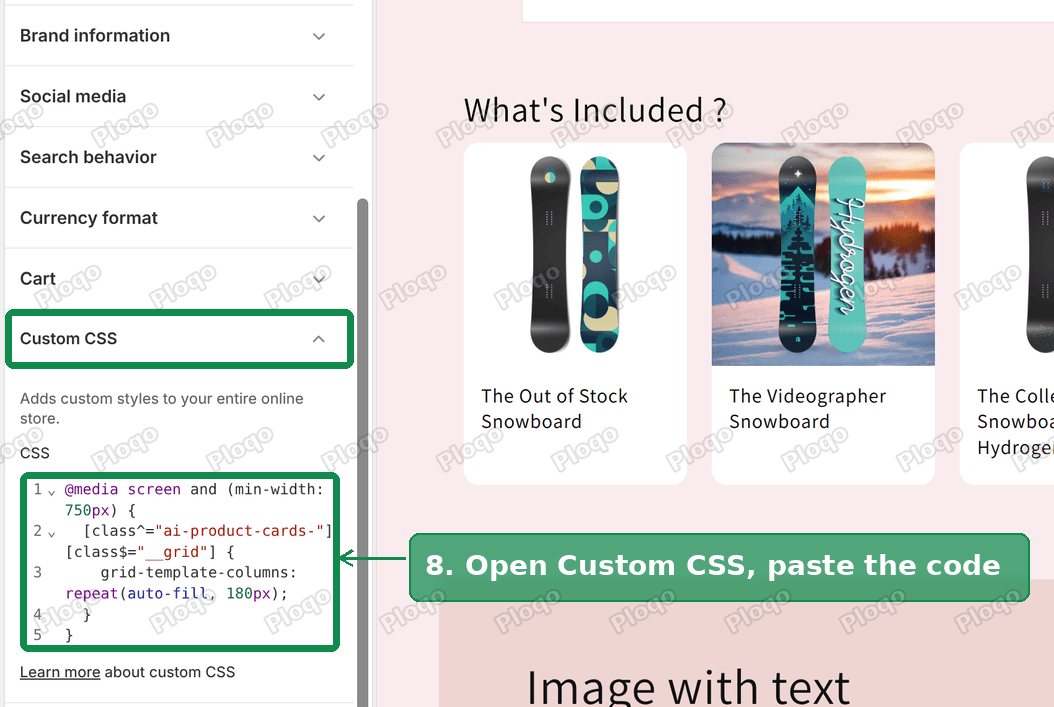 Theme settings Custom CSS box with the card size rule and smaller cards in the preview
- Click Save.
On my test store the cards went from 291 pixels wide to 180 pixels. Change 180px to any size you like. The rule only applies on screens 750 pixels or wider, so phones keep the 2 cards per row set in the block.
The rule finds the cards by the names the AI block generator gives them, which start with ai-product-cards-. If your generated block was built from a different request, its names may differ. Right-click a card photo, choose Inspect, and look for the class name on the element that holds the cards.
Show small preview photos next to "What's Included"
The last request in the thread was a strip of tiny photos under the "What's Included ?" link, so shoppers can see at a glance what is in the box and know the link is worth clicking.
The first version used product handles (the short name Shopify uses in a product's web address), which meant typing them for every listing. The version that stuck copies the photos from the cards row on the same page instead. Each gift box already lists its own products in its cards row, so there is nothing to fill in per product.
- In the theme editor, under Product information, click Add block and pick Custom Liquid. Drag it under your "What's Included" link.
Theme editor Add block menu with Custom Liquid selected under Product information
- Paste this code:
<div class="inc-thumbs"></div>
<style>
.inc-thumbs{display:flex;flex-wrap:wrap;gap:6px;margin:0 0 12px;cursor:pointer}
.inc-thumbs:empty{display:none}
.inc-thumbs img{width:44px;height:44px;border-radius:6px;object-fit:cover}
</style>
<script>
document.addEventListener('DOMContentLoaded', function () {
var photos = document.querySelectorAll('[class^="ai-product-cards-"][class$="__media"] img');
document.querySelectorAll('.inc-thumbs').forEach(function (box) {
photos.forEach(function (photo) {
var img = document.createElement('img');
img.src = photo.src.replace(/width=\d+/, 'width=100');
img.alt = photo.alt;
box.appendChild(img);
});
box.addEventListener('click', function () {
photos[0].closest('[id]').scrollIntoView({ behavior: 'smooth' });
});
});
});
</script>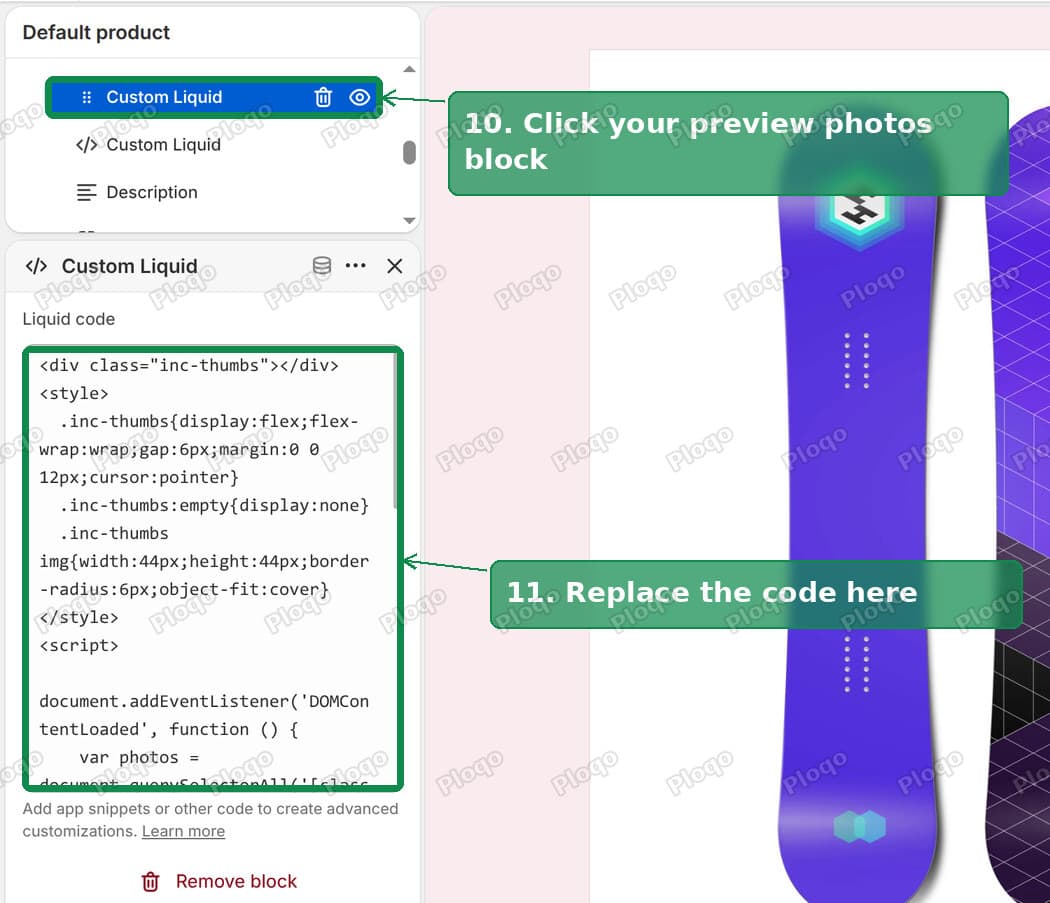 Preview photos Custom Liquid block under Product information with the code pasted
- Click Save.
On my test store four 44-pixel photos appeared under the link, one per card, and clicking any of them scrolled the page down to the cards row.
If the countdown does not show or the date looks wrong
- The bar is not on the page at all. Check you edited the template your product uses. Products can be assigned to different templates, and the block only appears on the one you added it to. The template is shown in the product's admin page under Theme template.
- The date is a day out. Check the cut-off time and the time zone line. A shop in New York using the default code switches to the next day at 11am New York time, which is 4pm in London.
- The bar looks squashed on phones. The code shrinks the text below 480 pixels wide. If your theme uses a large base font, lower
font-size:1.1remin the last style rule. - You preview the store and get the password page. A store with password protection shows the password page to anyone not signed in. Preview the theme from the theme editor instead.
Estimated delivery date, shipping time and Shop Promise
These terms appear side by side in the Shopify admin and mean different things.
- Transit time is how long the courier takes. It belongs to a shipping rate, for example "2 to 4 business days".
- Fulfillment time is how long you take to pack and hand over an order. Shopify's Manual delivery estimate adds it to the transit time.
- Estimated delivery date is the calendar date a shopper can expect the parcel. Shopify shows it at checkout when Delivery estimates is on. The countdown in this guide shows it on the product page, using your own rules.
- Shop Promise is a separate badge in the same settings area, described there as dates backed by a badge and guarantee. It was off on my test store, and it is not needed for anything in this guide.
A product page date and a checkout date can disagree if they use different rules. Set the countdown's dispatch and delivery days to match what you tell your courier, and keep the checkout setting on Manual with the same fulfillment time, so both dates tell the shopper the same thing.
Spending too long on manual Shopify busywork?
PinFlow turns your Shopify catalog into Pinterest pins and posts them on a schedule, automatically. Same idea as the fix above, let the system handle the repetitive part.
Get PinFlow on the Shopify App StoreMore Shopify fixes
More community-sourced Shopify guides, tested on a live store.
Themes & Storefront
Shopify Payment Icons: Fix a Footer That Shows None
The payment icons in a Shopify footer come from your payment provider, not from the theme. When the provider sends none, the row stays empty. Here is how to add the icons yourself on Refresh, Dawn and similar themes.
Themes & Storefront
Shopify Order Notes: Turn On the Cart Note Box
Let customers leave order notes and special instructions on your Shopify cart page. Turn on the built-in cart note in Theme settings, rename its label, and find each note on the order. Tested on Dawn, no code.
Themes & Storefront
Shopify WhatsApp Integration: Add a Free Chat Button
How to add WhatsApp to Shopify with a floating chat button: shoppers tap it and WhatsApp opens a chat with you, the message already typed and naming the product.