
Export Shopify Orders by Payment Method
Shopify has no payment method filter in the Orders list, but the search box accepts a gateway keyword and the export honours it. Here is the no-code way to pull just your Clearpay, PayPal or Afterpay orders.
By AjayCodeWiz · September 8, 2026 · 8 min read
The problem
A merchant asked this on the Shopify Community. They take Clearpay and their accountant wants the Clearpay orders on their own, with the totals before commission.
They had been through the Orders page looking for a way to filter by payment method and could not find one. That is not carelessness. The filter genuinely is not there.
Open the Orders list, click the filter control, and here is the complete list of what Shopify offers: Order status, Payment status, Fulfillment status, Delivery status, Return status, Label status, Chargeback and inquiry status, Order total, Delivery method, Destination, Address validation, Number of items, Total product weight, Product, Discount code, App, B2B, Payout action required, Fraud risk, Customer request, Credit card last four digits, Tagged with, Date, PO number and Fulfill by.
No payment method. No gateway. No provider.
The column picker does not have one either, so you cannot even add it as a column and sort by eye.
This is why the question keeps coming up, and why the usual answer is "export everything and filter it in Excel". You do not have to do that.
The bit most people get wrong first
Before the filtering, there is a money question worth settling, because it often turns out to be the actual blocker.
The merchant wanted totals before commission. With a third party provider like Clearpay, Afterpay, Klarna or PayPal, that number is already what Shopify stores.
Shopify records the gross order value. The provider takes its cut on their side, when they pay you. That deduction never enters Shopify's order data at all.
So there is nothing to strip out. The order total in your export is the pre commission figure.
The flip side is that Shopify cannot give you the commission either. Outside of Shopify Payments, the per order fee fields come back empty. If your accounts want net as well as gross, that has to come from the provider's own payout report, matched back on order number.
Worth knowing before you spend an afternoon looking for a fee column that does not exist.
The fix: the search box takes a gateway keyword
The Orders page has no payment filter, but the search box understands more than it lets on. It accepts field searches, and one of the supported fields is gateway.
Go to Orders, click Search and filter, and type:
gateway:clearpay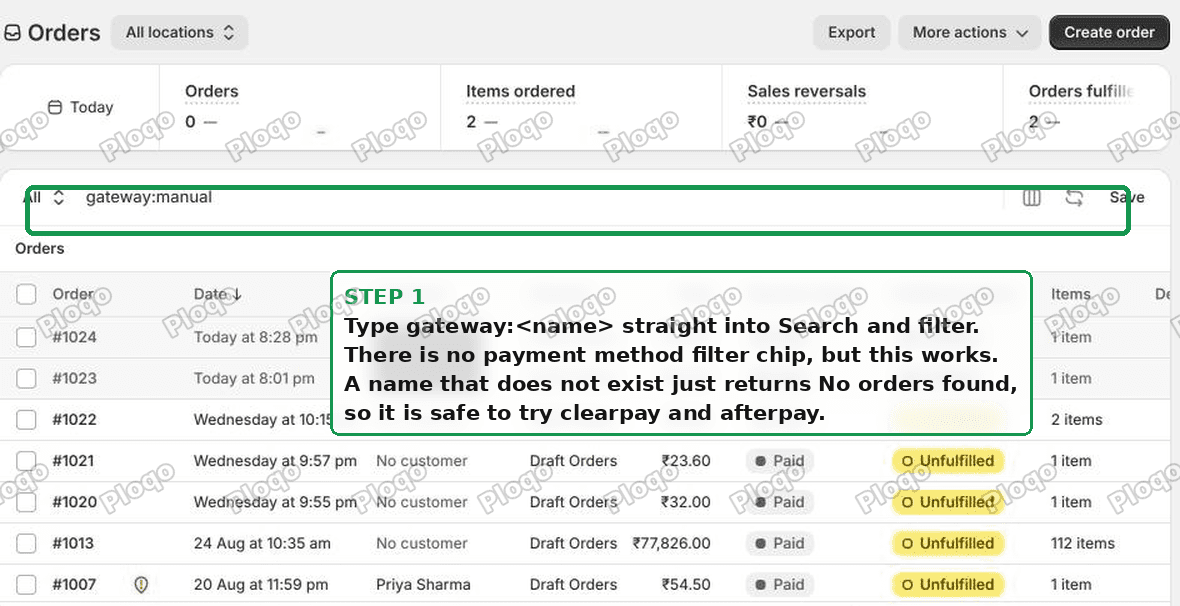 Typing gateway into the Shopify Orders search and filter box to filter by payment provider
The list narrows to orders paid through that provider. I tested this on a store and it filters properly rather than doing a loose text match, orders on other gateways drop out of the list entirely.
Finding the right gateway name
The one catch is that the value is the internal handle, not the pretty name shown on the order page. Clearpay and Afterpay are the same company, so a UK store might store either string.
You do not need the API to work it out. A gateway name that does not exist returns a clean "No orders found", it does not error and it does not fall back to showing everything. So trial and error is safe and instant.
Try these until one returns your orders:
gateway:clearpay
gateway:afterpay
Same approach for anything else you take:
gateway:paypal
gateway:klarna
gateway:shopify_payments
gateway:manual
If you would rather look it up properly, open one known order and read transactions { gateway } through the Admin API. The gateway field is the handle you want. formattedGateway is the human readable name and is usually a different string, so do not paste that one into the search box.
Then export only those orders
This is the step that turns it from a nice filter into a finished job, and it is the part people miss.
With the filter still applied, click Export. The dialog offers an option for the filtered set:
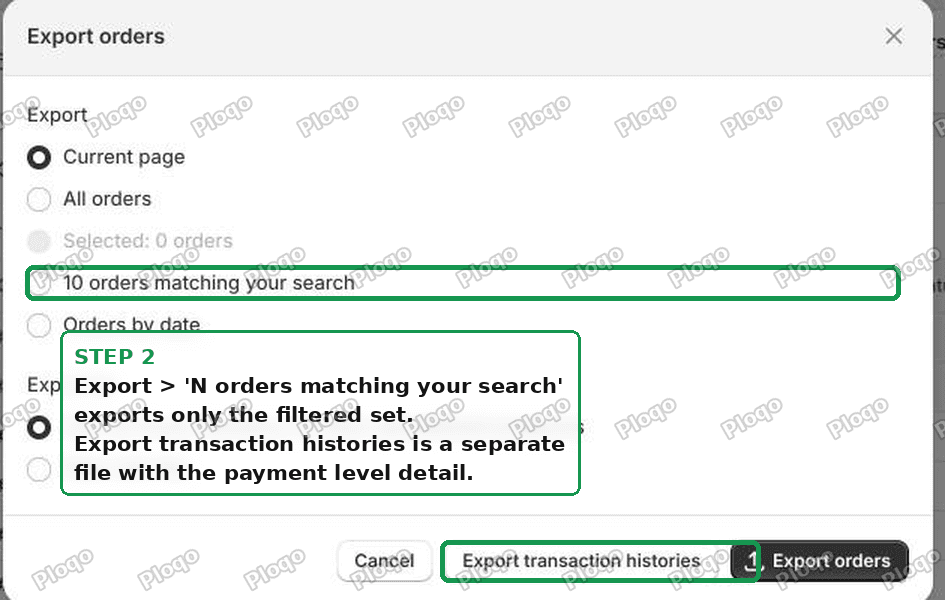 The Shopify export dialog offering to export only the orders matching your current search
Choose "N orders matching your search", not All orders. You get a CSV of just those orders, with the gross totals your accounts asked for.
The default selection is Current page, which only gives you what is on screen. Change it.
The second export, easy to miss
The same dialog has a separate button: Export transaction histories.
That is a different file. The orders export is one row per order. The transaction export is payment level, so refunds, captures and authorisations appear as their own lines.
If you are reconciling against a provider's payout statement rather than just totalling sales, that is usually the more useful file of the two. Pull both.
Make it a monthly report
If this is a recurring job rather than a one off, do not retype the search every month.
Run the search once, then click Save as new view. Name it something like "Clearpay orders".
It becomes a tab along the top of the Orders page. Each month you open the tab, set the date range, and export. No syntax to remember, and your team never has to know what a gateway handle is.
Combining it with other filters
The gateway search sits alongside the normal filters, so you can narrow further.
Add a date range from the Date filter and export a single month. Add Payment status to exclude anything unpaid or partially refunded. Add Fulfillment status if you only want shipped orders.
You can also combine terms directly in the search box:
gateway:clearpay financial_status:paidThe saved view stores the whole combination, so a month end export becomes two clicks.
What the export actually contains
The orders CSV is wide, around eighty columns, and one row per line item rather than per order. That surprises people the first time.
An order with three products produces three rows. The order level fields, including the total, are filled in on the first row of each order and left blank on the rest. If you sum the total column naively you will get the right answer, because the blanks are genuinely empty rather than repeated, but if you count rows you will overcount your orders.
For an accounts handover, the columns that usually matter are Name, the order number, Paid at, Financial Status, Total, and the payment gateway columns near the end.
Clearpay or Afterpay, which name does Shopify use?
They are the same company. Afterpay operates as Clearpay in the UK and most of Europe, and as Afterpay in Australia, New Zealand and the US.
Which string your store records depends on how the provider was installed and when. That is exactly why guessing once and giving up is the wrong move. Try both, and remember a miss costs you nothing because the search simply returns no orders.
Once you know which one your store uses, save the view and you never have to think about it again.
Where do I see the payment method on a single order?
Open any order and look at the payment section under the line items. It shows the provider's display name, so "Clearpay" rather than clearpay.
This is the friendly name, and it is genuinely useful for checking one order by eye. It is just not the string the search box wants, and it is not available as a column or a filter, which is the whole reason this article exists.
What if I use Shopify Payments?
Then you get more, not less.
Shopify Payments orders carry the processing fee per transaction, so the commission you cannot get from Clearpay is available for those. You will find it in the transaction export, and in Finance then Payouts, where each payout is broken down into gross, fees and net.
That is why the answer splits by provider. With Shopify Payments the reconciliation can be finished inside Shopify. With any third party gateway, Shopify holds the gross and the provider holds the fee, and the two have to be matched up outside.
When this is not enough
The search and export route covers most cases. Two situations where it will not.
You need per order commission. As above, that data is not in Shopify for third party gateways. It lives in the provider's payout report.
You need it automated on a schedule. The admin export is manual and lands in your inbox as a file. If you want a monthly CSV pushed somewhere without a human clicking Export, that is either a reporting app or a small script against the Admin API filtering on gateway.
For most merchants asking this question, the saved view plus a monthly export is the right size of solution. It is free, it takes about two minutes to set up, and it does not add another app to the stack.
The short version
There is no payment method filter in the Shopify Orders list and no column for it either.
Type gateway:clearpay into the search box instead. A wrong guess returns nothing rather than everything, so you can safely try clearpay then afterpay until one hits. Then Export, and pick "orders matching your search" rather than All orders.
Save the search as a view and next month is two clicks.
And the total in that export is already the pre commission figure, because the provider's cut never enters Shopify's data in the first place.
Spending too long on manual Shopify busywork?
PinFlow turns your Shopify catalog into Pinterest pins and posts them on a schedule, automatically. Same idea as the rule above, let the system handle the repetitive part.
Get PinFlow on the Shopify App StoreMore Shopify fixes
More community-sourced Shopify guides, tested on a live store.
Shopify Admin
Shopify New Admin (2026): Where Search, Sidekick and Settings Went
Shopify's new admin moved search, alerts, the store switcher and Settings into the black sidebar, and Sidekick to a bar at the bottom. Where each one is now.
Shopify Admin
How to Use the New Shopify Admin (2026): Every Main Screen
A tour of the new Shopify admin: the black sidebar, search and Ctrl K, Home, Orders, Products, Settings and Sidekick, with where to click on each screen.
Shopify Admin
Schedule a Black Friday Sale in Shopify (Auto Start and End)
Give the discount its own start and end date and put the sale banner in an Event rollout with the same dates. Both start at midnight and end after Cyber Monday.