
Shopify Order Printer: Print Every Order in One Go
Shopify's bulk Print menu offers packing slips and nothing else until you install Order Printer. Here is how to add it, how to change what the document says, and how to print fifty orders at once, with screenshots from a live admin.
By AjayCodeWiz · September 15, 2026 · 9 min read
The problem
You have forty orders to pack. Each one needs a printed sheet on the bench, and the sheet needs the delivery note your customer service team typed, the tags that tell the packer which are rush, and the engraving text the buyer entered at checkout.
Shopify's Orders screen lets you select all forty. Then you open Print, and there is one option: Print packing slips. The packing slip carries the items and the shipping address and nothing else.
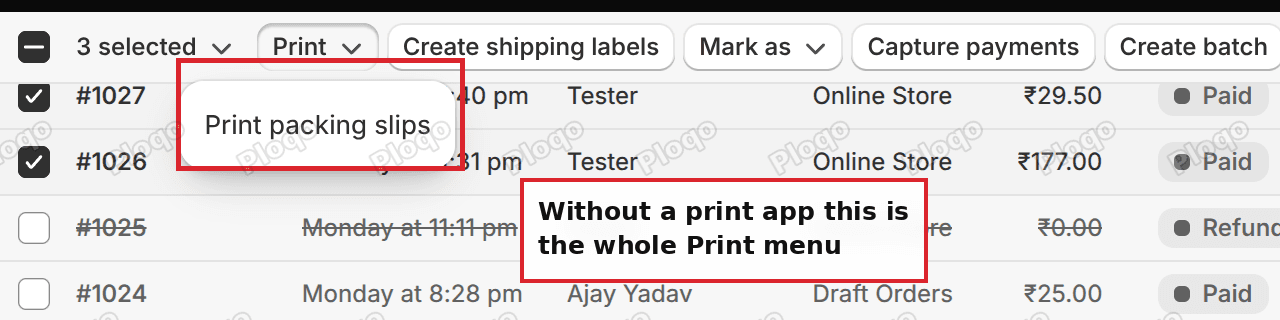 The Shopify bulk Print menu on a store with no print app, offering only Print packing slips
The answer is a free app published by Shopify itself. It adds a second entry to that same menu, it prints every selected order in one job, and the document it prints is one you design.
What Order Printer is
Shopify Order Printer is a free app, listed by Shopify on the App Store, that adds printable documents to your admin. It comes with three ready-made ones: a pick list, a packing slip and an invoice. You can edit all three, and you can build new ones.
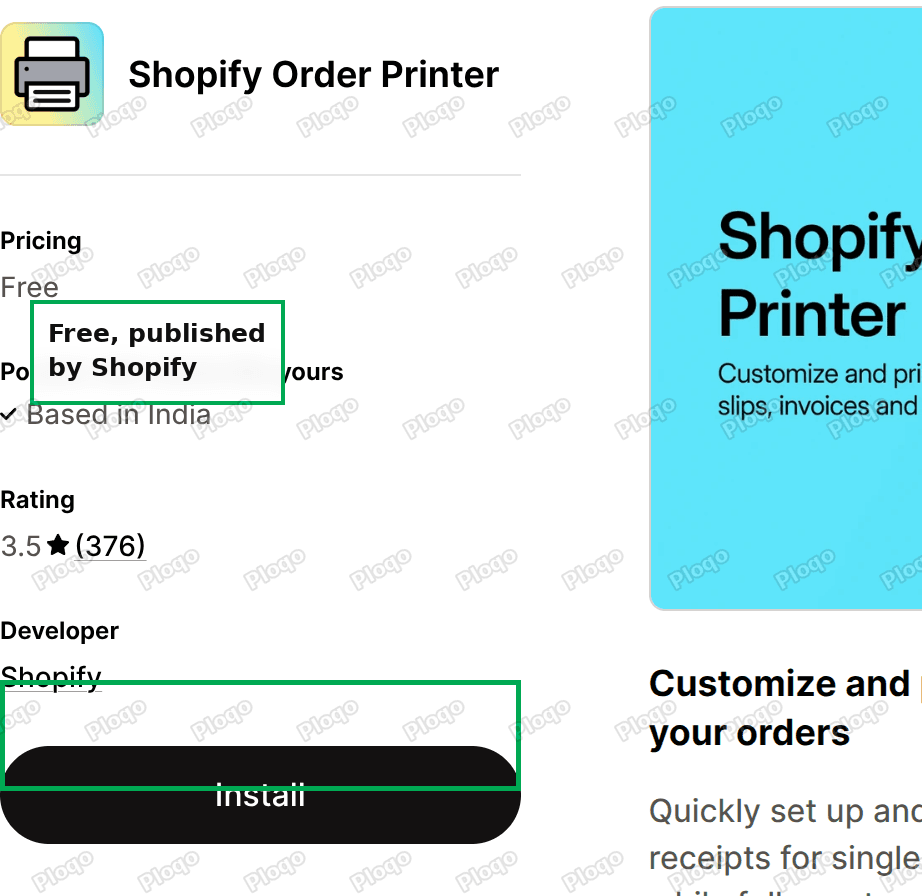 The Shopify Order Printer listing on the App Store, free, published by Shopify
It has no plan requirement and no paid tier. Install it from the App Store listing and it appears in your admin under Apps.
Two things to know before you start:
- It prints up to 50 orders in one run. Larger batches get worked in pages of 50.
- Customising a document means writing HTML, CSS and Liquid. Liquid is Shopify's template language, the thing that drops each order's real values into the page.
Step 1: find the templates
In the admin, open Order Printer from the left sidebar, then Templates.
The three documents it ships with are listed as cards, each showing a preview. The Create template button in the corner starts a new one: you can begin from a copy of the invoice, packing slip or pick list, or from Blank template and build the whole thing yourself.
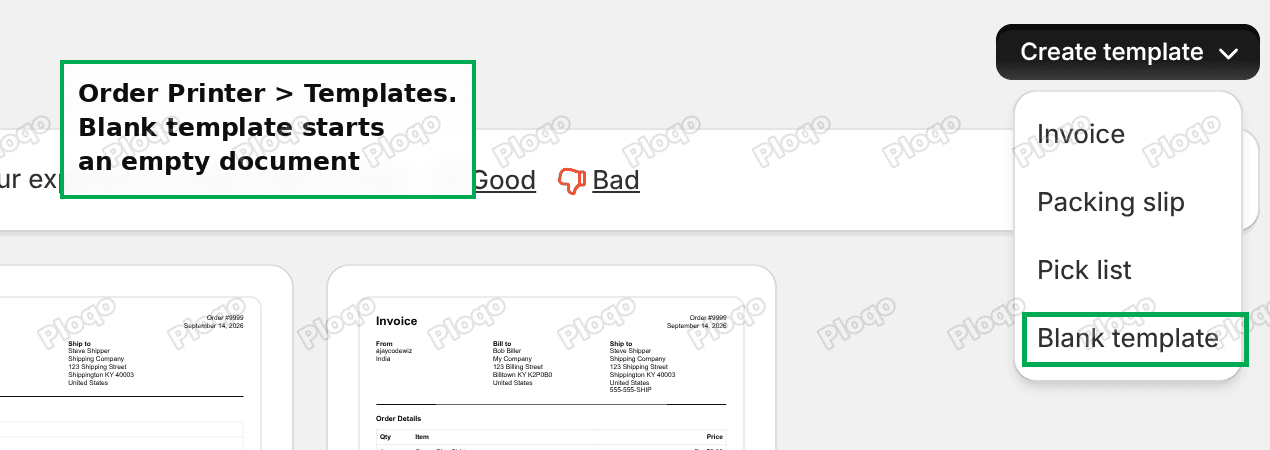 The Order Printer Templates page with the Create template menu open, showing Blank template
There is a second way in, which is useful if you would rather your staff did not go rummaging through the Apps section. Go to Settings > Shipping and delivery, scroll to Documents, and open Templates.
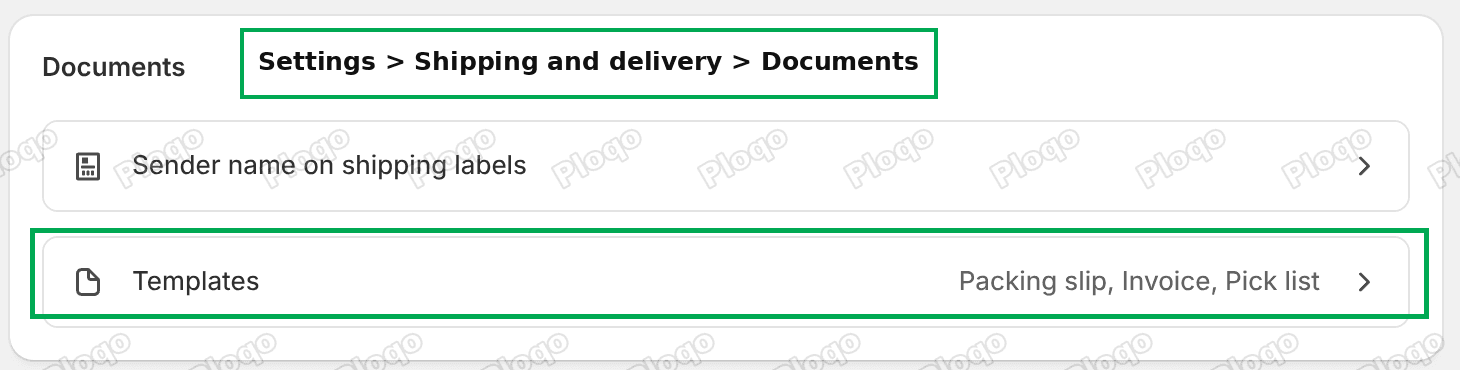 The Documents section of Shopify Shipping and delivery settings, with a Templates row
Both routes open the same list.
Step 2: change what the document says
Open any template and you get two tabs. Edit code holds the document itself. Preview renders it against a real order from your store, so you are not guessing at how a change will land.
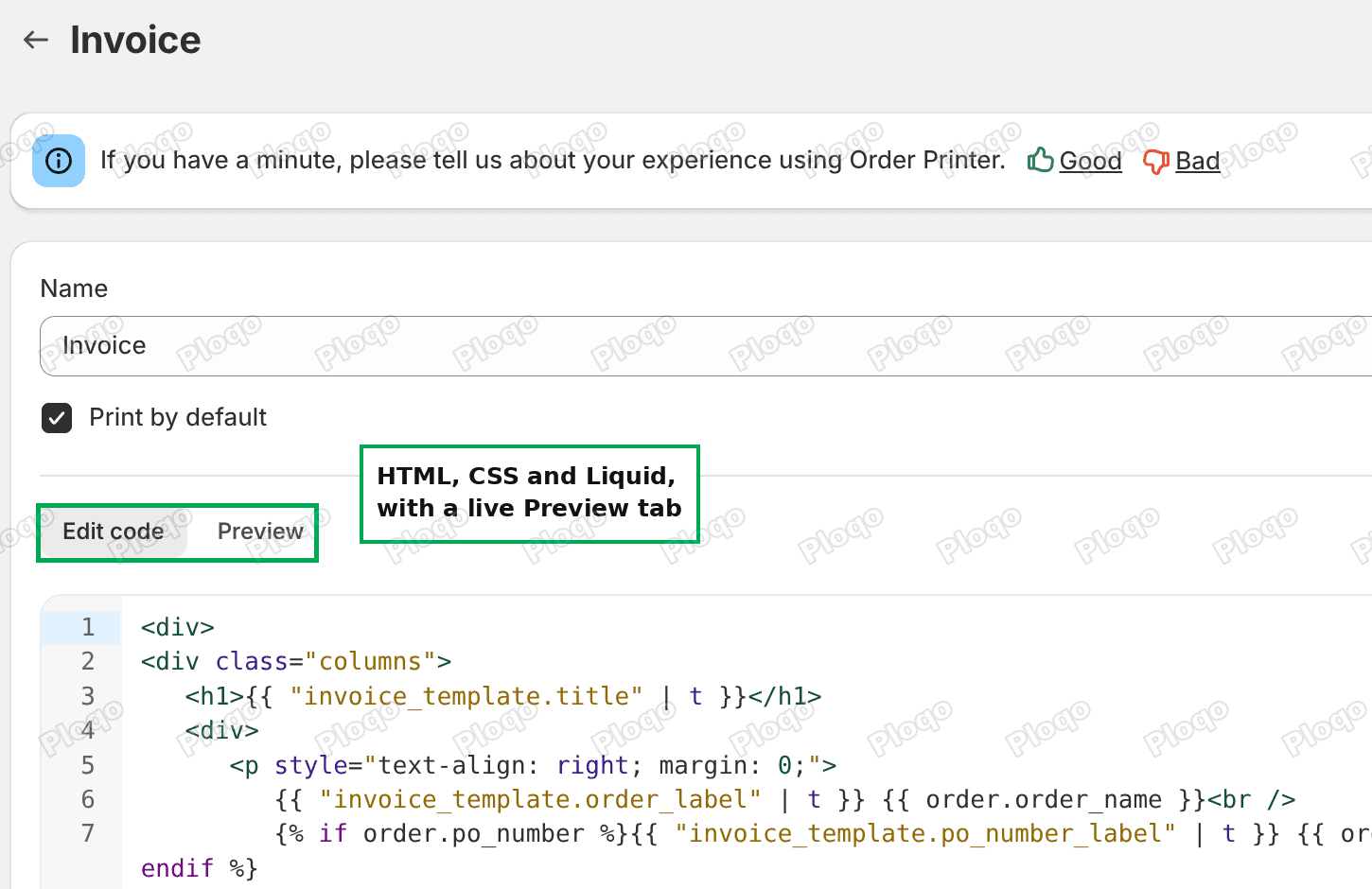 The Order Printer template editor with the Edit code and Preview tabs
There is also a Print by default checkbox at the top. Leave it ticked and the template is pre-selected every time you print; untick it and staff have to choose it deliberately.
The code is ordinary HTML and CSS with Liquid mixed in. Liquid is what pulls the order's real values into the page. A line like this:
{{ order.order_name }}prints #1029 when you print order #1029.
What you are allowed to put on it
The stock packing slip leaves out most of the order, and this table is what you replace it with. Shopify's reference for Order Printer templates gives you these, and this list is why the app can replace the order page rather than just decorate a packing slip:
| What you want on the sheet | The Liquid to use |
|---|---|
| Order number, date | order.order_name, order.created_at |
| The note staff typed on the order | order.note |
| Every tag on the order | order.tags |
| Cart attributes from checkout | order.attributes |
| Items, with SKU and options | line_items |
| Per-item instructions | line_item.properties |
| Tax breakdown | tax_lines |
| Delivery method chosen | shipping_methods |
| Payments taken, and how | transactions |
| What has shipped, with tracking | fulfillments |
| Money returned | refunds |
| Customer record | customer |
| Your own shop details | shop.name, shop.address |
The ones that matter most to a packing bench are note, tags, attributes and line item properties, because those four are where the human instructions live, and none of them appear on a stock packing slip.
A short example. To print the order note under a heading, but only when there is one:
{% if order.note != blank %}
  <h3>Note</h3>
  <p>{{ order.note }}</p>
{% endif %}
The {% if %} guard matters. Without it, every order with no note prints an empty heading.
Start from the invoice, not the packing slip
If you want a sheet that reads like the order page, duplicate the Invoice template rather than the packing slip. It already carries the billing address, line prices, discounts, tax, totals, the amount outstanding and a table of transactions. That is most of the way to a full order sheet before you have written a line.
Step 3: print in bulk
Back on Orders, tick the orders you want. The bulk action bar appears along the top. Open Print, and Order Printer now sits in that menu alongside Print packing slips.
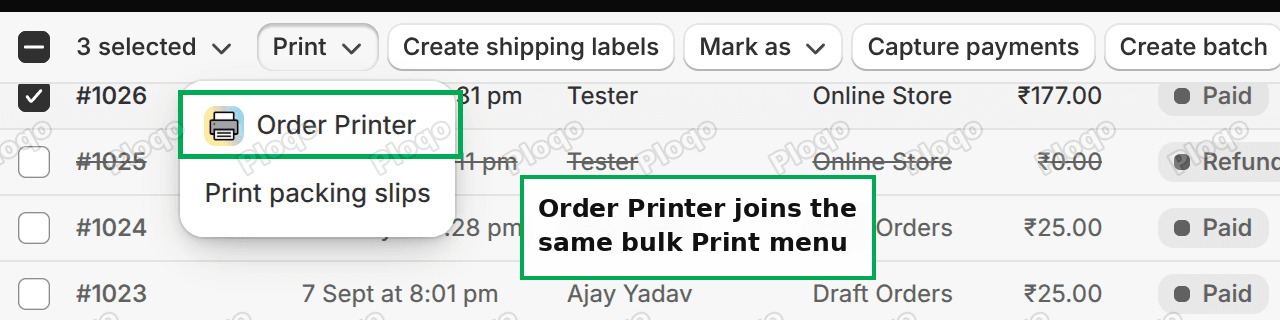 The Shopify bulk Print menu after installing Order Printer
Choosing it opens a dialog listing every template you have. Tick the documents you want for this run, check the preview, then Continue to print. All the selected orders come out in one job.
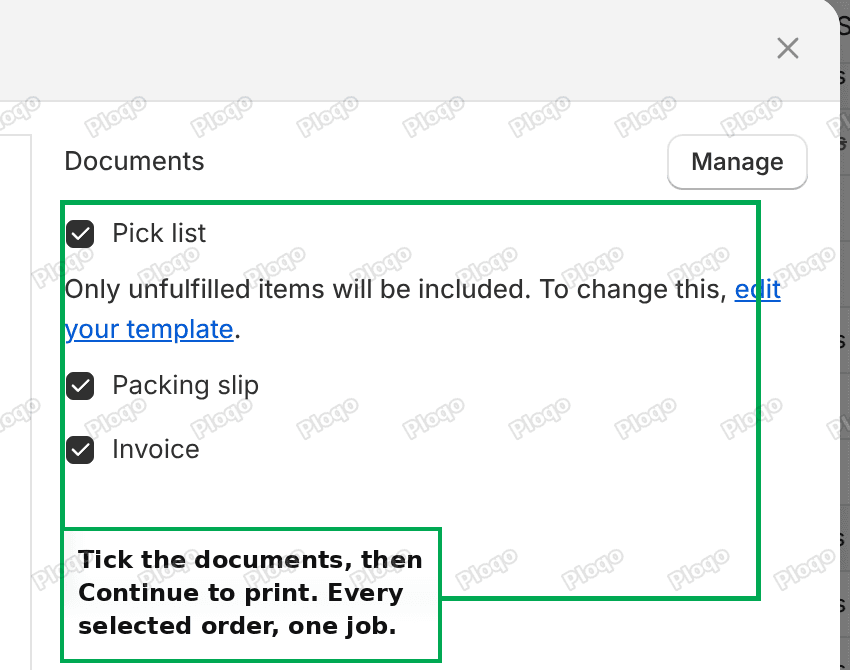 The Order Printer print dialog listing Pick list, Packing slip and Invoice with checkboxes
The same Print menu on an individual order page offers the same templates, so a single reprint does not need a different process.
Common questions
Can I print more than 50 orders at once?
No. The listing states a cap of 50 orders per run. For a 200-order day, filter the Orders list, select 50, print, then move to the next 50. Sorting by order number first keeps the piles in a sensible order.
Can I save the documents as PDFs instead of printing them?
Not directly. Order Printer sends the document to your browser's print dialog, and most browsers offer "Save as PDF" as a destination there. That produces one PDF for the whole batch rather than one file per order. If you need individual PDF files, or PDFs emailed to customers automatically, that is what the paid invoice apps are built for.
Does it work on every Shopify plan?
Yes. The app is free with no paid tier, and nothing in its listing names a plan requirement.
Why does my pick list only show some items?
By design. The dialog says it plainly: only unfulfilled items are included on the pick list. That is right for picking, since already-shipped items do not need picking again, but it surprises people who expected a complete item list. Edit the pick list template if you want every item.
Can I add my logo?
Yes, the same way you would add an image to any web page. Upload the image under Content > Files in your admin, copy its URL, and put an <img> tag in the template with that URL as the source.
Can I print purchase orders or POS receipts with it?
No to both. Purchase orders are a separate part of the admin that this app does not reach, and the listing states that customising POS printer receipts is not supported. POS receipts have their own editor in the Point of Sale channel.
If it is not working
- Order Printer is missing from the Print menu. The app installed but the Orders page was already open. Reload the Orders list and select the orders again.
- A template prints blank. Usually a Liquid tag that was opened and not closed. Every
{% if %}needs an{% endif %}and every{% for %}needs an{% endfor %}. The Preview tab shows the failure before you waste paper. - A field prints nothing. The order may not have that value. Wrap it in an
{% if %}and test on an order you know has one, using the Preview tab. - Page breaks land badly. Add
page-break-after: alwaysin the template's CSS on the outermost wrapper so each order starts a fresh sheet. - The Documents section is missing from Shipping settings. Use the Order Printer entry in the admin sidebar instead, shown in step 1 above. It opens the same list.
Words that get mixed up
- Packing slip: the sheet that goes in the box. Items and shipping address, no prices.
- Invoice: a money document. Prices, tax, totals, what was paid.
- Pick list: a picking aid, grouped for walking the shelves. Unfulfilled items only, by default.
- Template: the design of one of those documents, written in HTML and Liquid.
- Liquid: the code Shopify uses to drop real order values into a template.
- Line item property: an instruction attached to one item, such as an engraving message, usually captured at checkout.
- Order attribute: an instruction attached to the whole order, such as a delivery window.
Tested on
Checked in a live Shopify admin in September 2026. Before installing, the bulk Print menu on a selection of three orders offered Print packing slips and nothing else. After installing Shopify Order Printer, the same menu offered Order Printer, which opened one dialog listing Pick list, Packing slip and Invoice with a single Continue to print for the whole selection. The Templates page offered Invoice, Packing slip, Pick list and Blank template under Create template, and each template opened on an Edit code tab containing HTML, CSS and Liquid alongside a Preview tab. The same template list appeared at Settings > Shipping and delivery > Documents > Templates. The 50-order cap is quoted from the app's own App Store listing, not measured.
Wiring up the manual bits of your Shopify store?
PinFlow handles one of them for you: getting your Shopify catalog onto Pinterest consistently, on a schedule, without a person doing it every week.
Get PinFlow on the Shopify App StoreMore Shopify fixes
More community-sourced Shopify guides, tested on a live store.
Shopify Admin
Shopify New Admin (2026): Where Search, Sidekick and Settings Went
Shopify's new admin moved search, alerts, the store switcher and Settings into the black sidebar, and Sidekick to a bar at the bottom. Where each one is now.
Shopify Admin
How to Use the New Shopify Admin (2026): Every Main Screen
A tour of the new Shopify admin: the black sidebar, search and Ctrl K, Home, Orders, Products, Settings and Sidekick, with where to click on each screen.
Shopify Admin
Schedule a Black Friday Sale in Shopify (Auto Start and End)
Give the discount its own start and end date and put the sale banner in an Event rollout with the same dates. Both start at midnight and end after Cyber Monday.