
Shopify POS UI Extensions: What They Can and Cannot Add
POS UI extensions are how an app puts its own screens inside Shopify POS. Here is what the smart grid already does for free, what an extension can add on top, and the limits worth knowing before you pay for one.
By AjayCodeWiz · September 14, 2026 · 10 min read
The question behind this
A retailer with an image-heavy catalog wanted one thing from Shopify POS: browse a collection as a grid of photos instead of a list of product names. Their staff recognise a ceramic bowl faster by sight than by reading "Stoneware Bowl, Speckled Grey, 16cm" off a list.
Shopify POS does not have a list-to-grid toggle. They asked on the Shopify Community in September 2026, and the follow-up question is the one that matters to any shop owner: can an app do it, and what would it cost to find out?
The answer runs through POS UI extensions, which are the pieces an installed app is allowed to add inside the POS app on your iPad or phone. Most of what an app can do at the till, it does through one of these. Before you go shopping for an app, it is worth knowing how much of the job the built-in POS editor already does.
Start with the smart grid, because it is free
The smart grid is the home screen of the POS app: the page of square buttons your staff see before they ring anything up. Each button is a tile, and you decide what the tiles are.
Two of the tile types carry a real photograph, and that is what makes the smart grid the closest thing POS has to a visual product browser today.
Open the POS editor
The editor lives in the Shopify admin, not on the device.
Go to Sales channels > Point of Sale > Settings, then under Customization click POS app.
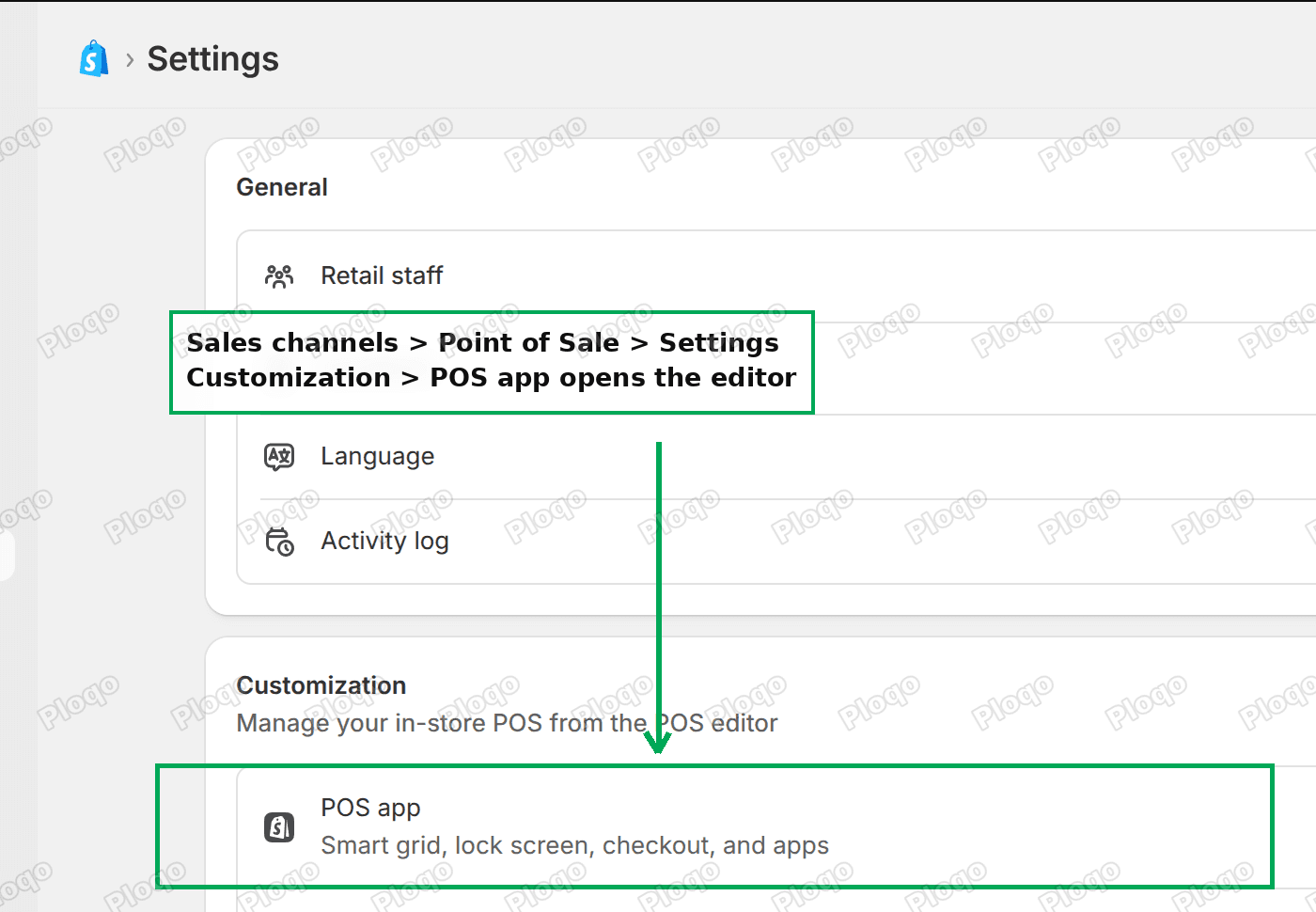 Shopify Point of Sale settings with the Customization card and the POS app row
Shopify's own documentation sends you somewhere else: to the Point of Sale overview page, where a Customize the in-store experience card has an Edit button for the POS app. That card appears only after a POS device has been set up on the store. On a store that has never signed a device in, the card is not on the page at all. The Settings route above works either way, so use it if the card is missing.
Add the tiles
Inside the editor, pick a page in the left sidebar and click Add tile. Eight tile types are offered: Action, Link, Fee, Discount, Product, Collection, Fulfillment and Embedded Apps.
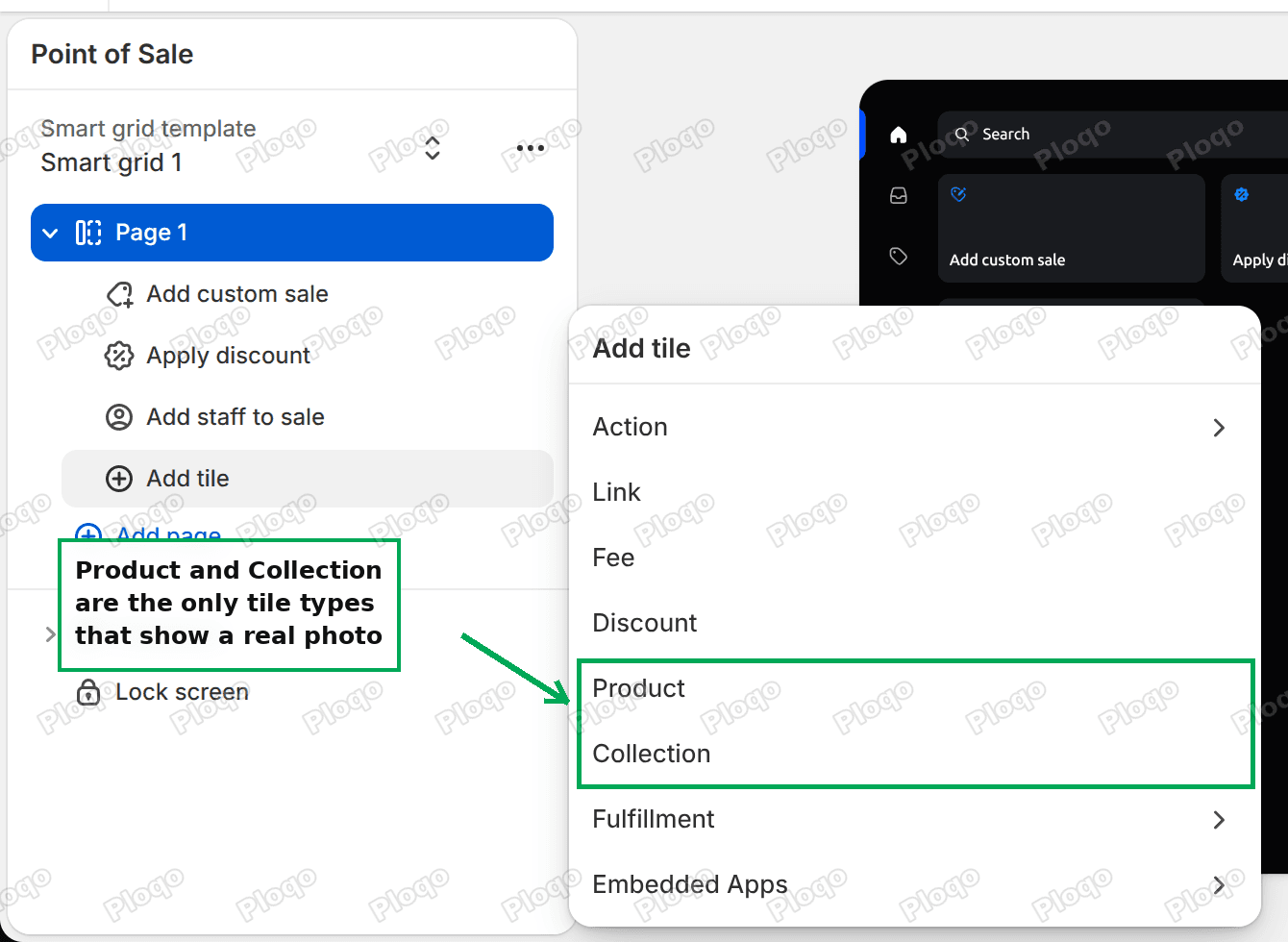 The Add tile menu in the Shopify POS editor listing all eight tile types
Product and Collection are the only two that render a real photo as the face of the tile. The rest take an icon in a colour you pick. A collection tile also carries a small badge with the number of products in it, which updates as the collection does.
Here is a page built from one collection tile and three product tiles, in the editor's live POS preview:
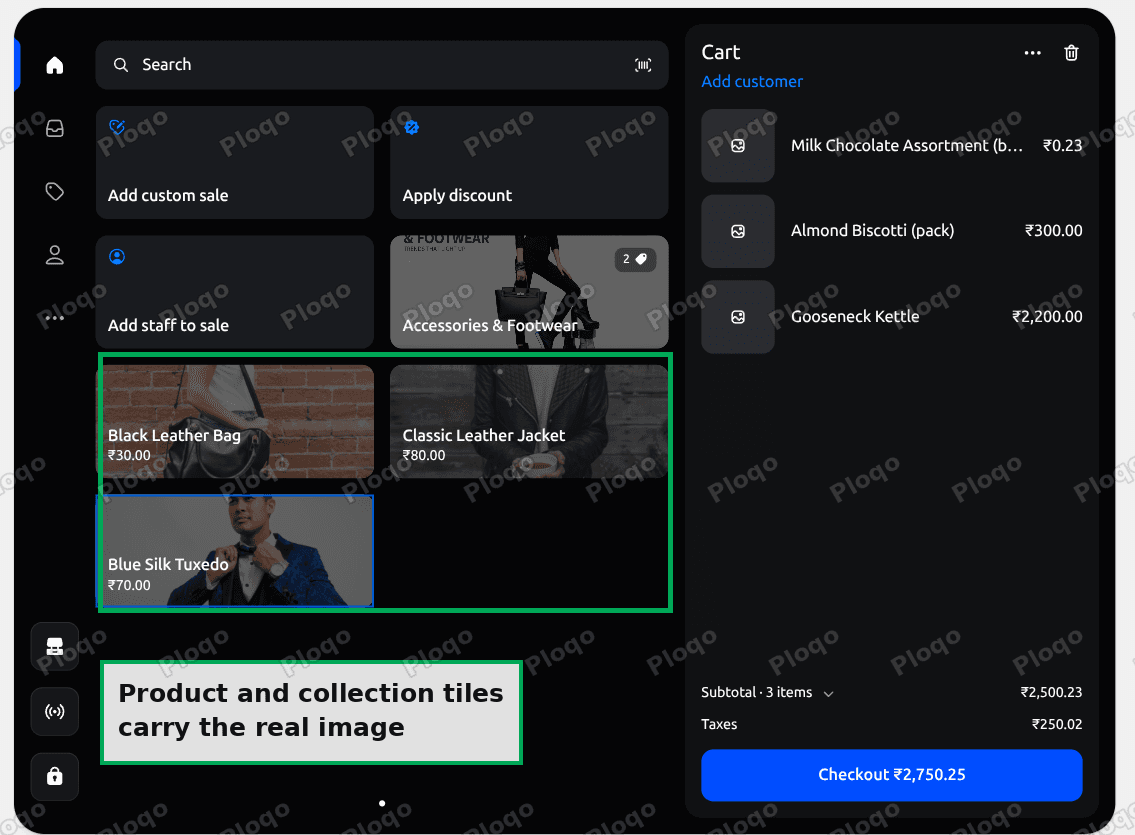 A Shopify POS smart grid page with product and collection tiles showing product photography
That is a visual picker, built with no code and no app, and it is worth building before spending money on anything else.
The catch: a product with no photo
A product tile for a product that has no image gives you a flat dark rectangle with the title and price on it. It still works, but it stops the page being scannable, which was the entire point.
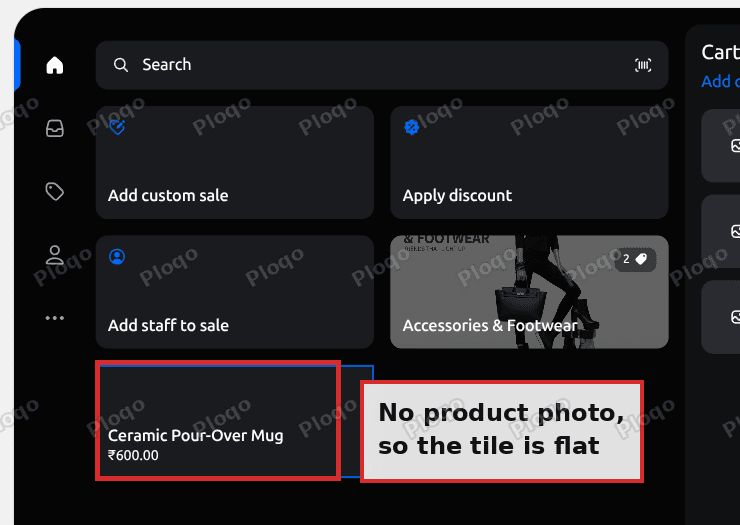 A Shopify POS product tile for a product with no image, showing only the title and price
Fill in the missing product photos before you build the page, or leave those items to search.
Different layouts per shop, already supported
The original request included wanting different layouts per location. That part exists.
A smart grid template is one saved layout. Open the "..." menu beside the template name in the editor:
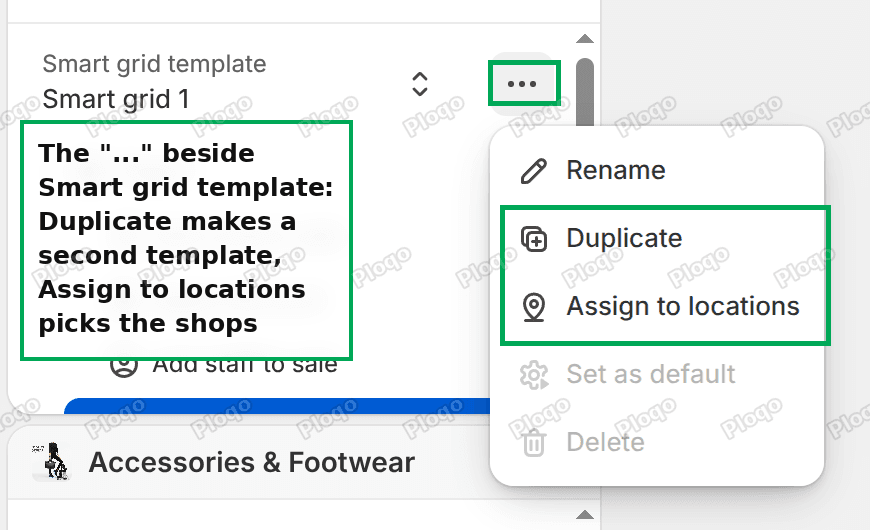 The Shopify POS smart grid template menu with Rename, Duplicate and Assign to locations
- Duplicate makes a second template you can edit independently.
- Rename lets you call it something staff will recognise, like "Homewares counter".
- Assign to locations opens a dialog where you pick All locations, or tick individual shops.
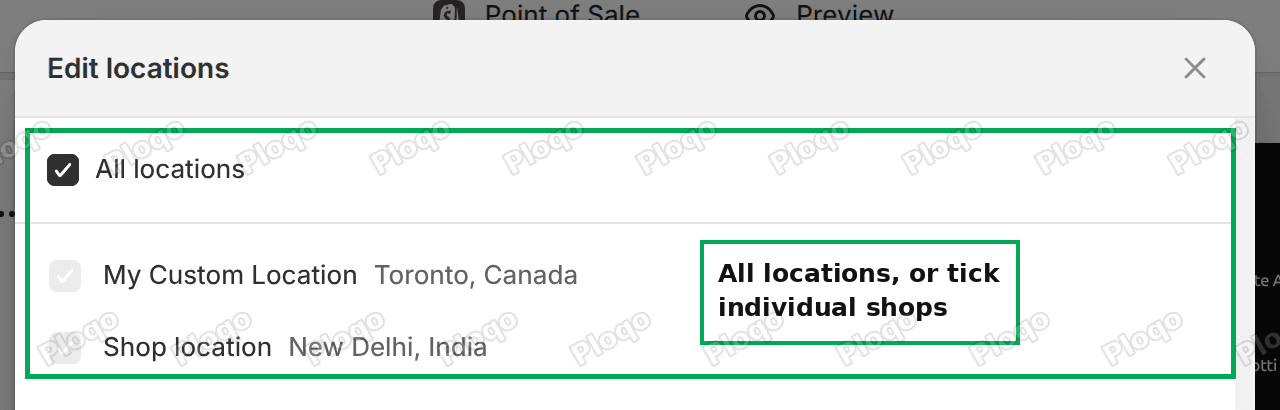 The Edit locations dialog assigning a Shopify POS smart grid template to specific shops
So a two-shop retailer can run one grid at the flagship and a different one at the concession, from the same admin, at no extra cost.
Where the built-in editor stops
Tiles only cover the products you place by hand. Tap a collection tile and you are into Shopify's own browse screen, and nothing in the POS editor changes how that screen is laid out.
The editor's Settings tab holds five things: Receipt options, Required customer information, Add staff to sale, Nearby device log in and Gift cards.
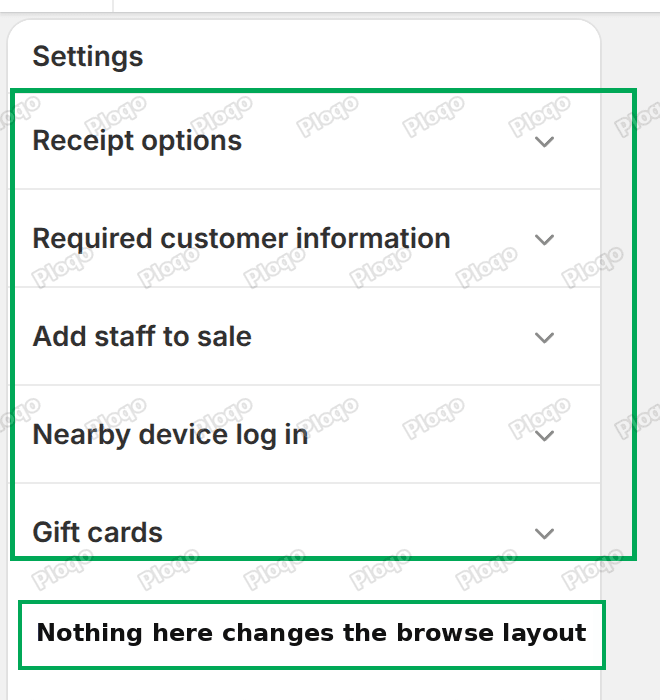 The Settings tab of the Shopify POS editor, with no option for browse layout
There is no view or layout control. For a catalog of a few thousand items, a curated page of tiles per department is as far as the free tools go.
What a POS UI extension actually is
An app you install can add its own pieces to the POS app. Those pieces are POS UI extensions, and each one attaches to a fixed spot Shopify calls a target. An extension cannot appear wherever it likes; it appears where a target exists.
The targets most relevant to a browsing problem are these two:
- A home screen tile, which is an app's own tile sitting among yours on the smart grid.
- A home screen modal, which is the full screen the app opens when that tile is tapped.
That pairing is the standard shape. The tile is the entry point and can show a short label plus a badge; the real work happens in the modal, which gets the whole screen.
Inside the modal the app is not writing free-form HTML. It assembles Shopify's own components, which keeps it looking like POS rather than like a website embedded in POS. The set includes images, stacks for laying things out in rows and columns, clickable wrappers, buttons, a search field, scroll boxes, headings, badges, text fields and a handful of pickers.
There is no ready-made grid component. The documentation says so directly: complex grid-like layouts need nested stacks. So a photo grid is built from a stack of rows, each row a stack of image-plus-label cells, each cell wrapped in a clickable. That is ordinary work, not a blocker.
What it can read and write
Two APIs carry the weight for this kind of screen.
The product search API is POS's own search, exposed to the extension. It can run a text query, page through results 50 at a time, sort alphabetically or by date added, look up products or variants by ID in batches of up to 50, and read each product's featured image as a URL. That last part is what makes a photo grid possible at all.
The cart API is what turns a tapped photo into a sale. It can add a line item, add properties or a discount to a line, set the customer, attribute staff, and clear the cart.
So the round trip works: search or fetch products, draw them as photos, and add the tapped one to the cart without leaving the screen.
The two limits worth knowing before you commission one
Both of these shape the price of the work, so hand them to whoever quotes for it.
POS product search has no collection filter. It takes a search string and a sort order, and that is the whole input. There is no "products in collection X" query. An app that wants to show you a collection has to get that list from its own server, using Shopify's admin API, then look the products up in POS by ID.
Bulk product lookup is capped at 50 per call. Extra IDs beyond 50 are dropped rather than queued. A 400-product department means eight calls and some paging logic, which is fine, but it is work that has to be written and it is why "just show me the collection" is not a one-afternoon build.
Common questions
Does a POS UI extension need POS Pro?
The extension mechanism itself is not the gate. Individual features are: the Fulfillment tile type in the smart grid, for example, is available only at locations on Shopify POS Pro. Check the app's own listing for what it requires, and check your locations' plan before assuming.
Can an app change the existing POS product list?
No. An extension adds its own screens at the targets Shopify provides. It does not restyle or replace screens that POS already draws, so the collection browse screen stays as it is whatever you install. An app's grid is a second, parallel way in, reached from its own tile.
Will an app's grid show my B2B prices?
Not by itself. A POS cart carries a customer, not a company, so company catalog pricing does not reach the till. Any app-side pricing is the app's own rules, configured separately from your Shopify catalogs. That is a separate problem with its own answer, covered in Shopify POS payment methods.
Are there apps that already do this?
Nothing on the App Store does collection browsing as a photo grid. The nearest listings extend a different part of the till: one adds a predefined product list to the cart from a smart grid tile, another extends POS search so staff can match on a part number or on a metafield, which is an extra field you add to a product to hold your own information. Both are POS UI extensions, which is a useful proof that the mechanism works for this kind of screen.
Where do I ask Shopify for the toggle itself?
The Shopify Community boards are merchants and partners, so a feature request posted there reaches other shop owners rather than the team that builds POS. Shopify's developer community at community.shopify.dev is where product staff take part.
If the tiles are not behaving
- The Customize the in-store experience card is missing. No POS device has been set up on the store yet. Use Sales channels > Point of Sale > Settings > Customization > POS app instead.
- A tile shows no image. It is a Product tile for a product without a featured image, or it is a tile type other than Product and Collection. Only those two carry photographs.
- Changes are not on the device. Save in the editor, then check the device is signed in to a location the template is assigned to. A template assigned to All locations covers every shop.
- The collection tile count looks wrong. The badge counts products in the collection, which for an automated collection can move as products change. Open the collection in the admin to see the current members.
Words that get mixed up
- Smart grid: the home screen of the POS app, made of tiles.
- Smart grid template: one saved smart grid layout. You can have several and assign each to particular shops.
- Tile: one button on the smart grid. Eight types exist; Product and Collection are the two that show a photo.
- POS UI extension: a screen or tile an installed app adds inside POS.
- Target: the fixed spot in POS where an extension is allowed to appear, such as the home screen tile or the modal it opens.
- POS Pro: the paid POS tier. Some tile types and features need it.
Tested on
Checked in the Shopify POS editor on a live store in September 2026. The tile types are Action, Link, Fee, Discount, Product, Collection, Fulfillment and Embedded Apps. A product tile with a featured image renders the photo; the same tile for a product with no image renders the title and price on a flat background. The template menu offers Rename, Duplicate, Assign to locations, Set as default and Delete, and Assign to locations lists every store location individually. The editor's Settings tab carries no layout or view option. The extension components, targets and API limits come from Shopify's POS UI extensions reference, not from a device test.
Wiring up the manual bits of your Shopify store?
PinFlow handles one of them for you: getting your Shopify catalog onto Pinterest consistently, on a schedule, without a person doing it every week.
Get PinFlow on the Shopify App StoreMore Shopify fixes
More community-sourced Shopify guides, tested on a live store.
Shopify Admin
Shopify New Admin (2026): Where Search, Sidekick and Settings Went
Shopify's new admin moved search, alerts, the store switcher and Settings into the black sidebar, and Sidekick to a bar at the bottom. Where each one is now.
Shopify Admin
How to Use the New Shopify Admin (2026): Every Main Screen
A tour of the new Shopify admin: the black sidebar, search and Ctrl K, Home, Orders, Products, Settings and Sidekick, with where to click on each screen.
Shopify Admin
Schedule a Black Friday Sale in Shopify (Auto Start and End)
Give the discount its own start and end date and put the sale banner in an Event rollout with the same dates. Both start at midnight and end after Cyber Monday.