
Add a Free Shipping Progress Bar in Shopify (No App)
Add a free shipping progress bar to the Shopify cart that fills as items are added and shows how much more to spend, with no app. Tested on the Horizon theme.
By AjayCodeWiz · August 14, 2026 · 8 min read
The problem
A merchant asked about this on the Shopify Community. They wanted a free shipping progress bar at the top of the cart. Not a full-width banner in the header, just a small bar inside the cart itself.
The bar they described is the one you see on a lot of stores:
- It compares the cart total to a threshold and fills up by the right percentage.
- It swaps the message as you shop. "You're $12 away from free shipping" turns into "You've unlocked free shipping!"
- It recalculates the moment an item is added or removed, with no page reload.
- It shows the remaining amount in the store's currency.
- It sits at the top of the cart drawer and the cart page.
They were on the Horizon theme. They had followed a YouTube tutorial, but it did not work. Their words: the newer version of Horizon changed, and they could not find where to put the code.
That last part is the real issue, and it is worth understanding before you copy anything.
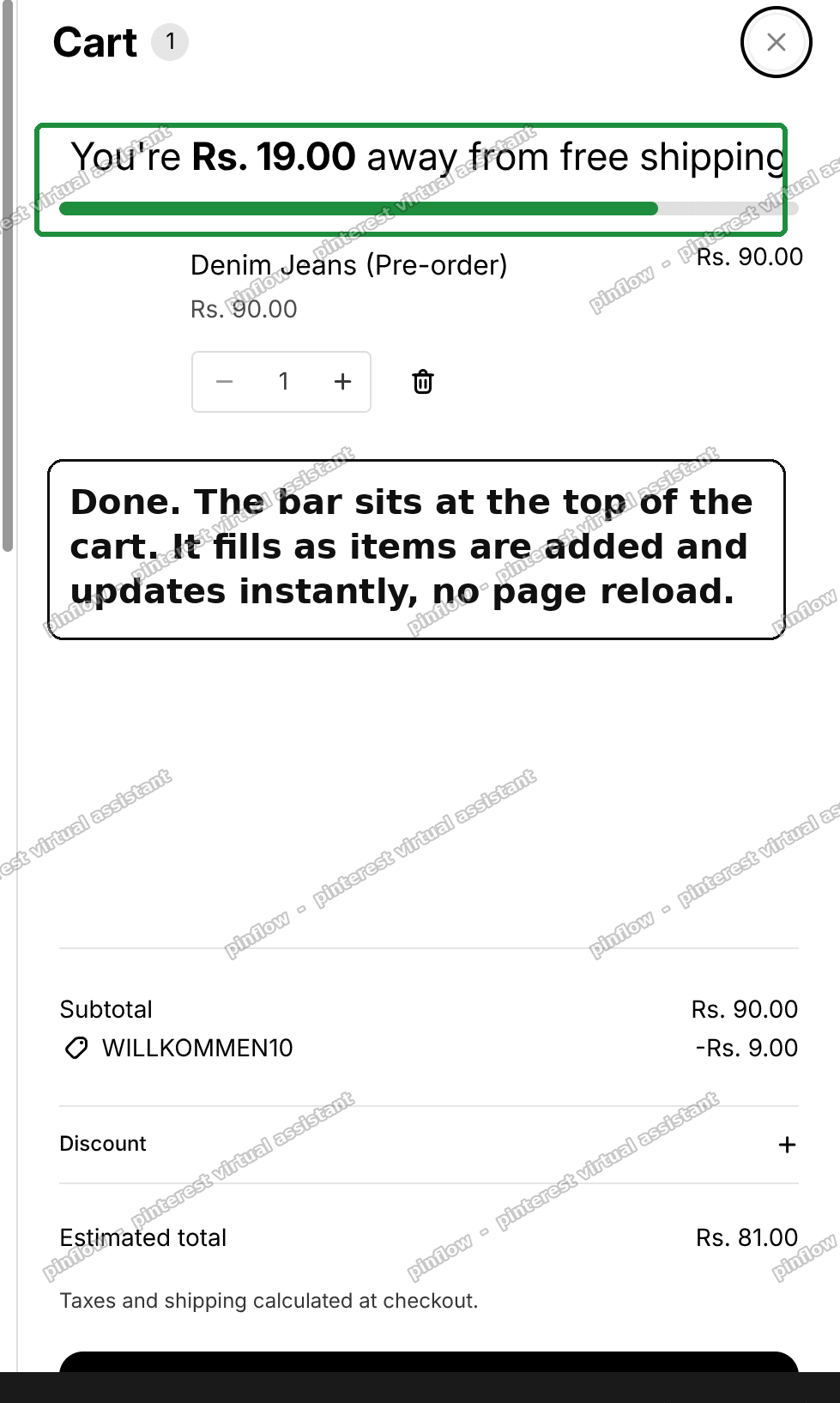 Free shipping progress bar at the top of the Shopify cart drawer, showing how much more to spend
I reproduced the whole thing on a Horizon store and found a version that is short, reliable, and needs no JavaScript. Here is what worked.
Why the old tutorials break on Horizon
Most free shipping bar tutorials were written for older themes like Dawn. Horizon is Shopify's newer theme, and it builds the cart in a different way. Two things trip people up.
First, the cart drawer in Horizon does not accept a "block" you can drop in from the theme editor. On older themes you could often add a Custom Liquid block right in the cart area and paste your code there. Horizon's cart drawer has no such slot. So the point-and-click route the tutorial assumed simply is not there. That is exactly why the merchant could not "find the place to put the code."
Second, Horizon re-renders the cart by itself every time it changes. When you add or remove an item, Horizon re-fetches and repaints the cart contents. Older code that manually watched the cart and updated a bar can fight with this, or sit in the wrong spot and go stale.
Both of these sound like bad news. They are actually the key to a clean fix. If Horizon repaints the cart on every change, then a bar built the right way updates itself for free. No event listeners. No JavaScript at all.
What you need
- Any store on the Horizon theme. This was tested on Horizon, and the same idea works on the cart page and the cart drawer at once.
- Access to Edit code on your theme. That is Online Store, then Themes, then the three dots menu, then Edit code.
You do not need an app, a paid plan, or any JavaScript knowledge. You are pasting one small file and adding one line.
The fix: two edits
The whole thing is two edits. One new file, and one line added to an existing file.
Step 1: add the snippet
A "snippet" is a small reusable piece of theme code. You make it once and then call it wherever you want it to appear.
- Go to Online Store, then Themes.
- On your theme, click the three dots, then Edit code.
- In the left panel, under Snippets, click Add a new snippet.
- Name it
free-shipping-bar. - Paste the code below, then Save. Change
100to your free shipping amount.
{% comment %} Free shipping progress bar. Change 100 to your free-shipping amount. {% endcomment %}
{% liquid
assign threshold = 100
assign threshold_cents = threshold | times: 100
assign current = cart.total_price
assign remaining = threshold_cents | minus: current
assign percent = 0
if threshold_cents > 0
assign percent = current | times: 100.0 | divided_by: threshold_cents
endif
if percent > 100
assign percent = 100
endif
%}
{%- if cart.item_count > 0 -%}
<div class="fsb">
<p class="fsb__msg">
{%- if remaining > 0 -%}
You're <strong>{{ remaining | money }}</strong> away from free shipping
{%- else -%}
You've unlocked free shipping!
{%- endif -%}
</p>
<div class="fsb__track">
<div class="fsb__fill" style="width: {{ percent }}%;"></div>
</div>
</div>
<style>
.fsb {
--fsb-fill: #1e8e3e;
padding: 12px 4px 16px;
}
.fsb__msg {
margin: 0 0 8px;
font-size: 1.4rem;
text-align: center;
}
.fsb__track {
height: 8px;
border-radius: 999px;
background: rgb(var(--color-foreground-rgb) / 0.12);
overflow: hidden;
}
.fsb__fill {
height: 100%;
border-radius: 999px;
background: var(--fsb-fill);
transition: width 0.35s ease;
}
</style>
{%- endif -%}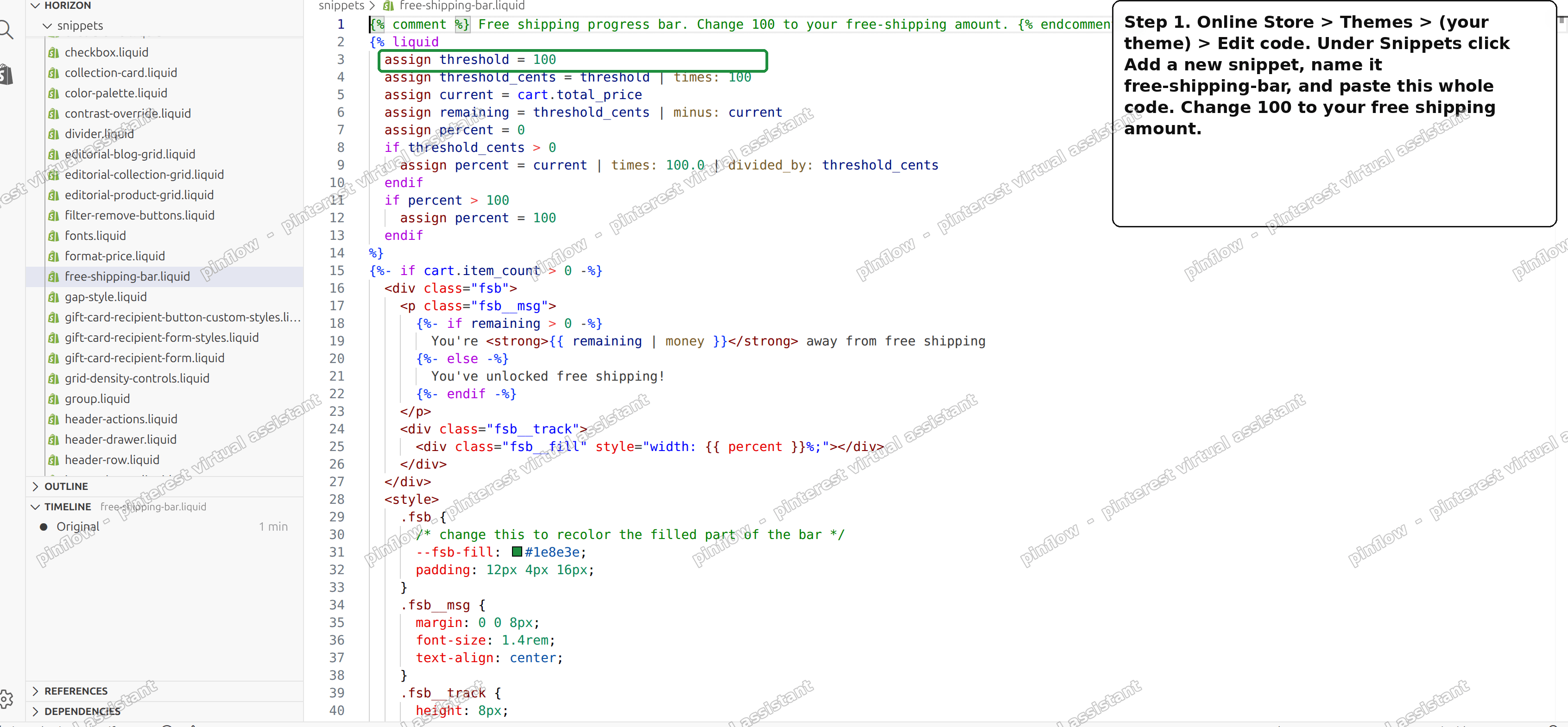 Creating the free-shipping-bar snippet in the Shopify code editor and pasting the code
A few things about this code, in plain terms.
The threshold is your free shipping amount in whole units of your currency. Set it to 100 for a $100 or 100 rupee threshold, 75 for 75, and so on. It is the one number you edit.
The {{ remaining | money }} part is what prints the amount left to spend. The money filter formats it in your store's own currency automatically, so a store in rupees shows rupees and a store in dollars shows dollars. You do not touch this.
The block only draws when the cart has items in it. An empty cart shows nothing, which is what you want.
Step 2: show it in the cart
Now you tell the cart to display the bar. This is the one line.
- In the same code editor, open Snippets, then
cart-products.liquid. - Find the line that reads
{%- else -%}. - Right after it, add this single line, then Save.
{% render 'free-shipping-bar' %}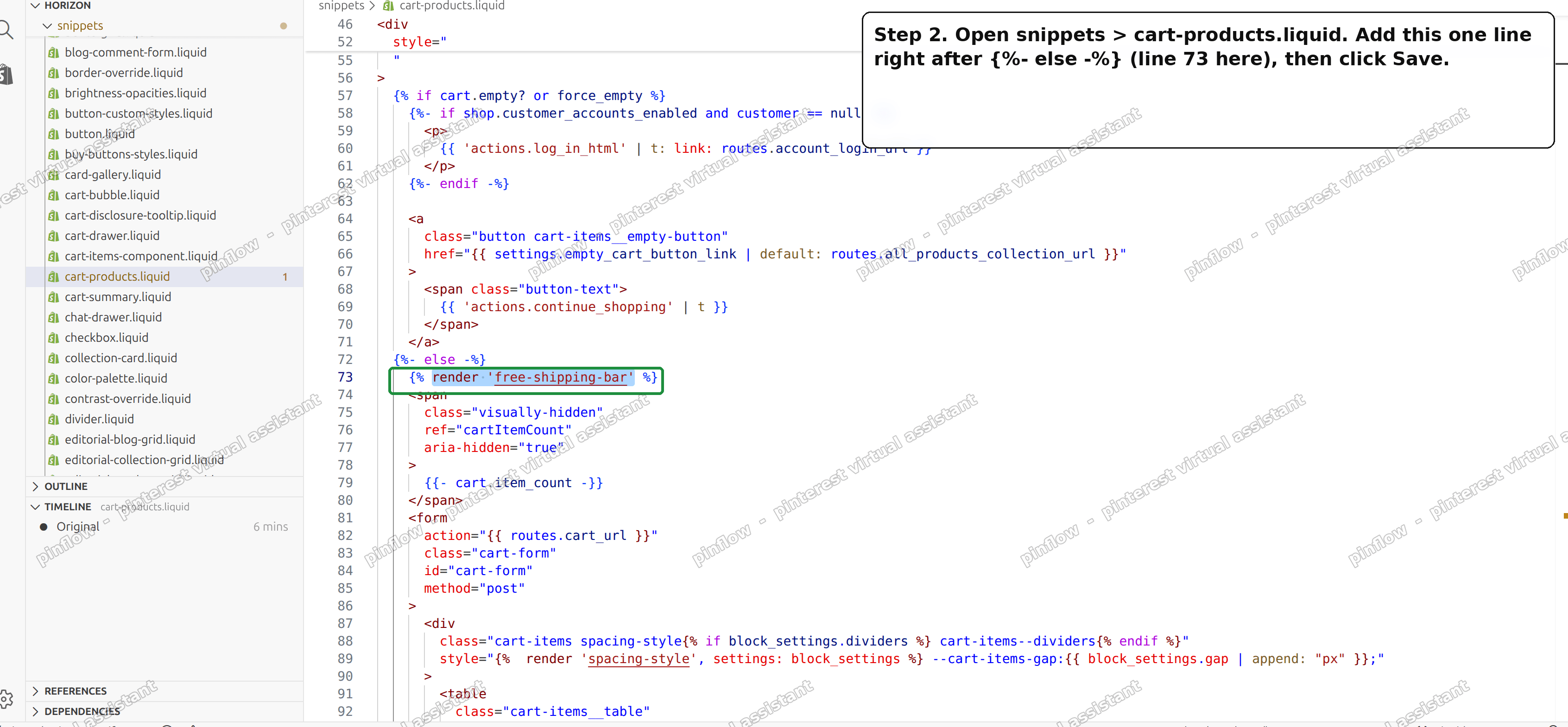 Adding the render line just after the else tag in cart-products.liquid
That is the whole job. One file called cart-products.liquid powers both the cart drawer and the cart page in Horizon, so this single line puts the bar in both places at once.
Why it updates with no JavaScript
Here is the part that makes this reliable, and it is worth one plain sentence.
The file you edited, cart-products.liquid, is the piece Horizon repaints every time the cart changes. So when a shopper adds or removes an item, Horizon re-renders that file, your bar is inside it, and the numbers recalculate on the spot. No reload, no flicker, no custom scripts to maintain.
That is the difference from the tutorial approach. Instead of writing JavaScript to watch the cart and update a separate bar, you put the bar where Horizon already does the updating for you.
The result is the bar filling as items are added, then flipping to the unlocked message once the cart crosses your threshold.
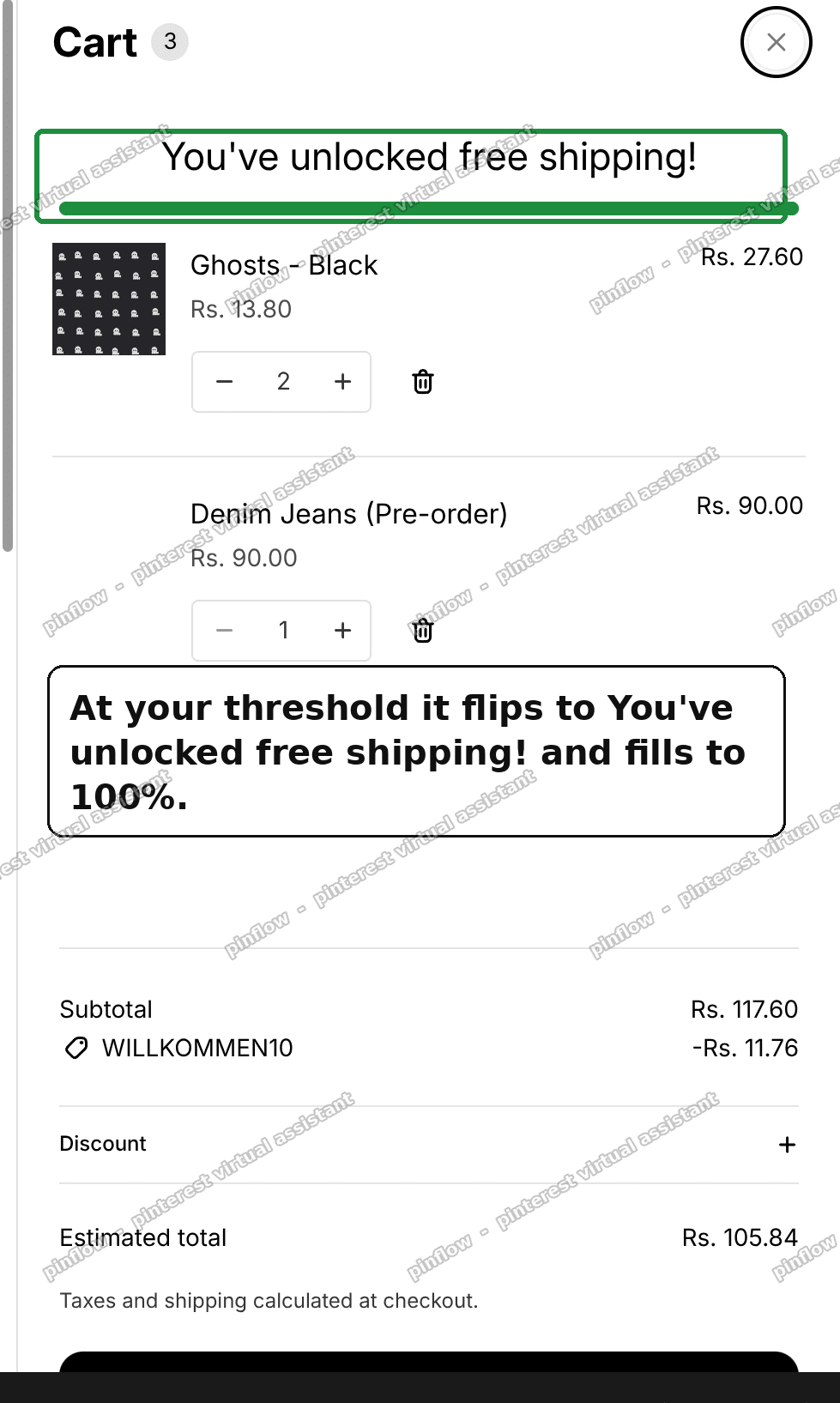 Cart drawer showing You've unlocked free shipping with the bar filled to 100 percent
Can you add a free shipping bar without an app?
Yes. The steps above do it with no app and no monthly fee. It is plain theme code that lives in your theme, so nothing extra loads on the page and there is no subscription to cancel later.
Apps exist for this and they are fine if you would rather not touch code. But for a bar that only needs a threshold and a message, a small snippet is lighter and free.
Free shipping bar apps, if you prefer no code
If you do not want to open the code editor at all, a few well known apps build the same bar with a settings screen:
- Hextom Free Shipping Bar
- Essential Free Shipping Upsell
- Progressive Bar
They add a visual editor and extras like country targeting and countdowns. The trade-off is a recurring fee and another app loading on your storefront. For a simple threshold bar, the code route above is usually enough.
How do I change the free shipping amount?
Open the free-shipping-bar snippet and change one number: assign threshold = 100. Set it to your free shipping value in whole units of your currency. Save, and the bar recalculates against the new number right away.
If you run promotions, you can change this whenever your free shipping threshold changes. It is a single edit each time.
Why is my free shipping bar not updating?
Almost always one of these:
- The line went in the wrong file. It must be in
cart-products.liquid, right after{%- else -%}. That is the part Horizon re-renders, which is what makes it live. - Your theme is not Horizon. The file names here are Horizon's. On another theme the cart file has a different name, so you would add the line to that theme's cart items file instead.
- The cart is empty. The bar hides itself when there are no items, by design. Add something to see it.
Does it count the subtotal or the total?
By default the code uses the cart total, which is the amount after any cart discounts. That is usually what you want a free shipping threshold to measure.
If you would rather measure the subtotal, so a discount code does not lower the progress, change cart.total_price to cart.items_subtotal_price in the snippet. One word, and the bar counts the pre-discount subtotal instead.
How do I change the bar color?
The filled part of the bar uses one variable. In the snippet, find --fsb-fill: #1e8e3e; and change the hex value to any color you like. The empty track behind it uses your theme's text color at low opacity, so it blends with your design on its own.
You can also change the two messages. The "You're X away from free shipping" and "You've unlocked free shipping!" lines are plain text in the snippet, so edit them to match your brand voice.
Free shipping bar versus announcement bar
People mix these up, so here is the difference in one line each.
An announcement bar is the thin strip across the very top of every page. It shows a fixed message to every visitor and does not know what is in the cart.
A free shipping progress bar lives in the cart and reacts to the cart total. It changes per shopper and per item. That is why it goes in the cart file, not the header.
The merchant here specifically wanted the second one, inside the cart, not the header strip. The code above gives you exactly that.
The short version
Older free shipping bar tutorials break on Horizon because the cart drawer has no block slot and Horizon repaints the cart itself.
Work with that instead of against it. Add one snippet called free-shipping-bar, then add {% render 'free-shipping-bar' %} in cart-products.liquid right after {%- else -%}. Change the one threshold number to your amount.
Tested on a Horizon store: the bar sits at the top of the cart drawer and the cart page, fills as items are added, shows the amount left in the store currency, and flips to "You've unlocked free shipping!" at the threshold, with no reload and no JavaScript.
Spending too long on manual Shopify busywork?
PinFlow turns your Shopify catalog into Pinterest pins and posts them on a schedule, automatically. Same idea as the bar above, let the system handle the repetitive part.
Get PinFlow on the Shopify App StoreMore Shopify fixes
More community-sourced Shopify guides, tested on a live store.
Themes & Storefront
Shopify AI Section: Fix a Price Badge Hidden Behind the Image
You built a section with Shopify's AI section generator, but the price badge on each card sits behind the photo. Here is the Custom Liquid fix that brings it to the front without regenerating anything. Tested on a Dawn store.
Themes & Storefront
Hide Shipping Calculated at Checkout on One Shopify Product
The line under Add to cart that says shipping is calculated at checkout shows on every product, gift cards included. Here is how to hide it on one product only, with the code, screenshots and the Eclipse theme steps.
Themes & Storefront
Shopify Dropdown Menu Behind Page Content (Z-Index Fix)
Your Shopify dropdown or mega menu opens, but the page title and products sit on top of its links and the menu closes before you can click. The fix is one Custom CSS rule in Theme settings. Tested on a Rebel store.