
Shopify Hero Image: Fix Mobile LCP with fetchpriority
Your Heritage banner may load at fetchpriority auto, not high, if it is not the first section. Here is how to check it and the one-line fix to speed up mobile LCP.
By AjayCodeWiz · July 29, 2026 · 9 min read
The problem
A merchant asked this on the Shopify Community. They run the Heritage theme, and they wanted to add fetchpriority="high" and loading="eager" to the hero image in their homepage banner, to improve their mobile LCP score.
It is a good instinct. The homepage banner is almost always the slowest thing to paint on mobile, and those two attributes are exactly what browsers use to prioritise an image.
But there is a catch that trips people up, and it is the reason a store can add all the "right" code and still see a slow score.
Here is what actually controls the banner's priority in Heritage, how to check what your store is really sending, and the smallest change that fixes it. I reproduced all of it on a test store.
What LCP is, in plain words
LCP stands for Largest Contentful Paint. It is one of Google's Core Web Vitals, and it measures how long the biggest thing on screen takes to appear.
On a typical Shopify homepage, that biggest thing is the hero banner image. So "improving LCP" almost always means "getting the banner image to load and paint sooner".
A good LCP is 2.5 seconds or less on mobile. Between 2.5 and 4 seconds is "needs improvement". Over 4 seconds is poor. Google uses this number as a ranking signal, so a slow banner is not just a feel problem, it can hold back your search visibility.
Two browser attributes decide how urgently an image loads:
fetchpriority="high"tells the browser to fetch this image before other images. For a hero, that is what you want.loading="eager"tells the browser to load the image right away instead of waiting until it is near the viewport. The opposite isloading="lazy".
The merchant wanted both on their banner. Reasonable. But on Heritage, one of them is already handled, and the other is set in a way most people miss.
Heritage is a Horizon theme, and it already sets fetchpriority
Heritage is part of Shopify's Horizon theme family. The whole family shares a lot of code, including the file that renders the homepage banner: sections/hero.liquid.
Open that file and you find this near the top:
assign fetch_priority = 'auto'

if section.index == 1
  assign fetch_priority = 'high'
endif
Then, further down, the banner image is output with fetchpriority: fetch_priority.
So Heritage does try to do the right thing. If the banner is the first section on the page, it sends fetchpriority="high" on its own. You do not need an app or a custom snippet for that part.
The problem is that one line: if section.index == 1.
Why the banner still loads at "auto"
section.index is the position of a section on the page. The very first section under the header is index 1. The next one is index 2, and so on.
Read the code again. The banner only gets fetchpriority="high" when it is section number 1. If anything sits above your banner, the banner is no longer first, and it falls back to fetchpriority="auto".
Plenty of common things push the banner down to second place:
- An announcement bar built as its own section
- A small text or "rich text" row above the banner
- A spacer or divider section
- A promo strip you added months ago and forgot about
In every one of those cases, the banner is section 2, section.index == 1 is false, and the browser is told nothing special about the image. That is usually why LCP stays slow even though "the code is there".
On my test store I put a small text section above the banner. The banner image loaded as fetchpriority="auto", exactly as the code says it should.
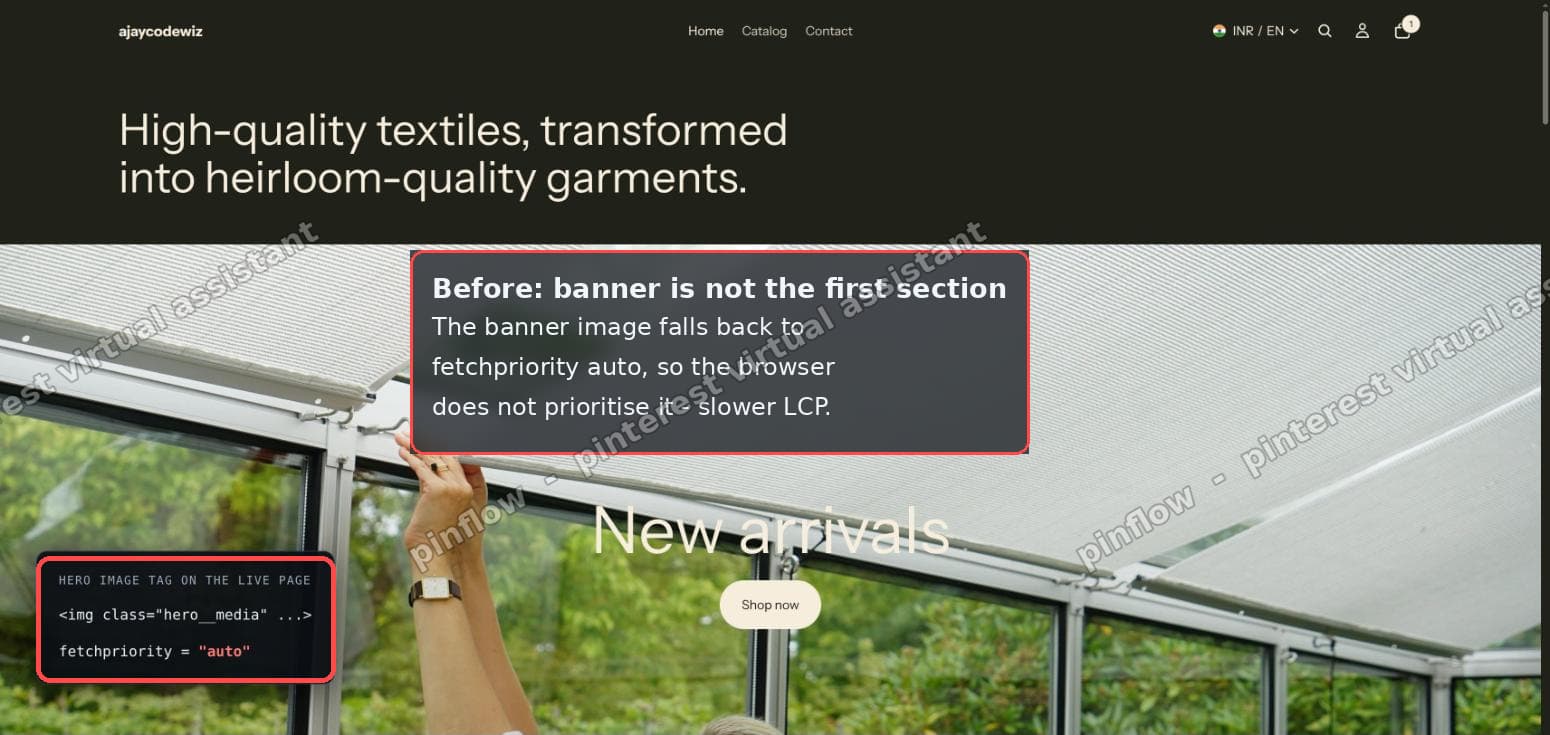 Banner not first: fetchpriority falls back to auto
Check what your store is actually sending
Do this before you change any code. It takes ten seconds and it tells you whether you even have a problem.
- Open your homepage in a desktop browser.
- Right-click the banner image and choose Inspect.
- Find the
<img>tag in the panel that opens. - Look at its
fetchpriorityvalue.
Now you know which case you are in:
- If it says
fetchpriority="high", you are already optimised for this. Your banner is the first section and there is nothing to change. Move on to other LCP work. - If it says
fetchpriority="auto"(or the attribute is missing), your banner is not the first section, and the fix below applies.
This check matters because half the advice online tells people to "add fetchpriority to the hero", when their theme already adds it and the real issue is section order.
Fix A: reorder, no code
The simplest fix does not touch any files.
Open the theme editor. In the section list on the left, drag your banner so it is the very first section under the header. Move the announcement bar, text row, or spacer below it, or into the header group where announcements usually belong.
Save. Because the banner is now section 1, Heritage sets fetchpriority="high" on it automatically. No code, no risk, and it survives theme updates.
Choose this option if the section above your banner can reasonably move. It is the cleanest fix by far.
Fix B: one small code change
Sometimes the section above the banner has to stay where it is. In that case, make Heritage treat the first two sections as high priority instead of only the first.
Go to Online Store, then Themes. On the Heritage theme, open the three-dot menu and choose Edit code. In the file list, open sections/hero.liquid.
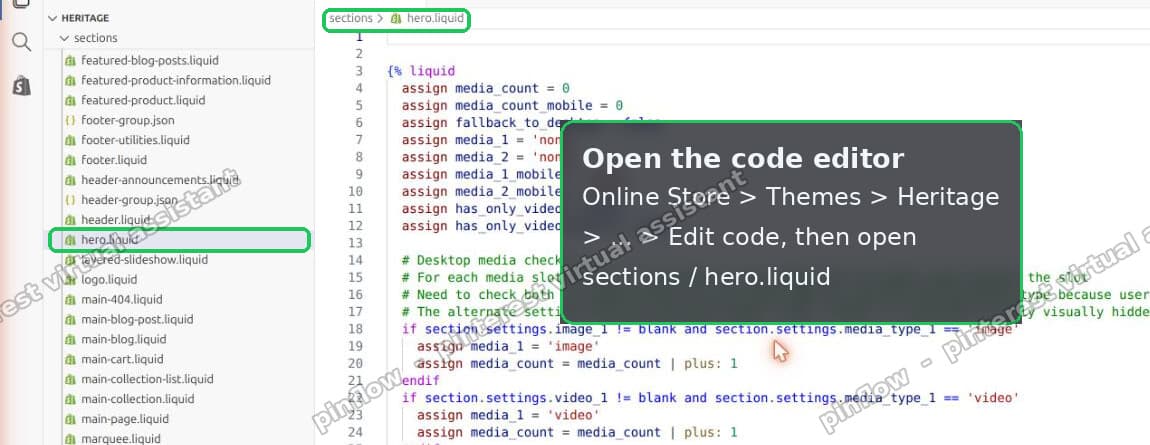 Online Store, Themes, Edit code, sections/hero.liquid
Find this line:
if section.index == 1Change it to:
if section.index <= 2Save. Now the banner keeps fetchpriority="high" even when one section sits above it. If you have two or more sections above the banner, raise the number to match, for example <= 3.
After the change, the same banner image on my test store loaded with fetchpriority="high".
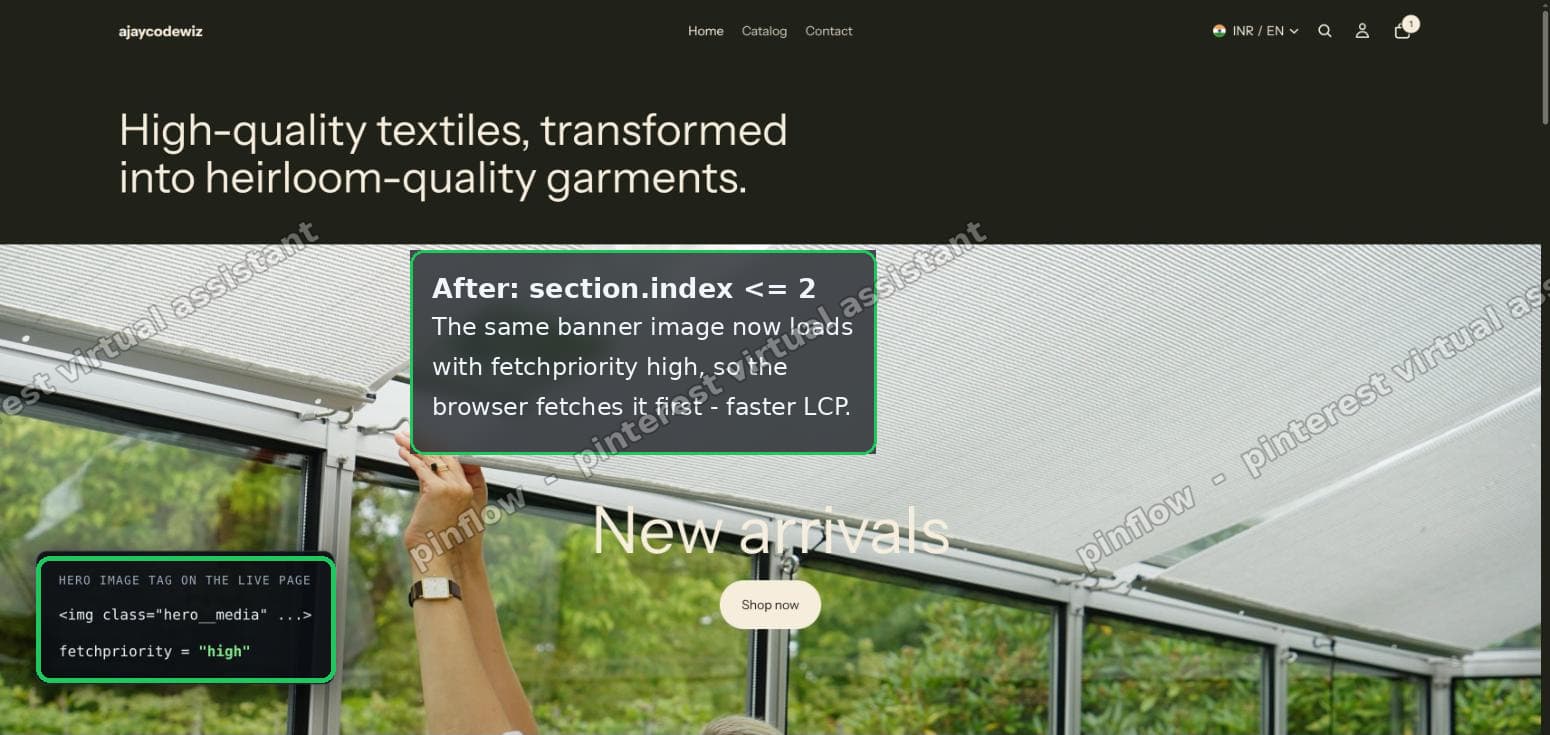 After section.index is less than or equal to 2, the banner loads fetchpriority high
One caution. This is a theme file edit, so keep a note of it. A future Heritage update can overwrite hero.liquid and undo the change, and you would reapply it. Fix A never has that problem, which is why it is the first choice when it is possible.
Do you need loading="eager"?
No, and this is worth understanding rather than just cargo-culting.
Shopify's image rendering only adds loading="lazy" to images that are lower down the page. The hero banner is at the top, so the theme does not lazy-load it. It already loads eagerly.
Adding loading="eager" to something that is not lazy changes nothing. The browser was going to load it right away regardless. So for the Heritage banner, fetchpriority is the real lever, and loading is a no-op.
If you want to confirm this on your own store, inspect the banner <img> again. You will not see loading="lazy" on it. That absence is the theme telling the browser to load it now.
fetchpriority vs loading vs preload
These three get mixed up constantly, so here is the plain-English version.
fetchprioritysets the order the browser fetches things in.highmeans "fetch this before other images".lowmeans "fetch this after".automeans "you decide, browser". This is the one that helps a hero.loadingsets when the browser starts loading an image.eagermeans now.lazymeans wait until it is near the screen. Lazy is great for images far down the page and wrong for a hero.preloadis a separate tag you put in the page head to start downloading a file even earlier, before the browser has found it in the HTML. Themes sometimes preload the hero for a further speed gain.
For most Heritage stores, getting fetchpriority="high" onto the banner is the whole job. Preload is an advanced extra, and it can backfire if you preload the wrong image, so leave it alone unless you are measuring carefully.
What is a good LCP score on mobile?
Aim for 2.5 seconds or less. That is the "good" band Google uses.
Measure it on mobile, not desktop, because mobile is slower and it is the number Google weights most for most stores. Use PageSpeed Insights or the Core Web Vitals report in Search Console. Both give you the real number, and PageSpeed also lists the exact element it measured as the LCP.
If PageSpeed says your LCP element is the banner image, the fix in this post is directly relevant. If it says the LCP element is a block of text or a different image, then prioritising the banner will not move your score, and you should optimise whatever element PageSpeed actually named.
Does fetchpriority really improve LCP?
Yes, when the LCP element is an image that was not already the top priority.
The browser has a limited number of connections and it guesses which resources matter most. Left to guess, it often treats a large hero image as just another image and fetches it a little late. fetchpriority="high" removes the guess and pulls the hero to the front of the queue, so it starts downloading sooner and paints sooner.
The size of the win depends on how much else is competing on the page. On a heavy homepage with lots of images and scripts, moving the hero to high priority can shave a noticeable chunk off LCP. On a light page it may be small. Either way it is a safe change with no downside for a genuine hero image.
What about the mobile banner image?
Heritage lets you set a separate image for mobile. If you use that, the same fetch_priority value is applied to the mobile image too, so the fix above covers both. You do not need a second edit for mobile.
If your banner uses a video instead of an image, fetchpriority and loading do not apply the same way, and LCP is measured differently. That is a separate topic, but the section-order principle still holds: keep the banner high on the page.
What to check if your score did not move
If you applied the fix and LCP is still slow, work through these.
- Confirm the attribute changed. Inspect the banner
<img>again and check it now readsfetchpriority="high". If it still saysauto, the banner is lower than you think, and you need a higher number in thesection.indexcheck, or Fix A. - Confirm the banner is the LCP element. Run PageSpeed Insights and read which element it names as LCP. If it is not the banner, this fix is not your bottleneck.
- Check the image size. A hero exported at 4000 pixels wide and several megabytes will be slow no matter its priority. Upload a reasonably sized image and let Shopify's responsive
srcsetserve the right size. - Check for a heavy app or script. Chat widgets, review apps, and pop-up tools can delay the whole page. Priority helps the image start sooner, but a blocked main thread can still hold up the paint.
- Give the CDN a moment. Right after a theme change the first load can be slower while caches warm up. Measure a second time.
The short version
Heritage already sets fetchpriority="high" on the banner, but only when the banner is the first section on the page. If anything sits above it, the banner drops to fetchpriority="auto" and your mobile LCP suffers.
Check with Inspect. If it says auto, either move the banner to the top (Fix A) or change section.index == 1 to section.index <= 2 in sections/hero.liquid (Fix B). Skip loading="eager", because the hero is not lazy-loaded to begin with.
Spending too long on manual Shopify busywork?
PinFlow turns your Shopify catalog into Pinterest pins and posts them on a schedule, automatically. Same idea as the rule above, let the system handle the repetitive part.
Get PinFlow on the Shopify App StoreMore Shopify fixes
More community-sourced Shopify guides, tested on a live store.
Themes & Storefront
Shopify Anchor Link: Button That Scrolls to a Section
Link a Shopify button to a section lower on the same page with an anchor link. Steps for the theme editor, no code files, plus the fix for a title hidden under the header.
Themes & Storefront
Shopify Social Media Icons: Add a Custom Icon and Link
Set your social links in Shopify theme settings, see why icons do not show, and swap in your own icon for a network the theme does not list.
Themes & Storefront
Sticky Add to Cart Button in Shopify Dawn, No App
Pin the Add to cart button and its delivery line to the bottom of the screen in Shopify Dawn. One free Custom Liquid block, no app, phone and desktop.