
How to Hide Out of Stock Variants in Shopify
Filter a collection by Medium and Shopify still shows products where Medium is sold out. That is the filter engine, not your theme. Here is why, and the Liquid fix, tested on a live store.
By AjayCodeWiz · July 19, 2026 · 8 min read
The problem: the size filter shows sizes that are sold out
A customer filters your collection page by Medium. The grid fills with products. They click one, and Medium is greyed out.
The filter matched the product, not the size.
A merchant hit this on the Impulse theme running Shopify's Search & Discovery app and asked whether there was a setting they had missed. There is not, and it is worth understanding why before you go looking for one.
I tested this on a live store and worked out both what causes it and what actually fixes it.
Why it happens: Shopify's filters are product-level
This is the part that saves you hours of hunting through settings.
Shopify's native storefront filtering has a hard limit:
- A size filter matches any product that has that size, regardless of whether that size is in stock.
- The only stock-aware filter, Availability, is product-level. A product counts as in stock if any one variant is in stock.
Put those together and the consequence is unavoidable. Ticking Medium and In stock cannot mean "Medium is in stock." It means "this product has a Medium" and "something on this product is in stock." A shirt with Medium sold out but Large available satisfies both.
That is the engine, not your theme.
Impulse, Dawn, Horizon, Refresh and every other Theme Store theme are required to use Shopify's filtering engine, which the Search & Discovery app configures. So switching themes will not fix it, and neither will any toggle in Search & Discovery.
Worth knowing: you can tick both Available and Unavailable and a partially stocked product still shows. Counter-intuitive, but consistent with product-level matching.
Things that look like a fix but are not
Before the two real options, here is what people try first. None of these solve variant-level filtering:
- Search & Discovery settings. It configures which filters appear, not how matching works.
- Theme settings. No Theme Store theme can override the engine.
- The collection sort "hide out of stock" style options. These act on whole products, not variants.
- Continue selling when out of stock. This makes the variant purchasable, so it hides the symptom by removing the sold-out state entirely.
- Switching themes. Same engine underneath.
If you have already tried these and nothing changed, you were not doing it wrong.
Option 1: a variant-level filter app
This is the reliable route, and it is the right answer for most stores.
Apps like Boost AI Search & Filter or Globo Smart Product Filter build their own index at the variant level rather than using Shopify's. In their settings, look for show variants as separate products or hide out-of-stock variants.
The reason to prefer an app over the code below is not reliability of the filtering itself. It is that an app keeps your product counts and pagination correct, because the filtering happens before the page is built.
Trade-offs: a monthly cost, another app rendering your collection page, and filter markup that no longer comes from your theme.
If you run a large catalog, or filtering is central to how people shop your store, use an app.
Option 2: hide the mismatched cards in Liquid
If you would rather not add an app, you can hide the cards in the theme.
Be clear about what this does. It hides cards after Shopify has already selected them. The filtering itself is unchanged, so the counts do not change. More on that limitation below, because it matters.
Where the code goes
Find the product loop in your collection template. The file differs by theme generation:
- Dawn, Refresh, Craft and other Online Store 2.0 themes:
sections/main-collection-product-grid.liquid, just after{%- for product in collection.products -%} - Impulse, Debut and other vintage themes:
sections/collection-template.liquid, inside the product loop, right before the card renders
Duplicate your theme before editing. Online Store > Themes > ... > Duplicate. That copy is your rollback.
The code
{%- assign size_option_name = 'Size' -%}
{%- assign size_param = 'filter.v.option.' | append: size_option_name | handleize -%}

{%- assign active_sizes = '' -%}
{%- for f in collection.filters -%}
  {%- if f.param_name == size_param -%}
    {%- for v in f.active_values -%}
      {%- assign active_sizes = active_sizes | append: '|' | append: v.value | append: '|' -%}
    {%- endfor -%}
  {%- endif -%}
{%- endfor -%}

{%- if active_sizes != '' -%}
  {%- assign size_pos = 0 -%}
  {%- for opt in product.options_with_values -%}
    {%- if opt.name == size_option_name -%}{%- assign size_pos = opt.position -%}{%- endif -%}
  {%- endfor -%}

  {%- if size_pos > 0 -%}
    {%- assign match_in_stock = false -%}
    {%- for v in product.variants -%}
      {%- if v.available -%}
        {%- assign vsize = '' -%}
        {%- if size_pos == 1 -%}{%- assign vsize = v.option1 -%}
        {%- elsif size_pos == 2 -%}{%- assign vsize = v.option2 -%}
        {%- elsif size_pos == 3 -%}{%- assign vsize = v.option3 -%}{%- endif -%}
        {%- assign needle = '|' | append: vsize | append: '|' -%}
        {%- if active_sizes contains needle -%}{%- assign match_in_stock = true -%}{%- endif -%}
      {%- endif -%}
    {%- endfor -%}

    {%- unless match_in_stock -%}{%- continue -%}{%- endunless -%}
  {%- endif -%}
{%- endif -%}
What it actually does
Read in plain English, it:
- Works out which sizes the customer has currently ticked, from
collection.filters. - Does nothing at all if no size filter is active, so unfiltered pages are untouched.
- Finds which option position Size occupies on this product, because Size is not always Option 1.
- Loops the variants and asks whether any available variant matches a ticked size.
- Skips the card if none does.
That third step is the one hand-written versions usually get wrong. On one product Size might be Option 1, on another Option 2 behind Colour. Hard-coding option1 breaks with no error half your catalog.
Before and after
Filtered by a size, without the fix. The third product has that size sold out and is still listed:
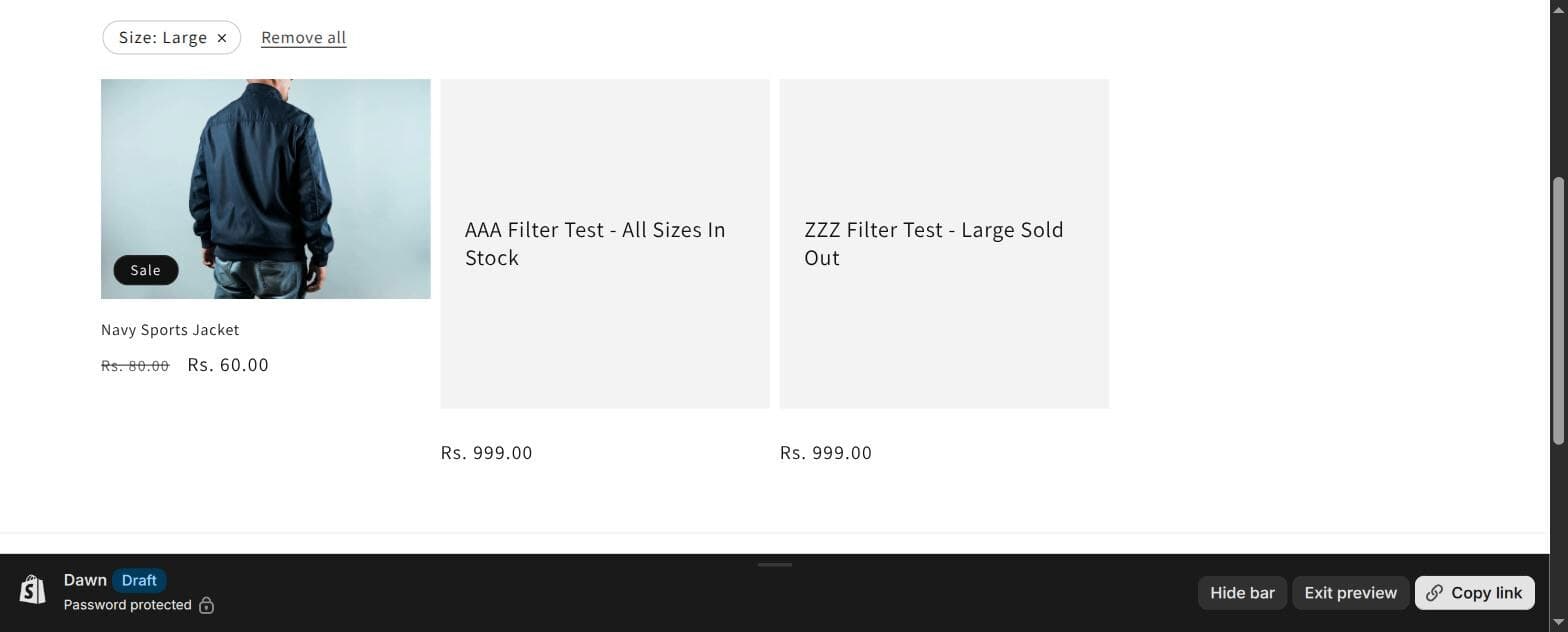 Collection filtered by size, still showing a product whose filtered size is sold out
Same filter with the fix applied. The third product is gone:
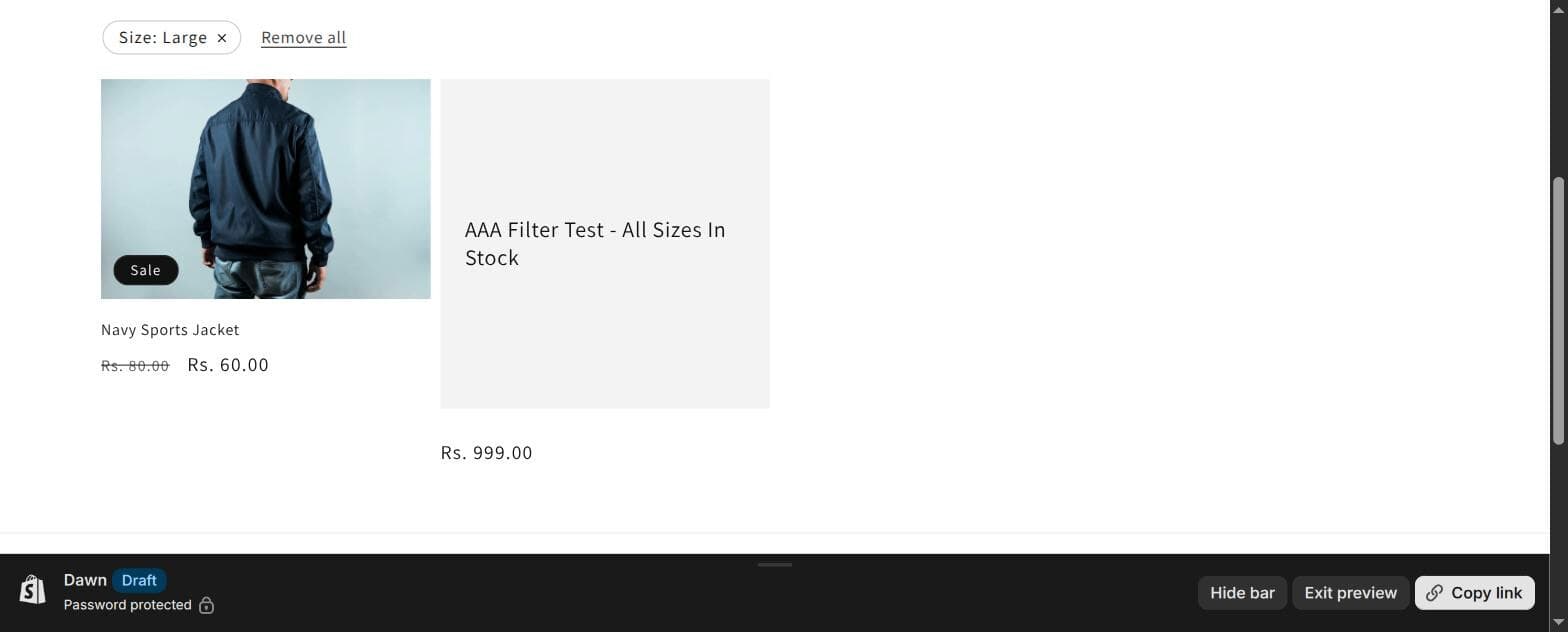 The same filtered collection after the fix, with the sold-out-size product removed
I confirmed both directions on a Dawn test store with Search & Discovery installed: it hides the product whose filtered size is sold out, and it does not hide products that still have that size in stock. The second half matters more than the first, because an over-eager version of this hides inventory you could have sold.
The limitations, stated plainly
This is a display-level patch, so:
- The product count does not update. It may say 12 products while showing 9.
- Pagination does not update. With 24 products per page, hiding 5 leaves 19 on that page, and page 2 still starts where it always did.
- It only handles Size. For Colour or another option, change
size_option_name, or run the block once per option. - A page can look empty. If every product on page 2 is filtered out, the customer sees a blank grid with pagination beneath.
If those matter to your store, that is the argument for the app route. There is no way around them in Liquid, because Shopify has already chosen the page's products before your theme runs.
The related job: hiding out-of-stock products entirely
People often arrive at the variant problem when what they actually want is simpler: stop showing products that are completely sold out. That has proper built-in support.
Automated collections. Add the condition Inventory stock is greater than 0. Products drop out of the collection when they sell out and return when restocked, with counts and pagination correct because it happens at collection level.
Collection sort. Most themes offer a sort that pushes sold-out products to the end. They still appear, just last.
Search & Discovery. Enable the Availability filter so customers can hide sold-out products themselves.
The distinction is worth holding onto:
| What you want | Use |
|---|---|
| Hide products where every variant is sold out | Automated collection condition |
| Push sold-out products to the bottom | Collection sort setting |
| Let customers filter sold-out products out | Availability filter |
| Hide products whose filtered size is sold out | Filter app, or the Liquid above |
Only the last row needs any of the work in this article.
One caution before you hide everything: a sold-out product page still holds its rankings, backlinks and reviews. Removing it from collections is fine, but deleting it or returning a 404 throws that away. Keep the page live with a back-in-stock signup.
If it did not work, check these
Nothing changed. Confirm the option is actually named Size. The comparison is exact, so size or Sizes will not match. Check on the product page under Variants.
Every product disappeared. size_option_name does not match any option, or the code landed outside the product loop. Check it sits after {%- for product in collection.products -%}.
It works on some products, not others. Those products have Size in a different option position. The code handles that already, so confirm you pasted the whole block including the options_with_values loop.
Correct products, wrong count. Expected. See the limitations above.
Nothing changed on the live site. You edited a different theme, or edited the duplicate you made as a backup. Check which theme is published.
Broke after a theme update. Updates replace section files. Re-apply, or move to an app if you update often.
The honest summary
Shopify's storefront filtering is product-level, and no theme setting changes that.
If variant-accurate filtering matters commercially, a variant-level filter app is the correct answer and the Liquid is a stopgap.
If you just want customers to stop clicking through to sold-out sizes, the code above does that today, for free. You only have to live with the count being wrong.
Both are legitimate. Choose based on whether the number next to your collection title is something customers actually read.
Send shoppers to the products you can actually ship
PinFlow turns your Shopify catalog into Pinterest pins and posts them on a schedule, so the products you want to move keep finding new buyers while you get on with running the store.
Get PinFlow on the Shopify App StorePart of a complete guide
Shopify Variants: The Complete Guide
Variants are one product sold in several forms. How they work, the 2,048 and 3-option limits, and where each variant fix lives - images, swatches, sorting, hiding and the theme-specific bugs.
More Shopify fixes
More community-sourced Shopify guides, tested on a live store.
Collections & Products
Shopify Unit Pricing: Show a Price per Unit on Each Variant
Set a unit price on every variant and Dawn shows the price per 100 ml or per kg, and updates it when a shopper picks another size. No code needed.
Themes & Storefront
Square Size Buttons on Shopify Dawn (Custom CSS)
Dawn draws size options as round pills. Here is the Custom CSS that turns them into square boxes matching the Add to cart button, tested on Dawn 16.0.0.
Themes & Storefront
Remove the Variant ID From Your Shopify Product URL
Your product link keeps turning into /products/name?variant=43176780890281, before the customer has touched anything. One theme setting stops it, a second switch covers Dawn, and a short snippet cleans the links that already carry the ID.