
Keep Products Out of Shopify Search Results
Stop sample or hidden products showing in Shopify storefront search and admin backend search, without deleting them. Tested steps and images.
By AjayCodeWiz · August 5, 2026 · 10 min read
The problem
A merchant asked about this on the Shopify Community. Their store sells a lot of material samples. Almost every real product has a matching sample product for each variant. That adds up to hundreds of extra sample records.
The pain is the search bar. Type any product name into the search box at the top of the Shopify admin, and the samples flood the list. The real product gets buried under six or seven sample rows. It slows the whole team down.
The question was simple. How do you shopify hide product from search so the samples stop showing, without deleting them?
I reproduced it on a test store on the admin/search view. I created a real product line called Marmoleum, then added a sample product for each colour: Sample - Marmoleum Clay, Sample - Marmoleum Pine, and so on. Then I searched "Marmoleum" in the admin top bar.
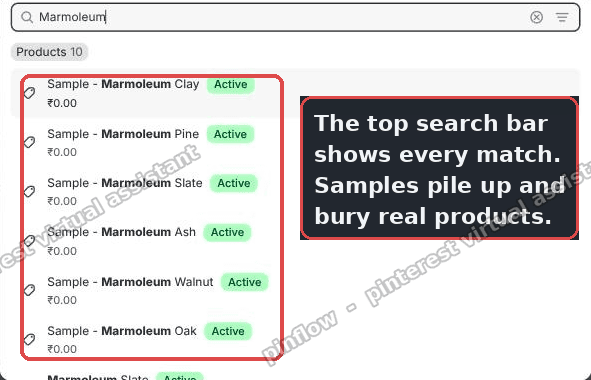 The admin top search bar floods with sample products and buries the real ones
The result matched the merchant exactly. The samples listed first. The real Marmoleum products were pushed to the bottom of the list. So the problem is real and easy to trigger.
This post covers both sides of the request. First, how to keep samples out of the backend admin search. Then, how to shopify hide products storefront search too, so customers never see them either.
Why it happens
Here is the part most forum answers skip. There are two different search boxes in Shopify, and they behave in different ways.
The first is the global search bar at the very top of the admin. It sits in the purple header on every page. That bar always searches everything. Products, orders, customers, and more. There is no setting to exclude a product from it. So a sample product will always turn up there. You cannot filter it out.
The second is the search and filter box on the Products page itself. That one respects filters. You can tell it to hide anything with a certain tag. This is the box you actually control.
So when people say they want to shopify exclude product from search, the honest answer depends on which box they mean. The top global bar cannot be filtered. The Products list search can. The trick is to stop working from the top bar and work from the Products list instead.
The storefront search is a third, separate thing. That is the search box customers use on your live website. It follows different rules again, which I cover further down.
Before you start: tag your samples
The whole fix rests on one label. Every sample needs a shared tag so Shopify can tell them apart from real products. A tag is just a keyword you attach to a product.
Here is the fast way to tag them all at once.
- Go to the Products page in your admin.
- Search your sample word, for example "sample", in the Products list search box.
- Tick the checkbox at the very top of the list. That selects every product on the page.
- In the action bar that appears, click Add tags, type sample, and apply it.
Now every sample carries the tag "sample". If your samples already share a product type or a naming word, you can filter on that instead. But a clean tag is the most reliable.
The fix: a saved "No samples" view
This is the quick win. You build a filtered view of the Products page that never shows samples, then you search inside that view.
Step 1. Add a Tag filter and switch it to Is not.
On the Products page, click the search and filter box. Choose Tag. By default the filter means "is". You need the opposite. Switch the operator to Is not, then pick sample.
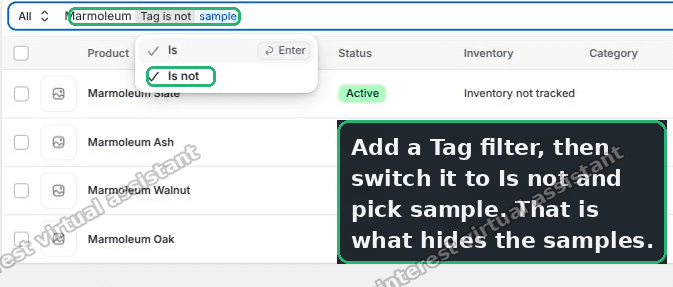 On the Products page, set the Tag filter to Is not sample
That one switch is what does the work. "Tag is not sample" tells the list to show everything except your samples.
Step 2. Save it as a view.
Once the list looks right, click Save. Name the view something clear, like No samples.
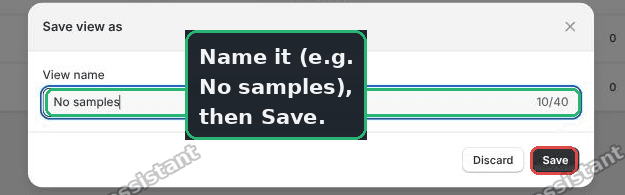 Save the filtered list as a view named No samples
A view is a saved tab across the top of the Products page. It remembers the filter, so you never have to set it up again.
Step 3. Search inside the view.
Open your No samples view and use its search box. Now the samples never appear.
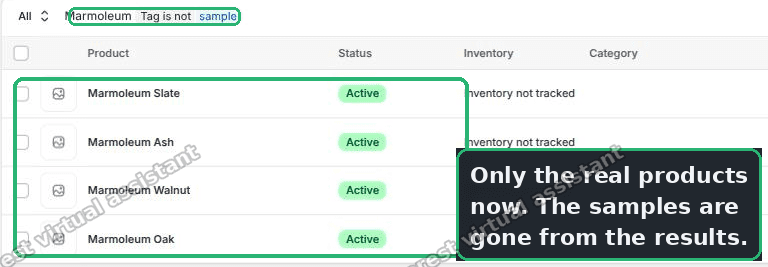 The filtered view shows only the real Marmoleum products
I tested this on the store. Searching "Marmoleum" in the No samples view returned only the four real products. The six sample rows were gone. This is the reliable way to shopify search hide product from your own team's daily work.
The typed shortcut.
You can skip the filter menu entirely. Type this straight into the Products search box:
-tag:"sample"The minus sign means "not this tag". Put the product name in front to search within the real products only:
Marmoleum -tag:"sample"Same result, no menu clicking. This is handy once you know the tag.
An alternative: collapse samples into variants
The saved view is a workaround. It hides samples from one list, but they still exist, and they still flood the global top bar. If you want the clutter gone everywhere, fix the structure instead.
Hundreds of standalone sample products is the real cause. So collapse them.
- Make one product called Samples, with a variant for each material or colour. A variant is an option of a single product, like a size or a colour, instead of a separate product.
- Or add the sample as an extra variant on the parent product itself.
Either way, hundreds of separate records drop to a handful. The noise disappears from every search at once, including the global top bar, not just the saved view.
This takes more work up front. But if samples are choking your admin every day, it pays back fast. If you must keep samples separate for fulfilment or reporting, at least lead the title with the word "Sample". Prefix matches rank higher, so your real products surface first.
How to hide a product from Shopify storefront search
Everything above is about your admin. Customers never see that. But the merchant also asked to keep samples out of the storefront, which is the live website. That is a different job.
Storefront search only shows products that are published to the Online Store sales channel. A sales channel is a place your products can sell, like your Online Store, Point of Sale, or a marketplace. If a product is not published to the Online Store, customers cannot find it in storefront search, on collection pages, or by its direct link.
So to shopify hide products storefront search:
- Open the sample product in your admin.
- Find the Publishing box on the right.
- Untick Online Store.
The product stays in your admin. You can still order it internally. But it vanishes from the customer-facing search and the whole live site. This is the clean way to keep a product out of search for shoppers while keeping it alive for your team.
To do this in bulk, select all your samples on the Products page, then use Remove from Online Store in the action bar. Same idea, hundreds at a time.
How do I exclude a product from search but keep it orderable?
This is a common follow-up. You want the sample gone from search, but staff still need to add it to an order.
Unpublishing from the Online Store does exactly that. The product is hidden from customers and from storefront search. But it still exists in the admin. Your team can add it to a draft order or a point-of-sale cart. Inventory still tracks. Nothing is deleted.
So the answer is: unpublish from the Online Store, do not archive or delete. Archiving pulls the product out of your active Products list too, which you may not want. Unpublishing is the lighter touch.
Does a search app hide products from search?
Many stores run a search app, like Shopify's own Search & Discovery, or a paid one like Searchanise or Boost. These improve the storefront search box. Some let you boost or bury certain products in the customer results.
They can help fine-tune ranking. But they sit on top of your Online Store publishing. If a product is unpublished, it is already gone from search, with no app needed. So try the free publishing method first. Reach for a search app only when you want more control over ranking or synonyms, not just plain hiding.
None of these apps touch the admin global search bar. That bar is Shopify's own internal tool. No app or setting filters it.
If it did not work
A few things trip people up.
- You searched the top bar again. The global bar at the top of the admin cannot be filtered. Make sure you are searching inside your saved Products view, not the purple header bar.
- The tag has a typo. "Sample" and "sample " with a trailing space are different tags. Re-check the exact tag on a sample product.
- New samples are not tagged. The filter only hides what carries the tag. Tag each new sample as you create it, or the view leaks.
- Storefront still shows it. Publishing changes can take a minute to clear the storefront cache. Re-check the product's Publishing box shows Online Store unticked.
Definitions people confuse
Admin global search vs Products list search. The global bar is the box in the top header on every admin page. It searches everything and cannot be filtered. The Products list search is the box on the Products page. It respects filters and saved views. Almost every "cannot hide from search" complaint is really about the global bar.
Unpublish vs archive vs delete. Unpublish removes a product from a sales channel, like the Online Store, but keeps it in your active list. Archive removes it from the active list but keeps the record. Delete destroys it. To hide from customers while keeping it usable, unpublish.
Tag vs product type vs collection. A tag is a free-form keyword for filtering. A product type is one category label per product. A collection is a customer-facing group of products. For a "No samples" view, a tag is the simplest lever.
Backend search vs storefront search. Backend search is what you and your staff use inside the admin. Storefront search is what customers use on your live site. They are separate systems with separate rules. Keeping samples out of one does not automatically keep them out of the other, which is why the full fix covers both.
Spending too long on manual Shopify busywork?
PinFlow turns your Shopify catalog into Pinterest pins and posts them on a schedule, automatically. Same idea as the rule above, let the system handle the repetitive part.
Get PinFlow on the Shopify App StoreMore Shopify fixes
More community-sourced Shopify guides, tested on a live store.
Shopify Admin
How to Edit a Packing Slip on Shopify to Show Big Product Photos
Shopify's order page shows each item as a 40 pixel thumbnail with no way to enlarge it. Here is how to edit the packing slip template so every line prints that exact variant's photo at 1000 pixels, including the one-line fix Shopify's default template needs.
Shopify Admin
Shopify Shipping Zones: Fix Products Sold Out in One Country
Products show Sold out for customers in one country while your admin shows stock. The cause is a shipping profile with no zone for that country. How Shopify shipping zones and profiles decide what a customer can buy, and the six-click fix, with screenshots.
Shopify Admin
Shopify Translate: Fix Mixed Languages on Product Pages
A Swedish Shopify store showed English words on translated product pages. The titles were translated, so the English came from option names and theme text. How to fix each one in Translate & Adapt, with screenshots.