
Shopify Order Edits Don't Sync to Printify: The Fix
You edit an order in the Shopify admin and Printify never sees the change, with no warning. Here is why it happens and how to fix it: a manual-approval hold, editing in Printify, and a free Shopify Flow daily digest of edited orders. Tested on a dev store.
By AjayCodeWiz · August 13, 2026 · 8 min read
The problem: you edit the order in Shopify, and Printify never sees it
A customer messages you right after buying. Wrong size. Wrong address. Wrong color. You open the order in your Shopify admin, hit Edit order, fix it, and save. Shopify shows the order as updated. Job done, or so it looks.
It is not done. Printify still has the original order. The edit you just made lives only inside Shopify, and Printify keeps working from the version it imported first. Nothing warns you. The order looks resolved on the Shopify side and ships wrong.
A merchant raised exactly this on the Shopify Community. They edited an order in the admin, assumed it was fixed, and got this back from Printify support: changes made to an order in your sales channel do not sync to Printify, even if the order has not been imported yet. If you need to change the ordered product, do it in Printify before it goes into production.
They were right, and so was Printify. The real gap is that Shopify gives you no warning. It lets you edit the order, shows success, and never says "this will not reach your print provider."
I reproduced the setup on a test store and built the missing warning with a free Shopify tool. Here is what is actually happening and how to stop an unflagged mismatch from shipping.
Why the edit does not sync
Printify is a sales-channel app. When an order comes in, Printify imports a copy of it into its own system. From that moment, Printify's copy is what gets produced and shipped.
Shopify's Edit order feature changes the order record inside Shopify. It does not push that change out to connected apps. There is no live two-way sync between a Shopify order and the imported Printify order. So editing on the Shopify side and editing on the Printify side are two separate actions, and doing one does nothing to the other.
This is the part that trips people up: the order can be sitting in Printify, not yet in production, looking editable, and your Shopify edit still will not appear there. "Not imported yet" does not mean "still linked to Shopify." Once Printify has the order, Shopify is no longer the source of truth for it.
That is why the fix is not "make Shopify sync." Shopify does not offer that for this case. The fix is to change your process so an un-synced edit can never slip through, and to build yourself the warning Shopify leaves out.
Step 1: turn on manual approval in Printify (the important one)
This is the single change that closes the hole. Do this first.
In Printify, open Settings > Orders and set your orders to hold for manual approval. Turn off auto-send to production.
Now orders wait for you to approve them instead of going straight to the printer. Nothing prints until you press approve. So even if you forget to mirror an edit, the order pauses and gives you a chance to catch it. An unmirrored Shopify edit can no longer reach production on its own.
Yes, it adds a click per order. That click is the price of never shipping a wrong item because two systems disagreed. For most print-on-demand shops it is worth it.
Step 2: make the change where Printify actually reads it
Once manual approval is on, put the correction in Printify, because that is the copy that ships.
- Open Printify and go to My orders.
- Find the order and edit the address or variant there directly.
- If Printify will not let you edit that product or variant inline, cancel the order in Printify and submit a fresh manual order with the correct item.
- If you already edited it on the Shopify side too, mirror the exact same change in Printify so the two records match.
Treat Printify as the source of truth for anything that affects what gets printed. Shopify holds the customer record; Printify holds the production record. Change the production record where production reads it.
Step 3: build the missing warning yourself with Shopify Flow
Shopify will not pop up a warning when you edit an order. But you can build your own catch-net for free with Shopify Flow, the automation app Shopify includes on the Basic plan and up.
There is one honest limit to know first. Shopify Flow has no "order edited" trigger built in. So it cannot fire the instant you edit an order. You cannot get a real-time popup from Flow alone.
What Flow can do on its own is a daily sweep. Three steps:
- Scheduled time trigger, set to run once a day.
- Get order data, set to pull orders updated in the last day.
- Send internal email to yourself, listing those orders.
Every morning you get one email of the orders that changed in the last 24 hours. You open each one, check it against Printify, and fix any mismatch before you approve it. It is not instant, but paired with the manual-approval hold from Step 1, it is a reliable safety net.
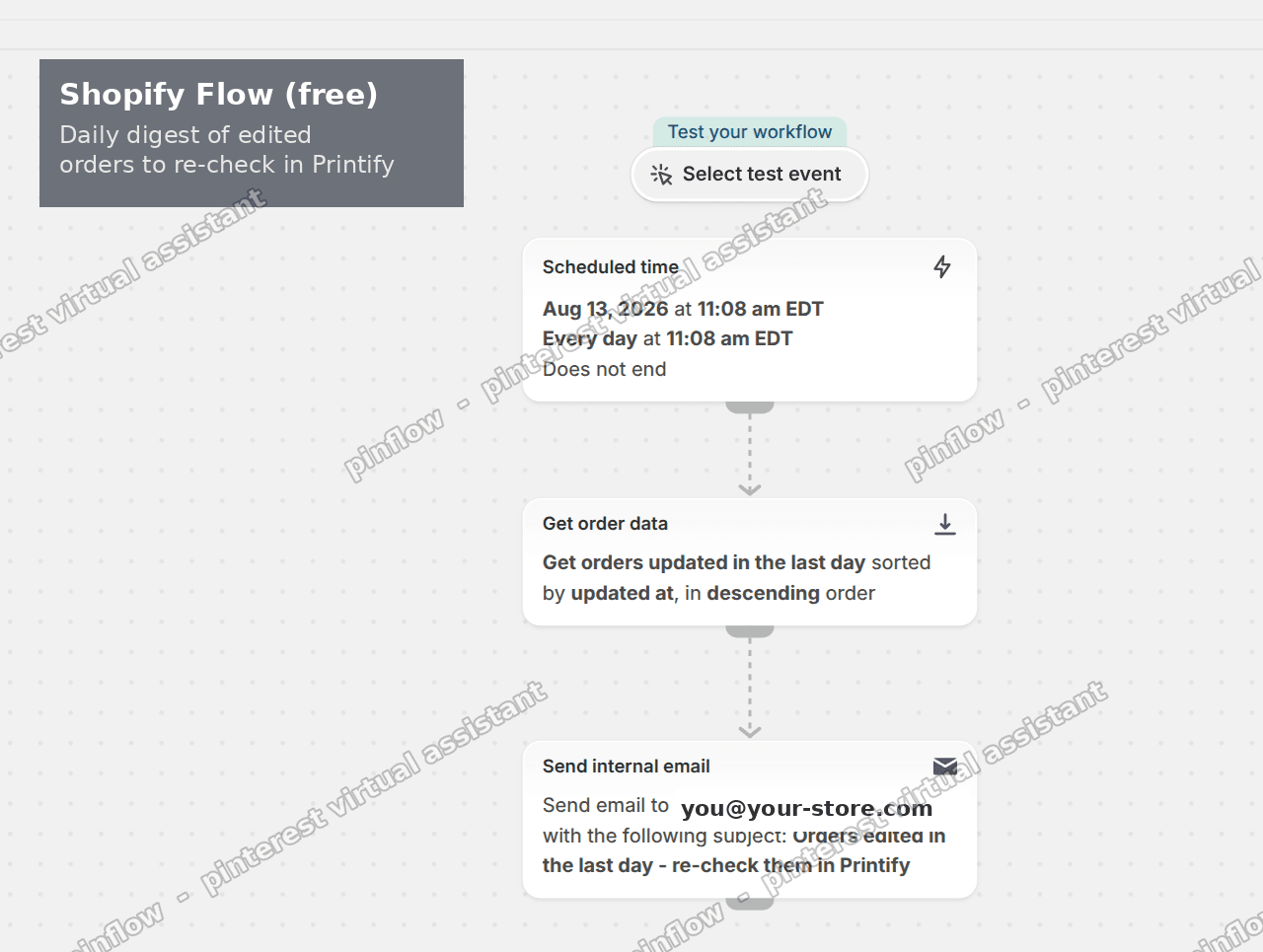 Shopify Flow daily digest: Scheduled time, then Get order data for orders updated in the last day, then Send internal email to re-check them in Printify
I built and tested this exact workflow on a dev store. Scheduled time set to daily, then Get order data for orders updated in the last day, then Send internal email with a subject like "Orders edited in the last day - re-check them in Printify." It runs on its own from then on.
To build it: open Settings > Apps > Shopify Flow (install it from the App Store first if you do not have it), click Create workflow, pick Scheduled time as the trigger, add a Get order data action, then add a Send internal email action. Turn the workflow on when you are happy with it.
Want the warning to be instant instead of a daily digest?
The daily email is fine for most shops. If you want to know the moment an order changes, you need to give Flow a trigger it does not ship with.
Some apps add a real order-edited trigger to Shopify Flow. Once installed, that trigger fires when an order is edited, and your Flow can email you, tag the order, or ping Slack immediately, no waiting for the next morning's sweep.
Two that do this are Cleverific Order Editing and Flow Companion. They work by listening for Shopify's order-edited event behind the scenes and handing it to Flow as a new trigger you can build on. That is the same event Shopify has internally but does not expose in Flow by default.
If instant matters for your volume, an app like that plus the manual-approval hold gives you both belt and braces: you hear about the edit right away, and the order still cannot print until you approve it.
If the order already went into production
If the order has already moved into production in Printify, it cannot be changed. That window has closed.
Contact Printify support immediately. If it is early enough they can sometimes stop it. If they cannot, it ships as originally ordered, and you reprint the corrected version. This is the exact case Step 1 exists to prevent, which is why the manual-approval hold is worth the extra click.
This is not only a Printify problem
It is easy to read this as a Printify quirk. It is not. Printful, Gelato, and most print-on-demand and dropshipping apps work the same way. They import the order, then produce from their own copy. A sales-channel order edit in Shopify does not push to any of them.
So the rule generalizes. For any fulfillment app connected to your store, treat the app as the source of truth for changes to its orders. Edit in the app, not just in Shopify. The manual-approval hold and the daily Flow digest work the same way whichever provider you use, because the underlying gap is the same.
Why Shopify does not just add the warning
Merchants keep asking why Shopify does not simply show a message like "this change will not sync with your fulfillment app." It is a fair question, and another community member in the same thread suggested exactly that wording.
The honest answer is that Shopify cannot reliably know what each connected app does with an order. Some apps sync edits, some do not, and Shopify's Edit order feature is generic. A blanket warning on every edit would be wrong half the time. The gap is real, and it is worth leaving as feedback for Shopify, but until they build it, the manual-approval hold is what actually protects you.
Quick checklist
- Turn on hold for manual approval in Printify Settings > Orders. This is the fix.
- Make the real correction in Printify > My orders, not only in Shopify.
- Build a daily Shopify Flow digest of edited orders so nothing slips past you.
- Want it instant? Add an app that gives Flow a real order-edited trigger.
- Already in production? Contact Printify support fast, then reprint if needed.
- Same rules apply to Printful, Gelato, and other fulfillment apps.
The takeaway: Shopify order edits stop at Shopify. Make the change where your print provider reads it, hold orders for approval so a missed edit cannot ship, and let Shopify Flow email you a daily list of what changed. That combination gives you the warning Shopify does not.
Spending too long on manual Shopify busywork?
PinFlow turns your Shopify catalog into Pinterest pins and posts them on a schedule, automatically. Same idea as the workflow above, let the system handle the repetitive part.
Get PinFlow on the Shopify App StoreMore Shopify fixes
More community-sourced Shopify guides, tested on a live store.
Shopify Admin
How to Edit a Packing Slip on Shopify to Show Big Product Photos
Shopify's order page shows each item as a 40 pixel thumbnail with no way to enlarge it. Here is how to edit the packing slip template so every line prints that exact variant's photo at 1000 pixels, including the one-line fix Shopify's default template needs.
Shopify Admin
Shopify Shipping Zones: Fix Products Sold Out in One Country
Products show Sold out for customers in one country while your admin shows stock. The cause is a shipping profile with no zone for that country. How Shopify shipping zones and profiles decide what a customer can buy, and the six-click fix, with screenshots.
Shopify Admin
Shopify Translate: Fix Mixed Languages on Product Pages
A Swedish Shopify store showed English words on translated product pages. The titles were translated, so the English came from option names and theme text. How to fix each one in Translate & Adapt, with screenshots.