
Shopify Horizon: Carousel Blank Until You Drag It
A Horizon carousel that shows an empty strip until you drag it, then fills in, is usually the theme skipping the painting of slides it thinks nobody is looking at. Here is how to tell that apart from a genuinely broken carousel, and the one line of CSS that covers it.
By AjayCodeWiz · September 15, 2026 · 8 min read
The problem
You open your Shopify store, scroll to a product carousel, and the row is empty. The heading above it is there. The arrows might be there. The products are not.
Then you click and drag the strip sideways, and every product appears at once, exactly as it should have.
It shows up in the theme editor too, so it does not look like a caching problem. Switching the section from carousel to grid seems to help, except some products still arrive late.
A merchant running Horizon described precisely this on the Shopify Community in September 2026. The answers they got split into two theories, and the two need different fixes, so the first job is telling them apart rather than pasting CSS.
 A Horizon carousel showing an empty strip below the section heading
Why a Horizon slide can be blank
Horizon uses a browser feature called content-visibility. It lets a theme tell the browser "do not bother drawing this part yet", so a long page loads faster by skipping work for anything still off screen.
Horizon applies it to every carousel slide. Pulled from the theme's own compiled stylesheet:
slideshow-slide {
  content-visibility: auto;
  contain-intrinsic-size: auto none;
}
Two settings, and both matter.
content-visibility: auto is the skip itself. The browser is free to leave that slide undrawn until it decides the slide matters to the person reading the page.
contain-intrinsic-size: auto none is the size the slide claims while it is undrawn. None means no size at all. A slide that has never been drawn takes up zero height, so a row of them collapses to nothing, which is why you get an empty strip rather than empty boxes.
What makes them appear again
The same stylesheet hands the drawing back in three situations:
slideshow-slide[aria-hidden="false"] { content-visibility: visible }
slideshow-component[actioned] slideshow-slide { content-visibility: visible }
slideshow-component:is([dragging],[transitioning],:hover)
  > slideshow-container > slideshow-slides > slideshow-slide { content-visibility: visible }
Read the third one and the drag makes sense. [dragging] is an attribute Horizon puts on the carousel while you are dragging it, and the moment it is there, every slide is drawn.
:hover sits in that same rule. So moving your mouse over the row should fill it in too, with no click and no drag. That is a free test and it takes two seconds.
Step 1: check the first card before anything else
The first card decides which of the two problems you have, and it is the check most people skip.
Look at the very first card in the row, not the whole strip.
Shopify sends the first slide to the browser with aria-hidden="false" already set on it. That means the first of those three rules applies to it immediately, from plain CSS, with no JavaScript involved and no app able to interfere.
So:
- The first card shows, the rest are blank until you hover or drag. That is the skip doing exactly what it was designed to do, more aggressively than anyone wanted. The CSS below covers it.
- The first card is blank as well. Skipped drawing is not your cause, because the rule that paints it needs nothing to run. Something else is emptying the row, and the CSS below will not fix it. Skip to the last section.
Worth being strict here. Pasting the CSS when the first card is blank leaves you with the same empty row plus a line of code you will forget you added.
Step 2: the CSS, if it is the skip
Go to Online Store > Themes > Customize, then click the gear for Theme settings.
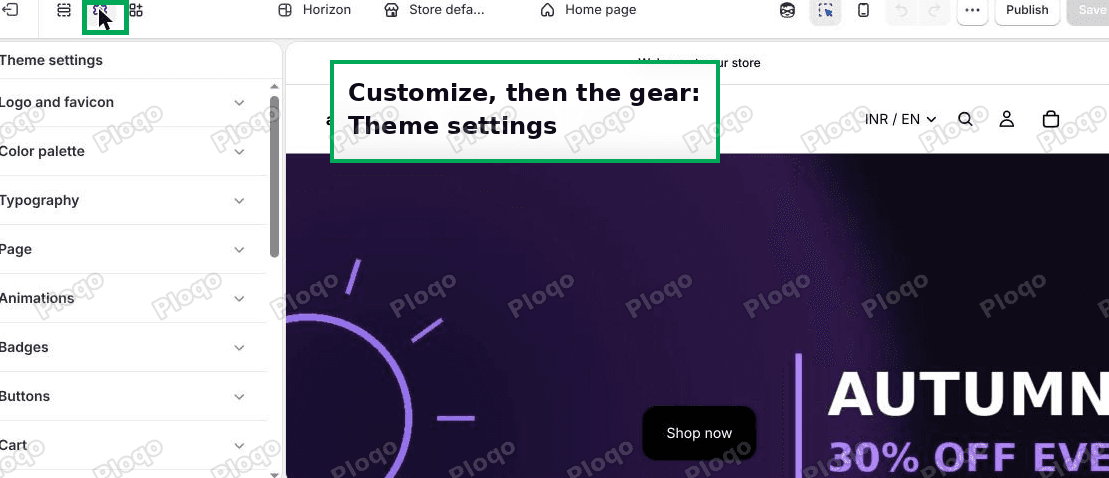 The Theme settings panel in the Horizon theme editor
Scroll that panel to the bottom, where you will find Custom CSS.
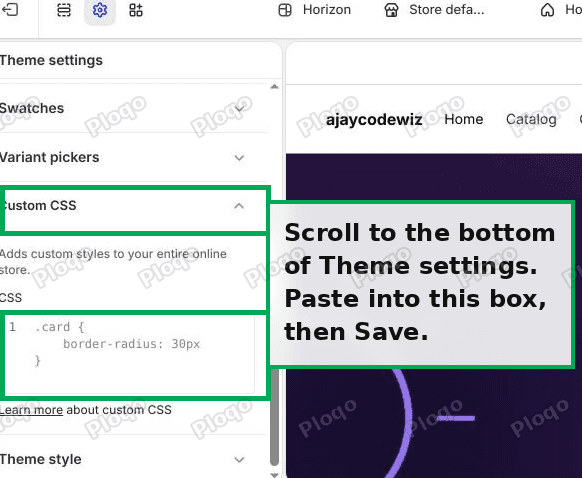 The Custom CSS box at the bottom of Horizon theme settings
Paste this in and save:
.resource-list__carousel > slideshow-container > slideshow-slides > slideshow-slide {
  content-visibility: visible !important;
}
What each part of that is doing
.resource-list__carousel is the class Horizon puts on the product-list carousels, the ones used by sections like a featured collection. It leaves your image slideshows and banner carousels alone.
The > symbols mean "direct child of". That chain matters more than it looks. Product cards contain their own little image carousels, so a page with four product cards in a carousel has four slides at the top level and another eight nested inside the cards. Matching only the direct chain hits the four and leaves the eight alone, so the cards' own galleries keep the performance saving. The chain of names is the selector, the part of the code that points at which elements on the page the styling applies to.
!important is needed because the theme's own rule would otherwise win.
Treat it as a workaround
That line hands back drawing work Horizon skips on purpose. On a short row you will not notice. On a page with several long carousels you are asking the browser to draw everything up front, which is the cost the theme was avoiding. Use it because the alternative is an empty row, not because it is free.
What not to use instead
The obvious-looking alternative is to fix the size rather than the skip, since contain-intrinsic-size: auto none is what makes the row collapse:
/* do not use this */
slideshow-slide { contain-intrinsic-size: auto 420px; }
The theory is sound: give an undrawn slide a placeholder height and the row cannot collapse. Tested on a real Horizon store, it does something you will not want. Every slide ends up exactly 420px tall, including the ones already drawing correctly, so your product cards get locked to a height you picked out of the air rather than the height their content needs.
Leave contain-intrinsic-size alone and change the skip instead.
Common questions
Does this only happen on desktop?
The report was desktop only, and loading the same store in a 900px-wide window did not reproduce it: the row drew all four cards with no drag and no hover, and measured 379px tall. That does not prove it is width-dependent, but it does mean window width is worth recording when you report it. Note the browser too.
Why does switching to grid help?
Grid mode does not use slideshow-slide elements, so the skip does not apply. It is a reasonable temporary answer if the section offers the choice and you are happy with the look.
Is this a Horizon bug or a browser bug?
content-visibility is a standard browser feature and Horizon is using it the way it is meant to be used. The trouble comes from contain-intrinsic-size: auto none, which means an undrawn slide reserves no space. That combination is what turns "drawn a moment later" into "an empty row until you touch it".
Will the fix survive a theme update?
Yes. Custom CSS lives in your theme settings, not in a theme file, so an update does not overwrite it. That also means it carries over if you duplicate the theme, and it stays behind if you switch to a different theme.
Does it affect what Google sees?
Skipped slides are still in the page's HTML. content-visibility changes what gets drawn, not what exists, so the products are there for crawlers either way.
If the first card is blank too
Then the skip is not your cause, and the useful move is to work backwards through what changed.
- Remove any code you pasted in recently. Custom CSS, and any Custom Liquid block (a box in the theme editor where you paste your own code), are the first suspects, especially anything added to fix this same problem. Take it out and look at the theme clean before adding anything else.
- Check apps installed around the time it started. Speed and lazy-loading apps change how and when images load, which is the sort of thing that can leave a carousel with no measurable content.
- Open the page with a browser extension disabled. Ad and script blockers occasionally take out a theme's own script.
- Look at the browser console for errors. If the theme's carousel script fails, no slide ever gets marked as the visible one, and the whole row stays undrawn.
For reference, here is the same carousel drawing properly, with no drag and no hover, so you know what you are aiming at.
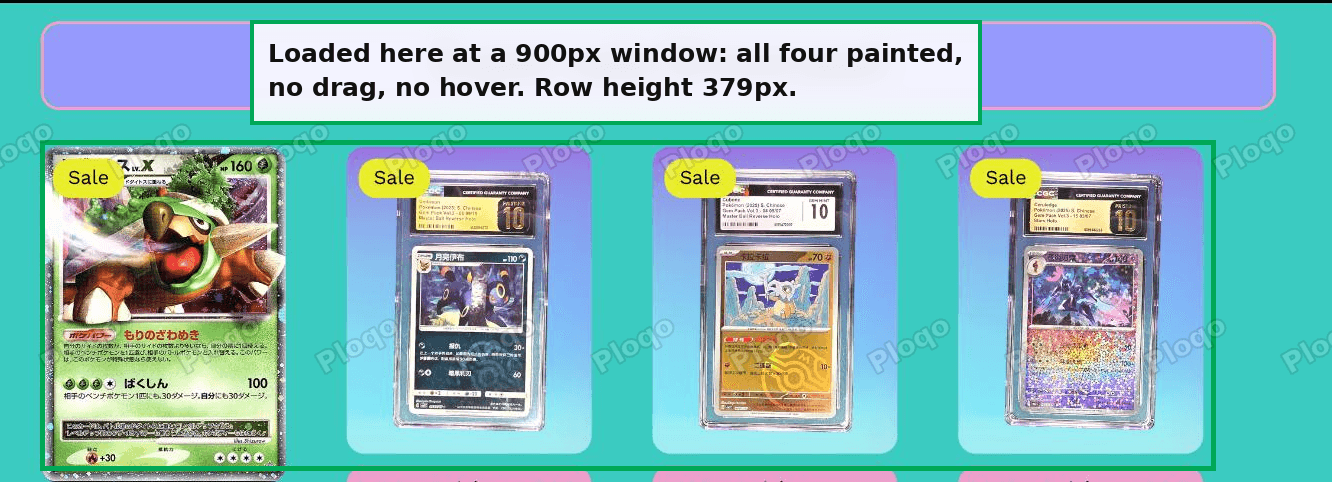 A Horizon product carousel drawing all four product cards correctly
Words that get mixed up
- Carousel: a row you scroll sideways through. Horizon builds them from
slideshow-slideelements. - content-visibility: a browser setting that lets a page skip drawing something until it matters.
- contain-intrinsic-size: the size a skipped element claims while it is undrawn. Horizon sets it so that an undrawn slide claims nothing.
- Custom CSS: a box in your theme settings where you add your own styling, kept separate from the theme's files.
- Theme settings: the gear icon in the theme editor, holding the settings that apply across the whole store rather than to one section.
Tested on
Checked against a live Horizon 4.1.5 store in September 2026. The three rules quoted above come from that store's own compiled stylesheet. On its homepage the product carousel held four top-level slides plus eight more inside the product cards, and the direct-child selector matched the four and none of the eight. Injecting it moved all four from auto to visible. The contain-intrinsic-size: auto 420px alternative was tried on the same page and set every slide to 420px, including the one already drawing. The editor screenshots are Horizon 4.1.5 on a test store, the same version. The empty row itself did not reproduce at a 900px viewport, so the width at which it appears is not established here.
Wiring up the manual bits of your Shopify store?
PinFlow handles one of them for you: getting your Shopify catalog onto Pinterest consistently, on a schedule, without a person doing it every week.
Get PinFlow on the Shopify App StoreMore Shopify fixes
More community-sourced Shopify guides, tested on a live store.
Themes & Storefront
Shopify Anchor Link: Button That Scrolls to a Section
Link a Shopify button to a section lower on the same page with an anchor link. Steps for the theme editor, no code files, plus the fix for a title hidden under the header.
Themes & Storefront
Shopify Social Media Icons: Add a Custom Icon and Link
Set your social links in Shopify theme settings, see why icons do not show, and swap in your own icon for a network the theme does not list.
Themes & Storefront
Sticky Add to Cart Button in Shopify Dawn, No App
Pin the Add to cart button and its delivery line to the bottom of the screen in Shopify Dawn. One free Custom Liquid block, no app, phone and desktop.