
Limit the Shopify Quantity Selector to Stock
Cap the Shopify quantity selector to real available stock per variant in Horizon. One Custom Liquid block, no app, tested and live.
By AjayCodeWiz · August 5, 2026 · 11 min read
The problem
A merchant asked about this on the Shopify Community. Herve, running the Horizon theme on the Basic plan, had a simple worry.
On his product page a shopper could type any number into the quantity box. Even a number bigger than the stock he actually had.
He wanted the quantity to cap at the real available stock. And he wanted it to update the moment the shopper switched to a different variant.
That is the goal of this guide: shopify limit quantity to stock, per variant, live.
I reproduced it on a test store on the Horizon theme. It behaves exactly as he described.
I made a variant with 3 units in stock. The quantity box still let me set 50.
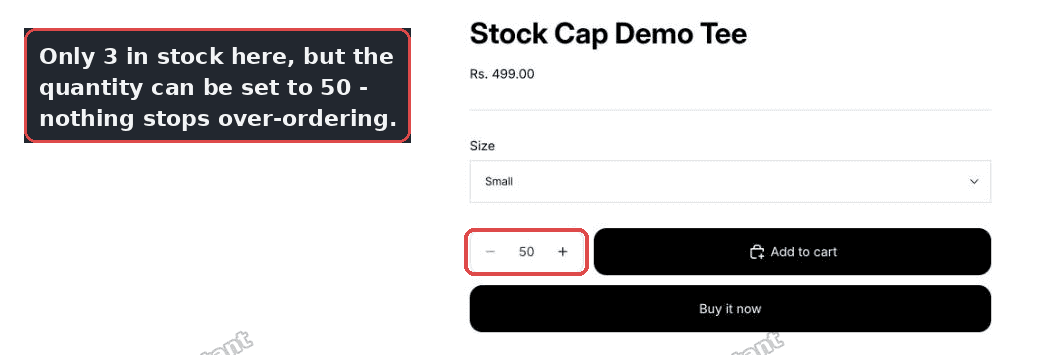 Horizon quantity box lets a shopper set 50 when only 3 are in stock
Nothing on the page stopped the over-order. The shopper only hits a wall at checkout, which is late and frustrating.
Why it happens
The Horizon quantity box is a small web component. In the theme code it is a quantity-selector-component wrapping an input[name="quantity"].
That component reads your quantity rules. Those are the min, max, and increment you can set on a product.
Here is the key point. Quantity rules are a fixed number you type in. They are not tied to your live stock.
So if you never set a max rule, the box has no ceiling. The shopper can type anything.
Horizon has no native toggle that says "cap the quantity to inventory." That option simply does not exist in the theme settings.
Shopify does check stock. But it checks on the server, at checkout. The quantity box on the product page does not know or care about your inventory count.
That gap is what we are closing. We give the box a live ceiling that matches the selected variant's stock.
Before you start: check two settings
The cap only makes sense on variants where a real stock number exists. So check two things on your product first.
Track quantity must be on. Open the product, open the variant, and make sure "Track quantity" is ticked. If Shopify is not counting units, there is no number to cap to.
Overselling must be off. In the same place, "Continue selling when out of stock" must be unticked.
If a variant is allowed to oversell, it has no ceiling on purpose. You are telling Shopify to keep selling past zero. The snippet leaves those variants unlimited, which is correct.
So the rule is simple. Tracked stock plus no overselling equals a cap. Anything else stays open.
The fix
The clean way is a Custom Liquid block on the product page. A Custom Liquid block is a spot in the theme editor where you can paste your own code. Horizon supports it out of the box.
You add it once. Because it lives in the product template, it covers every product that uses that template.
Here are the steps.
Open the theme editor. Go to Online Store, then Themes, then Customize on your Horizon theme.
Open a product page. Use the top page picker to switch the preview to a product. Then in the left sidebar find the Product information area. Click Add block, then choose Custom Liquid.
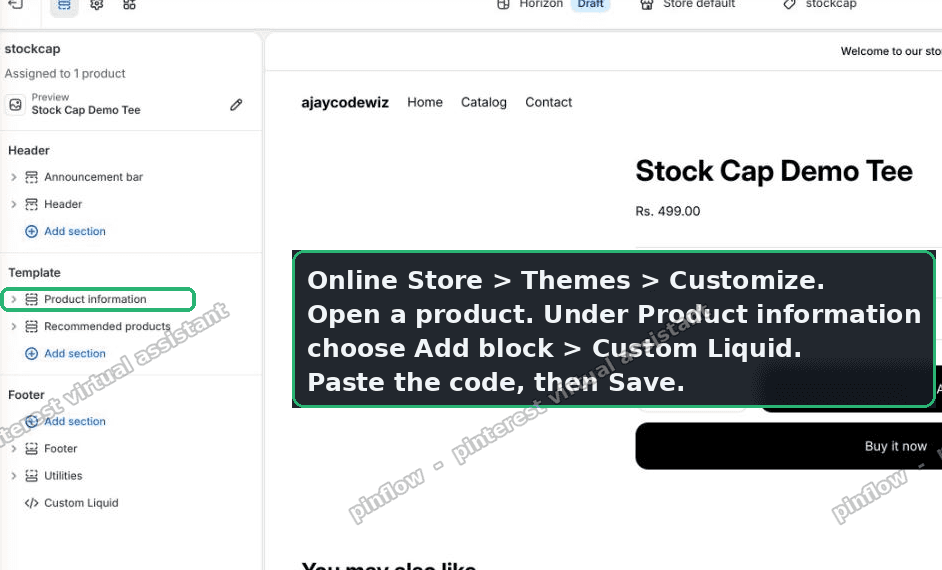 Add a Custom Liquid block under Product information in the Horizon theme editor
Paste the code. Drop the snippet below into the Liquid code box, then click Save.
{%- comment -%} Limit the quantity to the selected variant's stock {%- endcomment -%}
<script>
(function () {
  var STOCK = {
    {%- assign first = true -%}
    {%- for v in product.variants -%}
      {%- if v.inventory_management != blank and v.inventory_policy != 'continue' and v.inventory_quantity > 0 -%}
        {%- assign cap = v.inventory_quantity -%}
        {%- if v.quantity_rule.max != blank and v.quantity_rule.max < cap -%}{%- assign cap = v.quantity_rule.max -%}{%- endif -%}
        {%- unless first -%},{%- endunless -%}"{{ v.id }}": {{ cap }}{%- assign first = false -%}
      {%- endif -%}
    {%- endfor -%}
  };
  function variantId() {
    var el = document.querySelector('product-form-component input[name="id"], form[action*="/cart/add"] input[name="id"], input[name="id"]');
    return el ? el.value : null;
  }
  function apply() {
    var id = variantId();
    document.querySelectorAll('quantity-selector-component').forEach(function (qs) {
      var input = qs.querySelector('input[name="quantity"]');
      if (!input) return;
      var min = input.getAttribute('min') || '1';
      var step = input.getAttribute('step') || '1';
      var cap = STOCK.hasOwnProperty(id) ? String(STOCK[id]) : null;
      if (typeof qs.updateConstraints === 'function') qs.updateConstraints(min, cap, step);
      else if (cap) { input.setAttribute('max', cap); if (parseInt(input.value, 10) > +cap) input.value = cap; }
      else input.removeAttribute('max');
    });
  }
  document.addEventListener('shopify:product:select', function (e) {
    if (e && e.promise && e.promise.then) e.promise.then(apply, apply);
    setTimeout(apply, 350);
  });
  if (document.readyState !== 'loading') apply();
  else document.addEventListener('DOMContentLoaded', apply);
})();
</script>
Here is what the code does, in plain words.
The Liquid loop at the top reads every variant when the page builds. It writes each qualifying variant's stock into a small list the browser can read.
A variant only makes the list if it tracks inventory, does not oversell, and has stock above zero. If you have set a max rule that is lower than stock, that lower number wins.
The apply function then finds the quantity box and the selected variant. It sets the box's max to that variant's stock.
It also calls Horizon's own updateConstraints method when it exists. That is how the plus button greys out at the limit, the Horizon way, not a fight against the theme.
The last part listens for the shopify:product:select event. That fires when the shopper switches variant. So the cap recalculates the instant they change size or colour.
Save the block. That is the whole fix. This is how you set a shopify quantity selector max stock on Horizon.
Now the same variant that had 3 in stock stops at 3. The plus button greys out. Typing a bigger number snaps back down.
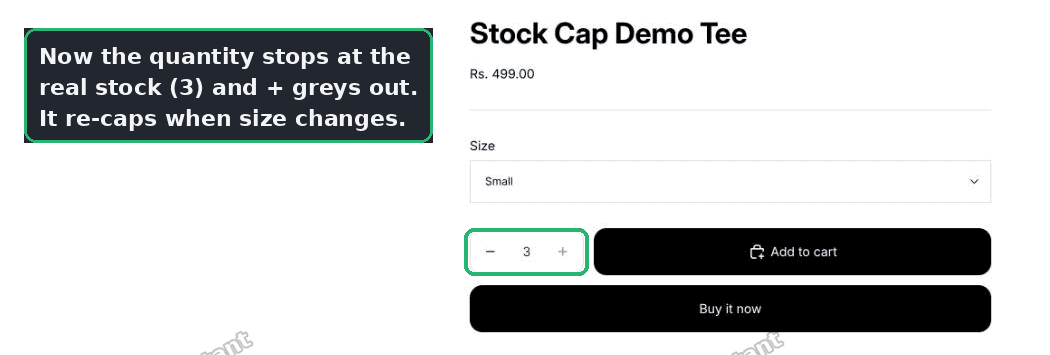 Horizon quantity now capped at the variant's real stock of 3 with the plus button greyed out
I tested this on a Horizon store. A variant with 3 in stock capped at 3. Switching to a variant with 8 in stock moved the limit to 8. Typing a bigger number snapped back to the cap. Numbers, not guesses.
An alternative: a fixed max with quantity rules
If your worry is not live stock but a flat purchase limit, you do not need code at all.
Shopify has a built in quantity rules feature. Open a product, scroll to the Purchase options or inventory area, and set a maximum.
For example, set a max of 5. The box will not go above 5 on that product.
This is the no-code path for shopify limit purchase quantity. It is perfect for "one per customer" style caps or bundle limits.
But be clear on the difference. A quantity rule is a fixed number. It does not follow your stock.
If you set max 5 and you only have 3 left, the box still allows 5. So a rule alone will not solve the over-order problem the merchant had.
For a live, per stock cap you still want the Custom Liquid snippet above. The snippet even respects a max rule when you have one, using whichever number is lower.
Apps exist too. Purchase limit apps and inventory apps can enforce minimums, maximums, and per customer caps at scale. They are worth it if you need order level limits or limits across many products with different rules.
How do I set a maximum quantity per product in Shopify?
For a flat cap, use the built in quantity rules. This is the native way to set a shopify max quantity per product.
Open the product in your admin. Find the quantity rules or purchase options section. Set the maximum you want, then save.
The quantity box on the storefront then refuses to go above that number. No theme code needed.
Use this when the limit is a business choice, like two per order. Use the Custom Liquid snippet instead when the limit must track real stock.
Can I limit purchase quantity in Shopify without an app?
Yes, in two ways.
For a fixed cap, quantity rules do it natively, no app and no code.
For a stock aware cap, the Custom Liquid snippet above does it, again no app. It is a one time paste into the theme editor.
You only need an app when you want limits that Shopify cannot express. Examples include per customer limits across sessions, or a cart total limit spanning many products.
For a single product cap, or a per variant stock cap on Horizon, you can stay app free.
How to limit quantity per variant in Shopify
This is the exact case the merchant had, and it is where most themes fall short.
A product often has many variants with different stock. Size Small might have 3 units. Size Large might have 8.
A flat quantity rule cannot handle that. One rule applies to the whole product, not each variant.
The Custom Liquid snippet solves the shopify quantity limit variant case directly. It stores every variant's stock, then re-reads the selected one on each variant change.
So Small caps at 3 and Large caps at 8, on the same page, live. That per variant behaviour is the reason a plain rule was never enough here.
Does the Shopify quantity selector show max stock automatically?
No. On Horizon, and on most themes, the quantity box does not read your inventory by default.
It follows quantity rules only. With no max rule set, it has no ceiling at all.
Shopify does enforce stock, but on the server at checkout. That is too late to guide the shopper on the product page.
To make the box respect stock up front, you add the cap yourself. That is what this snippet does.
If it did not work
A few things trip people up. Check these in order.
The variant allows overselling. If "Continue selling when out of stock" is ticked, the snippet leaves that variant unlimited on purpose. Untick it if you want a cap.
Inventory is not tracked. If "Track quantity" is off, there is no stock number to cap to. Turn tracking on.
The block is on the wrong template. The snippet reads product.variants, so it must live on the product page, in a Custom Liquid block inside Product information. It will do nothing on the home page or a section that is not a product.
Your theme is not Horizon. The code targets Horizon's quantity-selector-component and its updateConstraints method. On Dawn or another theme the markup differs, so the selectors need adapting.
A cached page. After saving, hard refresh the storefront. Old cached HTML can hide a fresh change for a minute.
Sold out variants. These are already blocked by the Add to cart button, so the snippet leaves them alone. That is expected, not a bug.
Definitions people confuse
A few terms get mixed up here. Clearing them makes every step above easier.
Inventory tracking. This is Shopify counting your units. When on, each sale lowers the number. The snippet needs this on to have a number to read.
Overselling. This is the "continue selling when out of stock" setting. When on, Shopify keeps selling past zero, so there is no ceiling to enforce.
Quantity rules. These are the min, max, and increment you type on a product. They are fixed numbers and do not follow stock.
Stock cap. This is what the snippet adds. A live ceiling equal to the selected variant's real stock.
Client side versus server side. The quantity box is client side, in the browser, for convenience. Checkout is server side and is the real guard. The snippet improves the client side experience so shoppers are not surprised later.
Variant versus product. A product can have many variants, each with its own stock. A per product rule treats them as one. A per variant cap treats each on its own, which is what most stores actually need.
That is the full picture. Set your two inventory settings, paste one Custom Liquid block, and the Horizon quantity selector caps to real stock, per variant, and re-caps every time the shopper switches.
Spending too long on manual Shopify busywork?
PinFlow turns your Shopify catalog into Pinterest pins and posts them on a schedule, automatically. Same idea as the rule above, let the system handle the repetitive part.
Get PinFlow on the Shopify App StoreMore Shopify fixes
More community-sourced Shopify guides, tested on a live store.
Themes & Storefront
Shopify AI Section: Fix a Price Badge Hidden Behind the Image
You built a section with Shopify's AI section generator, but the price badge on each card sits behind the photo. Here is the Custom Liquid fix that brings it to the front without regenerating anything. Tested on a Dawn store.
Themes & Storefront
Hide Shipping Calculated at Checkout on One Shopify Product
The line under Add to cart that says shipping is calculated at checkout shows on every product, gift cards included. Here is how to hide it on one product only, with the code, screenshots and the Eclipse theme steps.
Themes & Storefront
Shopify Dropdown Menu Behind Page Content (Z-Index Fix)
Your Shopify dropdown or mega menu opens, but the page title and products sit on top of its links and the menu closes before you can click. The fix is one Custom CSS rule in Theme settings. Tested on a Rebel store.