
How to Add Local Pickup on Shopify and Turn It Off
Local pickup on Shopify is a free per-location setting, not an app. Here is where to switch it on, how to turn it off again for the months you do not offer it, and exactly what your customers stop seeing at checkout and on the product page. Tested with before and after screenshots.
By AjayCodeWiz · September 1, 2026 · 10 min read
The problem
A merchant asked this on the Shopify Community. They run a gift shop. They deliver locally all year, but they only offer in-store pickup around certain holidays.
They wanted an app. Something they could switch off the rest of the year, then switch back on in December.
They do not need one. Local pickup is built into Shopify, on every plan, for free. It is a switch you can flip as often as you like.
The part the help docs skip is where that switch lives. Or what happens to your settings when you turn it off. Or what your customers actually stop seeing.
I set the whole thing up on a test store and ran it both ways. Everything below is what really happened.
Where local pickup actually lives
This is the bit that sends people looking for an app.
Local pickup is not a setting on a product. It is not a setting on your theme either. It is a setting on a location.
A location in Shopify is a place that holds stock. Your shop, your warehouse, your garage. Most small stores have one. Some have several.
Each location has its own pickup switch. Turn it on and that location starts offering collection at checkout. Turn it off and it stops. Nothing else about the location changes, and no stock moves.
Once you know it is a per-location switch, two things suddenly make sense. First, there is no app to install. Second, if you have three locations, you have three switches, not one.
Step 1: Open the pickup settings
Go to Settings, then Shipping and delivery.
Scroll past the shipping profiles. Near the bottom there is a card called Additional delivery methods. It holds three rows: Local delivery, Pickup in store, and Pickup points.
Open Pickup in store.
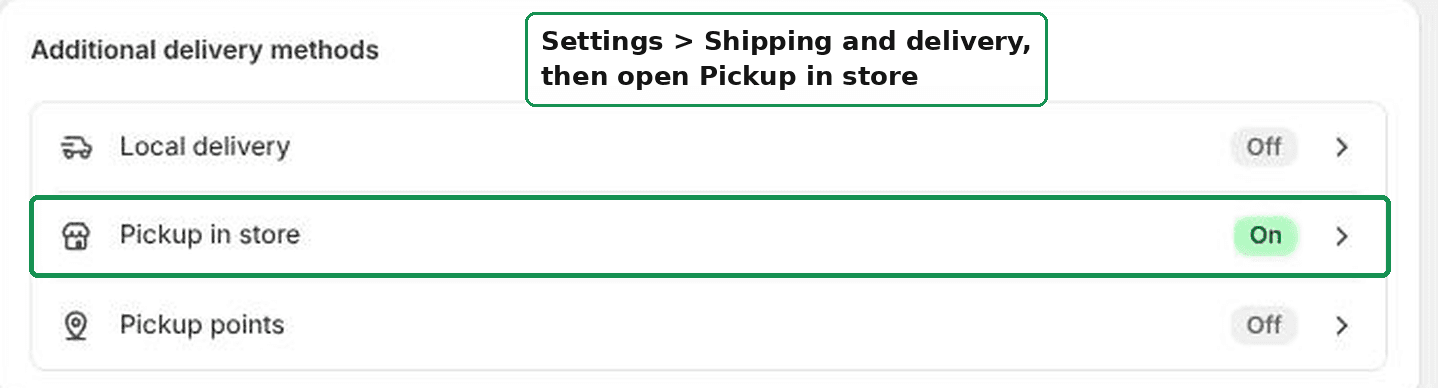 Settings, Shipping and delivery, then Pickup in store
The badge on the right tells you the current state at a glance. Mine said On.
If you have looked at older guides and cannot find this, that is because the wording changed. Shopify used to call this "Local pickup". The card now says "Pickup in store". It is the same feature.
Step 2: Pick the location
You now see every location on your store that can offer collection.
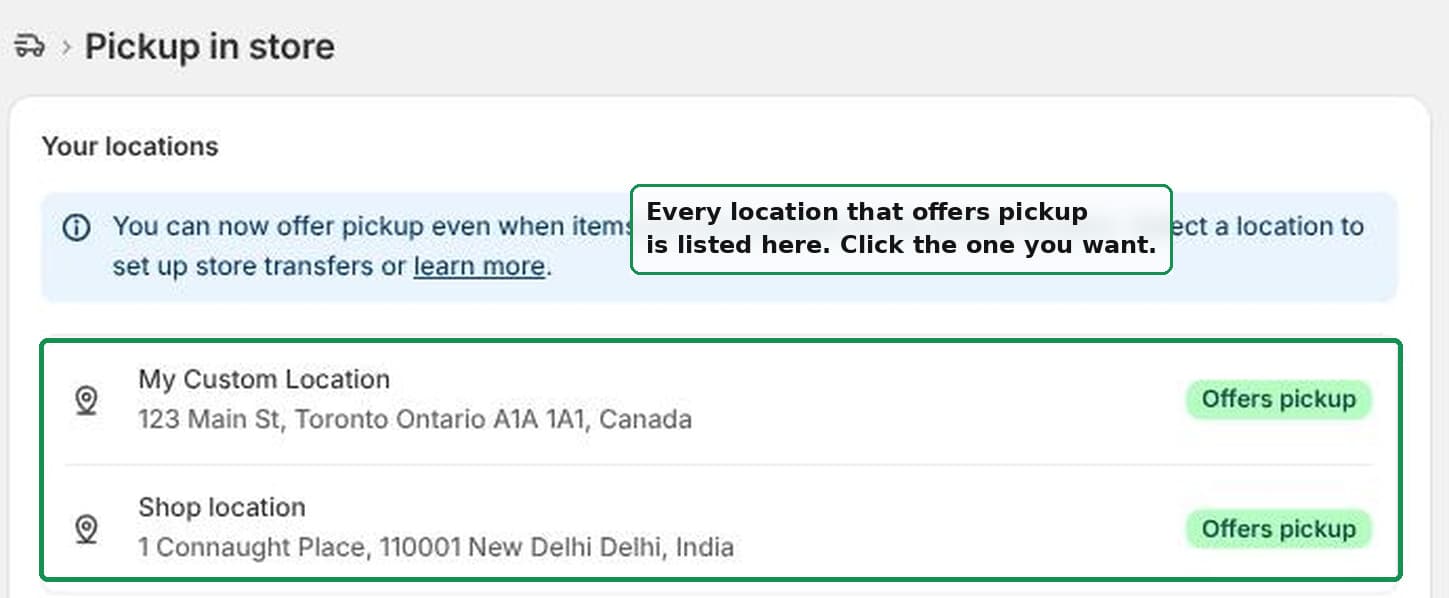 Your locations, each showing whether it offers pickup
Each row shows whether that location currently offers pickup. Click the one your customers actually collect from.
If a location is missing from this list, it is probably not set to fulfil online orders. You can fix that under Settings, then Locations.
Step 3: Use the Location status switch
Inside the location you get a card called Location status, with one toggle. The label reads "Let customers pick up orders directly at this location".
That toggle is the whole feature. On means pickup is offered. Off means it is not.
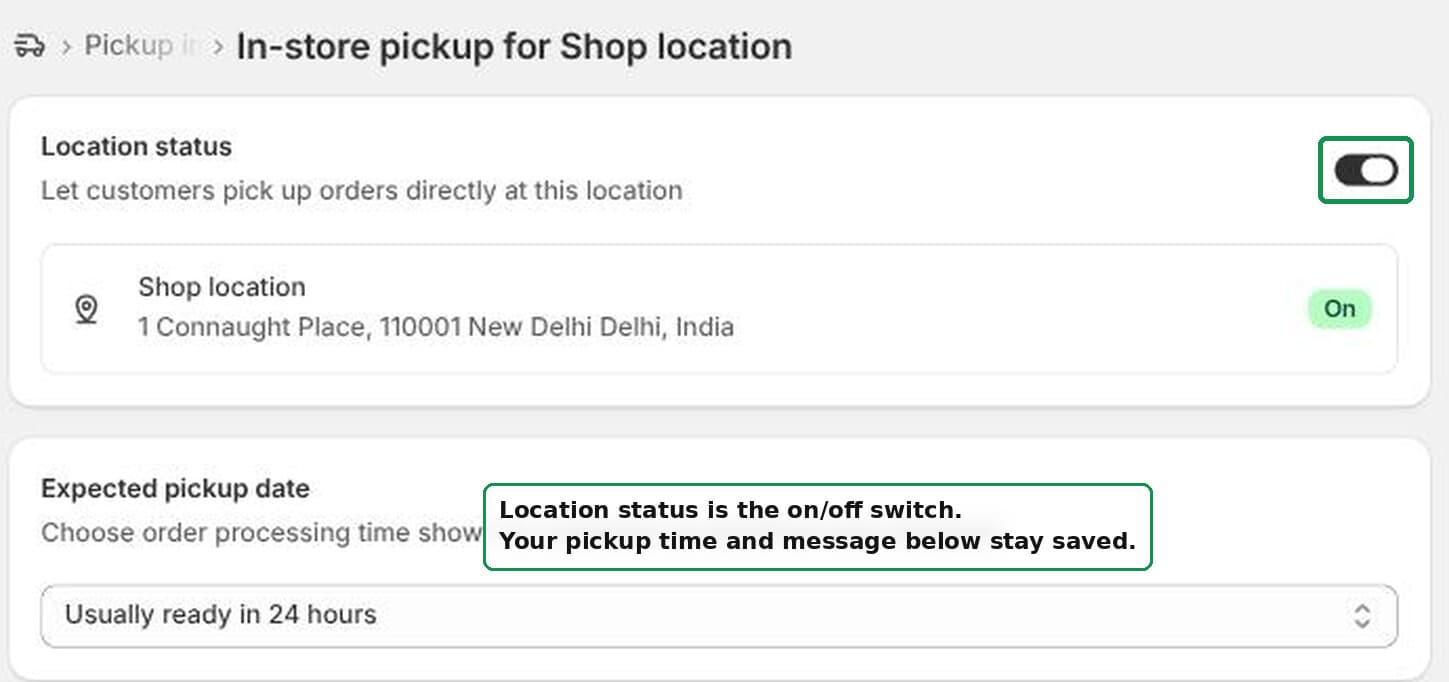 The Location status toggle turns pickup on and off
Below it are two more things worth setting once:
- Expected pickup date. This is the "Usually ready in ..." line customers see. It is a dropdown with fixed choices, not free text. You get 1 hour, 2 hours, 4 hours, 24 hours, 2 to 4 days, and 5 or more days. There is no 48 hours option, so pick the closest one.
- Ready for pickup notification. This is the message emailed to the customer when you mark the order ready. Mine says "Bring your confirmation email when you come to collect your order."
Set those once and forget them. You will see why in a moment.
Step 4: Switch it off, then Save
Now the part the merchant actually asked about.
Flip Location status off. A black bar appears at the top of the admin saying "Unsaved changes". Click Save.
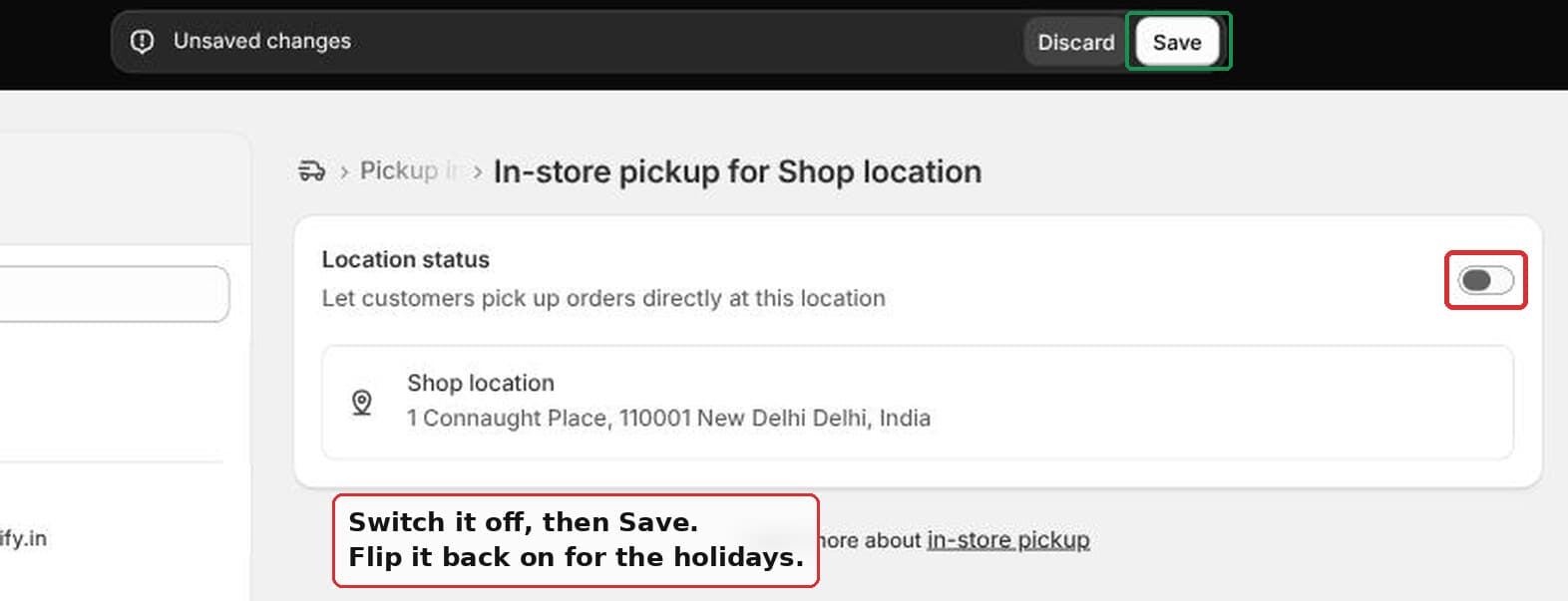 Switch the toggle off, then click Save in the top bar
The toggle on its own does nothing until you save. I missed the Save button twice on my test store and wondered why the storefront had not changed.
When the holidays come round, open the same screen, flip it back on, and Save again. It takes about ten seconds.
Your settings survive. I checked this specifically, because it is the thing that would make the switch annoying. I turned pickup off, saved, then turned it back on. The expected pickup date was still "Usually ready in 24 hours". My ready-for-pickup message was still there, word for word. Nothing to re-type. That is why it is safe to treat this as a seasonal switch.
What your customers stop seeing
Two things change on the storefront, and both happen immediately.
On the product page. With pickup on, a theme like Dawn shows a small block under the buy buttons. It has a tick, "Pickup available at ...", your ready-in time, and a "View store information" link.
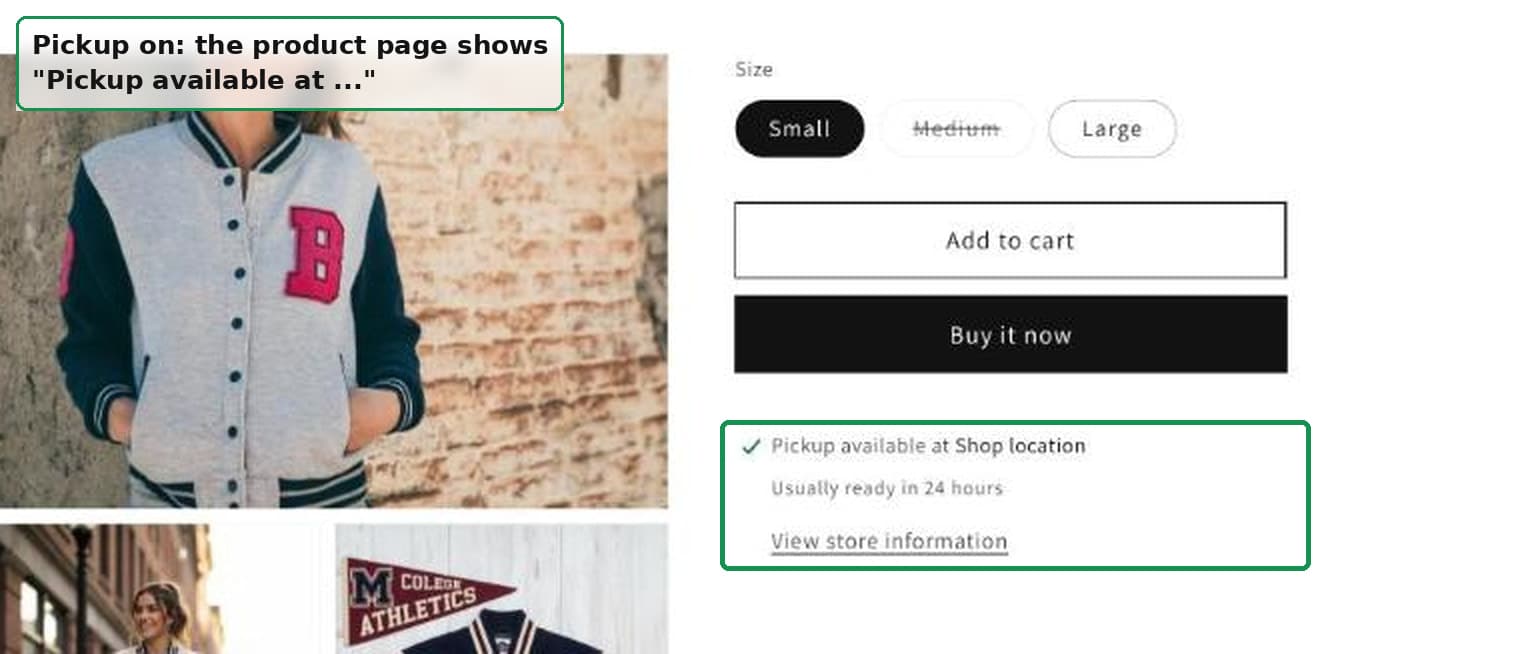 Product page with local pickup switched on
With pickup off, that whole block disappears. No message, no gap, no broken layout. The buy buttons just sit there on their own.
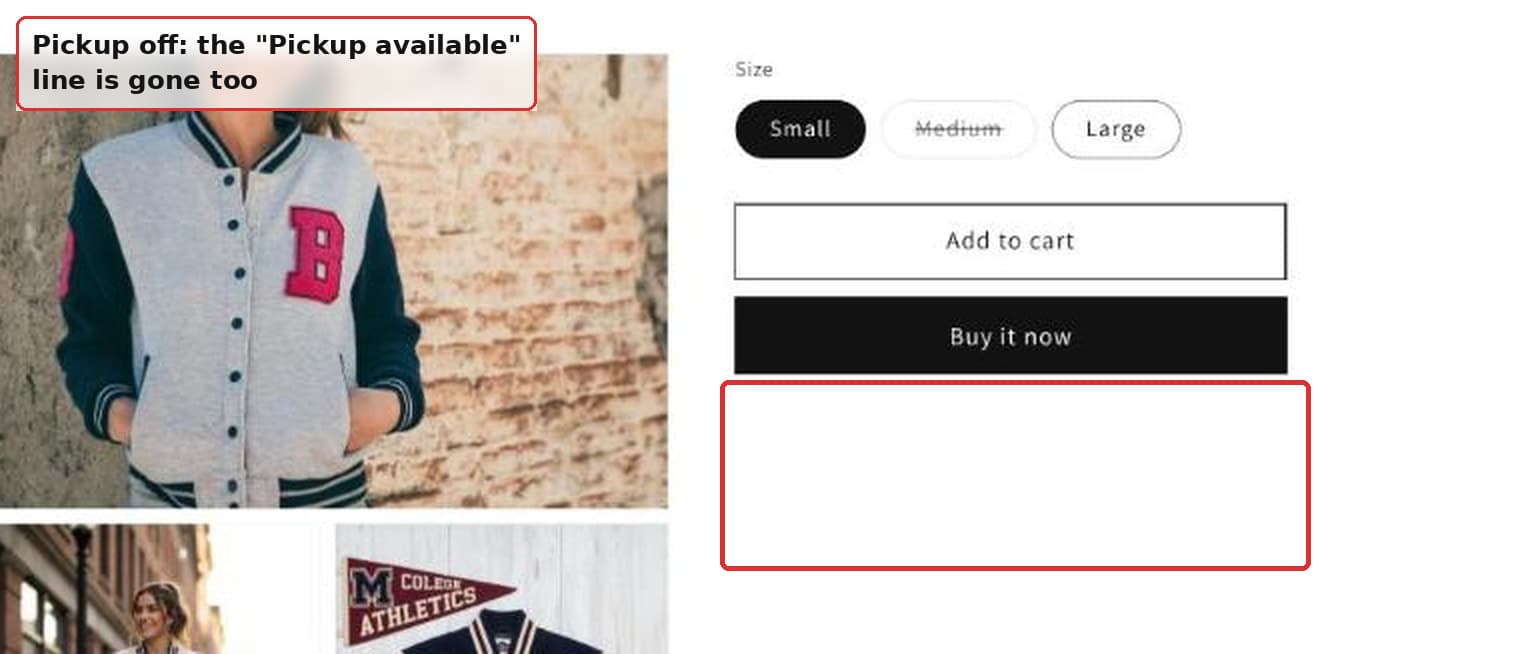 The same product page with local pickup switched off
At checkout. With pickup on, the Delivery section has two tabs: Ship and Pickup. The customer chooses.
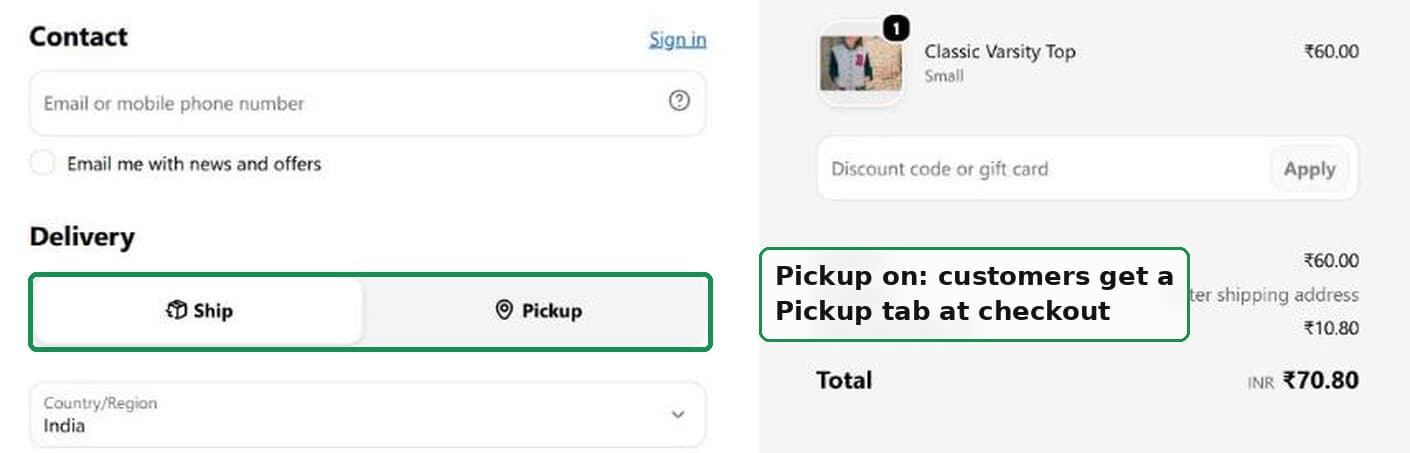 Checkout showing the Ship and Pickup tabs
With pickup off, the tabs are gone entirely. Checkout goes straight to the shipping address form, exactly as it would on a store that never offered collection.
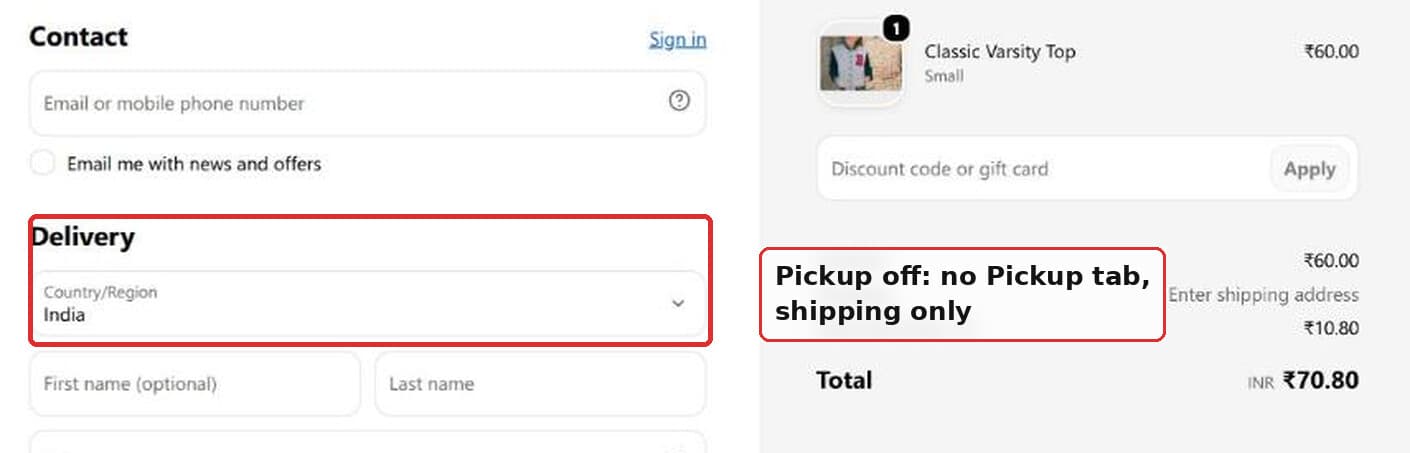 The same checkout with the Pickup tab gone
That is the full extent of it. No orphan wording anywhere else. I looked.
Local delivery is a separate switch
The merchant wanted delivery running all year and pickup only sometimes. That works, because they are two different settings.
Look back at the Additional delivery methods card. Local delivery and Pickup in store are separate rows with separate states. Mine had delivery off and pickup on.
So switching pickup off does nothing to local delivery. Your radius, your postcodes, your minimum order, and your delivery fee all keep working. Customers who are inside your delivery zone still get the option.
Same the other way round. You can pause delivery for a holiday week and leave pickup running.
What to check if it did not work
Four things go wrong, roughly in this order.
You did not click Save. The single most common one. The toggle moves before anything is saved. If you navigated away, Shopify would have warned you about unsaved changes, and it is easy to click through that.
Another location still has pickup on. This is the multi-location catch. Turning pickup off at your shop does nothing if your warehouse still offers it. Go back to the list of locations and check every row, not just the one you were thinking of.
The customer's cart cannot be collected anywhere. Pickup only appears for items a pickup location can actually supply. My test store had a second location still set to offer pickup. It had none of the item in stock, and the Pickup tab still vanished. That is normal.
You are looking at a cached page. Checkout updates immediately, but a product page can be cached for a moment. Hard refresh, or open the page in a private window.
How to turn off in-store pickup on Shopify permanently
Exactly the same steps. There is no separate "delete" action and you do not need one.
Turn Location status off at every location and save. Pickup stops being offered anywhere. Your pickup time and your notification message stay stored against each location, unused, in case you ever want them back.
There is a bigger setting if you want the location to stop handling online orders entirely. Go to Settings, then Locations, and untick "Fulfil online orders from this location".
That one affects your stock and your order routing. Only use it if that is really what you want.
How to change your local pickup address
The pickup address is just the location's address. You do not change it on the pickup screen.
Go to Settings, then Locations, open the location, and edit the address there. The new address flows through everywhere. The pickup option at checkout, the "View store information" panel, and the customer's confirmation email.
Give it a real street address. A location with a half-filled address can fail to show as a pickup option at all.
How to change a local pickup order to shipping
You cannot flip the delivery method on an order that is already placed. Shopify treats pickup and shipping as different fulfilment routes, chosen at checkout.
Your options are to cancel and refund the order, then have the customer re-order with shipping, or to fulfil it manually and post it yourself, adding the tracking number to the fulfilment.
For a one-off, the second option is usually kinder to the customer.
How to see your local pickup orders
Go to Orders and filter. Local pickup orders carry a pickup delivery method, so you can filter the order list by delivery method and save that view.
Give the saved view a name like "To collect" and it stays in your Orders tab. During a busy holiday week that is much faster than scanning every order.
Each pickup order also moves through its own statuses: ready for pickup, then picked up. Marking an order ready for pickup is what sends the notification message you set in Step 3.
Is click and collect the same as local pickup?
Yes. Click and collect is the common name for it in the UK, Ireland, Australia and New Zealand. In the US the same thing is usually called buy online, pick up in store, or BOPIS.
Shopify calls the feature local pickup, and now labels the setting "Pickup in store". If you searched for a click and collect app and could not find a good free one, this is why. The feature you want is already in your settings.
When an app is genuinely worth it
Everything above is free, so be clear about what you are buying if you do install something.
The built-in pickup has no calendar. That is the real limit.
Customers cannot choose a pickup date. They cannot choose a time slot. And Shopify will not switch pickup on by itself when a date arrives. Somebody has to open the settings and flip the toggle.
For the merchant who asked, that is fine. A few holidays a year is a few switch flips a year.
It stops being fine in three cases. You offer pickup on fixed days each week. You need collection slots so people do not all arrive at once. Or you have blackout dates.
Then you want a pickup scheduling app. The well-known ones are Zapiet - Pickup + Delivery, Pickup Delivery Date Pickeasy, and Bird Pickup Delivery Date. All three add a date and time picker at checkout. You open pickup only on the dates you choose.
Pick an app for the calendar. Do not pick one just to get an on and off switch, because you already have that.
Local pickup, local delivery and pickup points
These three sit next to each other in the admin and get mixed up constantly.
- Local pickup means the customer comes to your location and collects. Free. Set per location.
- Local delivery means you or your driver deliver to addresses near a location. You set a radius or a list of postcodes. You can add a delivery fee and a minimum order. Free. Also set per location.
- Pickup points means a carrier's network of parcel shops and lockers. Your customer collects from a shop that is not yours. This one needs a carrier or app that supports it.
Most small merchants want the first two. Some merchants also want certain products to be collectable but never shippable. That is a different setup, and I wrote it up in how to make a product pickup only on Shopify.
The short version
Local pickup is a per-location toggle at Settings, then Shipping and delivery, then Pickup in store.
Flip Location status and click Save. Off removes the Pickup tab at checkout and the pickup line on your product pages. On brings them back with all your settings intact.
Do it for every location you do not want offering collection. Leave local delivery alone and it keeps running all year.
The only reason to pay for an app is a pickup calendar, and only if you actually need one.
Spending too long on manual Shopify busywork?
PinFlow turns your Shopify catalog into Pinterest pins and posts them on a schedule, automatically. One less thing to remember to switch on.
Get PinFlow on the Shopify App StoreMore Shopify fixes
More community-sourced Shopify guides, tested on a live store.
Shopify Admin
How to Edit a Packing Slip on Shopify to Show Big Product Photos
Shopify's order page shows each item as a 40 pixel thumbnail with no way to enlarge it. Here is how to edit the packing slip template so every line prints that exact variant's photo at 1000 pixels, including the one-line fix Shopify's default template needs.
Shopify Admin
Shopify Shipping Zones: Fix Products Sold Out in One Country
Products show Sold out for customers in one country while your admin shows stock. The cause is a shipping profile with no zone for that country. How Shopify shipping zones and profiles decide what a customer can buy, and the six-click fix, with screenshots.
Shopify Admin
Shopify Translate: Fix Mixed Languages on Product Pages
A Swedish Shopify store showed English words on translated product pages. The titles were translated, so the English came from option names and theme text. How to fix each one in Translate & Adapt, with screenshots.