
Shopify Logo Size: Fix a Logo That Looks Big and Blurry
Shopify logo huge and blurry on the About Us page? The four-line fix in the theme editor, the header logo size settings, and how big to make the file.
By AjayCodeWiz · October 22, 2026 · 10 min read
Why a small logo turns huge and blurry on your page
A merchant running the Horizon theme added their logo to their About Us page. It was a PNG, resized to 200 x 200 pixels. On the live page it came out several times bigger than that, soft at the edges and blurry.
Resizing the file again made no difference. Making it smaller made it look worse.
I reproduced it on a test store running Horizon. I uploaded a 200 x 200 PNG logo and added it to an About us page with the normal page editor. On a 1280px wide browser window the logo showed at 672 x 672 pixels. That is more than three times its real size, so every pixel of the file was enlarged into a block of about 3 x 3 pixels on screen.
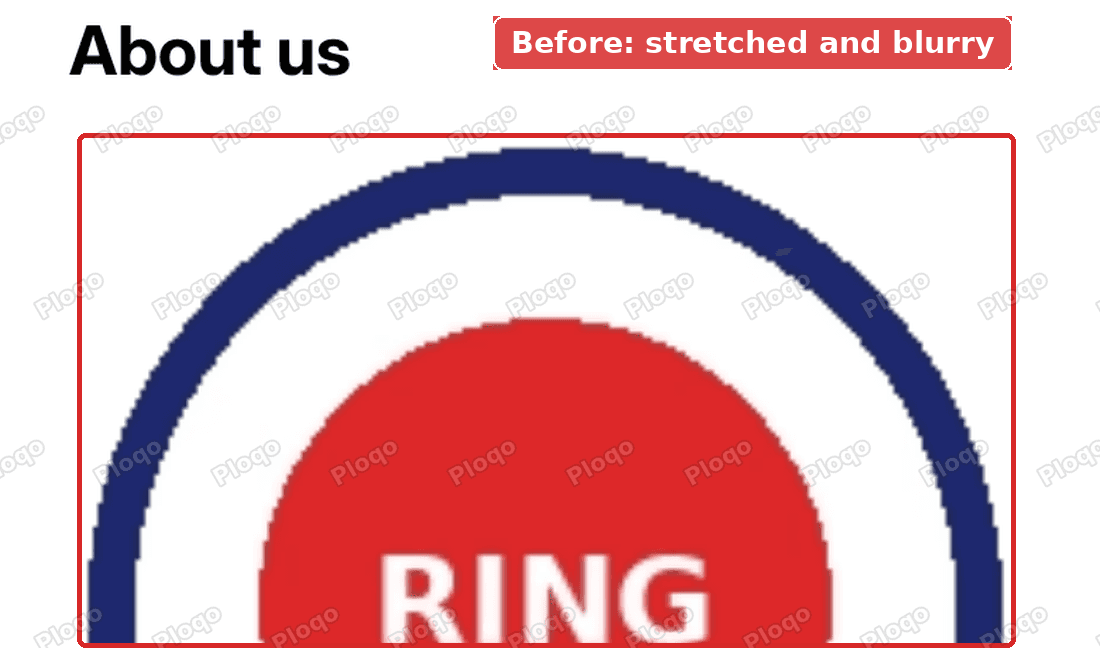 A 200 pixel logo stretched to fill the whole page width under the About us title
The cause is in the theme, not in your file. Horizon's stylesheet (the file that controls how every part of your store looks) tells every picture to fill the full width of the box it sits in. On a page, that box is the text column, which is about 670px wide on a laptop. A picture in the page content is stretched to that width, whatever size you uploaded.
So the image file is not the problem, and no image size fixes it. A bigger file looks sharper when stretched, but it still fills the column. A smaller file is enlarged even more.
I checked the merchant's live store too. It ran Horizon 4.1.1, and its stylesheet had exactly the same rule as the 4.3.0 copy I tested on.
The fix: four lines of CSS in the theme editor
The fix is a short piece of CSS, the code that controls how things look on the page. You paste it into the page section's Custom CSS box in the theme editor. It tells pictures inside the page text to use their own size and to sit in the middle.
After the fix, the same 200 x 200 logo shows at exactly 200 x 200, centered under the title.
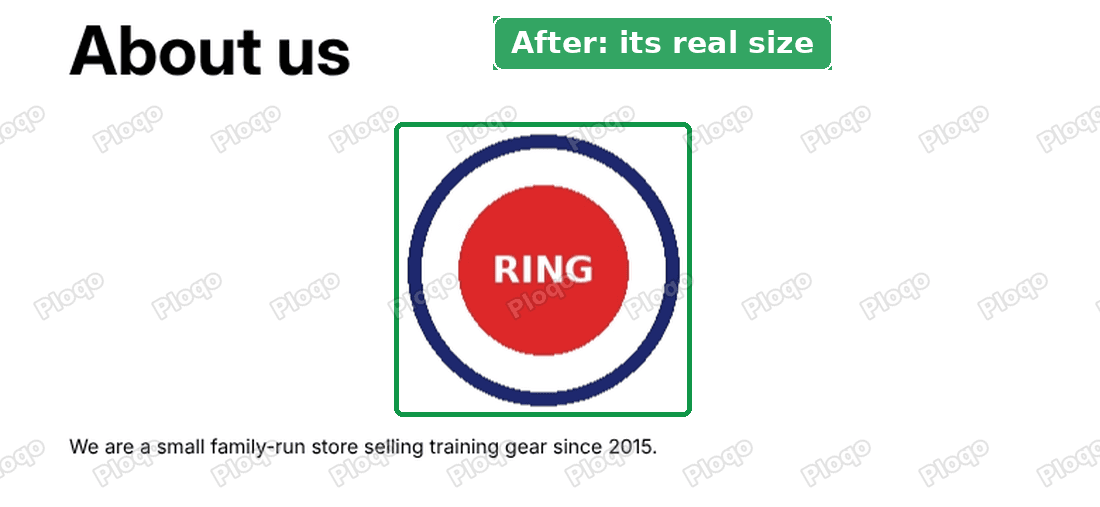 The same logo at its real 200 pixel size, centered under the About us title
Here are the steps.
- From your Shopify admin, click Online Store.
- Click Edit theme on your current theme.
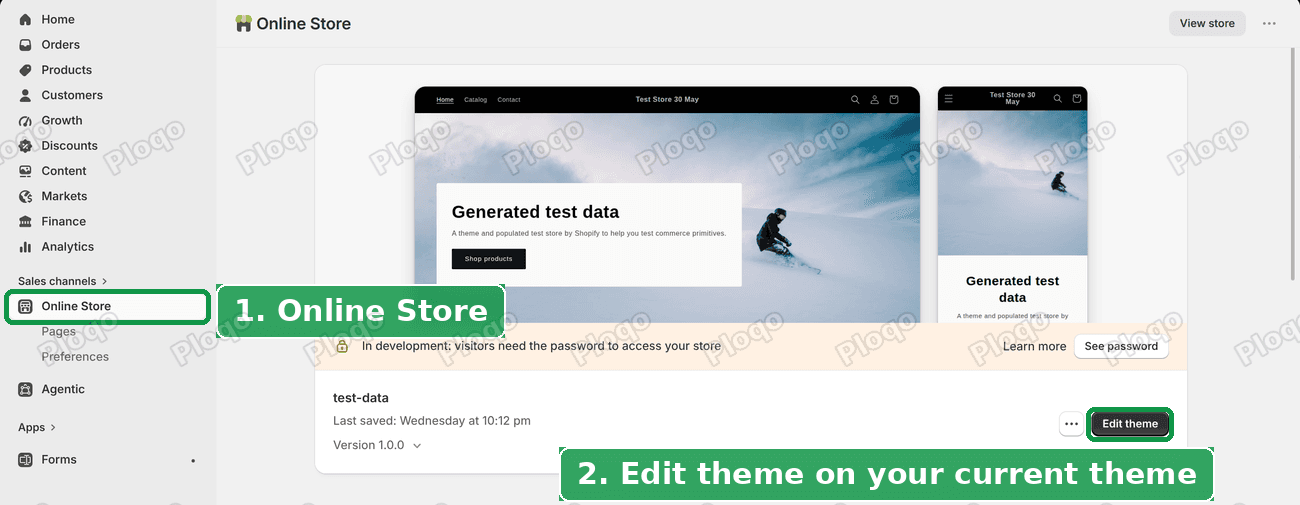 Online Store in the admin menu, then the Edit theme button on the current theme
- The editor opens on your home page. Click the menu at the top of the editor and pick Pages.
- Click Default page. If your About Us page uses a different template, click that one instead.
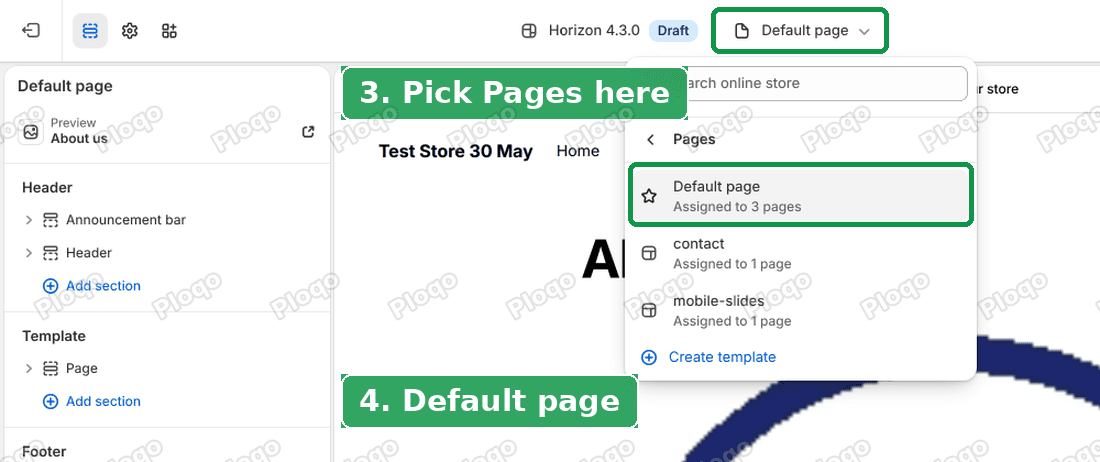 The page picker at the top of the theme editor, open on Pages, with Default page highlighted
- In the left sidebar, click Page under Template. That is the section that holds your page's title and text.
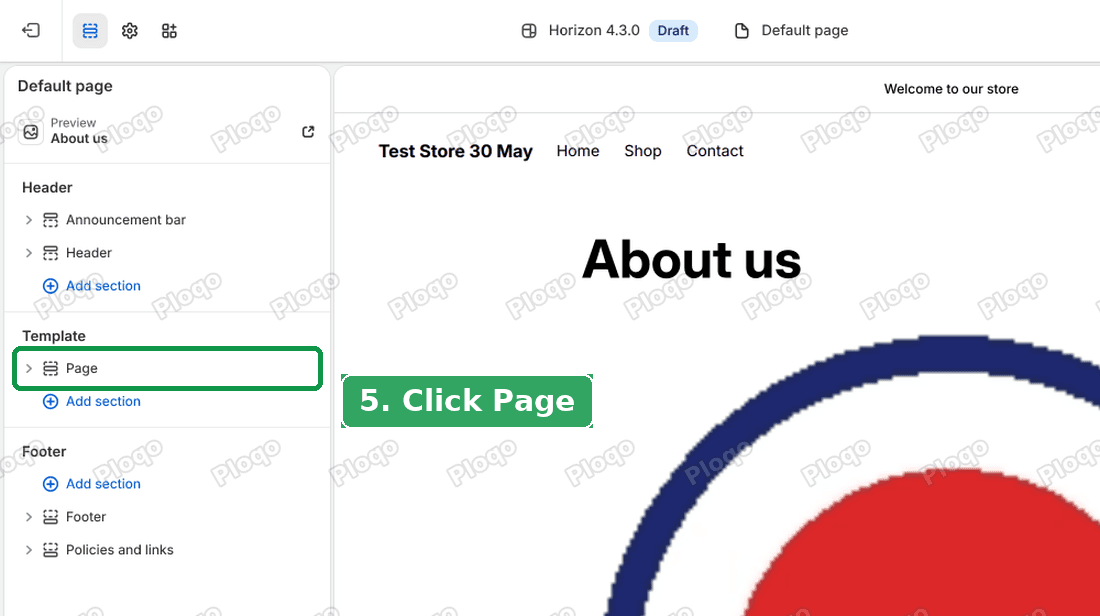 The Page section under Template in the theme editor sidebar
- Scroll to the bottom of the section settings and open Custom CSS.
- Paste this into the box:
.page-content img {
width: auto;
margin: 0 auto;
}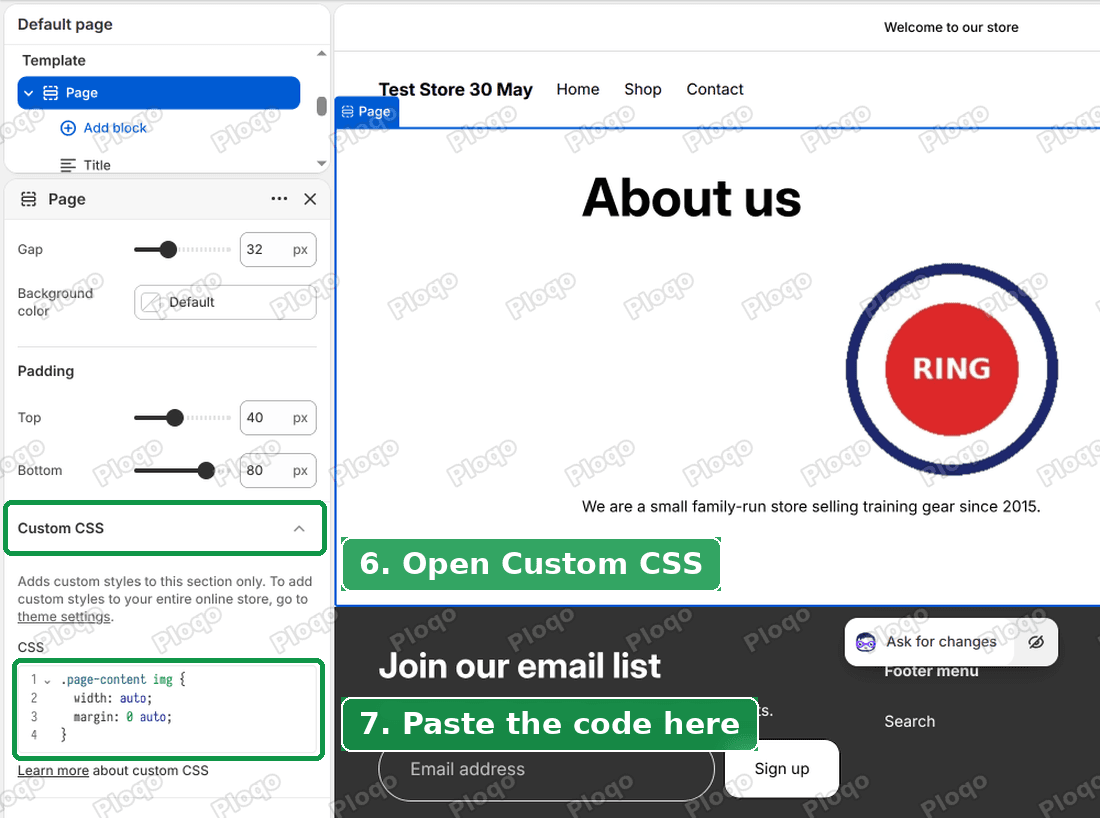 The Custom CSS box with the code pasted in, and the logo already back at its real size in the preview
The preview on the right updates as soon as you click out of the box. On my test store the logo dropped from 672px wide to 200px wide straight away.
- Click Save in the top right corner.
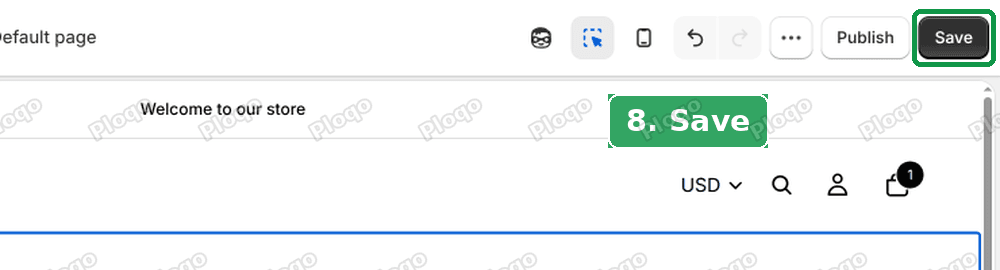 The Save button at the top right of the theme editor
Then open your About Us page on the live store and refresh it. The logo shows at the size of the file you uploaded.
What the two lines do
width: auto tells the picture to use its own width instead of the full column. margin: 0 auto puts equal space on both sides, which centers it.
A picture that is wider than the column still shrinks to fit, because Horizon also caps every picture at the column's width. So a large banner photo in the same page still fits the screen.
Does it work on phones?
Yes. The merchant asked this as a follow-up, so I checked it on a 390px wide phone screen. The logo stays at 200 x 200 and sits in the middle under the title. You do not need any extra code for mobile.
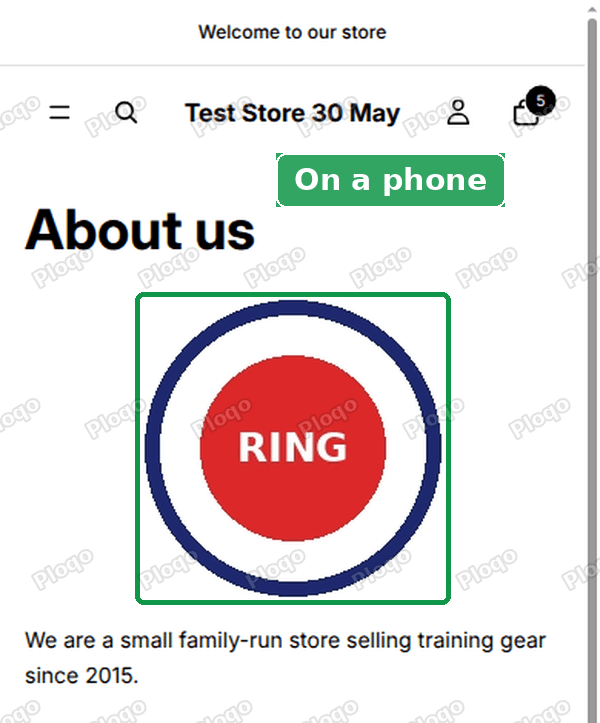 The About us page on a phone, with the logo at 200 x 200 and centered
Which pages it changes
The Custom CSS box on a section only affects that section. The editor says so above the box: "Adds custom styles to this section only."
The section belongs to the page template, though. So the fix applies to every page that uses the Default page template, not only About Us. In practice that is what you want: any other page where you add a small picture has the same problem, and the fix stops it there too.
If you only want it on one page, give that page its own template first. Then add the CSS to that template's Page section.
What size should a Shopify logo be?
This question has two answers, because a Shopify store shows your logo in two very different places.
The logo in your header
The header logo has its own size setting in most themes. In Horizon it is under Theme settings, the gear icon in the theme editor's left rail.
- Click the gear icon to open Theme settings.
- Open Logo and favicon and pick your logo under Default logo.
- Set Desktop height and Mobile height. The sliders only appear once a logo is picked.
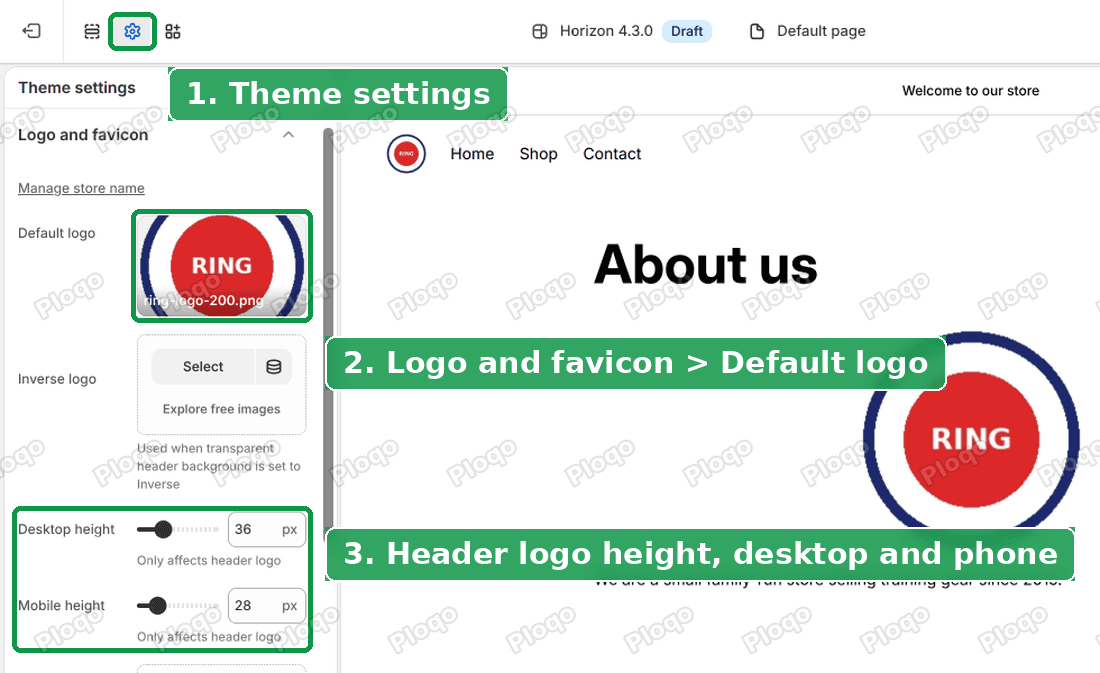 Theme settings in Horizon, with Logo and favicon open and the Desktop height and Mobile height sliders
On Horizon the defaults are 36px tall on desktop and 28px on phones. The sliders go from 12px to 100px. Under each one the editor notes that it only affects the header logo, which is why the header setting did nothing for the logo on the About Us page.
The theme shrinks the file to that height for you. So the file should be bigger than the height you set, never smaller. A good rule is to upload a logo at least twice as tall as it shows. Phone and laptop screens with sharp displays draw two or three screen pixels for every pixel of the page, and a file at exactly 36px tall looks soft on them.
Use a PNG with a transparent background, or an SVG if your logo is a simple shape. Both keep clean edges on any background colour.
A logo or picture inside a page
Inside a page, the size of the picture comes from the theme's CSS, not from a setting. That is the case the fix above handles.
Once the fix is in, the picture shows at the size of the file. So here the file size is the display size. If you want the logo 200px wide on your About Us page, upload it at 200px wide. For extra sharpness on high-resolution screens, upload it at 400px and set the width in the CSS instead (see the next section).
Make the picture a different size, or left-aligned
The four lines above use the file's own size and center it. Two small changes cover the other common wishes.
A fixed width. Replace auto with a number of pixels. This also lets you upload a bigger, sharper file and show it smaller:
.page-content img {
  width: 120px;
  margin: 0 auto;
}
Left-aligned instead of centered. Change the margin to 0:
.page-content img {
  width: auto;
  margin: 0;
}
I tested both in the Horizon editor preview. With width: 120px; margin: 0; the 200px logo showed at 120 x 120, against the left edge of the text column.
Edit the rule that is already in the box rather than adding a second one below it. If the box has two rules for the same pictures, the one further down wins, which makes it hard to tell which line is doing what.
How to resize an image for Shopify
You may still want to resize the file itself, for example to make a 3000px logo from a designer a sensible size before uploading it. Shopify has a free online image resizer at shopify.com/tools/image-resizer. You upload up to 10 pictures, pick the sizes you want, and download the resized copies.
Resizing the file changes how heavy it is and how sharp it can look. It does not change how much space the theme gives it. That is why resizing alone never fixed the stretched logo: the theme stretched the 200px file to 672px just as it would have stretched a 2000px file. Fix the CSS first, then pick the file size.
A couple of rules of thumb for picture files on Shopify:
- Upload at roughly twice the size it will show, so it stays sharp on high-resolution screens.
- Do not go far beyond that. A huge upload still counts toward your store's file storage.
- Keep logos as PNG or SVG. Use JPEG for photos.
Adding a logo or image to your Shopify About Us page
If you have not added the picture yet, this is where it goes.
- In your Shopify admin, go to Online Store > Pages and open your About Us page.
- Click in the Content box where the picture should go.
- Click the Insert image button in the toolbar and upload or pick the picture.
- Check the Template box on the right. It tells you which template to open in the theme editor for the fix above.
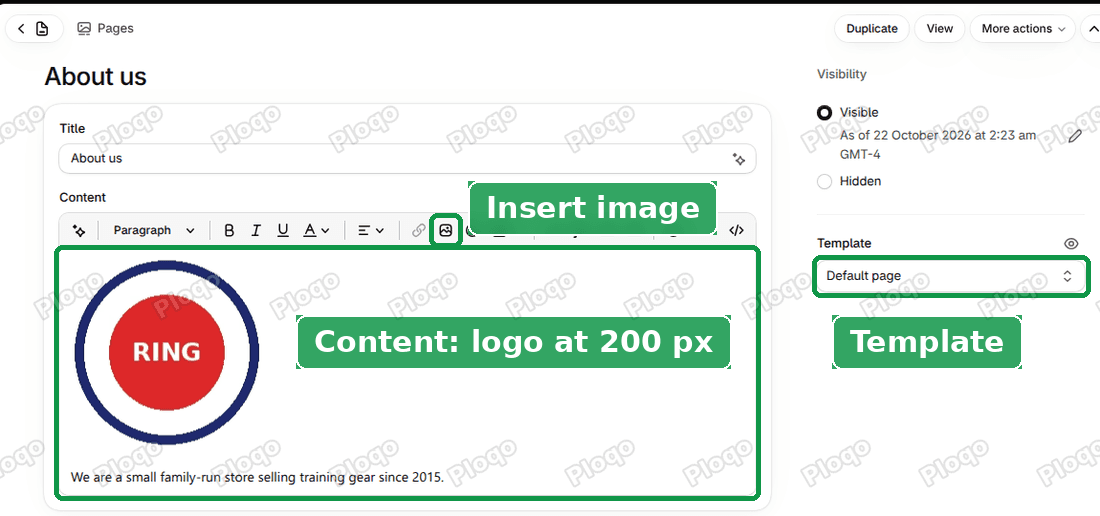 The About us page in the Shopify admin page editor, with the Insert image button, the logo in the Content box and the Template setting
The page editor shows the picture at its real size, so it looks right while you edit. The stretching only happens on the live page, which is why this problem shows up only after you save.
If the picture is still stretched
The page uses a different template. Open the page in the admin and read the Template box. If it says something other than Default page, open that template in the theme editor (step 4) and add the CSS to its Page section.
You added the picture as a block, not in the page text. If you added an Image block under the title in the theme editor, the page content CSS does not touch it. Click the block instead. Horizon's Image block has a Desktop width setting with Fit, Fill and Custom width options, and a matching Mobile width. Fill stretches the picture to the column; Fit uses its own size.
The preview shows the fix but the live page does not. Check that you clicked Save, and that you edited your live theme. Changes to a copy of the theme only show on that copy.
The logo is sharp but too small or too big. That is now the file size. Resize the file, or set a width in pixels as shown above.
You run a different theme. The fix above was tested on Horizon. Other themes can name the box that holds the page text differently, so the line .page-content img may not match. The section that holds the page text, and its Custom CSS box, are still the place to look.
Logo size terms that get mixed up
- File size is how many pixels wide and tall the file is, for example 200 x 200. It sets how sharp the picture can look.
- Display size is how much space the theme gives the picture on the page. It is set by the theme's CSS or by a setting like Desktop height. On Horizon pages it is the full column width until you add the fix.
- Header logo is the logo in the bar at the top of every page, set in Theme settings. Its size setting does not affect pictures inside page text.
- Favicon is the tiny icon in the browser tab. It is uploaded separately, in the same Logo and favicon group.
- Custom CSS (section) is the box at the bottom of a section's settings. It only styles that section. Custom CSS (theme settings) is a separate box that styles the whole store.
Spending too long on manual Shopify busywork?
PinFlow turns your Shopify catalog into Pinterest pins and posts them on a schedule, automatically. One less thing to remember to switch on.
Get PinFlow on the Shopify App StoreMore Shopify fixes
More community-sourced Shopify guides, tested on a live store.
Themes & Storefront
Shopify Anchor Link: Button That Scrolls to a Section
Link a Shopify button to a section lower on the same page with an anchor link. Steps for the theme editor, no code files, plus the fix for a title hidden under the header.
Themes & Storefront
Shopify Social Media Icons: Add a Custom Icon and Link
Set your social links in Shopify theme settings, see why icons do not show, and swap in your own icon for a network the theme does not list.
Themes & Storefront
Sticky Add to Cart Button in Shopify Dawn, No App
Pin the Add to cart button and its delivery line to the bottom of the screen in Shopify Dawn. One free Custom Liquid block, no app, phone and desktop.