
Shopify Multiple Currencies Without Shopify Payments
Shopify's native multi-currency needs Shopify Payments, which is not available in every country. Here is how to show local currencies with a converter app, what checkout will still do, and the one code fix custom prices need.
By AjayCodeWiz · August 29, 2026 · 9 min read
The problem
A merchant asked me about this. They sell from Malaysia, where Shopify Payments is not available yet. They wanted shoppers in Singapore and elsewhere to see prices in their own currency.
They turned on Markets, expected a currency option, and found it was not there. The prices stayed in Malaysian ringgit in every market.
This trips up a lot of stores. Shopify does support multiple currencies. It just ties that feature to something not every country can use.
Here is what is actually going on, and the setup that works when the native option is off the table.
Why Shopify will not show a second currency here
Shopify's built-in multi-currency is called presentment currencies. It shows and charges prices in the shopper's local currency, and it is part of Shopify Markets.
The catch is that presentment currencies only work with Shopify Payments. In a few regions Shopify Plus can use Adyen instead, but for most stores it is Shopify Payments or nothing.
Shopify Payments is not available in every country. Malaysia is one example. There are many others.
So if your country has no Shopify Payments, that native currency option is switched off. Markets can still do a few useful things, like sending visitors to the right region, translating your content, and setting different catalogs per market. What it cannot do is show or charge a second currency. Checkout stays in your one store currency.
That is not a bug and it is not something a setting will unlock. It is a platform limit.
What Shopify Markets can still do for you
Even with the currency piece off, Shopify Markets is not useless in your country. It is worth turning on for what it does give you.
Markets can detect where a visitor is and send them to the right version of your store. It can serve translated content per region, so a French visitor reads French. It can run a separate catalog or product selection per market. And it can adjust prices per market by a percentage, so a region can be a little higher or lower.
None of that needs Shopify Payments. The only locked part is showing and charging a second currency.
So the sensible setup is Markets for the regional and language side, plus a converter app for the currency display. They sit together fine.
The setup that works: a currency converter app
Since the native route is closed, the practical answer is a currency converter app.
A converter app does one job. It looks at where the visitor is, works out their local currency, and rewrites the prices on the page to that currency. It also adds a small currency switcher so shoppers can change it themselves.
The important word is display. The app changes what the shopper sees. It does not change what Shopify charges.
 A diagram showing a converter app changes the displayed price to the shopper's currency, while Shopify checkout still charges the store currency
So a shopper in Singapore browses your store and sees prices in Singapore dollars, which feels local and builds trust. At checkout the order is charged in your store currency, and their own bank does the real conversion on their card statement.
For a store without Shopify Payments, this is the normal and expected way to sell internationally. It is what most stores in that situation do.
How to set it up with a converter app
The steps are the same across the popular apps. I will use GLC Geolocation and GEO Currency as the example, because a merchant I helped uses it, but BEST Currency Converter and Currency Converter Plus work the same way.
- Install the app from the Shopify App Store. Most have a free tier that covers the basics.
- Turn on automatic geolocation. This is what shows each visitor their local currency without them doing anything.
- Choose the currencies you want to offer. Add the ones your real customers use. You do not need every currency in the world.
- Add the currency switcher to your header or footer, so shoppers can change it by hand too. Most apps place this for you or give you a block to drop in.
- Set your rounding. Converted prices come out messy, like 32.47. Rounding to a clean number, like 32 or 32.99, looks far more professional.
- Save and preview your store from an incognito window to check the prices convert.
That is the whole setup. Once it is on, prices convert on their own for each visitor.
Set expectations at checkout
This is the one thing to be clear about with yourself and, ideally, with your shoppers.
The converter changes the price on your product and cart pages. When the shopper reaches checkout, Shopify charges in your store currency, because that is the only currency your store can actually process.
Their bank then converts that amount at its own rate. The final figure on their statement will be close to what they saw, not exact to the cent.
Add a short line near the cart or checkout, something like "Prices shown in your local currency are an estimate. You will be charged in ringgit." It sets the right expectation and heads off confused emails.
None of this is unusual, and shoppers are used to it. It only becomes a problem if the difference is a surprise.
When a custom price does not convert
Here is a snag that catches stores with any custom theme code or an app that draws its own price.
Converter apps find prices by looking for Shopify's price class, called money, and they usually run once when the page loads. A plain theme price sits in that class, so it gets converted.
But a custom price is different. A subscribe and one-time selector, a bundle widget, or any block that writes its own price with JavaScript often prints plain text with no money class, and writes it after the app has already run. The app never sees it, so that one price stays in your store currency while everything else converts.
The fix is to make the custom price a real money price, and to re-create it whenever it changes.
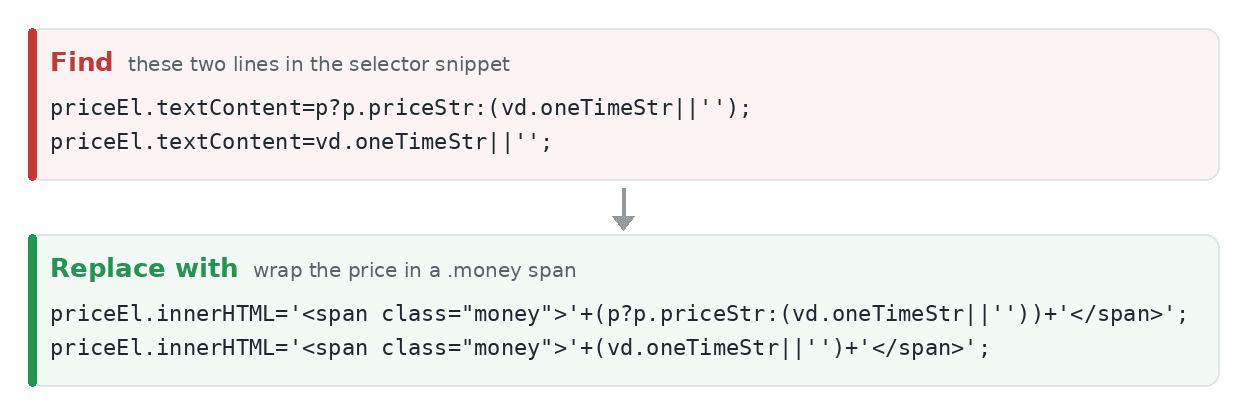 Before and after code: find the plain textContent price line and replace it with a version wrapped in a money span
In practice that means wrapping the value in a money span, so it becomes the same kind of element the converter already handles, and making sure it is written fresh each time the shopper changes an option. Then the converter treats it like any other price.
If yours still will not convert after that, the app may only convert on load and need a nudge after the price updates. Most converter apps expose a refresh function you can call for exactly this.
Popular Shopify currency converter apps
If you are choosing one, these are the common picks, and all have a free tier to start:
- GLC Geolocation and GEO Currency
- BEST Currency Converter
- Currency Converter Plus
- Coin, by Roar
They all do display conversion and a switcher. Pick on the switcher style you like and whether the free tier covers your currencies.
What you still cannot do without Shopify Payments
It is worth being honest about the ceiling here.
Without Shopify Payments you cannot actually charge in another currency, and you cannot offer the local payment methods that ride on top of it. A converter app does not change that. It is display only.
If charging in the real local currency matters to your business, the options are bigger moves. You can use a third-party payment gateway that supports multi-currency, where one is available for your country. Some sellers set up a business entity in a country where Shopify Payments is supported. Both are real projects, not a settings toggle.
For most stores, display conversion plus a clear checkout note is enough to sell across borders comfortably.
Quick answers
Can I show multiple currencies on Shopify without Shopify Payments? Yes, for display, using a converter app. You cannot charge in a second currency without Shopify Payments.
Does Shopify have a free currency converter built in? The native one only works with Shopify Payments. Where that is unavailable, the free tiers of the converter apps above are the closest thing.
Will customers be charged in their own currency? No. Checkout charges your store currency, and their bank converts. The app only changes the displayed price.
Why is one price not converting? It is almost always a custom or app-drawn price that is not in the money class. See the code fix above.
That is the full picture. Native multi-currency is gated behind Shopify Payments, so where that is unavailable, a converter app gives your shoppers local prices, and a short checkout note keeps the charge itself clear.
Spending too long on manual Shopify busywork?
PinFlow turns your Shopify catalog into Pinterest pins and posts them on a schedule, automatically. Let the system handle the repetitive part.
Get PinFlow on the Shopify App StoreMore Shopify fixes
More community-sourced Shopify guides, tested on a live store.
Shopify Admin
How to Edit a Packing Slip on Shopify to Show Big Product Photos
Shopify's order page shows each item as a 40 pixel thumbnail with no way to enlarge it. Here is how to edit the packing slip template so every line prints that exact variant's photo at 1000 pixels, including the one-line fix Shopify's default template needs.
Shopify Admin
Shopify Shipping Zones: Fix Products Sold Out in One Country
Products show Sold out for customers in one country while your admin shows stock. The cause is a shipping profile with no zone for that country. How Shopify shipping zones and profiles decide what a customer can buy, and the six-click fix, with screenshots.
Shopify Admin
Shopify Translate: Fix Mixed Languages on Product Pages
A Swedish Shopify store showed English words on translated product pages. The titles were translated, so the English came from option names and theme text. How to fix each one in Translate & Adapt, with screenshots.