
Add Multiple Tracking Numbers to One Shopify Order
Shopify allows one carrier per fulfillment, so mixed-carrier boxes need a split. Here is how to put two tracking numbers and two carriers on one order, step by step.
By AjayCodeWiz · July 30, 2026 · 8 min read
The problem
You packed one order into two boxes. One box goes out with FedEx, the other with UPS. Now you open the order in Shopify to add the tracking, and you hit a wall: Shopify lets you type several tracking numbers, but it makes them all use the same carrier.
A merchant raised this on the Shopify Community. They wanted one fulfillment to hold multiple packages, each with its own tracking number, carrier, and tracking link. Their words: mixed-carrier multi-box orders force staff to "create separate fulfillments just to store carrier-specific tracking, which adds unnecessary admin work and increases fulfillment errors."
They are right about the limit. There is no single-fulfillment, multi-carrier option in Shopify today. But you can still ship a mixed-carrier order cleanly, get a correct tracking link on every box, and cut the manual work down. I reproduced the whole thing on a test store to show each step.
This guide covers both cases, because people land here wanting one of two different things:
- Same carrier, several tracking numbers (one order, three UPS boxes). This one is easy and built in.
- Different carriers on one order (one box FedEx, one box UPS). This one needs a split, and that is what the merchant above was asking about.
Why it happens
The reason is in how Shopify models an order.
Under the hood, Shopify treats one fulfillment as one shipment with one carrier. A fulfillment is the record that says "these items left the warehouse, here is the tracking." That record has a single carrier field.
You can attach more than one tracking number to that record, but every tracking number on it inherits the same carrier. That is why the moment your second box uses a different carrier, a single fulfillment can no longer describe your order. You need a second fulfillment.
So the rule to remember is simple: one carrier per fulfillment. Same carrier, stay in one fulfillment. Different carriers, use one fulfillment per carrier.
Case 1: same carrier, multiple tracking numbers
If all your boxes ship with the same carrier, you do not need to split anything.
- Open the order and click Mark as fulfilled (or Add tracking if it is already fulfilled).
- Enter the first tracking number and pick the carrier.
- Click Add another tracking number and enter the next one.
- Repeat for each box, then Save.
All the numbers sit on one fulfillment, share the one carrier, and the customer gets them together. This is the case Shopify handles natively, and it is what most "multiple tracking numbers" questions actually need.
The wall only appears when box two is on a different carrier. That is Case 2.
Case 2: different carriers on one order
Here you split the order into one fulfillment per carrier. Each fulfillment then gets its own carrier and its own tracking. I tested this on a two-item order: a Black Leather Bag going FedEx, and a water fountain going UPS.
Step 1. Start the first shipment.
On the order, click Mark as fulfilled.
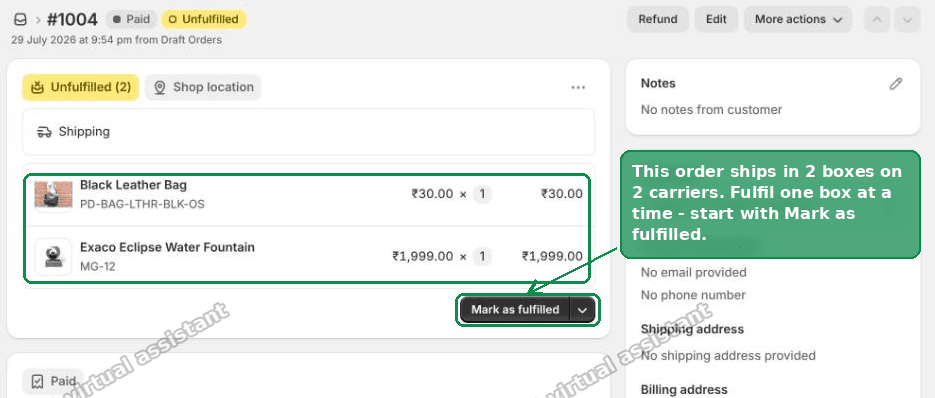 A Shopify order with two unfulfilled items, ready to fulfill
Step 2. Pick only the items for the first carrier.
This is the step that does the whole job, and it is the one people miss. Untick the items that are going out on the other carrier, so only the first carrier's items stay selected. Then fulfil just those.
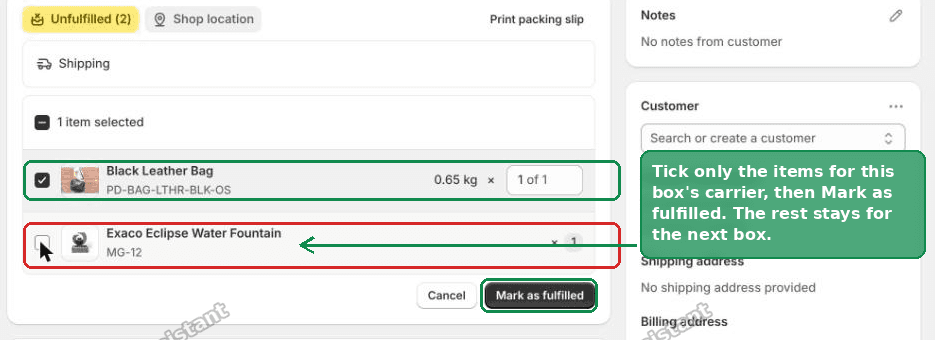 Untick the items for the other carrier so only the first box is selected
Step 3. Add the tracking and choose the carrier.
On the new fulfillment, click Add tracking. Enter the tracking number, pick the carrier, and Save. Shopify even guesses the carrier from the tracking number format, so FedEx and UPS numbers usually fill themselves in.
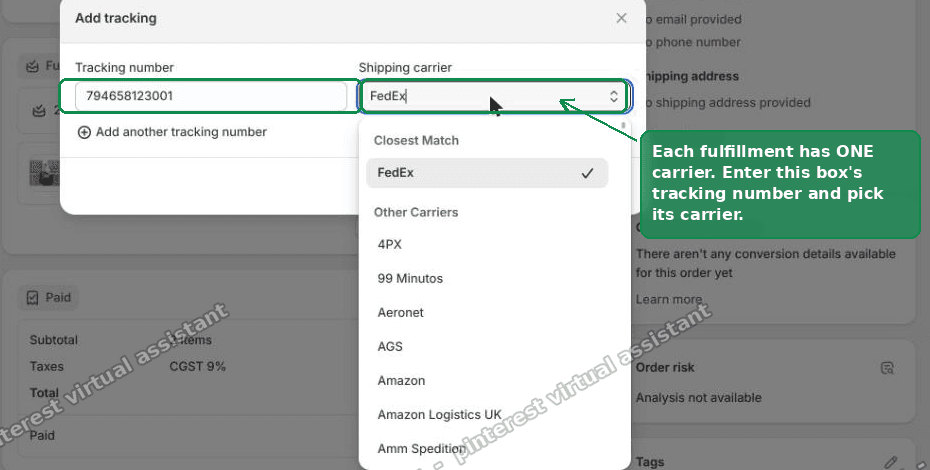 Enter the tracking number and choose the carrier for this box
Step 4. Do the same for the rest.
The items you left behind stay on the order as a second unfulfilled group. Fulfil those, click Add tracking, and this time pick the second carrier.
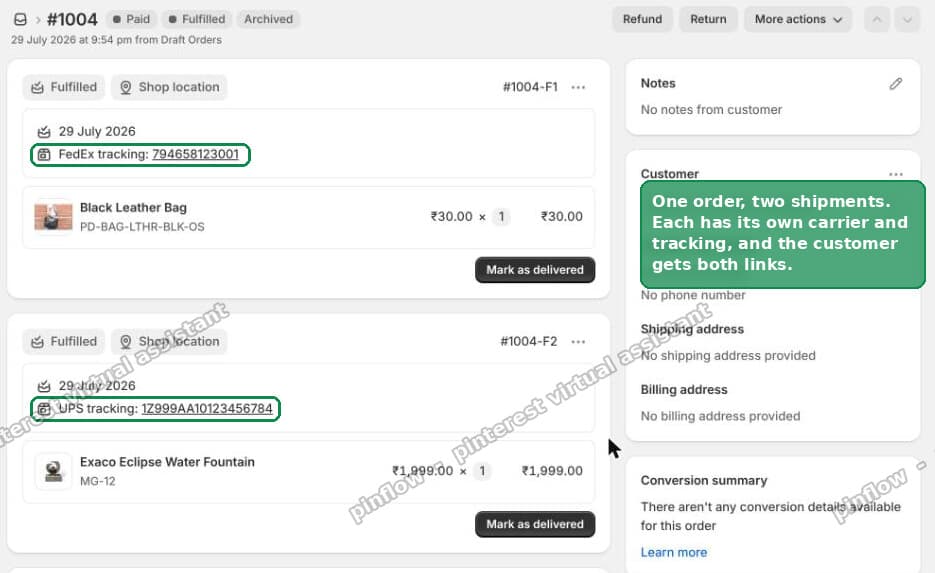 One order with two shipments, each on its own carrier
You end with one order and two shipments. On my test store, one fulfillment showed FedEx tracking and the other showed UPS tracking, on the same order. Each box carries the correct carrier and a working tracking link, which is what you were after.
The one tradeoff to know about
Splitting works, but it has a customer-facing cost that is easy to forget.
Each fulfillment sends its own shipping confirmation email. So a two-box order emails the customer twice, once when box one ships and again when box two ships. A three-carrier order emails them three times.
That is not always bad. Two boxes genuinely are two shipments, and a separate tracking link per box is often clearer for the buyer. But if you would rather the customer got a single notification, you have two choices:
- Hold off fulfilling until both boxes are ready, then fulfil them close together so the emails arrive back to back.
- Turn off the automatic shipping confirmation and send one combined update yourself. You can adjust the shipping notification under Settings > Notifications.
Decide which you want before you start clicking, because the emails go out the moment you save each fulfillment.
Automate it if you ship multi-box often
Doing the split by hand is fine for the occasional order. If mixed-carrier boxes are your daily normal, an app removes the manual work entirely.
A multi-carrier shipping app such as Shippo, ShipStation, EasyShip, or AfterShip buys the labels, creates the per-carrier fulfillments for you, and writes each box's carrier and tracking back onto the Shopify order automatically. Your staff stop opening each order to type tracking by hand, which is exactly the admin overhead the original merchant was complaining about.
These apps also tend to give the customer a single branded tracking page that covers every box, which sidesteps the double-email problem above.
If you write your own integration, the same rule applies at the API level. One fulfillment takes one tracking company, so you create a separate fulfillment per carrier. Developers usually reach for the fulfillment order and fulfillment create operations in the Admin API, splitting the line items across carriers the same way the admin does.
Can I add two tracking numbers to one Shopify order?
Yes. How you do it depends on the carriers.
- Same carrier: add both numbers to one fulfillment with Add another tracking number. This is fully native.
- Different carriers: create two fulfillments, one per carrier, each with its own tracking. There is no way to keep two carriers inside a single fulfillment.
Either way the order still shows as one order in your admin and to the customer. It is only the shipment records underneath that differ.
Does the customer get both tracking links?
Yes. Every fulfillment that has tracking gives the customer a tracking link.
- With a same-carrier fulfillment, the numbers appear together.
- With split fulfillments, each shipment carries its own link, and the customer sees both on the order status page.
The order status page lists each shipment and its tracking, so the buyer can follow both boxes. The cost, again, is that each shipment also triggers its own email.
Partial fulfillment is the same mechanism
If you have ever fulfilled only part of an order because the rest was on backorder, you have already used this. That is a partial fulfillment: some items ship now, the rest ship later, and each batch becomes its own fulfillment with its own tracking.
Mixed-carrier shipping is the same tool used on purpose. Instead of splitting by "what is in stock," you split by "which carrier." Shopify does not care why you split, only that each fulfillment ends up with one carrier.
Fulfillment vs shipment vs tracking number
These three words get mixed up, and the confusion is what makes the limit feel worse than it is.
- A tracking number is one parcel's code from one carrier.
- A fulfillment is Shopify's record that a set of items shipped. It holds one carrier and one or more tracking numbers.
- A shipment is the physical box. In Shopify, one fulfillment usually maps to one shipment, but a same-carrier fulfillment can cover several boxes if they share the carrier.
The whole limitation is just this: a fulfillment holds one carrier. Everything else follows from that.
What to check if it did not work
- All tracking numbers turned into the same carrier. That means they are on one fulfillment. To use two carriers you must split the items into two fulfillments first, then add tracking to each.
- You cannot untick items at fulfillment. Make sure you clicked Mark as fulfilled to open the item picker. The tick boxes appear there, one per line item.
- The order already shows fully fulfilled. If you fulfilled everything in one go by mistake, you can add tracking to that fulfillment, but you cannot retro-split it by carrier. In that case, cancel the fulfillment and redo it in parts.
- The carrier did not auto-detect. Shopify guesses from the number format and is not always right. Just pick the carrier from the dropdown by hand.
- The tracking link points nowhere. Confirm the carrier you chose matches the number. A UPS number under FedEx will build a dead link.
The short version
Shopify allows one carrier per fulfillment. So:
- Same carrier, many boxes: one fulfillment, use Add another tracking number.
- Different carriers: at Mark as fulfilled, untick the other carrier's items and fulfil the rest, add that carrier's tracking, then repeat for the remaining items with the second carrier.
You get one order with two shipments, each on the right carrier with a working link. The only catch is a separate shipping email per shipment, so time them together or send one update yourself. And if you ship multi-box every day, a multi-carrier app does all of this for you and keeps the customer to a single notification.
Spending too long on manual Shopify busywork?
PinFlow turns your Shopify catalog into Pinterest pins and posts them on a schedule, automatically. Same idea as the rule above, let the system handle the repetitive part.
Get PinFlow on the Shopify App StoreMore Shopify fixes
More community-sourced Shopify guides, tested on a live store.
Shopify Admin
Shopify New Admin (2026): Where Search, Sidekick and Settings Went
Shopify's new admin moved search, alerts, the store switcher and Settings into the black sidebar, and Sidekick to a bar at the bottom. Where each one is now.
Shopify Admin
How to Use the New Shopify Admin (2026): Every Main Screen
A tour of the new Shopify admin: the black sidebar, search and Ctrl K, Home, Orders, Products, Settings and Sidekick, with where to click on each screen.
Shopify Admin
Schedule a Black Friday Sale in Shopify (Auto Start and End)
Give the discount its own start and end date and put the sale banner in an Event rollout with the same dates. Both start at midnight and end after Cyber Monday.