
Create a Nested Dropdown Menu in Shopify
Build a nested dropdown menu in Shopify, and fix a submenu that opens but shows no links, with the one theme-editor color setting behind it.
By AjayCodeWiz · August 11, 2026 · 10 min read
The problem
A merchant asked about this on the Shopify Community. Her top menu had a link called Shop. Under Shop she had three sub-links: Scent Rituals, Layering Rituals, and Atmosphere Rituals.
She wanted a dropdown. Hover Shop on desktop, and the three sub-links should appear below it.
She had set the menu up correctly. But when she hovered over Shop, nothing showed. The dropdown looked empty or broken.
She was on the Savor theme, a free Shopify theme. She had already confirmed that a clean copy of Savor worked. So she assumed her theme code was the problem.
I reproduced it on a test store on the same theme. The menu was fine. The dropdown was fine. The links were even loading on hover. They were just invisible.
Here is what a "broken" Savor dropdown looked like on hover. The three links are there. You cannot see them.
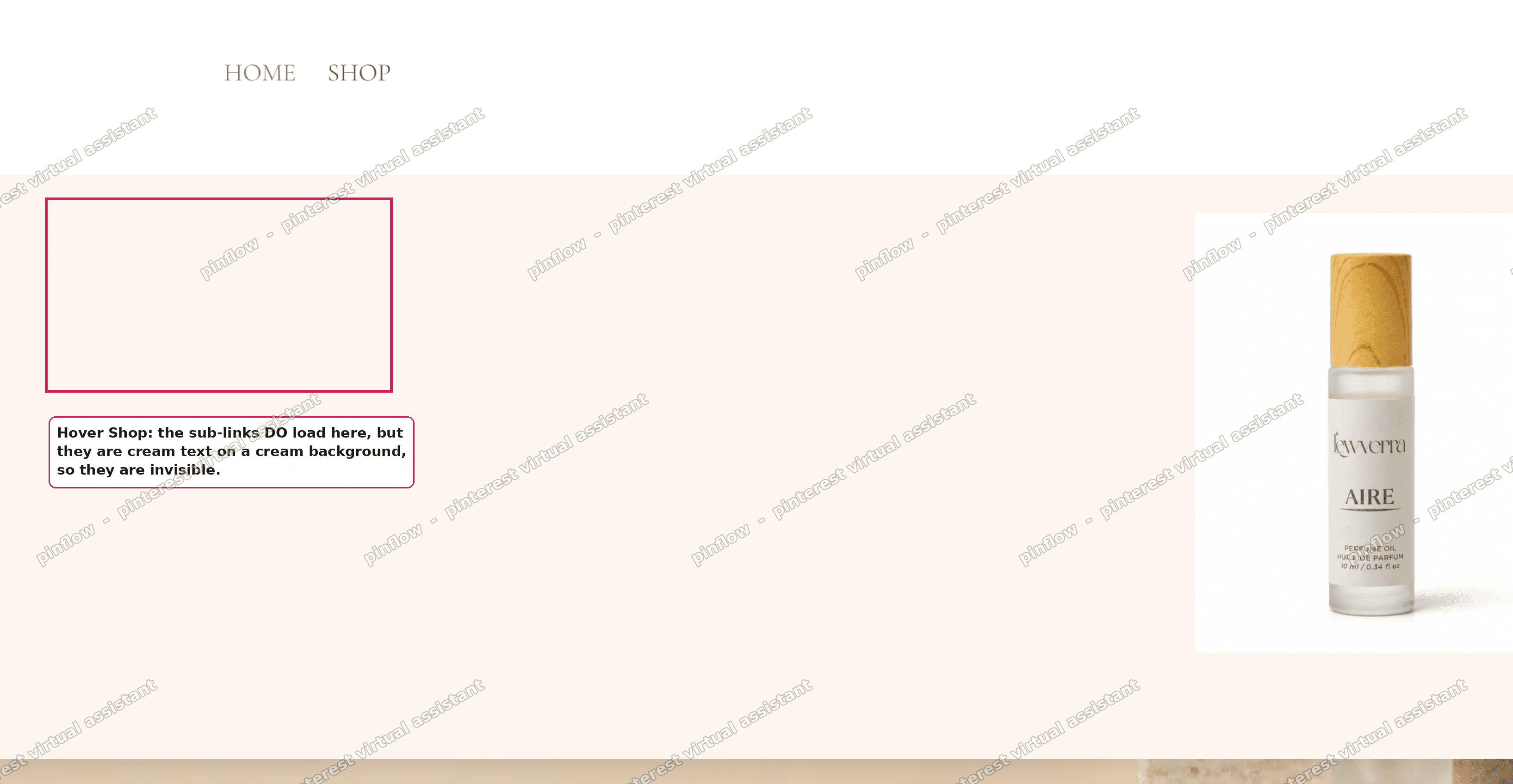 Savor dropdown open on hover but the three sub-links are invisible against the cream background
This article covers two things. First, how to build a nested dropdown menu in Shopify from scratch. Second, the exact reason a nested menu can be set up right and still show nothing, plus the one-setting fix.
Why it happens
A dropdown in Shopify is not a special feature you switch on. It is just a menu with nesting.
Nesting means a link that sits under another link. In Shopify, the parent link (like Shop) becomes the button. The links you drag under it become the dropdown items. Your theme reads that structure and draws the dropdown.
So there are two separate layers, and people confuse them:
- The menu structure. This lives in Content then Menus. It decides which links are parents and which are children.
- The theme rendering. This decides how the dropdown looks. Colors, spacing, hover, tap.
If the structure is wrong, you get flat links with no dropdown. If the structure is right but the colors are wrong, you get a dropdown that opens but shows nothing.
The merchant's case was the second one. Her nested menu was correct. Her theme was drawing the submenu. But in the theme editor, the submenu Text color was set to the same cream as the submenu Background color. Cream text on a cream background is invisible.
That is the mechanism most forum answers skip. They tell you to hunt through CSS for a visibility: hidden rule. On a clean, up-to-date free theme like Savor, the real cause is almost always a color setting, not broken code.
First, build the nested menu
If your dropdown shows nothing, check the structure before you touch anything else. If you are starting fresh, this is the whole build.
A Shopify menu is a list of links. To make a dropdown, you put child links under a parent link.
Do this:
- From your admin, go to Content, then Menus.
- Click the menu that shows in your header. On most themes it is called Main menu.
- Click Add menu item to create your parent, for example Shop. Give it a name and a link. The link can point to a collection, a page, or even a placeholder.
- Click Add menu item again for each sub-link, for example Scent Rituals.
- Now drag each sub-link to the right, so it sits slightly indented under Shop. That indent is the nesting. It is what turns Shop into a dropdown.
- Click Save menu.
That indent is the entire trick. A link indented under a parent becomes a dropdown item. A link with nothing indented under it stays a plain top link.
Shopify allows up to three levels of nesting. So you can have a sub-link that itself has sub-links. More on that below.
The fix for an invisible dropdown
If your nested menu is correct but the dropdown opens empty, the color is the cause. This is the fix I tested on the Savor store.
It is one setting in the theme editor. No code.
- Go to Online Store, then Themes, then click Customize.
- In the preview, click the Header at the top.
- In the left panel, under Header, click Menu.
- Open the Appearance section. On Savor it is labelled "Affects submenus on desktop and the main menu on mobile."
- Look at Background color and Text color. If they are the same value, that is your bug.
In the reproduced store both were set to \#FDF6F0, the same cream. So every submenu link was cream text on a cream panel.
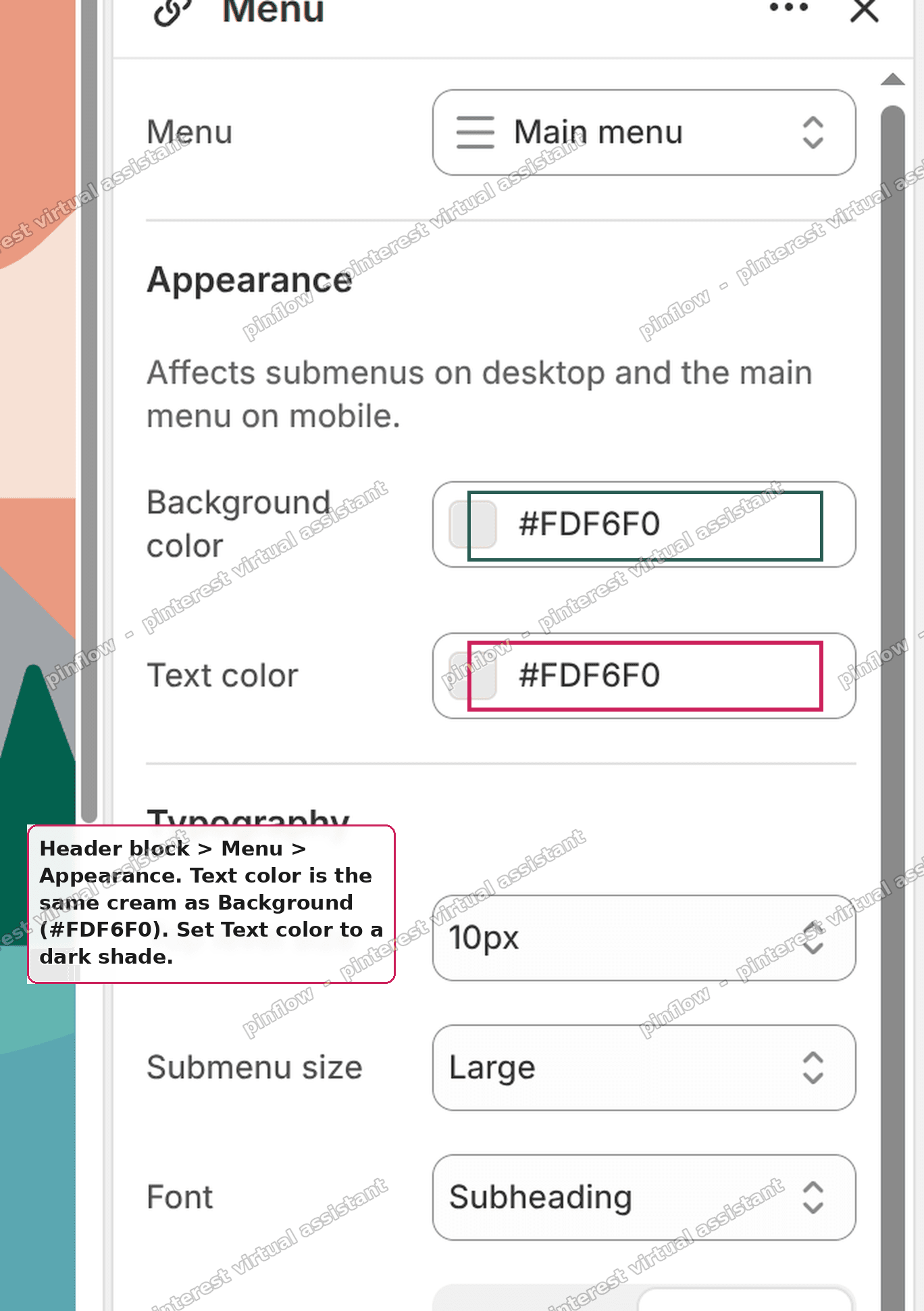 Savor Header Menu block Appearance panel showing Text color set to the same cream as Background color
Now fix it:
- Set Text color to a dark shade. A near-black works well on a light theme.
- Leave Background color as it is. You only need to change the Text color.
- Click Save.
That is the whole fix. Reopen the dropdown and the links come back.
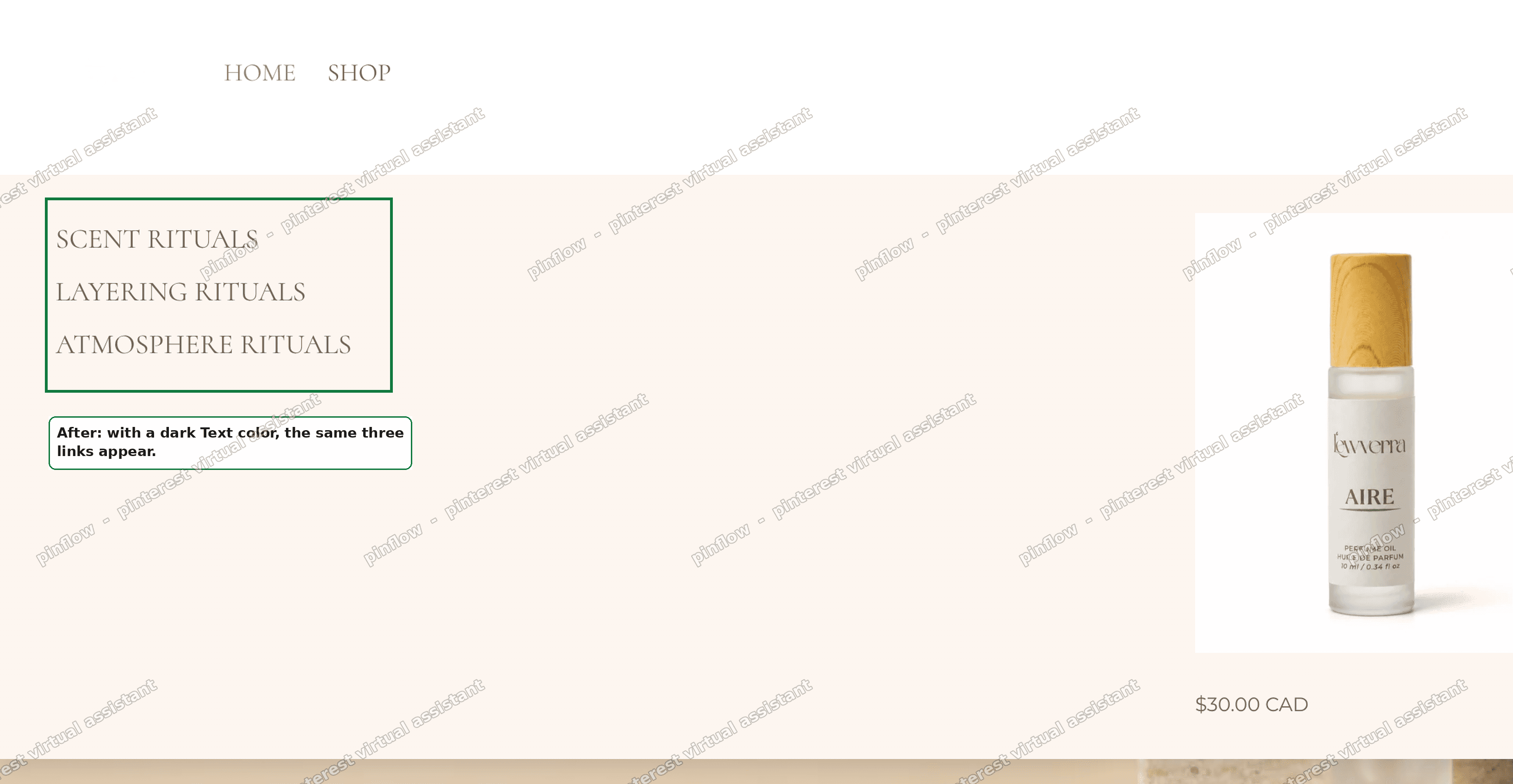 Savor dropdown after the fix, with the three sub-links now visible in dark text
I tested this on a Savor store. Cream Text color made the entire dropdown invisible. A dark Text color brought all three links back at once. Nothing else changed.
Two notes from the same test:
- The top links (Home, Shop) can still look fine even when the dropdown is invisible. On the home page they often use the transparent-header text color, which is a separate setting. So do not trust the top links as proof the submenu color is right.
- If you want the dropdown to sit on a solid, contrasting panel, give the Background color a color with contrast too. Text color and Background color are independent.
An alternative: a solid dropdown panel
Some brands do not want a dark link on a pale panel. They want a bold panel, like a dark box with light text.
You can do that with the same two settings, reversed. Set the submenu Background color to a dark shade. Set the Text color to white or cream. Now the dropdown reads as a solid card that stands out from the page.
This is still no-code. It is the same Appearance block. The only rule that matters is contrast. As long as Text color and Background color are clearly different, the dropdown will be readable.
If your theme has no submenu color controls at all, you would fall back to a small piece of CSS in a custom section. But most current free themes, Savor included, expose these colors in the editor, so you rarely need code.
How to add a dropdown menu in Shopify
This is the most common way people phrase it, so here is the short version in one place.
To add a dropdown menu in Shopify, you do not install anything. You nest links inside an existing menu.
- Content, then Menus.
- Open your Main menu.
- Add the parent link and the child links.
- Drag each child link to the right so it indents under the parent.
- Save.
Your theme turns that nesting into a Shopify menu dropdown automatically. The parent becomes the hover or tap target. The children become the dropdown list.
How to make a nested menu inside a nested menu
A Shopify nested menu can go three levels deep. Level one is your top link. Level two is the dropdown. Level three is a group inside that dropdown, which most themes show as a mega menu column.
To build it:
- Create your top link, for example Shop.
- Indent your sub-links under it, for example Fragrance and Home.
- Then indent more links under Fragrance, for example Scent Rituals and Layering Rituals.
The second indent creates the third level. Themes handle level three differently. Some draw a wide mega menu with headings and columns. Some only support two levels and will ignore the third. Test it in your own theme before you rely on it.
Why is my Shopify dropdown menu not showing
If your Shopify dropdown menu is not showing, work through these in order. This is the checklist I use.
- Check the nesting. Open Content, then Menus. The sub-links must be indented under the parent. A flat list gives no dropdown.
- Check the submenu color. This was the merchant's real cause. Header, Menu, Appearance. If Text color equals Background color, the links are there but invisible.
- Check that you saved both the menu and the theme editor. They are two separate saves.
- Check on desktop and mobile. Desktop uses hover. Mobile uses tap and often an arrow or plus icon. A dropdown can work on one and look off on the other.
- Only after all of that, look at custom code. If you added CSS or an app, temporarily remove it and test. On a clean free theme, code is rarely the cause.
Does my Shopify theme support dropdown menus
Almost every modern Shopify theme supports a submenu on hover or tap. Free themes like Savor, Dawn, and the newer block themes all do.
What varies is depth and styling:
- Two levels (a top link plus one dropdown) is universal.
- Three levels (the mega menu) depends on the theme. Not all themes render the third level.
- Styling controls vary. Some themes give you submenu color, size, and font in the editor. Others give you very little and expect CSS.
So the feature is standard. The polish is theme by theme. If a nested menu is not appearing at all, it is far more likely a structure or color issue than a theme that cannot do dropdowns.
If it did not work
If you did the fix and the dropdown is still wrong, check these.
- You changed the wrong color block. The Header has more than one color area. Make sure you are in the Menu block Appearance, not the header background or the announcement bar.
- You only changed one state. If your header is transparent over a banner, the top links and the submenu can use different color settings. Set both.
- You forgot to Save in the theme editor. A preview can show the change before it is saved. Refresh the live site to confirm.
- The links are indented under the wrong parent. Drag them out and back in under the correct parent, then save the menu.
- Browser cache. Hard refresh the storefront, or view it in a private window, to be sure you are seeing the saved version.
Definitions people confuse
A few terms get mixed up in these threads, so here is plain language for each.
- Menu. The list of links in Content, then Menus. It is data, not design. One store can have several menus.
- Nested menu, submenu, dropdown. These describe the same thing from different angles. A Shopify nested menu is a menu with indented child links. A submenu is that group of child links. A dropdown is how the theme reveals the submenu on hover or tap. So a Shopify submenu and a Shopify menu dropdown are the same links, just named after the structure or the behavior.
- Mega menu. A large, multi-column dropdown, usually built from the third level of nesting. It is still just a nested menu underneath.
- Text color versus Background color. Two independent submenu settings in the theme editor. The dropdown is only readable when they contrast. Matching them is exactly what made the merchant's links vanish.
Build the nesting first, give the submenu contrast second, and the dropdown behaves.
Spending too long on manual Shopify busywork?
PinFlow turns your Shopify catalog into Pinterest pins and posts them on a schedule, automatically. Same idea as the rule above, let the system handle the repetitive part.
Get PinFlow on the Shopify App StoreMore Shopify fixes
More community-sourced Shopify guides, tested on a live store.
Themes & Storefront
Shopify AI Section: Fix a Price Badge Hidden Behind the Image
You built a section with Shopify's AI section generator, but the price badge on each card sits behind the photo. Here is the Custom Liquid fix that brings it to the front without regenerating anything. Tested on a Dawn store.
Themes & Storefront
Hide Shipping Calculated at Checkout on One Shopify Product
The line under Add to cart that says shipping is calculated at checkout shows on every product, gift cards included. Here is how to hide it on one product only, with the code, screenshots and the Eclipse theme steps.
Themes & Storefront
Shopify Dropdown Menu Behind Page Content (Z-Index Fix)
Your Shopify dropdown or mega menu opens, but the page title and products sit on top of its links and the menu closes before you can click. The fix is one Custom CSS rule in Theme settings. Tested on a Rebel store.