
Shopify Physical Gift Cards: Sell and Ship Them Online
Shopify sells physical gift cards only at POS. How to sell a plastic gift card online, load its printed code in the admin and post it, with screenshots.
By AjayCodeWiz · October 7, 2026 · 10 min read
The problem
A merchant asked on the Shopify Community for a way to sell physical gift cards on their online store. They wanted customers to choose between a digital card and a plastic one at checkout. A digital purchase would email a code as usual. A physical purchase would collect a delivery address, and staff would scan or type the plastic card's code when they packed the order.
Shopify does not do this today. The gift card product you sell online is always digital, and plastic gift cards only work through Shopify POS, the app you use to sell in person.
There is a workaround that runs on any Shopify plan, with no app and no code. I set it up on a test store and ran a full order through it. This article walks through that setup, the accounting and refund points to plan for, and the other routes you can take.
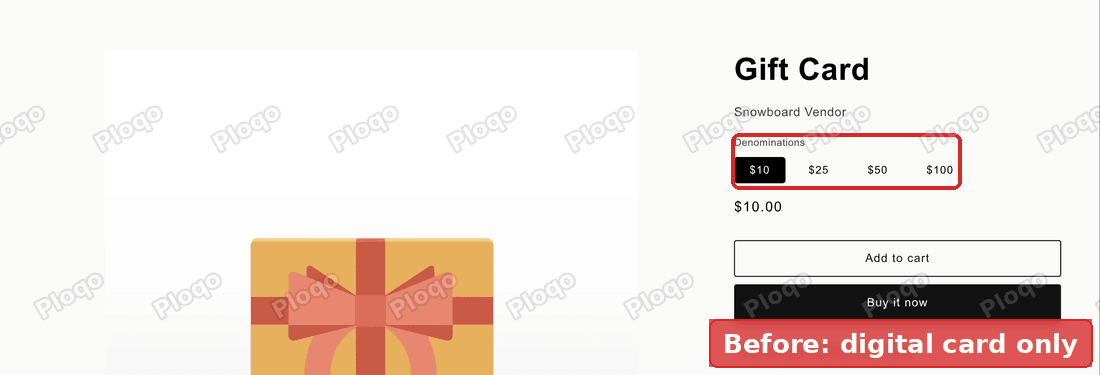 A standard Shopify gift card product page, with only digital amounts on offer
Digital, physical and manual gift cards in Shopify
Shopify uses the words "gift card" for three different things, and the fix makes more sense once they are separated.
- A gift card product is what you sell on your online store. It is a product of the type "gift card", usually with a few amounts as options. When a customer buys it, Shopify creates a code and emails it to them. It never ships, so checkout does not ask for a delivery address for it.
- A physical gift card is a plastic card with a code printed on it. Shopify sells branded ones through its hardware store in some countries. Shopify POS can sell them and load a balance onto them at the till. The online store has no way to sell one.
- A manually created gift card is a code you make yourself in the admin under Products > Gift cards. You choose the code, the amount and the customer. No order is needed.
The workaround joins two of these. The customer buys an ordinary shipped product called "Physical Gift Card". You then load the plastic card's code as a manually created gift card, and post the card.
Gift cards are available on all Shopify plans, so nothing here needs an upgrade.
Before you start: what this setup does and does not do
Read this part before you build it, because it decides whether the setup suits your shop.
What it does:
- Customers see two gift card products side by side and pick the one they want.
- The physical one goes through normal checkout, with a delivery address and shipping rates.
- The customer can spend the plastic card online, like any other gift card, as soon as you create its code.
What it does not do:
- It is not one product with a Digital or Physical choice. These are two separate products.
- The plastic card sale is recorded as an ordinary product sale. It does not appear as a gift card sale in your gift card reports. More on the accounting below.
- Nothing links the order to the code. A staff member creates the code by hand, and refunding the order does not switch the code off.
If those points are acceptable for your volume, the setup takes about ten minutes.
How to sell physical gift cards on Shopify
I built this on a Shopify test store with three amounts, $25, $50 and $100. The step numbers below match the numbers on the screenshots.
Create the physical gift card product
- In your Shopify admin, go to Products and click Add product.
- Name it Physical Gift Card. Add a short description, for example "A plastic gift card posted to you."
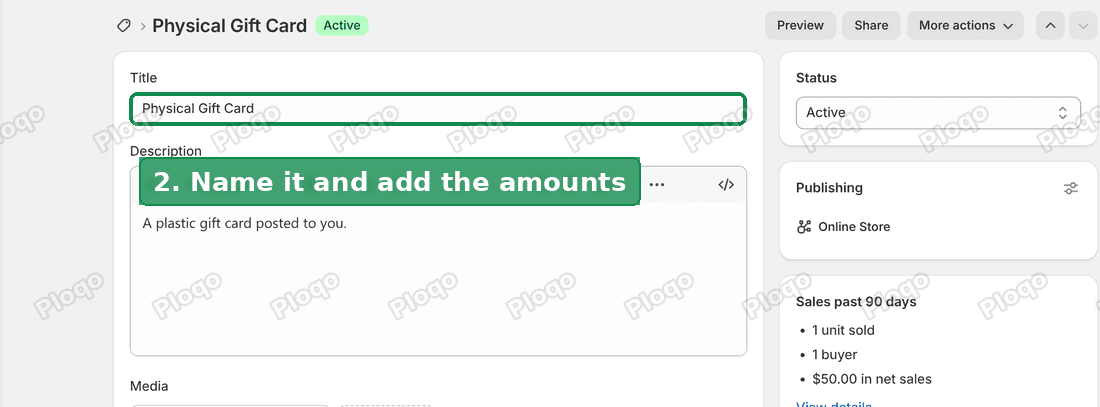 The Physical Gift Card product page in the Shopify admin, with the title and description filled in
Still on step 2, scroll down to Variants and add an option called Amount with the values $25, $50 and $100. Shopify makes one variant per amount. Set each variant's price to its amount.
Leave the product as a physical product, so checkout asks for a shipping address. Click Save.
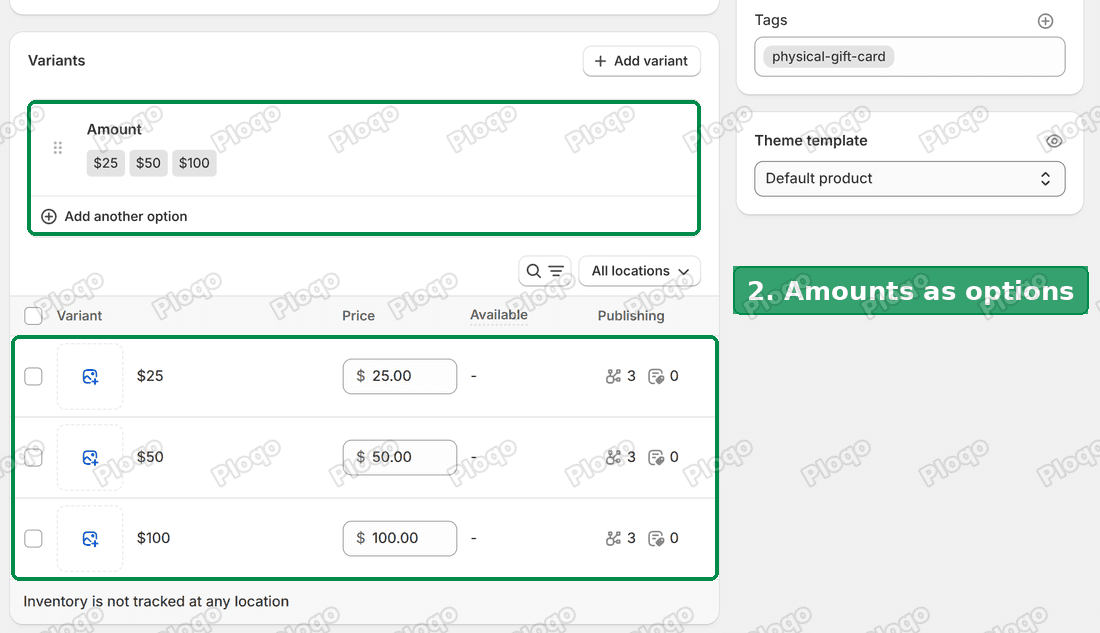 The Variants card with an Amount option of $25, $50 and $100, one variant per amount
Two settings on this product are worth a decision now:
- Inventory. If you hold a fixed stack of plastic cards, track inventory and enter how many you have. Shopify then marks the product sold out when the stack runs out. If you reorder cards often, leave inventory untracked, as on my test store.
- Tax. The plastic card is now a normal product, so Shopify charges tax on it according to your tax settings. Many regions do not tax gift cards when they are sold. If yours is one of them, open each variant and turn off charging tax on it. Check this with your accountant first.
Put both gift cards in one collection
- Make a collection called Gift cards and add both products to it: your existing digital Gift Card and the new Physical Gift Card. Then link that collection in your store menu.
A collection is a group of products that gets its own page on your store. This one gives shoppers a single place to compare the two cards.
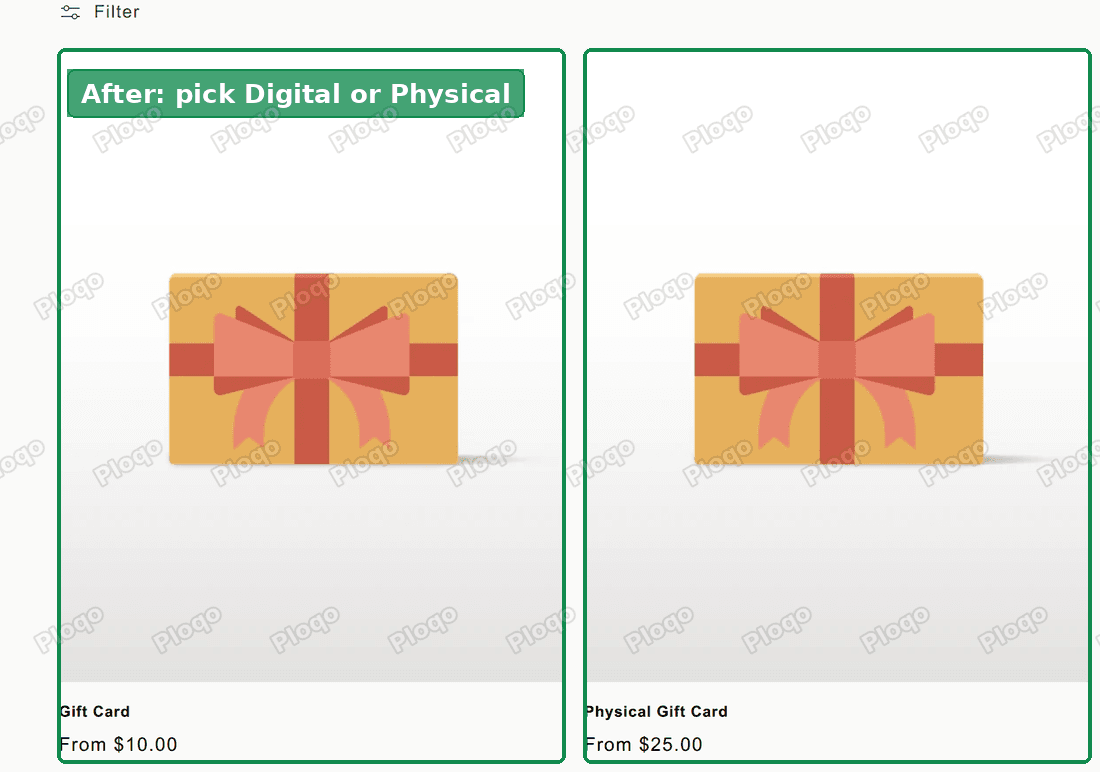 The Gift cards collection page on the storefront, showing the digital Gift Card and the Physical Gift Card side by side
On my test store the collection showed the two cards next to each other, the digital one from $10 and the physical one from $25.
Load the plastic card's code when the order comes in
- When a customer buys the physical card, open the order from Orders. Check that it shows as Paid before you go further.
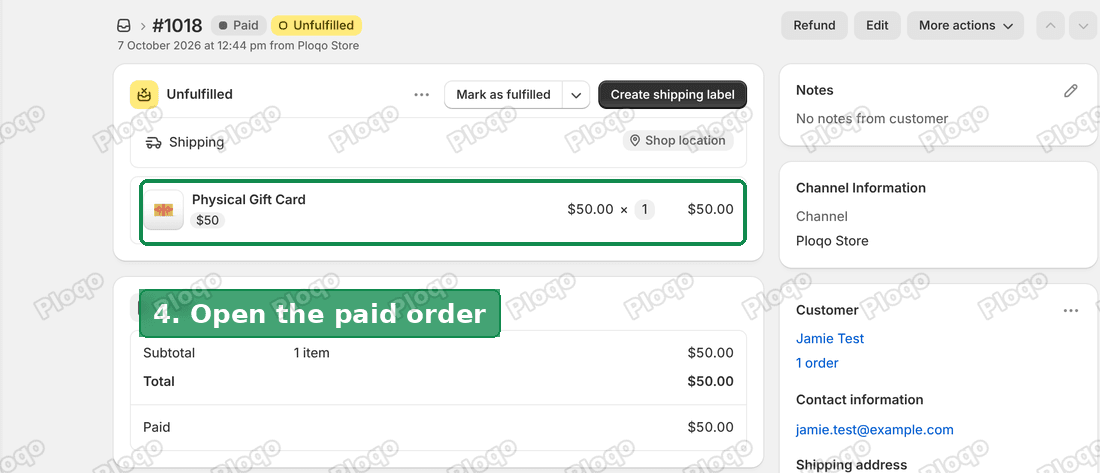 A paid, unfulfilled Shopify order for one $50 Physical Gift Card
- Go to Products > Gift cards and click Create gift card. The Create gift card page opens with a random code already filled in.
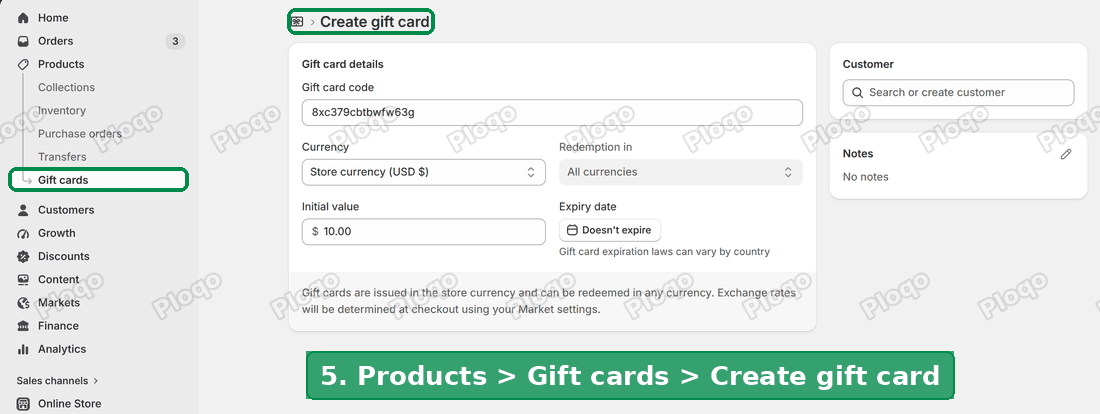 The Create gift card page, reached from Products, then Gift cards in the admin menu
- Replace the random code with the code printed on the plastic card. Enter the amount the customer paid for, for example $50. In the Customer box, pick the customer from the order. Leave Send gift card now unticked, so the customer does not get a second, emailed copy of the code. Click Save.
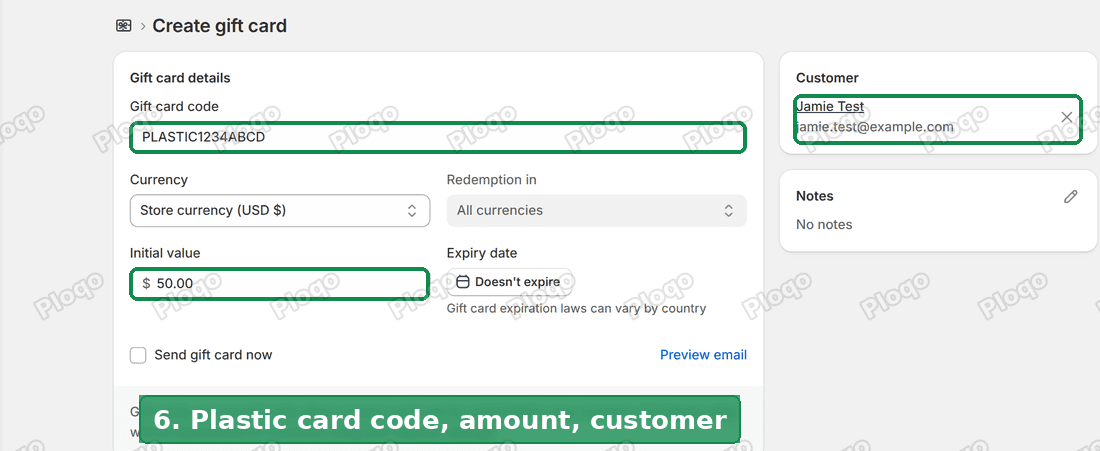 The Create gift card form with the plastic card's code, a $50 initial value and the order's customer selected
On my test store Shopify accepted a 14-character code made of letters and numbers, typed exactly as printed. After you save, the admin only shows the last four characters of the code. Write the full code on your packing list before you save, if you need a record.
Ship the card
- Go back to the order and click Mark as fulfilled. Post the plastic card to the customer.
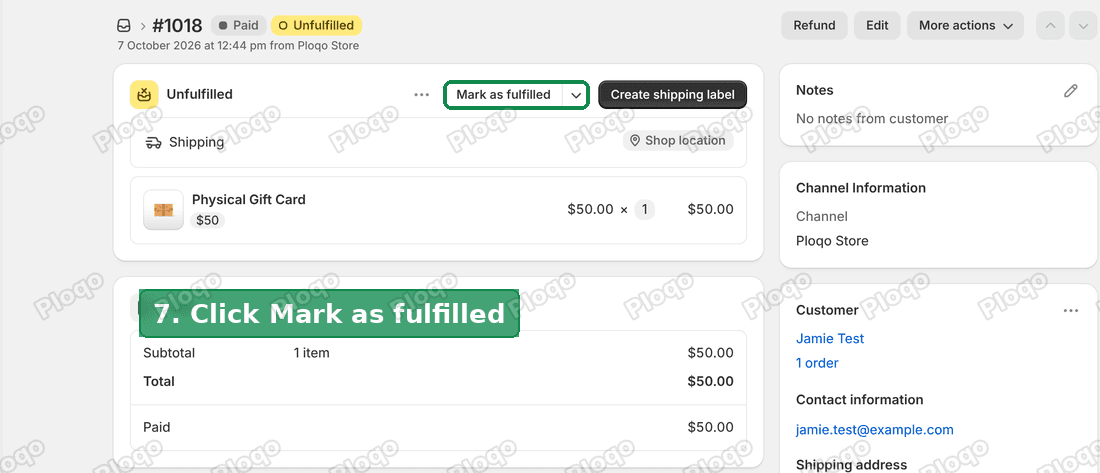 The paid order with the Mark as fulfilled button marked
Fulfilling the order sends the customer the usual shipping confirmation email. The gift card itself is live from the moment you saved it in step 6, so the customer can use it as soon as the card arrives.
Gift card accounting with this workaround
This was the part the merchant cared about most, and it is the main cost of the setup.
When Shopify sells its own gift card product, the money goes into its gift card reports as an amount the shop owes the customer. When the customer later spends the card, the goods they buy count as the sale.
With the workaround, Shopify counts the $50 plastic card as a $50 product sale on the day it is bought. When the customer later spends the card on a $50 order, that order also counts as a sale, paid by gift card. Your sales report then shows $100 of sales for $50 of money received.
Ways to handle it:
- Give the Physical Gift Card product its own product type, such as "Physical gift card". That makes its sales easy to filter out of your sales reports.
- Ask your accountant to treat that product type as gift card liability, the same way they treat your digital gift cards.
- Keep a simple log of each card: the code's last four characters, the order number and the date shipped. It makes month-end matching and "my card never arrived" emails much easier.
The rules for gift cards and tax differ between countries and states. Shopify's own help pages tell merchants to check with a local tax or legal expert, and that applies here.
Refunds and cancelled orders
The order and the gift card are separate records. Refunding or cancelling the order does not touch the gift card you created by hand, so the card stays spendable.
If a customer cancels before you ship, refund the order, then open the card under Products > Gift cards and deactivate it. Do it in that order every time, and only create the code after the payment shows as Paid. Gift cards are a common target for fraud, so look at the order's risk analysis before you load a balance onto a card.
How to create a gift card on Shopify
The digital card in the collection above is Shopify's standard gift card product. If you do not have one yet, this is how to add it.
- In the admin, go to Products > Gift cards.
- Click Add a gift card product.
- Give it a title and set the amounts, which Shopify calls denominations. Click Save gift card product.
Each amount must be more than zero and no more than $10,000 USD. When a customer buys the card, Shopify emails them a unique code. You can change the look of that email in your notification settings.
The other button on the same page, Create gift card, is the one used in step 5 above. It makes a single code by hand, with no sale behind it. Merchants use it for store credit, prizes and replacement cards, as well as for plastic cards.
Selling plastic gift cards in person with Shopify POS
If you also sell in a shop or at markets, Shopify POS handles physical gift cards without any workaround. You scan or enter the card at the till, take payment for the amount, and the card is loaded with that balance. Those sales go into the gift card reports like online gift card sales.
Shopify's branded plastic cards come from the Shopify Hardware Store, in the countries it ships to.
The POS route only covers cards sold in person. A customer who buys online still goes through the setup in this article.
What to check if it does not work
- The physical card shows as sold out. Inventory is tracked and the count is 0. Either enter the number of cards you hold, or turn off inventory tracking on each variant.
- Checkout does not ask for an address. The product is not set to need shipping. Open each variant and check it is set as a physical product, with a weight.
- Shopify rejects your code. Gift card codes must be unique in your store. A code already used by another card is refused, so check whether you have loaded that card before.
- The customer got an email with a different code. Send gift card now was ticked in step 6, or the customer bought the digital product by mistake. Disable any code they should not have.
- The digital Gift Card shows as sold out. Gift card products can carry tracked inventory too. On my test store the existing Gift Card product had tracked inventory at 0, so it showed sold out until inventory tracking was turned off on its variants.
Will Shopify add physical gift cards to the online store?
The merchant who asked posted this as a feature request. The workflow they described was one gift card product with a Digital or Physical choice, a delivery address for the physical one, and a step at fulfilment to scan the plastic card's code. Shopify had not announced anything like it at the time of writing.
Until it does, the two-product setup above is the closest Shopify gets without an app. It works on every plan, it uses only standard admin screens, and the customer ends up with a plastic card they can spend online.
Spending too long on manual Shopify busywork?
PinFlow turns your Shopify catalog into Pinterest pins and posts them on a schedule, automatically. Same idea as the rule above, let the system handle the repetitive part.
Get PinFlow on the Shopify App StoreMore Shopify fixes
More community-sourced Shopify guides, tested on a live store.
Shopify Admin
Shopify EU Product Identifiers: Barcodes, NS-PID and GS1
Shopify EU product identifiers from 1 November 2026: what S-PID, NS-PID and M-PID mean, how to add GTIN or UPC barcodes, and where GS1 numbers come from.
Shopify Admin
How to Edit a Packing Slip on Shopify to Show Big Product Photos
Shopify's order page shows each item as a 40 pixel thumbnail with no way to enlarge it. Here is how to edit the packing slip template so every line prints that exact variant's photo at 1000 pixels, including the one-line fix Shopify's default template needs.
Shopify Admin
Shopify Shipping Zones: Fix Products Sold Out in One Country
Products show Sold out for customers in one country while your admin shows stock. The cause is a shipping profile with no zone for that country. How Shopify shipping zones and profiles decide what a customer can buy, and the six-click fix, with screenshots.