
Shopify POS Payment Methods: No Saved Cards for B2B
Shopify POS takes cash, cards, gift cards and store credit, but it cannot keep a trade customer's card on file or bill a company on terms. Here is the setup that does, with screenshots from a live admin.
By AjayCodeWiz · September 14, 2026 · 9 min read
The problem
A trade customer walks into your shop, picks up stock, and expects it on their account. You want to tap their card once, keep it on file, and charge it at the end of the month like every other wholesale order.
Shopify POS will not do that. It has no way to save a card, and it has no idea that the person at the counter belongs to a company account.
A Shopify Partner asked about this on the Shopify Community in September 2026: a way to keep B2B credit cards on file while POS is the till. The answer is that the card has to be saved somewhere else first, and the sale has to be written up somewhere else too. Both places are free and already in your admin.
What Shopify POS can actually charge
Shopify's POS payment list is short and fixed:
- Cash
- Payment cards, through a card reader or Tap to Pay
- Gift cards
- Store credit
- Shop Pay Installments
- Interac debit, and local methods in some countries
- Multiple or partial payments across the above
Nothing on that list is a stored card. Every card payment in POS is a one-off: the card is read, the money moves, and nothing is kept for next time.
That is the first half of the answer. The second half is that POS also has no concept of a company, which is Shopify's record for a business you sell to. A POS cart can be given a customer, and that is all. Company pricing, payment terms and saved cards all hang off the company record, so none of them reach a POS sale.
The wholesale apps built for POS do not change this. They add tiered pricing and minimum order quantities inside the POS app. They do not add a stored card, because the storing part is not theirs to do.
Who is allowed to save a card
On Shopify, saving a card for later use is called vaulting: the card details go to the payment processor, and your store keeps a token it can charge again. For B2B it works at the company location level, which is the individual address or branch you sell to.
Two rules decide the whole workflow:
- Vaulting needs Shopify Payments. Third-party gateways do not offer it.
- Only the buyer can do it. Shopify's documentation is direct: credit cards can be vaulted only by B2B customers, and card details typed into the Shopify admin cannot be vaulted.
So there is no screen where a staff member adds a card for a customer, and the company location page shows it. Payment methods sits in the sidebar with no edit or add control next to it, unlike Payment terms and Checkout just below.
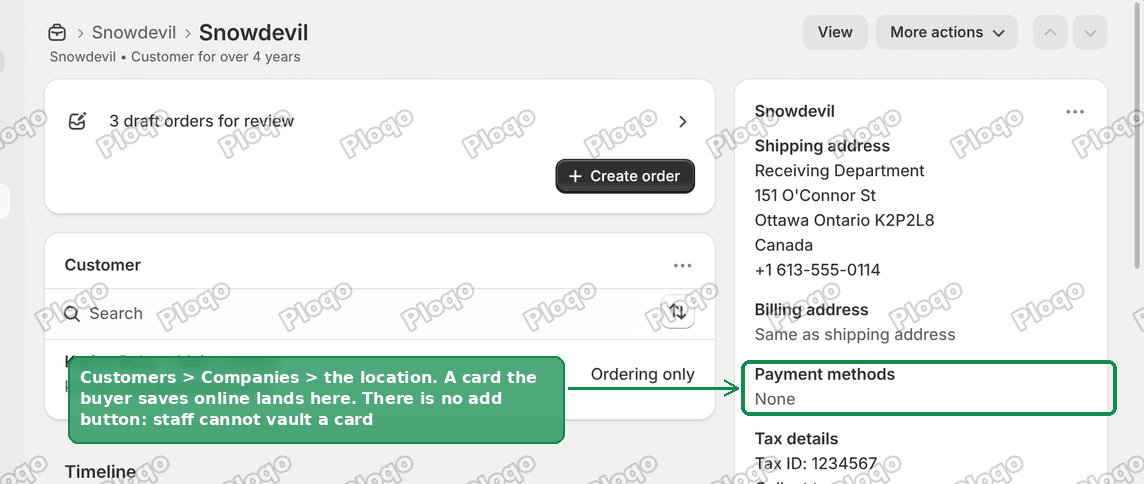 Company location page in the Shopify admin showing the Payment methods section with no add button
The buyer has two ways to put a card there:
- Tick the save-card box during a B2B checkout on your online store.
- Sign in to their customer account and add a card to the company location.
Either one takes a minute, and it only happens once. In a shop, the practical version is handing them an iPad with your store's customer account login open while you pack the order.
Before any of this: are they a company?
B2B on Shopify means the buyer sits under Customers > Companies, not just in your customer list. A company can hold several contacts, its own price list, its own payment terms and its own saved cards.
Since April 2026 this is no longer a Shopify Plus feature. Company profiles, custom catalogs and payment terms are included on Basic, Grow and Advanced as well.
If your trade customers are currently plain customers with a wholesale tag, nothing in this article applies to them yet. Set up the company and the location first, add the person as a contact, then carry on.
Step 1: write the in-store sale as a company order
Since POS cannot hold the company, the sale is written up in the admin instead. Two routes reach the same place:
- Customers > Companies, open the location, then Create order.
- Orders > Drafts > Create order, search for the contact, then pick the company location from the list that appears under their name.
The second route is the one that catches people out. Searching for a customer who is also a company contact gives you a choice: the company location, or Personal order. Personal order writes an ordinary retail order with retail pricing. The company location is the one that applies wholesale pricing and payment terms.
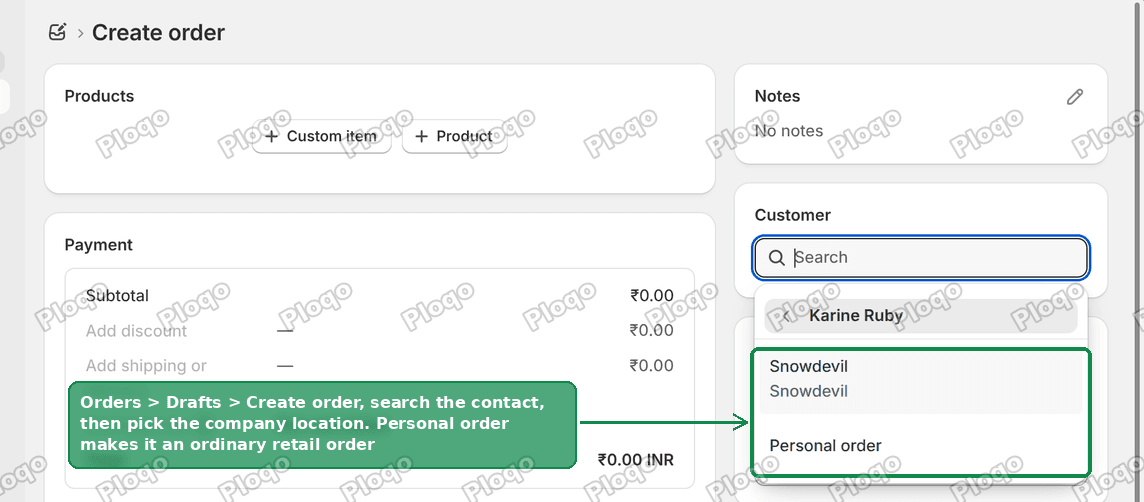 Shopify draft order customer search showing the company location and a Personal order option
Once the company location is attached, the order gains a PO number field, the company's catalog prices, and its payment terms. Add the products the customer is taking, exactly as you would ring them up.
One thing to watch is stock. An order written in the admin is not a POS sale, so it does not automatically draw down the shop's counter stock the way a till sale does. Check which location the order is fulfilled from before you mark it fulfilled.
Step 2: take the money, or put it on terms
The Payment panel on a company order has three controls:
- Collect payment, which charges now. If the buyer has saved a card, it is listed here, so a single click bills the card they saved.
- Send invoice, which emails the buyer a link to pay the order themselves.
- Payment due later, which places the order on the company's payment terms, such as Net 30.
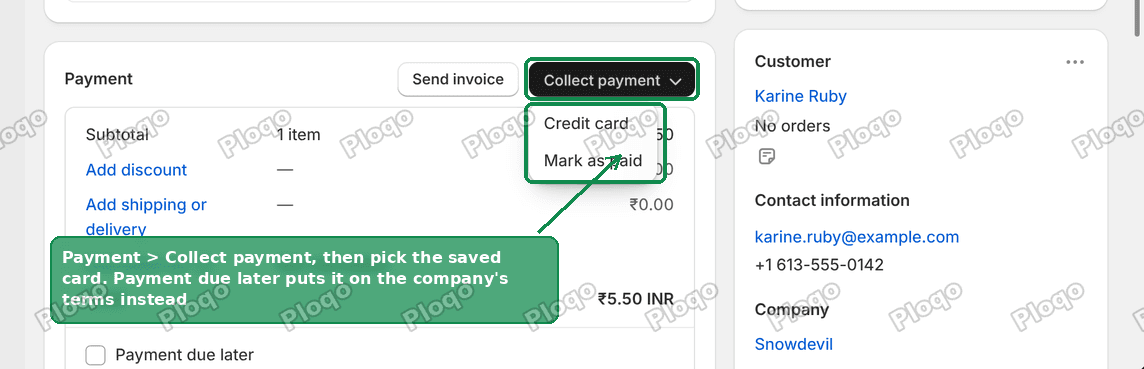 The Payment panel on a Shopify B2B order with the Collect payment menu open
For a counter sale to an account customer, Payment due later plus the company's terms is usually what you want. The customer leaves with the goods, the order shows as payment pending, and the money is collected when the term is up.
Step 3: charge the saved card when the term is due
Shopify does not charge a vaulted card by itself when payment terms expire. Somebody has to trigger it, either by hand or with automation.
By hand it is the same Collect payment button, on the order, after the due date.
Automatically, it is two blocks in Shopify Flow, Shopify's free automation app:
- Trigger: Payment schedule is due
- Action: Charge vaulted payment for B2B order
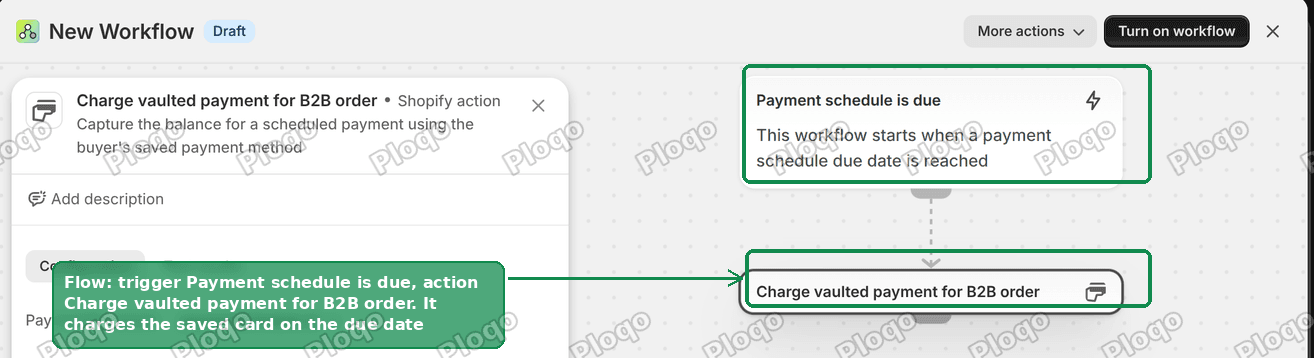 Shopify Flow workflow with the Payment schedule is due trigger and the Charge vaulted payment for B2B order action
The action fills in the payment schedule for you and charges the buyer's saved card for that schedule's balance. Turn the workflow on once and every company order with terms bills itself on its due date.
Two things it needs: Shopify Payments as your processor, and a vaulted payment method on the order. An order from a company that has never saved a card will not be charged by the workflow, so a monthly check of orders still sitting on payment pending is worth keeping.
Common questions
Can I add the customer's card to their account myself?
No. The card has to be entered by the customer, at an online checkout or in their own customer account. Shopify does not accept manually entered card details into the vault from the admin.
Can an app save a card during a POS sale?
Not into Shopify's vault. The API that creates a saved card from raw card details needs a PCI-compliant card session, which app developers do not get, and the other route only imports cards that already exist in Stripe, Authorize.Net or Braintree. An app can vault a card in its own payment provider and charge it there, which means a second processor, a second set of fees and payments that do not show up as Shopify Payments payouts.
Does POS apply my B2B price list?
No. A POS cart can carry a customer, not a company location, so catalog prices and volume rules for that company are not applied. POS apps handle this with their own pricing rules, which are configured separately from your B2B catalogs.
Can I start the sale in POS and finish it in the admin?
Partly. POS Pro can save a cart as a draft order, and it can email the cart to the customer so they pay through an online checkout link. What it cannot do is attach the company, so the draft arrives as an ordinary customer order. The quicker path is writing the order from the company location in the first place.
What about house accounts and running tabs?
Payment terms are the native version of a house account. Set them on the company location, and every order written for that location inherits them. There is no separate credit-limit feature in the admin, so a limit has to be tracked with a third-party app or by hand.
If it did not work
- No saved card in Collect payment. The buyer has not vaulted one yet, or you are looking at a personal order rather than a company order. Open the company location and check whether Payment methods still reads None.
- No payment terms on the order. Terms come from the company location. Set them under Payment terms on that location, then write a new order.
- The Flow action does not appear. Search the action list for "vaulted". It is a Shopify action, so it needs no extra app, but it will not run without Shopify Payments.
- The customer search only offers Personal order. That contact is not attached to a company location. Add them as a contact on the location first.
Words that get mixed up
- Customer: one person in your customer list. This is all POS understands.
- Company: the business you sell to, holding contacts, price lists and terms.
- Company location: the branch or address you invoice. Catalogs, payment terms and saved cards all attach here, not to the company as a whole.
- Vaulted card: a card the buyer saved for reuse. Your store holds a token, never the number.
- Payment terms: how long the company has to pay, such as Net 30. Sold now, paid later.
Tested on
Checked on a Shopify store with B2B turned on, September 2026. The company location's Payment methods block is read-only, a draft order offers the company location alongside Personal order, the company order's Payment panel carries Collect payment, Send invoice and Payment due later, and Flow lists Charge vaulted payment for B2B order under the Payment schedule is due trigger. The store used for the screenshots does not run Shopify Payments, so the saved-card entry in Collect payment is not pictured.
Wiring up the manual bits of your Shopify store?
PinFlow handles one of them for you: getting your Shopify catalog onto Pinterest consistently, on a schedule, without a person doing it every week.
Get PinFlow on the Shopify App StoreMore Shopify fixes
More community-sourced Shopify guides, tested on a live store.
Shopify Admin
Shopify New Admin (2026): Where Search, Sidekick and Settings Went
Shopify's new admin moved search, alerts, the store switcher and Settings into the black sidebar, and Sidekick to a bar at the bottom. Where each one is now.
Shopify Admin
How to Use the New Shopify Admin (2026): Every Main Screen
A tour of the new Shopify admin: the black sidebar, search and Ctrl K, Home, Orders, Products, Settings and Sidekick, with where to click on each screen.
Shopify Admin
Schedule a Black Friday Sale in Shopify (Auto Start and End)
Give the discount its own start and end date and put the sale banner in an Event rollout with the same dates. Both start at midnight and end after Cyber Monday.