
Change the Product Description Font Size in Shopify (Headings Only)
Headings inside a Shopify product description can come out far bigger than the text around them. Make only those headings smaller with 6 lines of CSS in Theme settings, without touching headings on other pages. Tested on Radiant.
By AjayCodeWiz · September 28, 2026 · 8 min read
The problem
A merchant preparing to open their store asked about this on the Shopify Community. They ran Radiant, a candle and home fragrance theme built on Shopify's Dawn. The subheadings in their product descriptions, the level 2 and level 3 headings, came out far too big on the product pages.
They wanted those headings smaller. They did not want to change the headings anywhere else in the store, such as the home page, collection pages or the blog. The settings they had tried in the theme editor had not done it.
I loaded Radiant's own demo store, added two headings to a product description, and measured them. Then I wrote a short piece of CSS that shrinks only those headings, and checked that nothing else on the page changed.
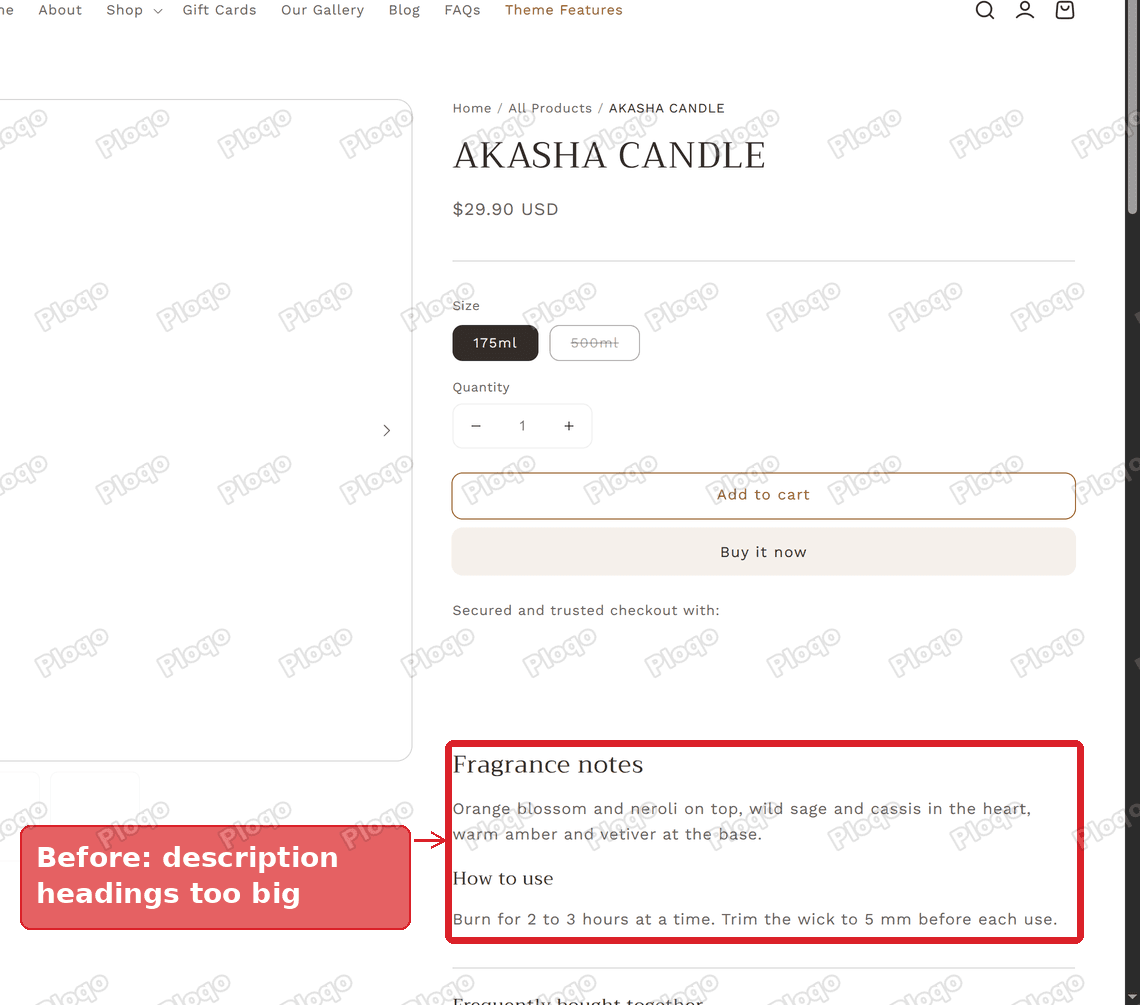 A Radiant product page where the Fragrance notes and How to use headings are large next to the description text
Why the headings in your description are so big
When you write a product description in the Shopify admin, the text box has a Paragraph menu. Picking Heading 2 or Heading 3 there turns a line into a heading. Your theme then decides how big each heading level looks.
Most themes size headings with the rest of the site in mind. A level 2 heading is meant for section titles on the home page, like "Featured collection" or "Our story", so it is large. Inside a product description, next to 16 pixel body text, the same heading looks oversized.
On Radiant's demo, a level 2 heading in the description measured 24 pixels and a level 3 heading 18 pixels, next to body text at 16 pixels. If you have raised the font size scale for headings in Theme settings > Typography, every heading grows by the same factor, and the ones in the description grow with them.
Why the theme editor settings do not fix it
That font size scale changes every heading in the store at once. There is no separate setting for headings inside a product description, because the theme treats them the same as any other heading.
So the fix is a small piece of CSS, which is the code that controls how a page looks, pointed at the description only.
Make the description headings smaller
These are the steps I posted in reply to the merchant. The code goes in Theme settings > Custom CSS, a box in the theme editor where you can add your own CSS for the whole store. The code itself only reaches headings inside a product description.
- Go to Online Store > Themes.
- Click Edit theme on your current theme.
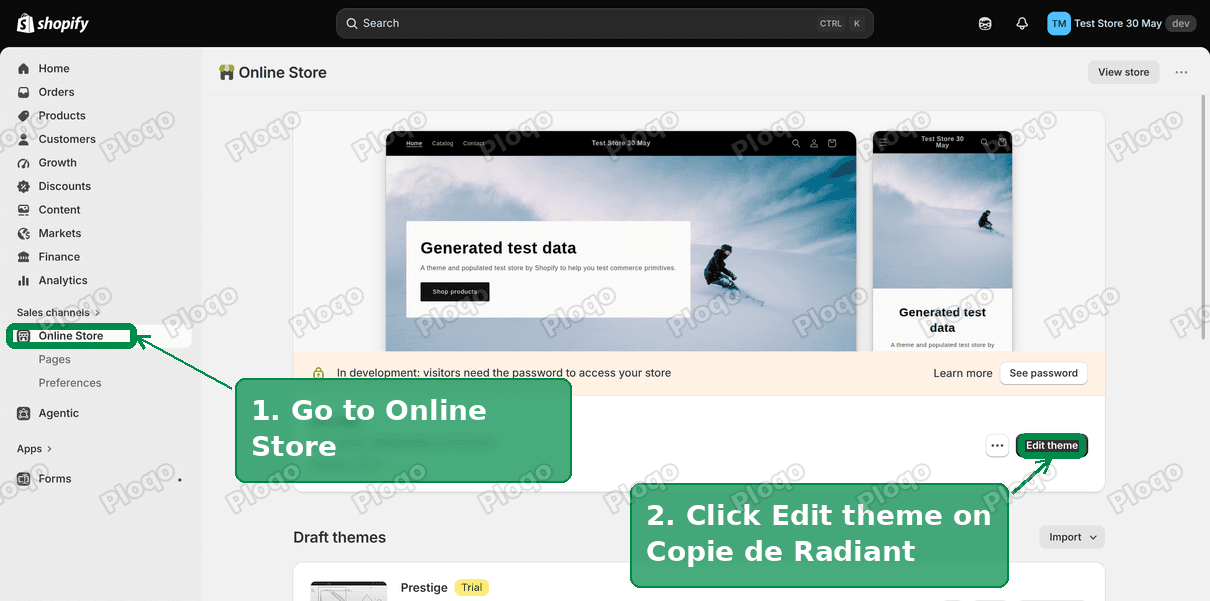 The Shopify Themes page with Online Store and the Edit theme button highlighted
- Click the Theme settings gear on the far left.
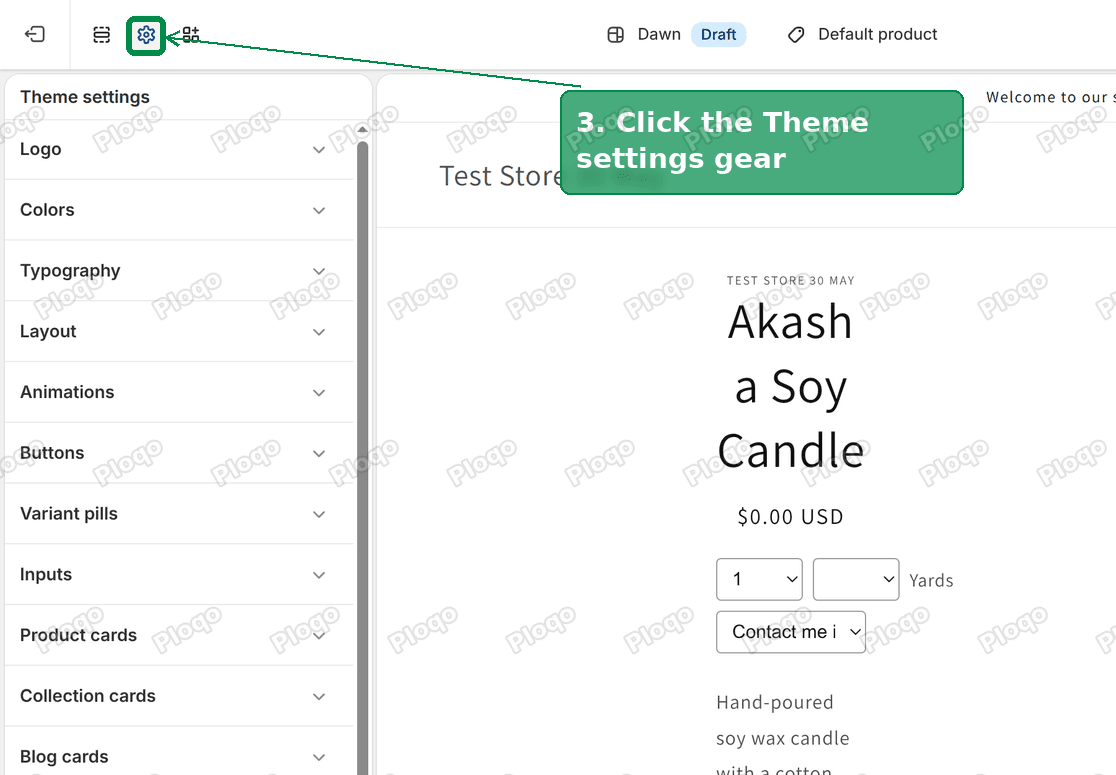 The theme editor with the Theme settings gear highlighted
- Click Custom CSS.
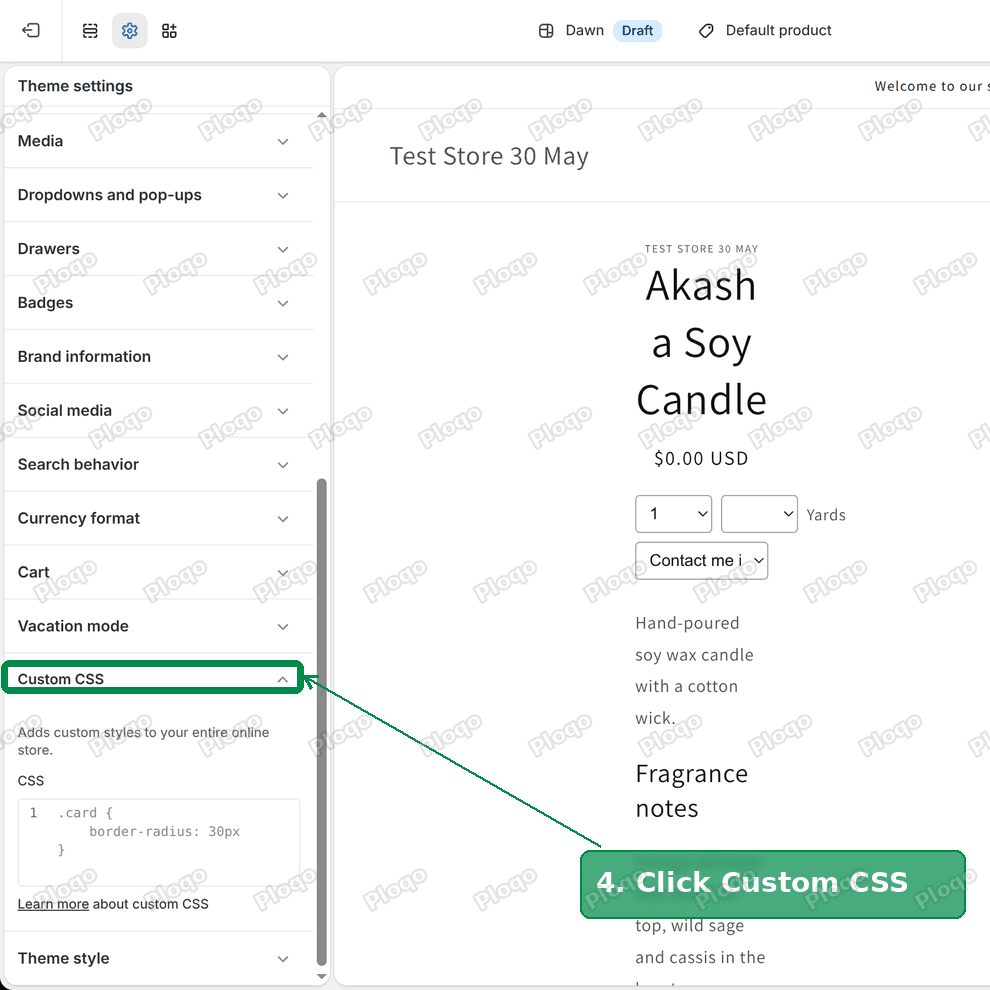 Theme settings with the Custom CSS row highlighted
- Paste this code in the box:
.product__description h2 {
font-size: 20px;
}
.product__description h3 {
font-size: 17px;
}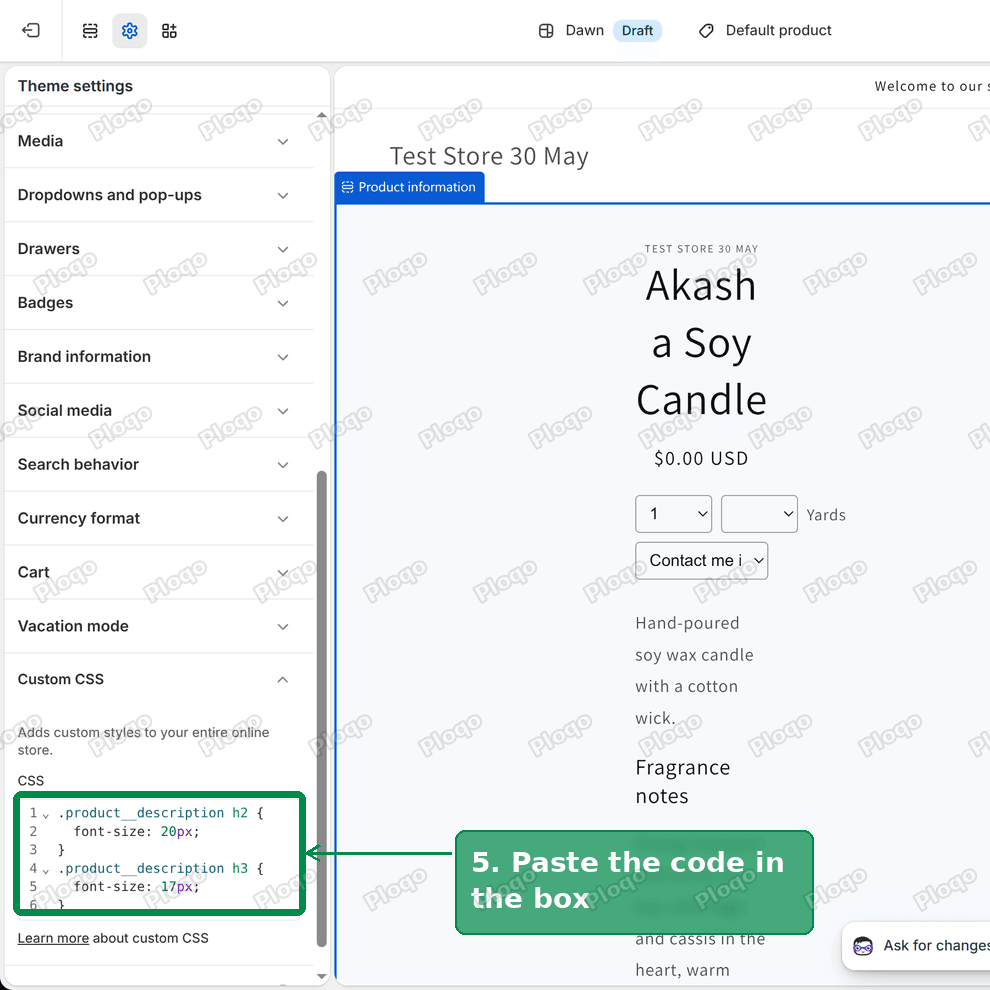 The description heading CSS pasted into the Custom CSS box
- Click Save.
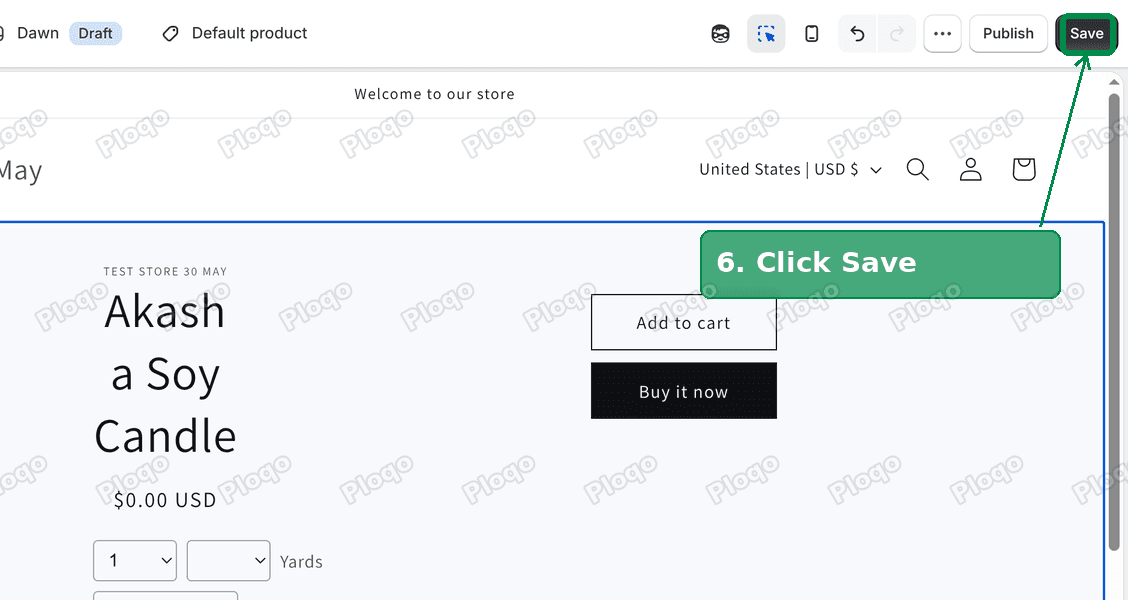 The Save button highlighted in the top right of the theme editor
On Radiant's demo, the level 2 heading went from 24 pixels to 20, and the level 3 heading from 18 to 17. The product title stayed at 36 pixels, and the other level 2 headings on the page, such as the cart drawer and the newsletter pop-up titles, stayed at 24.
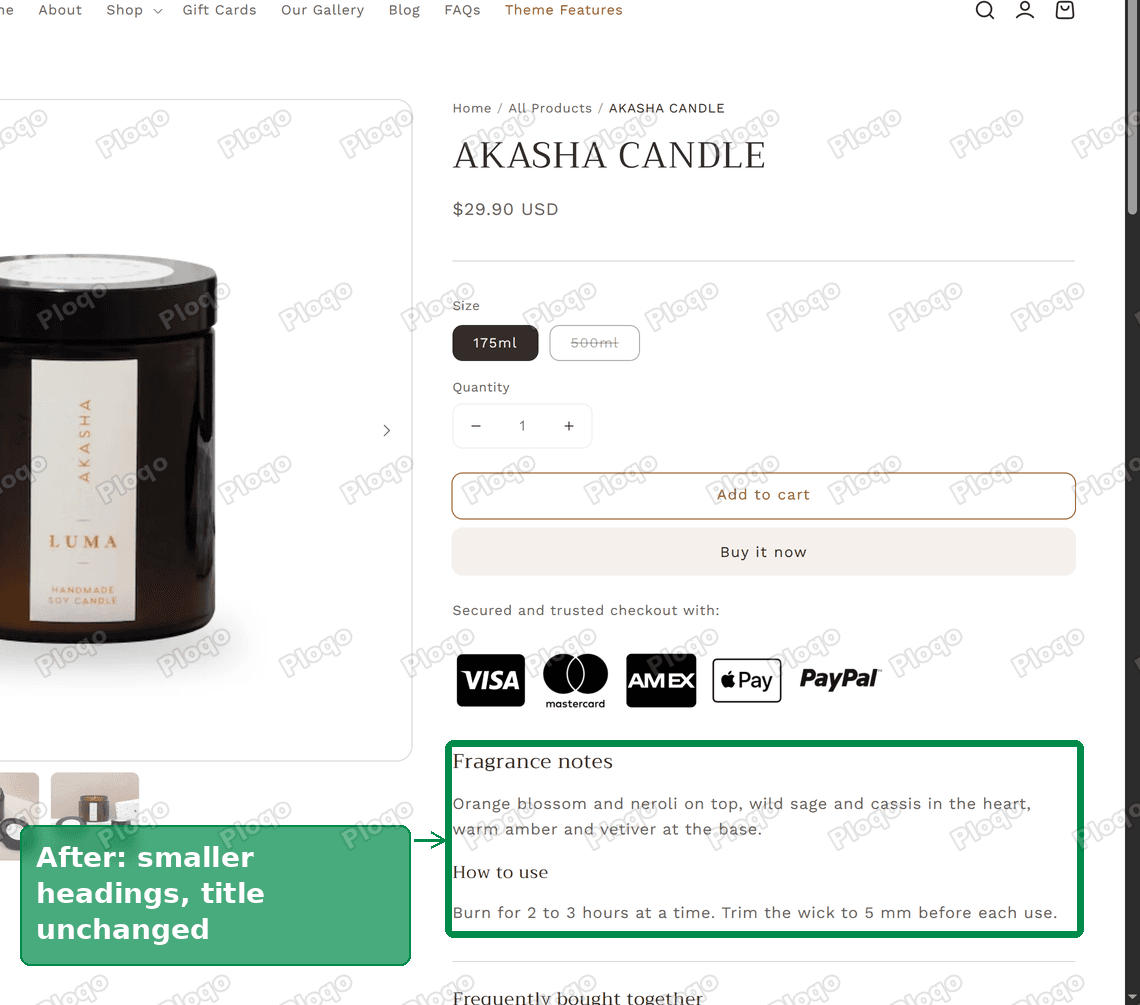 The same product page with smaller description headings and an unchanged product title
What the code does
The code has two rules, one per heading level.
.product__descriptionis the name the theme gives to the box that holds the product description. It is the part of the code that keeps the change inside that box. Radiant uses this name, and so does Dawn.h2andh3are the level 2 and level 3 headings you pick from the Paragraph menu.font-sizesets the size.20pxmeans 20 pixels.
Change the two numbers to whatever looks right in your store. A level 2 heading a few pixels bigger than your body text, and a level 3 heading a pixel or two bigger, keeps them readable as headings without shouting.
If you use Heading 4 in your descriptions too, copy one of the rules and change h3 to h4.
Change the body text of the description as well
The same approach works for the ordinary text in a description. Add this rule under the others:
.product__description p {
  font-size: 15px;
}
On Radiant's demo this took the description paragraphs from 16 pixels to 15. Paragraphs elsewhere on the page kept their own sizes.
Keep the body text at 15 or 16 pixels. Smaller text is hard to read on a phone.
Only on desktop, or only on phones
The merchant noticed the problem mostly on a computer. If you want the smaller headings on large screens only, wrap the rules in a screen-size condition:
@media screen and (min-width: 750px) {
  .product__description h2 {
    font-size: 20px;
  }
  .product__description h3 {
    font-size: 17px;
  }
}
The 750px figure is the screen width Radiant's own code uses to switch from the phone layout to the larger one. On Radiant's demo, with a 1,440 pixel wide window, this version gave the same 20 and 17 pixel headings. For phones only, change min-width: 750px to max-width: 749px.
If the code does not change anything
Your theme uses a different name for the description box. Radiant and Dawn call it product__description. Other themes can use a different name, for example product-single__description in older themes like Debut. To check, open a product page, right-click a description heading and choose Inspect. The panel that opens shows the page's code. Look a few lines up from the heading for a div with "description" in its class, and put that name in the code in place of product__description.
The description is inside a tab or an accordion. Some themes show the description in a collapsible row. The heading is still inside the description box, so the code still applies. If it does not, the theme has moved the description into a different box, and the Inspect check above will show its name.
You edited a copy of your theme. The merchant in the thread was working on "Copie de Radiant", a copy of the theme. Shoppers only see the theme at the top of the Themes page. To see a change on a copy, use Preview on that copy.
The code did not save. Reload the theme editor and open Custom CSS again. If the box is empty, click inside it, paste again, click somewhere else in the sidebar, then click Save.
Section Custom CSS as an alternative
Each section in the theme editor also has its own Custom CSS box, at the bottom of the section's settings. CSS pasted there only applies inside that section. Another reply in the thread suggested putting plain h2 and h3 rules in the product information section's box.
That works, with one catch. The product information section holds more than the description. On Radiant's demo the same section also has a level 2 heading, "Frequently bought together", and a level 3 heading that repeats the product name. A plain h2 or h3 rule shrinks those as well. The version above names the description box, so it only reaches the description, wherever you paste it.
Headings, bold text and SEO
A heading is not the same as bold text. Search engines and screen readers use headings to understand how the description is organised, so "Fragrance notes" as a real heading tells them what the next paragraph is about. Bold text only looks different.
That is a reason to keep your headings and make them smaller, rather than turning them back into bold paragraphs to get the size down. The CSS changes how they look and leaves them as headings.
Use one heading level per job: level 2 for the main parts of a description, level 3 for points inside them.
The other two problems in the thread
The merchant also had a product image zoom that opened almost entirely white on desktop, and a large space between the product photos and their titles on the product cards. On Radiant's demo store both of those looked normal: the zoom showed the photo at full size in the middle of the screen, and the card titles sat just under the photos. That points to something in their own copy of the theme, such as a setting or added code, so I asked for their store link to test them there.
This article started from a thread on the Shopify Community: <a href="https://community.shopify.com/t/probleme-daffichage/688658" rel="nofollow">Problème d'affichage</a>.
Spending too long on manual Shopify busywork?
PinFlow turns your Shopify catalog into Pinterest pins and posts them on a schedule, automatically. Set it up once and let it run.
Get PinFlow on the Shopify App StoreMore Shopify fixes
More community-sourced Shopify guides, tested on a live store.
Themes & Storefront
Shopify AI Section: Fix a Price Badge Hidden Behind the Image
You built a section with Shopify's AI section generator, but the price badge on each card sits behind the photo. Here is the Custom Liquid fix that brings it to the front without regenerating anything. Tested on a Dawn store.
Themes & Storefront
Hide Shipping Calculated at Checkout on One Shopify Product
The line under Add to cart that says shipping is calculated at checkout shows on every product, gift cards included. Here is how to hide it on one product only, with the code, screenshots and the Eclipse theme steps.
Themes & Storefront
Shopify Dropdown Menu Behind Page Content (Z-Index Fix)
Your Shopify dropdown or mega menu opens, but the page title and products sit on top of its links and the menu closes before you can click. The fix is one Custom CSS rule in Theme settings. Tested on a Rebel store.