
Shopify Product Video: Autoplay, Loop, No Play Button
Dawn hides product videos behind a play button, and once you fix that you hit a second problem: a delay before the video starts. Here is the code for the first, and the file-size maths for the second.
By AjayCodeWiz · July 26, 2026 · 9 min read
The problem
A merchant asked this on the Shopify Community. She had uploaded a short video to a product, and she wanted it to play by itself and loop, without the shopper having to press anything.
On Dawn, that is not an option you can tick. The video sits behind a play button and waits.
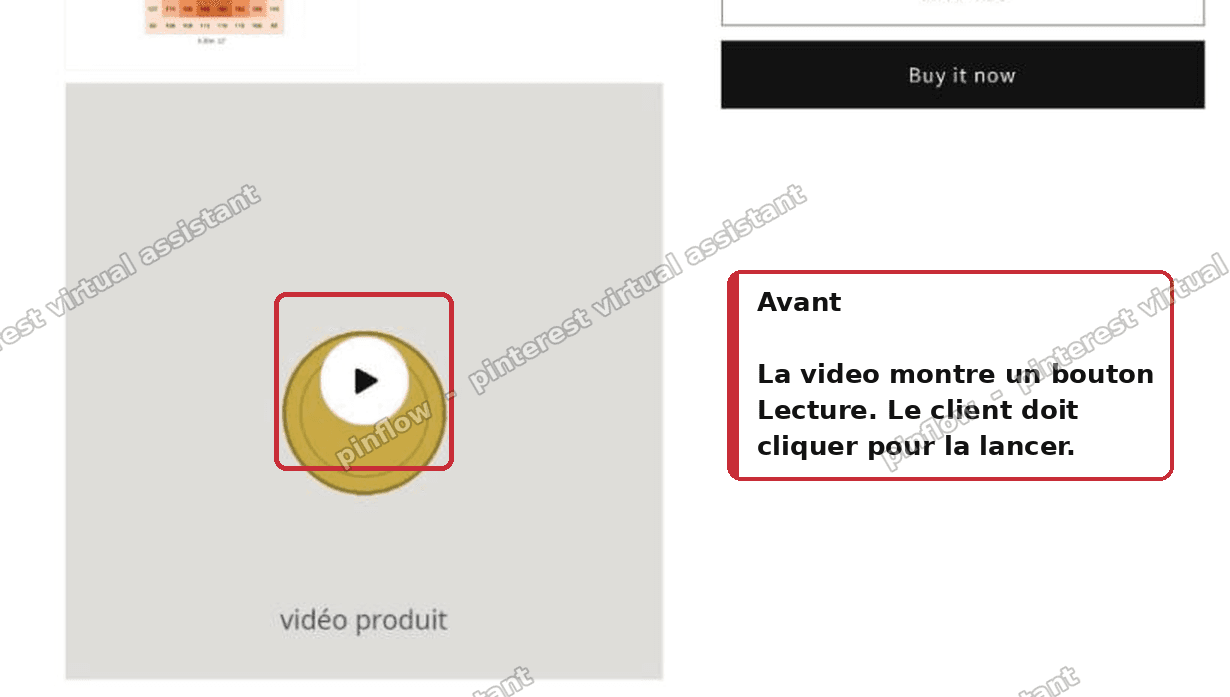 A Shopify product video showing a poster image with a play button overlay
There is no autoplay setting in the theme editor. There is no toggle in the media section. The product video simply does not start on its own.
That is the first half of this article. The second half is the part rarely written about, which is what happens after you fix it and the video still takes several seconds to appear.
Why Dawn will not autoplay a product video
Dawn wraps every product video in a custom element called deferred-media. Inside it, the actual <video> tag is not in the page at all. It sits inside a <template> tag, which browsers parse but do not render and do not load.
What you see instead is a poster image with a play button drawn over it.
When you click, Dawn's JavaScript takes the video out of the template, puts it into the page, and starts it. That is the moment the browser first requests the video file.
This is a deliberate performance decision, and a good one. Product pages often carry several images and a video. Loading a multi-megabyte video that most visitors never play would wreck the page speed score for every visitor.
The consequence is that there is no setting to flip. The video is not paused. It does not exist yet.
Muted is not optional
Before the fix, the constraint that decides everything else.
Autoplay with sound is blocked by every modern browser. Chrome, Safari, Firefox and Edge all refuse it unless the user has already interacted with the site, or has a strong browsing history with your domain. You cannot code around it and no app can either.
So an autoplaying product video is a muted, looping product video. That is the only version that works reliably.
In practice this is fine, because a product video on a listing page is a moving image, not a film. If your video depends on narration, keep the play button.
The fix: one Custom Liquid section
This does not need theme code editing. It goes in a Custom Liquid section, which every free Shopify theme includes.
- Theme editor, open your product page.
- Add section, then choose Custom Liquid.
- Paste the code below, then Save.
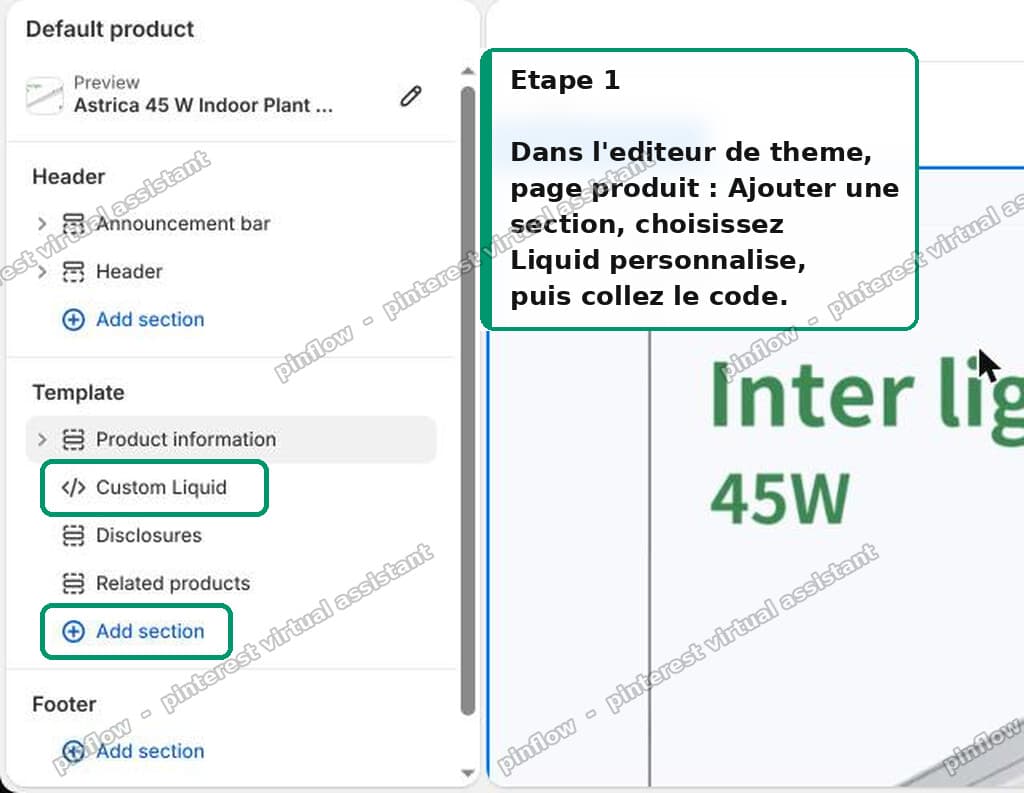 Adding a Custom Liquid section to a Shopify product page in the theme editor
<style>
  deferred-media[loaded] .deferred-media__poster { display: none !important; }
</style>
<script>
(function () {
  function go() {
    document.querySelectorAll('deferred-media').forEach(function (dm) {
      if (dm.closest('.product-media-modal')) return;
      var t = dm.querySelector('template');
      if (t) {
        var v = t.content && t.content.querySelector('video');
        if (v) {
          v.setAttribute('muted', '');
          v.setAttribute('loop', '');
          v.setAttribute('playsinline', '');
          v.setAttribute('preload', 'auto');
          v.removeAttribute('controls');
        }
      }
      if (typeof dm.loadContent === 'function' && !dm.hasAttribute('loaded')) dm.loadContent(false);
      var live = dm.querySelector('video');
      if (live) { live.muted = true; live.loop = true; live.play().catch(function () {}); }
    });
  }
  if (customElements.get('deferred-media')) go();
  else if (customElements.whenDefined) customElements.whenDefined('deferred-media').then(go);
})();
</script>
Here is the result.
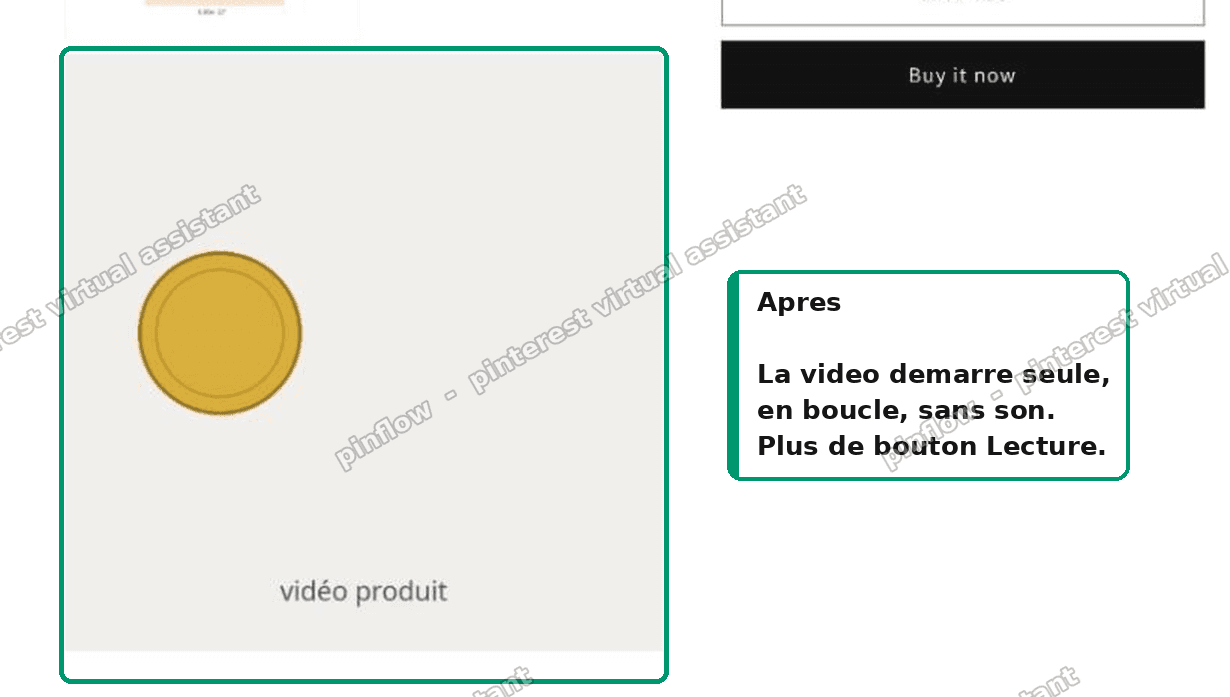 The same Shopify product video playing automatically with no play button
The play button is gone, the video starts on its own, and it loops with no sound.
What each part does
Worth understanding, because it tells you what to change if your theme differs.
The style rule hides the poster image once the video has loaded. Without it you get the poster sitting on top of a playing video.
playsinline is what stops iOS taking the video fullscreen the moment it starts. Leave it out and iPhone visitors get a fullscreen takeover.
preload="auto" tells the browser to start fetching the video immediately rather than waiting. Dawn's default is effectively the opposite.
The .product-media-modal check skips the lightbox copy of the video. Dawn renders the media twice, once inline and once in the popup gallery, and you do not want the hidden one playing in the background.
The customElements.whenDefined wrapper waits for Dawn's own JavaScript to register the element before touching it. This matters. An earlier version of this code that ran on window load instead worked, but started the video several seconds late, because window load waits for every image and every tracking script on the page.
Then the real problem shows up
The merchant came back after applying it. The play button was gone and the video was autoplaying. But: "it takes about 5 seconds before the video starts".
This is where most guides stop, and it is the more useful half.
That delay is not the code. The script starts the video as early as it possibly can. But the browser still has to download enough of the file to begin playing it, and while it does, the first frame sits there frozen. It looks exactly like a broken autoplay.
On my test store a light video, roughly 0.8 MB at 720p, started with no perceptible delay at all. Same code, same theme. So when the same code produces a five second wait on another store, the file is the difference.
Measure the actual file
She sent the store, so I measured it rather than guessing.
Her source video was 21.26 MB for 9 seconds of footage.
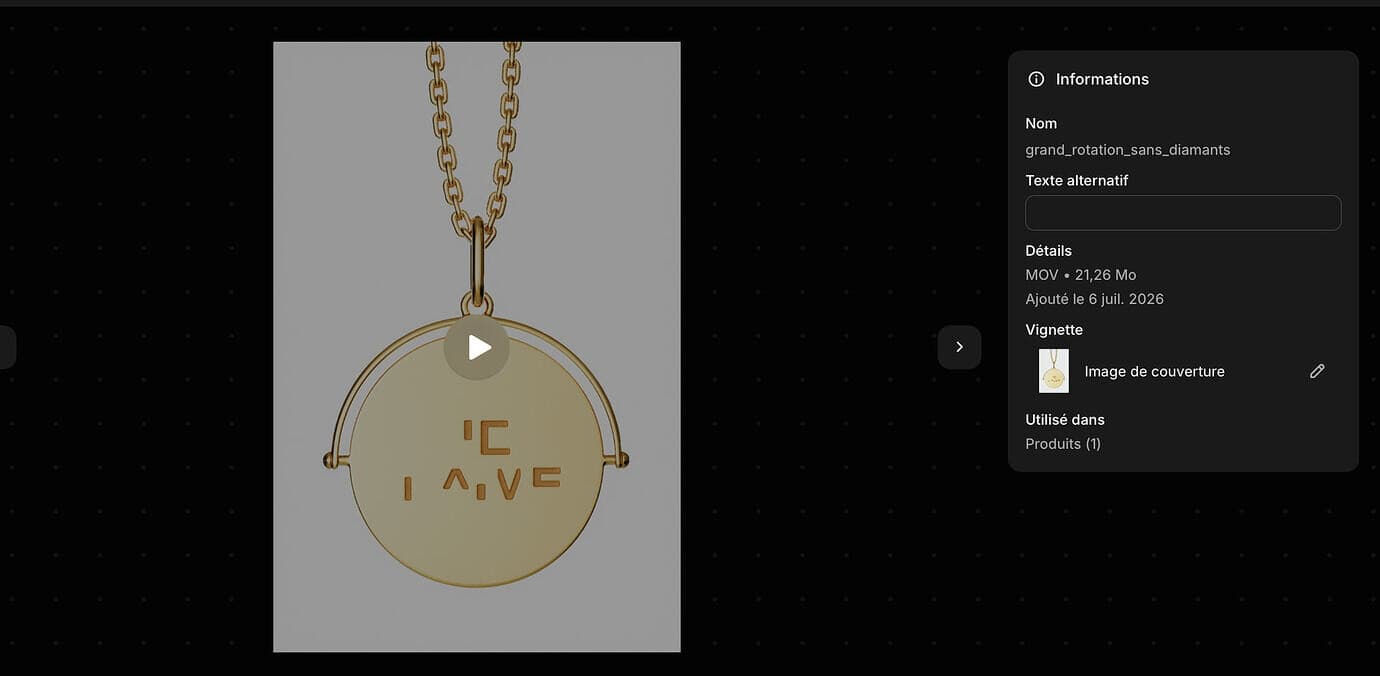 The original product video file at 21.26 MB
Shopify transcodes uploaded video into several renditions. For this one it produced:
- 480p, 1.80 MB
- 720p, 5.07 MB
- 1080p, 8.01 MB
And here is the finding that surprised me. Dawn puts exactly one <source> on the video tag, and it picks the largest rendition. I confirmed this both on her live page and on my own Dawn 15.5.0 test store.
So every visitor downloads the 1080p file. Not a size chosen for their screen or their connection. Phone on 4G included.
Her page was serving 8 MB of video, 606 by 1080, before a single frame could appear. On a fast desktop connection that is quick. On mobile it is your five second wait.
Fix the file, not the code
The lever is the video, not the JavaScript.
Re-export it as:
- Shorter. A few seconds is plenty for a looping product video.
- 720p, not 1080p and definitely not 4K. It is displayed in a box a few hundred pixels wide.
- MP4, H.264, properly compressed.
I re-encoded her video at 720p and got it from 21.26 MB down to 0.4 MB, about 52 times lighter, with no visible difference at the size it renders. That version starts instantly, including on mobile.
Then replace the file on the product:
- Open the product in admin.
- In Media, delete the old video first.
- Add the new file.
- Save.
That delete step is not optional, and it is where this particular thread ended up. She uploaded the compressed file, but the delay stayed. I checked the live page again and it was still serving the original 8 MB 1080p rendition.
 The live product page still loading the original 8 MB video file
The giveaway was the dimensions. The file being served was 1080p. The replacement was 720p. A 720p source cannot produce a 1080p rendition, so the new file was clearly not the one on the page.
Adding a new video without removing the old one leaves the old one first in the media list, and first is what the product page shows. Delete, then add.
Give Shopify two or three minutes after upload to transcode before you judge the result.
How to add a video to a Shopify product page
The step before all of this, for completeness.
- Products, open the product.
- In the Media card, click Add and upload your video file, or drag it in.
- Wait for it to process. Large files take a few minutes.
- Drag it to reorder if you want the video first in the gallery.
Uploaded video lives on Shopify's CDN and gets transcoded automatically. You can also paste a YouTube or Vimeo URL in the same place, which embeds rather than hosts.
For an autoplaying, looping product video, upload the file. YouTube embeds carry the player chrome, the branding, and suggested videos at the end, and the autoplay behaviour is controlled by YouTube's parameters rather than your theme.
Video limits worth knowing
- Uploaded video is capped at 1 GB and 10 minutes per file. Neither is the real constraint. Page weight is.
- Shopify transcodes to multiple renditions automatically. You do not choose which one is served, the theme does.
- A product can hold multiple videos, but each one is a separate download.
- The video shows in the product media gallery. There is no native way to use it as a background or a hero without custom code.
The practical ceiling for a looping product video is about 1 MB. Past that you are trading conversion for detail that cannot be seen in a 400 pixel box.
What to check if it still does not autoplay
Nothing happens at all. Confirm the Custom Liquid section was added to the product template and saved, and that you are viewing the theme you edited. Previewing a draft theme after editing the live one, or the reverse, is the most common false alarm.
The poster image stays on top of the playing video. The style rule did not make it in. Check the whole block was pasted, not just the script.
It plays but there is a long freeze first. That is file weight. Go back to the measuring section. Check the size of the rendition your page is actually requesting, not the size of the file you uploaded.
It works on desktop and not on iPhone. playsinline is missing, or a low power mode is blocking autoplay. iOS refuses autoplay entirely in Low Power Mode and there is nothing you can do about that from the site.
It plays twice, or you hear audio from nowhere. The lightbox copy is also playing. Confirm the .product-media-modal check is present.
It works, then stops working after a theme update. Custom Liquid sections survive theme updates, but Dawn's internals can change. If deferred-media is renamed in a future version, the selector needs updating. This is the tradeoff for a code fix on a theme you do not control.
The takeaway
Two separate problems get mixed together in every thread about this, and they have different fixes.
No autoplay is a theme behaviour. Dawn defers product video behind a play button on purpose, and a small Custom Liquid script undoes it. Muted and looping, because browsers allow nothing else.
A delay before it starts is a file problem. The code is already starting the video as early as it can. What you are watching is the download. Dawn serves the largest rendition to every device, so a 21 MB upload becomes an 8 MB download for a shopper on a phone.
I tested both halves on a Dawn store. The script removes the play button and loops the video muted. A 0.8 MB video starts with no perceptible delay under the exact same code that leaves an 8 MB video frozen for several seconds.
Compress the video. That is the part that actually changes what shoppers see.
You made a product video. Use it more than once.
PinFlow turns your Shopify catalog into Pinterest pins and posts them on a schedule, so the product pages you polish keep working after you close the theme editor.
Get PinFlow on the Shopify App StoreMore Shopify fixes
More community-sourced Shopify guides, tested on a live store.
Themes & Storefront
Shopify Anchor Link: Button That Scrolls to a Section
Link a Shopify button to a section lower on the same page with an anchor link. Steps for the theme editor, no code files, plus the fix for a title hidden under the header.
Themes & Storefront
Shopify Social Media Icons: Add a Custom Icon and Link
Set your social links in Shopify theme settings, see why icons do not show, and swap in your own icon for a network the theme does not list.
Themes & Storefront
Sticky Add to Cart Button in Shopify Dawn, No App
Pin the Add to cart button and its delivery line to the bottom of the screen in Shopify Dawn. One free Custom Liquid block, no app, phone and desktop.