
Remove the Default Variant Selection in Shopify
Make Shopify shoppers actively choose a variant instead of pre-selecting the first one, so the wrong option is not bought by accident.
By AjayCodeWiz · August 6, 2026 · 10 min read
The problem
A merchant named Hervé asked about this on the Shopify Community. He runs the Horizon theme.
His product pages had a small but annoying habit. The moment a shopper landed on a product, Shopify pre-picked the first variant.
A variant is one buyable version of a product. Think of a shirt in Black, size S. Each colour and size combination is a separate variant.
Because the first variant was already active, its photo jumped to the front of the gallery. The gallery is the strip of product images at the top of the page.
So instead of the clean main cover photo, shoppers saw a colour swatch first. In Hervé's case, a black square.
What he wanted was simple:
- A shopper arrives and sees the main cover photo first, then the rest in order.
- No colour or size is chosen yet.
- The shopper picks a colour and size, and only then does the variant photo appear.
I reproduced this on a test store on the Horizon theme. It behaved exactly as he described.
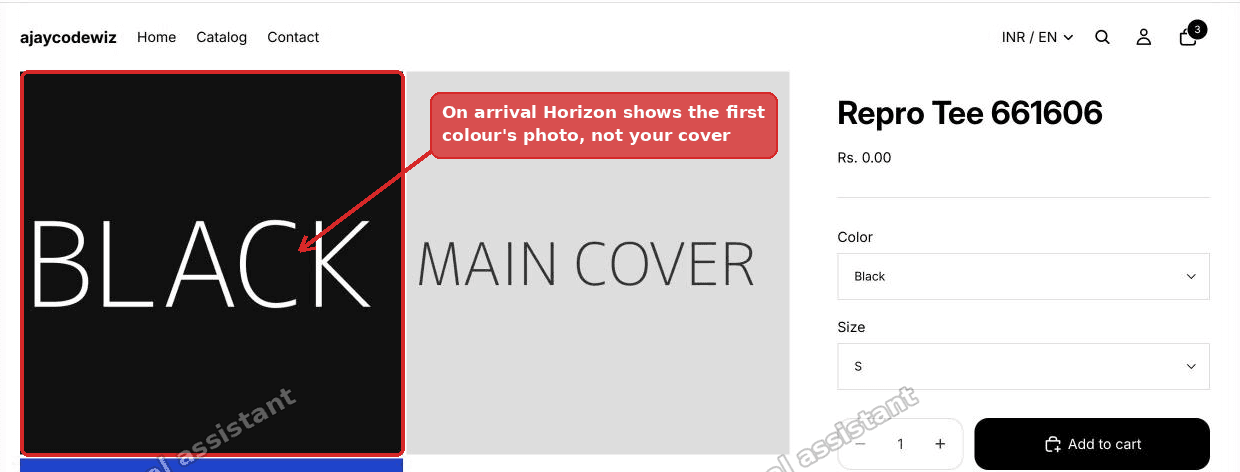 On arrival Horizon shows the first colour swatch photo instead of the main cover, a shopify no variant selected by default problem
On my test product, the first image was a black variant swatch labelled BLACK. My real cover photo, labelled MAIN COVER, sat second. That is the wrong order for most stores.
This is the core of the "shopify remove default variant selection" request. People want the page to start neutral.
Why it happens
This is Horizon's built-in behaviour. There is no button in the theme editor to turn it off.
Here is the mechanism the quick forum answers skip.
Horizon builds the gallery in a snippet file. A snippet is a small reusable chunk of theme code written in Liquid, Shopify's templating language.
The file is snippets/product-media-gallery-content.liquid. Near the top it decides which variant photo to feature.
The line reads like this:
assign selected_variant_media = selected_product.selected_or_first_available_variant.featured_mediaLook at the part selected_or_first_available_variant. It means "the variant the shopper chose, or, if none is chosen, the first available one."
On page load nothing has been chosen. So the theme falls back to the first available variant.
It then grabs that variant's featured image and slides it to the front of the gallery. That is why a colour swatch leads instead of your cover shot.
The variant picker boxes are a separate thing. They show a default label because Shopify always keeps one variant active for price and cart. But the visible symptom, the wrong lead photo, comes from that one Liquid line.
Fix that line and the gallery starts neutral. That is the whole trick.
Before you start: duplicate your theme
The variant picker is wired into price, image, stock, and Add to cart. A careless edit on a live theme can break a real page.
So always make a backup copy first. It takes ten seconds and saves a bad afternoon.
- Go to Online Store, then Themes.
- On your live theme, open the "..." menu and choose Duplicate. This is your safety copy. If anything goes wrong, you republish the copy.
- Open the "..." menu again and choose Edit code.
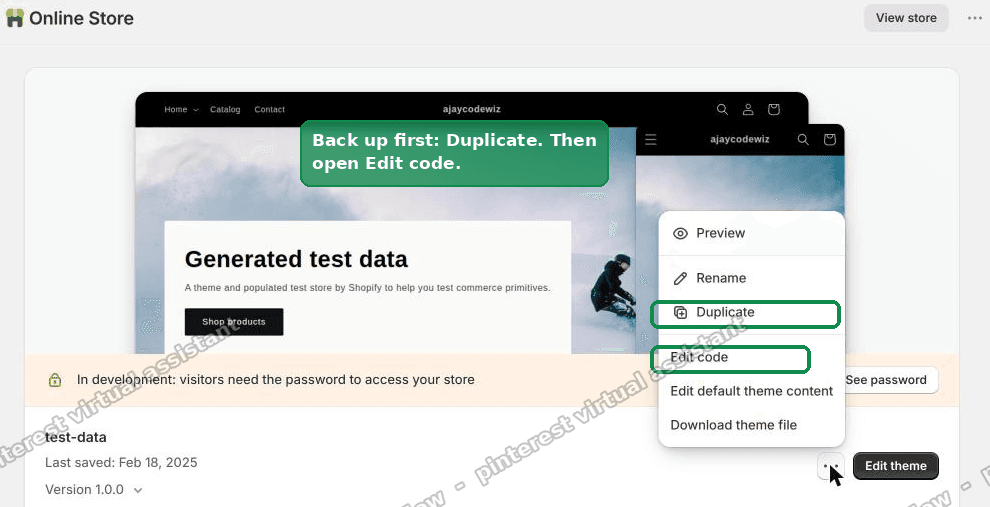 Duplicate the theme as a backup, then choose Edit code from the same menu
Edit code opens the theme's file editor. This is where the one-word change happens.
The fix: change one word
You are editing a single word in a single file. Nothing else.
- In the file search box on the left, open
snippets/product-media-gallery-content.liquid. - Find the line that assigns
selected_variant_media. - Change
selected_or_first_available_varianttoselected_variant. - Save.
Here is the exact before and after:
Find:
assign selected_variant_media = selected_product.selected_or_first_available_variant.featured_media
Replace:
assign selected_variant_media = selected_product.selected_variant.featured_media The one word change in the Horizon gallery snippet, from selected_or_first_available_variant to selected_variant
Why this works. selected_variant is empty until a shopper actually clicks a choice. So on load there is no variant photo to promote. The gallery keeps your normal photo order, main cover first.
I tested this on the Horizon store. After the change, the main cover photo led the gallery on arrival.
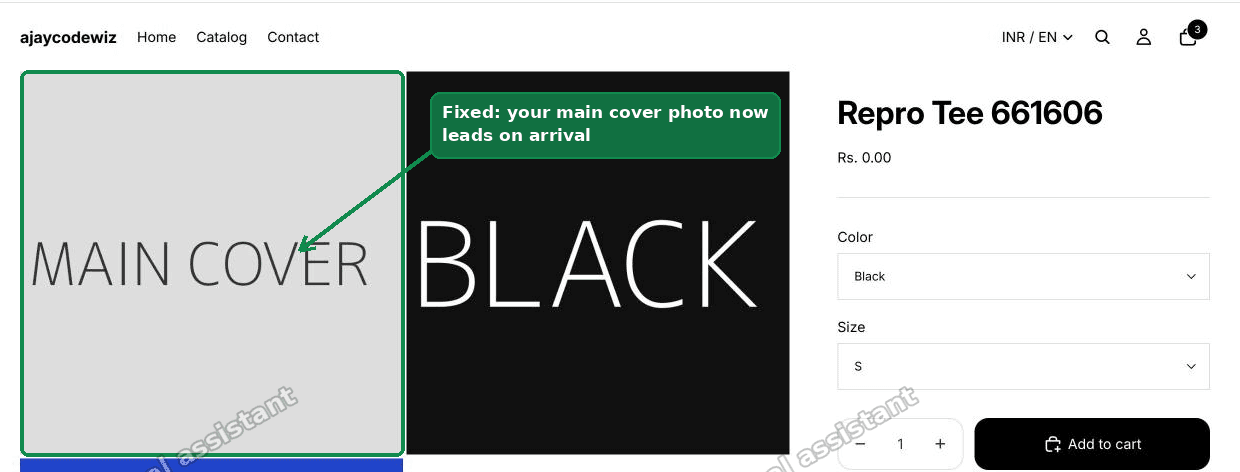 After the fix, your main cover photo leads the gallery on arrival with shopify horizon no default variant behaviour
The old colour-first behaviour still works the moment it should. When I picked Blue, the blue photo jumped straight to the front, exactly as before.
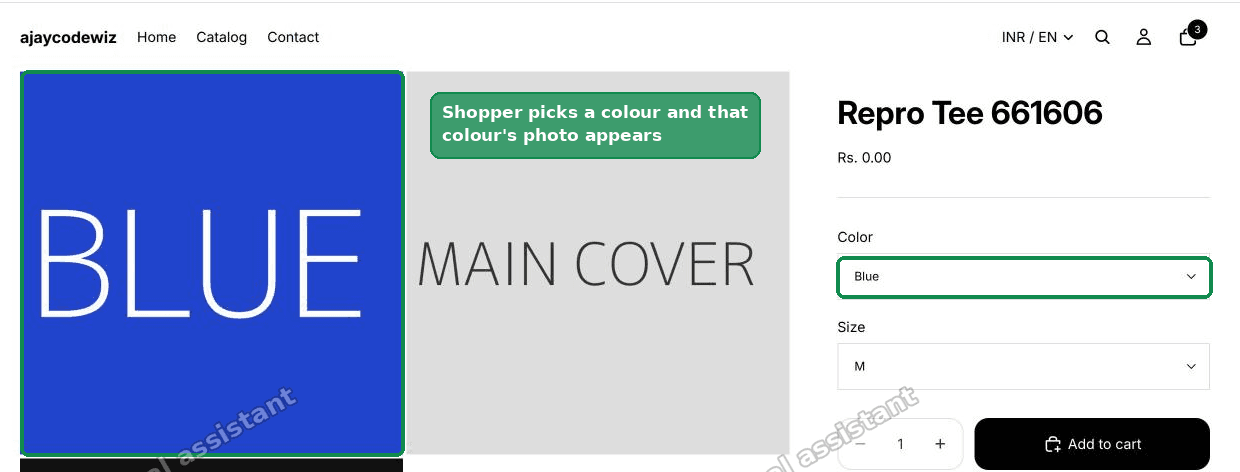 Pick a colour and that variant photo appears at the front of the gallery
So the buying experience is intact. Only the arrival state changed.
A few things worth knowing:
- This applies to every product on that theme at once. One edit, whole catalogue.
- Price, stock, and Add to cart are untouched. Nothing about checkout changes.
- The Color and Size boxes still show a default label. That is expected, and the next section explains why.
Why the picker boxes still show a label
This surprises people, so it is worth being clear.
After the fix, the gallery starts neutral. But the Color box might still read "Black" and the Size box might still read "S".
That is not a bug. Shopify always keeps one variant active in the background. It needs an active variant to show a price and to know what goes in the cart.
So the dropdowns cannot be truly blank on a standard Shopify theme. The active variant has to point at something.
Our change only controls which photo leads the gallery. That is the part shoppers actually look at, so for most stores it solves the real complaint.
If you genuinely need the boxes to show nothing at all, keep reading. That needs a different tool.
An alternative: a product options app
The code fix handles the gallery, which is what most merchants mean by "shopify deselect default variant."
But say you want more. You want the picker itself to start empty, with no colour and no size highlighted, and Add to cart blocked until the shopper chooses.
Shopify will not do that natively, because of the active-variant rule above.
For that, a third-party product options app is the cleaner route. Apps in this category let you present options as a fresh, unselected form. The shopper must pick before the product is buyable.
This is the better choice when:
- You sell made-to-order or personalised items and a wrong default is risky.
- You have many options and want to force a deliberate choice on each one.
- You are not comfortable editing theme code at all.
The trade-off is a monthly app cost and one more app in your stack. For a simple gallery fix, the one-word edit is lighter and free. For a strict, no-default checkout flow, the app earns its keep.
Can you have no variant selected by default in Shopify?
Yes and no, and the distinction matters.
You can make the page look like nothing is selected. The gallery leads with the main photo, which is the fix above.
You cannot make a standard theme hold a truly empty variant state. Shopify keeps one variant active so it can price the product and fill the cart.
So "shopify no variant selected by default" is really two goals. The visual one is a free code edit. The strict one, an empty picker that blocks the cart, needs an options app.
Decide which you actually need before you start. Most merchants only want the visual one.
How do I force a variant choice on Shopify?
If your real worry is people buying the wrong option, "shopify force variant choice" is the goal, not just the photo.
You have two honest paths.
The code path. The gallery fix removes the misleading first photo, so shoppers are less likely to assume the default is fine. It nudges, but it does not block.
The app path. A product options app can require a selection and disable Add to cart until the shopper picks. That is a hard block, not a nudge.
If a wrong purchase costs you a refund and a support ticket, the hard block is worth it. If it is only a cosmetic annoyance, the code fix is enough.
Does this work on Dawn or only on Horizon?
This exact edit is written for Horizon, because it targets a Horizon file and a Horizon line.
Dawn and other themes have the same underlying idea but different file names and code. The concept still applies. You look for where the theme decides the featured variant media, and you stop it from falling back to the first available variant on load.
On Horizon the file is snippets/product-media-gallery-content.liquid. On another theme you would search the code for selected_or_first_available_variant and review each result before changing it.
Always duplicate the theme first, whatever theme you run. The variant logic is delicate on every theme.
How do I undo the change if something looks off?
This is the reassuring part. You made a backup, so recovery is easy.
If the gallery misbehaves, or a product looks wrong, you have two quick options.
- Reopen
snippets/product-media-gallery-content.liquidand change the word back toselected_or_first_available_variant. Save. You are back to stock behaviour. - Or publish the duplicate theme you made before editing. That restores everything at once.
Because the edit is one word in one file, rolling it back is just as fast as making it.
If it did not work
A few things trip people up. Run through these.
- You edited the wrong theme. Make sure Edit code opened your live theme, or the exact theme you preview. An edit on an unpublished theme will not show on the live store.
- The change did not save. The editor must show a saved state, not an unsaved dot. Save again.
- You are looking at a cached page. Hard refresh the product page, or open it in a private window.
- Your theme is not Horizon. If the file
snippets/product-media-gallery-content.liquiddoes not exist, you are on a different theme and need its equivalent file. - The picker still shows a default label. That is expected. Re-read the section above. The label is Shopify's active variant, not a failed fix.
If the gallery still leads with a variant photo after all that, double check you changed the selected_variant_media line specifically. There can be other mentions of selected_or_first_available_variant in the file that should stay as they are.
Definitions people confuse
A few terms get mixed up in these threads. Here is plain language for each.
Variant. One buyable version of a product, like Black size S. A product with three colours and three sizes has nine variants.
Variant picker. The set of Color and Size boxes on the product page. This is where the shopper chooses.
Gallery. The product photos at the top of the page. The lead photo is the first one shown.
Featured media. The single image Shopify attaches to a variant. When that variant is active, its featured media is promoted in the gallery.
Active variant. The variant Shopify currently treats as chosen, used for price and cart. A standard theme always has one.
Selected variant. The variant the shopper actually clicked. This can be empty on load, which is what our fix relies on.
The whole confusion in these threads comes from mixing "active variant" with "selected variant." Shopify needs an active variant at all times. It does not need a selected one. The fix simply tells the gallery to follow the selected variant, not the active fallback.
That single distinction is why one word solves the problem.
Spending too long on manual Shopify busywork?
PinFlow turns your Shopify catalog into Pinterest pins and posts them on a schedule, automatically. Same idea as the rule above, let the system handle the repetitive part.
Get PinFlow on the Shopify App StorePart of a complete guide
Shopify Variants: The Complete Guide
Variants are one product sold in several forms. How they work, the 2,048 and 3-option limits, and where each variant fix lives - images, swatches, sorting, hiding and the theme-specific bugs.
More Shopify fixes
More community-sourced Shopify guides, tested on a live store.
Themes & Storefront
Remove the Variant ID From Your Shopify Product URL
Your product link keeps turning into /products/name?variant=43176780890281, before the customer has touched anything. One theme setting stops it, a second switch covers Dawn, and a short snippet cleans the links that already carry the ID.
Themes & Storefront
Hide Unavailable Variants in a Shopify Dropdown
Green has no 3XL, so Shopify prints "3XL - Unavailable" in the size dropdown anyway. How to remove combinations that do not exist, without the bug that kills the variant picker. Tested on Studio.
Shopify Admin
How to Hide a Variant in Shopify Without Deleting It
A colour is temporarily unavailable and you want it off every product page without deleting it and rebuilding it later. Shopify can now unpublish a single variant. The fast way to do it, tested on a live store.