
Shopify Self-Serve Returns: Rules for Each Market (2026)
Shopify self-serve returns follow rules you set for each market. Give Europe a 14-day window and the US 30 days, with its own shipping and fees. No app.
By AjayCodeWiz · November 23, 2026 · 6 min read
How do you set different Shopify return rules for each market?
Shopify self-serve returns follow the rules you set for each market. Go to Settings, then Policies, click + Rule, and under Eligibility pick a market. That market gets its own return window, return shipping, restocking fee and cancellation window. No app is needed, and it worked on a Basic store. Merchants often ask whether Shopify returns can use a different window or fee for each country. This is the built-in way.
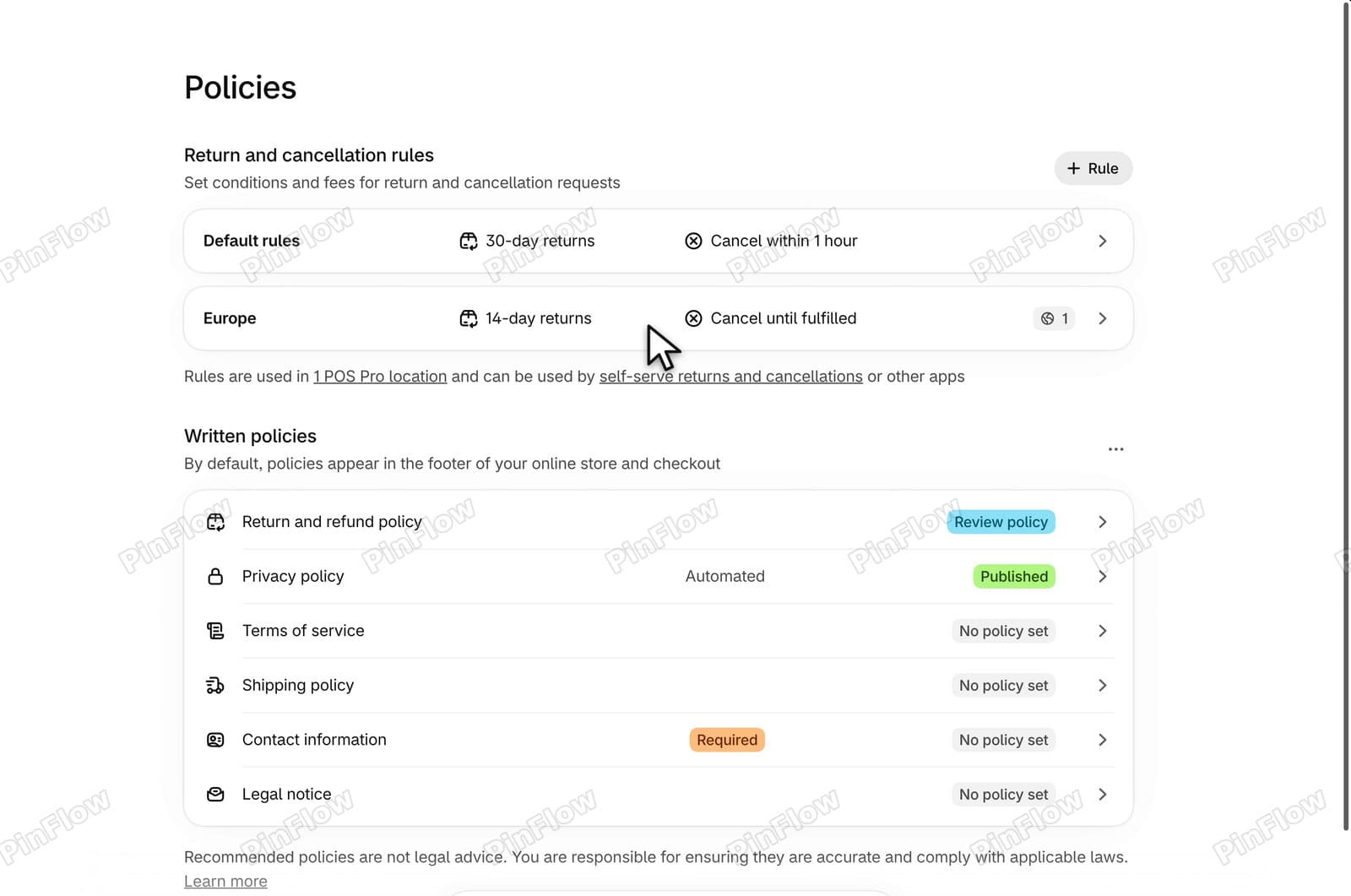 Shopify self-serve returns rules per market: the Policies page with a Default rules row reading 30-day returns and a Europe row reading 14-day returns
Filmed on a development store on 23 November 2026. The store is on the Basic plan, uses the new customer accounts and has two markets, Europe and United States. The Europe rule gets 14 days and the default rule keeps 30.
Step 1: Open the return rules from Customer accounts
In the Shopify admin, click Settings, then Customer accounts. The Order actions row says you can set conditions with "returns and cancellation rules". Click that link.
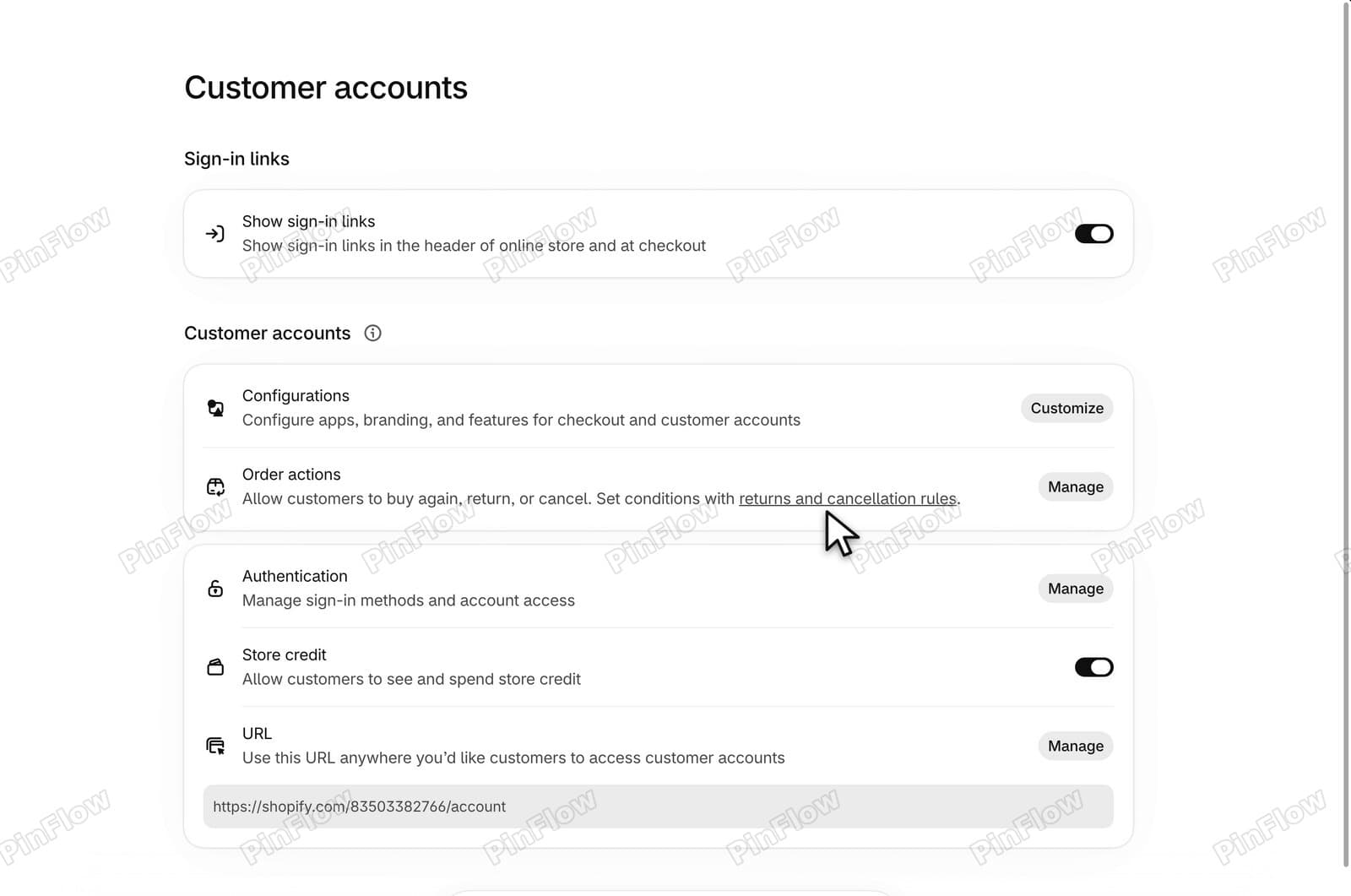 Shopify admin Settings, Customer accounts page with the Order actions row and its returns and cancellation rules link
Shopify's changelog post from 10 November 2026 points to the same place. It says that if you haven't configured return rules for a market, you'll see a link to the right setup screen.
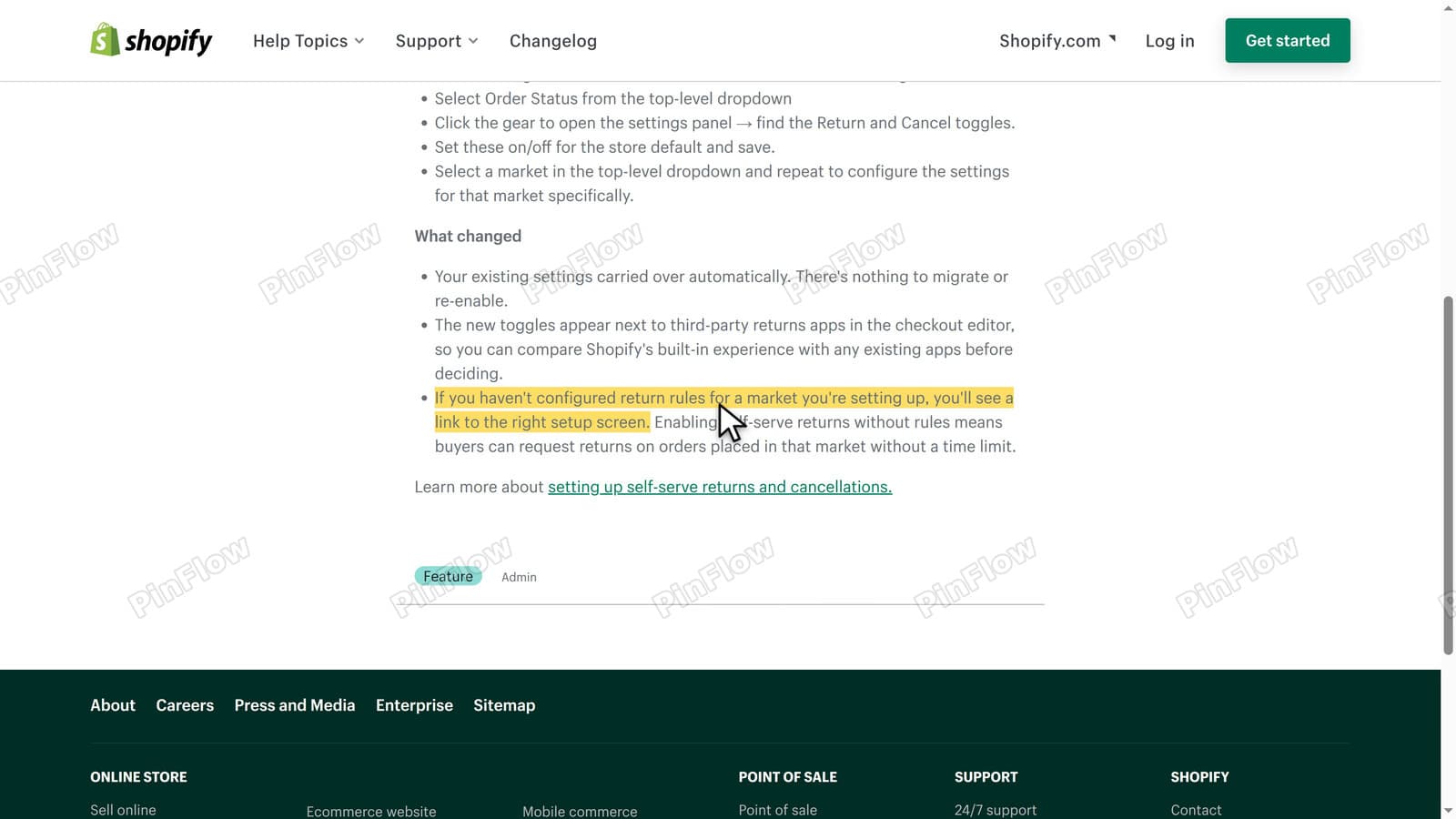 Shopify changelog post from 10 November 2026 with the sentence about a link to the right setup screen highlighted
The same post warns that turning on self-serve returns without rules lets buyers request returns in that market with no time limit.
Step 2: Set the Default rules for every market
The link opens Settings, then Policies. Under Return and cancellation rules there is one row, Default rules, and it reads "No rules set". These rules cover every market that has no rule of its own.
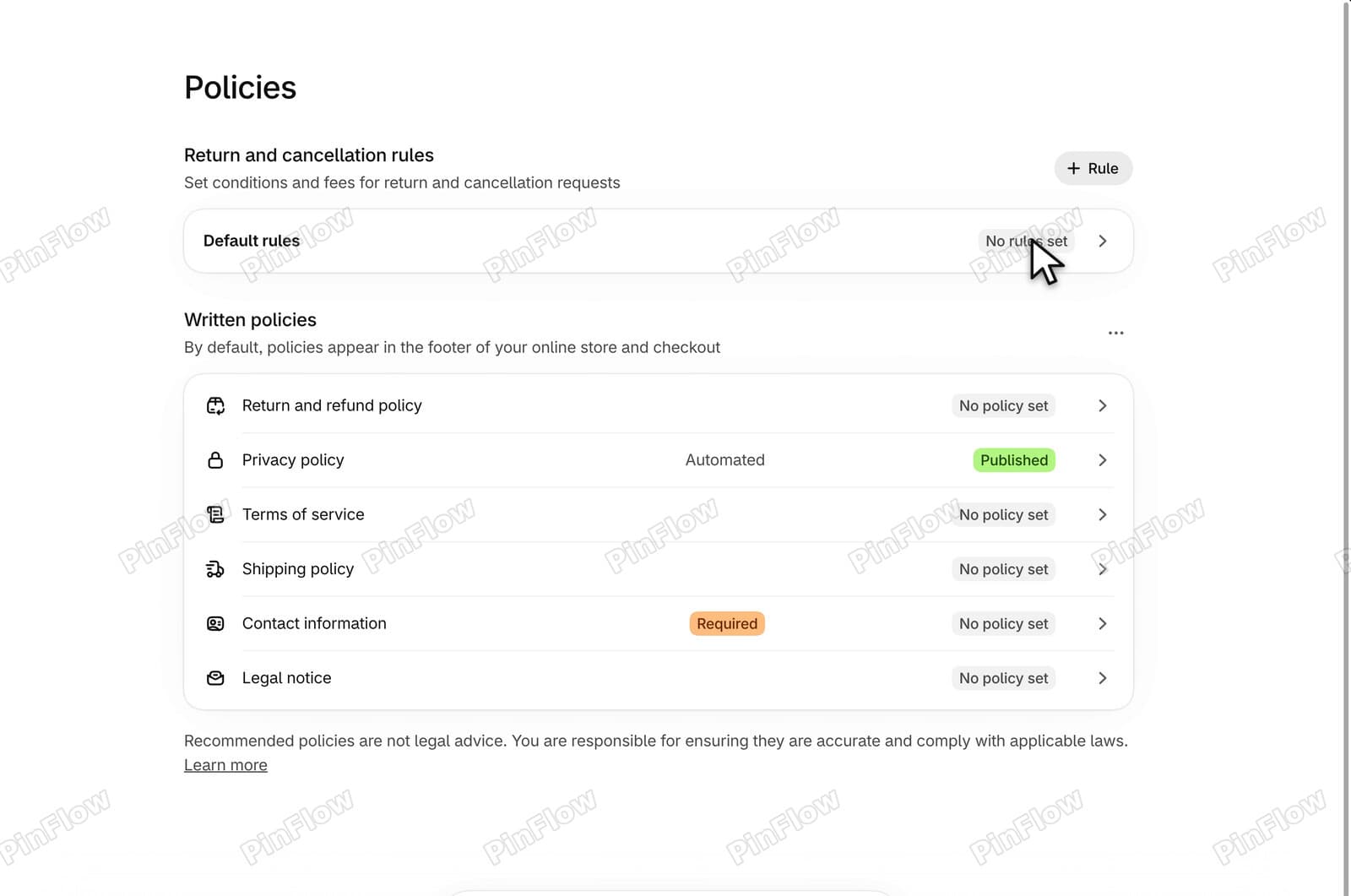 Policies page with the Return and cancellation rules section showing one Default rules row marked No rules set
Open Default rules and turn on Return rules. Set Return window to 30 days and leave Starting from on Delivery of item.
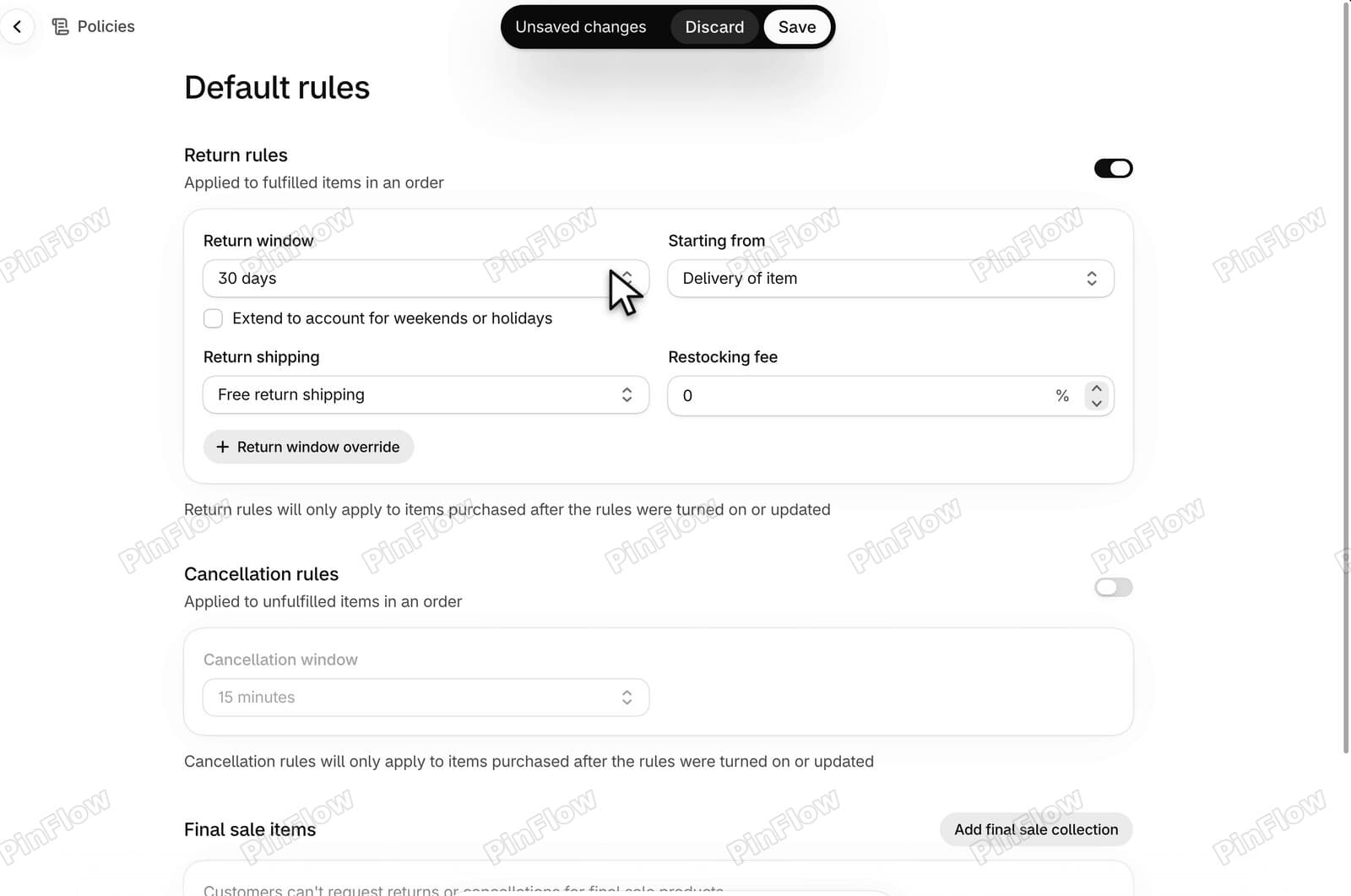 Default rules form with Return rules on, Return window set to 30 days and Starting from set to Delivery of item
For Return shipping, pick Flat rate return shipping and set the Return shipping rate to 8 dollars. Then set Restocking fee to 10 percent.
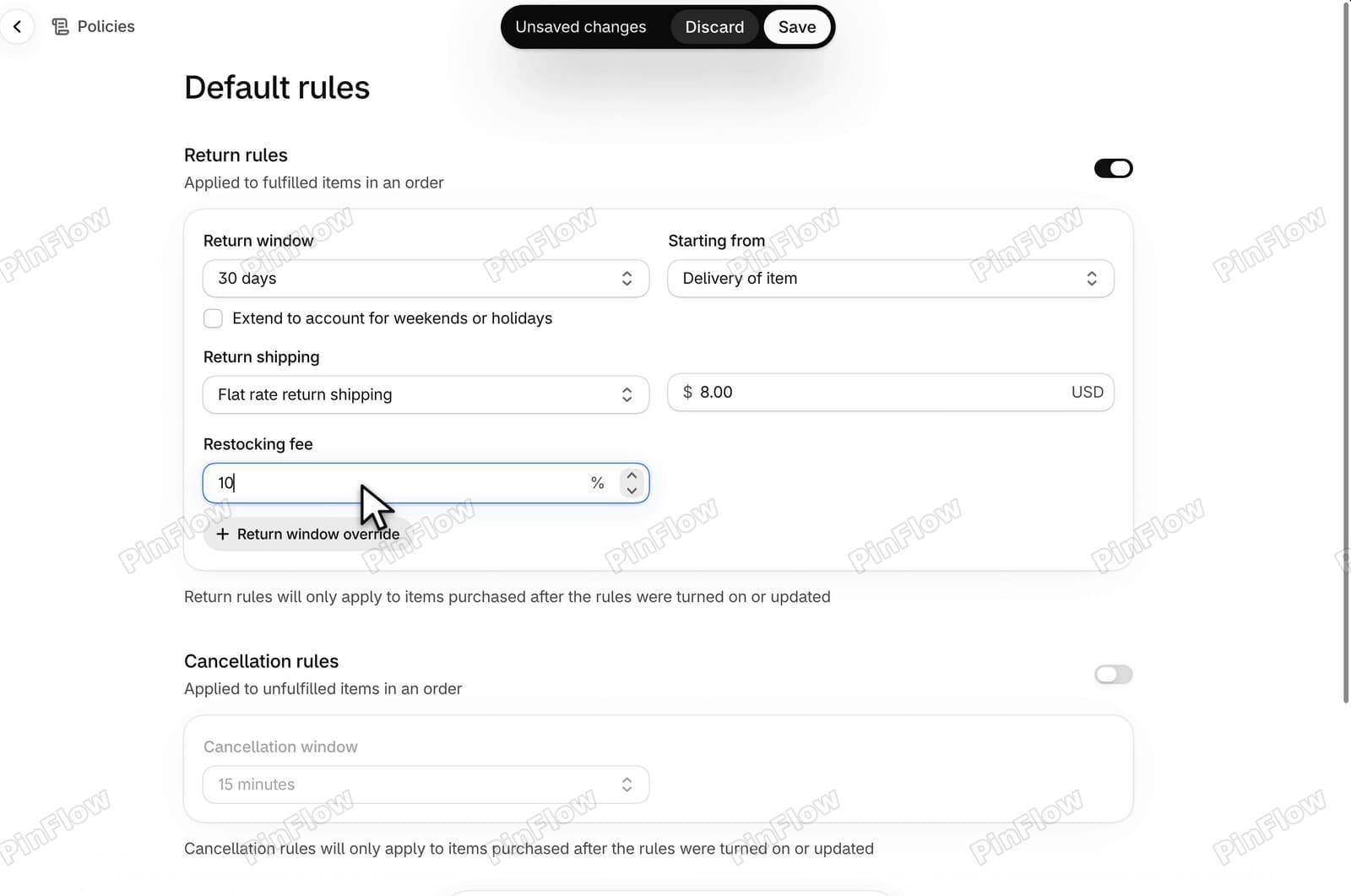 Default rules form with Flat rate return shipping at 8 dollars and a Restocking fee of 10 percent
Turn on Cancellation rules and set the Cancellation window to 1 hour.
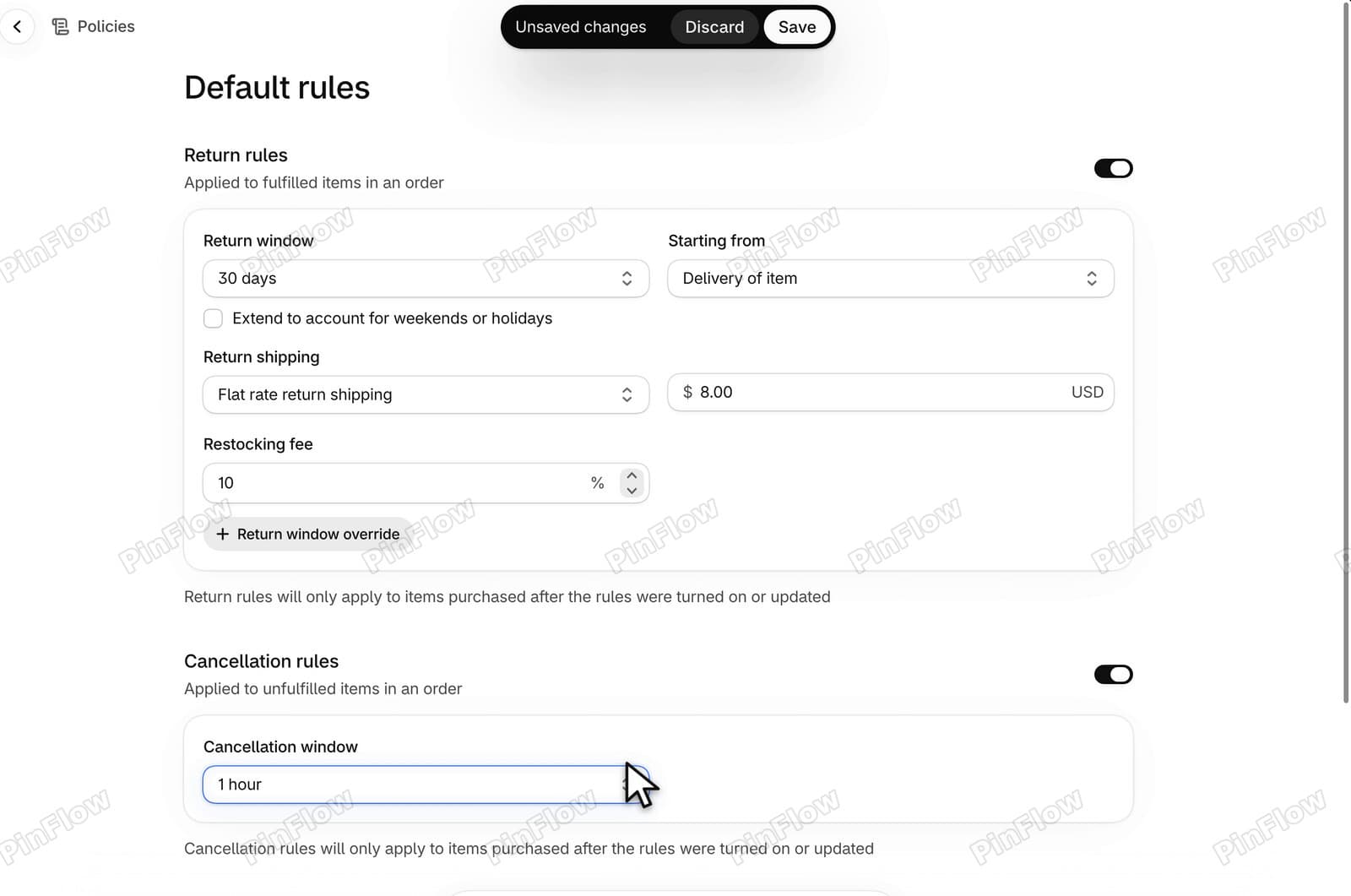 Default rules form with Cancellation rules on and the Cancellation window set to 1 hour
Click Save. Under each block a note says the rules apply only to items purchased after the rules were turned on or updated, so older orders keep the rules they were bought under.
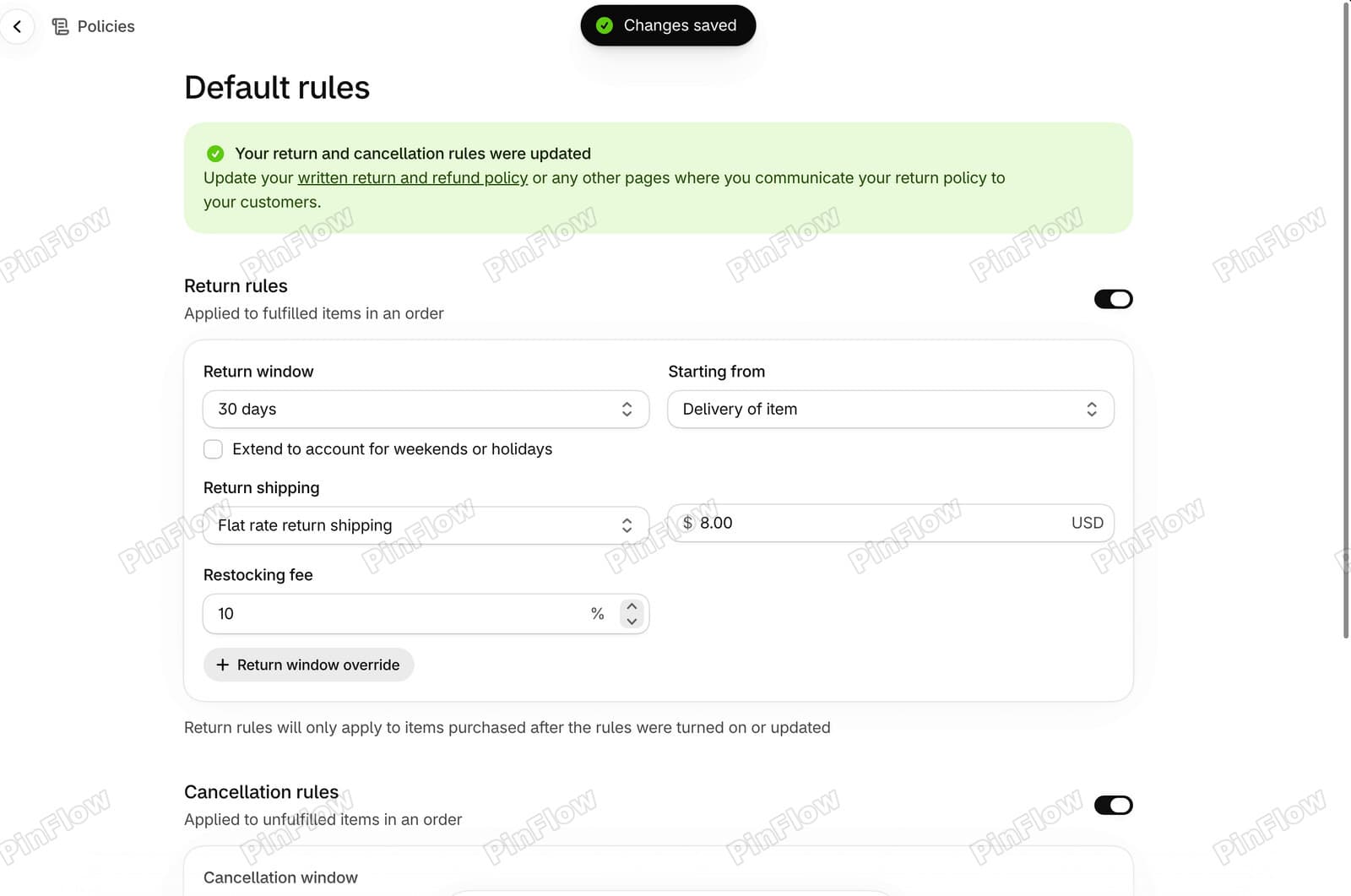 Default rules page after Save with the Changes saved message and a banner saying the return and cancellation rules were updated
Step 3: Add a rule for one market
Go back to Policies and click + Rule. Give the rule a title. I typed Europe.
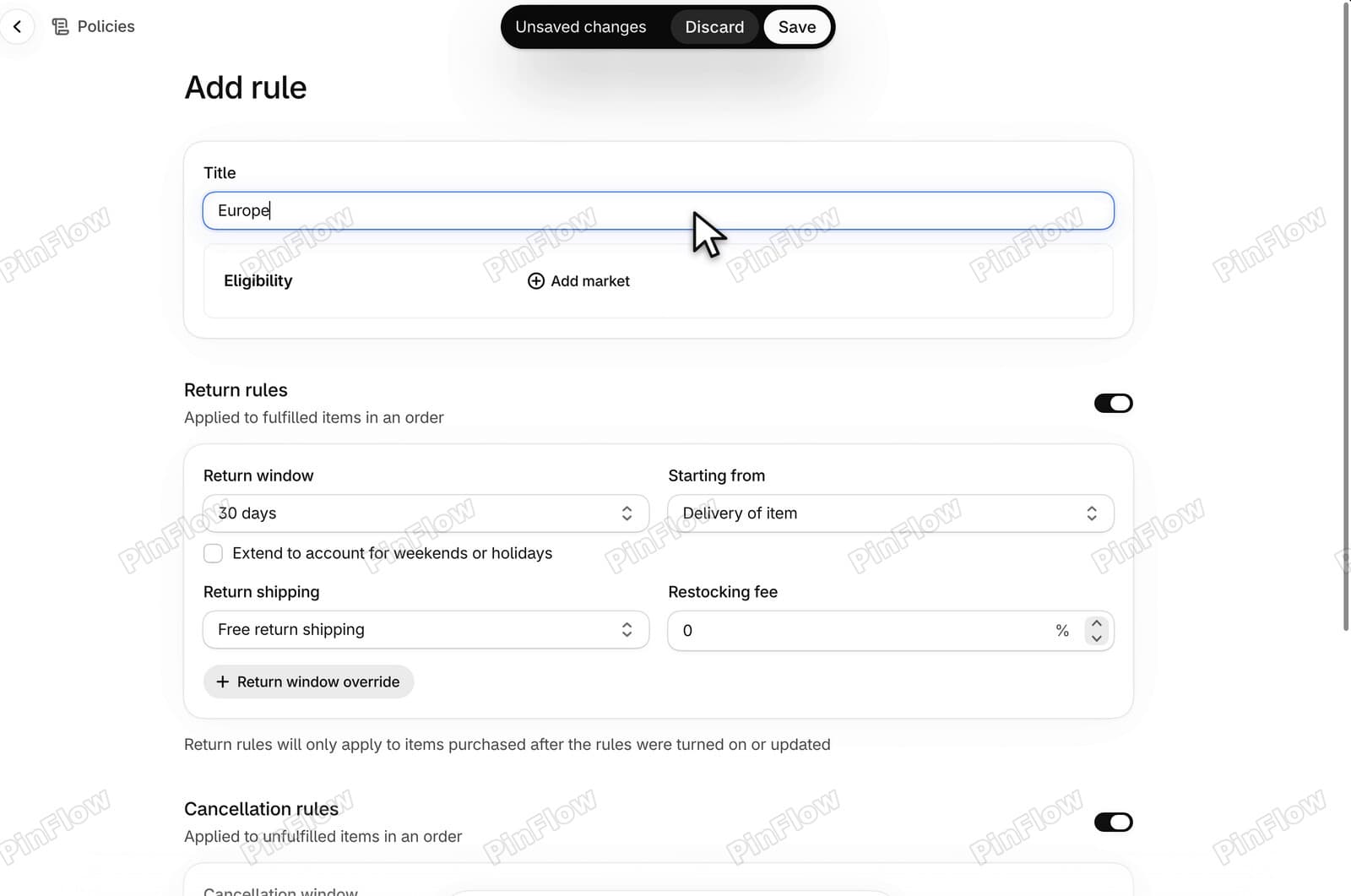 Add rule page with the Title field reading Europe and an Eligibility row with an Add market button
Under Eligibility, click Add market. The list shows the store's markets, here Europe and United States. Tick Europe.
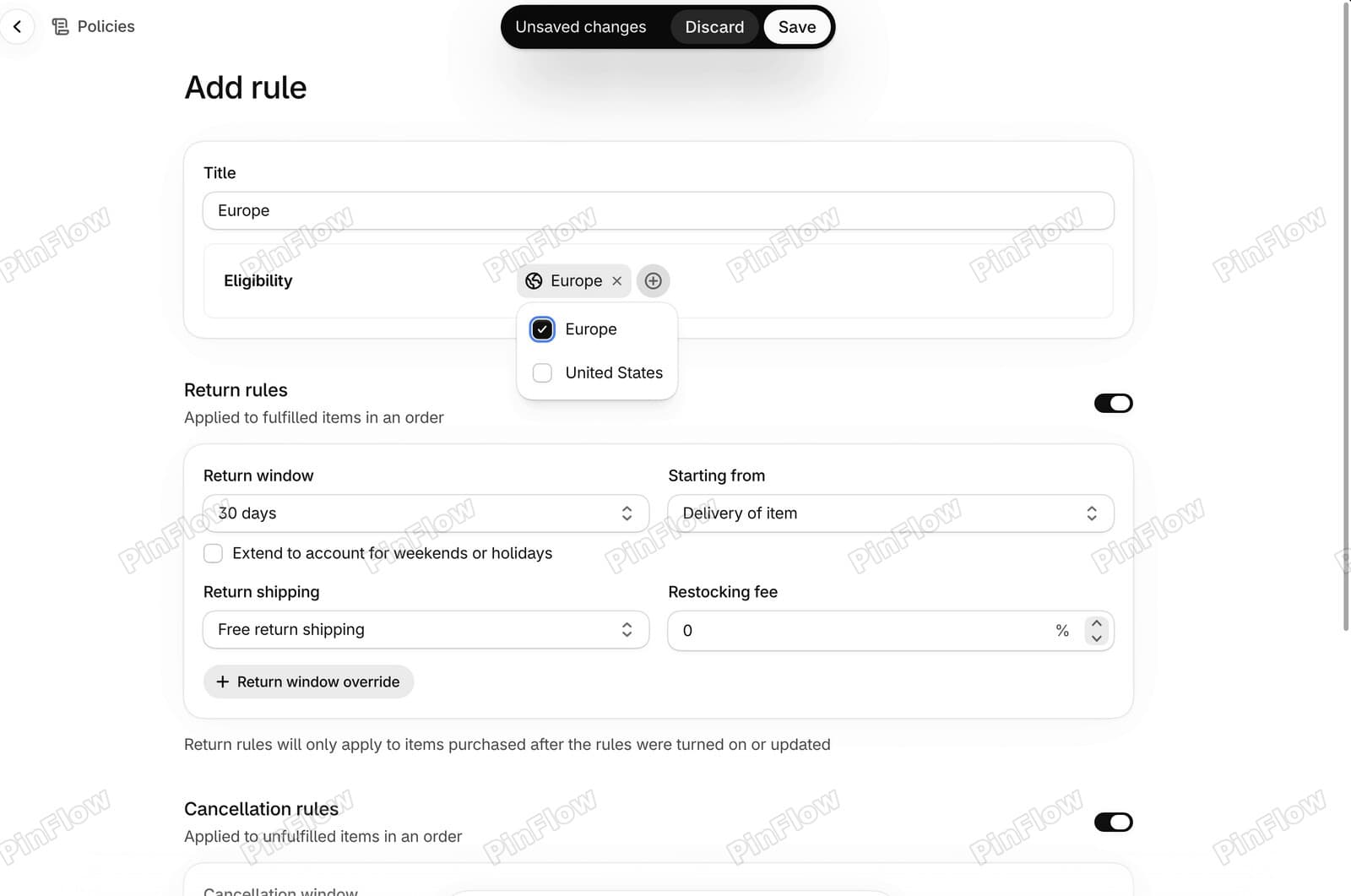 Add market list under Eligibility with Europe ticked and United States unticked
The rule is now for orders from the Europe market only.
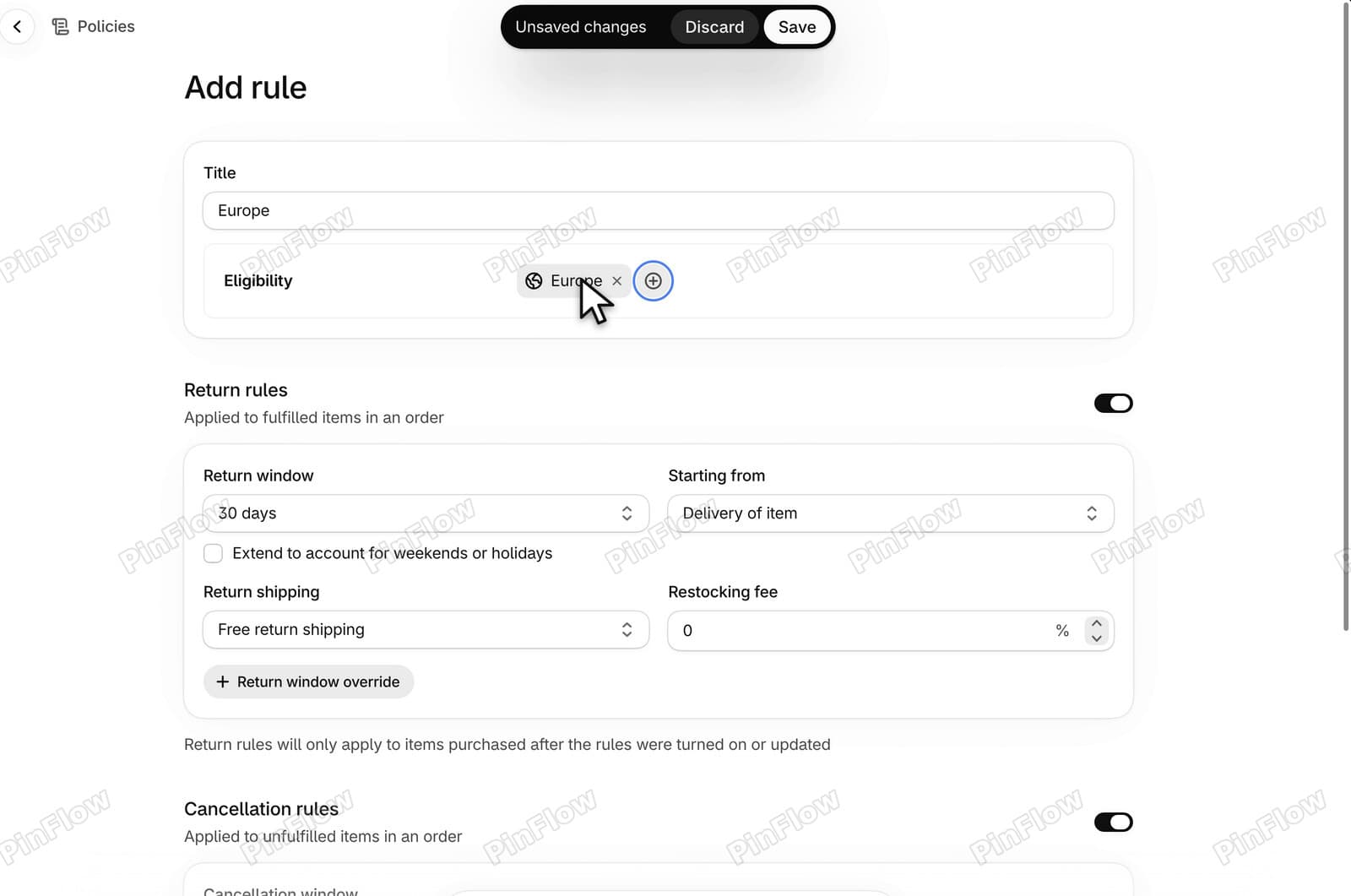 Eligibility row of the new rule with a Europe tag after choosing the market
Step 4: Give the market its own window, shipping and fee
A new rule starts with Shopify's standard values, 30 days, free return shipping and no restocking fee, not the values of your Default rules. For Europe, set Return window to 14 days and Starting from to Delivery of last item in order. Tick Extend to account for weekends or holidays. Leave Return shipping on Free return shipping and Restocking fee at 0.
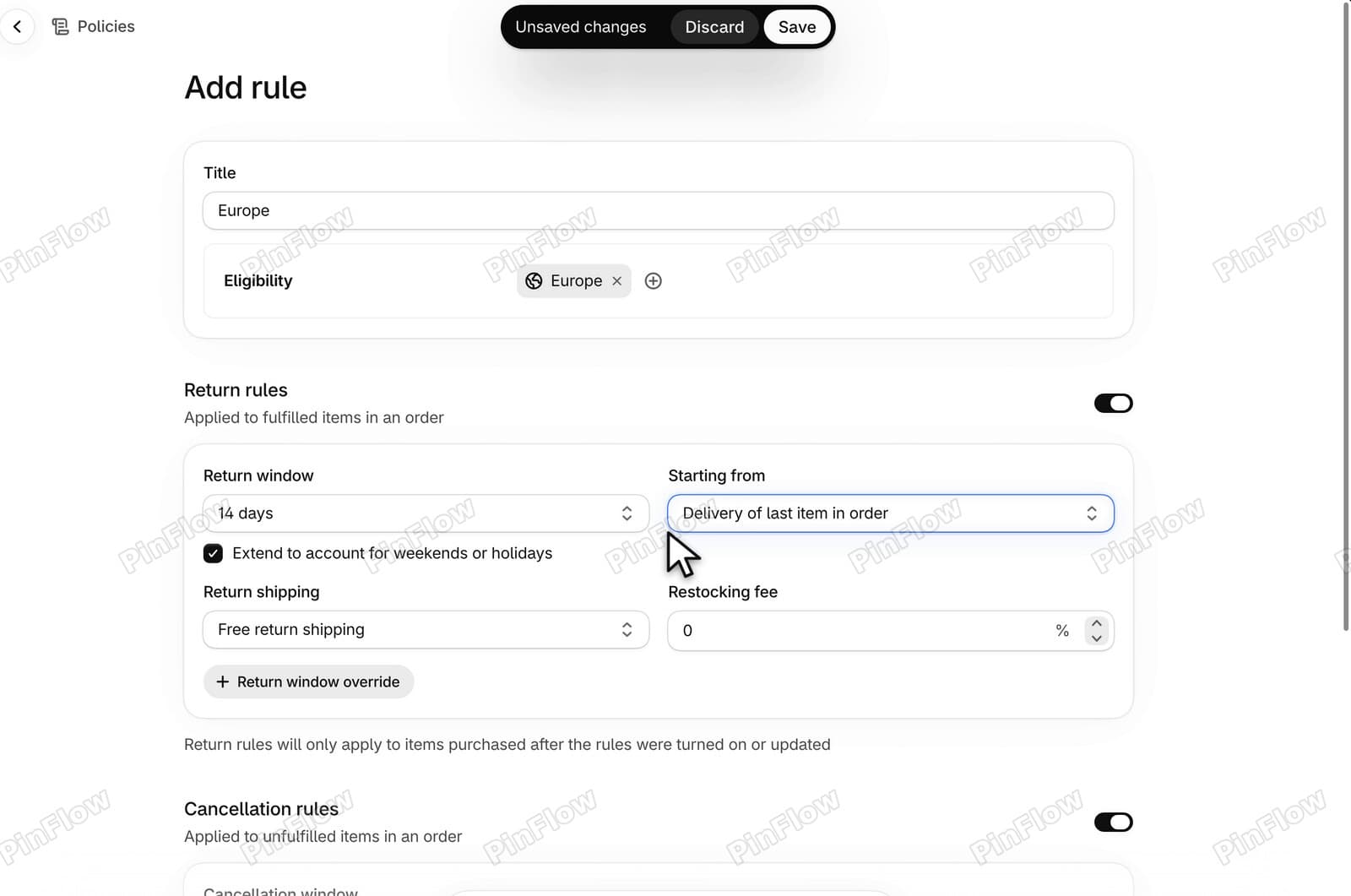 Europe rule with Return window 14 days, Starting from Delivery of last item in order, weekends box ticked, free return shipping and a 0 percent restocking fee
Scroll to Cancellation rules and set the Cancellation window to Until item is fulfilled.
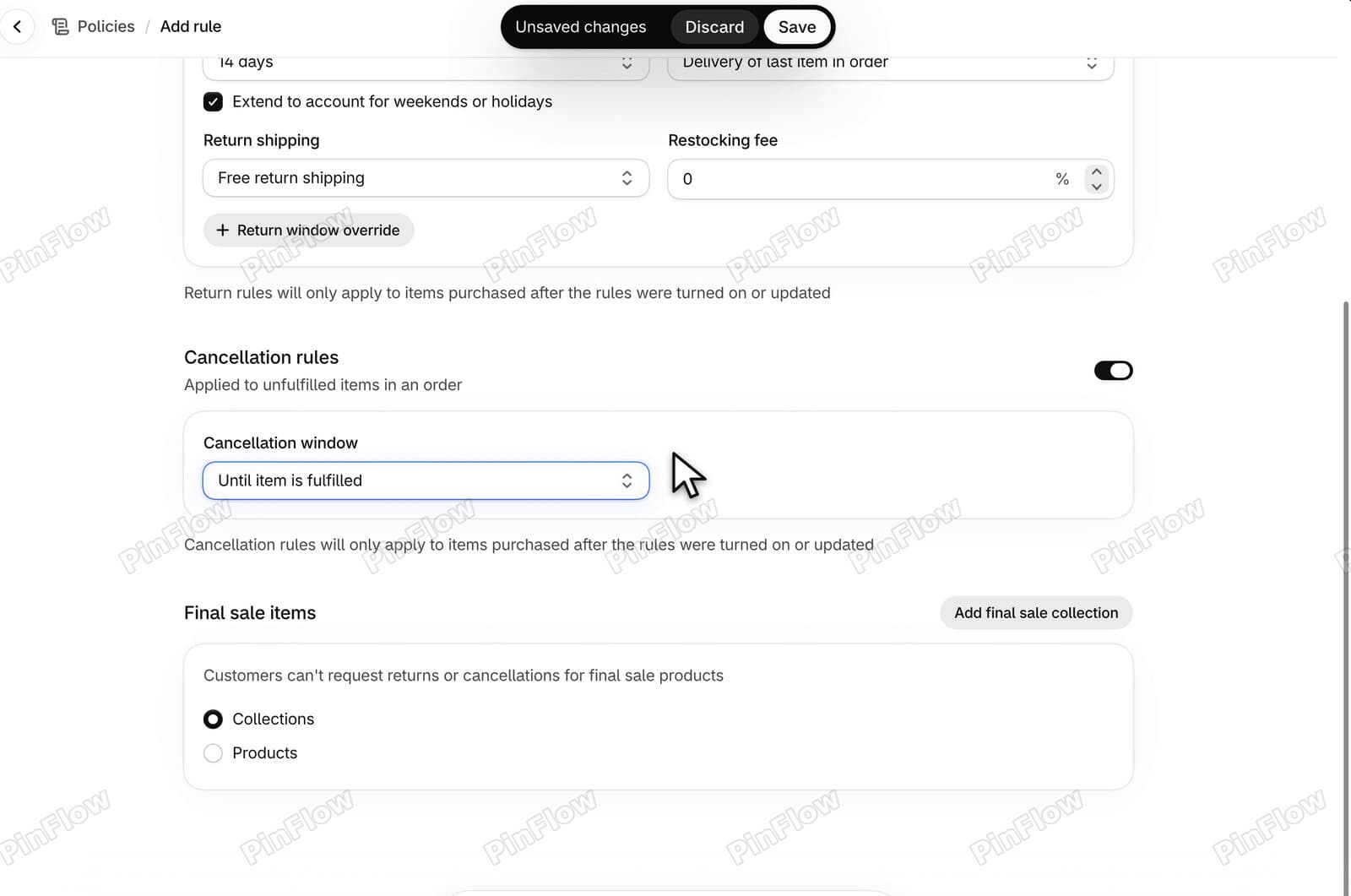 Europe rule with Cancellation rules on and the Cancellation window set to Until item is fulfilled
Click Save. Policies now lists two rows, Default rules with 30-day returns and Europe with 14-day returns, as in the picture at the top. Orders from the Europe market follow the Europe row, and every other market follows the default.
Shopify returns for the EU: what the help page lists
Shopify's help page on return rules has a section on the EU right of withdrawal. It says the EU directive took effect on 19 June 2026 and that the withdrawal period is measured from the date the last item in the order is delivered.
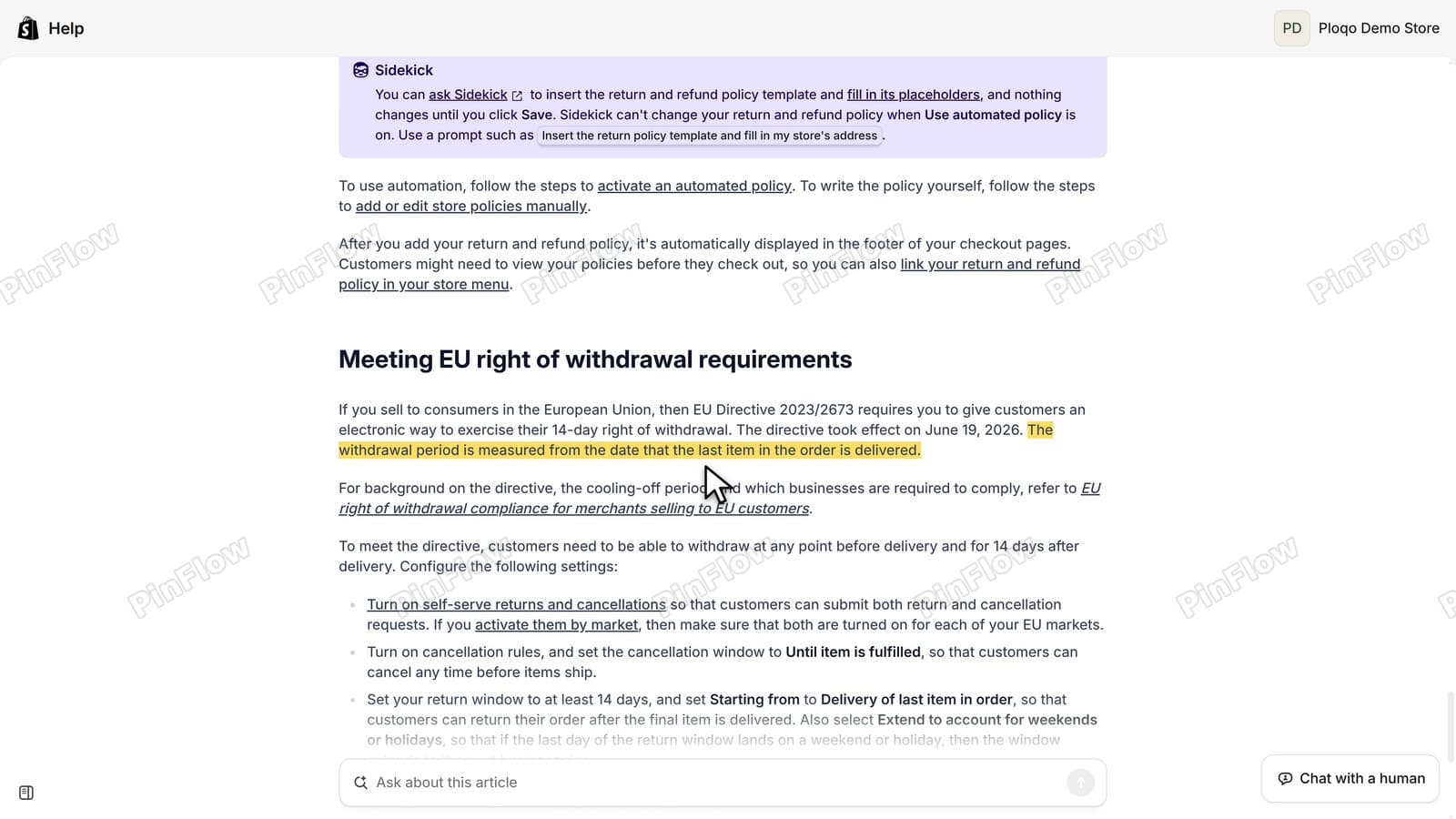 Shopify help page section Meeting EU right of withdrawal requirements with the sentence about the last item in the order highlighted
The settings it lists are the ones used in Step 4: a window of at least 14 days, Starting from set to Delivery of last item in order, the weekends box, and Until item is fulfilled for cancellations. The page also says these tools don't automatically make a store compliant. This post is not legal advice.
Check the written Return and refund policy
Back in Policies, the written Return and refund policy is a separate page from the rules. After the rules were saved, its row on this store said Review policy.
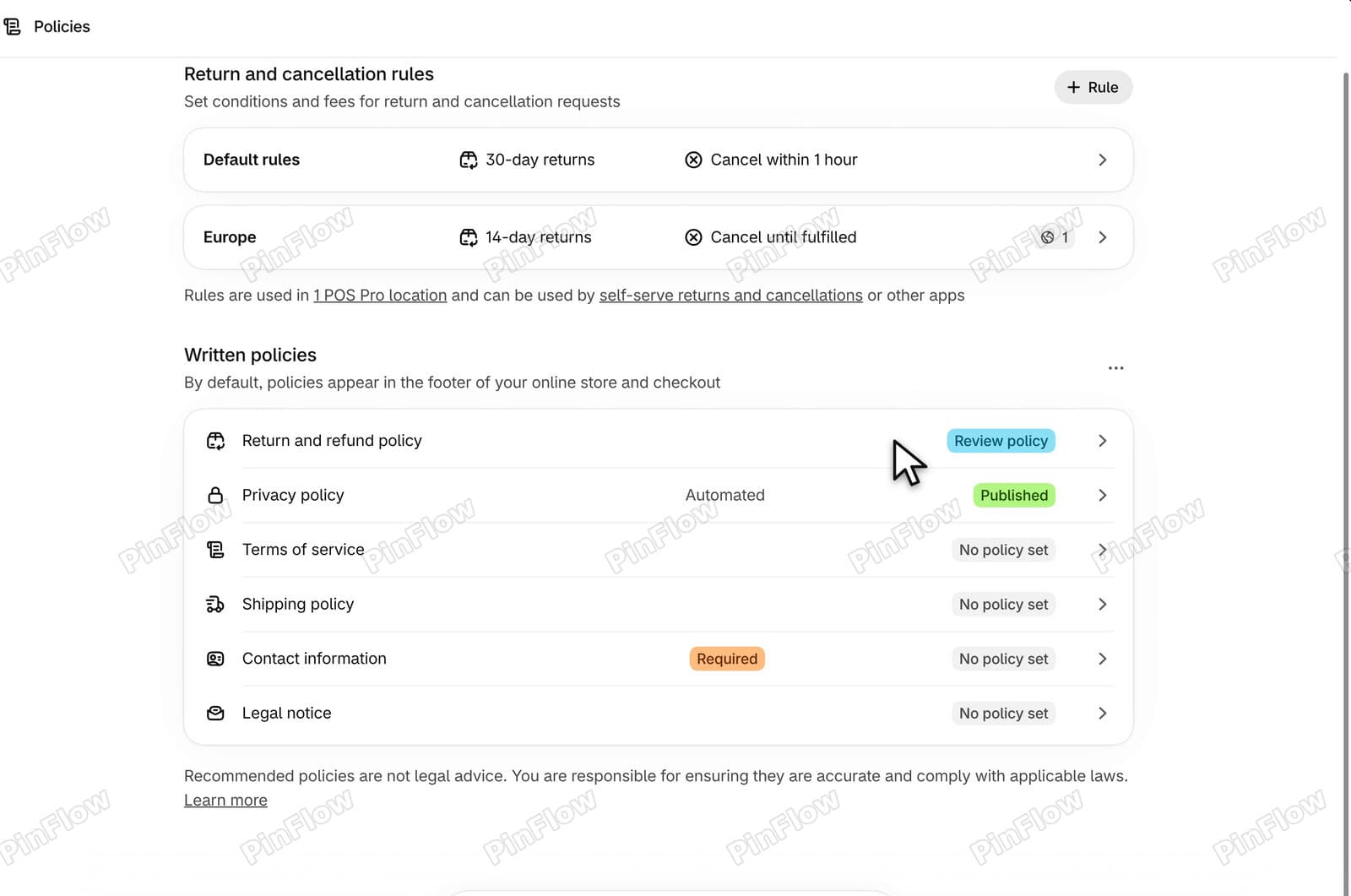 Policies page with the Return and refund policy row marked Review policy under Written policies
Open it and compare its text with the rules you saved. Shopify can also generate the policy for you with Use automated policy, which it added on 8 October 2026.
Turning self-serve returns off for one market needs Advanced or Plus
There is a second per-market setting, and it sits in a different place. In Settings, Customer accounts, click Manage next to Order actions. On this Basic store the editor opens with an Order actions section, switches for Buy again, Return and Cancel, and no Markets menu.
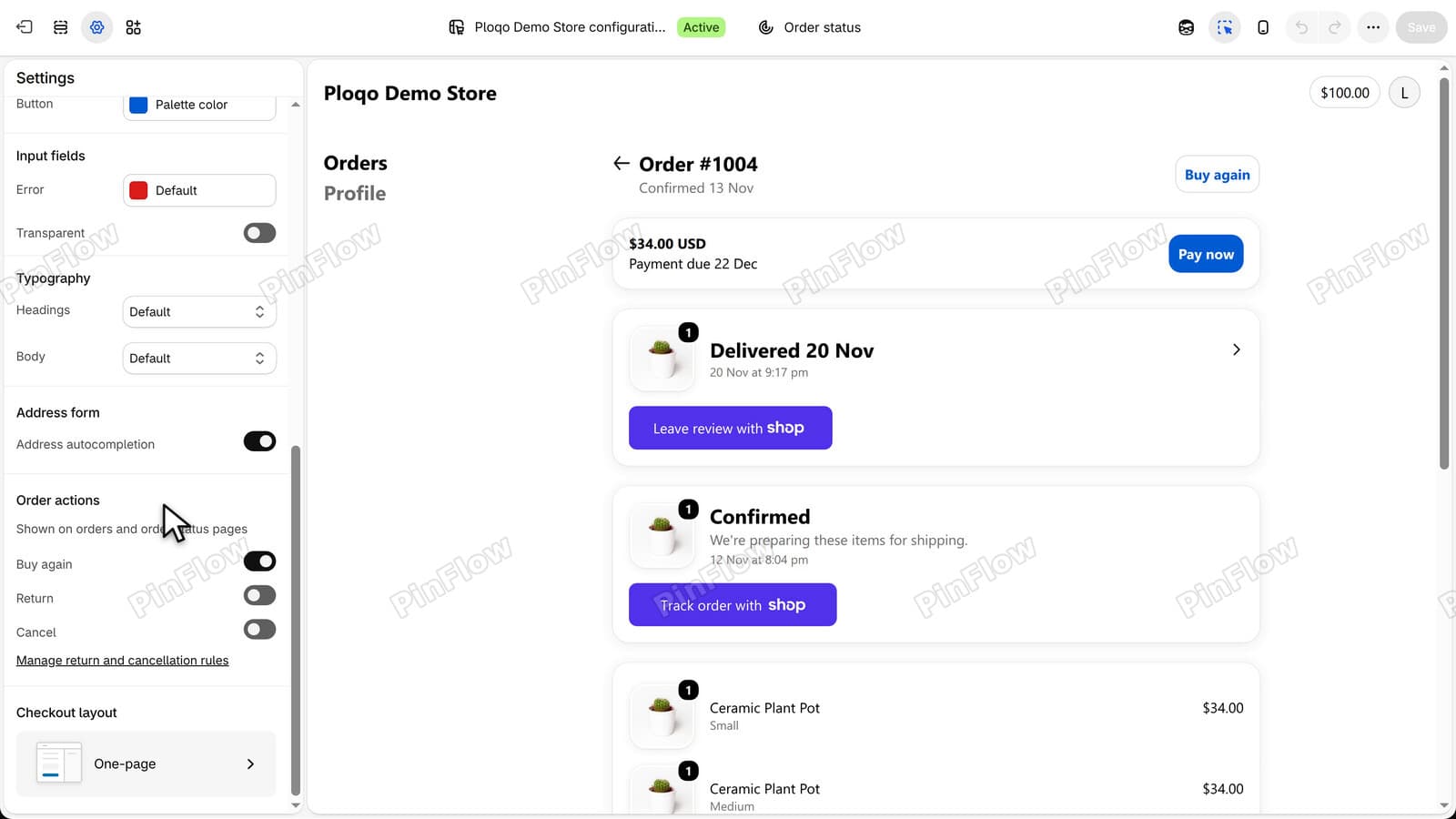 Customer accounts editor on a Basic store with the Order actions section and no Markets menu in the top bar
Shopify's help page says the same. On other plans, the editor doesn't have a Markets menu and you can change only the Store default settings. Switching returns on or off for one market needs the Advanced or Plus plan. The rules per market in Steps 3 and 4 worked on this Basic store.
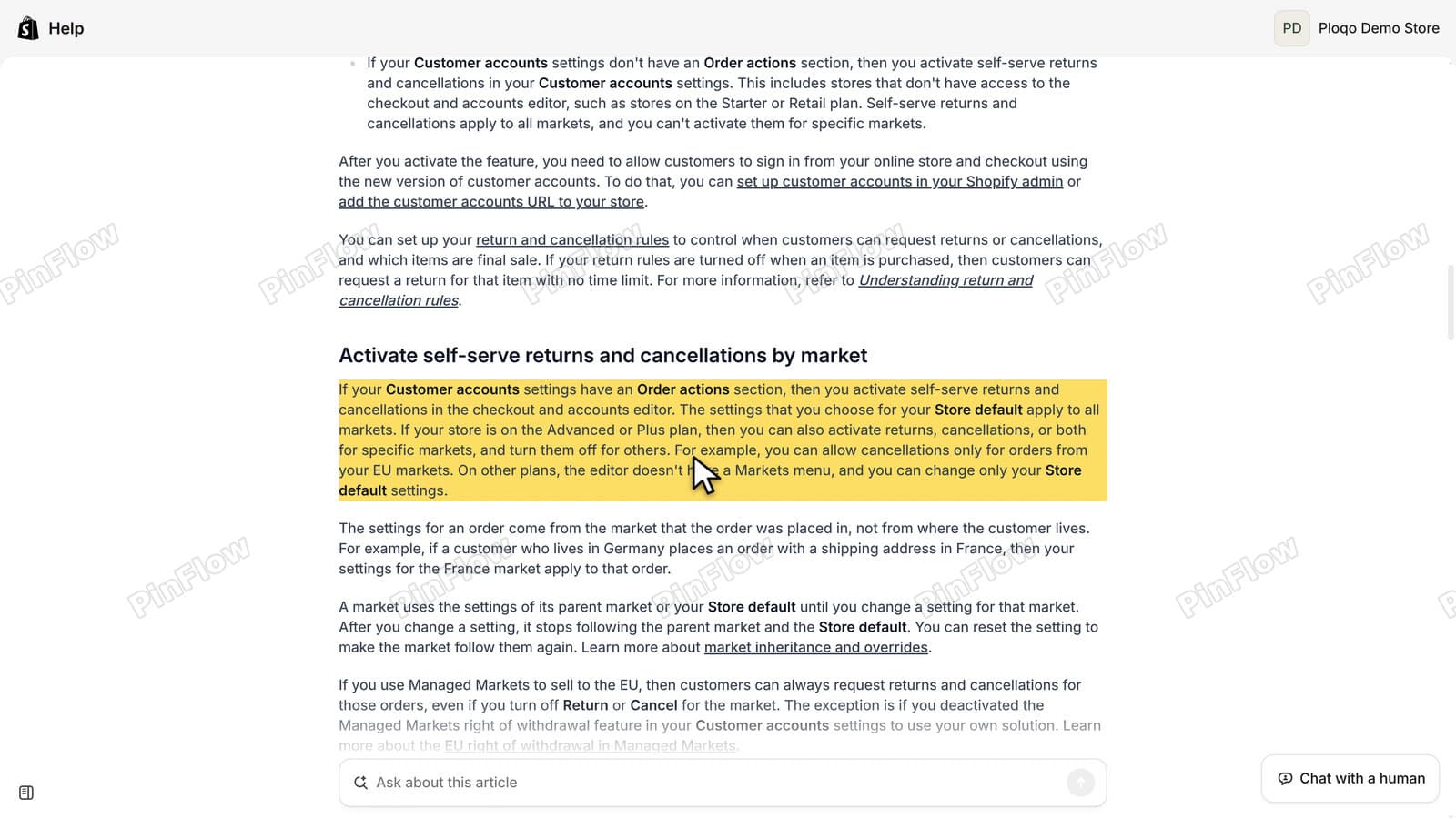 Shopify help page sentence saying other plans have no Markets menu and can change only the Store default settings
Questions
How do I offer free returns on Shopify?
Open the rule and set Return shipping to Free return shipping. The list also has Customer provides return shipping and Flat rate return shipping. You can set it on the Default rules or on one market's rule, as the Europe rule does.
Return shipping set to Free return shipping on the Europe rule with a 0 percent restocking fee
How do I manage returns on Shopify?
Set the conditions in Settings, then Policies. With self-serve returns turned on, customers send return and cancel requests from their order status page in the new customer accounts. Legacy customer accounts don't show return or cancellation options.
Do Shopify return rules change old orders?
No. The note under the form says the rules apply only to items purchased after the rules were turned on or updated.
Note under the Default rules form saying return rules only apply to items purchased after the rules were turned on or updated
Does Shopify take return fees off the refund automatically?
No. Shopify's help page says return fees aren't automatically deducted from refunds. When you create a refund, you take off any return fee yourself.
Return shipping rate and Restocking fee fields on the Default rules form, the fees Shopify leaves for you to take off at refund time
Which market does an order follow?
Shopify's help page says the settings for an order come from the market the order was placed in, not from where the customer lives.
Tested on a Basic development store with the new customer accounts. Sources: Shopify Help on return and cancellation rules and on setting up self-serve returns, and the changelog posts of 10 November 2026 and 8 October 2026. The question of a different return fee for each country was asked in a Shopify Community thread.
More Shopify fixes
More community-sourced Shopify guides, tested on a live store.
Shopify Admin
Shopify Purchase Orders After Stocky: Create and Receive (No App)
Make a purchase order in the Shopify admin, mark it as ordered, create its transfer, then receive a short delivery on that transfer. No app needed.
Shopify Admin
How to Create a Black Friday Discount with Shopify Sidekick (2026)
Type your Black Friday discount into Sidekick as one sentence, check the review form, fix the end date and press Publish. It shows as Scheduled until it starts.
Shopify Admin
Shopify New Admin (2026): Where Search, Sidekick and Settings Went
Shopify's new admin moved search, alerts, the store switcher and Settings into the black sidebar, and Sidekick to a bar at the bottom. Where each one is now.