
Show the Amount Saved on Shopify Sale Badges
Swap the plain "Sale" badge for the actual money saved in Shopify, so shoppers see "Save \$20" instead of a generic label.
By AjayCodeWiz · August 8, 2026 · 11 min read
The problem
A merchant asked about this on the Shopify Community. Their store runs the Nordic theme. On the collection page, every discounted product shows a small badge that just says "Sale".
They wanted the badge to say the real number instead. Something like "Save $20". Not a vague word, the exact amount off.
This is a good instinct. "Sale" tells a shopper nothing. "Save $20" gives them a reason to click.
I reproduced it on a test store on the Nordic (Dawn) theme. Out of the box, the badge shows only "Sale" on every discounted card.
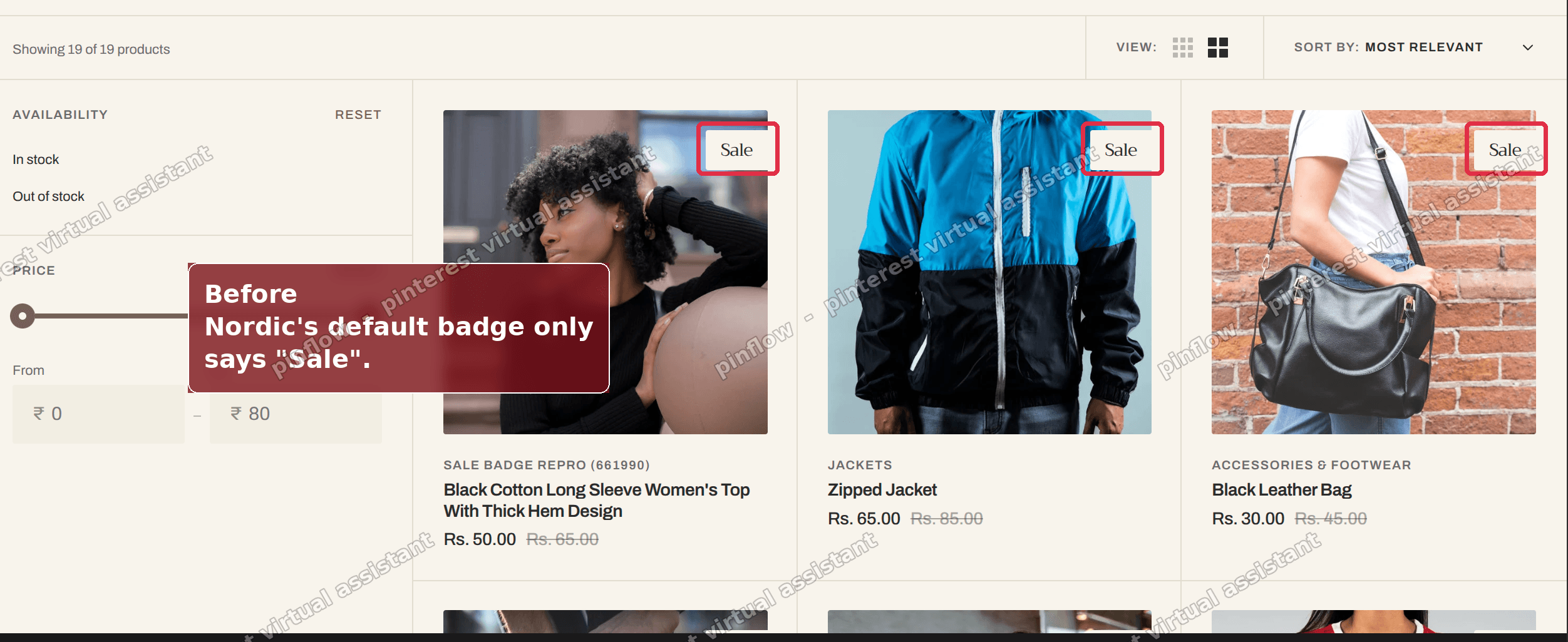 Nordic collection page where the sale badge only reads Sale on each product card
Here is how to change that badge so it shows the money saved. It is a small code edit, and I will also show a no-code way to get the percentage instead.
Why it happens
Nordic is built on Dawn. Dawn is Shopify's free reference theme, and many paid themes (Nordic included) are built on top of it. So the badge works the same way across all of them.
A "badge" here is the little label pinned to the corner of a product image. On Dawn-based themes, the sale badge lives in one snippet file.
A "snippet" is a small reusable chunk of theme code. The product card snippet is used everywhere a product shows in a grid, so editing it once updates every collection page at the same time.
Inside that snippet, the badge text is not a real sentence. It is a translation key:
{{ 'products.product.on_sale' | t }}The | t filter means "translate". It looks up the phrase products.product.on_sale in the theme's language file and prints whatever that phrase is set to. In English, that phrase is the single word "Sale".
So the theme never calculates a number. It just prints a fixed word. To show the amount saved, we replace that fixed word with a small calculation.
The calculation uses two numbers Shopify already stores on every product:
- The "price", which is what the shopper pays now.
- The "compare-at price", which is the higher original price you struck through.
The compare-at price is the field you fill in when you put a product on sale. It is what creates the strikethrough and the "Sale" badge in the first place. If it is empty, there is no discount and no badge.
Subtract one from the other and you get the amount saved. That is the whole trick.
Before you start
Two quick checks so this goes smoothly.
- Your discounted products need a compare-at price set. Open a product, and under Pricing you should see both a price and a higher compare-at price. The badge only appears when the compare-at price is higher than the price.
- Duplicate your theme first if you want a safety net. Online Store > Themes > the three dots on your theme > Duplicate. Then edit the copy or just keep it as a backup.
This edit changes one line. It is easy to undo, but a backup never hurts.
The fix
This is the core answer. It works on Nordic and on any Dawn-based theme.
Step 1. Open the code editor.
Go to Online Store > Themes. Find your theme's row. Click the three dots (...) on the right, then click Edit code.
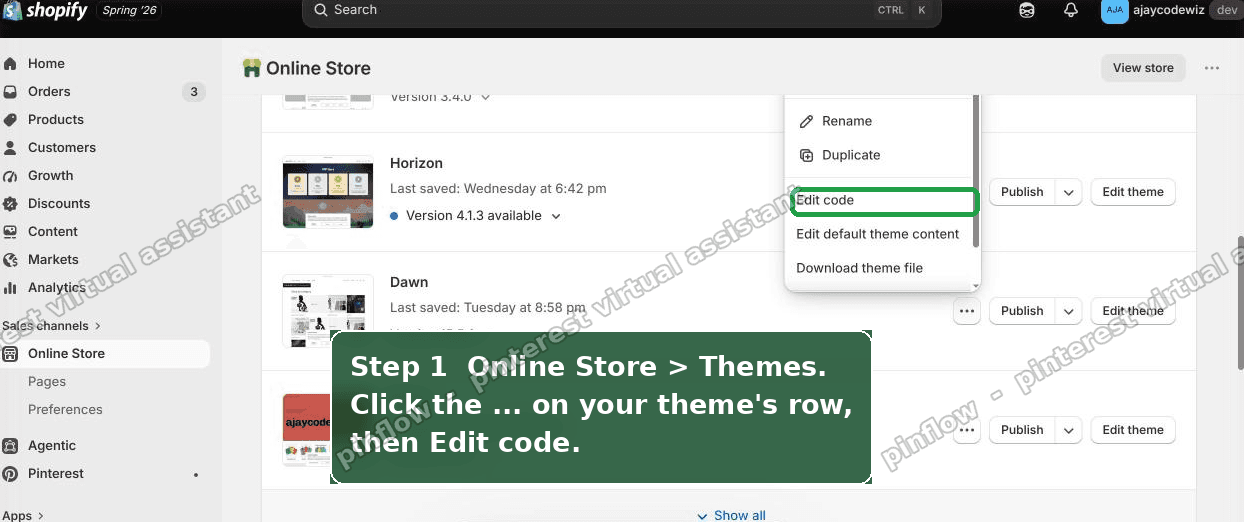 Shopify admin Online Store Themes with the three dots menu open and Edit code highlighted on the Nordic theme row
Step 2. Find the badge line.
In the code editor, open Search. It is the magnifying glass icon on the left sidebar. Or press Ctrl + Shift + F on Windows, or Cmd + Shift + F on a Mac. This searches across every file in the theme at once.
Search for this exact text:
on_sale' | tStep 3. Land on the right line.
The search jumps to the sale badge line. On Nordic it sits inside snippets/card-product.liquid. The line looks like this:
{{ 'products.product.on_sale' | t }}You may see it wrapped in extra markup. On my test store the full block read like this, with the badge sitting inside a discount check:
{%- elsif card_product.compare_at_price > card_product.price and card_product.available -%}
  <span
    id="NoMediaStandardBadge-{{ section_id }}-{{ card_product.id }}"
    class="badge badge--bottom-left color-{{ settings.sale_badge_color_scheme }}"
  >
    {{- 'products.product.on_sale' | t -}}
  </span>
The only part you touch is the on_sale' | t line in the middle.
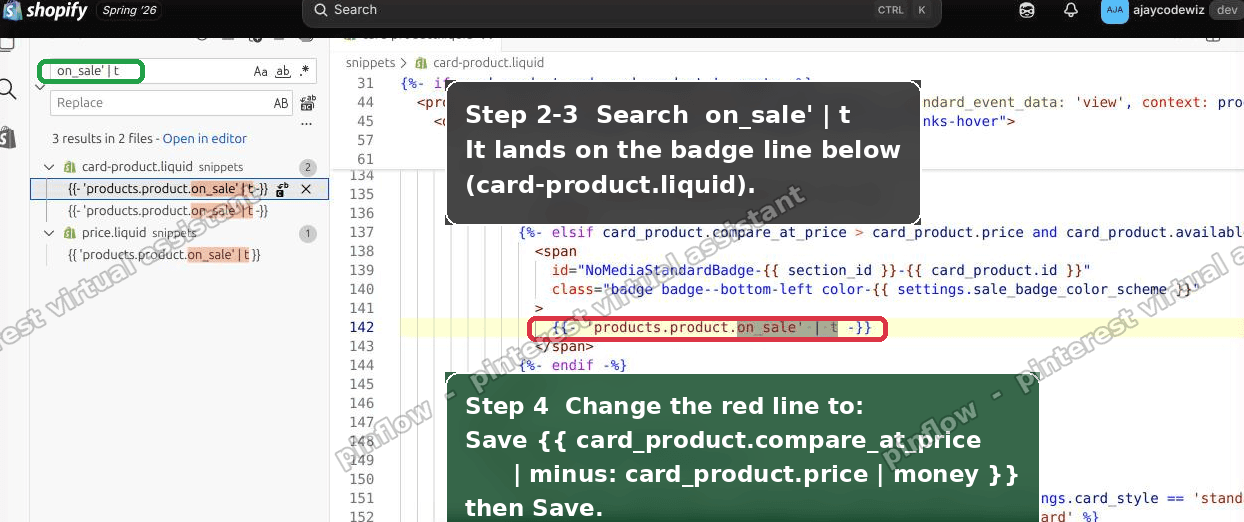 Shopify code editor searching for on_sale with the badge line highlighted in card-product.liquid on the Nordic theme
Step 4. Replace the line.
Change that one line to this:
Save {{ card_product.compare_at_price | minus: card_product.price | money }}Here is what each piece does, in plain words:
card_product.compare_at_priceis the original higher price.| minus: card_product.pricesubtracts the current price from it. That leaves the amount saved.| moneyformats the number as currency, so it prints as "$20.00" and not "20.0".- The word
Savein front is just text. Change it to anything you like.
Step 5. Save.
Click Save in the top right. Then open a collection page on your live store and refresh.
The badge now reads the real amount. On my test store it changed from "Sale" to the exact money off on every discounted card.
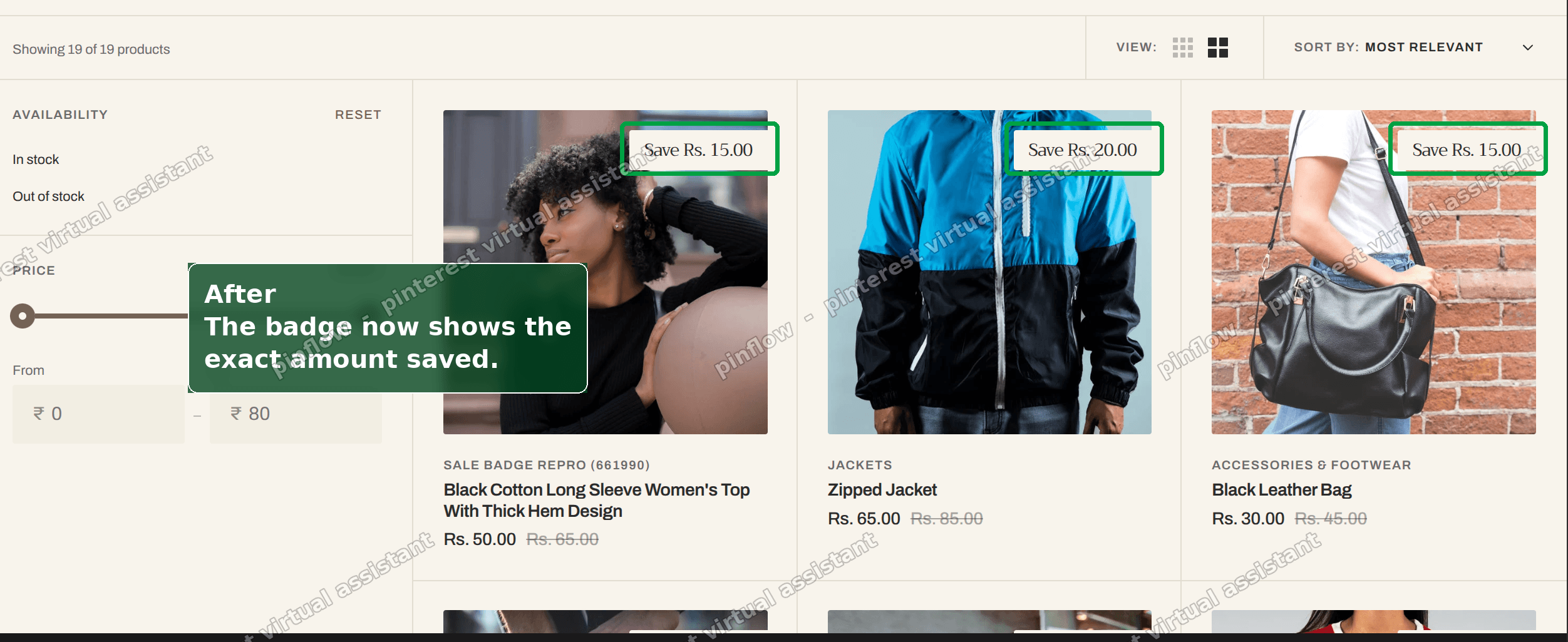 Nordic collection page after the edit, where each badge now shows the amount saved instead of the word Sale
I tested this on the Nordic theme end to end. The badge went from a flat "Sale" to "Save" followed by the shopper's saving, in the store's own currency, on both discounted and non-discounted products (the badge only shows where there is a real discount).
A note the merchant hit
The merchant who asked came back with a small wrinkle, and it is worth calling out because you might hit it too.
Their theme's line used a slightly different variable name than mine. Where my store used card_product, theirs used product_card_product. The rest was identical.
That is normal. Different theme versions name that variable differently. The rule is simple: whatever word sits before .compare_at_price on your line, use that same word in the replacement.
So if your file shows product instead of card_product, keep product:
Save {{ product.compare_at_price | minus: product.price | money }}Match the name the theme already uses. Once they did that, it worked. Do not paste my variable name blindly if yours differs.
An alternative: show the percentage off with no code
Some stores prefer "20% off" over "Save $20". A percentage reads well on cheaper items where the dollar figure is small.
Nordic and other Dawn themes can build this with the same two prices. Instead of subtracting, you turn the saving into a percentage:
{{ card_product.compare_at_price | minus: card_product.price | times: 100 | divided_by: card_product.compare_at_price }}% offThat divides the saving by the original price and multiplies by 100. A product marked down from $100 to $80 shows "20% off".
If you are not comfortable editing code at all, check your theme settings first. Online Store > Themes > Customize, then look under Theme settings for a badge or "sale" option. Some Dawn-based themes ship a built-in toggle between "Sale" text and a percentage. If yours has it, flip it there and skip the code entirely.
There is no built-in setting for the exact dollar amount, though. For "Save $20" you need the one-line edit above.
How do I show the amount saved in Shopify on both the badge and the product page?
The steps above change the collection card badge. The product page badge is usually the same snippet or a very close sibling.
Search the code editor for on_sale' | t again. If more than one result appears, you will often see the same line in the main product template or a price snippet. Apply the same replacement there.
Watch the variable name each time. On the product page it is frequently just product, so your line becomes Save {{ product.compare_at_price | minus: product.price | money }}.
Change each result you want updated, save, and check both the collection page and a product page.
How do I show the Shopify sale badge money off without the trailing cents?
By default the money filter prints "$20.00" with the ".00" on the end. Whole-dollar savings look cleaner without it.
Swap money for money_without_trailing_zeros:
Save {{ card_product.compare_at_price | minus: card_product.price | money_without_trailing_zeros }}Now a $20 saving shows as "Save $20" and a $19.50 saving still shows the cents as "Save $19.50". You get clean whole numbers where they exist and full precision where you need it.
How do I change the Shopify discount badge amount wording?
The word "Save" is plain text in the line. You control it completely.
Want "You save $20"? Use this:
You save {{ card_product.compare_at_price | minus: card_product.price | money }}Want it after the number, like "$20 off"? Put the text on the other side:
{{ card_product.compare_at_price | minus: card_product.price | money }} offKeep it short. The badge is a small box, so long phrases wrap onto two lines and look messy. One or two words plus the number is the sweet spot.
Will this Shopify badge save amount edit slow my store or hurt SEO?
No. The theme already loads both prices to draw the strikethrough. You are reusing numbers that are on the page anyway, so there is no extra request and no measurable speed cost.
It does not affect SEO either. The badge is a small visual label, not a heading or a product title. Search engines read your product name, description, and price, none of which this touches.
The one thing to watch is theme updates. This is a code edit, so if you later update your theme to a new version, the update can overwrite the file. Note the change somewhere, or keep it in a duplicated theme, and reapply it after an update.
If it did not work
A few common reasons, and the fix for each.
- The badge disappeared or shows a broken value. You probably used the wrong variable name. Re-check the word before
.compare_at_pricein your file and match it exactly. It iscard_producton some themes andproducton others. - The badge still says "Sale". You may have edited the wrong result. Search
on_sale' | tagain and make sure the line you changed is the collection card one, then hard refresh the page (Ctrl + Shift + R). - No badge shows at all. The product has no compare-at price, so there is no discount to display. Add a higher compare-at price under the product's Pricing section.
- The number shows without a currency symbol. You dropped the
| moneyfilter. It is what turns a bare number into "$20.00". Add it back. - The saving looks wrong. Confirm your compare-at price is the higher original price and the price is the lower sale price. If they are reversed, the math comes out negative.
Definitions and distinctions people confuse
Price vs compare-at price. The price is what the customer pays. The compare-at price is the higher "was" price you strike through. The saving is compare-at price minus price. If the compare-at price is empty or lower, there is no sale and no badge.
Sale badge vs discount code. The badge is driven by the compare-at price on the product itself. It is not connected to discount codes or automatic discounts at checkout. Lowering the price with a code does not change the badge. To move the badge number, change the product's prices.
Snippet vs section. A section is a big building block of a page. A snippet is a small reusable piece pulled into sections. The product card is a snippet, which is why editing it once updates every collection grid, search result, and related-products row at the same time.
Amount saved vs percentage off. Amount saved is the dollar figure ("Save $20"). Percentage off is the proportion ("20% off"). Use the dollar amount on higher-priced items where the number is impressive, and the percentage on cheaper items where the dollar figure is small. Both come from the same two prices.
The money filter vs money_without_trailing_zeros. Both format a number as currency in your store's currency. money always shows cents ("$20.00"). money_without_trailing_zeros hides the cents when they are zero ("$20") but keeps them when they matter ("$19.50").
That is the whole change. One line, and your "Sale" badge finally tells shoppers what they actually save.
Spending too long on manual Shopify busywork?
PinFlow turns your Shopify catalog into Pinterest pins and posts them on a schedule, automatically. Same idea as the rule above, let the system handle the repetitive part.
Get PinFlow on the Shopify App StoreMore Shopify fixes
More community-sourced Shopify guides, tested on a live store.
Themes & Storefront
Shopify AI Section: Fix a Price Badge Hidden Behind the Image
You built a section with Shopify's AI section generator, but the price badge on each card sits behind the photo. Here is the Custom Liquid fix that brings it to the front without regenerating anything. Tested on a Dawn store.
Themes & Storefront
Hide Shipping Calculated at Checkout on One Shopify Product
The line under Add to cart that says shipping is calculated at checkout shows on every product, gift cards included. Here is how to hide it on one product only, with the code, screenshots and the Eclipse theme steps.
Themes & Storefront
Shopify Dropdown Menu Behind Page Content (Z-Index Fix)
Your Shopify dropdown or mega menu opens, but the page title and products sit on top of its links and the menu closes before you can click. The fix is one Custom CSS rule in Theme settings. Tested on a Rebel store.