
How to Show a Percentage Off Sale Badge in Shopify
Turning the Sale badge into "-33%" is four lines of Liquid, but the obvious place to put it is wrong on the product page. Here is the fix that follows the selected variant, tested on Fabric.
By AjayCodeWiz · July 6, 2026 · 8 min read
The problem: "Sale" tells the shopper nothing
Your product cards say Sale. That is all they say.
A shopper scanning a collection cannot tell whether that is 5% off or 40% off, so the badge does no work. Every discount looks the same, and the deep discounts you actually want to move get no more attention than the token ones.
What you want is -33%.
A merchant asked how to do this on Fabric 4.1.1 and mentioned the obvious frustration: every tutorial they found was written for an older theme and edited files that no longer exist.
I installed Fabric on a development store and worked it out. The calculation is genuinely four lines. But the first place you will want to put it is wrong in two specific ways, and that is the part no tutorial mentions.
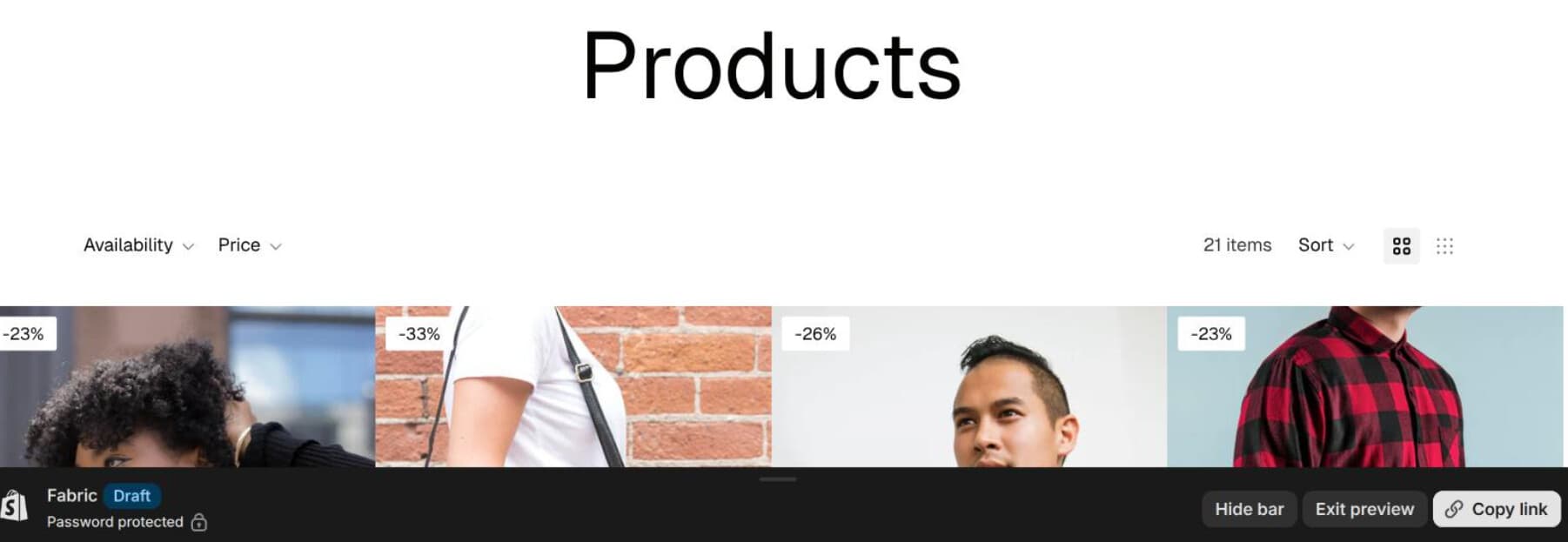 Percentage badges on the collection page
How the badge works today
Your theme decides a product is on sale with one comparison:
{%- if product.compare_at_price > product.price -%}If the compare-at price is higher than the price, it prints the word Sale. That is the whole mechanism.
So the percentage is not new data. Everything needed is already there:
{%- assign badge_pct = product.compare_at_price
  | minus: product.price
  | times: 100
  | divided_by: product.compare_at_price -%}
-{{ badge_pct }}%
Compare-at minus price, times 100, divided by compare-at. divided_by on integers floors the result, which is what you want for a discount badge: it never overstates the saving.
Duplicate your theme before editing. Online Store > Themes > ... > Duplicate.
The quick version: badges on product cards
On Fabric, product card badges live in blocks/_product-card-gallery.liquid.
Find the line that prints the badge text:
{{ 'content.product_badge_sale' | t }}Replace it with the calculation:
{%- assign badge_pct = product.compare_at_price
| minus: product.price
| times: 100
| divided_by: product.compare_at_price -%}
-{{ badge_pct }}%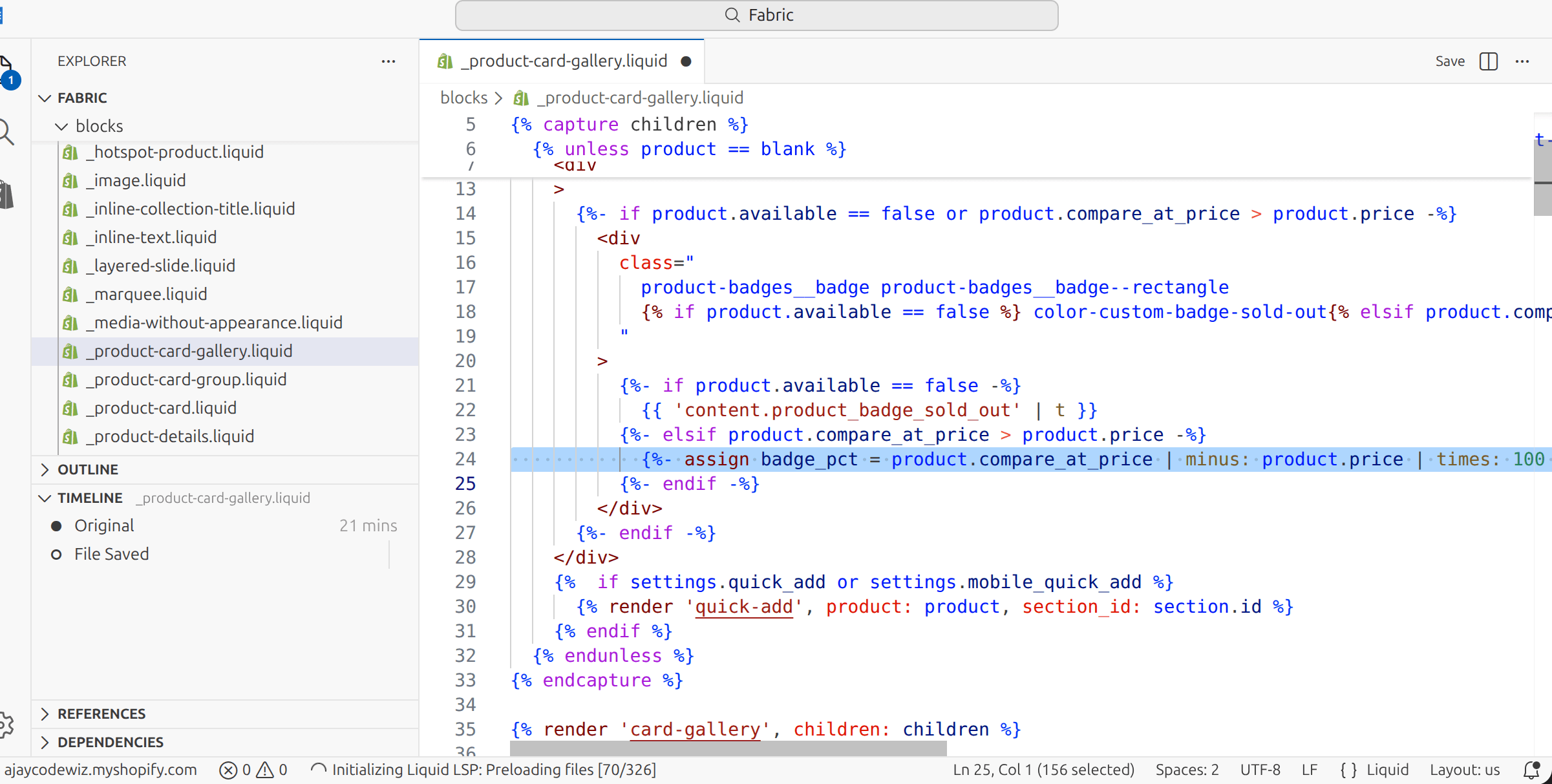 The badge code in _product-card-gallery.liquid
Save, and your collection pages show real percentages.
Then you look at a product page and the badge is not there at all.
Why the quick version is not enough
Two separate problems, and both matter.
Product cards are not the product page. _product-card-gallery.liquid renders the small card in a grid. The product page uses a different snippet entirely, so editing the card does nothing there. This is the single most common reason people think the code did not work.
product.price is the default variant, not the selected one. This one is worse, because it fails with no error and shows wrong numbers.
product.price and product.compare_at_price resolve to whichever variant loads first. If your Small is 40% off and your Large is 10% off, the badge says 40% no matter which size the shopper picks. It does not update when they change variant, because it was never variant-aware.
A badge that confidently displays the wrong discount is worse than no badge. This is a refund conversation waiting to happen.
The fix: put the badge in the price snippet
The right home is snippets/price.liquid, because that snippet already receives the selected variant and already re-renders when the shopper changes it. You get variant awareness for free instead of writing JavaScript.
Edit 1: snippets/price.liquid
Find the line that assigns show_compare_price. After it, add:
assign show_discount_badge = show_discount_badge | default: false
assign discount_pct = 0
if show_compare_price
  assign discount_pct = selected_variant.compare_at_price
    | minus: selected_variant.price
    | times: 100
    | divided_by: selected_variant.compare_at_price
endif
Two things worth noting.
selected_variant rather than product. That is the whole point of moving here.
show_discount_badge | default: false means the badge is off unless a caller asks for it. price.liquid is rendered from many places, including the cart and search results, and you do not want a badge appearing in all of them. Opt-in keeps the change contained.
Then, as the first thing inside <div ref="priceContainer">:
{%- if show_discount_badge and show_compare_price -%}
  <span
    style="display:inline-block;background:#e2231a;color:#fff;font-size:.75em;
           font-weight:600;line-height:1;padding:.25em .5em;border-radius:999px;
           margin-inline-end:.4em;vertical-align:middle;"
  >-{{ discount_pct }}%</span>
{%- endif -%}
The show_compare_price half of that condition is doing real work: it hides the badge on variants that are not discounted. Pick a full-price size and the badge disappears rather than showing -0%.
Edit 2: blocks/price.liquid
Add one line to the {% render 'price' %} call:
show_discount_badge: trueThat is the opt-in firing. The product page asks for the badge; nothing else does.
The badge now shows on the product page, recalculates when the shopper changes variant, and hides itself on variants that are not on sale.
Styling it
The inline style above is deliberate: it works without touching your stylesheet, which keeps this to two files. Move it to CSS when you are happy with it.
- Colour:
background:#e2231ais a strong red. Use a token from your theme if you have one, so it survives a palette change. - Shape:
border-radius:999pxgives a pill. Use2pxfor a rectangle matching Fabric's built-in badges. - Size:
font-size:.75emscales with the price text, so it stays proportional wherever the snippet renders.
To round up rather than down, add | plus: 1 before the closing of the assign, but be careful: 1% off would display as -2%, which overstates the discount. Flooring is the safer default and it is why the code does it.
Doing this on other themes
The calculation is identical everywhere. Only the file names change.
Dawn and Dawn-based themes: the badge is in snippets/card-product.liquid, and the product page price is snippets/price.liquid. The same two-edit split applies, with the same variant caveat.
Horizon: badges render through blocks/_product-card-gallery.liquid much like Fabric.
Vintage themes such as Debut and Impulse: look in snippets/product-card-grid.liquid or product-grid-item.liquid.
The reliable way to find it in any theme: search your theme code for compare_at_price. Every place that comparison appears is a place a badge could go, and the results will show you both the card and the price snippet in one list.
Related jobs: removing, recolouring, renaming
People arriving at the badge code usually want one of four things. The percentage is one. Here are the other three, since you are already in the right files.
Remove the sale badge entirely
Check the theme editor first. Fabric, Dawn and Horizon all expose badge visibility as a setting, usually under Theme settings > Product cards or in the Product grid section. Turning it off there is safer than deleting code, because it survives theme updates.
If there is no setting, wrap the badge markup in a condition that is never true, or delete the block that renders it. Do not simply hide it with display: none in CSS: the markup still ships, screen readers still announce it, and you have made the page heavier to show less.
Change the badge colour
The badge is a normal element with a class. On Fabric it is product-badges__badge. Add to your theme's Custom CSS:
.product-badges__badge {
  background: #2f5d43;
  color: #fff;
}
Use Custom CSS rather than editing base.css. It survives theme updates and it is easier to find again in six months.
Note that themes often style the sold-out badge with the same base class plus a modifier, so check you are not recolouring both unless you mean to.
Change the word "Sale" to something else
That string comes from your locale file, not from the Liquid. {{ 'content.product_badge_sale' | t }} is a translation lookup.
Edit it under Online Store > Themes > ... > Edit default theme content, then search for the badge string. Change it there and it updates everywhere the badge renders, in every language you support.
This is the right way to say "Deal" or "Reduced" instead of "Sale". Hardcoding the word into the Liquid works but breaks translations and has to be repeated in each file that renders a badge.
A word on whether you should
Percentage badges work, but they are not free.
They are most effective when discounts vary meaningfully across your catalog. If everything is 20% off, the number adds nothing over the word Sale and you have taken on code for no gain.
They also apply pressure to your compare-at prices. A visible -70% invites the question of whether the compare-at was ever a real selling price. Several jurisdictions regulate this, and the UK and EU in particular expect the reference price to be one you genuinely charged recently. A word like Sale is vague enough to pass unnoticed. A specific number is a claim.
If your discounts are shallow and uniform, the built-in badge is fine.
If the badge is not showing
Nothing on the product page. You only made the card edit. The product page needs the price.liquid change and the show_discount_badge: true opt-in.
The number does not change when you switch variants. You are still using product.price somewhere instead of selected_variant.price.
It shows -0%. The discount is under 1% and floors to zero, or show_compare_price is not being checked. Add the condition.
Nothing anywhere. No compare-at price is set. The badge is driven entirely by compare_at_price > price, so check an actual discounted product rather than a full-price one.
It appears in the cart or search results. Something is passing show_discount_badge: true beyond the product page. Search your theme for that string.
What this looked like on Fabric
Tested on a Fabric 4.1.1 store:
- The card edit alone produced percentages on the collection grid and nothing on the product page.
- The price snippet edit put the badge on the product page, updating per selected variant and hiding on variants that were not discounted.
- Together, two files and one opt-in line.
If you take one thing from this: the reason the obvious edit half-works is that Shopify renders cards and product pages from different snippets, and product.price is not the variant your shopper is looking at. Move the badge to where the selected variant already lives and both problems disappear at once.
A clearer discount only helps if people see it
PinFlow turns your Shopify catalog into Pinterest pins and posts them on a schedule, so your sale reaches people who have not found your store yet.
Get PinFlow on the Shopify App StoreMore Shopify fixes
More community-sourced Shopify guides, tested on a live store.
Themes & Storefront
Shopify Payment Icons: Fix a Footer That Shows None
The payment icons in a Shopify footer come from your payment provider, not from the theme. When the provider sends none, the row stays empty. Here is how to add the icons yourself on Refresh, Dawn and similar themes.
Themes & Storefront
Shopify Order Notes: Turn On the Cart Note Box
Let customers leave order notes and special instructions on your Shopify cart page. Turn on the built-in cart note in Theme settings, rename its label, and find each note on the order. Tested on Dawn, no code.
Themes & Storefront
Shopify WhatsApp Integration: Add a Free Chat Button
How to add WhatsApp to Shopify with a floating chat button: shoppers tap it and WhatsApp opens a chat with you, the message already typed and naming the product.