
Shopify Sales Counter: Show "X Sold" on Product Pages
Shopify has no built-in sales counter. Here is how to show a sold count on your product page and collection pages in the Dawn theme, using one product field and three lines of theme code.
By AjayCodeWiz · October 1, 2026 · 9 min read
The problem
You want a small line under the price that says "248 sold". Shoppers read it as proof that other people bought the product. You want it on the product page and on the product cards in your collections.
A merchant on the Shopify Community asked for exactly this on the Dawn theme. The question was whether a sales counter can be set up from the backend, with the number shown on both page types.
Shopify has no switch for it. This article shows a way to add one, tested on Dawn, and then covers how to keep the number up to date.
What a "sales counter" means
People use the phrase for two different things.
- A lifetime sold count. A number such as "1,085 sold" that only goes up. This is what I built.
- A recent sales counter. A line such as "37 sold in the last 24 hours". It needs a tool that reads your orders by date.
The lifetime count needs one field per product and a little theme code. The recent count is a job for an app, because the code in your theme cannot read your orders.
Why Shopify does not have this built in
A theme can show a product's title, price, images and stock status. It cannot ask Shopify how many units of a product were sold. That number lives in your orders, and the theme code has no way to add it up.
So the number has to come from somewhere you control. The simplest place is a metafield, which is an extra field you add to a product to hold your own information. Shopify's Liquid code, the code language themes are written in, can read it.
Before and after
This is a collection page on a Dawn test store before the change. The cards show only the name and price:
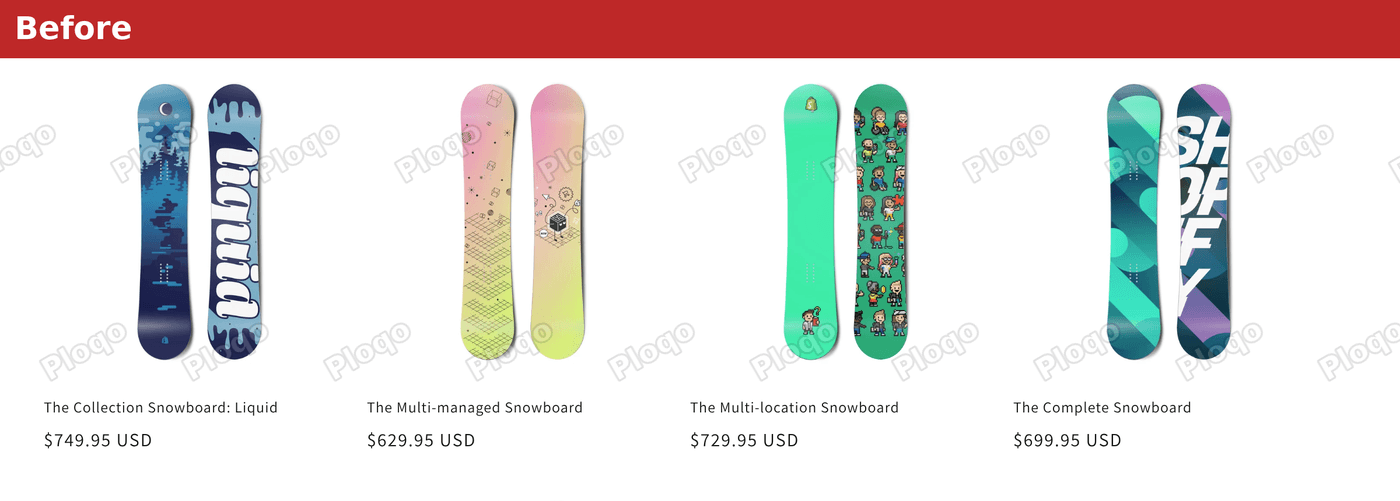 A Dawn collection page with product cards that show a name and price only
This is the same page after. Each card has a sold count under the price:
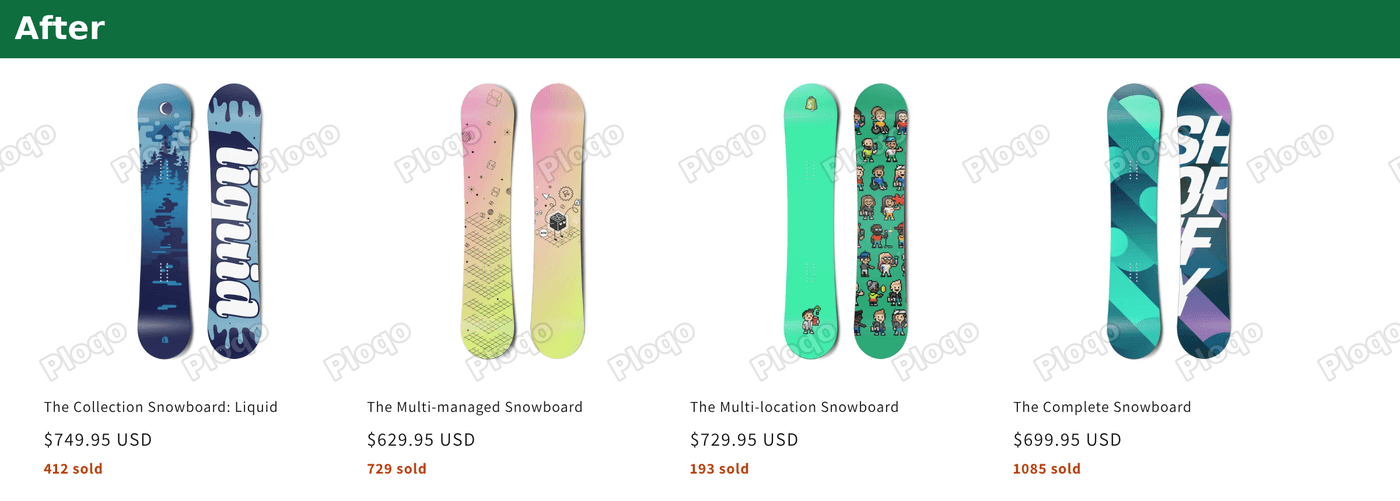 The same collection page with a sold count under the price on each product card
The product page before the change:
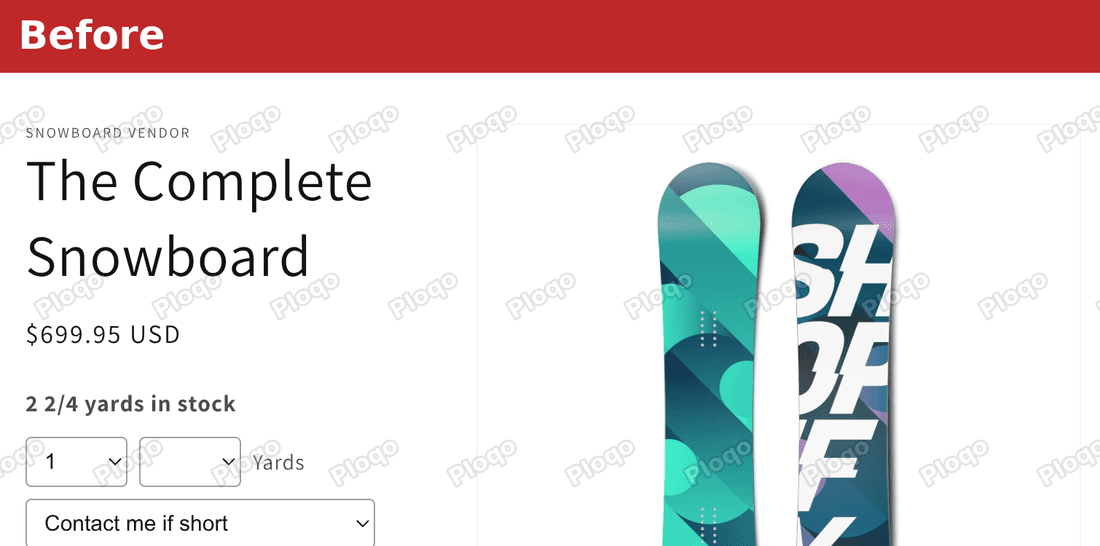 A Dawn product page with a title and price and no sold count
The product page after, with "1085 sold" under the price:
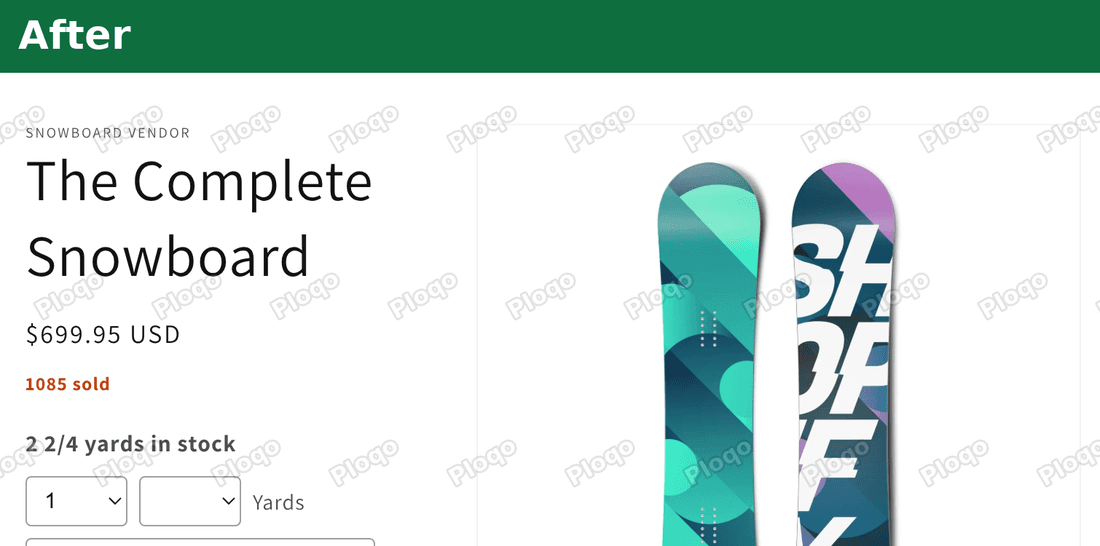 The same product page with a sold count of 1085 under the price
How to add a sales counter to Dawn
There are two parts. First you create a field that holds the number. Then you add three lines of code that print it.
Step 1: Open Metafields and metaobjects
In your Shopify admin, go to Settings, then Metafields and metaobjects. This page holds custom fields. A metaobject is a reusable record, and you do not need one here. Click Products.
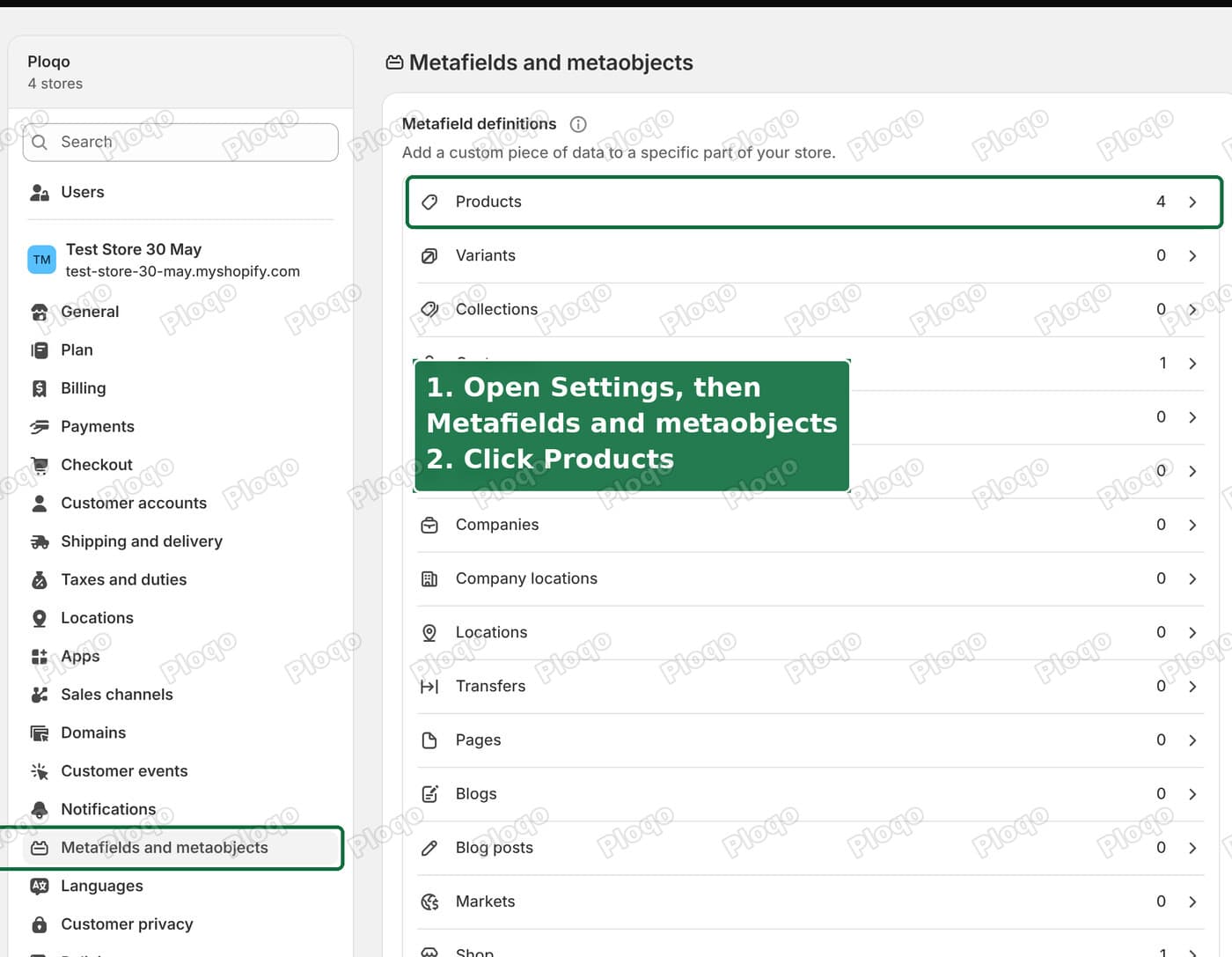 The Shopify settings page for Metafields and metaobjects with the Products row highlighted
Step 2: Add the definition
A definition is the blueprint for a field. It tells Shopify the field's name and what kind of value it holds. Click Add definition.
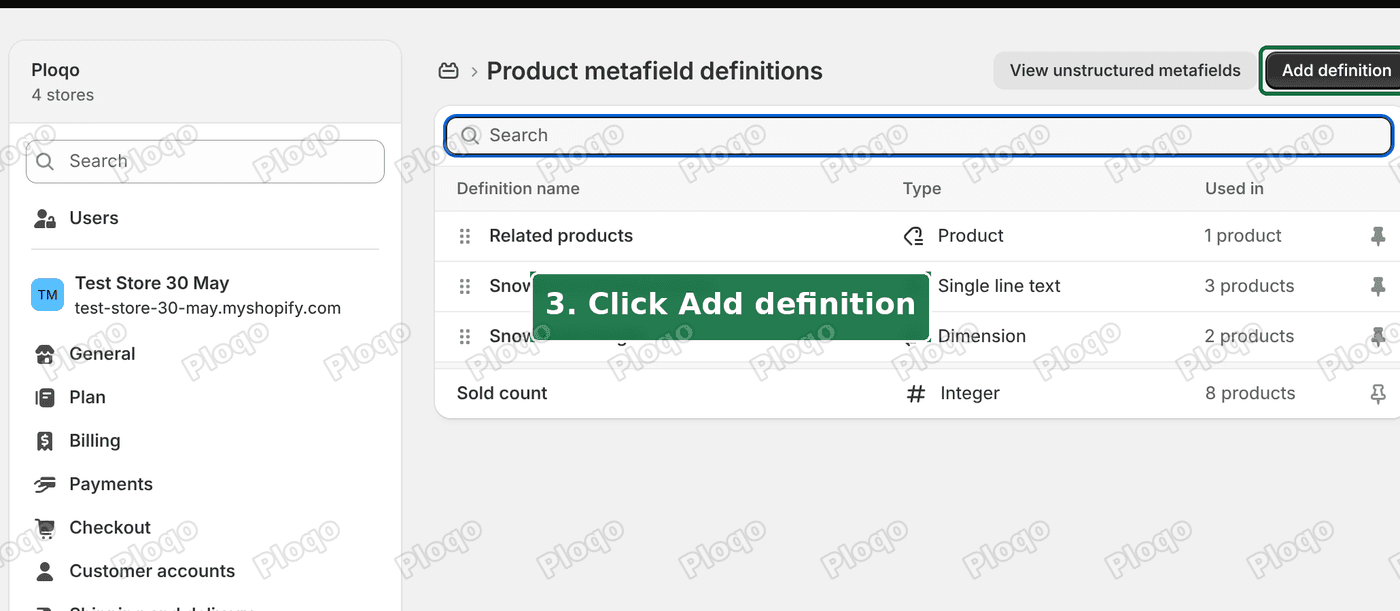 The Product metafield definitions page with the Add definition button highlighted
Step 3: Name it and choose Integer
Type Sold count as the name. Shopify fills in the key as custom.sold_count. Choose Integer as the type, which means a whole number. Click Save.
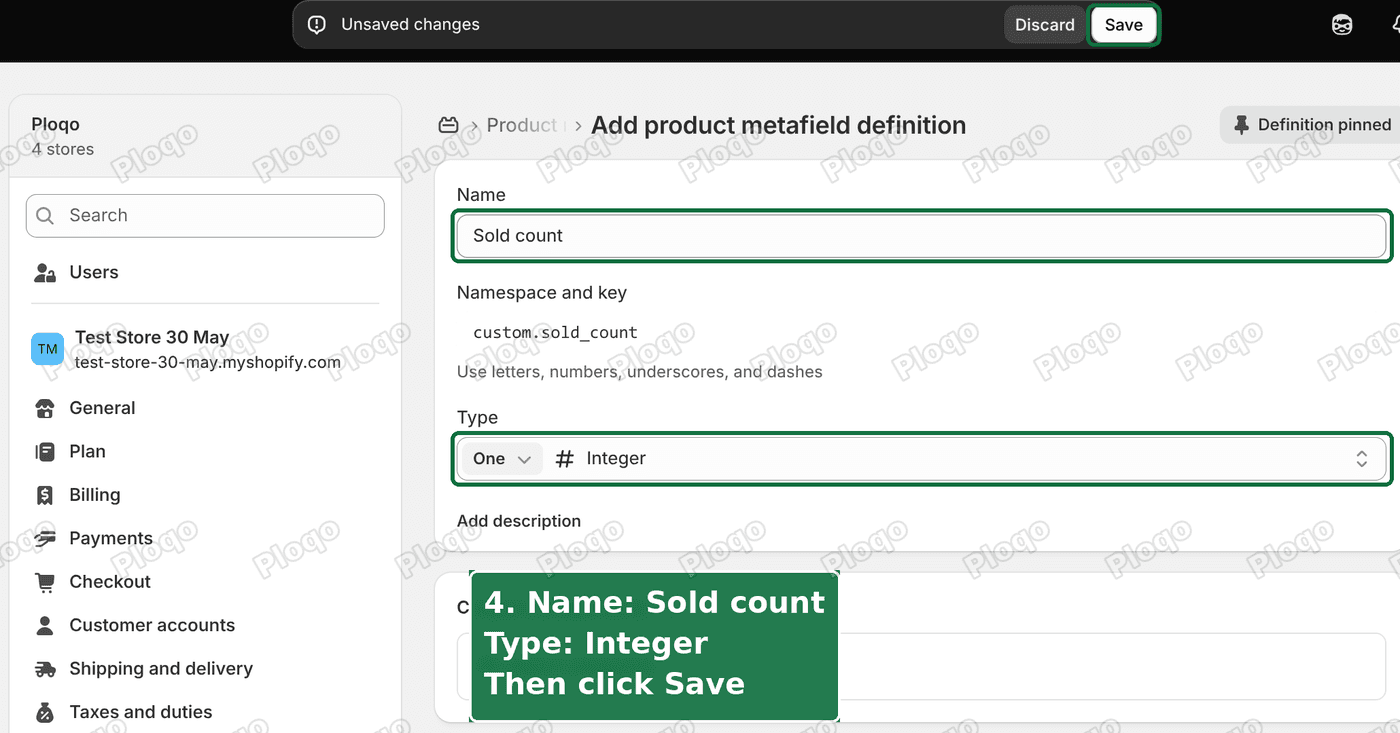 The Add product metafield definition page with the name Sold count and the type Integer
Keep the key exactly as custom.sold_count. The code in step 5 looks for that name.
Step 4: Fill in the number on each product
Go to Products and open a product. Scroll down to Product metafields. Type the number of units sold in Sold count. Click Save. Repeat for every product that should show a counter.
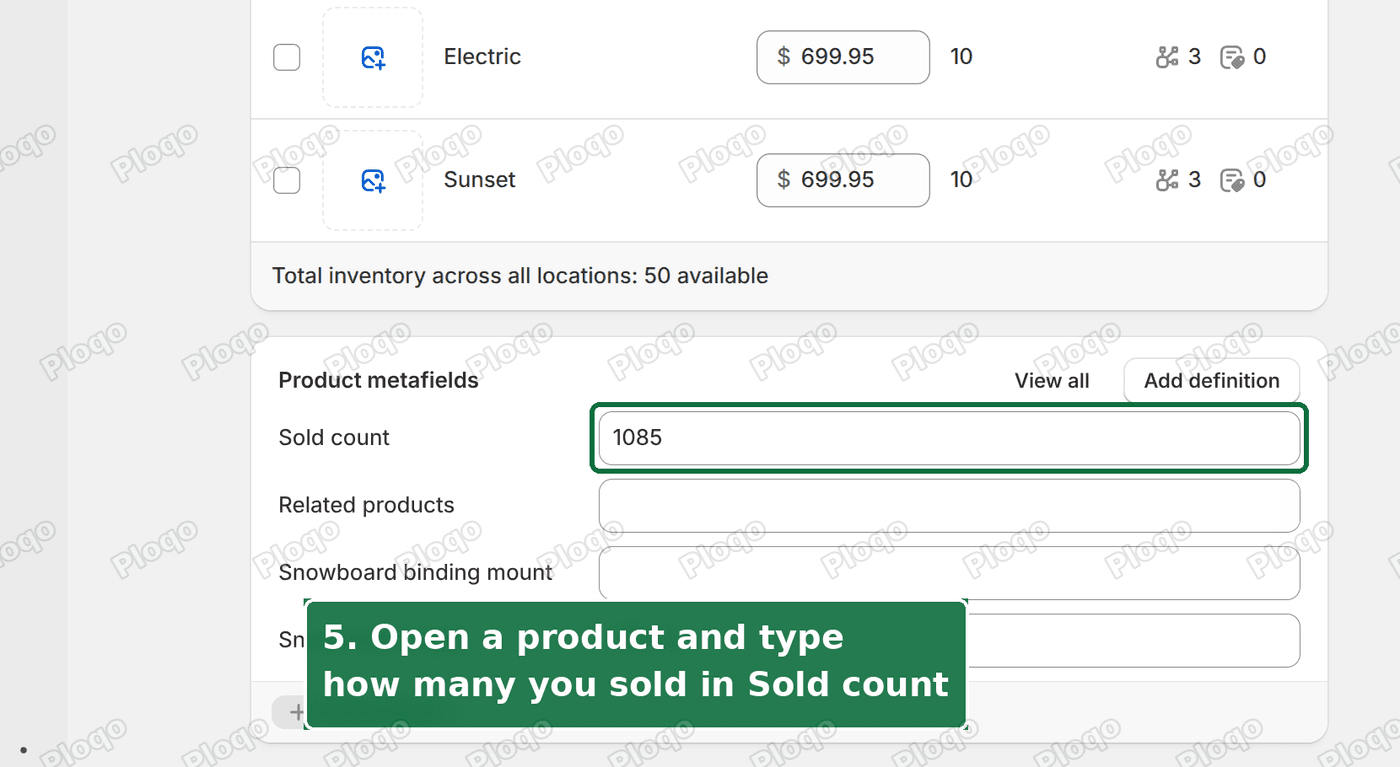 A product page in the admin with the Sold count field filled in under Product metafields
A product with an empty field, or a value of 0, shows nothing. That is deliberate, so a new product does not display "0 sold".
Step 5: Open the theme code
Go to Online Store, then Themes. Find your current theme and click the three dots next to Edit theme. Click Edit code.
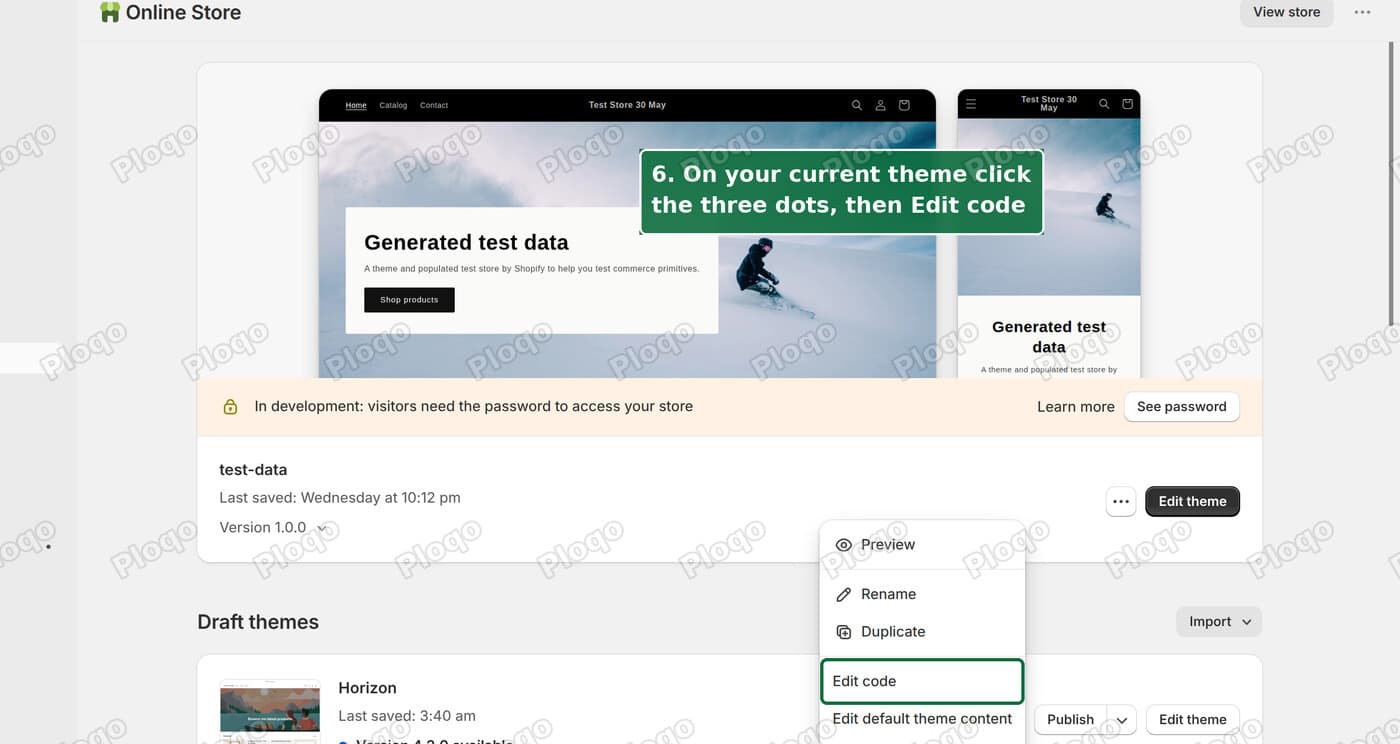 The Themes page with the three dot menu open and Edit code highlighted
Step 6: Paste the code into price.liquid
In the file list, open Snippets, then price.liquid. A snippet is a small file that makes up one part of your theme. This one draws the price.
Scroll to the bottom. The last line is {% endunless %}. Click at the start of that line and paste this above it:
{%- if product and product.metafields.custom.sold_count.value > 0 -%}
<p style="margin:0.4rem 0 0;font-size:1.3rem;font-weight:600;color:#c2410c;">{{ product.metafields.custom.sold_count.value }} sold</p>
{%- endif -%}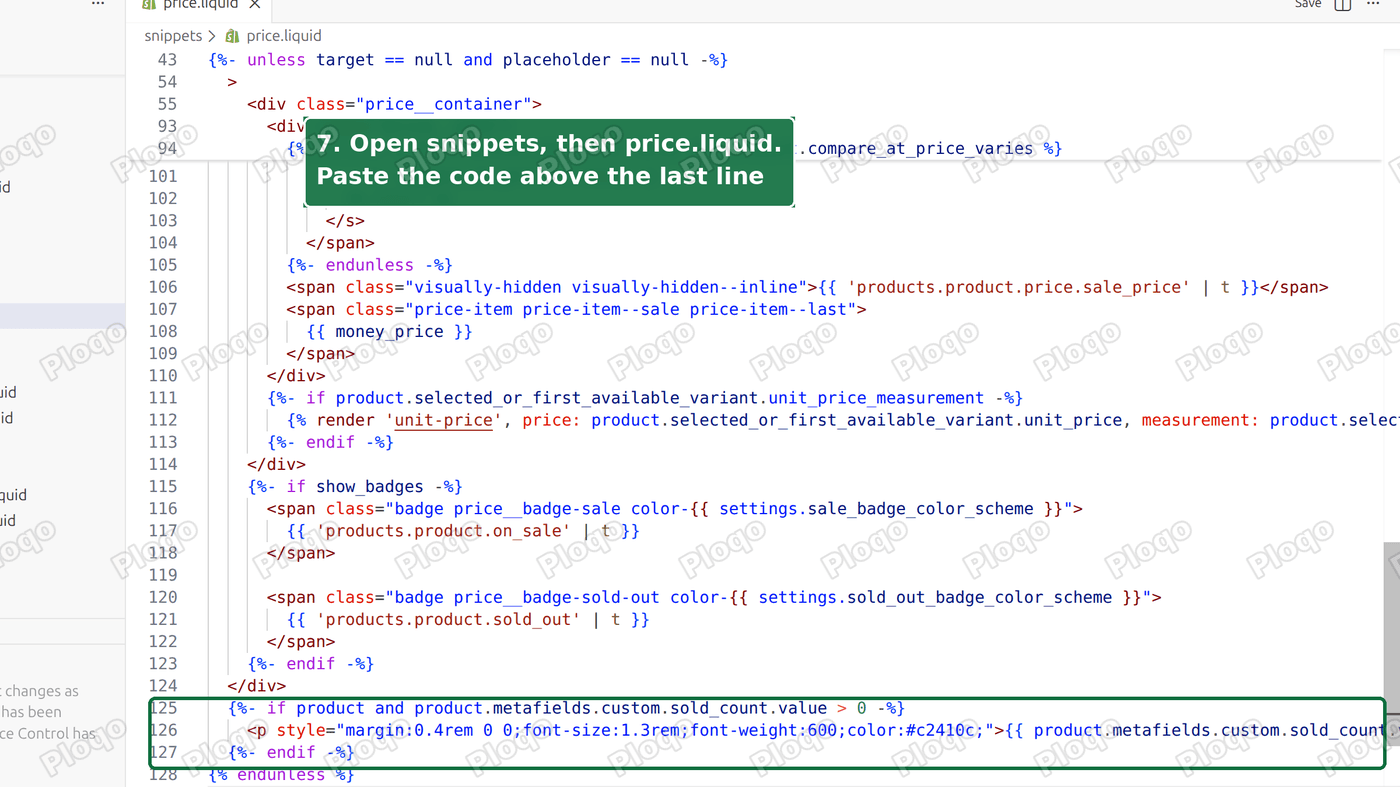 The price.liquid file in the code editor with the three pasted lines above the last line
Step 7: Save
Click Save at the top right of the code editor.
 The Save button at the top right of the Shopify code editor
Open a product page and a collection page on your store. The counter appears under the price.
Why one file covers both pages
Dawn uses the same price snippet everywhere a price is shown. In the Dawn files I checked, price.liquid is used by the product card that makes up a collection grid, by the product page's price block, by the featured product section and by the search suggestions box.
That is why one paste puts the counter on the product page and on the collection pages. If you also see it in the search suggestions, it comes from the same snippet.
Change how the counter looks
The three lines you pasted hold the whole design. Two things are worth knowing.
- The words. Change
soldafter the number toboughtorsold so far. Keep the{{ ... }}part as it is, because that prints the number. - The size and colour.
font-size:1.3remsets the size, andcolor:#c2410csets the orange. Replace the colour code with any other. A site such as a hex colour picker gives you the code.
Save after each change and refresh your store.
How to keep the number up to date
The number is only as current as the last time you typed it. There are three ways to deal with that.
Option 1: Update it by hand
For a small shop this is fine. Once a week, open the products that sold and raise the number. It takes a few minutes, and the counter is always a number you chose to show.
Use real numbers. A made up count misleads shoppers.
Option 2: Shopify Flow
Shopify Flow is Shopify's free automation app. You build rules such as "when an order is paid, do this". It is a natural first try for a counter, so I read Shopify's Help Center to see how far it gets. I did not run this workflow, so treat the steps as untested.
- Start the Flow app. If you do not have it, install Shopify Flow from the Shopify App Store.
- Click Create workflow.
- Click Select a trigger and choose Order paid.
- Click Add step, choose Action, then For each loop (iterate). Pick the order's line items as the list. A line item is one product in the order.
- Under Repeat for each item, click Add step, choose Action, then Send Admin API request.
- In Mutation, choose
metafieldsSet. In Mutation inputs, enter the product's ID, the namespacecustom, the keysold_count, the typenumber_integerand the new total:
{
  "metafields": [
    {
      "ownerId": "the product's ID from the line item",
      "namespace": "custom",
      "key": "sold_count",
      "type": "number_integer",
      "value": "the new total"
    }
  ]
}- Turn the workflow on.
The new total in step 6 is where this falls short. Per the Help Center, Flow cannot read a metafield with dot notation, and the action that fetches product data cannot run inside a For each loop, so there is no documented way to read the current number and add the quantity sold. The built-in Update product metafield action is no help either, because it is not offered after an order trigger. The steps above build the workflow, but the last value is not something I could fill in from the documentation. Until Flow can do that, an app or typing the number is what works.
Option 3: An app
An app reads your orders itself and keeps the number current. Three apps in the Shopify App Store are built around a sold count:
- Sold Count: Low Stock Counter. Free plan, paid plans from $9.99 a month. 14 ratings, 3.3 average.
- Sold Count: Product Sale Proof. Free to install, paid plans from $4.90 a month. 9 ratings, 3.9 average.
- Stock Sheep - Sold & Low Stock. Free plan, paid plans from $10 a month. 21 ratings, 4.3 average.
All three have few ratings, so read the recent reviews before you install. In the reviews I read, merchants of Stock Sheep reported sold numbers that were higher than the real sales, and merchants of the other two reported support that did not answer. Treat that as a reason to check the first few numbers against your own orders.
An app is also the way to get a "sold in the last 24 hours" line, because the code in your theme cannot read orders by date.
If the counter does not show
- Check the key. The definition must be
custom.sold_count. A different key such ascustom.soldprints nothing. - Check the value. A field that is empty or 0 shows nothing. Type a number above 0 on that product.
- Give it a moment. On my test store the collection page showed new numbers about 30 seconds after I saved them in the admin. A product page showed the number straight away.
- Check the file. The three lines must sit above the last
{% endunless %}inprice.liquid, in the snippet called price, not in another file. - Check your theme. I tested this on Dawn 15.5.0. Themes built from Dawn use the same file. Other themes name their price file differently, so look in Snippets for a file with "price" in its name.
What the field and the code do
The field is a place to store a whole number against each product. The code asks one question for each product it draws: does this product have a Sold count above 0? If it does, the code prints the number and the word "sold" under the price. If not, it prints nothing.
Nothing else in your store changes. Your prices, stock, orders and checkout are not touched, and you can remove the counter by deleting the three lines.
Frequently asked questions
Does Shopify have a built-in sales counter? No. Shopify themes cannot read how many units a product sold, so you store the number yourself or use an app.
Can I show the counter only on the product page? The price.liquid file serves both page types, so these three lines show on both. To limit it to one page type, an app that places its counter in a chosen spot is the simpler route.
Will the counter update by itself? Not with this method. The number is whatever you type into the Sold count field. Apps keep it current from your orders.
Does this work on themes other than Dawn? Dawn and themes built from it use the same price file. On other themes the idea is the same, but the file name and the place to paste differ.
Will this slow down my store? The code prints one line of text. It adds no images, no scripts and no extra requests.
Summary
Shopify does not count sales per product for your theme, so a sales counter starts with a number you store yourself. A Sold count field on each product holds it, and three lines in the price snippet print it under the price on product pages and collection cards. On a Dawn test store the counter appeared on both. The number stays as you typed it, and Shopify Flow's built-in metafield action does not work from an order trigger. Flow also has no documented way to add one to the current number, so an app is the way to automate it.
Spending too long on manual Shopify busywork?
PinFlow turns your Shopify catalog into Pinterest pins and posts them on a schedule, automatically. Same idea as the rule above, let the system handle the repetitive part.
Get PinFlow on the Shopify App StoreMore Shopify fixes
More community-sourced Shopify guides, tested on a live store.
Themes & Storefront
Shopify AI Section: Fix a Price Badge Hidden Behind the Image
You built a section with Shopify's AI section generator, but the price badge on each card sits behind the photo. Here is the Custom Liquid fix that brings it to the front without regenerating anything. Tested on a Dawn store.
Themes & Storefront
Hide Shipping Calculated at Checkout on One Shopify Product
The line under Add to cart that says shipping is calculated at checkout shows on every product, gift cards included. Here is how to hide it on one product only, with the code, screenshots and the Eclipse theme steps.
Themes & Storefront
Shopify Dropdown Menu Behind Page Content (Z-Index Fix)
Your Shopify dropdown or mega menu opens, but the page title and products sit on top of its links and the menu closes before you can click. The fix is one Custom CSS rule in Theme settings. Tested on a Rebel store.