
How to Make a Scrolling Announcement Bar in Shopify
Most scrolling announcement bars flash an empty gap every time the loop restarts. The cause is a fixed percentage shift. Here is a section that measures itself instead, tested on a live store.
By AjayCodeWiz · July 17, 2026 · 11 min read
The scrolling bar that flashes every time it loops
A scrolling announcement bar is a strip across the top of the store with text sliding across it. Free shipping over 50. New season now live. That sort of thing.
The usual version is a few lines of CSS. Put the text in a row, animate it leftwards, loop forever.
It works, and then every so often the bar goes blank for a moment before the text reappears. On a dark bar it is a sweep of empty background. It looks broken, because it is.
A merchant hit exactly this and posted their code on the Shopify Community. Here is what the gap looks like:
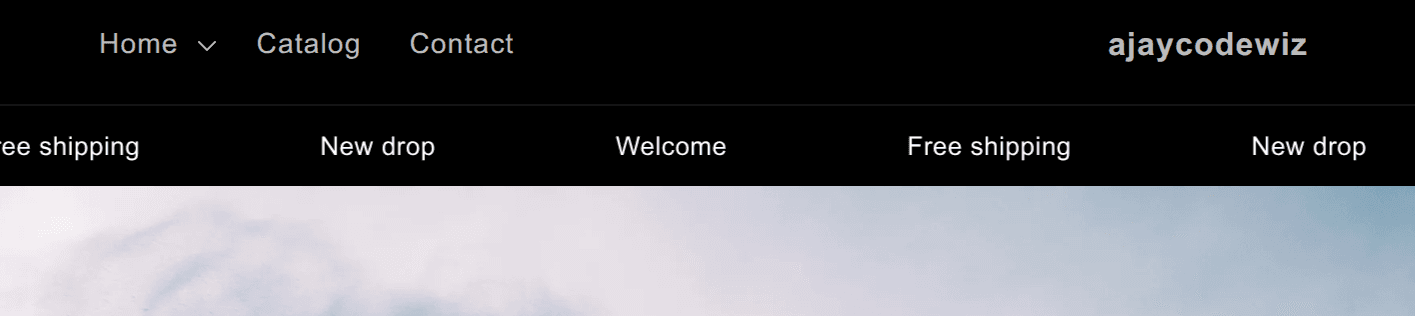 The scrolling bar mid-loop with an empty stretch of background and no text
I worked through it on a test store. The cause is simple once you see it, and the fix is not the one usually suggested.
Why the flash happens
Near the end of the loop, the content runs out before the right edge of the screen.
The animation shifts the text left. When it reaches the end it snaps back to the start. If, at the moment before it snaps, the trailing text has already cleared the right-hand side, there is nothing left to draw. You get a slab of bare background sweeping past.
That empty slab is the flash.
The arithmetic, because it makes the bug obvious
Numbers help here more than description.
Say your messages come to 900px per copy. You duplicate them once, so the track is 1800px. The animation slides left by 50%, which is 900px.
On a 1200px-wide screen, at the end of the animation the track has moved 900px left. The visible window is therefore showing the region from 900px to 2100px of a track that only exists up to 1800px.
That last 300px has nothing in it. There is your flash.
Now widen the browser to 1600px and the empty stretch becomes 700px. Narrow it to 900px and it disappears entirely.
Which explains the most confusing property of this bug: it depends on the screen it is viewed on. It looks fine on your laptop and broken on a client's monitor, fine in portrait and broken in landscape. Nothing is intermittent. You are just changing one of the two numbers the recipe assumed.
So the real requirement is easy to state:
There must always be enough content to cover the full viewport, and the restart must land on a pixel-identical frame.
Miss either condition and it flickers. Most implementations miss both.
Why the usual advice does not fix it
These are the fixes suggested most often. Each helps with something, but none solves the gap.
Animate to translateX(-50%) with the text duplicated once. This is the standard recipe and it is the most common cause of the problem. It only works if two copies together are wider than the viewport. Short text on a wide monitor gives you two copies that do not fill the screen, so the gap appears anyway.
Switch translateX to translate3d to force GPU compositing. Worth doing for smoothness, and it can remove judder. It does nothing about running out of content, because the gap is a layout issue and not a rendering one.
Duplicate the text ten times in the theme editor. This does work, by brute force. It also breaks the moment someone views the site on an ultrawide monitor, or shortens the text, and it means editing content by hand every time the message changes.
Bounce the text back and forth instead of looping. Sidesteps it, but it is a different effect and reads as a bug of its own.
The common thread is that all of them assume a fixed amount of content and a fixed shift. The viewport is not fixed and neither is the text.
Two copies is not a magic number. It is a guess about the relationship between your text width and your visitor's screen width, and that is not a relationship you can know while writing the CSS.
Two structural bugs in the usual starting code
Before the measuring fix, there are two properties of the typical hand-rolled bar that will sabotage it even after you add the JavaScript. Both were present in the code the merchant posted.
position: absolute on the bar. Positioning the strip absolutely at the top of the page takes it out of normal document flow. It then overlaps whatever sits beneath it, and more importantly its width stops being tied to its container. Any measurement you take is measuring something other than what you think.
Use position: relative, as the code below does. The bar stays in the layout, pushes the page down like a real element, and the viewport width means what you expect.
min-width: fit-content on the track. This looks equivalent to width: max-content and is not. Inside a flex container, min-width sets a floor while leaving the element open to being sized by its parent, so the track can still end up constrained to the viewport. Measure that and you get the wrong copy width, which poisons the clone count.
width: max-content makes the track exactly as wide as its contents want to be. That is the property you must have in place before measuring anything, which is why it is not just a tidiness preference.
Fix these two and the measuring code below has something reliable to measure.
The fix: measure, clone, then shift by exactly one copy
The reliable approach stops guessing and measures at runtime.
- Render one copy of the announcement text.
- Measure its actual width in pixels.
- Clone whole copies until the track is at least viewport width plus one copy wide.
- Animate by exactly one copy width in pixels, not by a percentage.
- Re-run all of that when the viewport resizes.
Step 4 is what removes the flash. Shifting by exactly one copy width means the frame after the restart is pixel-identical to the frame before it. There is no visible seam, because there is no seam at all.
Step 3 is what guarantees the screen is always covered, on any viewport, with any length of text.
The code
This is a complete section. Create sections/custom-scrolling-banner.liquid and paste it in, then add Scrolling Announcement to your theme from the theme editor.
Duplicate your theme first. Online Store > Themes > ... > Duplicate.
{%- if template.name != 'product' -%}
<style>
.custom-scrolling-banner {
  background-color: {{ section.settings.bg_color }};
  color: {{ section.settings.text_color }};
  overflow: hidden;
  position: relative;
  width: 100%;
  height: 40px;
  display: flex;
  align-items: center;
  z-index: 1001;
  box-sizing: border-box;
}
.custom-scrolling-banner__viewport {
  width: 100%;
  overflow: hidden;
  display: flex;
}
.custom-scrolling-banner__content {
  display: flex;
  flex-wrap: nowrap;
  width: max-content;
  will-change: transform;
  animation-name: custom-marquee;
  animation-timing-function: linear;
  animation-iteration-count: infinite;
}
.custom-scrolling-banner:hover .custom-scrolling-banner__content { animation-play-state: paused; }
@media (prefers-reduced-motion: reduce) {
  .custom-scrolling-banner__content { animation: none; transform: none; }
}
.custom-scrolling-banner__copy {
  display: flex;
  align-items: center;
  flex-shrink: 0;
}
.custom-scrolling-banner__item {
  font-weight: 300 !important;
  letter-spacing: .02em !important;
  font-size: 13px;
  padding: 0 4.5rem;
  white-space: nowrap;
}
@keyframes custom-marquee {
  from { transform: translateX(0); }
  to   { transform: translateX(var(--marquee-shift, -50%)); }
}
</style>

<div class="custom-scrolling-banner" data-speed="{{ section.settings.speed }}">
  <div class="custom-scrolling-banner__viewport">
    <div class="custom-scrolling-banner__content">
      <div class="custom-scrolling-banner__copy" data-marquee-copy>
        {% for block in section.blocks %}
          <span class="custom-scrolling-banner__item">{{ block.settings.text }}</span>
        {% endfor %}
      </div>
    </div>
  </div>
</div>

<script>
(function () {
  function initMarquee(root) {
    var viewport = root.querySelector('.custom-scrolling-banner__viewport');
    var content  = root.querySelector('.custom-scrolling-banner__content');
    var firstCopy = root.querySelector('[data-marquee-copy]');
    if (!viewport || !content || !firstCopy) return;

    var baseSpeed = parseFloat(root.getAttribute('data-speed')) || 60;
    var originalHTML = firstCopy.outerHTML;

    function layout() {
      content.innerHTML = originalHTML; // reset to a single copy before measuring
      var copyWidth = content.firstElementChild.getBoundingClientRect().width;
      if (copyWidth === 0) return;
      var viewportWidth = viewport.getBoundingClientRect().width;

      // Clone whole copies until the track is at least (viewport + one copy) wide,
      // so a full copy is always sliding in before the loop resets.
      var needed = viewportWidth + copyWidth;
      var copies = 1;
      while (copies * copyWidth < needed) {
        content.insertAdjacentHTML('beforeend', originalHTML);
        copies++;
      }

      // Slide by EXACTLY one copy width -> restart is pixel-identical -> no flash.
      content.style.setProperty('--marquee-shift', '-' + copyWidth + 'px');
      // Keep perceived speed constant regardless of how many copies we cloned.
      content.style.animationDuration = baseSpeed + 's';
    }

    layout();
    if (window.ResizeObserver) {
      new ResizeObserver(layout).observe(viewport);
    } else {
      window.addEventListener('resize', layout);
    }
  }

  document.querySelectorAll('.custom-scrolling-banner').forEach(initMarquee);
})();
</script>
{%- endif -%}

{% schema %}
{
  "name": "Scrolling Announcement",
  "settings": [
    { "type": "range", "id": "speed", "min": 20, "max": 200, "step": 5, "unit": "s", "label": "Scrolling Speed", "default": 60 },
    { "type": "color", "id": "bg_color", "label": "Background Color", "default": "#000000" },
    { "type": "color", "id": "text_color", "label": "Text Color", "default": "#ffffff" }
  ],
  "blocks": [
    { "type": "announcement", "name": "Announcement", "settings": [{ "type": "text", "id": "text", "label": "Text", "default": "Welcome" }] }
  ],
  "presets": [{ "name": "Scrolling Announcement" }]
}
{% endschema %}
The result, running continuously with no gap:
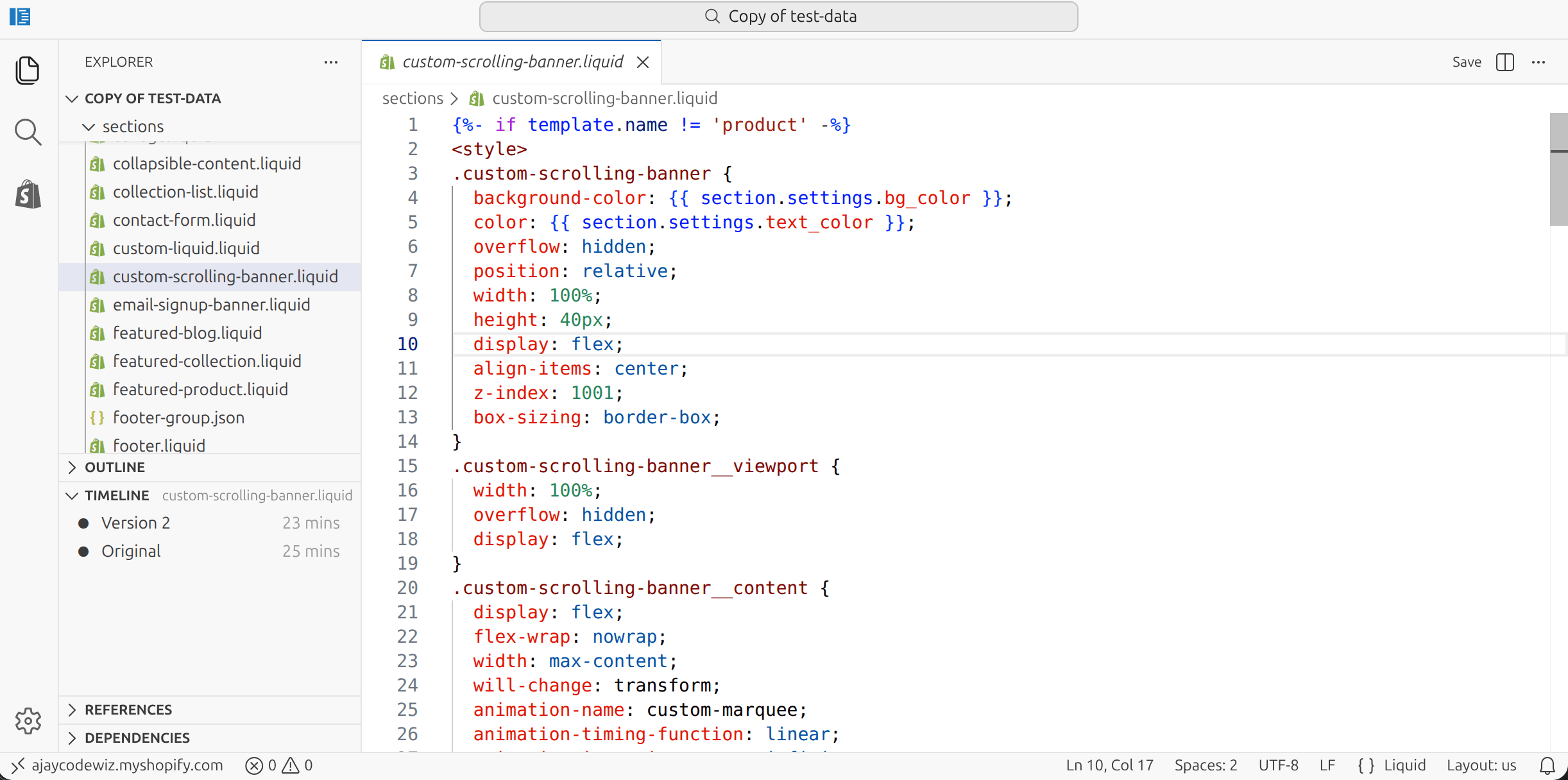 The scrolling announcement bar running seamlessly across the top of the store
The parts worth understanding
width: max-content on the track. Without it the flex container shrinks to the viewport and the copies wrap or compress instead of forming one long row.
Resetting innerHTML before measuring. layout() runs again on every resize. If you measured without resetting, you would be measuring the clones from last time and the track would grow without bound.
Setting the shift as a CSS variable. The keyframes read var(--marquee-shift), so JavaScript changes the distance without rewriting the animation. The -50% fallback in the keyframe only applies if the script fails.
Setting animationDuration from the base speed. Cloning more copies makes the track longer. Without pinning the duration, the bar would appear to speed up on wide screens. This keeps the perceived speed steady.
ResizeObserver on the viewport. Rotating a phone or dragging a window changes the required copy count. The fallback covers older browsers.
Two accessibility touches. Hovering pauses the animation so text can be read, and prefers-reduced-motion stops it entirely for anyone who has asked their OS for less movement. Do not remove that second one. Continuous motion is a genuine problem for some people, including anyone prone to motion sickness or vestibular symptoms.
Adjusting it
Speed. The Scrolling Speed slider is seconds per loop, so a bigger number is slower. It reads as seconds because that is how the CSS uses it.
Text. Each announcement is a block, so add and reorder them in the theme editor rather than editing code.
Where it shows. The {%- if template.name != 'product' -%} wrapper hides the bar on product pages. Delete that line and its {%- endif -%} to show it everywhere.
Height and font. Change height: 40px on the container and font-size: 13px on the item. Keep white-space: nowrap or text will wrap and break the measurement.
Should you use a scrolling bar at all
Worth raising, because it came up in the thread and the objection is fair.
Moving text attracts the eye once and is then ignored. It is close cousin to banner blindness, and a message people have to wait for is a message many will not read at all. A static bar with one clear line often outperforms a rotating one carrying four.
Reasonable uses: a single short message too long for the space, or a genuine sequence such as shipping cutoffs plus a discount code.
Weaker uses: cramming five messages into one strip because they all felt important. That usually means none of them lands.
There is also a middle option worth knowing about: a fading rotator. Same strip, same set of messages, but each one fades in, holds for a few seconds, and fades out in place rather than travelling across the screen.
It reads better than a marquee for most purposes. Text that holds still is text people can actually read, the message is centred rather than drifting, and the whole class of bug described in this article cannot occur, because nothing depends on content width versus viewport width. It is also less code.
The case for horizontal scrolling is when the movement itself is part of the look you want, or when a single message is genuinely too long to fit and you would rather it travel than truncate.
If the bar is doing real commercial work, test it against a static one. If it is decoration, a static bar is faster, calmer and less code to maintain.
If it did not work, check these
Still flashing. The script did not run. Check the browser console for errors, and confirm the <script> block came across with the rest of the section.
The bar is blank. No announcement blocks have been added. Add at least one in the theme editor.
Text is stacked instead of in a row. white-space: nowrap or width: max-content is missing.
It speeds up on a big monitor. animationDuration is not being set, so the longer cloned track is being covered in the same time.
It grows until the page scrolls sideways. innerHTML is not being reset at the top of layout(), so clones accumulate on every resize.
It only flashes on wide screens. The classic translateX(-50%) symptom, and a sign the script is not applying its measurement. Inspect the track and check the computed --marquee-shift is a pixel value rather than the -50% fallback. If it still reads -50%, the JavaScript is not reaching that element.
The speed feels different after the fix. Expected. A loop is now one copy width, where before it was half the whole track. The duration per loop is unchanged, so the apparent speed shifts. Adjust the Scrolling Speed slider; higher is slower.
The bar sits over the header. Adjust z-index: 1001, or change position: relative depending on where your theme expects it. If the bar is overlapping content rather than pushing it down, something is still position: absolute.
It stopped after a theme update. Section files get replaced. Re-add the file, and keep a copy outside the theme.
One promo bar reaches the people already on your site
PinFlow turns your Shopify catalog into Pinterest pins and posts them on a schedule, so the same products keep reaching people who have not found your store yet.
Get PinFlow on the Shopify App StoreMore Shopify fixes
More community-sourced Shopify guides, tested on a live store.
Themes & Storefront
Shopify Payment Icons: Fix a Footer That Shows None
The payment icons in a Shopify footer come from your payment provider, not from the theme. When the provider sends none, the row stays empty. Here is how to add the icons yourself on Refresh, Dawn and similar themes.
Themes & Storefront
Shopify Order Notes: Turn On the Cart Note Box
Let customers leave order notes and special instructions on your Shopify cart page. Turn on the built-in cart note in Theme settings, rename its label, and find each note on the order. Tested on Dawn, no code.
Themes & Storefront
Shopify WhatsApp Integration: Add a Free Chat Button
How to add WhatsApp to Shopify with a floating chat button: shoppers tap it and WhatsApp opens a chat with you, the message already typed and naming the product.