
Shopify Search and Discovery App: Fix Unrelated Search Results
Synonyms are gone from the Shopify Search and Discovery app and store search now pads results with unrelated products. Here is a paste-in fix for Dawn that makes search strict again, and how to rebuild synonyms with tags.
By AjayCodeWiz · September 24, 2026 · 9 min read
The problem
A merchant who sells embroidered patches asked about this on the Shopify Community in September 2026. A customer types a keyword into their store's search, and the results page lists hundreds of products. Almost none of them have anything to do with the word.
They opened the Shopify Search and Discovery app to fix it and found the Synonyms page marked as retired. Synonyms were the one tool they had to control which words match which products. Other merchants on the Shopify developer forum reported Synonyms disappearing from the app around September 16, 2026, with no changelog entry.
For a shop with a large catalog this costs sales. A shopper who searches for "eagle" and gets 300 mixed patches will usually leave instead of scrolling.
I reproduced the problem on a test store running the free Dawn theme, and then built a fix you can paste into the theme editor in about five minutes.
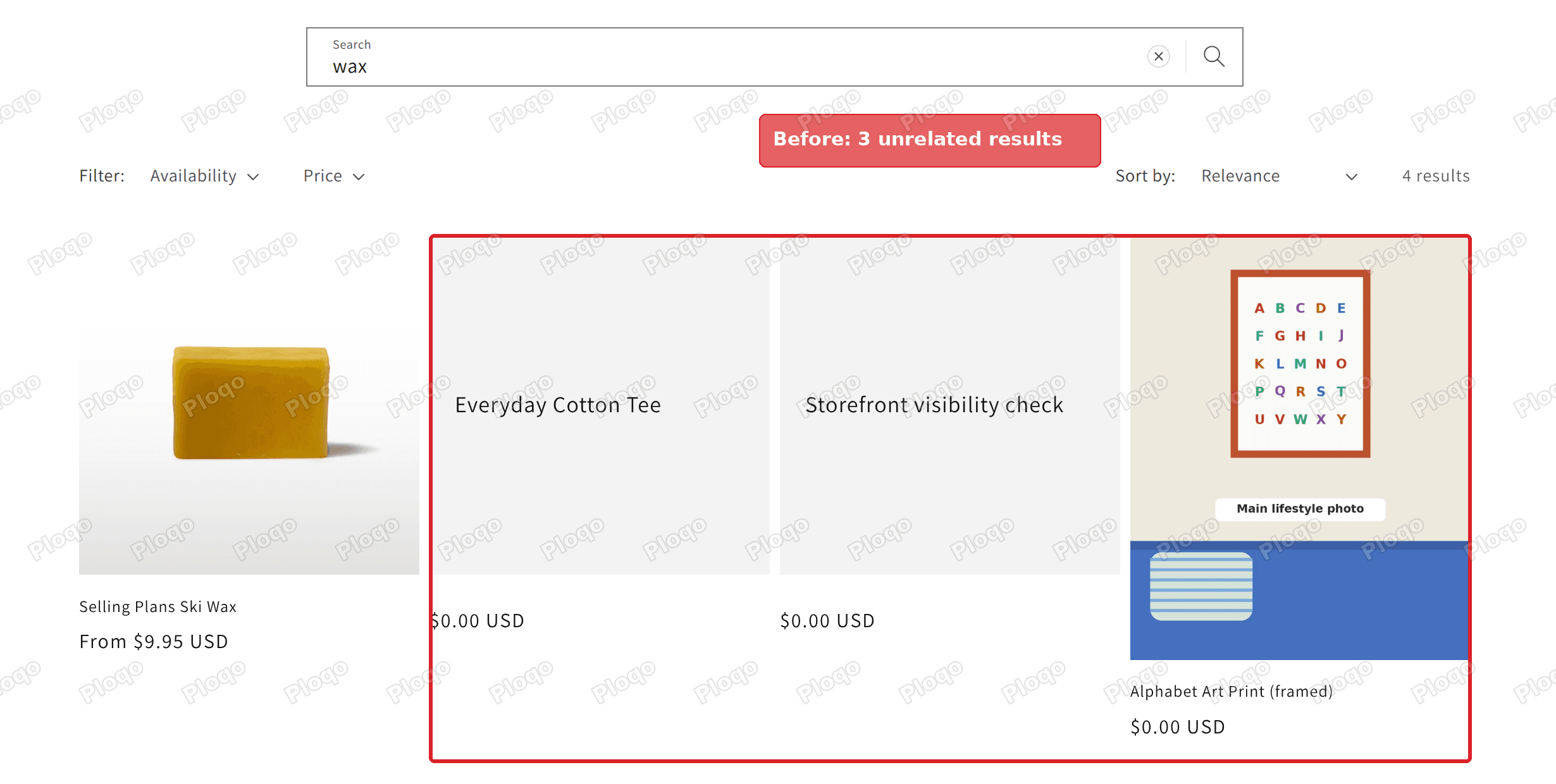 Before: a search for "wax" returns the ski wax plus three products that do not mention wax
Why unrelated products show up
Shopify's storefront search now uses what Shopify calls semantic search. According to Shopify's help center, it "uses related words, concepts, categories and other contexts to improve and expand search results", and it reads product descriptions and even the images. It is switched on automatically.
The idea is that a search for "sofa" can also find a product called "couch". The downside is that the search keeps adding loosely related products, and on some catalogs it adds products that are not related at all.
On my test store the effect was easy to see:
- A search for wax returned 4 products. Only 1 was ski wax. The other 3 were a cotton t-shirt, a framed art print and a test product.
- A search for zebra returned 3 products. No product on the store mentions a zebra anywhere, in the title, tags or description.
- A search for shirt returned 6 products, including the art print.
The same three unrelated products showed up for almost every search I tried. They had empty descriptions and no tags, so there was nothing in them to match. The search added them anyway.
There is no setting in the admin to turn semantic search off. The Synonyms page used to let you steer the matching, and that page is the one that was retired.
First, check where the bad results appear
Shopify runs two different searches, and it helps to know which one your customers are looking at.
- The search results page. This is the full page a shopper lands on after pressing Enter in the search box. Its address starts with
/search?q=. This is where the padding with unrelated products happens. - The search dropdown. Many themes, Dawn included, show a small list of suggestions while the shopper is still typing. Shopify calls this predictive search. Shopify's documentation says semantic search does not apply to it.
If your dropdown suggestions look fine and the full results page is the problem, the fix below is for you.
The fix: make store search strict again (Dawn)
The fix is a short piece of code that you paste into your search page. Shopify themes are written in a template language called Liquid, and the theme editor has a Custom Liquid section, which is a box where you paste code without touching any theme files.
What the code does, in plain words: when a shopper searches, it asks Shopify for products that contain every word in the title, the tags, the product type or the SKU. Asking for specific fields like that switches the loose matching off. If that strict search finds nothing, for example because of a typo, the code runs the normal search instead, so the shopper never sees an empty page.
These are the exact steps I posted in the thread.
Steps
- Go to Online Store.
- Click Edit theme on your current theme.
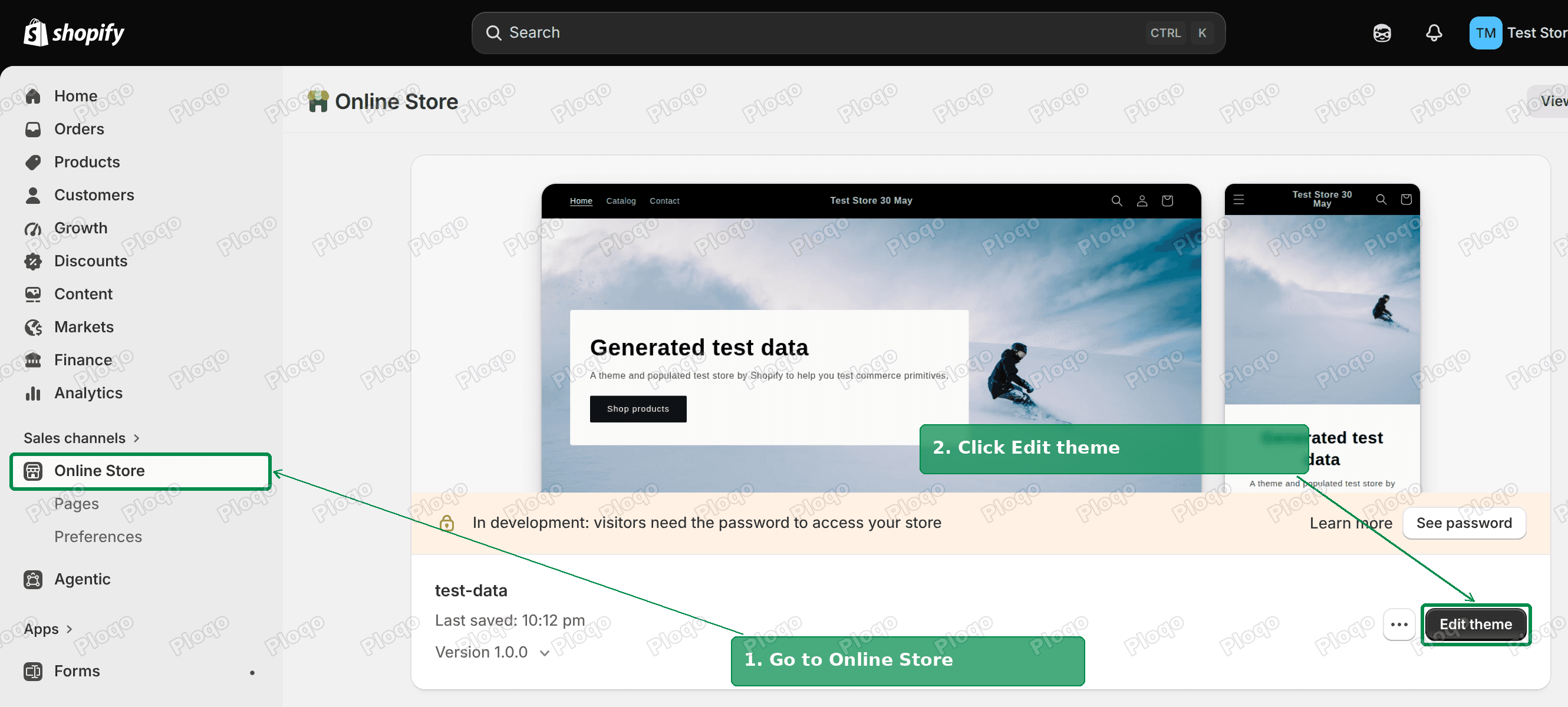 Steps 1 and 2: Online Store, then Edit theme on the current theme
- Click Home page at the top of the editor and choose Search. This opens the template for the search results page. A template is the layout Shopify uses for one kind of page.
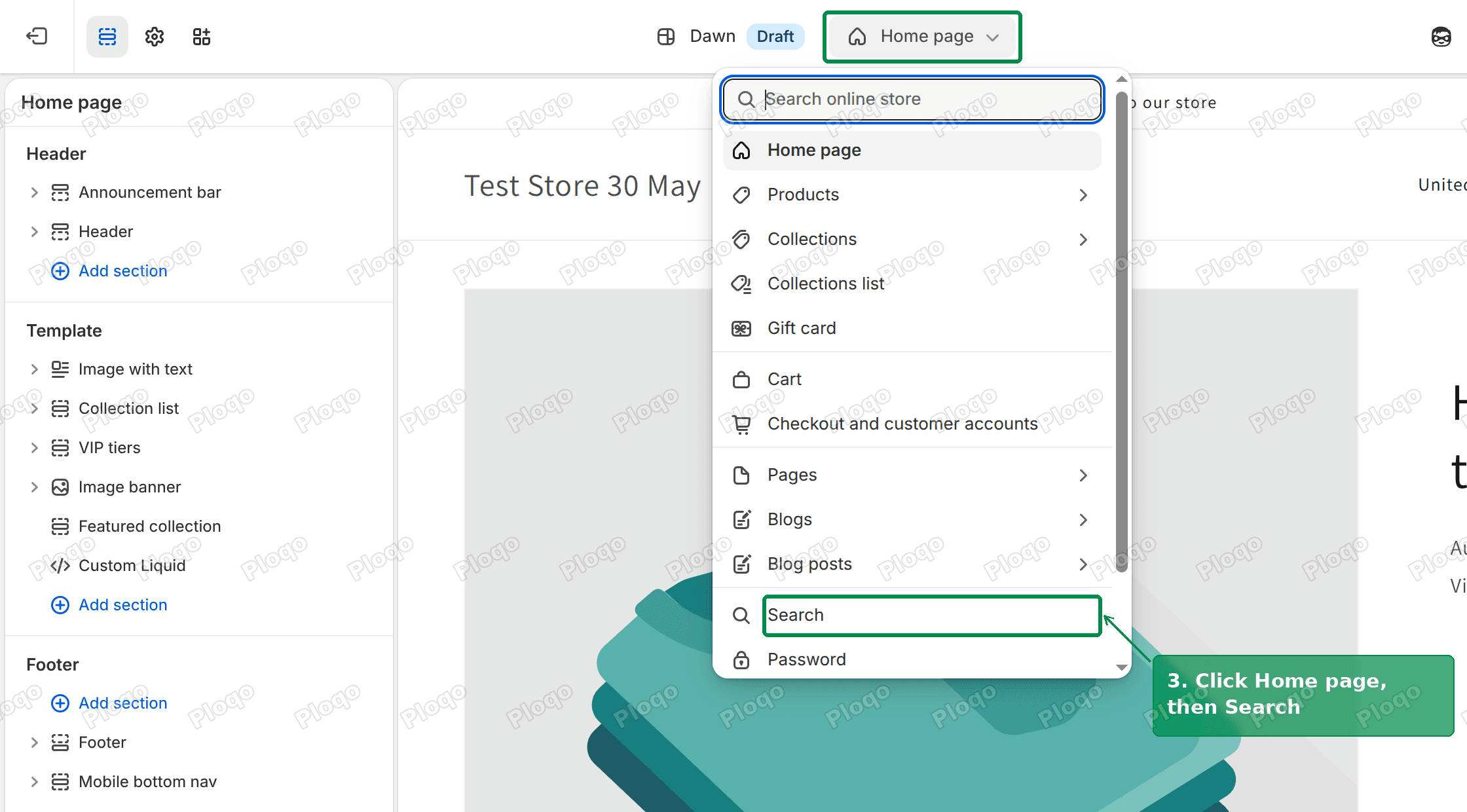 Step 3: pick Search from the page menu at the top of the editor
- Click Add section on the left and pick Custom Liquid.
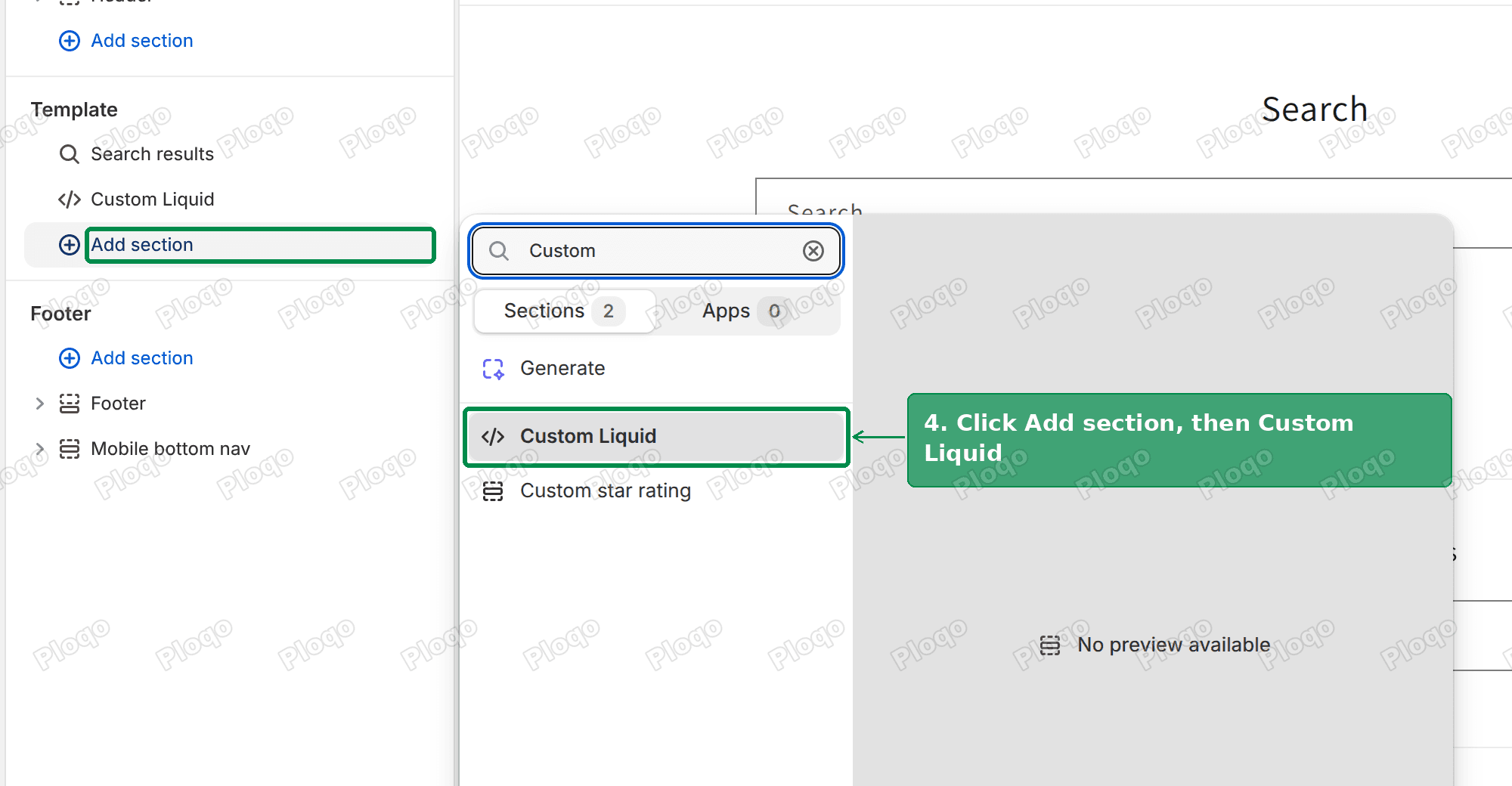 Step 4: Add section, then Custom Liquid
- Paste this code in the Liquid box:
<style>.strict-search-wait .template-search{visibility:hidden}</style>
<script>
(function () {
var FIELDS = ['title', 'tag', 'product_type', 'variants.sku'];
var params = new URLSearchParams(location.search);
var q = (params.get('q') || '').trim();
if (!q || params.has('loose')) return;
var words = [], m, re = /\(title:(\S+?) OR /g;
while ((m = re.exec(q))) words.push(m[1]);
if (!words.length) {
if (/[:"()*]|\b(AND|OR|NOT)\b/.test(q)) return;
var strict = q.toLowerCase().split(/\s+/)
.map(function (w) { return w.replace(/^-+/, ''); })
.filter(Boolean)
.map(function (w) {
return '(' + FIELDS.map(function (f) { return f + ':' + w; }).join(' OR ') + ')';
}).join(' AND ');
if (!strict) return;
document.documentElement.classList.add('strict-search-wait');
params.set('q', strict);
location.replace(location.pathname + '?' + params);
return;
}
var original = words.join(' ');
{%- if search.results_count == 0 %}
document.documentElement.classList.add('strict-search-wait');
params.set('q', original);
params.set('loose', '1');
location.replace(location.pathname + '?' + params);
return;
{%- endif %}
function tidy() {
document.querySelectorAll('input[name="q"]:not([type="hidden"])').forEach(function (i) {
if (i.value === q) i.value = original;
});
var walk = document.createTreeWalker(document.body, NodeFilter.SHOW_TEXT);
while (walk.nextNode()) {
var n = walk.currentNode;
if (n.nodeValue.indexOf(q) > -1) n.nodeValue = n.nodeValue.split(q).join(original);
}
if (document.title.indexOf(q) > -1) document.title = document.title.split(q).join(original);
}
document.addEventListener('DOMContentLoaded', function () {
tidy();
new MutationObserver(tidy).observe(document.body, { childList: true, subtree: true });
});
})();
</script>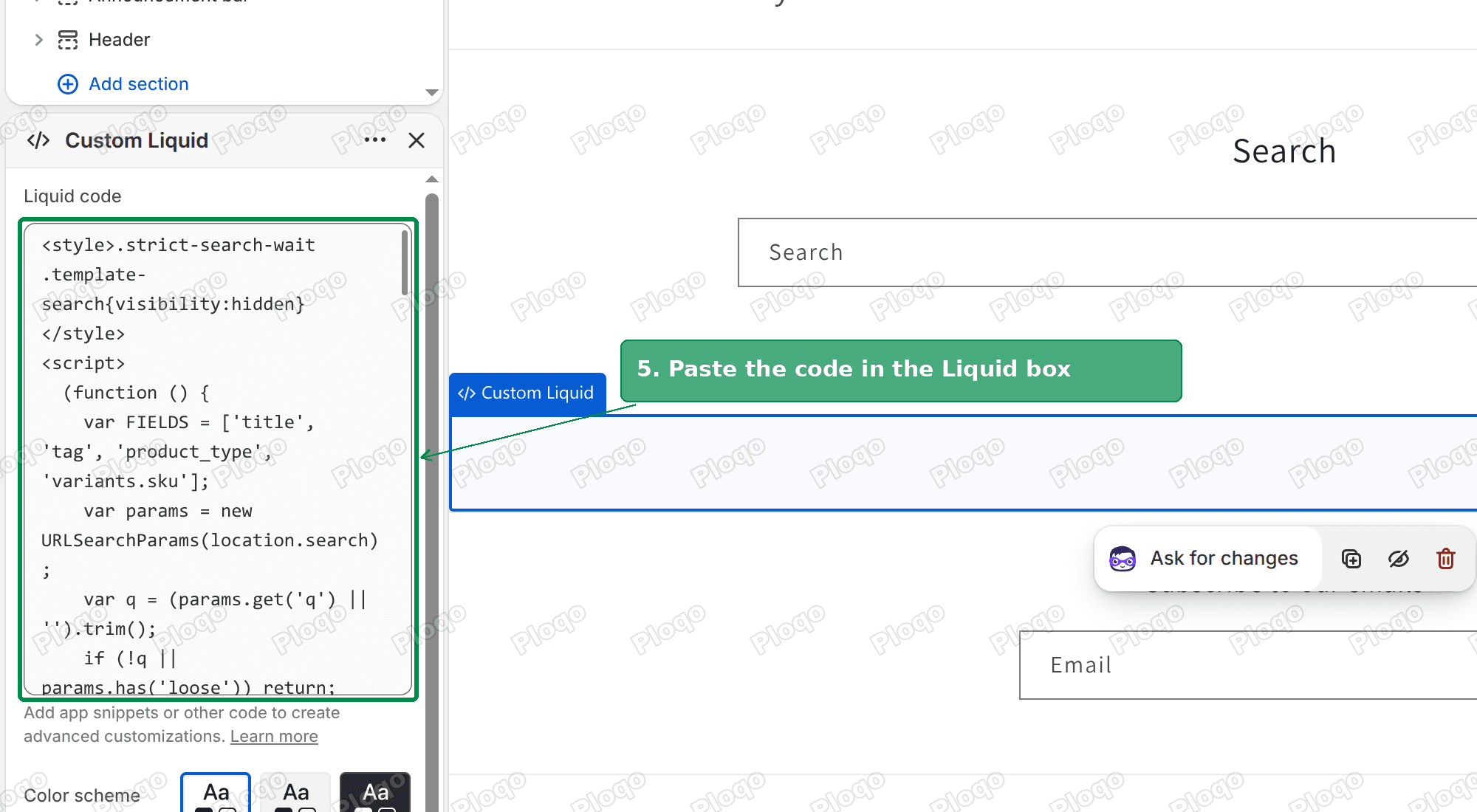 Step 5: the code pasted into the Liquid box
- Click Save.
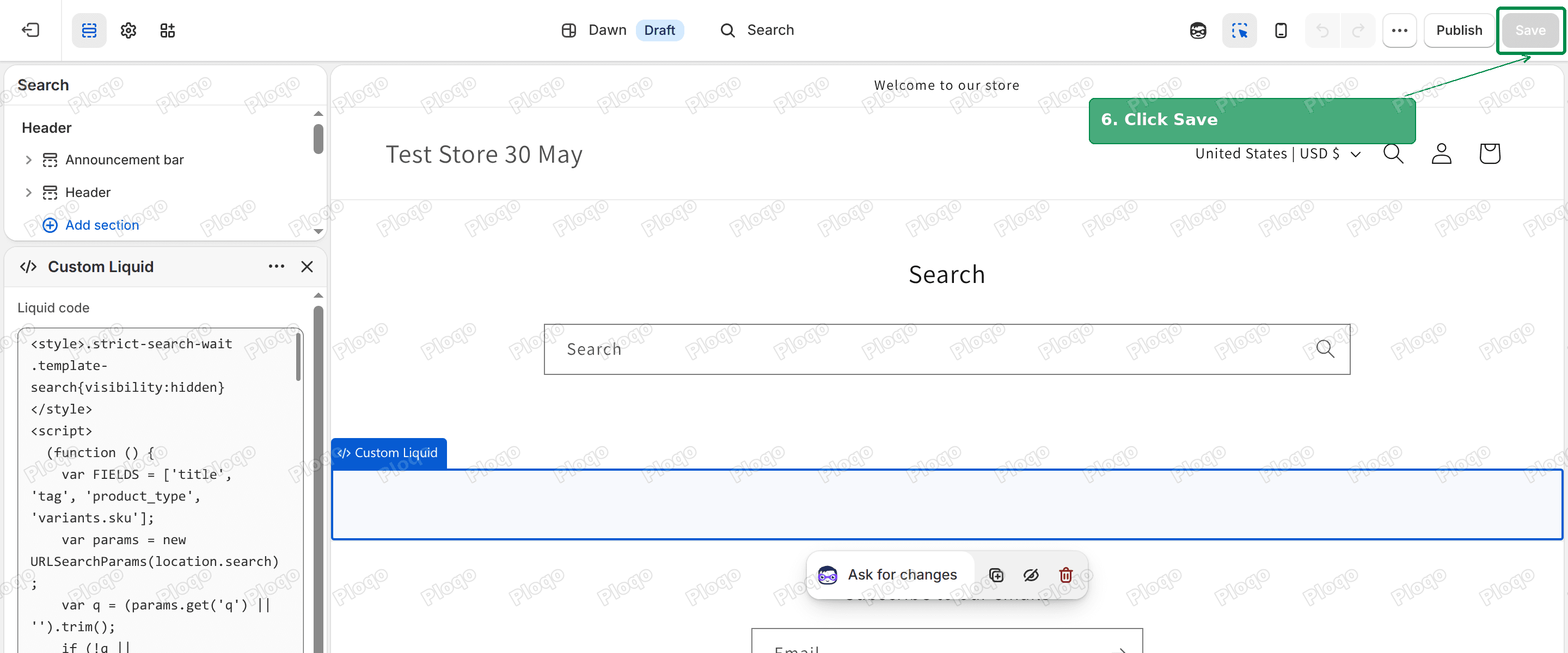 Step 6: Save in the top right
The section adds nothing visible to the page. It only changes which products the search returns.
The result
On my test store, the same search for wax went from 4 products to 1, the ski wax. The search box still reads "wax", and so does the page heading.
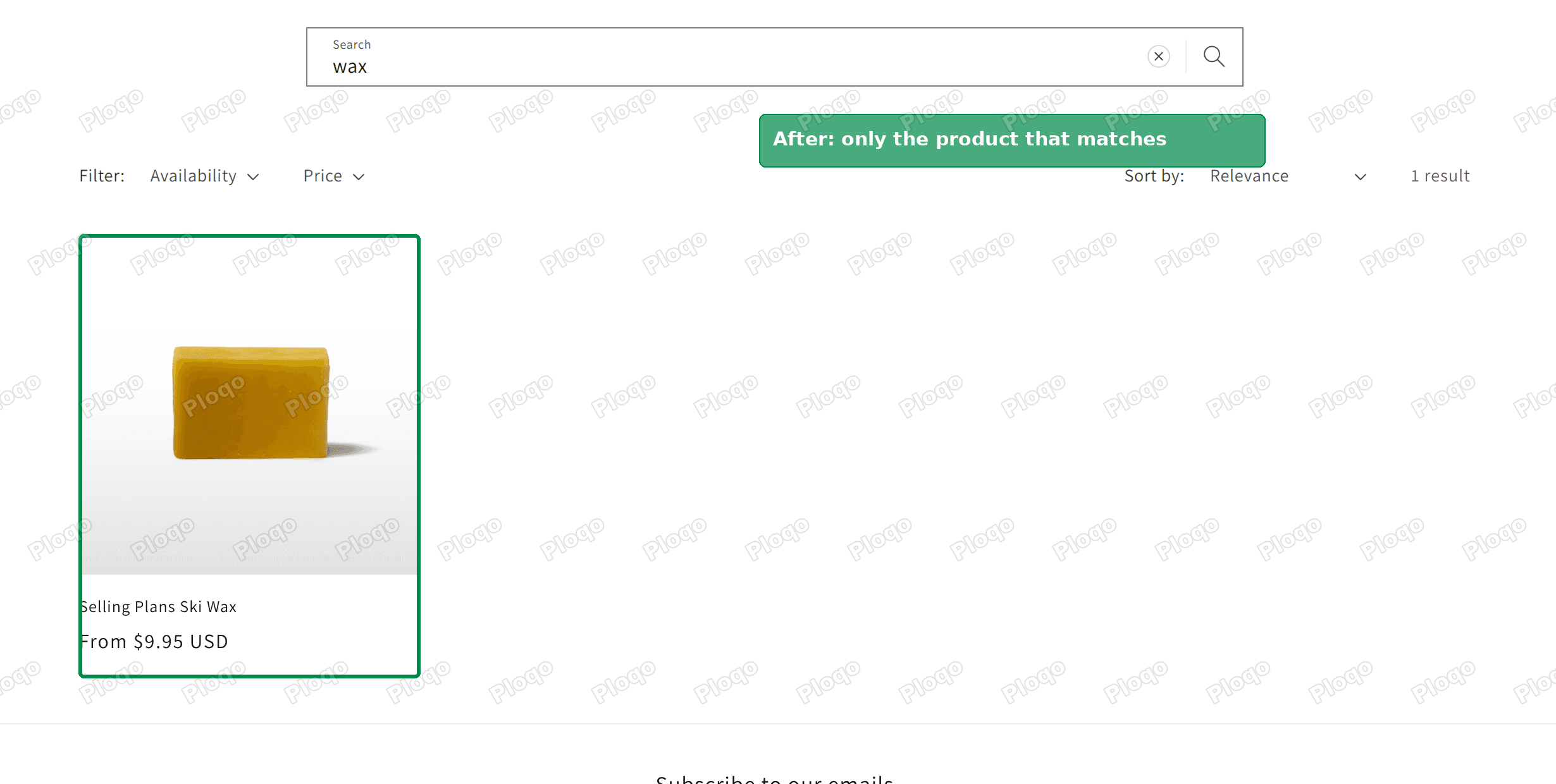 After: the search for "wax" now returns only the ski wax
The other searches changed the same way:
| Search | Before | After |
|---|---|---|
| wax | 4 products, 3 unrelated | 1 product |
| shirt | 6 products, including an art print | 2 shirts |
| collection liquid | 3 products | 1 product, the only one with both words in the title |
| zebra | 3 unrelated products | falls back to normal search (3 results) |
| snowbord (typo) | 15 products | falls back to normal search (15 results) |
Sorting and the filter bar on the results page keep working. When I changed the sort order on a strict search for "snowboard", the page still showed the same 11 snowboards.
What changes for your shoppers
Strict search behaves differently from the old search in a few ways. Knowing them helps you set up your products so it works well.
Plurals and capital letters still match. A search for "snowboards" found the same 11 products as "snowboard", and "Snowboard" with a capital S did too.
Every word has to match. A search for "collection liquid" only returns products that have both words somewhere in the title, tags, product type or SKU. This is what cuts the padding.
Part of a word does not match. A search for "snow" does not find a product called "Snowboard". On my test store "snow" returned only the 3 products tagged "snow". If your customers often type the start of a word, add that word as a tag (see the next section).
Descriptions are not searched. The code leaves out product descriptions on purpose, because long descriptions are where most loose matches come from. If a word only appears in your description, add it as a tag.
Typos fall back to the normal search. When the strict search finds nothing, the page reloads with the standard Shopify search. So a typo still gets results, just the looser kind.
Rebuild your synonyms with tags
With Synonyms retired, tags are the easiest replacement. A tag is a label you add to a product in the admin, under the Tags box on the product page. Strict search looks at tags, so any word you put in a product's tags becomes a search term for that product.
For a patch store, that could look like this:
- A patch titled "Eagle Scout Rank Patch" gets the tags
eagle,scout,rank,bsa. - A morale patch gets the tags
morale,military,velcro,hook and loop. - A disc golf patch gets
disc golf,frisbee,disc.
Your old synonym groups are a good starting list. If you had "velcro = hook and loop", add both words as tags on the products they describe.
To tag many products at once, select them in Products, click the ... menu and choose Add tags. For thousands of products, export a CSV from the Products page, fill in the Tags column in a spreadsheet and import it back.
Product type works the same way. If every patch has the product type "Patch", a search for "patch" or "patches" returns all of them and nothing else.
What is left in the Shopify Search and Discovery app
The Search and Discovery app is Shopify's free app for controlling store search, collection filters and product recommendations. With Synonyms gone, Shopify's help center lists these search tools:
- Product boosts. You can attach up to 10 search terms to a product so it ranks higher when a shopper searches for one of them. Shopify's help center notes that boosts only apply to products that are available for sale, and that they are not applied when a search uses search syntax. The strict search code above uses search syntax, so boosts will not change the order of strict results. They still apply when the code falls back to the normal search.
- Search result types. You can choose whether products, pages and blog posts show in results, and whether out-of-stock products are shown, hidden or placed last.
- Filters and recommendations. These are unaffected by the Synonyms change.
For most shops, tags plus the strict search code do more for relevance than boosts, because they control which products appear rather than only their order.
Using another theme
I tested this on Dawn. The code relies on two things: a search results page at /search, and a Custom Liquid section you can add to the Search template. Many Shopify themes include a Custom Liquid section.
If your theme has a Custom Liquid section, follow the same steps. After saving, search your store for a word that used to return unrelated products and compare. If the results do not change, check the troubleshooting list below.
If it did not work
The results did not change. Make sure you added the section to the Search template, not the Home page. The page menu at the top of the editor has to read "Search", as in the step 3 screenshot.
You cannot find Custom Liquid in the Add section list. Type "custom" into the search box at the top of the section list. If it still is not there, your theme does not include that section, and an app is the easier route.
Some searches still show loose results. That is the fallback working. It runs when no product has all the words in its title, tags, product type or SKU. Add the missing word as a tag on the products that should match.
A product you expected is missing. Check that the search word appears in its title, tags, product type or SKU. Words only in the description are left out on purpose.
You want to undo it. Go back to the Search page in the theme editor (step 3), select the Custom Liquid section (the screen in step 5), then use Remove section at the bottom of its settings and save. Search goes back to the standard behaviour straight away.
The Custom Liquid section open in the Search template, where Remove section sits at the bottom of its settings
When a search app is the better choice
The code fixes relevance, but it does not add typo correction, a synonyms list or search analytics. If you need those, a dedicated search app replaces Shopify's search entirely. The three with the most reviews on the Shopify App Store are:
- Smart Product Filter & Search, 4.9 stars from about 2,200 reviews, with a free plan.
- Boost AI Search & Filter, 4.8 stars from about 1,500 reviews, from $29 a month.
- Searchanise Search & Filter, 4.8 stars from about 1,000 reviews, with a free plan.
These apps each keep their own copy of your catalog and run their own search, so the semantic padding from Shopify's search does not apply to them. The trade-off is a monthly fee on the higher plans and one more app to maintain.
Shopify search settings, in one place
Store owners looking for "Shopify search settings" usually expect a single settings page. Shopify splits them up:
- Theme editor, Search template. How the results page looks: columns, filters, sorting, and any Custom Liquid sections such as the fix above.
- Theme editor, Theme settings > Search behavior (on Dawn). Whether the dropdown suggestions show, and whether they show vendor and price.
- Search and Discovery app. Product boosts, which result types appear, and where out-of-stock products go.
There is no switch for semantic search itself in any of these.
Frequently asked questions
Can I turn off Shopify semantic search? There is no setting for it in the admin or in the Search and Discovery app. The strict search code above is a way to stop it padding the results page on your own store.
Did Shopify remove synonyms for good? The Synonyms page in the Search and Discovery app shows the feature as retired, and merchants started reporting it around September 16, 2026. Shopify has not announced a replacement. Tags are the closest thing you control today.
Does this affect the search dropdown? No. The code only runs on the full search results page. The dropdown suggestions work as before.
Will this slow my store down? Only the search results page is affected. It loads once with the normal search and then reloads with the strict one, so a search takes one extra page load. Other pages do not change.
The original question and my reply are on the Shopify Community thread.
Spending too long on manual Shopify busywork?
PinFlow turns your Shopify catalog into Pinterest pins and posts them on a schedule, automatically. Set it up once and let it run.
Get PinFlow on the Shopify App StoreMore Shopify fixes
More community-sourced Shopify guides, tested on a live store.
Themes & Storefront
Shopify Coming Soon Page: Add a Get Early Access Button
Turn the Shopify coming soon page into an early access sign-up with a real Get early access button, then email the list your store password before launch. Tested on the Flow theme, with a no-code option.
Themes & Storefront
Remove the Variant ID From Your Shopify Product URL
Your product link keeps turning into /products/name?variant=43176780890281, before the customer has touched anything. One theme setting stops it, a second switch covers Dawn, and a short snippet cleans the links that already carry the ID.
Themes & Storefront
Make a Shopify Numbered List Start From Any Number
A Shopify numbered list always restarts at 1 because the toolbar button cannot set a starting number. The fix is one HTML edit on the page: change <ol> to <ol start="4">. Covers normal pages, theme sections via Custom Liquid, and jumping a single line with value.