
Sort Shopify Variant Options Alphabetically
Put your Shopify variant colors or sizes in A-Z order in Horizon with a small script - no re-creating variants by hand.
By AjayCodeWiz · August 7, 2026 · 12 min read
The problem
You open a product page. The color buttons are in a messy order.
Blue sits next to Green, then Black shows up at the end. There is no pattern. It looks random to the shopper.
A merchant asked about this on the Shopify Community. He runs the Horizon theme. His color option is named "Couleur dominante" (French for "dominant color"). His products came in from eBay through the Reputon import app.
The variants landed in whatever order the import fed them. Not A to Z. He wanted them sorted alphabetically on the storefront.
He also said the obvious fix did not work for him. In Shopify admin you can drag variants into a new order. But with a long color list, dragging is slow and painful. On Horizon it is even harder. He managed it for sizes, but not for the big color list.
I reproduced this on a test store on the Horizon theme. Same thing. The color buttons rendered in import order, not alphabetical order.
Here is what that looks like before any fix. The "Couleur dominante" buttons are scattered, not sorted.
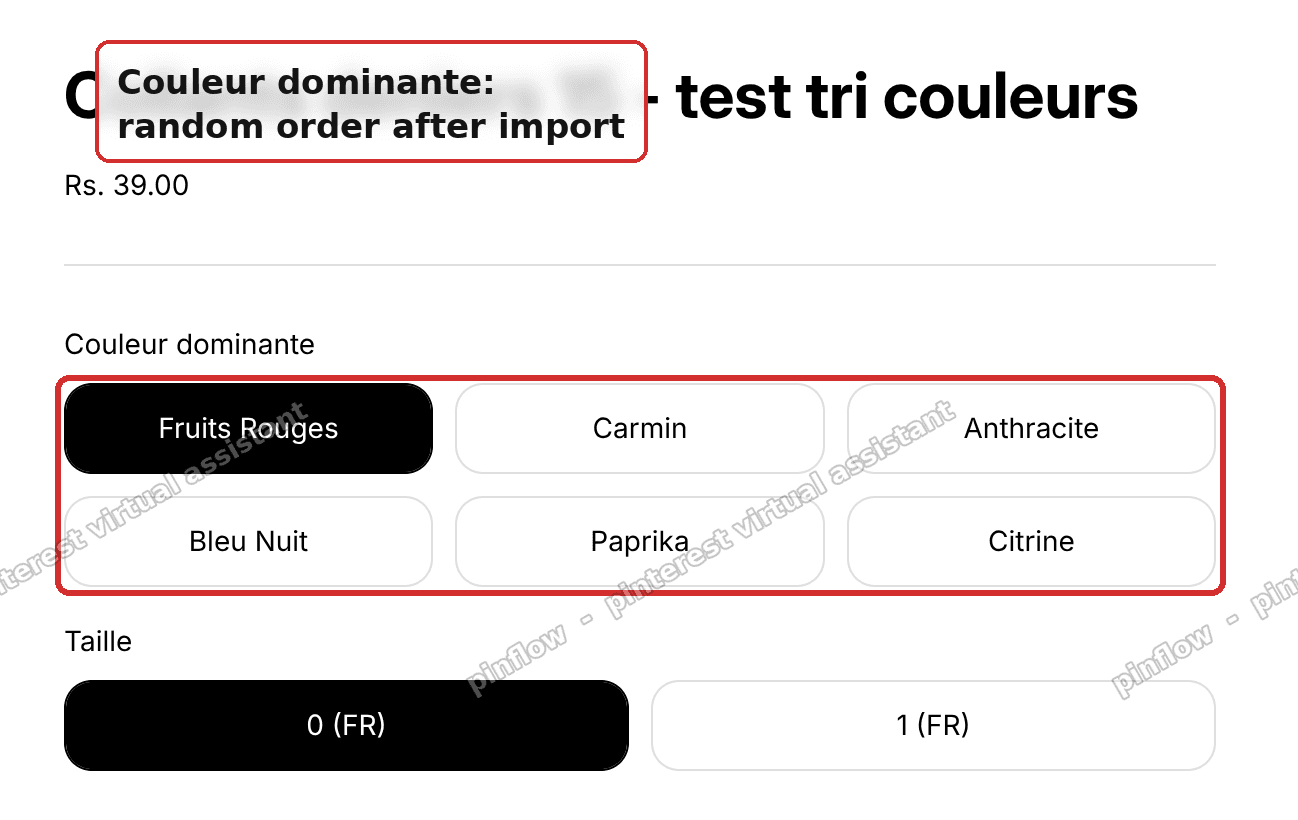 Couleur dominante color buttons in random import order on a Horizon product page
This guide shows the small script that fixes it. It sorts the color buttons A to Z on the storefront. It leaves your sizes and everything else alone.
Why it happens
Shopify stores your variants in a fixed order. That order is set when the variants are created.
If you type them in by hand, they keep the order you typed. If an app imports them, they keep the order the app sent. Reputon, DSers, Matrixify, and most feed apps do not sort colors for you. They just push the rows in.
The theme then renders the option buttons in that exact stored order. Horizon does not re-sort them. Dawn does not either. No free Shopify theme does.
So the "random" look is not a bug. It is the theme faithfully showing the order in your data.
There is no built-in toggle for this. Shopify has no setting that says "show variant options in A-Z order." You cannot turn it on in the theme editor. This is the part most forum answers skip.
That leaves you three real choices:
- Reorder the variants by hand in admin (drag them). Slow, and Horizon makes it awkward with many values.
- Re-import a pre-sorted CSV file. Heavy, and it risks breaking your variant images.
- Sort them for display with a small script. Fast, safe, and reversible.
This guide takes the third path. The script never touches your data. It only reorders the buttons in the shopper's browser.
Before you start: check your option name
The script matches your color option by its name. Out of the box it looks for these words: color, colour, and couleur.
So it already covers English "Color", British "Colour", and French "Couleur dominante". The match is loose. It only needs the word to appear inside the name.
Go to your product in Shopify admin. Look at the option label above your color swatches or buttons. Note the exact wording.
If your option is named something else, like "Farbe" (German) or "Shade" or "Finish", you will add that word to the script. I show exactly where below. Sizes and other options are never touched, so you do not need to change anything for them.
The fix
This uses a Custom Liquid block. That is a small box in the theme editor where you can paste your own HTML, Liquid, or JavaScript. It runs only on the page you add it to.
Step 1. Open the theme editor.
Go to Online Store > Themes. On your Horizon theme, click Customize. Then open any product page in the editor.
Step 2. Add a Custom Liquid block under Product information.
In the left panel, find the Product information section. Click Add block. Choose Custom Liquid.
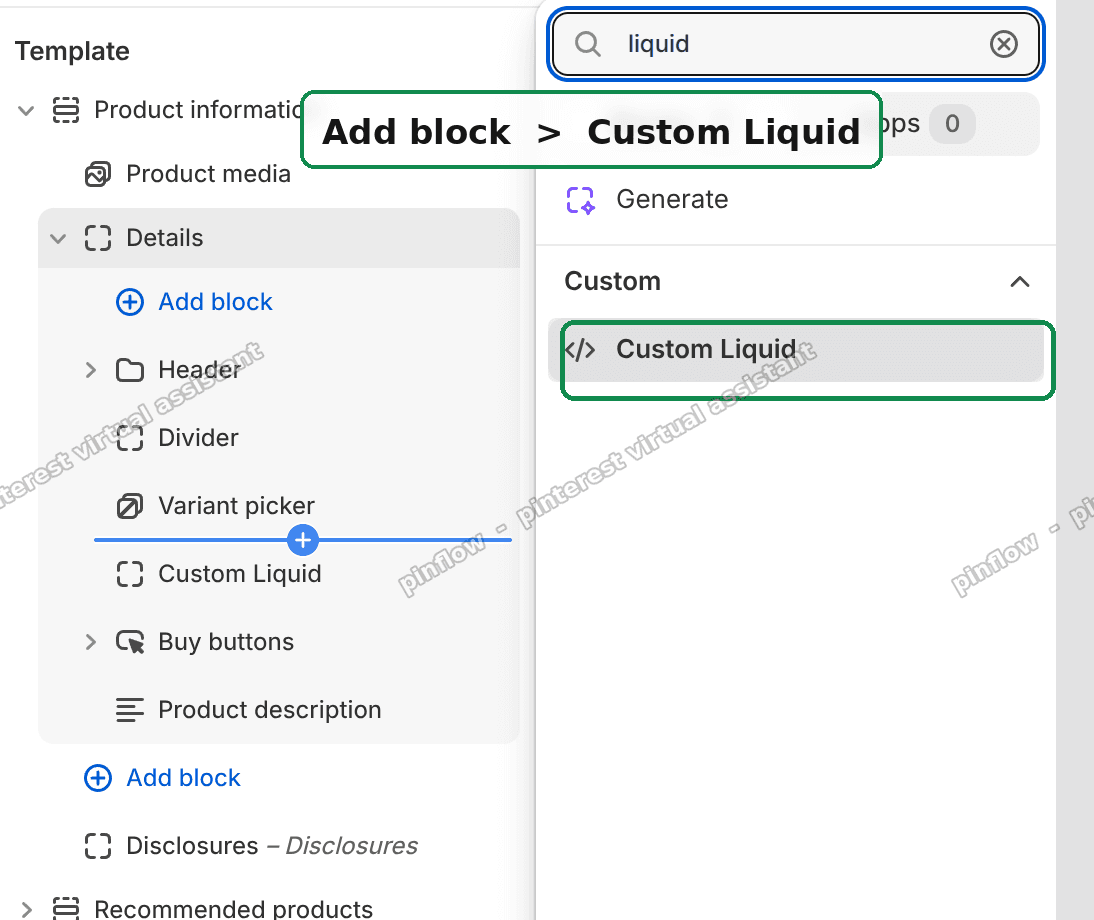 Add block then Custom Liquid under Product information in the Horizon theme editor
Step 3. Paste the script and save.
Paste this code into the Custom Liquid box. Then click Save.
<script>
document.addEventListener('DOMContentLoaded', function () {
  // Option names to sort A->Z. Add your exact option name / language here.
  var SORT_OPTIONS = ['color', 'colour', 'couleur'];

  function valueText(label) {
    var t = label.querySelector('.variant-option__button-label__text') || label;
    return (t.textContent || '').trim();
  }

  function sortOptions() {
    document.querySelectorAll('variant-picker fieldset.variant-option--buttons').forEach(function (fs) {
      var legend = fs.querySelector('legend');
      if (!legend) return;
      var name = legend.textContent.trim().toLowerCase();
      if (!SORT_OPTIONS.some(function (k) { return name.indexOf(k) !== -1; })) return;

      var items = Array.prototype.slice.call(fs.querySelectorAll('.variant-option__button-label'));
      if (items.length < 2) return;

      var sorted = items.slice().sort(function (a, b) {
        return valueText(a).localeCompare(valueText(b), undefined, { numeric: true, sensitivity: 'base' });
      });
      if (sorted.some(function (el, i) { return el !== items[i]; })) {
        sorted.forEach(function (el) { fs.appendChild(el); });
      }
    });
  }

  sortOptions();

  // Horizon re-renders the picker when a shopper switches an option, so re-apply.
  document.querySelectorAll('variant-picker').forEach(function (picker) {
    new MutationObserver(sortOptions).observe(picker, { childList: true, subtree: true });
  });
});
</script>
That is the whole fix. Save, then view the product on your live storefront.
Here is the same product after the script. The colors are now A to Z. The sizes stayed exactly as they were.
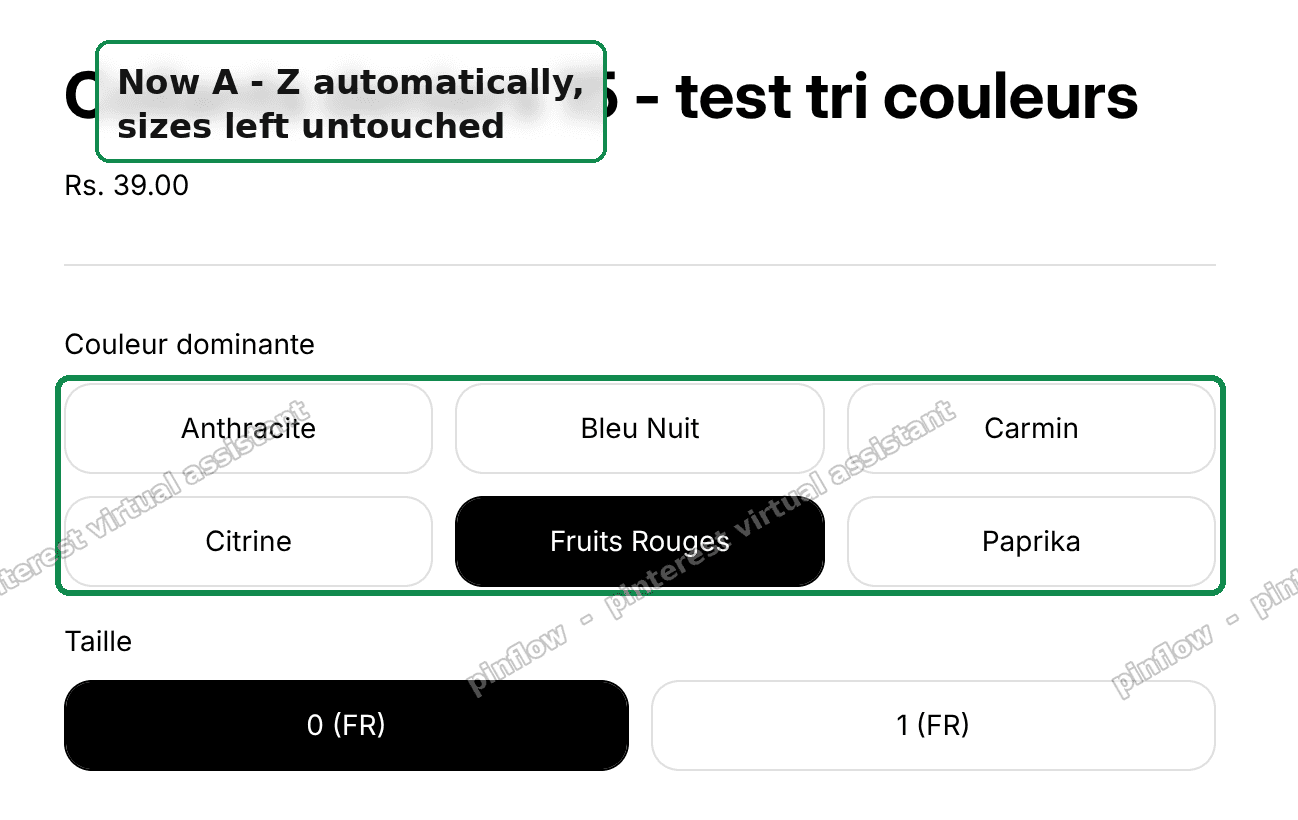 Color buttons now sorted A to Z with sizes untouched on the Horizon product page
I tested this on a Horizon store. The color buttons went from import order to clean A-Z order. The size option kept the order I set. Switching a size did not scramble the colors back.
How the script works, in plain words
You do not need to read code to use it. But here is what each part does.
- It finds the color option group on the page. It matches the option name against your word list.
- It grabs each color button and reads its text.
- It sorts those buttons by name, A to Z. Numbers inside names sort naturally too, so "10" comes after "2", not before.
- It moves the whole button, not just the label. That keeps every button linked to the right variant. So the shopper still buys the color they clicked.
- Horizon rebuilds the button list each time a shopper changes an option. So the script watches for that and re-sorts. This is the "MutationObserver" line. It means the order never jumps back to random.
Nothing in your admin changes. Nothing in your variant data changes. This is display only. Turn it off by deleting the block, and you are back to where you started.
To cover a different option name
Say your color option is named "Shade". Find this line in the script:
var SORT_OPTIONS = ['color', 'colour', 'couleur'];Add your word in lowercase:
var SORT_OPTIONS = ['color', 'colour', 'couleur', 'shade'];Save. That is all. You can add as many words as you need.
An alternative: reorder in admin (no code)
If you only have a few colors, skip the script. Just drag them.
Go to your product in Shopify admin. Open the variants area. Drag each color value into A-Z order. Save.
This changes the real stored order. So it shows everywhere: the product page, quick add, and any app that reads variants.
The catch is scale. With 5 or 8 colors this is fine. With 30 colors it is slow and error prone. On Horizon the drag handles can be fiddly with a long list. That is exactly why the merchant in this thread asked for a script instead.
There is also the CSV route. You can export your products, sort the color rows alphabetically in a spreadsheet, and re-import. It works, but it is heavy. Re-sorting rows can break the link between a color and its variant image if you are not careful. For a display change, the script is far lighter.
My rule of thumb:
- A handful of colors, and you want it saved in the data: drag in admin.
- Many colors, or many products: use the script.
Does Shopify have a setting to sort variant options?
No. There is no native toggle to sort variant options alphabetically.
Shopify renders variant options in their stored order. The theme editor has no A-Z switch for the variant picker. This is true on Horizon, Dawn, and the other free themes.
So to control display order you either reorder the data by hand or sort it with a small script. The script in this guide is the fastest way to get a clean A-Z picker without editing every product.
How do I sort Shopify colors alphabetically without an app?
Use the Custom Liquid block above. No app needed.
The block holds a short script. It sorts the color buttons on the storefront. It leaves your data alone. It costs nothing and adds no third-party code to your store.
If you prefer no code at all, drag the color values into order in admin. That also needs no app. The trade-off is time when the list is long.
Both paths keep you off the app store. The script scales better. The drag method saves the order in your data.
Will sorting variants alphabetically change my variant images or inventory?
No. The script only moves the buttons on screen.
Each button stays tied to its own variant. So the price, the image, and the stock for each color stay correct. When a shopper clicks "Blue", they still get the Blue variant, its Blue photo, and its Blue stock.
Your admin stays untouched. Your inventory counts stay untouched. Reports and orders are not affected. This is a pure display change in the browser.
If you use the drag method in admin instead, that does change the stored order. But it still does not change images or stock. It just re-sequences the variants.
Why are my imported variants in random order?
Because the import kept the order of the source feed.
Apps like Reputon, DSers, and Matrixify push variant rows in the order they receive them. eBay, AliExpress, and supplier feeds are rarely sorted by color. So your colors land in that raw order.
The theme then shows that order as is. It looks random because the source was never sorted. Nothing is broken. The order is just inherited from the feed.
Sorting it after import is exactly what the script does, without a re-import.
Does this work on the Shopify variant picker in Horizon?
Yes. The script targets Horizon's variant picker directly.
Horizon builds its option buttons inside a variant-picker element, with each option group in a fieldset. The script reads those, sorts the color group, and re-applies after Horizon re-renders. That re-render step is why a generic snippet from another theme often does nothing here.
A snippet written for Dawn or an older theme uses different class names. It will not find Horizon's buttons. This one is built for Horizon's structure, so it works where the copy-paste answers fail.
If it did not work
A few things to check.
- Nothing changed after saving. Make sure your color option name contains one of the words in the list. Open the script and confirm your word is there, in lowercase. "Couleur dominante" works because "couleur" is in the list.
- Only the color option should sort. If your sizes also reordered, your size option name probably contains a listed word by accident. Rename the option, or remove the stray word from the list.
- It works, then scrambles when I click a size. This means the re-apply part was removed. Keep the whole script, including the
MutationObserverblock at the bottom. That is what re-sorts after Horizon rebuilds the buttons. - The block is on the wrong section. The Custom Liquid block must sit on the product template so it loads on product pages. Add it under Product information, not in the footer.
- Swatch style vs button style. The script targets button-style options. If your theme setting shows colors as dropdowns instead of buttons, the picker structure differs. Switch the color option to buttons or swatches in the theme settings, then re-check.
Definitions and distinctions people confuse
Variant vs option. An option is the label, like "Color" or "Size". A variant is one full combination, like "Blue / Large". Sorting an option reorders its values. It does not create or delete variants.
Display order vs stored order. Display order is what the shopper sees on the page. Stored order is what lives in your admin data. The script changes display order only. Dragging in admin changes stored order.
Sorting variants vs sorting products. This guide sorts the option values inside one product. It does not sort products inside a collection. Collection sorting is a separate setting in admin.
Custom Liquid block vs theme code editing. A Custom Liquid block is a safe box in the theme editor. You can add or remove it with no risk to core theme files. Editing theme code directly is more powerful but easier to break. For this fix, the block is enough.
Alphabetical vs custom order. The script sorts A to Z. If you want a custom order, like putting your best-selling color first, alphabetical sorting is the wrong tool. For that, drag the variants into your chosen order in admin instead.
To recap the whole thing: Shopify has no native switch to sort variant options alphabetically. Horizon shows colors in import order. A small Custom Liquid script sorts the color buttons A to Z on the storefront, keeps every button tied to the right variant, leaves your sizes and data untouched, and re-applies each time the picker re-renders. For a short list, dragging in admin is the no-code path. For a long list, the script wins.
Spending too long on manual Shopify busywork?
PinFlow turns your Shopify catalog into Pinterest pins and posts them on a schedule, automatically. Same idea as the rule above, let the system handle the repetitive part.
Get PinFlow on the Shopify App StorePart of a complete guide
Shopify Variants: The Complete Guide
Variants are one product sold in several forms. How they work, the 2,048 and 3-option limits, and where each variant fix lives - images, swatches, sorting, hiding and the theme-specific bugs.
More Shopify fixes
More community-sourced Shopify guides, tested on a live store.
Themes & Storefront
Remove the Variant ID From Your Shopify Product URL
Your product link keeps turning into /products/name?variant=43176780890281, before the customer has touched anything. One theme setting stops it, a second switch covers Dawn, and a short snippet cleans the links that already carry the ID.
Themes & Storefront
Hide Unavailable Variants in a Shopify Dropdown
Green has no 3XL, so Shopify prints "3XL - Unavailable" in the size dropdown anyway. How to remove combinations that do not exist, without the bug that kills the variant picker. Tested on Studio.
Shopify Admin
How to Hide a Variant in Shopify Without Deleting It
A colour is temporarily unavailable and you want it off every product page without deleting it and rebuilding it later. Shopify can now unpublish a single variant. The fast way to do it, tested on a live store.