
Shopify Structured Data: Schema That Survives Saving
The rich text editor strips script tags, so JSON-LD pasted into a description vanishes on save. Here is the Custom Liquid route that works, plus a metafield pattern for per-collection schema.
By AjayCodeWiz · July 16, 2026 · 10 min read
The problem
A merchant on the Shopify Community was adding structured data to an industrial products catalog. Each product category needed its own JSON-LD: CollectionPage on some, FAQ on others, BreadcrumbList throughout. Because every category was different, a single block of schema in the theme's <head> would not do.
So they pasted the JSON-LD into the collection description, using Shopify's rich text editor:
<script type="application/ld+json">
{
  "@context": "https://schema.org",
  "@type": "CollectionPage"
}
</script>
The editor accepted it. They clicked Save. The entire <script> block vanished.
They tried it on several pages. Same result every time.
Why the editor strips it, and why that is correct
This is expected behaviour, not a bug, and it is worth understanding before you go looking for a way around it.
Shopify sanitises HTML that comes out of the rich text editor. Any <script> tag is removed, along with inline event handlers like onclick and a handful of other vectors.
The reason is that the rich text editor is a field that staff, apps, and imported CSV files all write into. If script tags survived, an imported product description would be able to run JavaScript on your storefront. That is a stored cross-site scripting hole, and it would be a serious one on a platform hosting millions of stores.
So the sanitiser is doing its job. What you need is a field that is not the rich text editor.
Shopify gives you one, for free, in the theme editor.
The fix: a Custom Liquid section
Custom Liquid is a built-in section available in every Online Store 2.0 theme. It renders whatever you put in it, essentially unfiltered, and it is edited through the theme editor rather than through a content field. Script tags survive.
Better still, it lets you generate the schema from real store data rather than typing it out, which means it stays correct as the catalog changes.
Step 1: open the collection template
Go to Online Store, then Themes, then Customize.
In the top-left page selector, choose Collections, then Default collection.
Step 2: add the Custom Liquid section
Under Template in the left sidebar, click Add section and choose Custom Liquid.
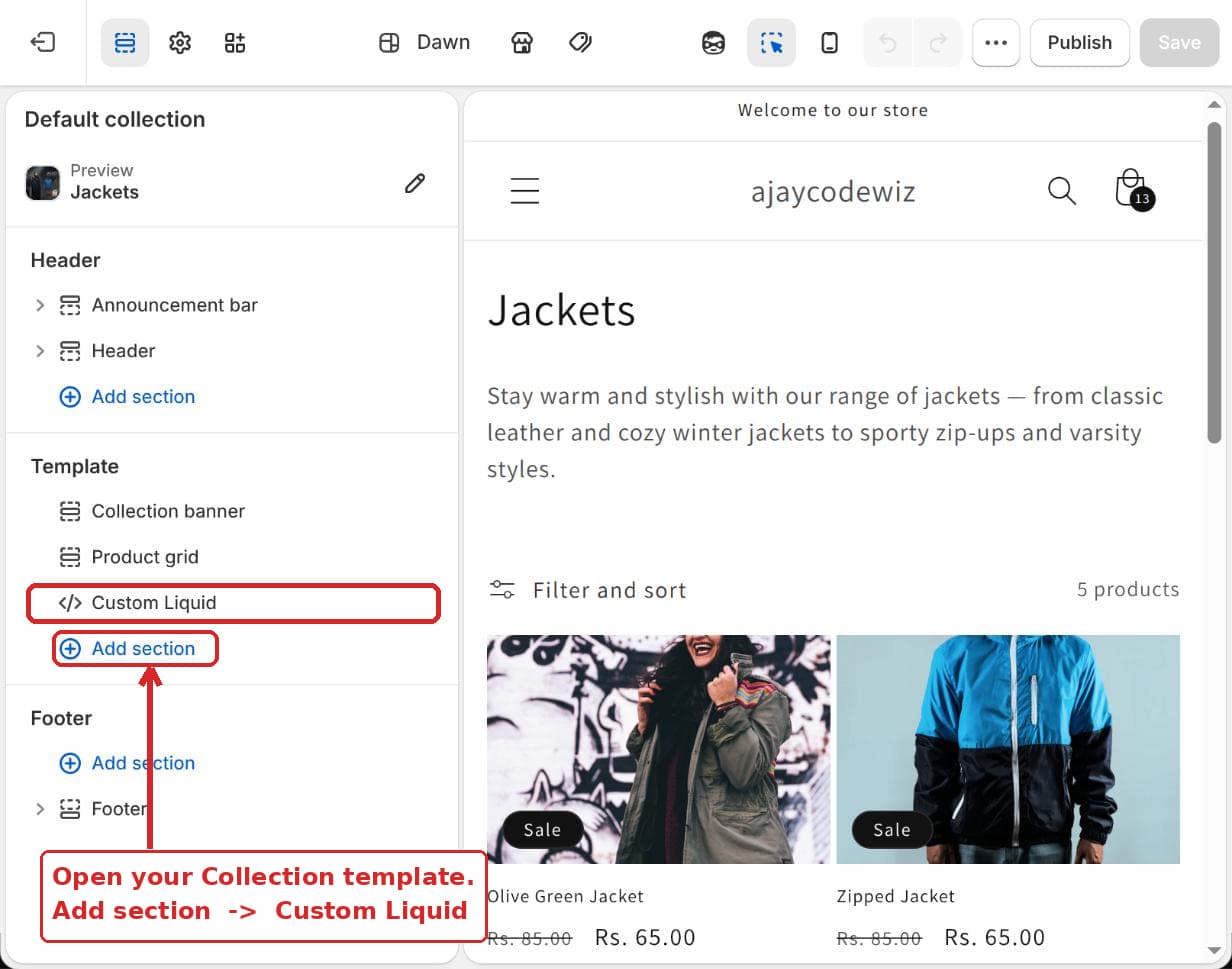 Add section, then Custom Liquid, on the default collection template
Step 3: paste the schema
Paste this into the Liquid code box and click Save.
{%- if collection -%}
<script type="application/ld+json">
{
"@context": "https://schema.org",
"@type": "CollectionPage",
"name": {{ collection.title | json }},
"description": {{ collection.description | strip_html | truncate: 300 | json }},
"url": {{ request.origin | append: collection.url | json }},
"hasPart": {
"@type": "ItemList",
"numberOfItems": {{ collection.products_count }},
"itemListElement": [
{%- for product in collection.products limit: 25 -%}
{
"@type": "ListItem",
"position": {{ forloop.index }},
"name": {{ product.title | json }},
"url": {{ request.origin | append: product.url | json }}
}{%- unless forloop.last -%},{%- endunless -%}
{%- endfor -%}
]
}
}
</script>
{%- endif -%}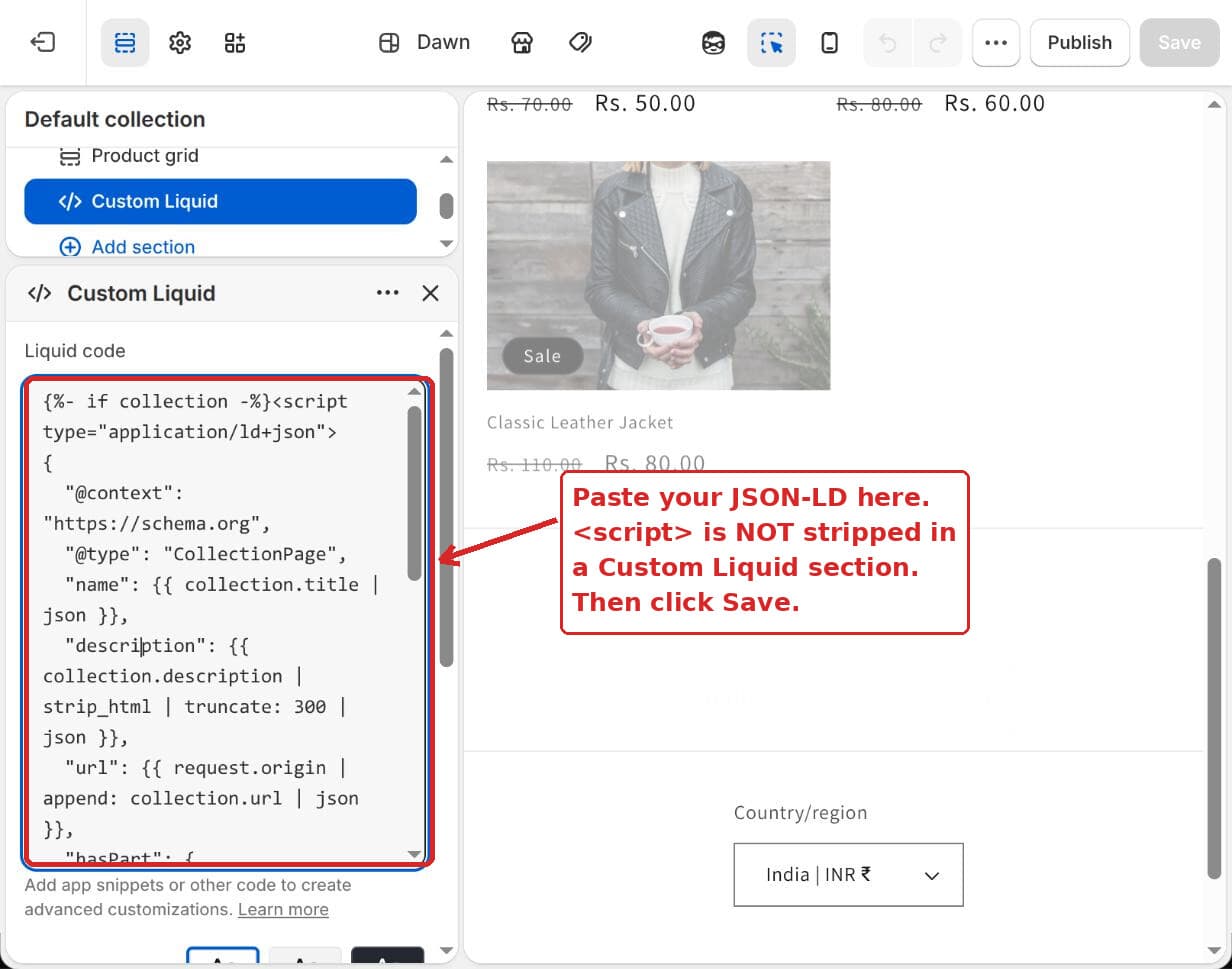 The JSON-LD rendering from a Custom Liquid section
Because this sits on the default collection template, it applies to every collection at once. Each one renders its own title, description, URL and product list. Add a collection next year and it gets valid schema with no further work.
The | json filter is the important part
Notice that every value goes through | json rather than being wrapped in quotes by hand.
That filter does two jobs. It adds the surrounding quotes, and it escapes anything inside the string that would break the JSON: double quotes, backslashes, newlines, and unicode.
Skip it and a single product called 12" Steel Pipe produces invalid JSON, which Google discards. You get no error and no rich result, just nothing. This is the single most common reason hand-written Shopify schema does not work.
The same applies to strip_html. Collection descriptions contain markup, and raw markup inside a JSON string value is invalid.
Per-collection schema, without editing the theme again
The default template gets you one schema shape across every collection. The merchant in that thread needed different shapes for different categories.
Rather than building a Custom Liquid section per collection, store the schema as data and render it once.
Step 1: define the metafield
Go to Settings, Custom data, Collections, then Add definition.
Name it JSON-LD. Set the type to Multi-line text. Save.
That gives you collection.metafields.custom.json_ld.
Step 2: fill it in per collection
On each collection page, scroll to the metafields section and paste that category's raw JSON-LD. Just the { ... } object, with no <script> wrapper.
The metafield field is not the rich text editor, so nothing is stripped.
Step 3: render it
Add this to the same Custom Liquid section:
{%- assign ld = collection.metafields.custom.json_ld -%}
{%- if ld != blank -%}
<script type="application/ld+json">
{{ ld }}
</script>
{%- endif -%}
Now adding a new category with its own schema is a copy and paste into a metafield. The theme is never touched again.
The version that does both
In practice you want the generated CollectionPage everywhere plus an optional override. Combine them:
{%- assign ld = collection.metafields.custom.json_ld -%}
{%- if ld != blank -%}
  <script type="application/ld+json">{{ ld }}</script>
{%- elsif collection -%}
  <script type="application/ld+json">
  {
    "@context": "https://schema.org",
    "@type": "CollectionPage",
    "name": {{ collection.title | json }},
    "url": {{ request.origin | append: collection.url | json }}
  }
  </script>
{%- endif -%}
Every collection gets baseline schema. Collections that need something specific get it from the metafield, and the fallback steps aside.
Check what your theme already outputs first
This is the step that gets skipped, and skipping it causes the most common structured data problem on Shopify: duplicate schema.
Most modern themes, including Dawn, already emit Product and BreadcrumbList JSON-LD. If you add your own without checking, you end up with two Product blocks describing the same product with slightly different data. Google has to pick one, and which one it picks is not up to you.
Check before you add anything:
curl -sL -A "Mozilla/5.0" https://yourstore.com/collections/your-collection \
  | grep -o 'application/ld+json' | wc -l
Then read what is in them:
curl -sL -A "Mozilla/5.0" https://yourstore.com/products/some-product \
  | grep -A 30 'application/ld+json'
If your theme already outputs Product schema, do not add another one. Extend instead: add the types your theme does not cover, which on most themes means Organization, WebSite with SearchAction, and CollectionPage.
Then validate the result in Google's Rich Results Test and the Schema.org validator. Both accept a pasted URL.
What structured data actually gets you in 2026
Worth being honest about, because expectations here are often out of date.
Product schema still drives price, availability and review stars in search results, and it feeds Google Merchant Center. This is the one with real, measurable value for a store.
BreadcrumbList changes the URL line in a result into a readable path. Small, cheap, reliable.
Organization and WebSite feed the knowledge panel and sitelinks search box. Site-wide, set once.
CollectionPage and ItemList do not produce a rich result of their own. Their value is comprehension: they tell a crawler what the page is and what is on it. That matters more now that AI search surfaces are reading structured data to summarise pages.
FAQPage no longer produces rich results for commercial sites. Google restricted FAQ rich results to government and health sites in August 2023. You can still emit it for comprehension, but do not expect the accordion in search results.
HowTo was removed entirely in September 2023. Do not build it.
That last pair matters here, because the merchant's original plan mentioned FAQ schema per category. Worth knowing the return on that is now comprehension only.
Common questions
Can I put JSON-LD in a page's rich text editor at all?
No. Any route through the rich text editor is sanitised. That includes page content, product descriptions, collection descriptions, and blog post bodies.
What about the theme's <head>, in theme.liquid?
That works and it is the right place for site-wide schema like Organization and WebSite. It is the wrong place for per-collection schema, because you end up with a growing if block keyed on collection handles, which is exactly the maintenance problem the metafield approach avoids.
Do I need an app for this?
No. Apps that inject JSON-LD exist and some are good, particularly if you want a UI for non-technical staff. But they add a monthly cost and another script on your storefront to do something Custom Liquid does for free.
Will this survive a theme update?
Custom Liquid sections are stored in the template's JSON, not in a theme file, so they persist through theme updates within the same theme. They do not carry across if you switch to a different theme, so keep a copy of the code.
Does Shopify sanitise metafields?
Multi-line text metafields store what you put in them. What matters is that you render it yourself in Liquid, which you control. This is also why you should only put schema you wrote into that field, not content pasted from elsewhere.
Can I use this on products and pages too?
Yes, same approach. Add a Custom Liquid section to the product template or a specific page template. For products, check what your theme already outputs first, because Product schema is the one themes most often include.
If it did not work
Nothing renders on the storefront. Check the section is on the template you are actually viewing. The default collection template does not apply to collections that have been assigned an alternate template.
The Rich Results Test reports a parsing error. Almost always a missing | json filter, or an unescaped quote in a product title. View source, copy the rendered JSON, and paste it into a JSON validator to find the exact character.
Google shows no rich result even though the schema validates. Structured data makes a page eligible for a rich result, it does not guarantee one. And for CollectionPage there is no rich result to get. Check Search Console's Enhancements reports for what Google actually recognised.
You now have two Product blocks. Your theme was already emitting one. Remove yours, or narrow it to types the theme does not cover.
Tested on
Built and verified on a Shopify dev store: added a Custom Liquid section to the default collection template, confirmed the <script type="application/ld+json"> block renders in the page source and survives saving, then confirmed the same content pasted into the collection description through the rich text editor is stripped on save. The generated JSON was checked through a JSON validator with a deliberately quote-containing product title to confirm the | json filter handles it.
Want your products found outside Google too?
Pinterest is a search engine, and it sends buying traffic. PinFlow turns your Shopify catalog into pins and posts them on a schedule, automatically.
Get PinFlow on the Shopify App StoreMore Shopify fixes
More community-sourced Shopify guides, tested on a live store.
SEO & Marketing
Shopify Bulk Redirects: Import Them From a CSV File
Add hundreds of Shopify URL redirects in one CSV upload, plus short /go/ links to outside sites without the leave-store message. Tested on a dev store.
SEO & Marketing
Shopify URL Structure: Why /pages/ and /collections/ Appear
Shopify puts /pages/, /collections/ and /products/ in every link, and you cannot turn that off. Here is what you can change - a short /support link, a tidy /collections page and shorter handles - tested on a Dawn store.
SEO & Marketing
Shopify Link in Bio: Show Your Domain, Land People on Products
You want your Instagram bio to read abc.com but send people straight to your products. A redirect will not do it, and /shop is a reserved path on Shopify. Here is the approach that works, and why the usual advice fails.