
Add Subscribe & Save to Shopify (Horizon)
Add a subscribe-and-save vs one-time toggle on Shopify Horizon with a subscription app and one Custom Liquid block. Tested, with the code.
By AjayCodeWiz · August 10, 2026 · 11 min read
The problem
A merchant asked about this on the Shopify Community. They run the Horizon theme. They wanted a clean toggle on the product page.
Click Subscribe and Save, and the page shows the subscription price and a delivery frequency picker. Click One-time purchase, and it shows the normal Shopify price. Same button, two states.
They had already looked at several subscription apps. Their words: most of them did not offer the exact design in their screenshot. Some apps force their own look. Some hide the one-time option. The merchant wanted the layout they had drawn, not a widget dropped in by an app.
They also hit a wall after adding a Custom Liquid block to the page. They did not know what to put inside it. Later they got "the code has errors" when trying a snippet. So the real question was two-part: is this layout even possible on Horizon, and what goes in the block.
Short answer: yes, it is possible. You do not need Shopify Plus. You keep your own design. I reproduced it on a test store on the Horizon theme, and I will show the exact code and the two follow-up tweaks the merchant asked for.
Why it happens
Most people think "one-time" and "subscribe" are two separate products, or two separate buttons that add different things to the cart. That mental model is what makes this feel hard.
Here is the real mechanism, which most forum answers skip.
A subscription in Shopify is not a different product. It is the same product with one extra field attached to the cart line. That field is called a selling plan. A selling plan is the rule that says "charge this price, deliver every 4 weeks, repeat." Your subscription app creates these plans and attaches them to the product.
So a one-time purchase is just the product with no selling plan. A subscription is the product with a selling plan. Nothing else changes.
That is the whole trick. Your toggle does not need to build two carts. It only needs to add one hidden field when Subscribe is picked, and remove it when One-time is picked. Horizon's own Add to cart form carries that field to the cart for you.
In plain terms:
- Subscribe selected: add a hidden input named
selling_planwith the chosen plan. - One-time selected: remove that hidden input.
The theme does the rest. This is why the fix is small. You are not fighting Horizon. You are feeding it one field it already understands.
Before you start: the prerequisite
This tweak displays and switches plans. It does not create them. You still need a subscription app to make the recurring billing work.
The merchant used a subscription app (Supr Bundle & Subscription). Any real subscription app works the same way, because they all create selling plans through Shopify. Popular ones include Shopify's own Subscriptions app, Seal Subscriptions, Appstle, and Recharge.
Do this first, in order:
- Install a Shopify subscription app from the App Store.
- Create a subscription plan (for example, "Subscribe & Save", deliver every 4 weeks, 10 percent off).
- Attach that plan to the product you are testing.
Only then does the product have a selling plan for the code to read. If you skip this, the block has nothing to show. That is exactly why the merchant saw errors at first. The plans were not there yet.
You can check quickly. Open the product page on your storefront. If your subscription app already shows any subscribe option at all, the plan exists and you are ready.
The fix
Everything lives in one Custom Liquid block. A Custom Liquid block is a spot in the Horizon theme editor where you can paste your own HTML, CSS, and Liquid. Liquid is Shopify's templating language that reads store data like price and plans.
Where the block goes
- Go to Online Store > Themes > Customize, and open a product page.
- Add a Custom Liquid block in the product area, above the Add to cart button.
- Paste the code below into that block, then Save.
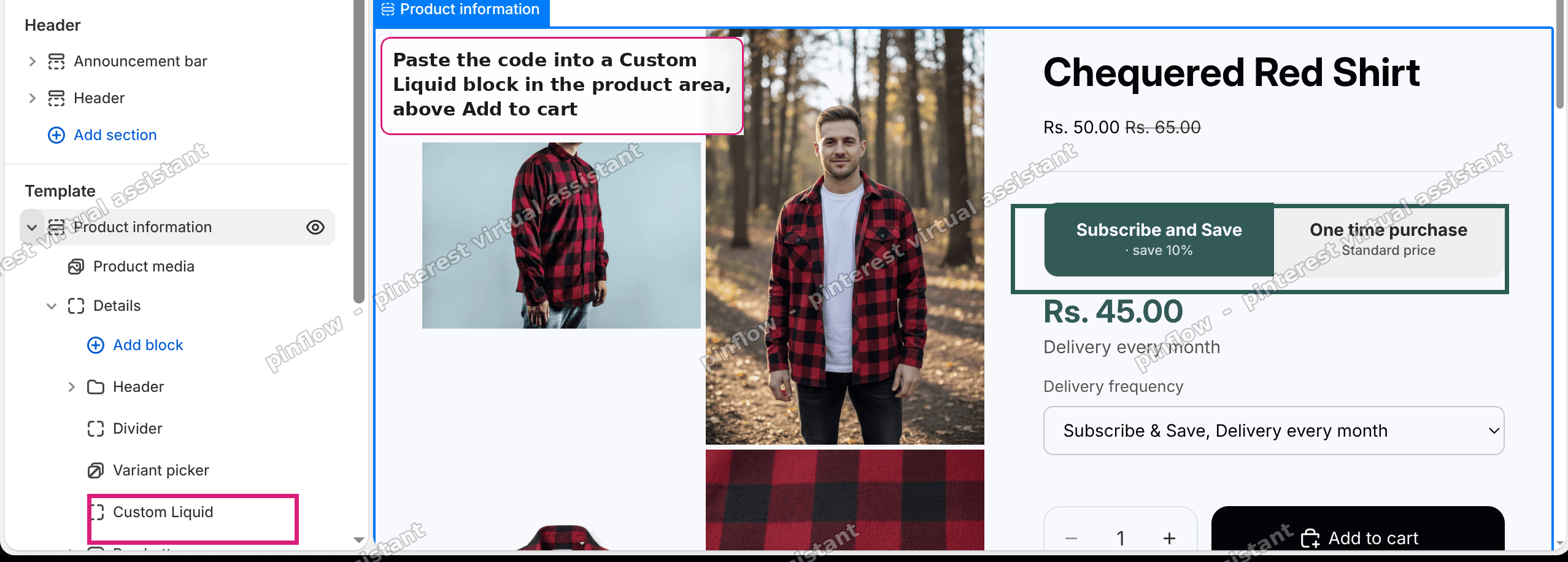 Where the Custom Liquid block goes in the Horizon theme editor, in the product area above Add to cart
Keep it above Add to cart so the toggle reads naturally, price then buy. The block sits inside the same product form, which is what lets the hidden field reach the cart.
What you get
When Subscribe is selected, the widget shows the discounted subscription price and a delivery frequency dropdown. Every frequency you set up in your subscription app (weekly, monthly, and so on) appears there automatically.
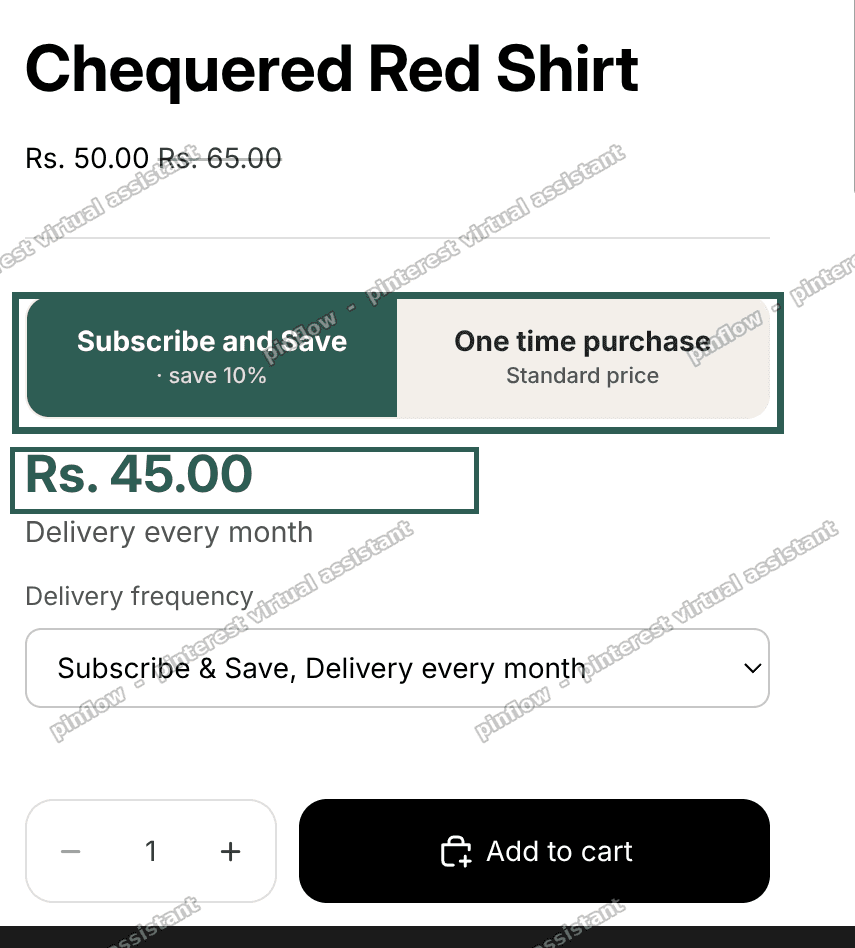 Subscribe and Save selected, showing the subscription price and the delivery frequency dropdown on a Horizon product page
When One-time is selected, the widget shows the normal price and hides the frequency picker. The selling plan is removed from the cart, so the customer buys the product once at full price.
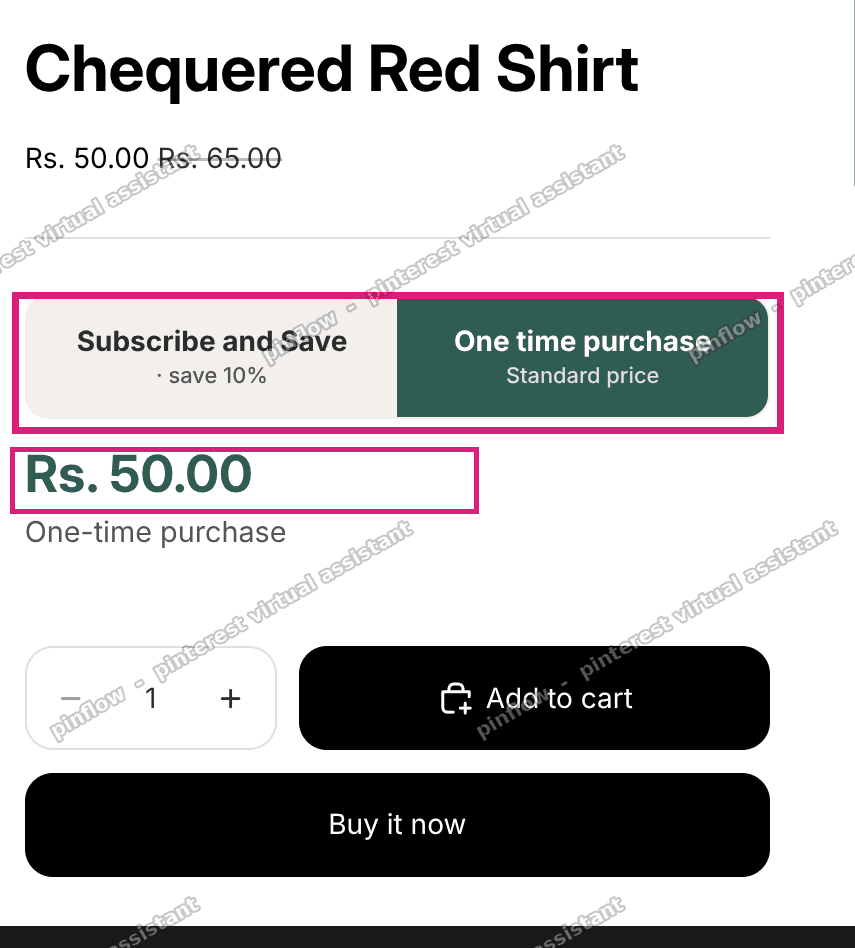 One-time purchase selected, showing the normal price with the frequency dropdown hidden
The code
{%- assign cw_product = closest.product | default: product -%}
{%- if cw_product.selling_plan_groups.size > 0 -%}
  {%- assign cw_group = cw_product.selling_plan_groups | where: 'name', 'Subscribe & Save' | first -%}
  {%- unless cw_group -%}{%- assign cw_group = cw_product.selling_plan_groups.first -%}{%- endunless -%}
  {%- assign cw_uid = block.id | default: section.id -%}

  <style>
    .cw-po{--cw-accent:#2f5d54;--cw-soft:#f3efe9;margin:0 0 1.1rem;font-family:inherit}
    .cw-po__seg{display:flex;border-radius:12px;overflow:hidden;border:1px solid rgba(0,0,0,.08)}
    .cw-po__btn{flex:1;padding:.85rem 1rem;border:0;background:var(--cw-soft);cursor:pointer;font:inherit;font-weight:600;color:#2a2a2a;line-height:1.25;text-align:center;transition:background .15s,color .15s}
    .cw-po__btn small{display:block;font-weight:500;font-size:.78em;opacity:.8;margin-top:.1rem}
    .cw-po__btn.is-active{background:var(--cw-accent);color:#fff}
    .cw-po__body{margin-top:.85rem}
    .cw-po__price{font-size:1.6rem;font-weight:700;color:var(--cw-accent);line-height:1.1}
    .cw-po__note{font-size:.9rem;color:#555;margin-top:.2rem}
    .cw-po__freq{margin-top:.7rem}
    .cw-po__freq label{display:block;font-size:.8rem;color:#555;margin-bottom:.3rem}
    .cw-po__freq select{width:100%;padding:.6rem .7rem;border:1px solid rgba(0,0,0,.22);border-radius:8px;font:inherit;background:#fff}
    .cw-po__freq[hidden]{display:none}
  </style>

  <div class="cw-po" data-cw-po data-section="{{ cw_uid }}">
    <div class="cw-po__seg">
      <button type="button" class="cw-po__btn is-active" data-mode="subscription">
        Subscribe and Save<small data-cw-save></small>
      </button>
      <button type="button" class="cw-po__btn" data-mode="onetime">
        One time purchase<small>Standard price</small>
      </button>
    </div>
    <div class="cw-po__body">
      <div class="cw-po__price" data-cw-price></div>
      <div class="cw-po__note" data-cw-note></div>
      <div class="cw-po__freq" data-cw-freq>
        <label for="cw-freq-{{ cw_uid }}">Delivery frequency</label>
        <select id="cw-freq-{{ cw_uid }}" data-cw-plan>
          {%- for plan in cw_group.selling_plans -%}
            <option value="{{ plan.id }}">{{ plan.name }}</option>
          {%- endfor -%}
        </select>
      </div>
    </div>
  </div>

  <script>
    (function(){
      var DATA = {
        {%- for variant in cw_product.variants -%}
        "{{ variant.id }}": {
          oneTime: {{ variant.price | json }},
          oneTimeStr: {{ variant.price | money | json }},
          plans: {
            {%- for alloc in variant.selling_plan_allocations -%}
            "{{ alloc.selling_plan.id }}": { price: {{ alloc.price | json }}, priceStr: {{ alloc.price | money | json }}, name: {{ alloc.selling_plan.name | json }} }{% unless forloop.last %},{% endunless %}
            {%- endfor -%}
          }
        }{% unless forloop.last %},{% endunless %}
        {%- endfor -%}
      };
      var SECTION = {{ cw_uid | json }};

      function init(){
        var root = document.querySelector('[data-cw-po][data-section="'+SECTION+'"]');
        if(!root || root.dataset.cwInit) return;
        var form = (root.closest('form[data-type="add-to-cart-form"]'))
          || (root.closest('.shopify-section, product-information, .product, [class*="product"]') || document).querySelector('form[data-type="add-to-cart-form"]')
          || document.querySelector('form[data-type="add-to-cart-form"]');
        if(!form) return;
        root.dataset.cwInit = "1";

        var variantInput = form.querySelector('input[name="id"]');
        var planSelect = root.querySelector('[data-cw-plan]');
        var priceEl = root.querySelector('[data-cw-price]');
        var noteEl = root.querySelector('[data-cw-note]');
        var freqEl = root.querySelector('[data-cw-freq]');
        var saveEl = root.querySelector('[data-cw-save]');
        var btns = root.querySelectorAll('.cw-po__btn');
        var mode = 'subscription';

        function vData(){
          var keys = Object.keys(DATA);
          var vid = variantInput && DATA[variantInput.value] ? variantInput.value : keys[0];
          return DATA[vid] || {};
        }
        function planInput(create){
          var i = form.querySelector('input[name="selling_plan"][data-cw]');
          if(!i && create){ i=document.createElement('input'); i.type='hidden'; i.name='selling_plan'; i.setAttribute('data-cw',''); form.appendChild(i); }
          return i;
        }
        function saveText(vd, id){
          var p=vd.plans&&vd.plans[id]; if(!p||!vd.oneTime) return '';
          var pct=Math.round((1-(p.price/vd.oneTime))*1000)/10;
          return pct>0?(' · save '+pct+'%'):'';
        }
        function render(){
          var vd=vData();
          var id=planSelect?planSelect.value:(vd.plans?Object.keys(vd.plans)[0]:'');
          btns.forEach(function(b){var on=b.dataset.mode===mode;b.classList.toggle('is-active',on);});
          if(mode==='subscription'){
            freqEl.hidden=false;
            var p=vd.plans&&vd.plans[id];
            priceEl.textContent=p?p.priceStr:(vd.oneTimeStr||'');
            var freqText=planSelect&&planSelect.selectedIndex>-1?planSelect.options[planSelect.selectedIndex].textContent:'';
            if(freqText.indexOf(',')>-1) freqText=freqText.slice(freqText.lastIndexOf(',')+1).trim();
            noteEl.textContent=freqText;
            if(saveEl) saveEl.textContent=saveText(vd,id);
            var inp=planInput(true); if(inp) inp.value=id;
          } else {
            freqEl.hidden=true;
            priceEl.textContent=vd.oneTimeStr||'';
            noteEl.textContent='One-time purchase';
            var ex=planInput(false); if(ex) ex.remove();
          }
        }
        btns.forEach(function(b){b.addEventListener('click',function(){mode=b.dataset.mode;render();});});
        if(planSelect) planSelect.addEventListener('change',render);
        form.addEventListener('change',function(){setTimeout(render,60);});
        render();
      }
      if(document.readyState==='loading') document.addEventListener('DOMContentLoaded',init);
      else init();
      document.addEventListener('shopify:section:load',init);
    })();
  </script>
{%- endif -%}
A few things worth knowing:
- It reads your subscription app's plans automatically. Whatever delivery options you set up appear in the dropdown.
- Change the accent colour on the first CSS line, the
--cw-accentvalue. - Horizon still shows its own price block above the widget. Leave it, or hide the theme price on this product if you want only the widget's price.
I tested this on a Horizon store with a live subscription app. Subscribe added the plan and the discounted price to the cart. One-time added the plain product with no plan. Both went to checkout correctly.
Making the selector smaller and adding installment text
The merchant came back with a good follow-up. It works, but can the selector be cleaner and smaller? And where do you add installment payment HTML that shows only on one-time?
Both fit in the same block. You replace the block's code with an updated version. Two things change. The selector becomes two slim pills instead of tall blocks. And there is a marked spot for your own installment HTML that only appears when One-time is selected.
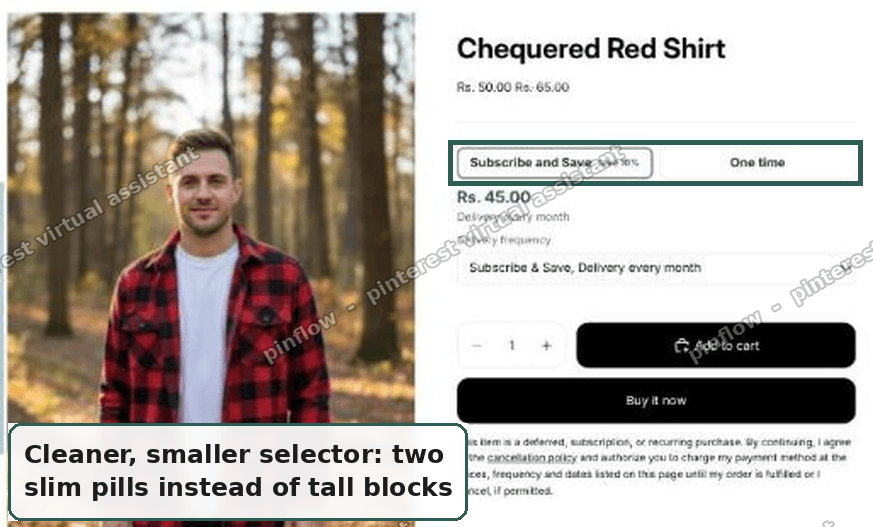 Compact two-pill selector with Subscribe and Save selected on Horizon
For the installment part, the updated code has two comment lines near the bottom:
<!-- INSTALLMENT HTML START -->

<!-- INSTALLMENT HTML END -->
Paste your installment HTML between those two marks. It shows only when One-time is selected, and hides on Subscribe. The delivery frequency hides at the same time, so the one-time view stays uncluttered.
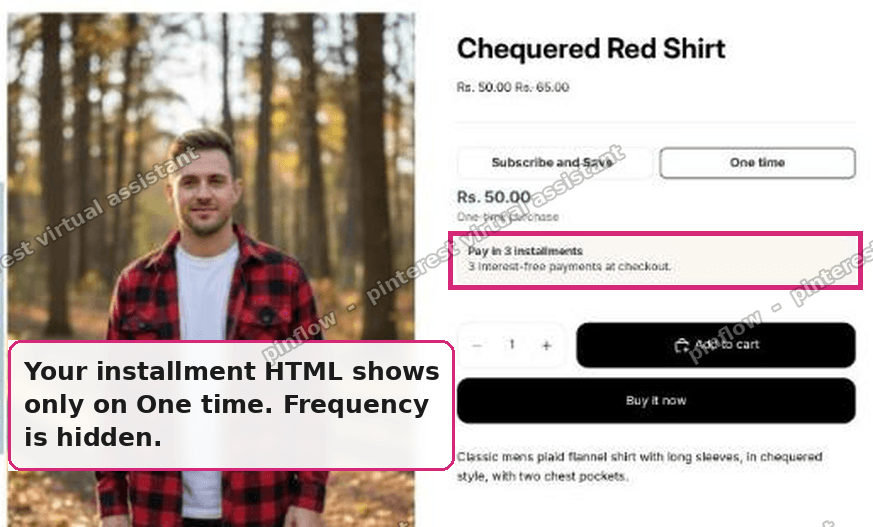 One-time selected showing the installment box, with the frequency dropdown hidden
To fine-tune the size, three values matter. The button text size is the font-size on .cw-po__btn. The price size is the font-size on .cw-po__price. The accent colour is the --cw-accent value on the first CSS line.
I tested the compact version too. The slim selector keeps Subscribe and One time in one row, and the installment box renders only in the one-time view.
An alternative: the no-code app block
Not every merchant wants to paste code. If you would rather avoid the theme editor, use your subscription app's own widget.
Most subscription apps ship an app block. An app block is a ready-made section you drop into the theme editor with no code, the same way you add any other block. It renders the subscribe and one-time options for you.
The trade-off is design. The app block looks the way the app designed it, not the way you drew it. You get less control over the exact pills, the price size, and the placement. But it is fast, it updates itself, and it needs zero maintenance.
Pick based on your goal. Want the exact custom layout in your screenshot? Use the Custom Liquid block above. Want the quickest path that just works? Use the app's own block. Both put a real subscription in the cart, because both rely on the same selling plans.
Do you need Shopify Plus for a Shopify subscription?
No. This is the most common worry, and it is wrong. Native subscriptions are available on every Shopify plan through subscription apps. Shopify built the selling plan system into the core platform, not into Plus.
Shopify Plus adds enterprise features like a custom checkout and higher API limits. It does not gate subscriptions. A Basic plan store can run subscribe and save today with any Shopify subscription app.
Which Shopify subscribe and save app should you use?
Any app that creates real selling plans will work with the tweak above, because the code reads plans from Shopify, not from a single vendor. That gives you freedom to choose on features and price.
When you compare a Shopify subscribe and save app, look at a few things:
- Does it support a percentage or fixed discount for subscribers.
- Does it let customers manage or skip deliveries from their account.
- Does it handle failed payments and dunning, the automatic retry of a declined charge.
- What is the monthly fee or revenue share.
The merchant here used Supr Bundle & Subscription. Other common picks are Shopify's own Subscriptions app, Seal Subscriptions, Appstle, and Recharge. Install one, create a plan, attach it to the product, and the layout above reads it automatically.
How do Shopify recurring orders work after checkout?
Once a customer buys with a selling plan, Shopify creates a subscription contract. A contract is the ongoing agreement that holds the product, the price, the frequency, and the customer's saved payment method.
On each cycle, Shopify charges the saved card and creates a new order automatically. These are your recurring orders. The customer does not check out again. You see each new order in Admin like any other order, tagged as a subscription.
Your subscription app manages the contract. It handles changes like pausing, skipping, or cancelling, and it retries a payment that fails. The theme tweak has no job after checkout. Its only role is picking the plan at the moment of purchase.
If it did not work
A few failure modes come up, and the merchant hit the first one.
"The code has errors" or the widget does not appear. This almost always means the product has no selling plan yet. The block only renders when selling_plan_groups.size > 0. Install the subscription app, create a plan, and attach it to that exact product. Then reload.
The frequency dropdown is empty. Your plan group exists but has no individual plans, or the plans are attached to a different product. Check the app and confirm the delivery options are set on the product you are viewing.
The wrong price shows. The code reads the discounted price from each plan's allocation, the price rule that says what a subscriber pays. If your discount is set to zero, subscribe and one-time show the same number. That is correct, just not discounted yet.
The cart still shows one-time after picking Subscribe. Confirm the Custom Liquid block sits inside the product form, above Add to cart. The hidden field must live in the same form as the buy button, or the cart never receives it.
Definitions people confuse
These terms trip up most merchants. Here they are in plain words.
Selling plan. The rule for one subscription option. It sets the price, the discount, and the frequency, such as "every 4 weeks, 10 percent off."
Selling plan group. A named bundle of related plans. "Subscribe & Save" might hold weekly, monthly, and quarterly plans. The code looks for a group named Subscribe & Save first, then falls back to the first group it finds.
Selling plan allocation. The link between a plan and a specific product variant, including the exact subscriber price for that variant. The code reads price from here.
One-time purchase. The product bought with no selling plan attached. Full price, no repeat billing. It is the default, so "removing the plan" is all the toggle does.
Subscription contract. Created after checkout. It stores the ongoing agreement and drives every future recurring order.
Once these click, the layout stops feeling like magic. A subscribe and save button is just a switch that adds or removes one field. The subscription app supplies the plans, and Horizon carries the rest.
Spending too long on manual Shopify busywork?
PinFlow turns your Shopify catalog into Pinterest pins and posts them on a schedule, automatically. Same idea as the rule above, let the system handle the repetitive part.
Get PinFlow on the Shopify App StoreMore Shopify fixes
More community-sourced Shopify guides, tested on a live store.
Shopify Admin
How to Edit a Packing Slip on Shopify to Show Big Product Photos
Shopify's order page shows each item as a 40 pixel thumbnail with no way to enlarge it. Here is how to edit the packing slip template so every line prints that exact variant's photo at 1000 pixels, including the one-line fix Shopify's default template needs.
Shopify Admin
Shopify Shipping Zones: Fix Products Sold Out in One Country
Products show Sold out for customers in one country while your admin shows stock. The cause is a shipping profile with no zone for that country. How Shopify shipping zones and profiles decide what a customer can buy, and the six-click fix, with screenshots.
Shopify Admin
Shopify Translate: Fix Mixed Languages on Product Pages
A Swedish Shopify store showed English words on translated product pages. The titles were translated, so the English came from option names and theme text. How to fix each one in Translate & Adapt, with screenshots.