
Shopify Supported Languages: The Full List
Which languages Shopify storefronts actually support, how to add one, and what to do when your language is missing.
By AjayCodeWiz · August 9, 2026 · 11 min read
The problem
A merchant asked about this on the Shopify Community. They sell foreign-language products. They were frustrated that the language list looked tiny.
They wanted Urdu, Marathi, Punjabi, Irish Gaelic, Scottish Gaelic, and Latin.
They also said something important. They had asked Shopify's built-in AI assistant, Sidekick. Sidekick told them that if a language is not already a "base language," it cannot be added at all.
That answer is wrong. And it sent the whole thread in the wrong direction.
Two other repliers agreed with Sidekick. They said you need a translation app or custom code to get these languages. That is also wrong.
So I checked it myself. I reproduced it on a test store in the Shopify admin. I added Urdu live to prove the list is bigger than people think.
Here is the short version. Most of the languages that merchant listed are already there. You can add them today, with no app. Only one of them, Latin, is genuinely missing.
Let me walk through the real Shopify supported languages list, how to add a language, and what to do when yours is not there.
Why it happens
Shopify has two different "language" ideas, and they get confused all the time.
The first is your account language. That is the language of your admin, the back office where you manage the store. It affects what you see, not your customers.
The second is a storefront language. That is a language your shoppers can switch to on the public store. Product pages, menus, and buttons can appear in it. This is the one that matter here.
Storefront languages come from a fixed list that Shopify maintains. I pulled the live list straight from Shopify's own data. As of August 2026, it holds 137 storefront locales.
A "locale" is just a language plus an optional region. For example, English is a locale. So is French. So is Urdu.
137 is not a small number. It is far more than the handful people assume. Sidekick and the two forum repliers were all working from an out-of-date idea of how short this list is.
I confirmed each of the merchant's languages against that live list. Here is what I found:
- Urdu (ur): present
- Marathi (mr): present
- Punjabi (pa): present
- Irish, also called Irish Gaelic (ga): present
- Scottish Gaelic (gd): present
- Sanskrit (sa): present
- Latin (la): missing
So five of the six "unusual" languages that merchant wanted are already supported. Only Latin is not.
The reason this matters: a wrong "you can't do it" answer stops people from trying. The languages were one click away the whole time.
Prerequisite: know what "add a language" does
Before the steps, one thing to be clear on. Adding a storefront language does not replace your store's main language.
Your default language stays your default. The new language is added alongside it, as a second, published option. Shoppers pick it from a language switcher.
Adding the language does not translate your content for you either. It creates the slot. You still fill in the translated text yourself, or with a translation app. If you leave it empty, that language shows your default text.
That is fine for many merchants. If you sell language-learning products, the product text itself is often already in the target language. You type it in as free text.
The fix: add a supported language
Here are the real steps. I did exactly this to add Urdu on my test store.
Step 1. Open the Languages settings.
Go to Settings, then Languages, then click Add language in the top right.
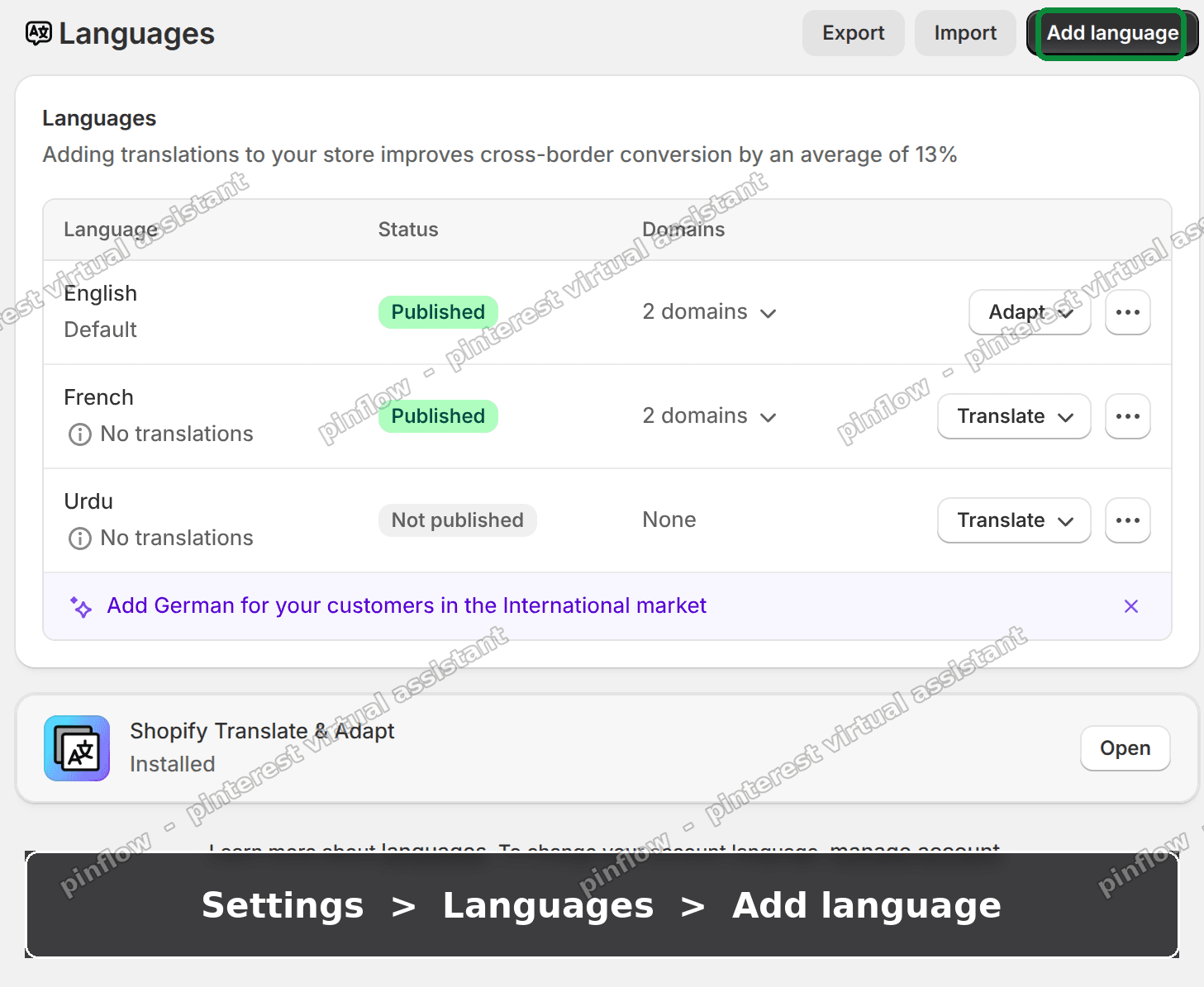 Shopify Languages settings page with the Add language button highlighted in the top right
This page also shows every language you already have and its status. Mine had English as the default, plus French. Both were Published.
Step 2. Pick your language.
A small window opens with a single dropdown. Open it and choose your language.
This is the moment that proves the point. Urdu, Marathi, Punjabi, Irish, and Scottish Gaelic are all right there in the list. I picked Urdu.
Click Next.
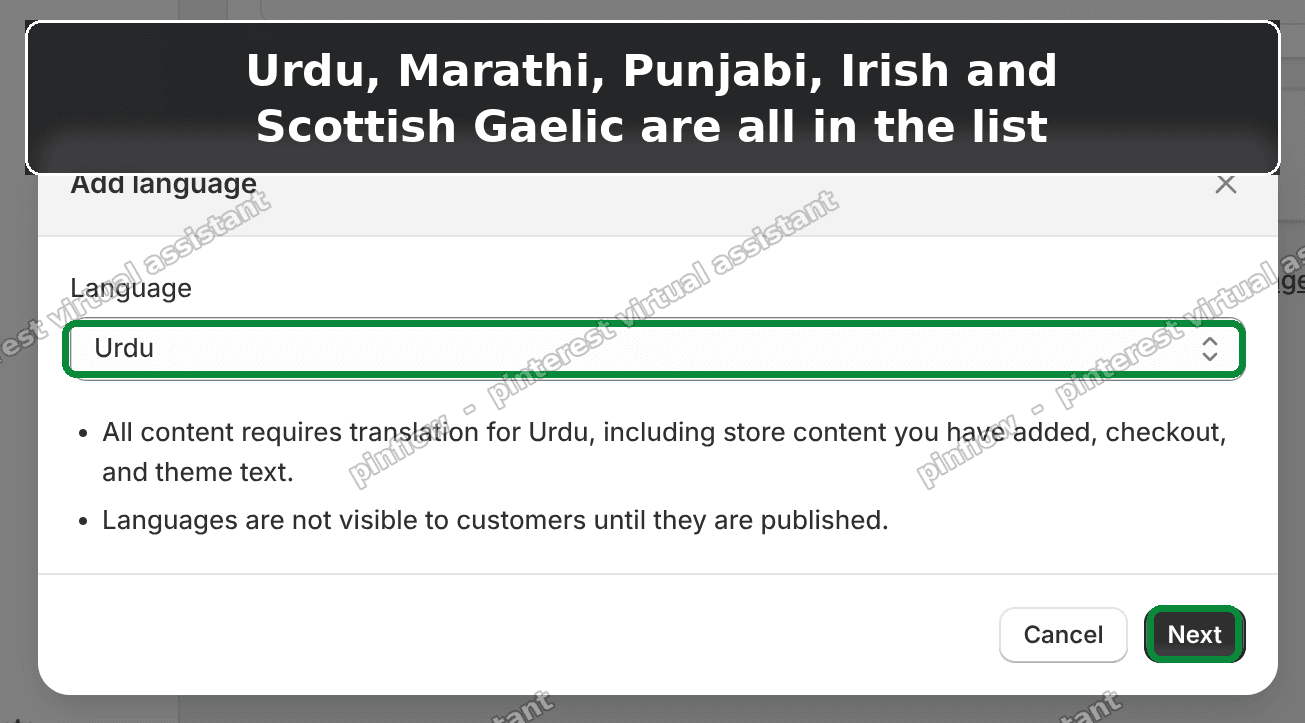 The Add language window with Urdu selected in the dropdown and the Next button highlighted
Shopify shows a note here. It says all content needs translation for the new language, and that the language stays hidden from customers until you publish it. That is expected. We fix it in the next step.
Step 3. Add it, then publish it.
Shopify confirms the language was added. It now appears as a new row on the Languages page.
But notice the status. It says Not published. A new language starts hidden. Customers cannot see it yet.
To turn it on, open the ... menu on that language's row and choose Publish.
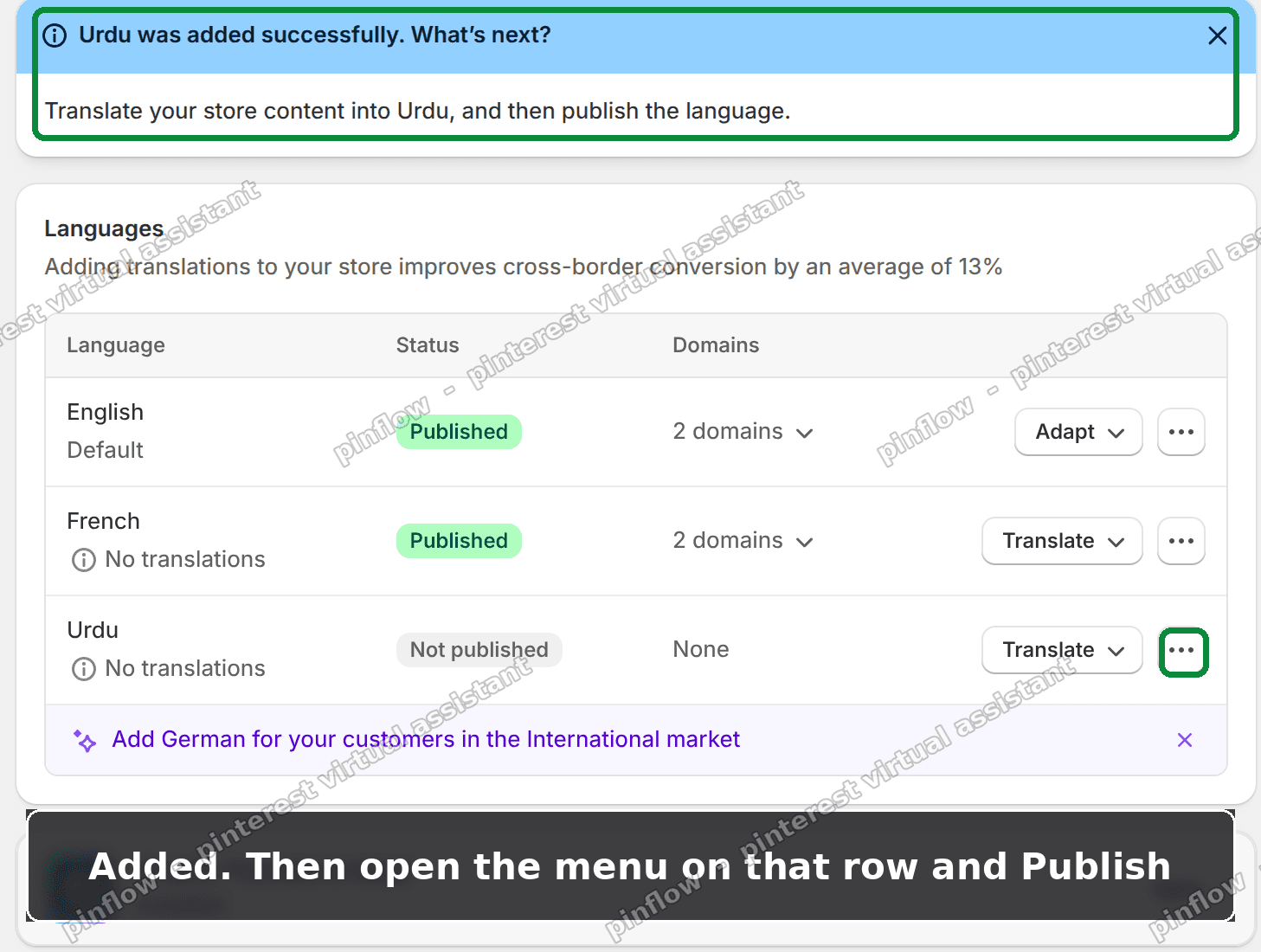 The Languages page after Urdu was added, showing it as Not published, with the row menu highlighted
Once published, the language appears on your storefront. Your theme's language switcher will list it, so shoppers can choose it.
That is the whole flow. No app. No code. Three clicks past the settings page.
An alternative: when your language is not on the list
Latin was the one language that merchant wanted that Shopify does not offer. So what do you do when yours is genuinely missing?
You have two paths, depending on what you actually need.
Path 1: you do not need a "language" at all.
This is the one people miss. You do not need Latin to be a supported language to sell products written in Latin.
Product titles, descriptions, pages, and blog posts are free text fields. You can type any script or language into them directly, under your normal store language. Shopify does not check the language of the words you type.
So if your catalog is Latin books, just write the listings in Latin. It works today, with zero setup.
The merchant on the thread was close to this already. They said they did not want a translation. They wanted the products themselves in the language. Free text covers that.
Path 2: you want it as a real storefront language, with its own switcher.
If you truly want a separate Latin option in the language switcher, with its own URL, there is a workaround. It is a hack, not real support, so know the trade-offs first.
Here is the idea. Publish a supported language you will never actually sell in. Use that empty slot as a container. Then overwrite all of its text with your target language.
For Latin, a good "carrier" is Interlingua (locale code ia). It is on the list and is almost never used for selling.
The steps:
- Add and publish Interlingua, using the same three steps above.
- Open Shopify's free Translate & Adapt app.
- Go through Interlingua and replace every string with your Latin text.
That gives you a working second storefront language that shows Latin. But there are real catches:
- The URL keeps the carrier's code. You will see /ia in the address bar even though the page is Latin.
- The switcher label stays "Interlingua" unless your theme lets you rename languages.
- Checkout and some Shopify system text stay in the carrier language. You cannot edit those.
It works if you can live with those. For most stores, Path 1 (free text) is cleaner.
And send Shopify a feature request.
For any language that is still not on the list, ask Shopify support to add it. Give the exact locale and one line on business impact. Something concrete like "I sell in Latin and cannot publish it" lands better than "add more languages."
How many languages does Shopify support?
Shopify supports 137 storefront locales as of August 2026. That is the list you see under Settings, Languages, Add language.
It covers all the major world languages. It includes most large regional languages too, like the Indian languages in this thread. It includes right-to-left languages such as Urdu and Arabic.
The number changes over time as Shopify adds locales. So the safest answer to "is my language supported" is to open the Add language dropdown and look. If it is there, you can add it.
Do not trust a blanket "no" from an AI assistant or a forum reply. The one in this thread was wrong on five languages out of six.
Which Shopify languages are missing?
Very few, but some gaps are real. Latin is the clearest example. There is no Latin locale.
Ancient and constructed languages are the ones most likely to be absent. Everyday spoken languages are almost all present.
If you are unsure, the test is simple. Open the Add language list and search for your language. Present means supported. Absent means you fall back to the free-text approach or the carrier workaround above.
Does adding a Shopify storefront language translate my store?
No. Adding a language creates the slot only. It does not translate a single word for you.
You have three ways to fill it:
- Type translations yourself in Shopify's free Translate & Adapt app.
- Use a paid translation app that machine-translates in bulk.
- Leave it empty, in which case that language falls back to your default text.
For language-learning stores, typing is often fine, because the content is short and you know the language.
What is the difference between account language and storefront language?
These are the two ideas that caused the confusion in this thread.
Account language is for you, the store owner. It sets the language of the admin dashboard. Changing it does nothing to your customers.
Storefront language is for your shoppers. It is what this whole article is about. You add it under Settings, Languages, and publish it so customers can switch to it.
When someone says "Shopify doesn't support my language," they almost always mean the storefront one. And, as shown, that list is far bigger than most people expect.
If it did not work
A few things can trip you up.
The language is in the list but not on your storefront. You probably added it but did not publish it. Go back to Settings, Languages, open the row's ... menu, and click Publish. A Not published language is invisible to customers.
You published it but shoppers cannot switch to it. Your theme needs a language switcher. Most modern themes have one you enable in the theme editor. Check your header or footer settings for a language selector block.
The new language shows English text. That is expected until you add translations. The slot is live, but the words are still your default until you fill them in with Translate & Adapt.
Your language really is not in the dropdown. Then it is a genuine gap, like Latin. Use the free-text approach, or the Interlingua carrier trick, and file a feature request.
Sidekick told you it is impossible. Ignore that. I tested the live list and added Urdu myself. The AI assistant was out of date on this.
Definitions people confuse
Locale. A language plus an optional region code, like en for English or ur for Urdu. Shopify's list is 137 of these.
Base language vs added language. Your base (default) language is the one your store was set up in. Added languages are extra published options alongside it. Sidekick claimed only "base" languages count, which is not how the Add language flow works.
Publish. Turning a language on for customers. New languages start unpublished and hidden. This one step is the most commonly missed.
Translate & Adapt. Shopify's own free translation app. It is where you enter or edit the wording for each added language.
Carrier language. In the workaround, a supported language you do not really use, whose slot you fill with an unsupported one. Interlingua for Latin is the example here.
To recap the Shopify supported languages list in one line: it holds 137 storefront languages, most of the ones people think are missing are actually there, and the only real work is picking your language, clicking Next, and remembering to Publish.
Spending too long on manual Shopify busywork?
PinFlow turns your Shopify catalog into Pinterest pins and posts them on a schedule, automatically. Same idea as the rule above, let the system handle the repetitive part.
Get PinFlow on the Shopify App StoreMore Shopify fixes
More community-sourced Shopify guides, tested on a live store.
Shopify Admin
How to Edit a Packing Slip on Shopify to Show Big Product Photos
Shopify's order page shows each item as a 40 pixel thumbnail with no way to enlarge it. Here is how to edit the packing slip template so every line prints that exact variant's photo at 1000 pixels, including the one-line fix Shopify's default template needs.
Shopify Admin
Shopify Shipping Zones: Fix Products Sold Out in One Country
Products show Sold out for customers in one country while your admin shows stock. The cause is a shipping profile with no zone for that country. How Shopify shipping zones and profiles decide what a customer can buy, and the six-click fix, with screenshots.
Shopify Admin
Shopify Translate: Fix Mixed Languages on Product Pages
A Swedish Shopify store showed English words on translated product pages. The titles were translated, so the English came from option names and theme text. How to fix each one in Translate & Adapt, with screenshots.