
Auto-Fill a Shopify Tax Override Collection
Shopify tax overrides only accept a manual collection. Keep that collection filled automatically with Shopify Flow plus a scheduled sweep.
By AjayCodeWiz · August 11, 2026 · 10 min read
The problem
A merchant asked about this on the Shopify Community. They sell lodging products. Every lodging product carries a Room tag. All of them need the same Minnesota tax rule.
They wanted an automatic collection to hold those products, then point a tax override at it. Shopify would not let them.
A tax override is a rule that changes the tax rate for a group of products. You attach it to a collection. But Shopify only lets you pick a manual collection. An automatic collection never shows up in the picker.
That is a real risk for tax. Every new lodging product has to be added to a special tax collection by hand. Miss that step once, and Shopify charges the wrong tax on that product.
The merchant already had a Shopify Flow workaround. But it felt fragile, and they did not trust it. That instinct was correct. I reproduced the whole thing on a test store, and I will show you why the gap exists and how to close it.
Why it happens
First, the two collection types.
A manual collection is a fixed list. You put products in it by hand, one by one. It does not change on its own.
An automatic collection (Shopify also calls it a smart collection) fills itself from rules. You set a rule like "tag is Room" and Shopify keeps the list current for you.
For most jobs, the automatic collection is the smart choice. It never forgets a product. That is exactly why the merchant wanted it for tax.
But the tax override picker only lists manual collections. I tested this directly. I opened the override screen and searched. My smart collections were simply not there. Only manual ones appeared.
Shopify has never explained the reason in public. My read is that tax is high-risk, and a manual list is predictable. A smart collection can change when someone edits a rule, and that could shift tax on many products at once without anyone noticing. Whatever the reason, the limit is firm today. You cannot point a shopify tax override at a smart collection.
So the only path is a manual collection that stays filled. The question becomes: how do you keep a manual list current without human effort? That is where Shopify Flow comes in, and also where the fragile part lives.
Why a tag-based Flow misses products
Shopify Flow is a free automation tool from Shopify. You build a rule as trigger, condition, action. Something happens, Flow checks a condition, then Flow does something.
The obvious build is: when a product is created, if it has the Room tag, add it to the tax collection. That works for brand-new products. But it has a real hole.
Flow only fires on Product created. There is no "tag added" trigger. There is no "product updated" trigger either. So Flow can only react at the exact moment a product is born.
Think about what that misses:
- A product created first, then tagged Room later in a separate edit. The create already fired. Adding the tag fires nothing.
- A CSV import or an app that creates the product first and applies tags in a second pass. Same problem.
- Every product that already existed before you built the Flow. The trigger only looks forward, never back.
Any of those slips past the automation. The product stays out of the tax collection. Shopify then charges the wrong tax on it, and nothing flags it. That miss is exactly why the workaround feels risky, and the merchant was right to distrust it.
Check this first
Before you build anything, make sure your manual tax collection exists.
Go to Products > Collections > Create collection. Set the collection type to Manual. Name it something clear, like "MN Lodging Tax". Save it.
Do not use an automatic collection here. If you do, the override screen will not see it, and the rest of this will not work.
The fix
Here is the reliable setup. It has three parts: attach the override, automate new products, and sweep the ones the automation cannot catch.
Step 1: Attach the override to your manual collection.
Go to Settings > Taxes and duties > United States > Product overrides > Add override. Pick your manual collection. Set the tax rate you need.
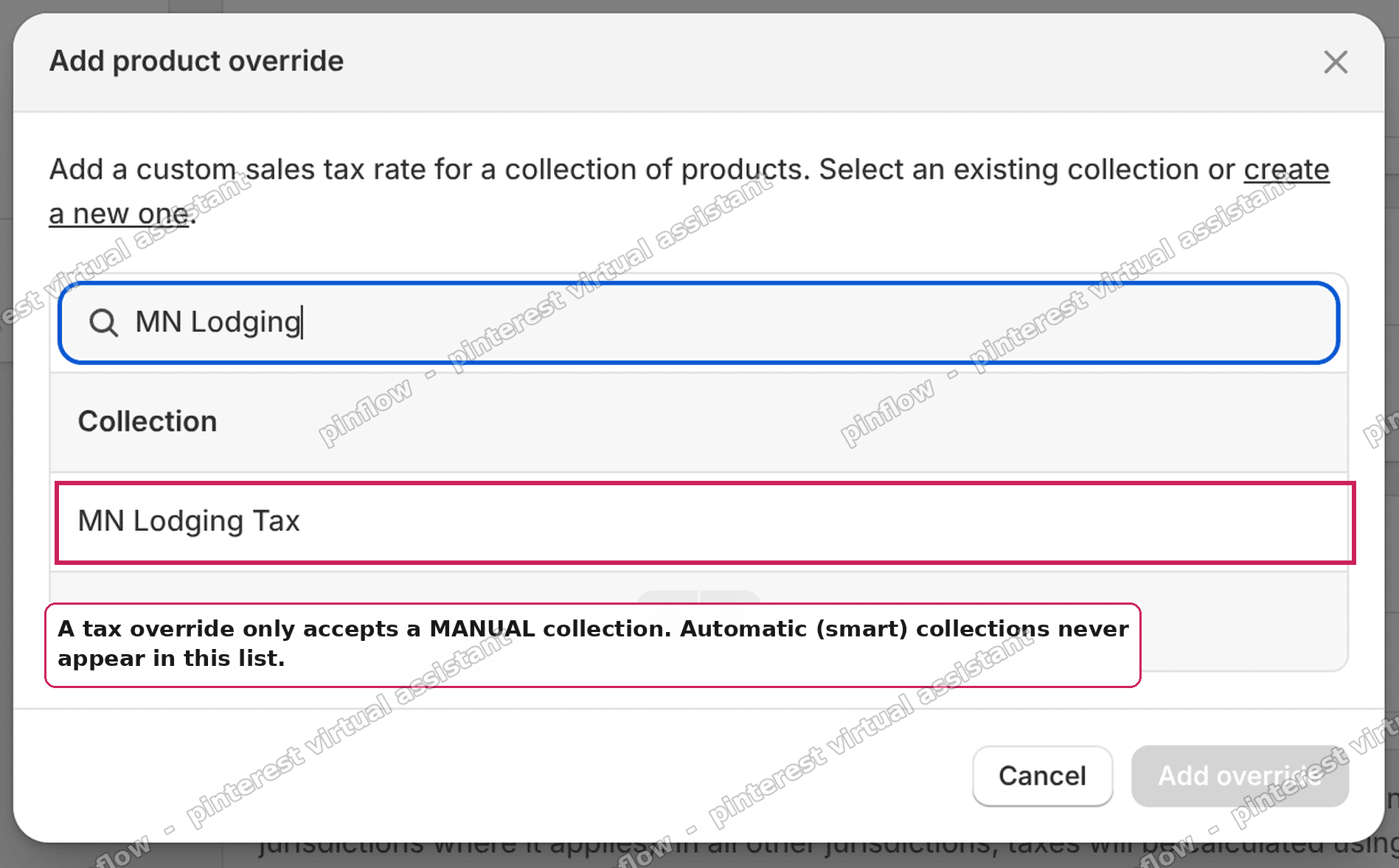 Shopify tax override picker showing only manual collections
Notice the picker. Only manual collections appear. Your smart collections are not offered. This is the limit in action.
Step 2: Build the create-time Flow.
Open Flow (install it free from the Shopify App Store if you do not have it). Create a workflow.
- Trigger: Product created.
- Condition: Tags is equal to Room (use your own tag).
- Action: Add product to collections, and pick your manual tax collection.
Turn it on. Now every new product born with the Room tag lands in the tax collection on its own.
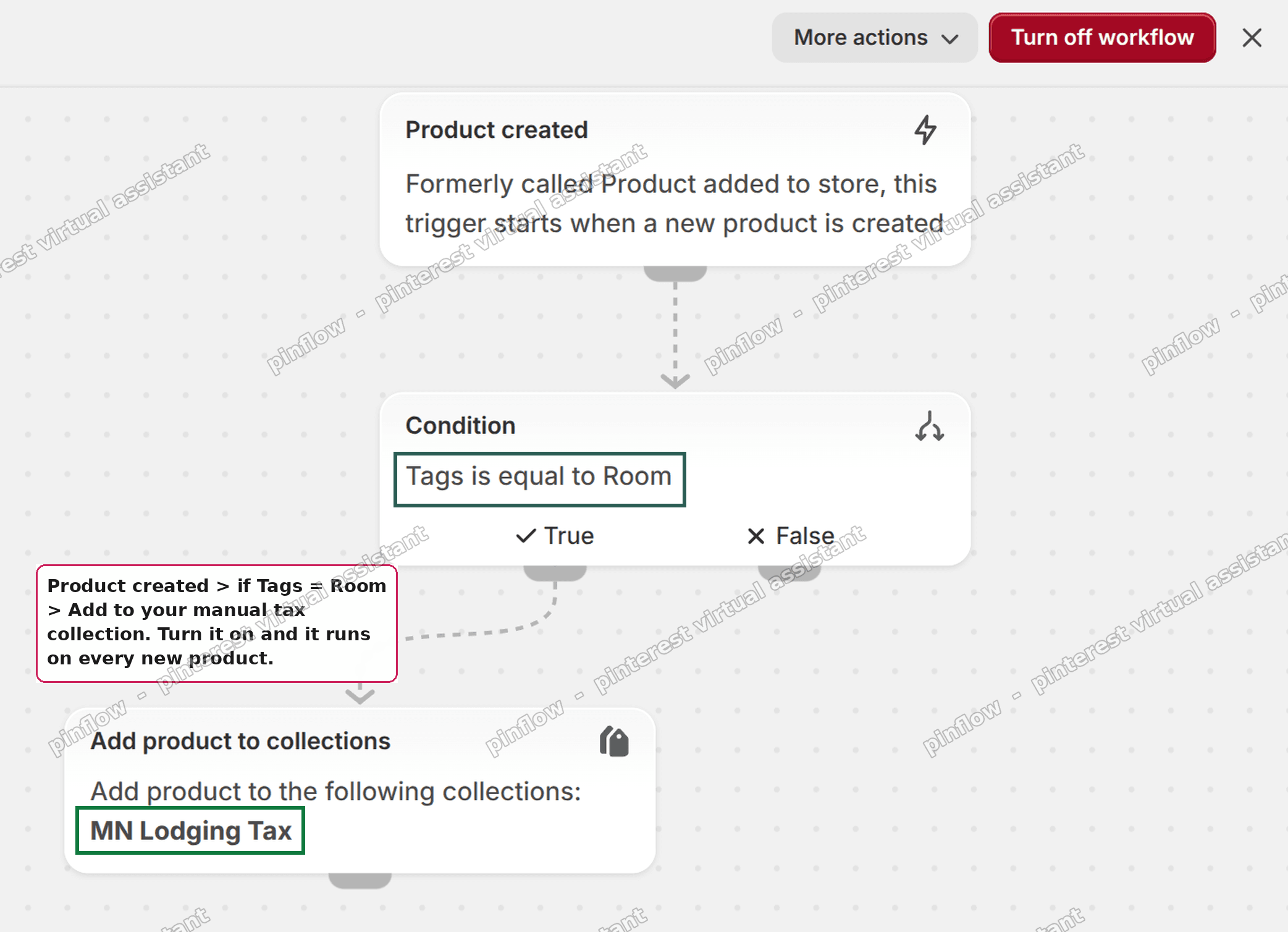 Shopify Flow workflow adding a tagged product to a collection
This is the core of the shopify flow add to collection pattern. It is clean, but on its own it still has the hole from the section above. The next two steps close it.
Step 3: Sweep in everything the trigger missed.
Do this once now, then repeat it on a schedule.
Go to Products. Filter by tag Room. Select all. Then choose Add to collection and pick your tax collection.
This catches every older product and every product that was tagged after it was created. Re-adding a product that is already in the collection does nothing, so this sweep is safe to run any time. It cannot create duplicates or damage the list.
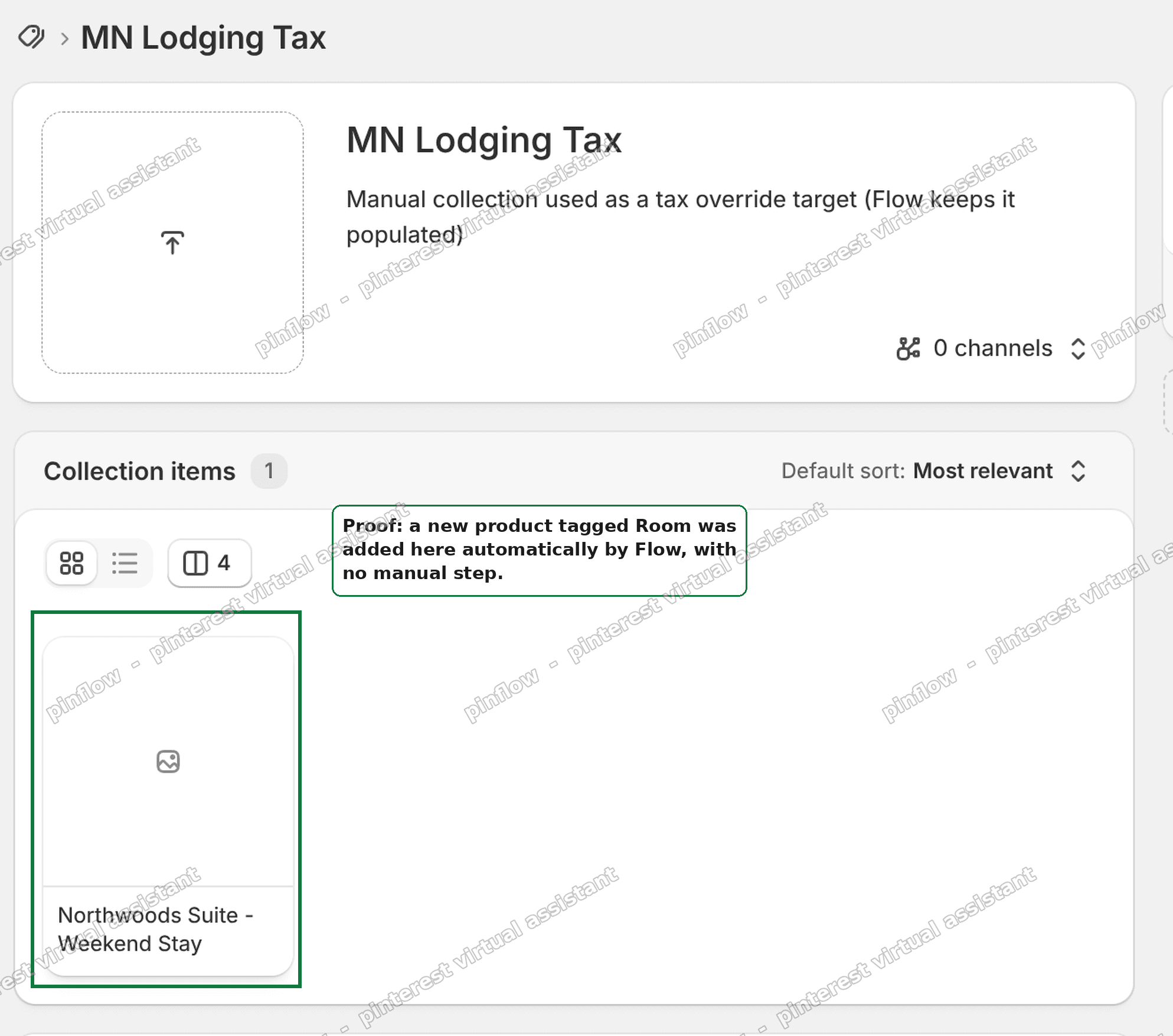 The tax collection filled automatically with a new tagged product
I tested the whole loop on a store. A new product tagged Room dropped into the manual tax collection with no manual click. The sweep then pulled in the products that had been tagged earlier. The override applied to all of them.
Step 4: Tag at creation so the trigger always catches new products.
The create trigger only works if the tag is present the moment the product is saved. The easiest way to guarantee that is to duplicate a template product that already has the Room tag, then edit the copy. The tag is there from birth, so Flow fires every time.
An alternative for a larger catalog
The manual sweep is fine for a small store. For a busier catalog, automate the sweep itself so it does not depend on someone remembering.
Build a second Flow on the Scheduled time trigger. Have it run weekly or monthly. Give it the same logic: find products tagged Room, add them to the tax collection. This becomes your safety net. Even if the create-time Flow misses something, the scheduled sweep catches it within a week.
Run the sweep right after any bulk import too. Imports are the most common source of missed products, because they often create first and tag second.
If you prefer no automation at all, you can skip Flow entirely and just run the manual filter-and-add sweep on a calendar reminder. It is slower and needs a human, but it uses zero apps and cannot break. For a store that adds a product or two a month, that is a fair trade.
Can a Shopify tax override use an automatic collection?
No. Not today. A shopify tax override automatic collection setup is not possible in the admin. The override picker lists manual collections only. Smart collections never appear there.
The workaround is a manual collection that a rule keeps filled. That is what this whole guide builds. You get the reliability of a tag rule, applied to a list the tax override can actually read.
If you want Shopify to change this, add your vote to the feature request. But do not wait on it. Build the manual collection now.
How do I add a product to a collection automatically in Shopify Flow?
Use the Add product to collections action. It only works on manual collections, which is perfect here, because a manual collection is exactly what the tax override needs.
The pattern is: a trigger fires, a condition checks the tag, and the action drops the product into the collection. For tax, the trigger is Product created and the condition is your tag. That is the full shopify automatic tax override loop, built out of parts Shopify gives you for free.
Why does my Shopify tax override miss new products?
Almost always because the product never reached the manual collection. Two common causes.
One, the product was tagged after it was created, so the Product created trigger already fired and moved on. Two, the product existed before you built the Flow, so the trigger never saw it at all.
The fix for both is the sweep in Step 3. Filter by tag, select all, add to collection. Run it on a schedule and the misses stop.
Does Shopify Flow have a tag-added trigger?
No. Flow has no "tag added" trigger and no "product updated" trigger. It cannot react to a tag change on an existing product. This is the single biggest reason a tag-based tax Flow feels fragile.
Because you cannot trigger on the tag change, you cover the gap two other ways: tag products at creation so the create trigger always fires, and run a scheduled sweep to catch anything that still slips through.
If it did not work
A few things to check when the collection is not filling.
- The collection is automatic, not manual. The Flow action and the tax override both need a manual collection. If you built a smart collection by habit, rebuild it as manual.
- The Flow is off. A new workflow is paused until you turn it on. Check the toggle.
- The tag does not match exactly. Tags are case-sensitive in the condition. "Room" and "room" are different. Match what is actually on the product.
- The product was tagged after creation. The create trigger missed it. Run the sweep, or re-save through your tagged template.
- The override points at the wrong collection. Confirm the override in Settings > Taxes and duties is attached to the same manual collection the Flow fills.
Definitions people confuse
Manual collection vs automatic collection. A manual collection is a hand-picked list that only changes when you edit it. An automatic (smart) collection fills itself from rules like tags or product type. Tax overrides accept manual only.
Tax override vs tax region. A tax region sets the default rate for a place. A tax override changes the rate for a specific group of products inside that region. The override is what needs the collection.
Trigger vs condition vs action in Flow. The trigger is the event that starts the workflow, like Product created. The condition is the test, like tag equals Room. The action is the result, like Add product to collections. All three must line up for the automation to fire.
Build the manual shopify tax override collection, keep it filled with a create-time Flow plus a scheduled sweep, and tag your products at creation. That combination gives you the reliability a smart collection would have offered, using only tools Shopify already provides.
Spending too long on manual Shopify busywork?
PinFlow turns your Shopify catalog into Pinterest pins and posts them on a schedule, automatically. Same idea as the rule above, let the system handle the repetitive part.
Get PinFlow on the Shopify App StoreMore Shopify fixes
More community-sourced Shopify guides, tested on a live store.
Shopify Admin
How to Edit a Packing Slip on Shopify to Show Big Product Photos
Shopify's order page shows each item as a 40 pixel thumbnail with no way to enlarge it. Here is how to edit the packing slip template so every line prints that exact variant's photo at 1000 pixels, including the one-line fix Shopify's default template needs.
Shopify Admin
Shopify Shipping Zones: Fix Products Sold Out in One Country
Products show Sold out for customers in one country while your admin shows stock. The cause is a shipping profile with no zone for that country. How Shopify shipping zones and profiles decide what a customer can buy, and the six-click fix, with screenshots.
Shopify Admin
Shopify Translate: Fix Mixed Languages on Product Pages
A Swedish Shopify store showed English words on translated product pages. The titles were translated, so the English came from option names and theme text. How to fix each one in Translate & Adapt, with screenshots.