
Shopify Theme Detector: How to Find Any Store's Theme
Every Shopify storefront publishes its own theme name in the page source. Read it in ten seconds, see why detector tools get it wrong, and find the parent theme behind a custom build.
By AjayCodeWiz · July 21, 2026 · 9 min read
The problem
Someone on the Shopify Community posted a link to vegamour.com and asked one question: which theme is this store using?
It is the most common question on the whole forum. You see a store with a layout you like, you want the same thing, and the obvious first step is to find out what they built it on.
The usual answers are guesses. Somebody recognises a font, somebody else pastes the URL into a free theme detector tool, and the thread ends with a theme name that may or may not be right.
You do not have to guess. Every Shopify storefront publishes its own theme name, in plain text, in the page source. It is there on every single store, it cannot be turned off, and reading it takes about ten seconds.
Every Shopify store exposes a Shopify.theme object
When Shopify renders a storefront it injects a small JavaScript object into the page called Shopify. One of its properties is Shopify.theme, and it looks like this:
Shopify.theme = {
  "name": "Pivotmade theme",
  "id": 123456789,
  "schema_name": "Pivotmade theme",
  "schema_version": "1.0.0",
  "theme_store_id": null,
  "role": "main"
}
This is not something the merchant opted into. It is part of how the storefront works, so it is present on every Shopify store, including ones that have gone to a lot of trouble to look like they are not on Shopify.
Here is that object read straight off vegamour.com.
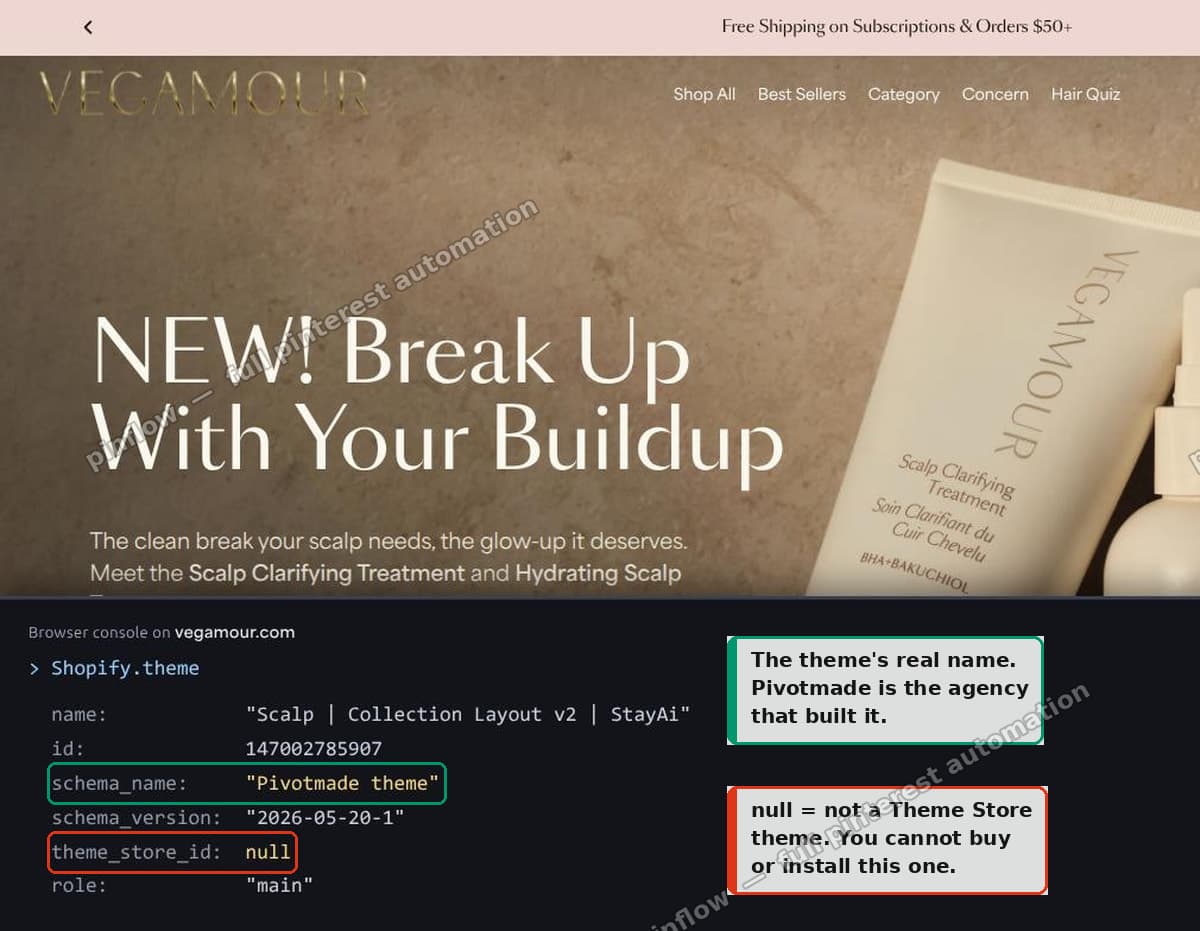 The Shopify.theme object on vegamour.com showing schema_name and a null theme_store_id
Two fields do all the work.
schema_name is the base theme, the one the merchant started from. This is the field you actually want. It survives renaming, so a store that renamed its theme to "Homepage v4 FINAL" still reports the real base theme here.
theme_store_id tells you whether you can buy it. Every theme sold in the Shopify Theme Store carries a real numeric ID. Dawn is 887, Impulse is 857, Prestige is 855. If this field is null, the theme is not in the Theme Store, and there is nothing you can go and purchase.
There is also a plain name field. Ignore it. That is whatever the merchant typed in the admin, so it is frequently something like "Copy of copy of live theme" and tells you nothing.
How to read it in ten seconds
Three ways, in order of how fast they are.
With the browser console
Open the store, press F12, click Console, and type:
Shopify.themePress Enter. The object prints out. This is the fastest method and it needs nothing installed.
If you get Shopify is not defined, the site is not a Shopify store at all. That is a useful answer in itself and it is how you tell a genuine Shopify store from a WooCommerce or BigCommerce store wearing a similar layout.
With view-source
If the console feels fiddly, open the page source directly. In your browser, put view-source: in front of the URL:
view-source:https://example.comThen use Ctrl+F to search for Shopify.theme. Same information, no console.
With curl, from the terminal
This is the one I use, because it works on stores that are password protected and it gives you a clean one-line answer:
curl -sL -A "Mozilla/5.0" https://example.com/ | grep -oE 'Shopify\.theme[^;]*'The -A "Mozilla/5.0" matters. Some stores return a stripped-down page to requests that do not send a browser user agent.
This works even on stores showing an "Opening soon" password page, because the theme object is injected before the password gate.
Why theme detector tools get it wrong
Free theme detector sites mostly work by pattern matching. They look for filenames, CSS class names, or asset paths that a known theme uses, and they report the closest match.
That approach breaks in three specific ways, and all three are common.
A renamed theme fools the ones that read name instead of schema_name. Merchants rename themes constantly. If a detector reports "Copy of Dawn 2024 live", it read the wrong field.
A heavily customised theme reports its parent, which is right, but the detector reports what it looks like, which is wrong. These are different questions and detectors tend to conflate them.
A custom theme has no match at all, so a detector that always returns an answer will return a wrong one. This is the failure mode in the vegamour thread. Two people correctly identified the theme as a custom Pivot build. A tool that insists on naming a Theme Store theme would have said Dawn, and sent the merchant off to buy something that is not what they are looking at.
Reading Shopify.theme yourself avoids all three, because you are reading what the store reports about itself rather than what a heuristic guesses.
When the answer is a custom theme
This is the outcome you are trying to avoid and it is very common on large stores.
On vegamour.com, schema_name is "Pivotmade theme" and theme_store_id is null. That combination means: an agency built this, it is not for sale, and no amount of searching the Theme Store will turn it up.
At that point most threads stop. But the source tells you more, and this is where the ten second check turns into something actionable.
Look at which custom elements the page registers. Modern Shopify themes are built out of web components, and the set of components a theme defines is close to a fingerprint of what it was forked from.
On vegamour, the cart and product JavaScript is still Dawn's, structurally untouched. The page registers <variant-selects>, <variant-radios>, <quantity-input>, <product-form>, <cart-items> and <cart-drawer>, and Dawn's own trapFocus and fetchConfig helpers are still in the bundle.
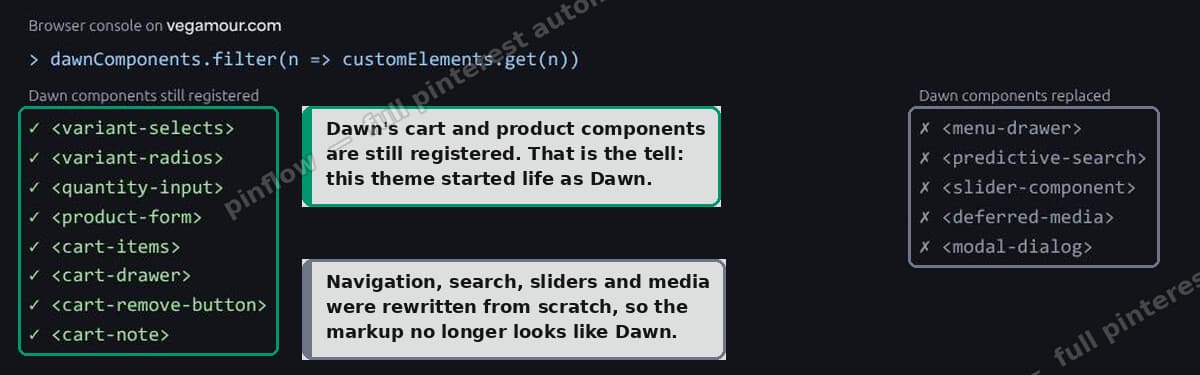 Dawn custom elements still registered on vegamour.com
What has been replaced is the navigation, search, slider and media layer. Those are gone and rewritten.
So the real answer to "what theme is this" is not "Pivotmade theme". It is: this is a Dawn fork with a custom navigation and media layer. And that answer is genuinely useful, because it tells you to start from Dawn, which is free, and spend your budget on the parts they actually rebuilt.
You can check this yourself:
curl -sL -A "Mozilla/5.0" https://example.com/ \
  | grep -oE 'customElements\.define\("[^"]+"' | sort -u
Compare the output against a stock Dawn store. What matches is inherited. What is missing was replaced.
Reading the rest of the fingerprint
While you have the page source open, a few other things are worth pulling out.
The asset path reveals the theme's internal ID:
curl -sL -A "Mozilla/5.0" https://example.com/ \
  | grep -oE '/cdn/shop/t/[0-9]+/assets/[^"?]+' | sort -u
The number after /t/ is the theme's position in that store's theme list. More usefully, the filenames tell you a lot. A store running stock Dawn serves base.css, global.js, product-info.js. A store running Horizon serves entirely different filenames. Custom builds usually serve one large bundled file with a hash in the name.
schema_version tells you how current they are. A store on Dawn 2.0.0 is running a build from years ago. If you are copying an approach from them, check that it still applies to the current version.
The theme_store_id, when it is not null, is directly linkable. Put it into this URL to land on the theme's Theme Store page:
https://themes.shopify.com/themes?id=887Common questions
Does this work on password protected stores?
Yes. The theme object is injected before the password gate renders, so curl still returns it. You will not be able to see the live storefront, but you get the theme name.
Can a merchant hide Shopify.theme?
Not through any setting. A theme could in principle delete the object with JavaScript after page load, which is why the curl method is more reliable than the console method: curl reads the raw HTML before any script has run.
The store says schema_name Dawn but it looks nothing like Dawn.
That is normal and it is the most useful answer you can get. Dawn is free, and a lot of very polished stores are Dawn underneath with heavy section and CSS work on top. It means the layout you admire is achievable without buying anything.
What if there is no Shopify object at all?
The site is not on Shopify. Check for WooCommerce (/wp-content/ in asset paths), BigCommerce (/stencil/), or a headless setup. Headless Shopify is the tricky case: the storefront is a custom frontend hitting Shopify's API, so there is no theme to detect because there is no theme.
Is theme_store_id: null always a custom theme?
Almost always, but there is one other case. A Theme Store theme that was downloaded and re-uploaded as a ZIP file loses its store ID, so it reports null even though it started as a purchasable theme. If schema_name matches a theme you can find in the Theme Store, that is what happened.
If it did not work
Shopify is not defined in the console. Either the site is not Shopify, or you ran it before the page finished loading. Reload and try again.
curl returns nothing. Add the user agent flag. Some stores and most CDNs return a challenge page to bare requests. If it still returns nothing, the store may be behind bot protection, in which case use the browser console instead.
You get a theme name that does not exist in the Theme Store. Check theme_store_id. If it is null, that is expected and the theme is custom. Move on to the custom elements check to find the parent.
Two stores report the same schema_name but look completely different. That is the correct outcome, not an error. The theme is the starting point, not the finished site. Most of the visual difference between two Dawn stores is sections, settings and CSS.
The distinction that trips people up
Three things get called "the theme" in these threads and they are not the same:
The base theme is what schema_name reports. This is what you would buy or download to start from the same place.
The published theme name is what name reports. This is a label the merchant typed. It has no technical meaning.
The design is what you can actually see, and it is base theme plus settings plus sections plus custom CSS plus, often, a rewritten JavaScript layer. Only the first part is purchasable.
When someone asks "which theme is this store using", they usually want the third one and can only be given the first. Being explicit about that gap is more helpful than naming a theme and letting them find out later.
What I would do next
Read Shopify.theme on the store you are interested in. If theme_store_id is a number, you are done, go buy that theme.
If it is null, run the custom elements check to find the parent theme, then start there. In the vegamour case that means starting from Dawn, free, and treating the navigation and media work as the custom part it actually is.
Either way it is a ten second check that replaces a fifteen post forum thread of guesses.
Doing the same lookup on fifty stores by hand?
PinFlow automates the repetitive part of running a Shopify store, turning your catalog into Pinterest pins and posting them on a schedule. Same principle as the check above: let the machine read the data.
Get PinFlow on the Shopify App StoreMore Shopify fixes
More community-sourced Shopify guides, tested on a live store.
Themes & Storefront
Shopify Anchor Link: Button That Scrolls to a Section
Link a Shopify button to a section lower on the same page with an anchor link. Steps for the theme editor, no code files, plus the fix for a title hidden under the header.
Themes & Storefront
Shopify Social Media Icons: Add a Custom Icon and Link
Set your social links in Shopify theme settings, see why icons do not show, and swap in your own icon for a network the theme does not list.
Themes & Storefront
Sticky Add to Cart Button in Shopify Dawn, No App
Pin the Add to cart button and its delivery line to the bottom of the screen in Shopify Dawn. One free Custom Liquid block, no app, phone and desktop.